Addon google slides iconPPT with AISlide TemplatesPPT TemplatesPricingBlog
    PPT with AISlide TemplatesPPT TemplatesPricingBlog
    Google Slides
    1. Home
    2. Blog
    3. How to Bring an Image Forward in a Google Slides


    How to Bring an Image Forward in a Google Slides

    magicslides app

    Published By

    magicslides app

    Approved By

    Admin

    Published On

    September 4th, 2025

    Reading Time

    3 min read

    Boost your presentation's impact: Learn how to bring an image forward in Google Slides with ease.

    Visual aspects are important in presentations since they help to successfully express your message. Google Slides, a popular presentation tool, allows you to improve your slides by altering the layering of pictures.
    Sometimes, you may want to bring an image to the forefront, making it more prominent. In this guide, we will walk you through the simple steps to achieve this in Google Slides. Whether you're a student, teacher, or professional, these techniques will help you fine-tune your presentations and captivate your audience.

    Steps to Bring an Image Forward in Google Slides:

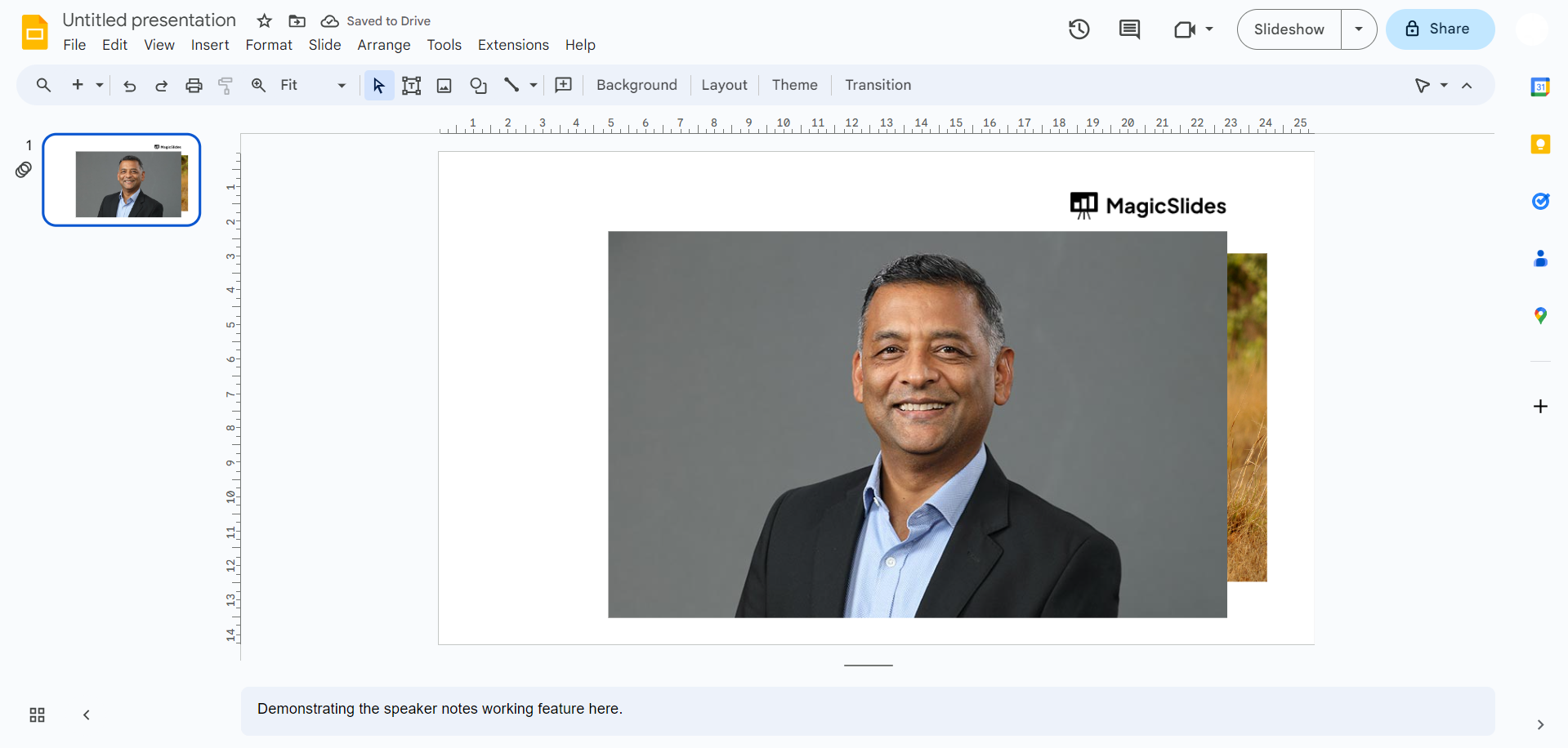
    → Open Google Slides: Start by opening your Google Slides presentation, or create a new one from your Google Drive.
    notion image
    → Select the Slide: Click on the specific slide where you want to adjust the image's layering.
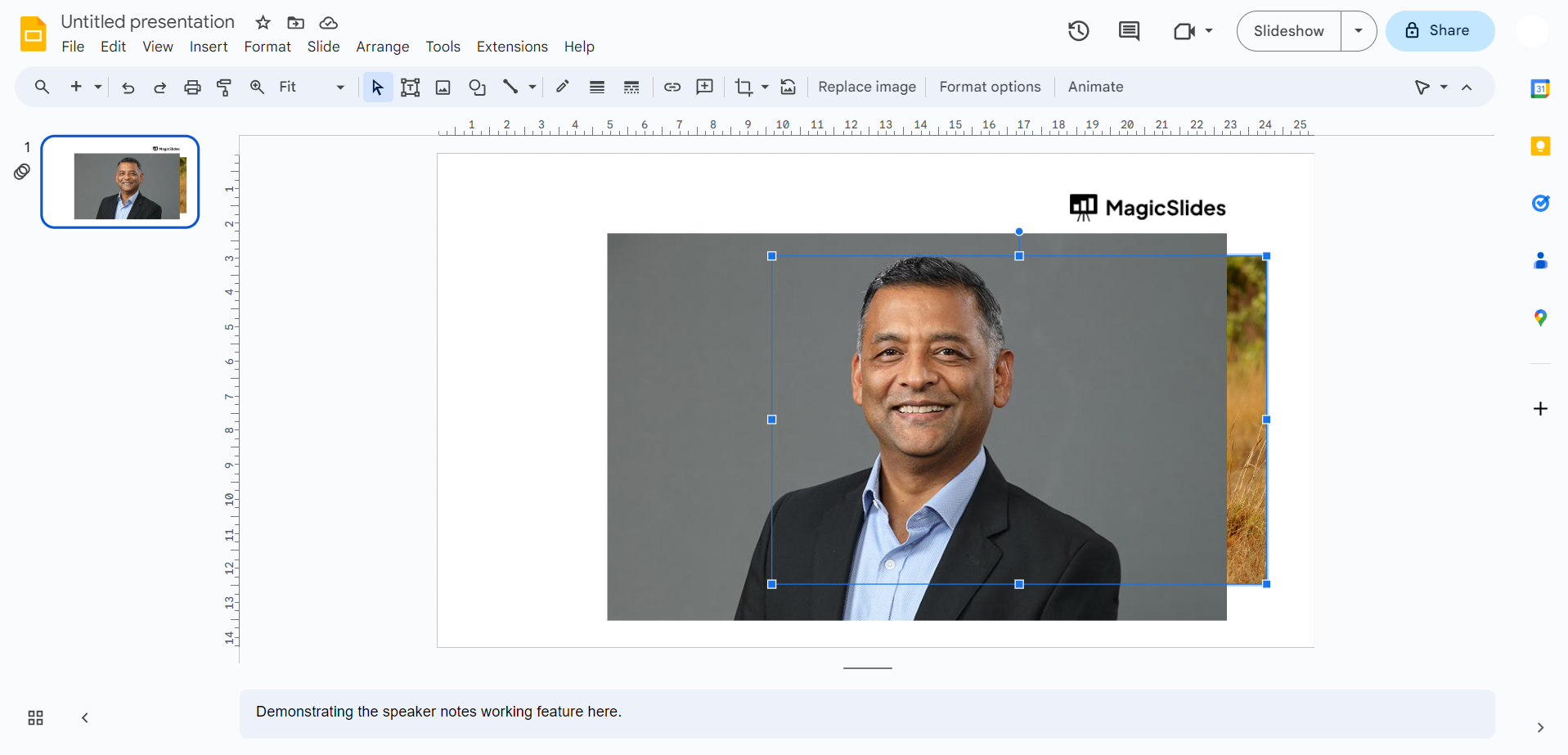
    → Click on the Image: Locate the image you wish to bring forward and click on it to select it.
    notion image
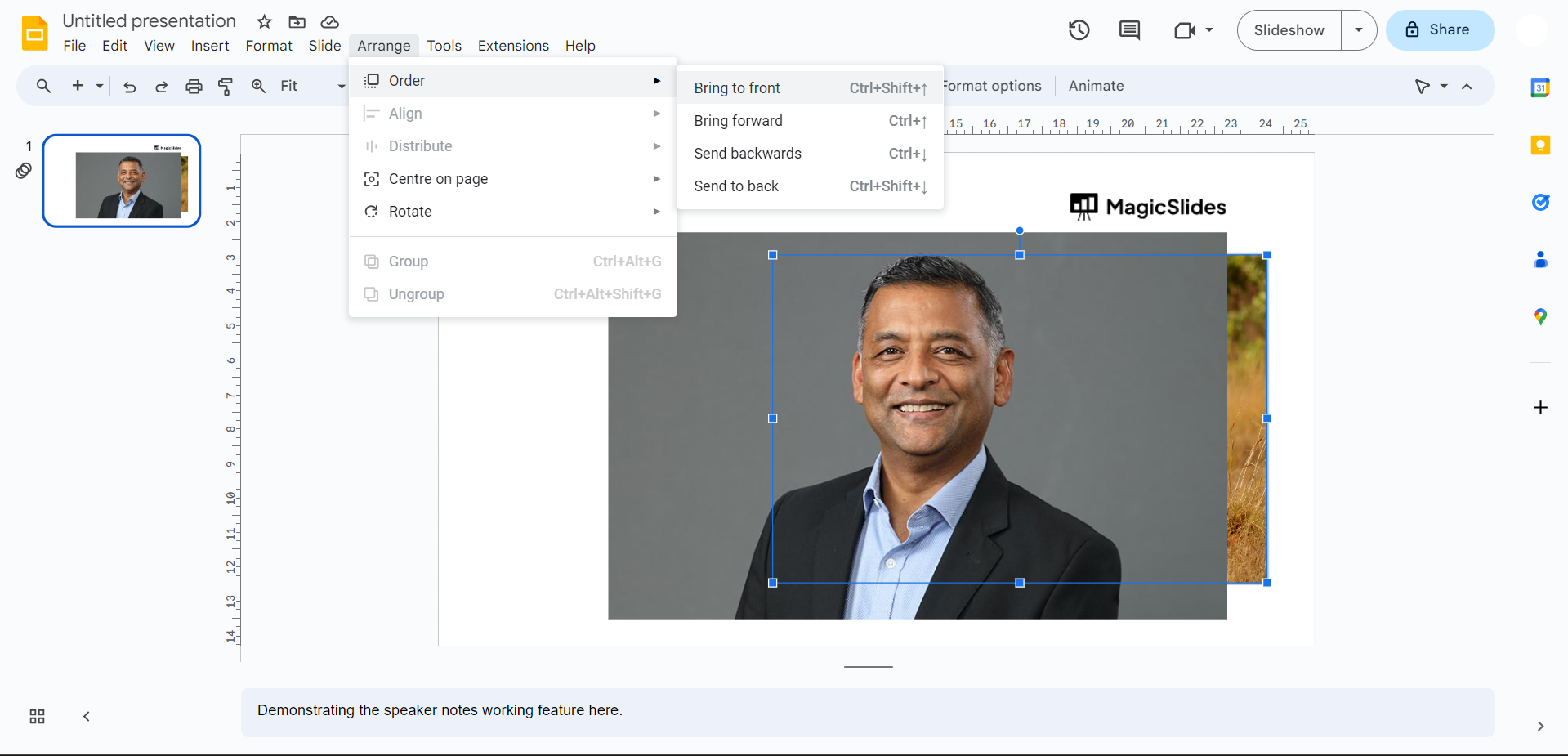
    → Access the Arrange Menu: In the top menu, find the "Slide" option, which opens a dropdown menu.
    → Choose "Arrange": In the dropdown menu, locate and select "Arrange." This action opens a submenu with options for arranging objects on the slide.
    notion image
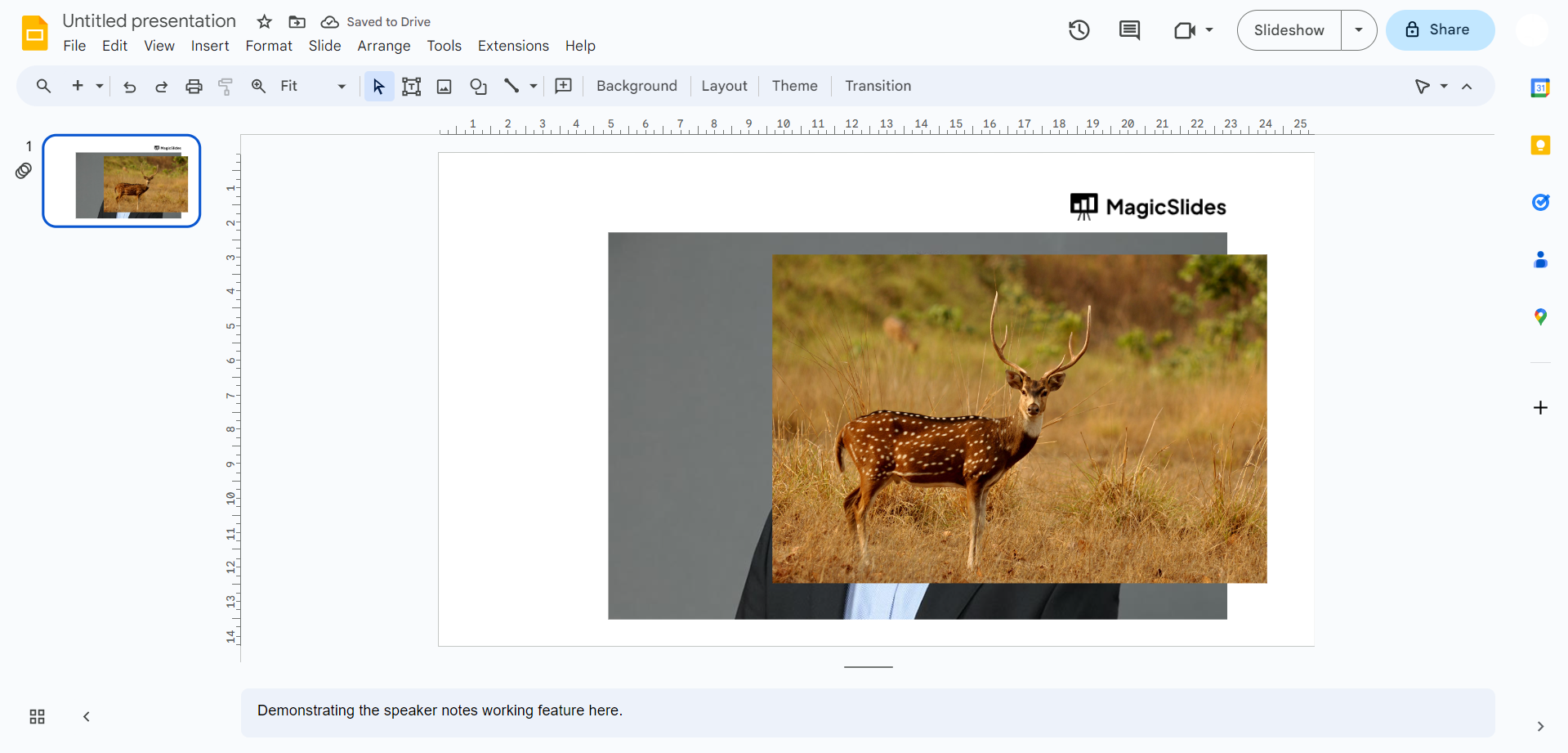
    → Click "Move Forward": Within the "Arrange" submenu, you'll find "Move forward." Click on this option to bring the selected image one layer forward.
    notion image
    → Save Your Presentation: Don't forget to save your presentation to preserve your changes.

    Conclusion:

    Your Google Slides presentations are about to get a visual upgrade with the ability to control the layering of images. Adjusting the positioning of images is a valuable skill when you want to emphasize certain content, create overlays, or improve the overall aesthetics of your slides. This process is remarkably straightforward and user-friendly, making it accessible to everyone, regardless of their level of expertise.
    By following the steps outlined in this guide, you can effortlessly bring an image forward in your Google Slides presentation, ensuring that your visuals shine and your message is conveyed with precision.
    Whether you're a student crafting an engaging school project or a professional delivering a persuasive business pitch, these techniques will help you make the most of your presentation and captivate your audience. Master the art of layering, and watch your slides come to life.

    Frequently Asked Questions:

    Why would I need to bring an image forward in Google Slides?
    Answer: Bringing an image forward helps emphasize important visuals and create a more visually engaging presentation.
    Can I adjust the layering of multiple images on a single slide?
    Answer: Absolutely, you can bring forward or send backward any number of images within a single slide.
    Are there limits to how many layers I can create within a slide?
    Answer: While there's no fixed limit, too many layers may clutter your slide; it's best to keep it visually appealing.
    What if I accidentally move an image too far forward? Can I reverse it?
    Answer: Yes, you can easily send the image backward by selecting "Move backward" from the "Arrange" menu.
    Will these layering adjustments affect the image's quality?
    Answer: No, adjusting layering won't impact an image's quality; it only changes its position on the slide.
     

    Share on socials

    About the author

    Ayan Ahmad Fareedi profile photo
    Ayan Ahmad Fareedi— writer at MagicSlides

    Ayan Ahmad is our Senior Writer and brings over two years of experience from working with big companies like Amazon and Okaya. He loves writing stories that grab your attention and speak to a wide audience. When he's not working, you can find him watching movies or planning his next trip. Ayan's work is not just about words; it's about making every article special and interesting.

    More from Ayan

    More from the blog

      250+ Good Morning Messages for Her (Romantic, Deep, Cute & Sweet)

      28 January 2026

      50+ History Presentation Topics For 2026

      28 January 2026

      How to Add Music to Your Canva Presentation: A Step-by-Step Guide

      27 January 2026

      15 Quick Tips To Use ChatGpt At Work

      22 January 2026

      11 Best AI Tools for Business in 2025

      22 January 2026

      How to Create an Infographic That Clearly Communicates Your Message

      20 January 2026

      How to Create a Sales Presentation Template in Google Sheets

      20 January 2026

      How to Make a Pie Chart on Google Slides in Simple Steps

      19 January 2026

      How to Change Slide Size in PowerPoint in 5 Steps

      15 January 2026

    Table of Contents

    Create Presentations in Seconds

    Transform your ideas into professional presentations with AI. No design skills needed.

    Try MagicSlides Free

    Create Stunning Presentations with AI in Seconds ✨

    Transform any topic, text, YouTube video, PDF or URL into beautiful presentations instantly with MagicSlides AI.

    Try MagicSlides AI Presentation Maker
    MagicSlides AI Presentation

    Footer

    Solutions

    • MagicSlides App
    • Google Slides Add-on
    • MagicSlides in Chrome
    • MagicSlides in Figma
    • MagicSlides in ChatGPT
    • MagicSlides in Telegram
    • MagicSlides in Zapier
    • MagicSlides in Figma Slides

    Tools

    • AI PPT Tools
    • QR Code Generator
    • Design Tools
    • PPT Templates
    • Slide Templates
    • PDF Tools

    Examples

    • AI Presentations
    • PPT by MagicSlides
    • Quizzes
    • Charts
    • Coloring Pages

    Resources

    • Changelog
    • Documentation
    • API Docs

    Top Blogs

    • How to Create Presentation Using ChatGPT
    • 100+ Best Seminar Topics for Students in 2025

    Company

    • Help
    • MCP
    • Blog
    • Pricing
    • Affiliate Program
    • Manage Subscription
    • Privacy Policy
    • Contact Us
    • Terms & Conditions
    • Refund & Cancellation Policy

    We also built

    • SheetAI - GPT For Sheets
    • MagicForm - GPT For Google Forms
    • SecondBrain.fyi
    • BlogBee - Free Blogging Platform

    © 2026 IndianAppGuy Tech Pvt Ltd. All rights reserved.