Addon google slides iconPPT with AISlide TemplatesPPT TemplatesPricingBlog
    PPT with AISlide TemplatesPPT TemplatesPricingBlog
    1. Home
    2. Blog
    3. How to change background color on Google Slides


    How to change background color on Google Slides

    magicslides app

    Published By

    magicslides app
    Mohit Kumar Jha

    Approved By

    Mohit Kumar Jha

    Published On

    July 23th, 2024

    Reading Time

    3 min read

    Elevate your Google Slides with vibrant backgrounds! Follow this guide for easy background color customization.

    Adding a splash of color to your Google Slides presentation can significantly enhance its visual appeal. Whether you want to create a cohesive theme or highlight specific content, changing the background color is a simple yet impactful design choice. In this guide, we'll walk you through the step-by-step process, empowering you to effortlessly customize the background colors in your Google Slides presentation.

    How to change background color on Google Slides

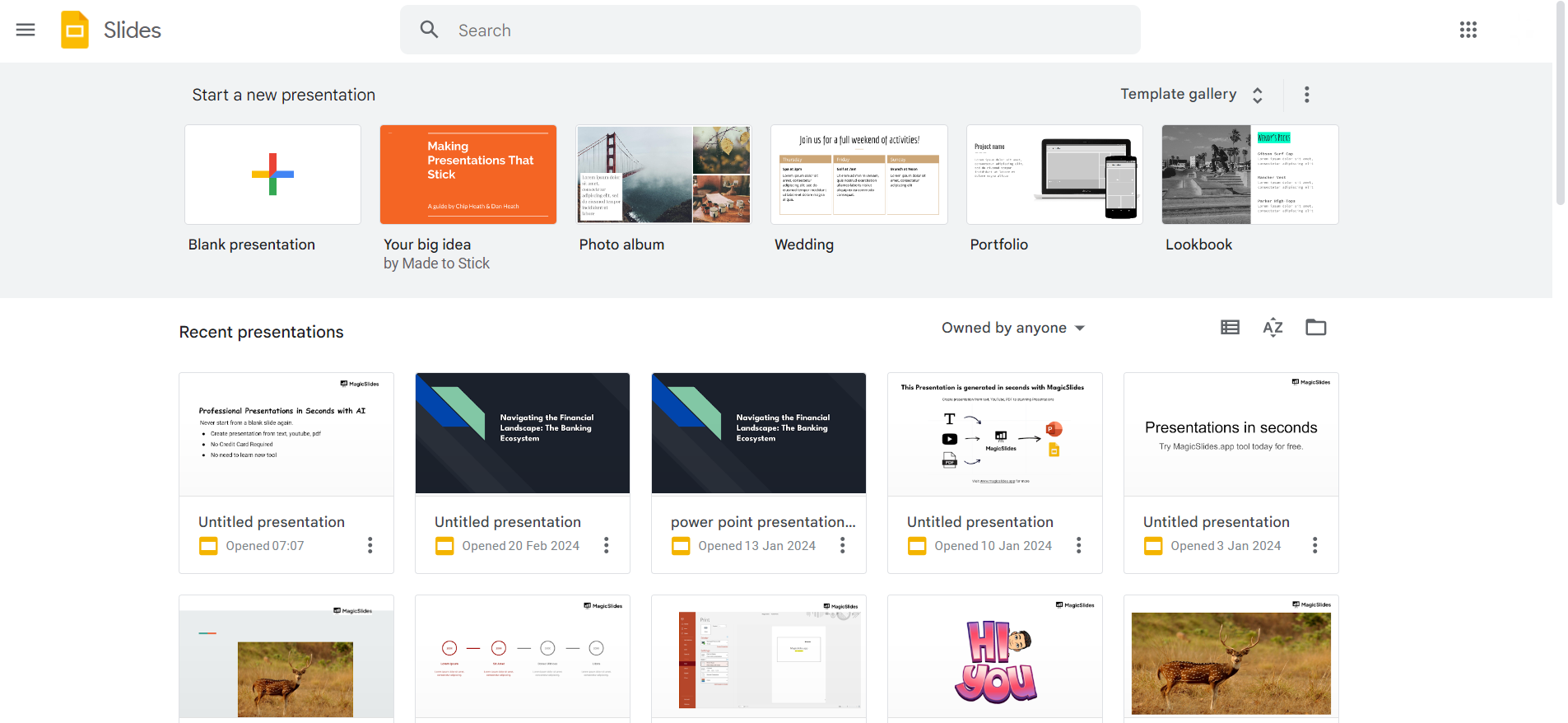
    Open Your Presentation:

    Begin by opening the Google Slides presentation you want to customize. Ensure you are signed in to your Google account.
    notion image

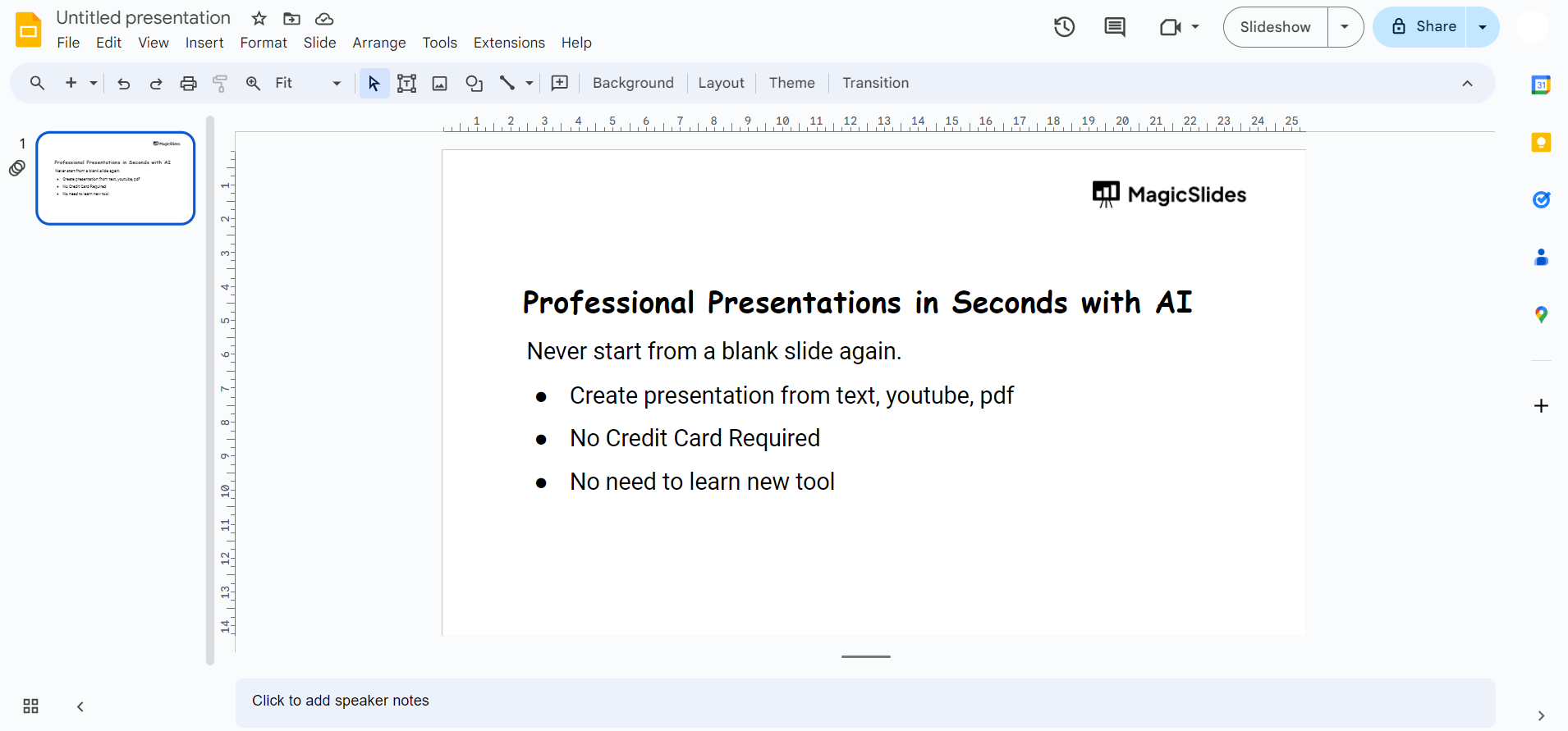
    Select the Slide:

    Click on the slide to which you want to apply the new background color. If you want to change the color for all slides, you can skip this step.
    notion image

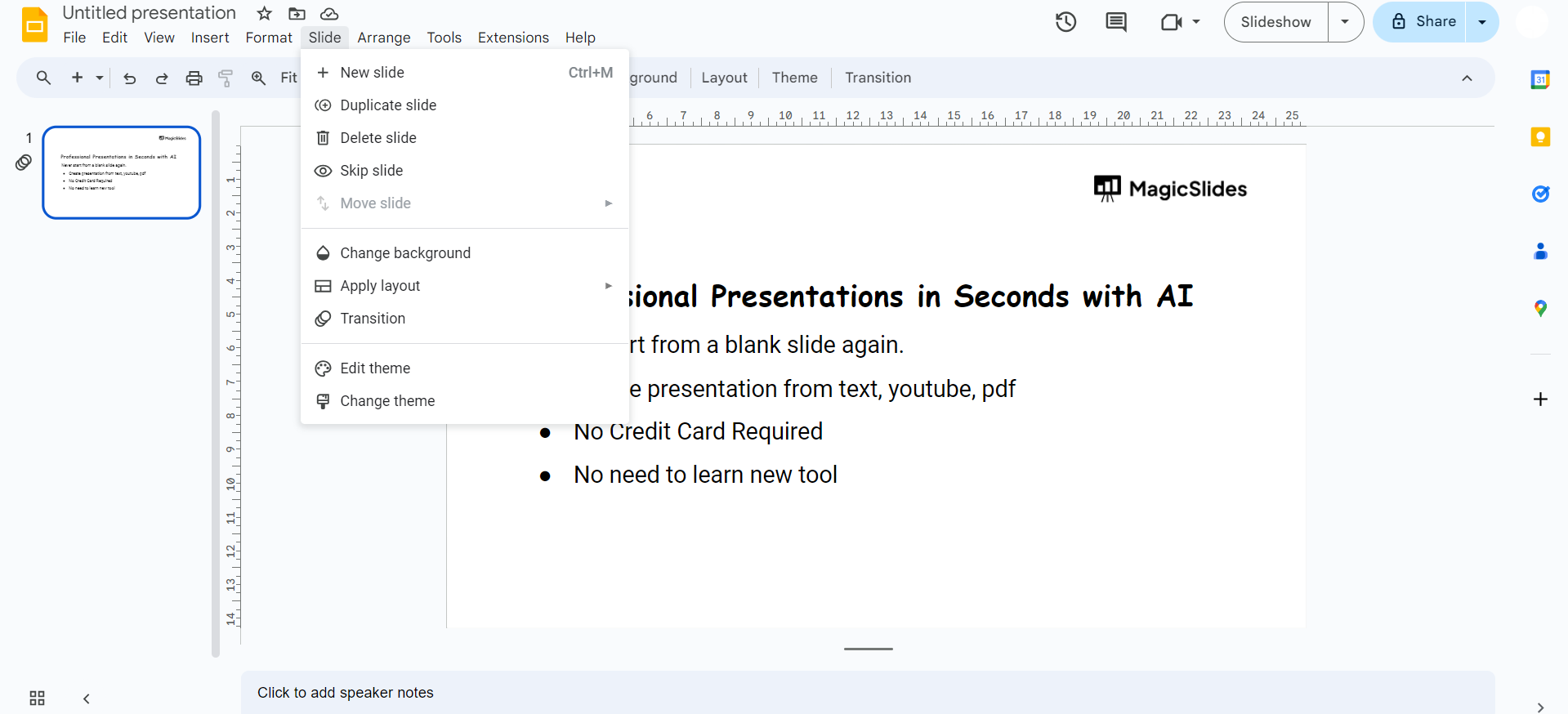
    Access the Slide Menu:

    In the top left corner, click on the "Slide" menu.
    notion image

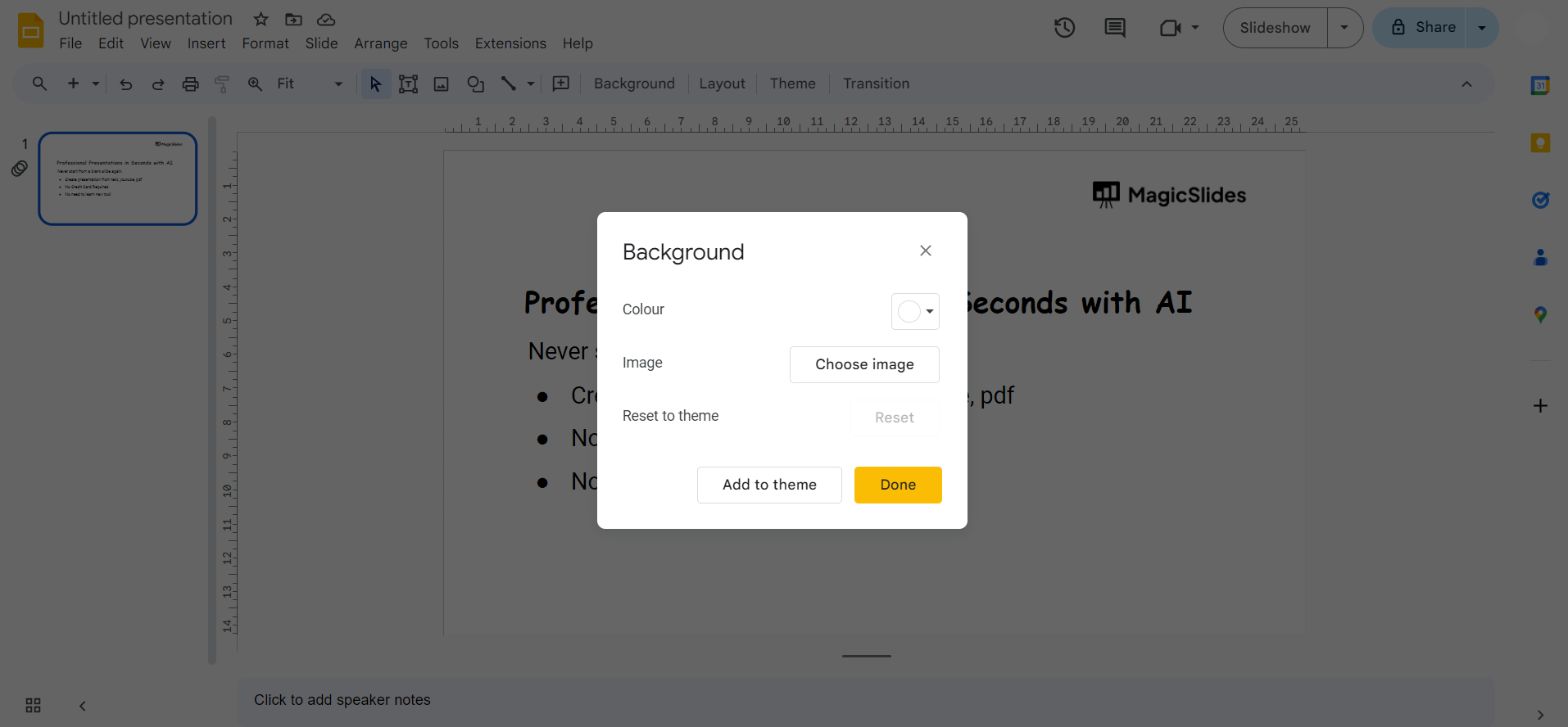
    Choose "Background":

    From the dropdown menu, select "Background." This option allows you to modify the background settings for the chosen slide.
    notion image

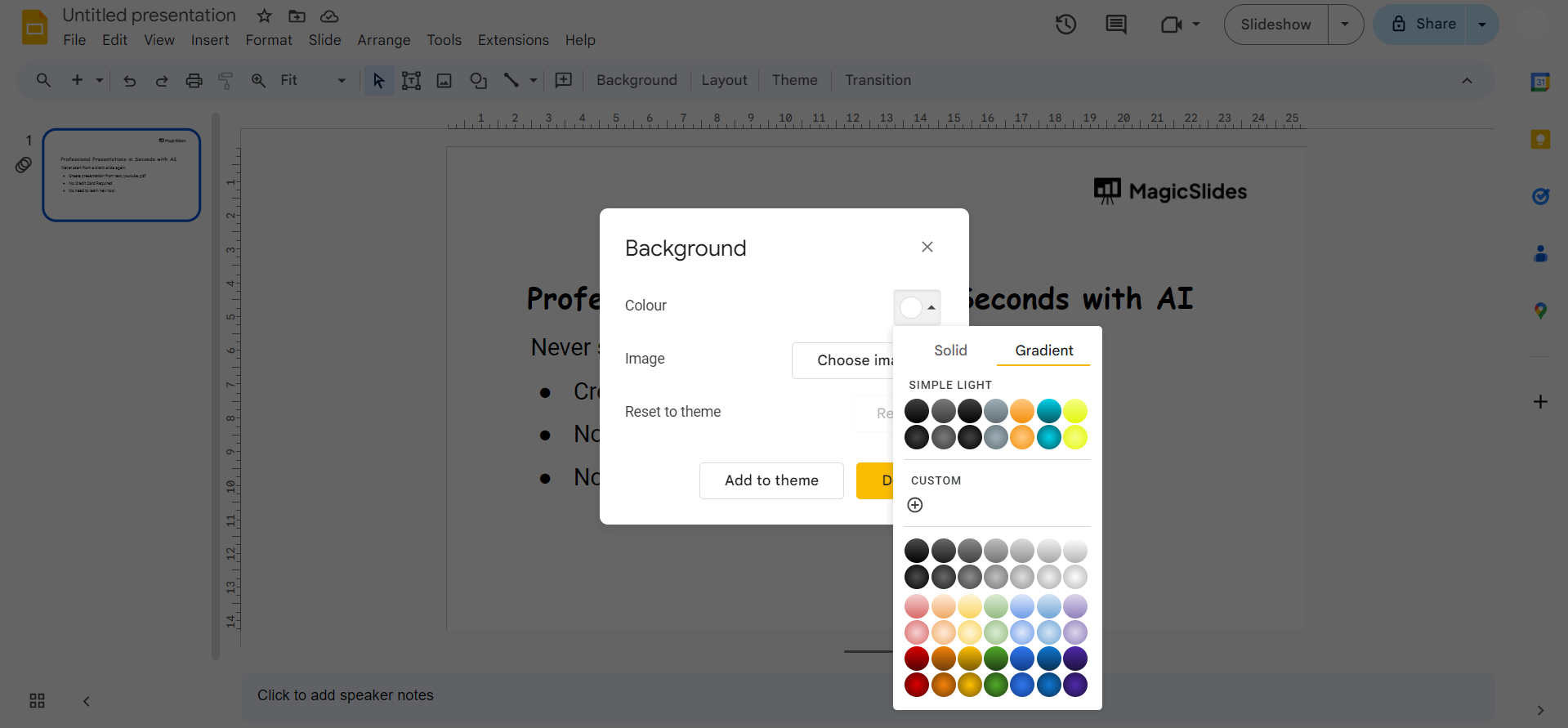
    Pick a Color:

    Click on the "Color" dropdown menu to choose a background color. You can select from predefined theme colors or create a custom color.
    notion image

    Apply Changes:

    After selecting the desired color and making any additional adjustments, click "Apply" to confirm the changes to the background.

    Apply Changes to All Slides (Optional):

    If you want to apply the same background color to all slides, click "Apply to all slides" before finalizing your changes.

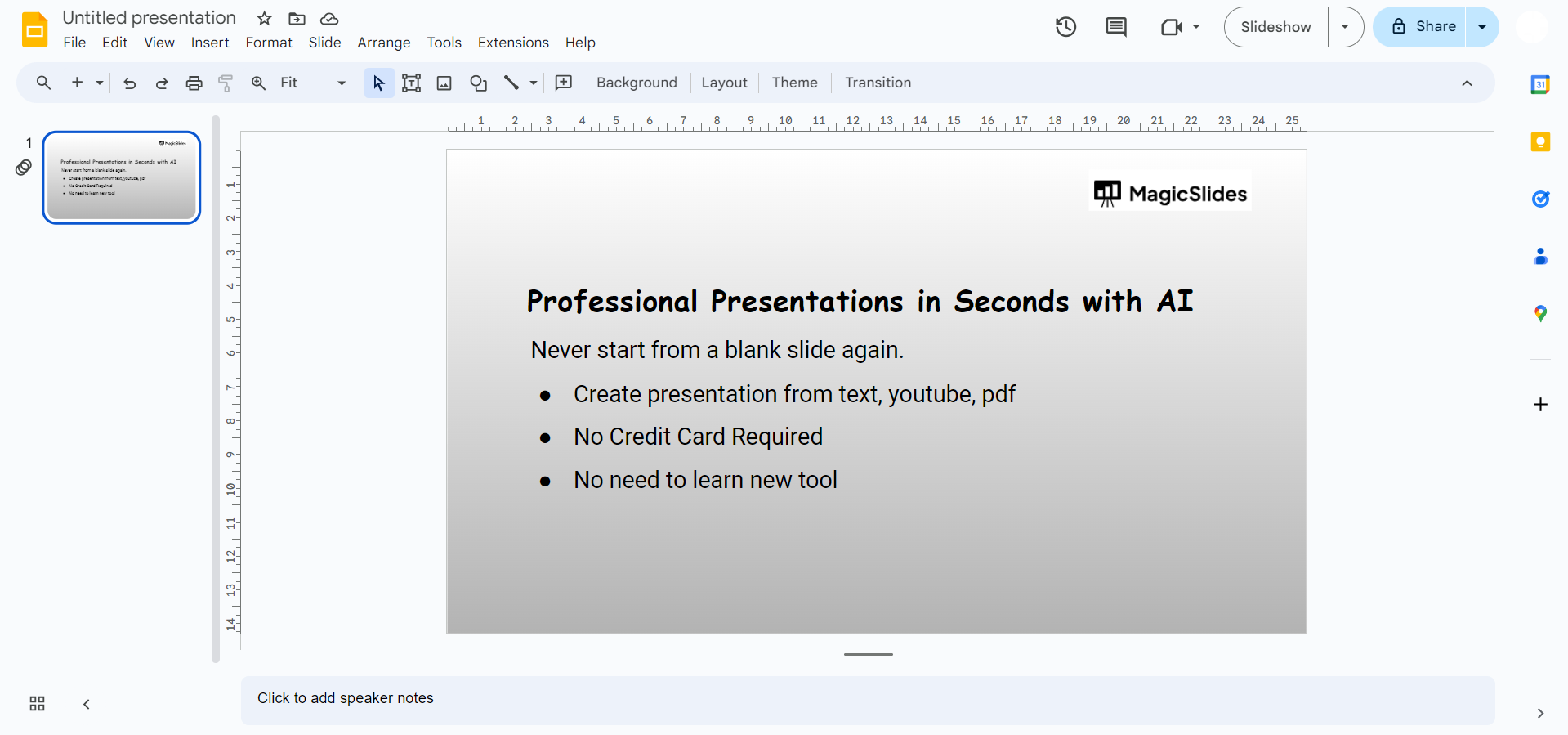
    Preview Your Presentation:

    Click on the "Present" button to preview your slides and ensure the background colors align with your overall design.
    notion image

    Conclusion:

    Changing background colors in Google Slides is a simple yet effective way to infuse your presentations with personality and visual flair. By following these straightforward steps, you can tailor the background colors to match your content, create emphasis, or establish a cohesive theme. Experiment with different color combinations to find the perfect palette that resonates with your audience, ensuring your Google Slides presentations leave a lasting and visually stunning impression. Master the art of color customization and transform your presentations into engaging visual experiences.

    Frequently Asked Questions:

    Can I use images as background in Google Slides?

    Google Slides primarily supports solid colors as backgrounds, but you can insert images and arrange them.

    Will changing the background color affect text visibility?

    Choose contrasting colors to maintain text visibility; test readability after adjusting the background for clarity.

    How do I reset the background color to default?

    In the "Background" menu, choose "Reset" to revert to the default white background for a clean slate.

    Can I customize backgrounds in the Google Slides mobile app?

    Basic background color changes can be made in the mobile app, but advanced customization is recommended on desktop.

    Share on socials

    About the author

    Sanskar Tiwari profile photo
    Sanskar Tiwari— Founder at MagicSlides

    Sanskar is Founder at IAG Tech, For the past 3 years sanskar have build more than 24+ products, taught 100k students how to code.

    More from Sanskar

    More from the blog

      250+ Good Morning Messages for Her (Romantic, Deep, Cute & Sweet)

      30 January 2026

      200+ Heart Touching Birthday Wishes for Sister (Short, Funny and More)

      29 January 2026

      50+ History Presentation Topics For 2026

      28 January 2026

      How to Add Music to Your Canva Presentation: A Step-by-Step Guide

      27 January 2026

      15 Quick Tips To Use ChatGpt At Work

      22 January 2026

      11 Best AI Tools for Business in 2025

      22 January 2026

      How to Create an Infographic That Clearly Communicates Your Message

      20 January 2026

      How to Create a Sales Presentation Template in Google Sheets

      20 January 2026

      How to Make a Pie Chart on Google Slides in Simple Steps

      19 January 2026

    Table of Contents

    Create Presentations in Seconds

    Transform your ideas into professional presentations with AI. No design skills needed.

    Try MagicSlides Free

    Create Stunning Presentations with AI in Seconds ✨

    Transform any topic, text, YouTube video, PDF or URL into beautiful presentations instantly with MagicSlides AI.

    Try MagicSlides AI Presentation Maker
    MagicSlides AI Presentation

    Footer

    Solutions

    • MagicSlides App
    • Google Slides Add-on
    • MagicSlides in Chrome
    • MagicSlides in Figma
    • MagicSlides in ChatGPT
    • MagicSlides in Telegram
    • MagicSlides in Zapier
    • MagicSlides in Figma Slides

    Tools

    • AI PPT Tools
    • QR Code Generator
    • Design Tools
    • PPT Templates
    • Slide Templates
    • PDF Tools

    Examples

    • AI Presentations
    • PPT by MagicSlides
    • Quizzes
    • Charts
    • Coloring Pages

    Resources

    • Changelog
    • Documentation
    • API Docs

    Top Blogs

    • How to Create Presentation Using ChatGPT
    • 100+ Best Seminar Topics for Students in 2025

    Company

    • Help
    • MCP
    • Blog
    • Pricing
    • Affiliate Program
    • Manage Subscription
    • Privacy Policy
    • Contact Us
    • Terms & Conditions
    • Refund & Cancellation Policy

    We also built

    • SheetAI - GPT For Sheets
    • MagicForm - GPT For Google Forms
    • SecondBrain.fyi
    • BlogBee - Free Blogging Platform

    © 2026 IndianAppGuy Tech Pvt Ltd. All rights reserved.