How to change background graphics in PowerPoint


Learn how to change background graphics in PowerPoint to enhance your presentation’s visual appeal easily
Changing background graphics in PowerPoint is an easy way to enhance your presentations and make them visually engaging.
Whether you're using a solid color, an image, or a patterned background, customizing the background graphics can make your slides more appealing and relevant to your content.
In this guide, I’ll show you how to change background graphics in PowerPoint step by step.
How to Change Background Graphics in PowerPoint: A Step-by-Step Guide
Step 1: Open Your PowerPoint Presentation
Begin by opening the PowerPoint presentation in which you want to change the background graphics.
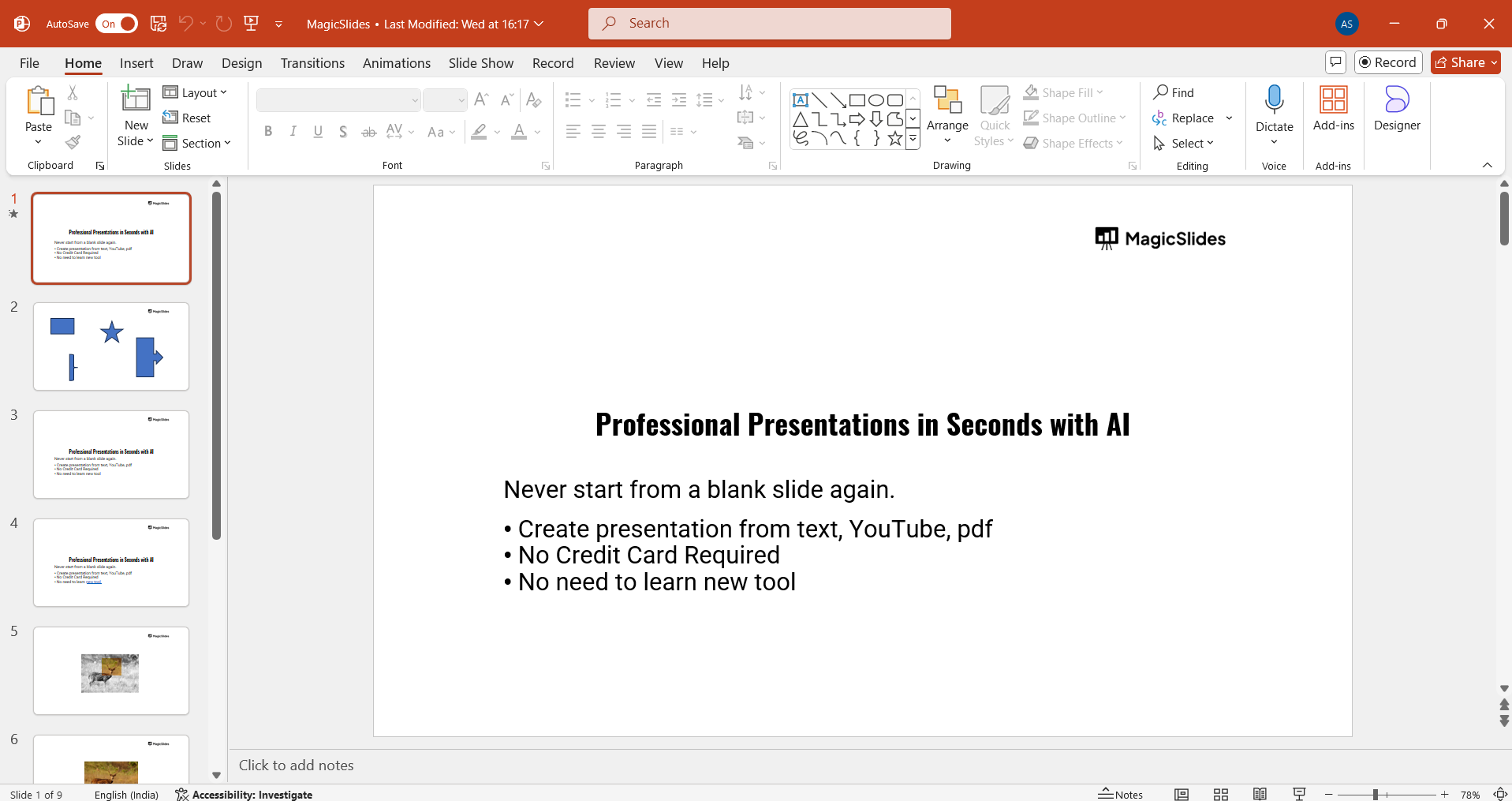
If you’re starting from scratch, create a new presentation and select a blank slide layout.
Step 2: Access the "Design" Tab
Next, navigate to the "Design" tab located on the PowerPoint ribbon at the top of the screen.
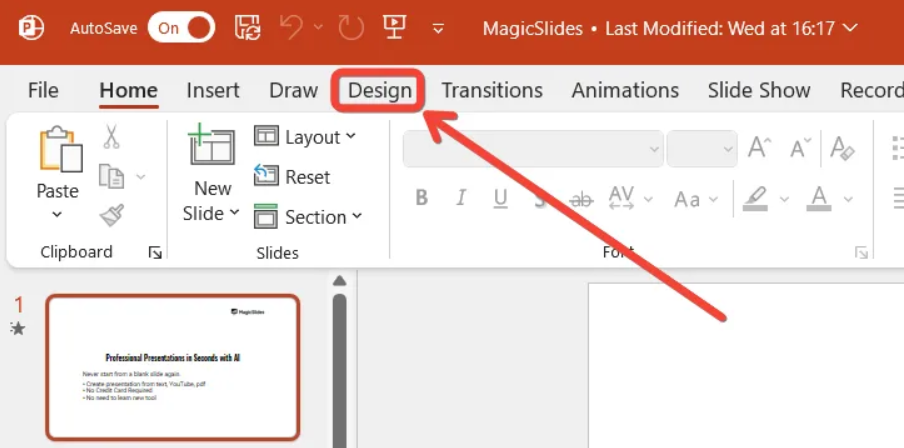
This tab contains various design options, including themes, slide sizes, and background settings.
Step 3: Click on "Format Background"
On the right-hand side of the "Design" tab, you’ll find the “Format Background” option.
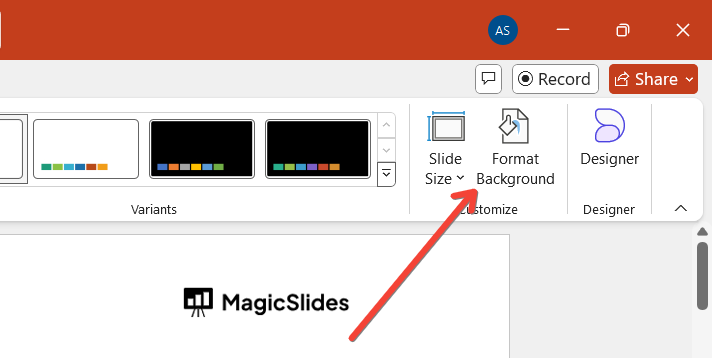
Click on it to open a sidebar where you can choose different background formats, including solid fills, gradients, pictures, patterns, or textures.
Step 4: Select Your Background Type
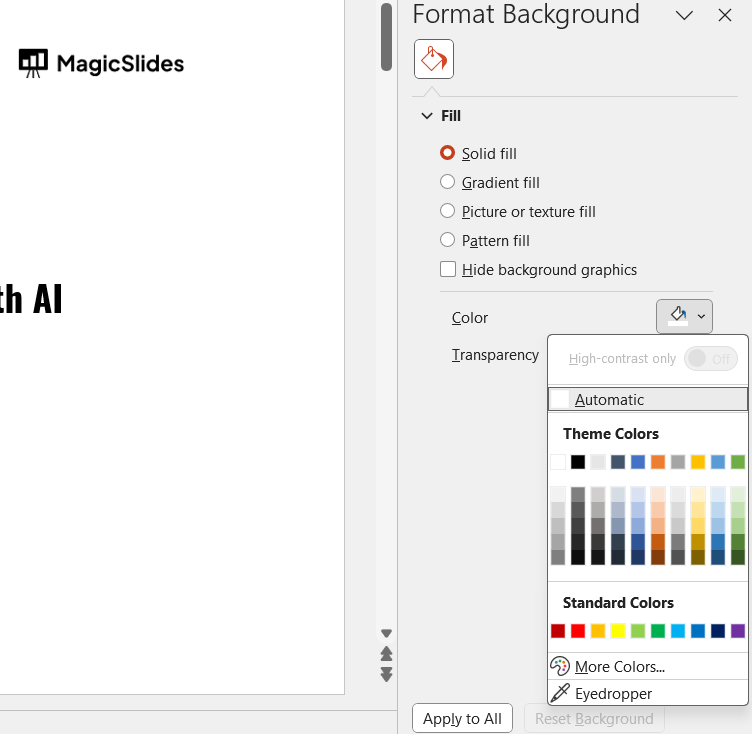
In the "Format Background" sidebar, select the type of background you want to apply.
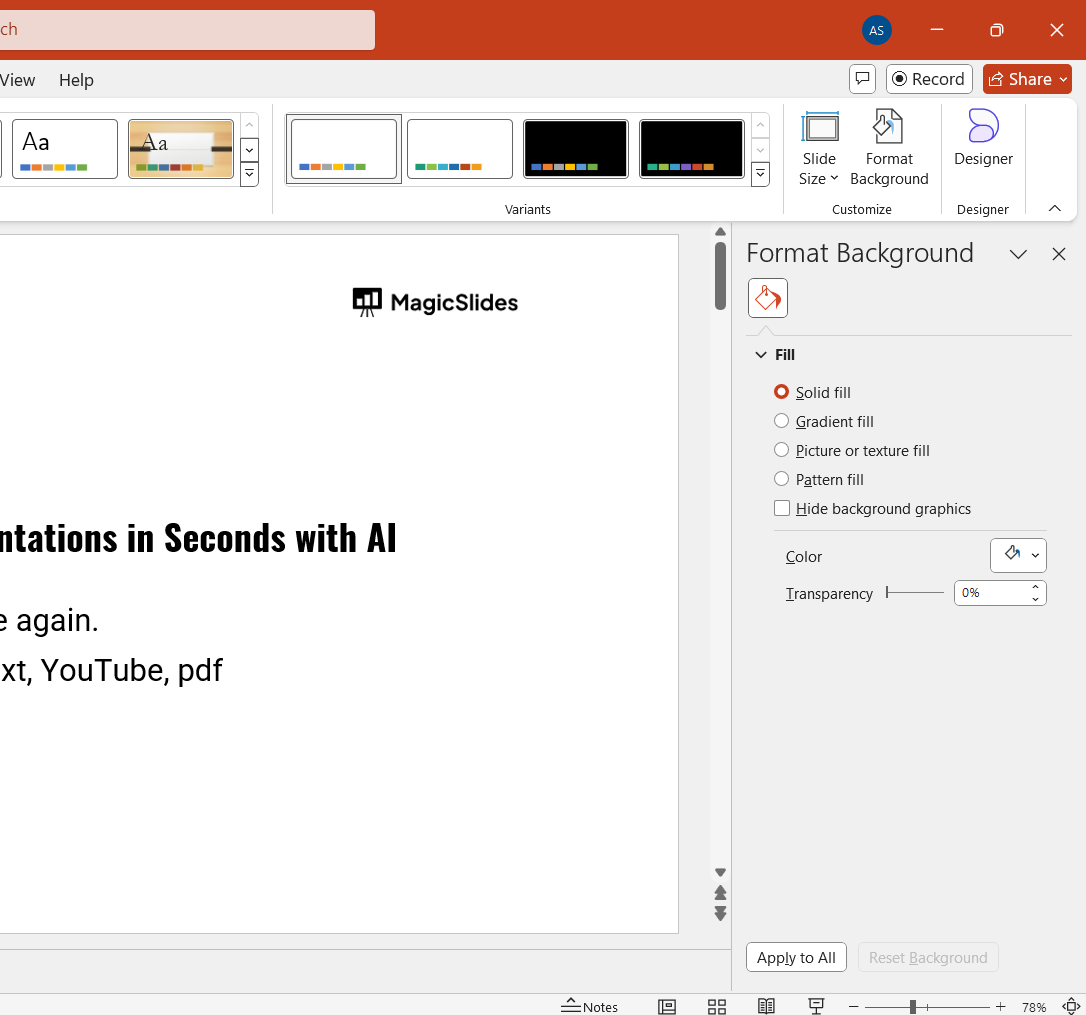
If you want to use a solid color or gradient, choose those options and pick your colors.
If you want to use a picture or graphic, select "Picture or Texture Fill," and click the "Insert" button to upload an image from your computer or online.
Step 5: Apply the Background to Selected or All Slides
Once you’ve chosen your background, you can decide whether to apply it to the current slide or all slides.
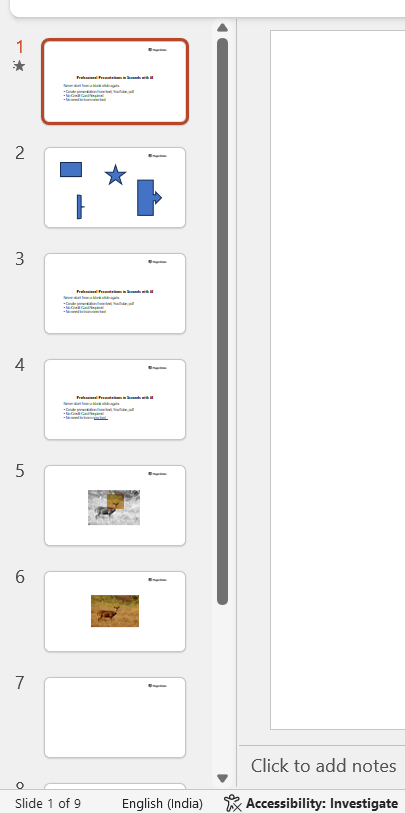
If you want the new background for all slides, click the “Apply to All” button at the bottom of the "Format Background" panel. If not, the changes will only affect the slide you’re working on.
Step 6: Adjust Transparency and Effects (Optional)
If you’re using an image or texture, you can adjust its transparency or add effects to make it blend better with your slide content.
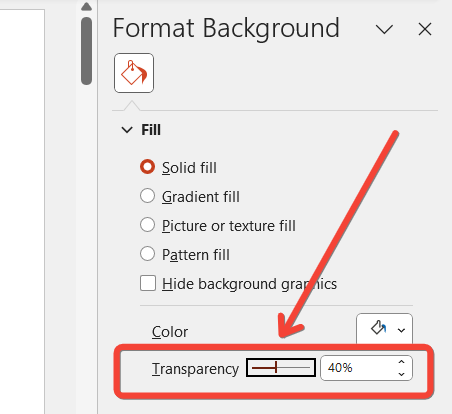
These options are available in the "Format Background" panel, allowing you to tweak how visible or subtle the background graphic appears.
Conclusion
Changing the background graphics in PowerPoint can significantly improve the visual impact of your presentations.
By following these steps, you can easily customize the background to suit your content, whether you're using a solid color, gradient, or image.
This flexibility allows you to create more engaging and professional-looking slides for any audience.
FAQs can come handy!
Can I remove a background graphic after applying it?
Yes, you can remove or change the background graphic by returning to the "Format Background" option and selecting a new background or resetting it to a default theme.
How do I add a company logo as a background graphic in PowerPoint?
You can add a company logo by selecting "Picture or Texture Fill" in the "Format Background" panel and uploading the logo file. Adjust the transparency if needed.
Can I apply different backgrounds to individual slides in the same presentation?
Yes, you can apply unique backgrounds to individual slides by selecting each slide and changing its background settings separately.


