How to change background in PowerPoint


Enhance your PowerPoint slides by mastering the art of changing backgrounds with these simple steps
The background of a PowerPoint presentation sets the tone and visual appeal, making it an essential element in creating engaging slides. Whether you want to use a solid color, gradient, pattern, or even an image, PowerPoint offers a variety of options to customize your presentation background. In this step-by-step guide, we'll walk you through the process of changing the background in PowerPoint, allowing you to effortlessly enhance the overall look and feel of your slides.
How to change background in PowerPoint
Step 1: Open Your PowerPoint Presentation
Launch PowerPoint and open the presentation to which you want to apply a new background. Ensure you're in the slide where you wish to make the changes.
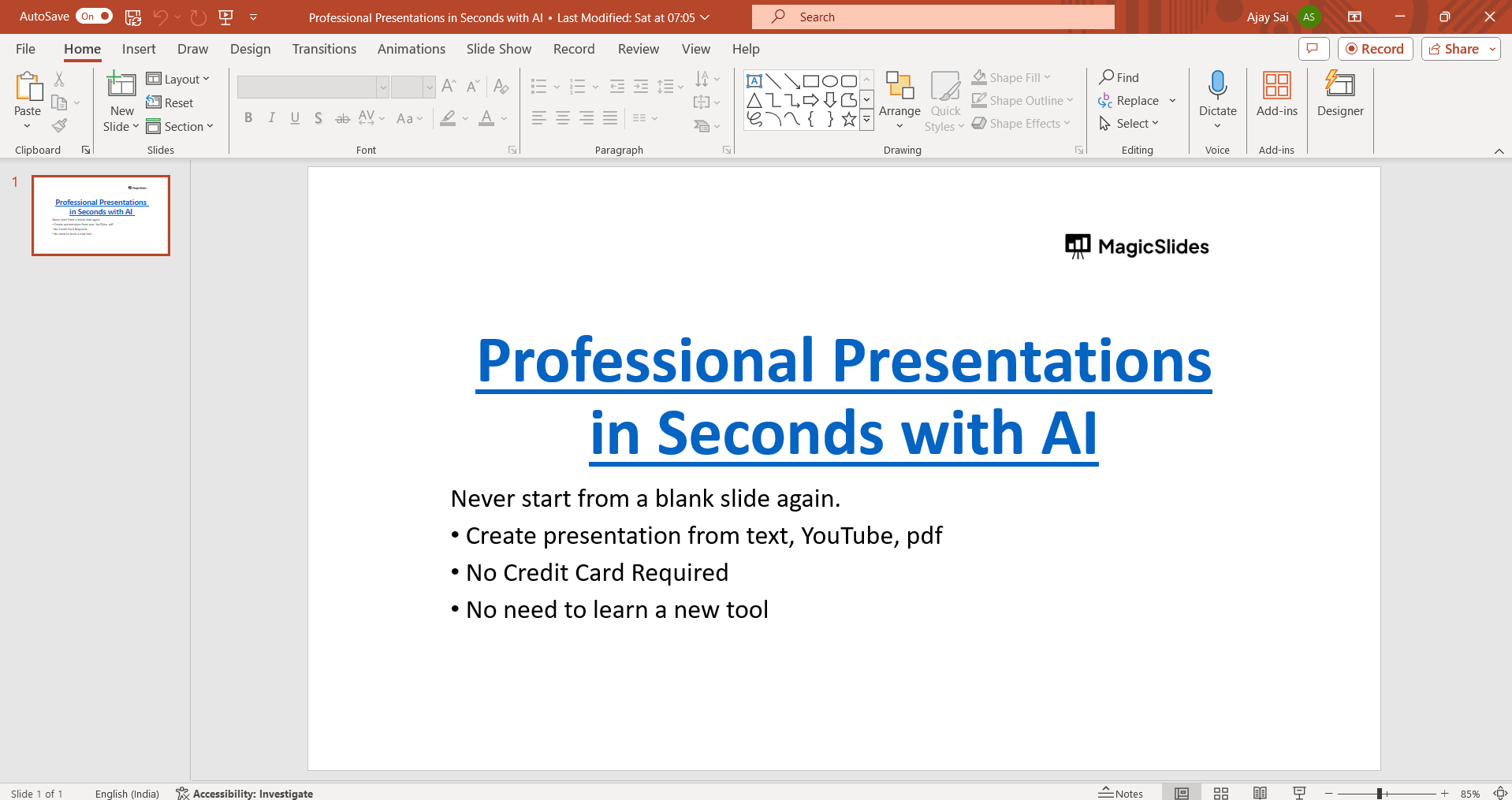
Step 2: Access the Design Tab
Navigate to the "Design" tab located on the PowerPoint ribbon at the top of the screen. This tab contains various design-related options for your slides.
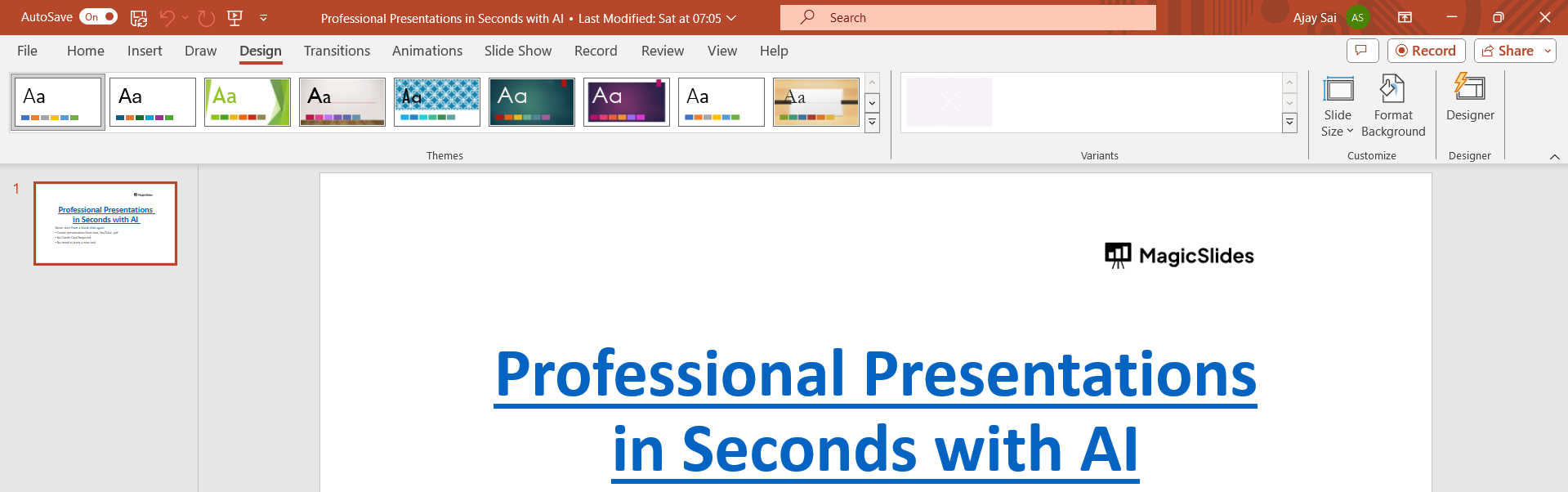
Step 3: Choose a Background Style
In the "Design" tab, locate the "Background" group. Click on the "Background Styles" dropdown menu to reveal a selection of predefined background styles.
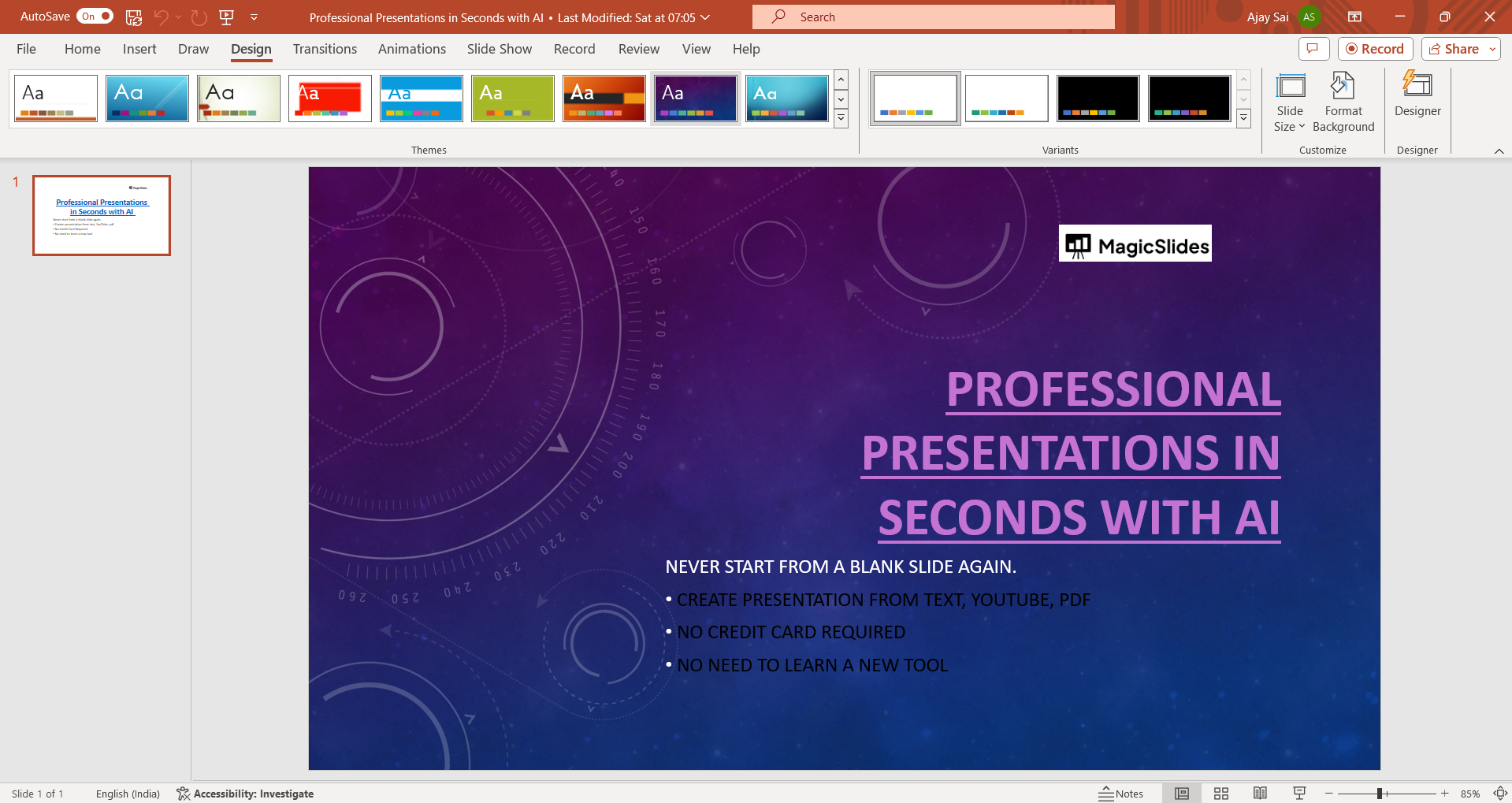
Step 4: Select a Background Option
From the dropdown menu, choose one of the available background styles. You can select from solid colors, gradients, patterns, or choose to apply a background fill from a picture.
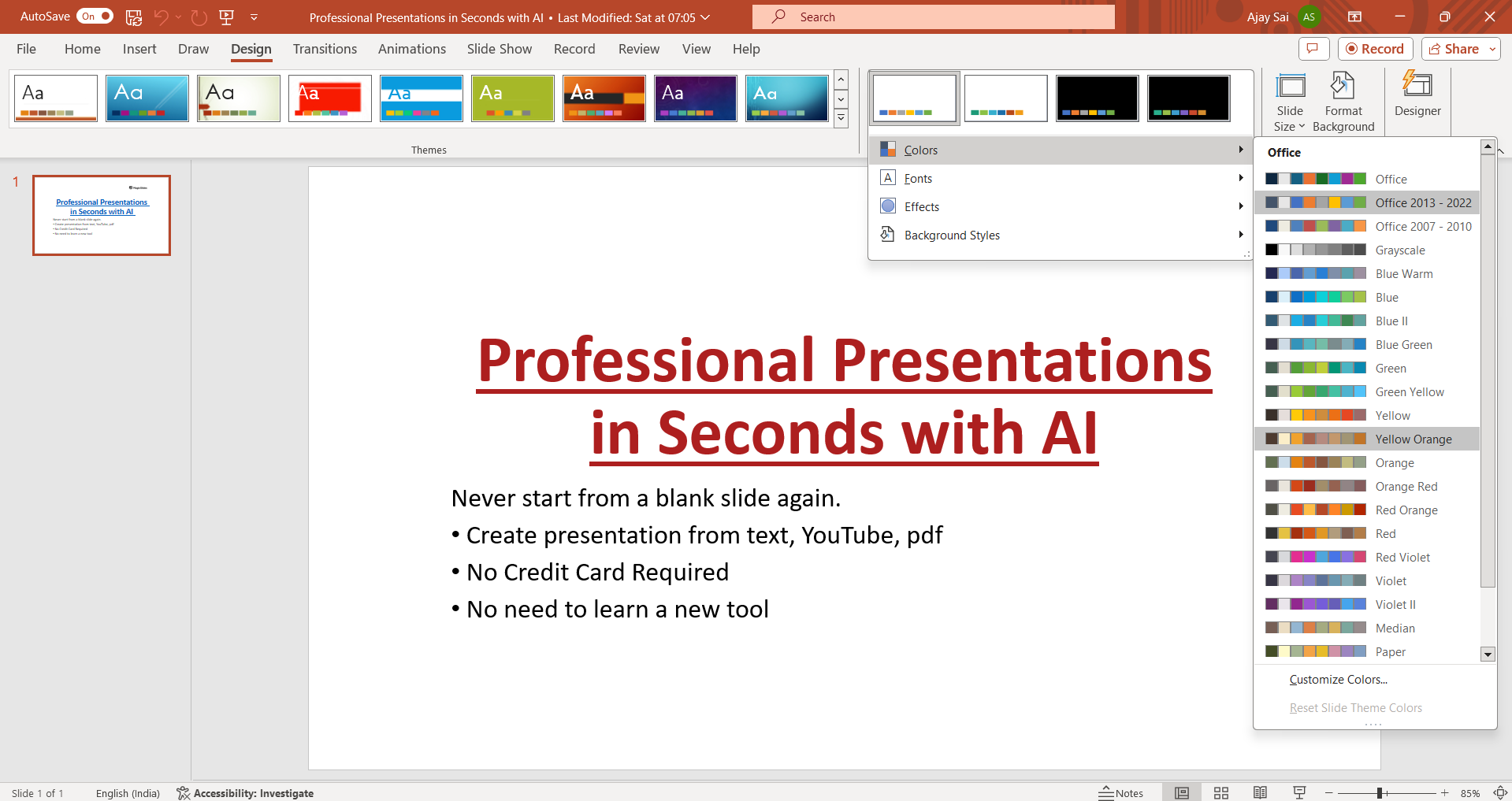
Step 5: Customize Your Background (Optional)
If you choose a background option that allows customization, such as a solid color or gradient, you can further adjust the color or gradient stops to suit your preferences. Simply click on "Format Background" in the dropdown menu to access additional customization options.
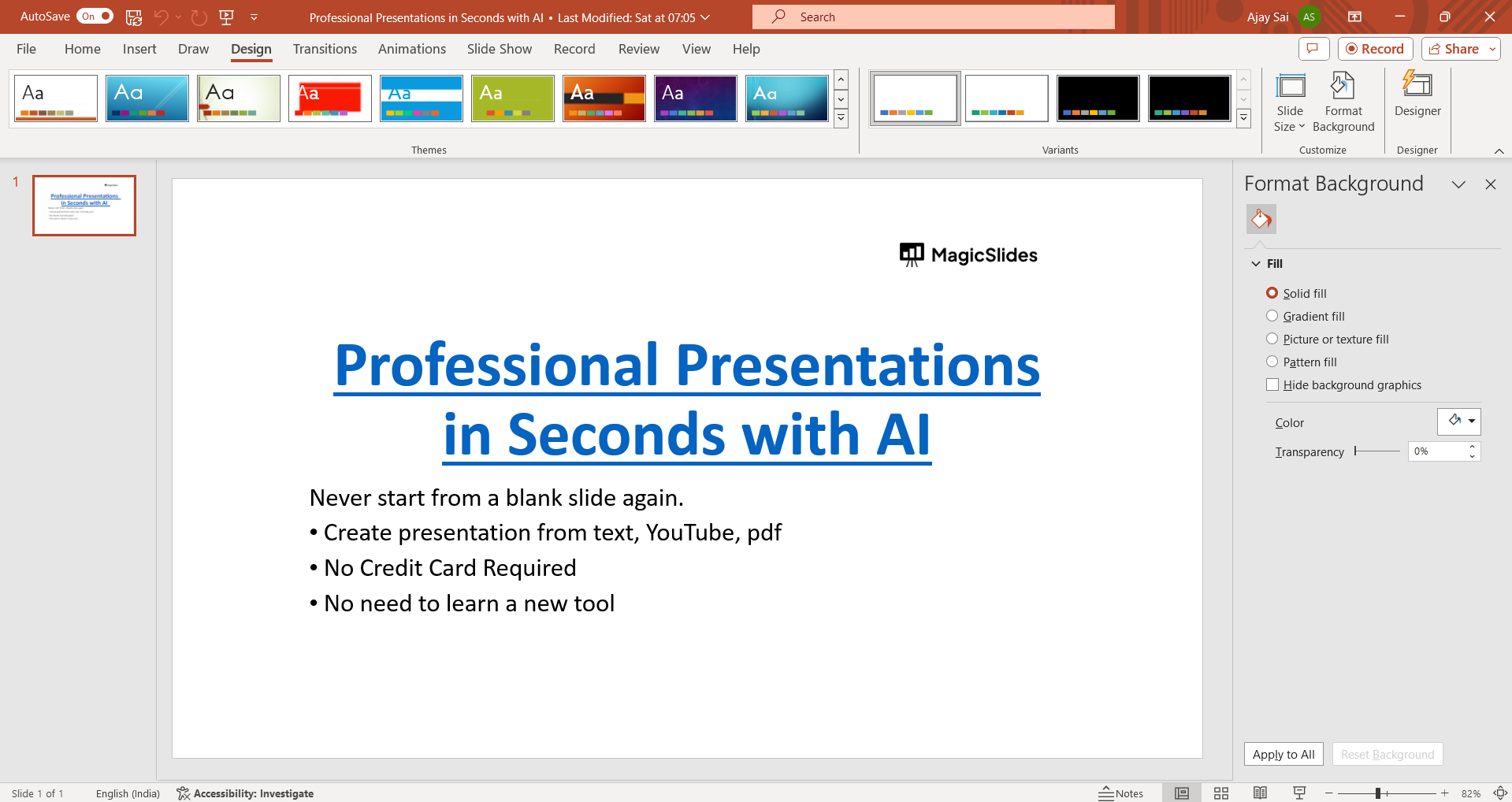
Step 6: Apply the Background
Once you've selected or customized your desired background, click on the background style to apply it to the current slide.
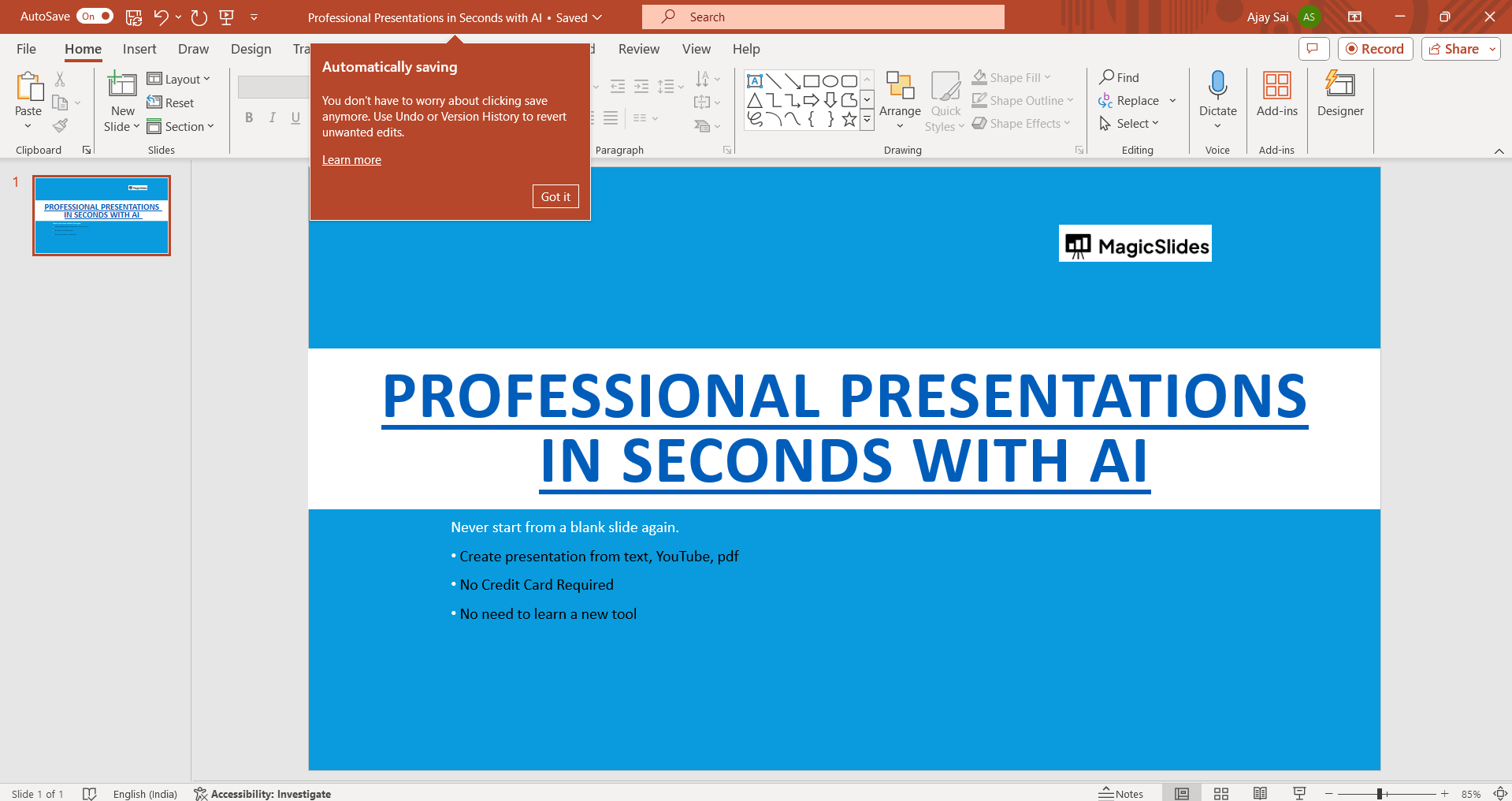
Conclusion:
Changing the background in PowerPoint is a simple yet effective way to enhance the visual appeal and overall aesthetics of your presentation slides. With the variety of options available, including solid colors, gradients, patterns, and images, you can easily tailor the background to suit your presentation theme and style. By following this step-by-step guide, you'll be able to effortlessly change the background in your PowerPoint presentations, helping you create captivating slides that leave a lasting impression on your audience.
Frequently Asked Questions:
Can I apply different backgrounds to different slides?
Yes, PowerPoint allows you to apply unique backgrounds to individual slides for customized presentations.
How do I remove a background I've applied?
You can remove a background by accessing the "Format Background" option and selecting "No Fill" or "Reset Background."
Can I use my own images as backgrounds?
Absolutely! PowerPoint lets you use your own images as backgrounds, offering flexibility in design choices.
Will changing the background affect my content layout?
No, changing the background won't alter your content layout, ensuring your slides remain organized and professional.


