How to Change Shape Color in Google Slides


Easily change shape colors in Google Slides to enhance your presentation’s visual appeal and consistency
How to Change Shape Color in Google Slides
Customizing the color of shapes in Google Slides can enhance your presentation’s visual appeal and clarity.
Whether you want to match your brand colors or highlight specific elements, changing a shape’s color is a simple yet effective way to improve your slides.
Follow these step-by-step instructions to change the shape color effortlessly.
https://www.guidejar.com/guides/96b498e1-d2fa-48ae-a2b6-ded90ed9560d
Step-by-Step Guide to Change Shape Color in Google Slides
Step 1: Open Your Google Slides Presentation
Go to Google Slides. Open an existing presentation or create a new one.

Step 2: Select the Shape
Click on the shape you want to change.

If the shape is not already added, click Insert > Shape and select a shape.
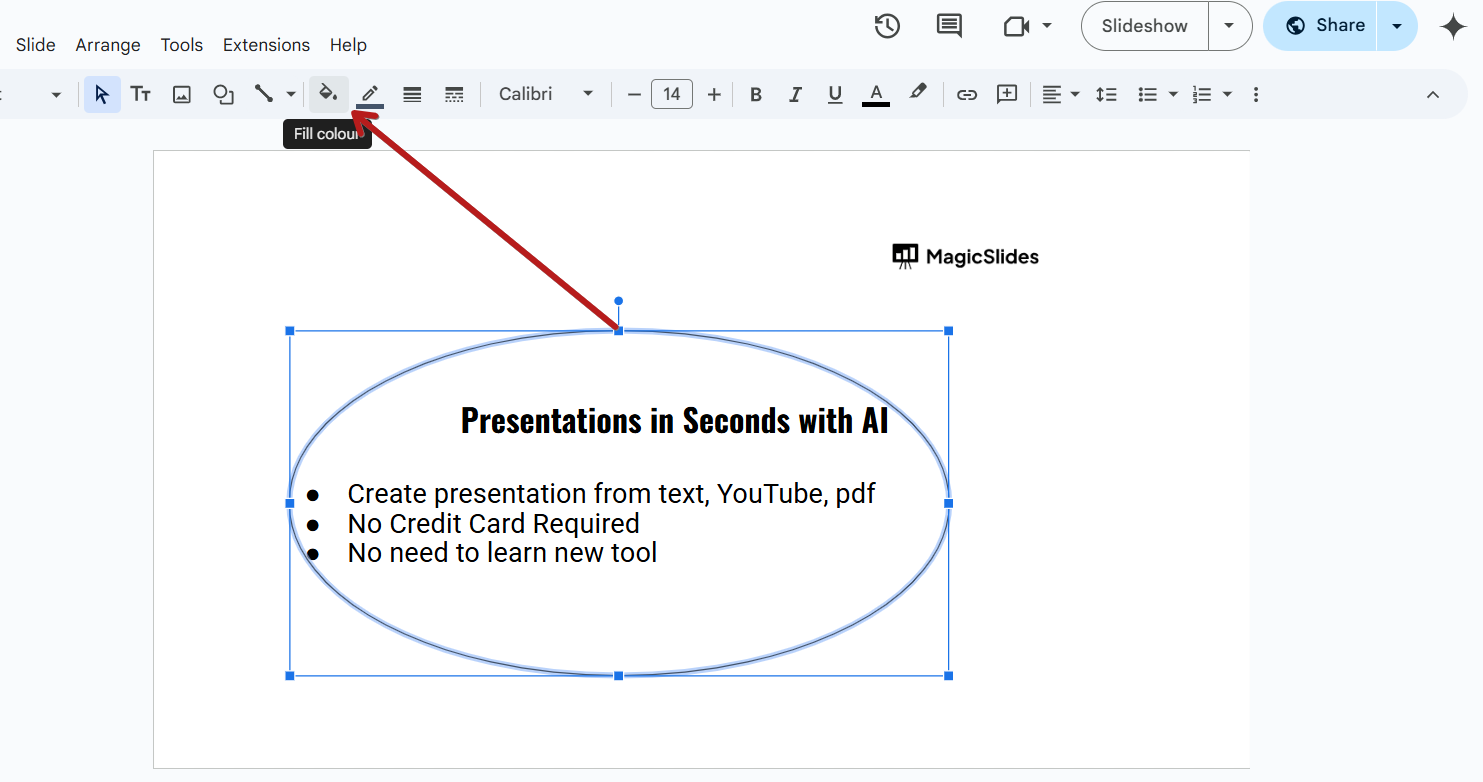
Step 3: Open the Fill Color Menu
With the shape selected, click the Fill color (paint bucket icon) in the toolbar.

A color palette will appear with various options.
Step 4: Choose a Color
Select a preset color from the color options. Click on Custom to pick a specific shade or enter a HEX code for an exact match.
Step 5: Apply the Color
Once you select the desired color, the shape will automatically update. Click outside the shape to save the changes.

Step 6: Change the Shape’s Border Color (Optional)
Click the Border color (pen icon) next to the Fill color option. Choose a color from the list or create a custom color.
Customizing shape colors enhances your slides' visual appeal, but if you want to create professional, AI-generated slides effortlessly, try MagicSlides.app presentations made in seconds!
Conclusion
Changing the shape color in Google Slides is a quick and easy way to enhance your presentation’s design.
By selecting colors that align with your theme or message, you can make your slides more visually engaging and impactful.
FAQs are here to help!
Can I change the shape color to a gradient in Google Slides?
Yes! Click on the Fill color option and select Gradient to apply a gradient effect.
How do I reset a shape’s color to default?
Select the shape, click on the Fill color tool, and choose Transparent to remove the fill color.
Can I apply the same color to multiple shapes at once?
Yes, hold Shift, select multiple shapes, and then apply the color using the Fill color tool.


