How to change shape of image in google slides


Unlock the power of visuals in your presentations! Learn how to change the shape of images in Google Slides.
Google Slides is a versatile presentation tool that allows you to create captivating visuals. One way to enhance your presentations is by changing the shape of images.
Whether you want to make an image circular, square, or give it a unique custom shape, this guide will walk you through the steps to do just that. Let’s transform your images and make your presentations more engaging!
Steps: How to Change the Shape of an Image in Google Slides
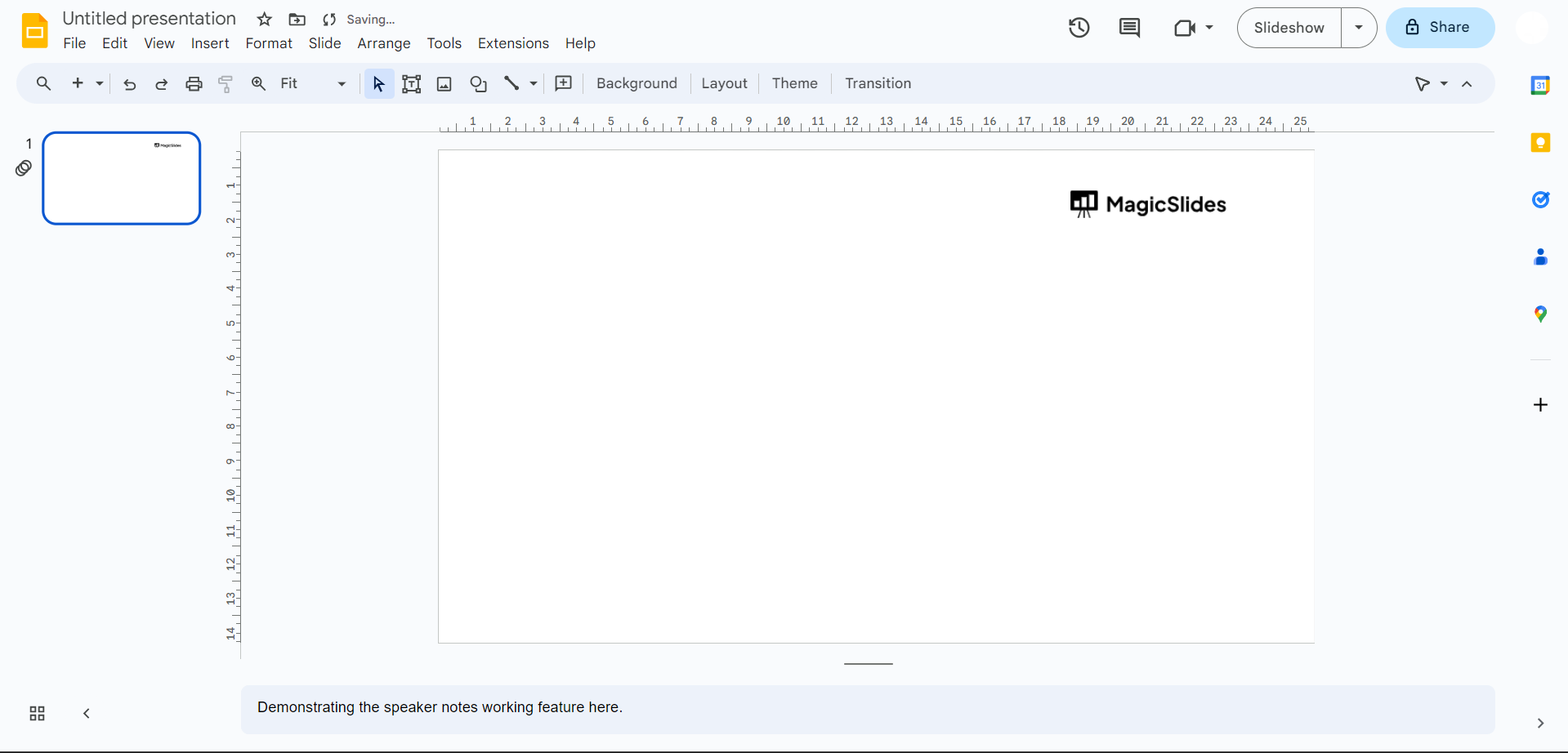
Open Your Google Slides Presentation:
Start by opening the Google Slides presentation where you want to change the shape of an image. If you don’t have one, create a new presentation in Google Drive.
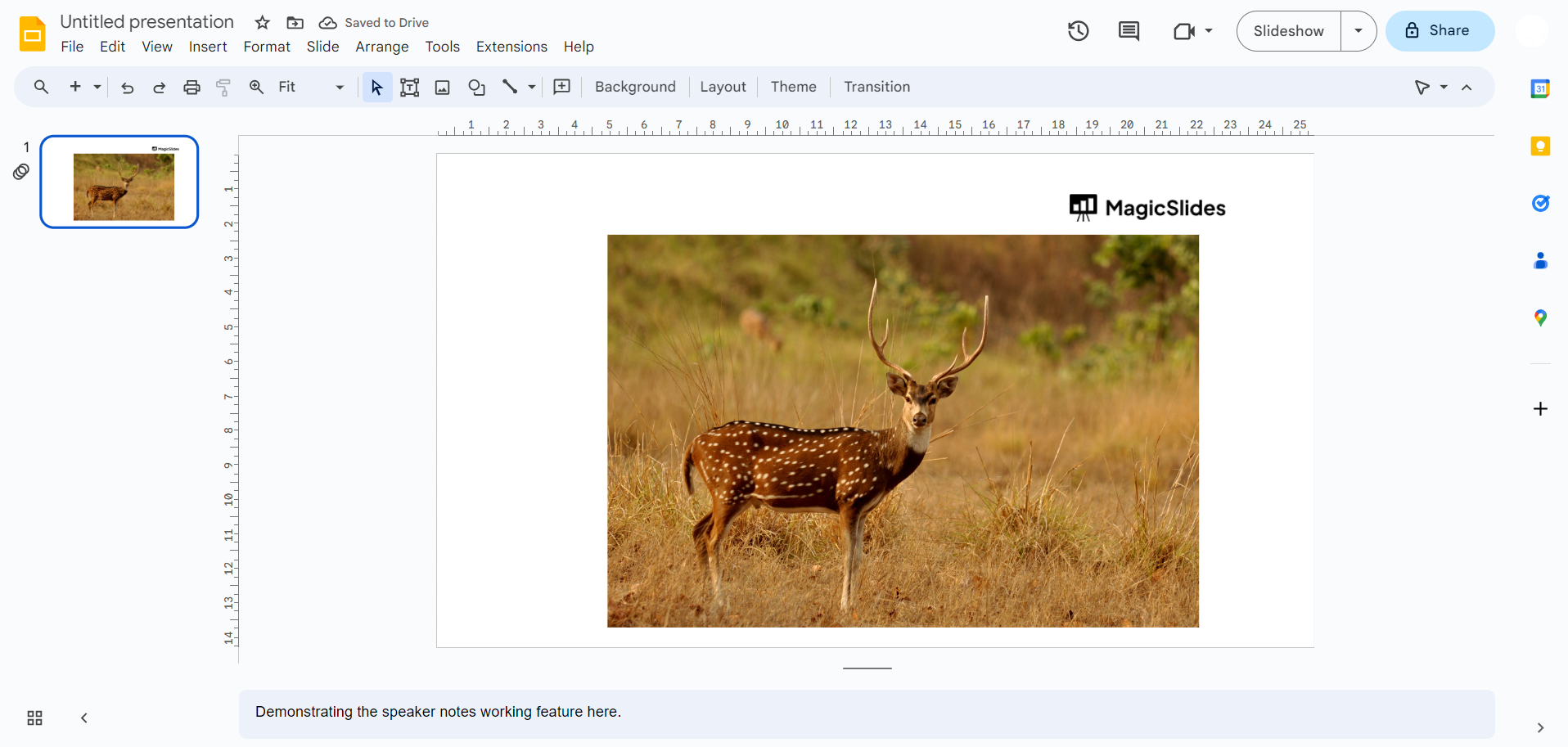
Insert an Image:
Click on the slide where you want to change the image’s shape. Then, go to the “Insert” menu and select “Image.” Choose to upload an image from your computer, Google Drive, or use the Google Images search feature.
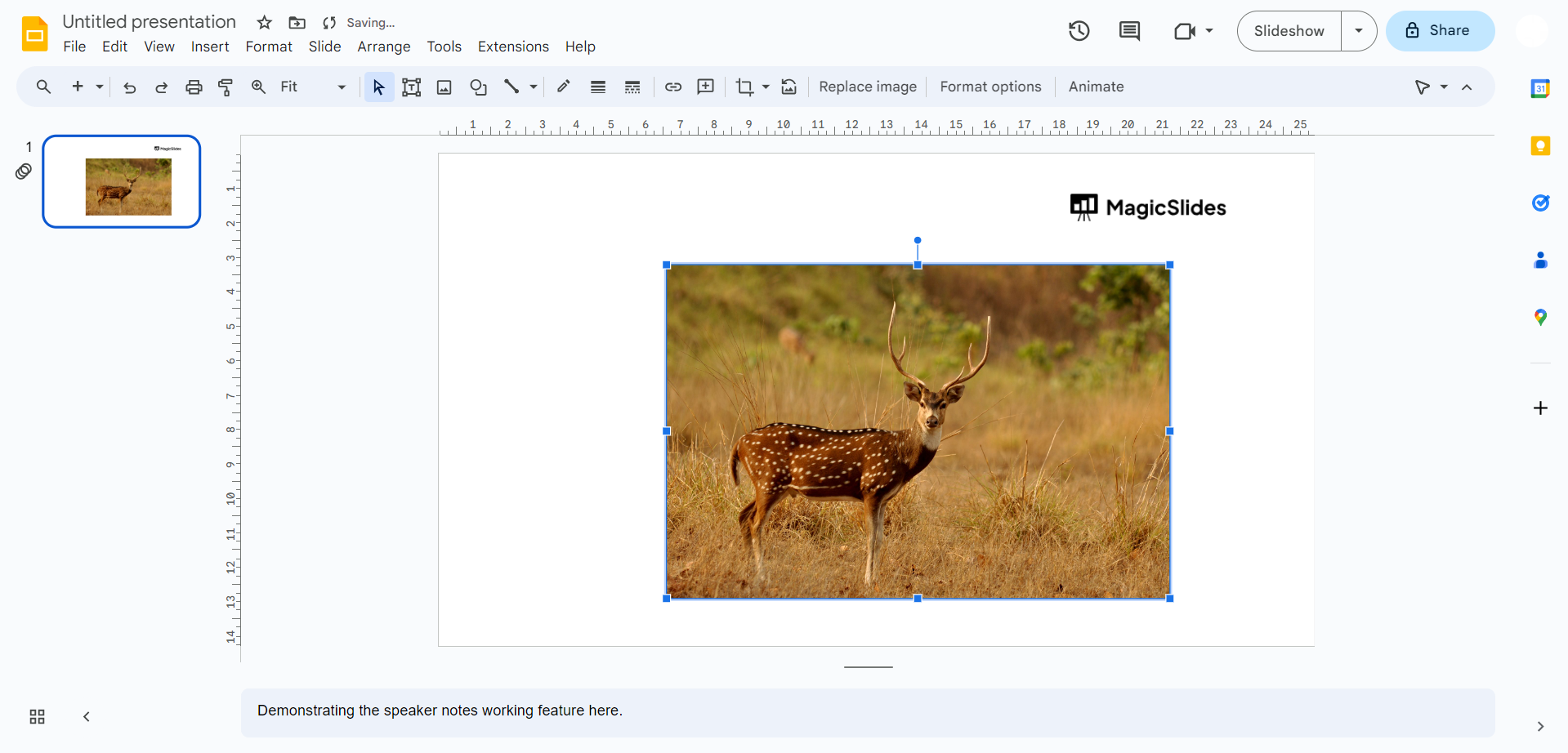
Select the Image:
Click on the inserted image to select it. You’ll know it’s selected when it’s outlined with a blue border.
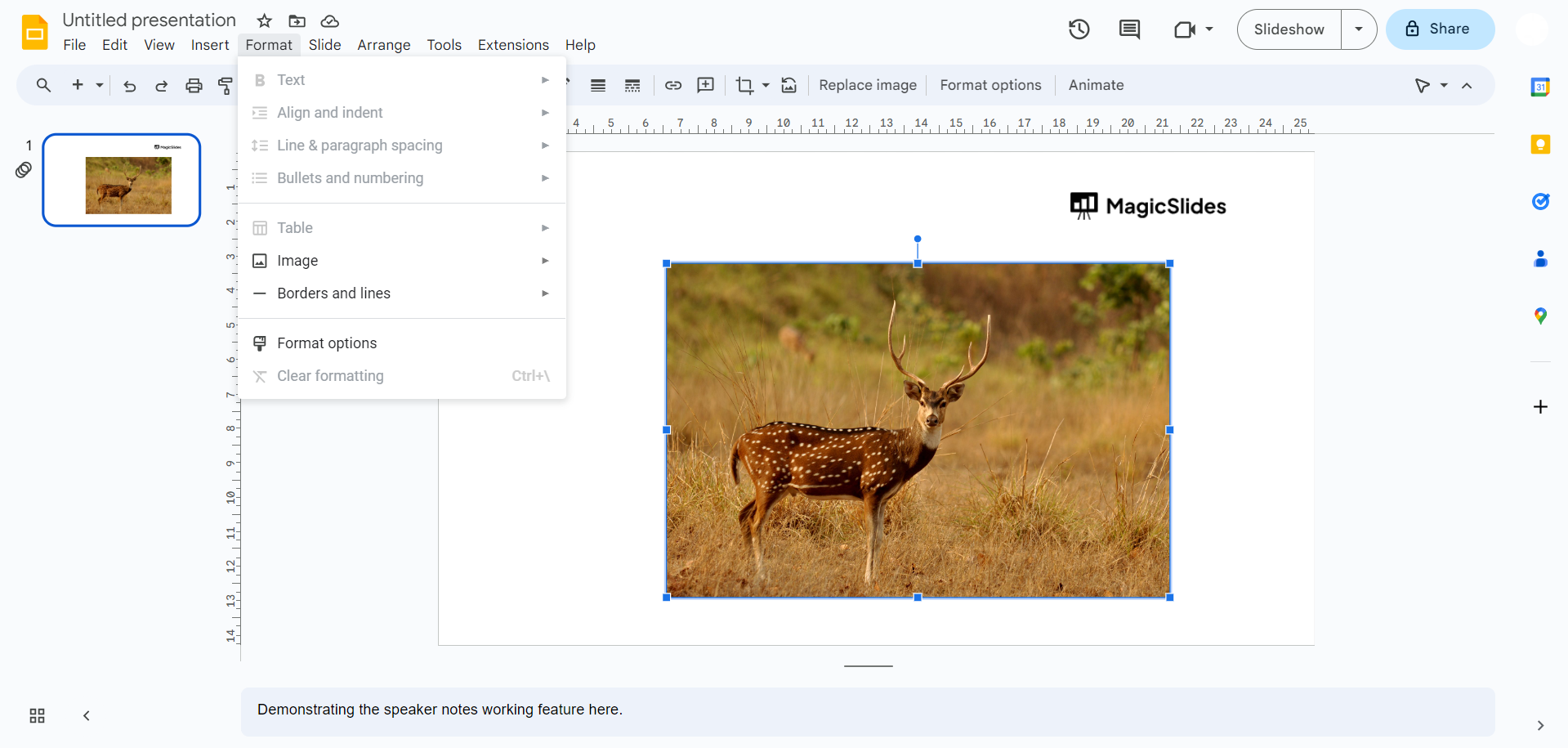
Open the “Format Options” Panel:
To access the formatting options, either right-click on the image and choose “Format options” or click on the “Format” menu at the top and select “Format options.”
Choose a New Shape:
In the “Format options” panel, locate the “Image shape” section. Click on the dropdown menu, and you’ll see various shape options like square, circle, star, and more. Select the shape you want for your image.
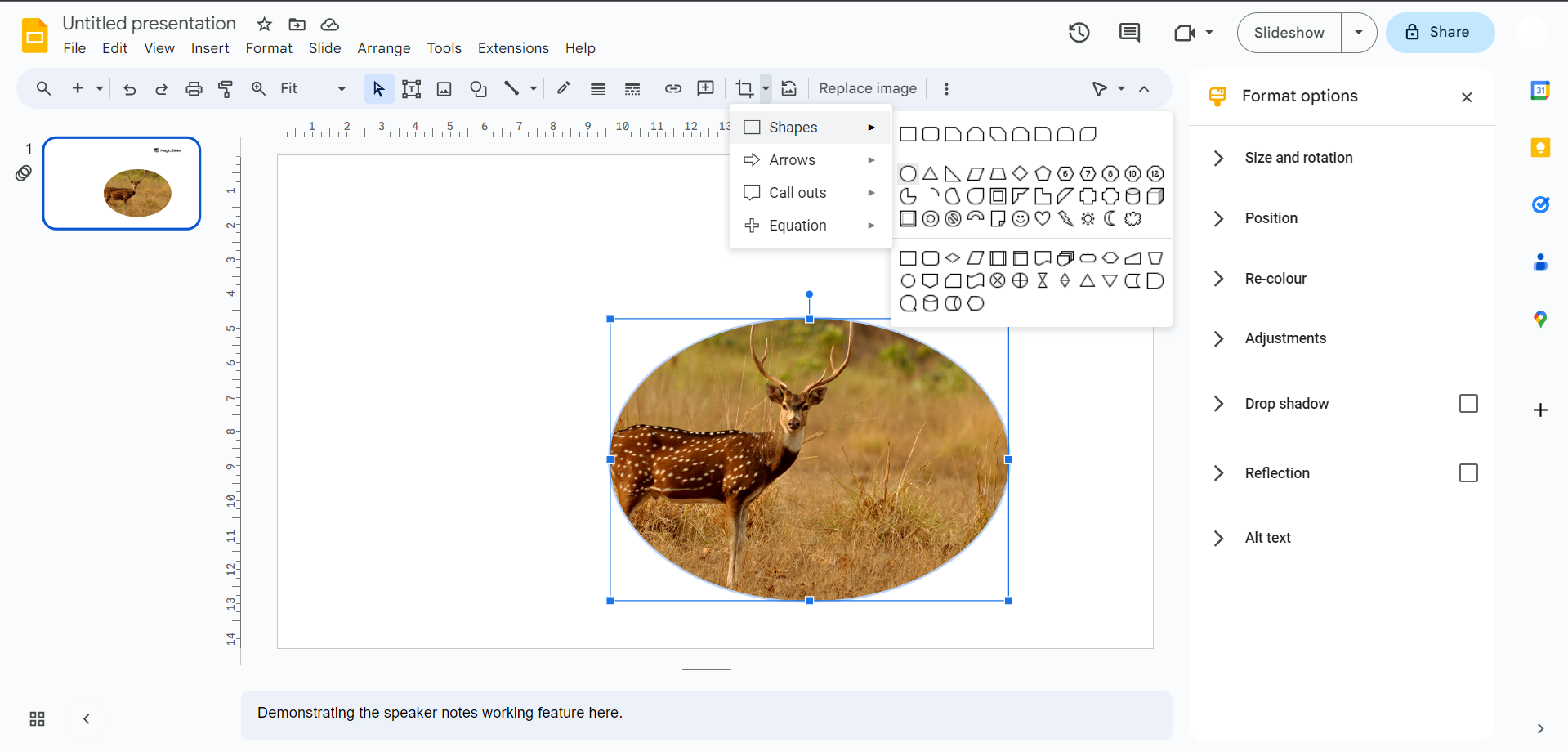
Adjust the Image Size (if needed):
Changing the image shape may affect its size and proportions. To adjust the size, go to the “Size & Rotation” section in the “Format options” panel. You can manually change the height and width to fit your needs.
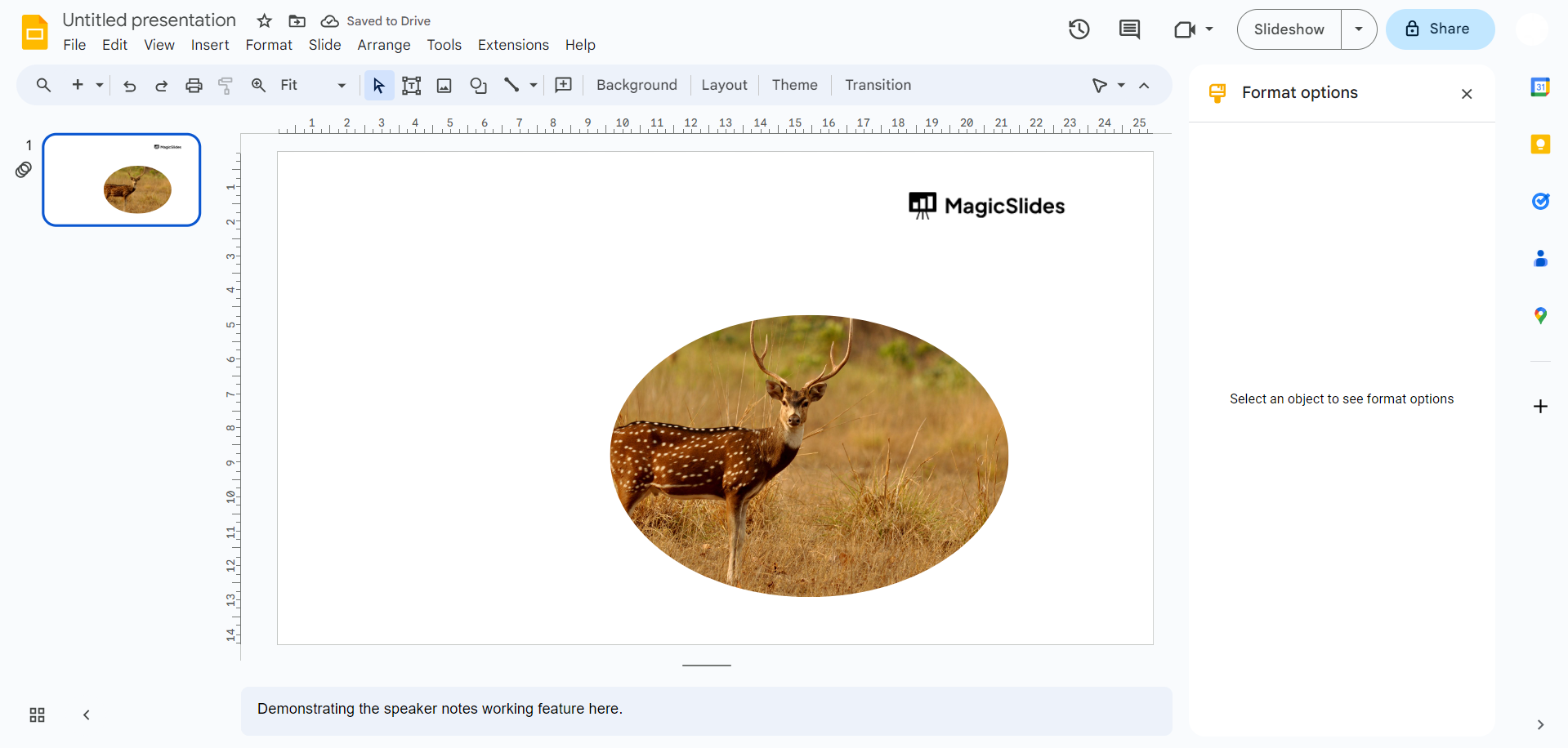
Preview and Save:
After making your desired changes, click the “X” button to close the “Format options” panel. Your image will now appear in the selected shape.
Conclusion:
Changing the shape of images in Google Slides can add a creative and professional touch to your presentations. Whether you want to emphasize a specific theme or create a more appealing design, this feature allows you to transform your images effortlessly. By following these simple steps, you can make your visuals stand out and deliver more impactful presentations.
Frequenty Asked Questions:
Can I change the shape of any image in Google Slides?
Yes, you can change the shape of any image inserted into a Google Slides presentation.
What shape options are available for images in Google Slides?
Google Slides provides a variety of shape options, including square, circle, star, and custom shapes.
Can I revert an image to its original shape after changing it?
Yes, you can easily revert an image to its original shape by selecting “Original image” in the “Image shape” dropdown in the “Format options” panel.
Do the shape changes affect the image’s quality or resolution?
No, changing the shape of an image in Google Slides doesn’t affect its quality or resolution. The image remains the same in terms of quality.
Can I apply different shapes to different parts of the same image?
Google Slides allows you to apply one shape to the entire image. If you need to apply different shapes to different parts of an image, consider using image editing software before inserting it into your presentation.


