How to change Template in PowerPoint


Timing slides in PowerPoint helps automate transitions, ensuring smooth and consistent flow during presentations.
Changing the template in PowerPoint is a great way to give your presentation a fresh look.
Templates provide predefined slide layouts, fonts, colors, and design elements that enhance the visual appeal and consistency of your slides.
Whether you're looking to update the overall theme of your presentation or switch to a more professional design, this blog post will guide you through the step-by-step process of changing a template in PowerPoint.
How to change Template in PowerPoint: Step-by-Step Guide
Step 1: Open Your PowerPoint Presentation
Begin by opening the PowerPoint presentation you want to modify.
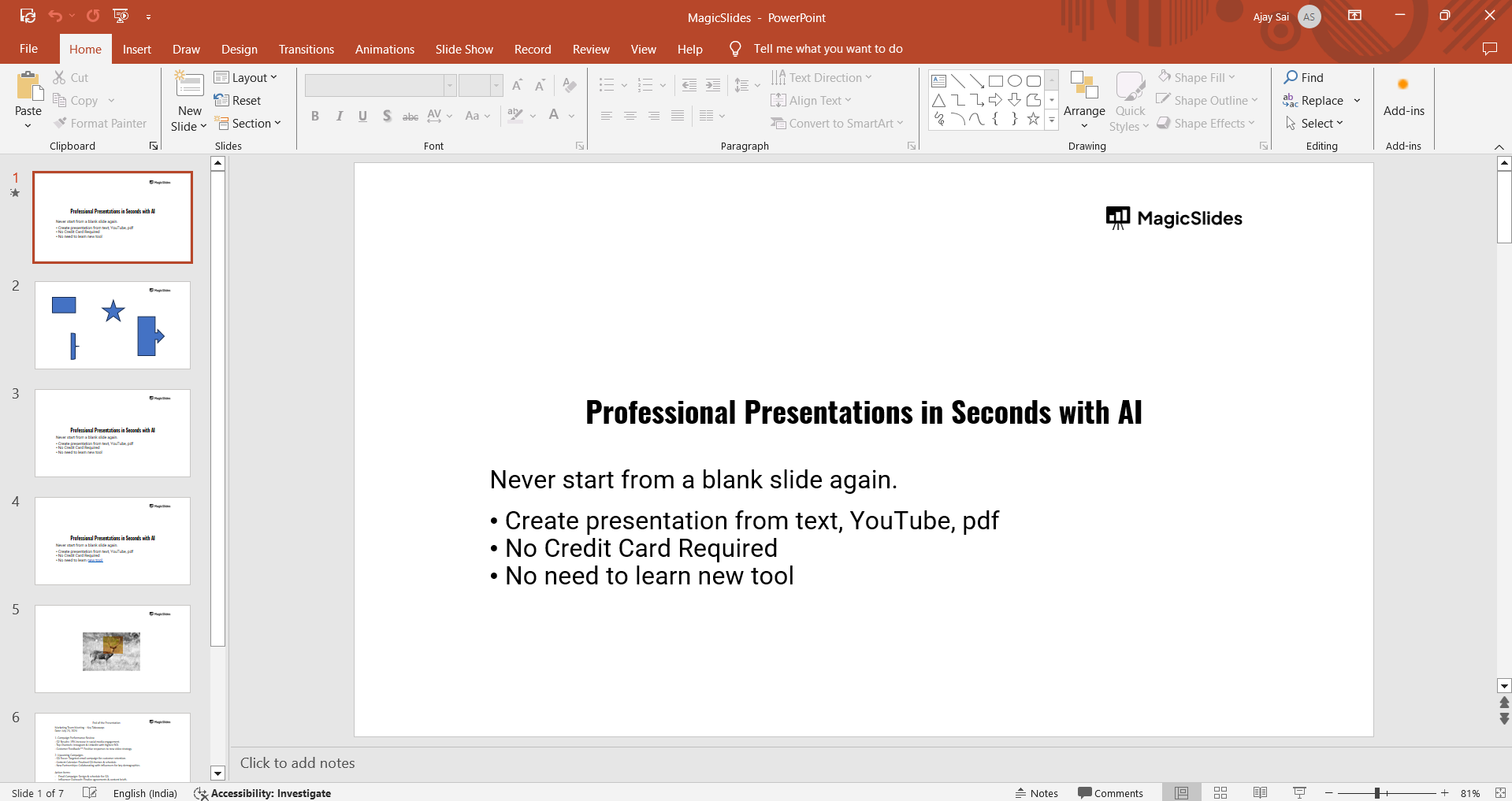
You can do this by either launching PowerPoint and selecting your file from the "Recent" section or by navigating to "File" > "Open" and selecting the presentation from your files.
Step 2: Go to the Design Tab
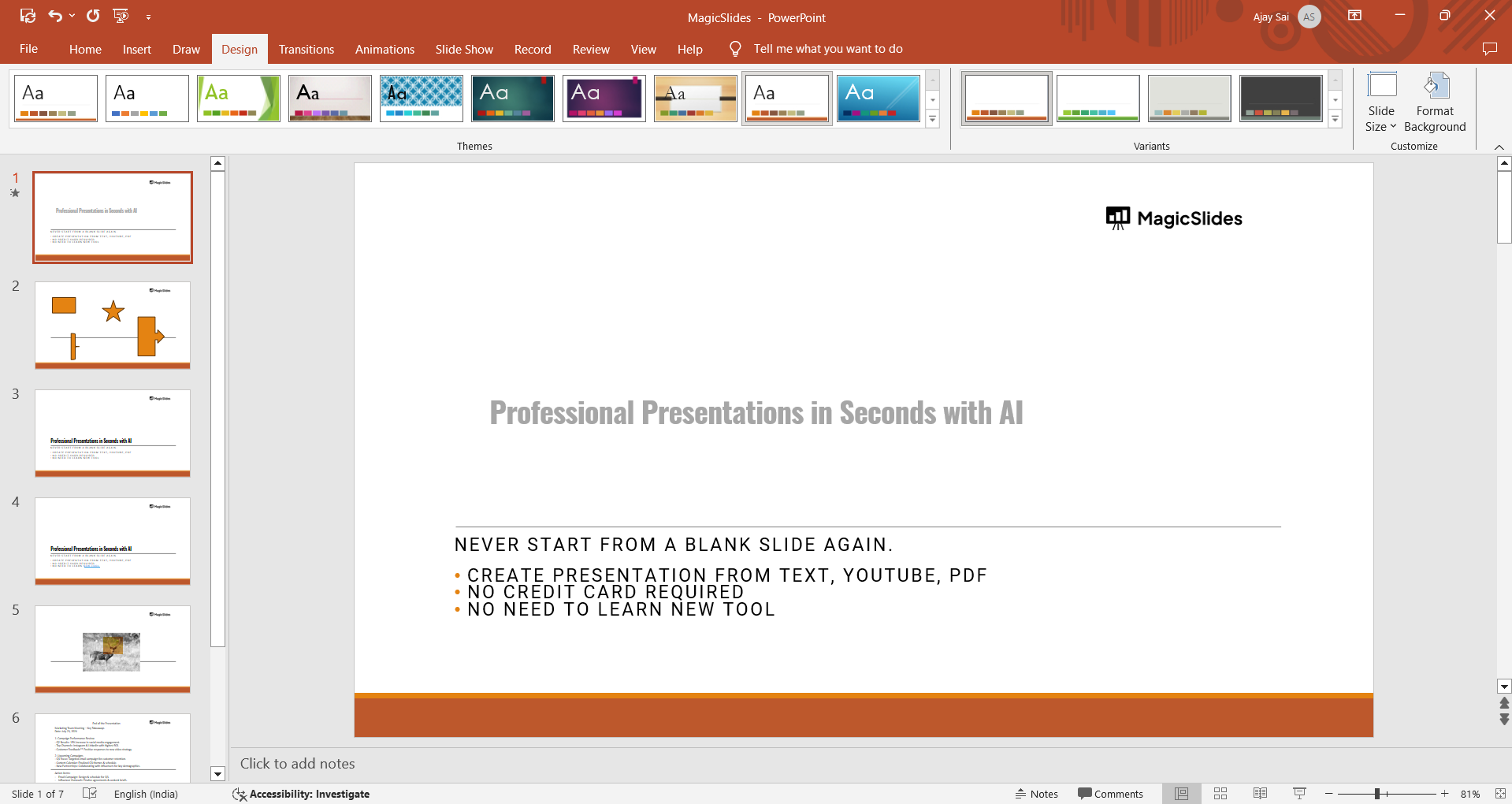
Once your presentation is open, click on the "Design" tab located in the PowerPoint ribbon at the top of the screen.
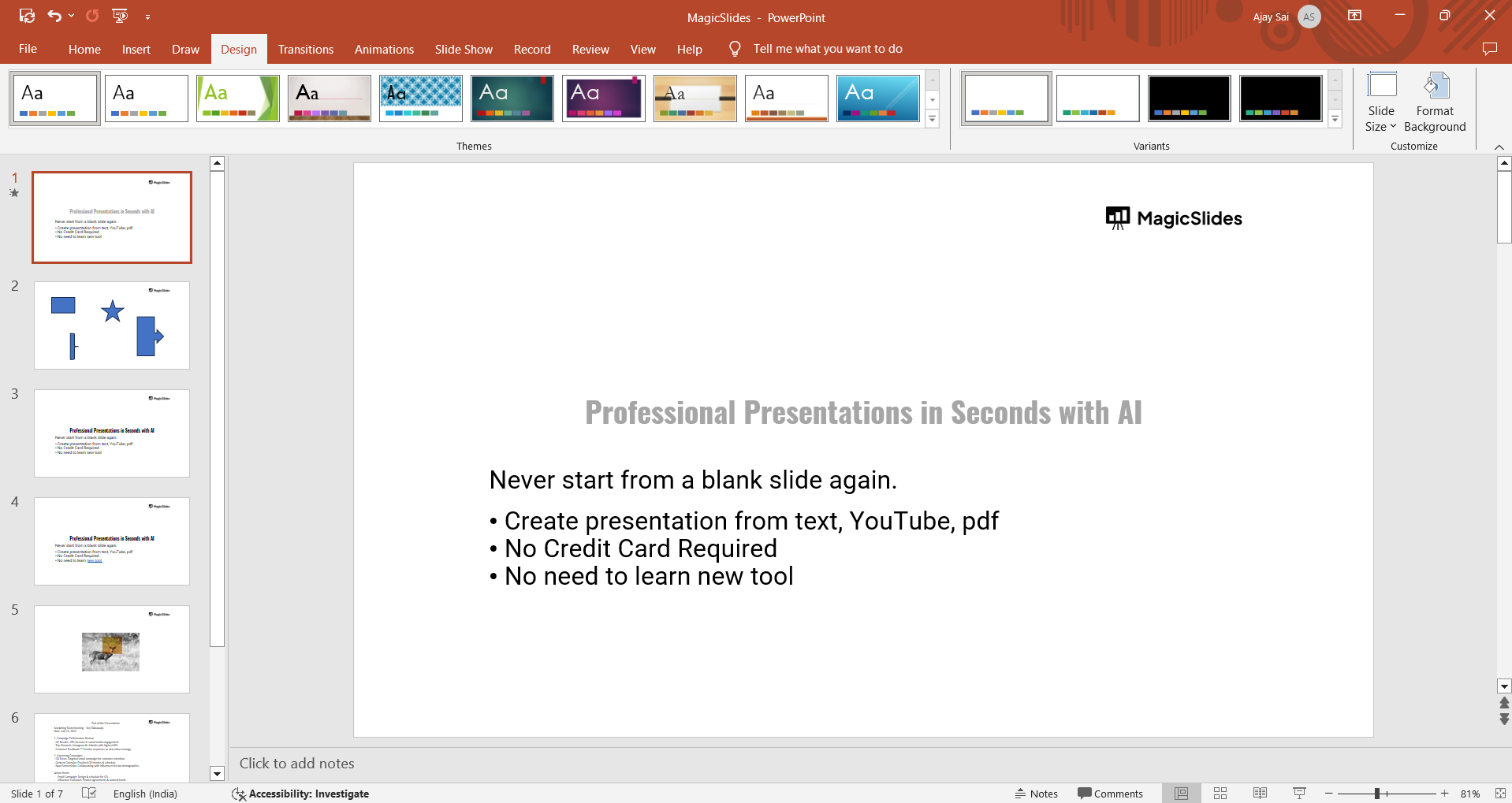
This tab contains various options for changing the look and feel of your slides.
Step 3: Browse and Select a New Template
In the "Design" tab, you will see a gallery of pre-installed themes and templates. To change the template, click on the one that best suits your presentation's style.
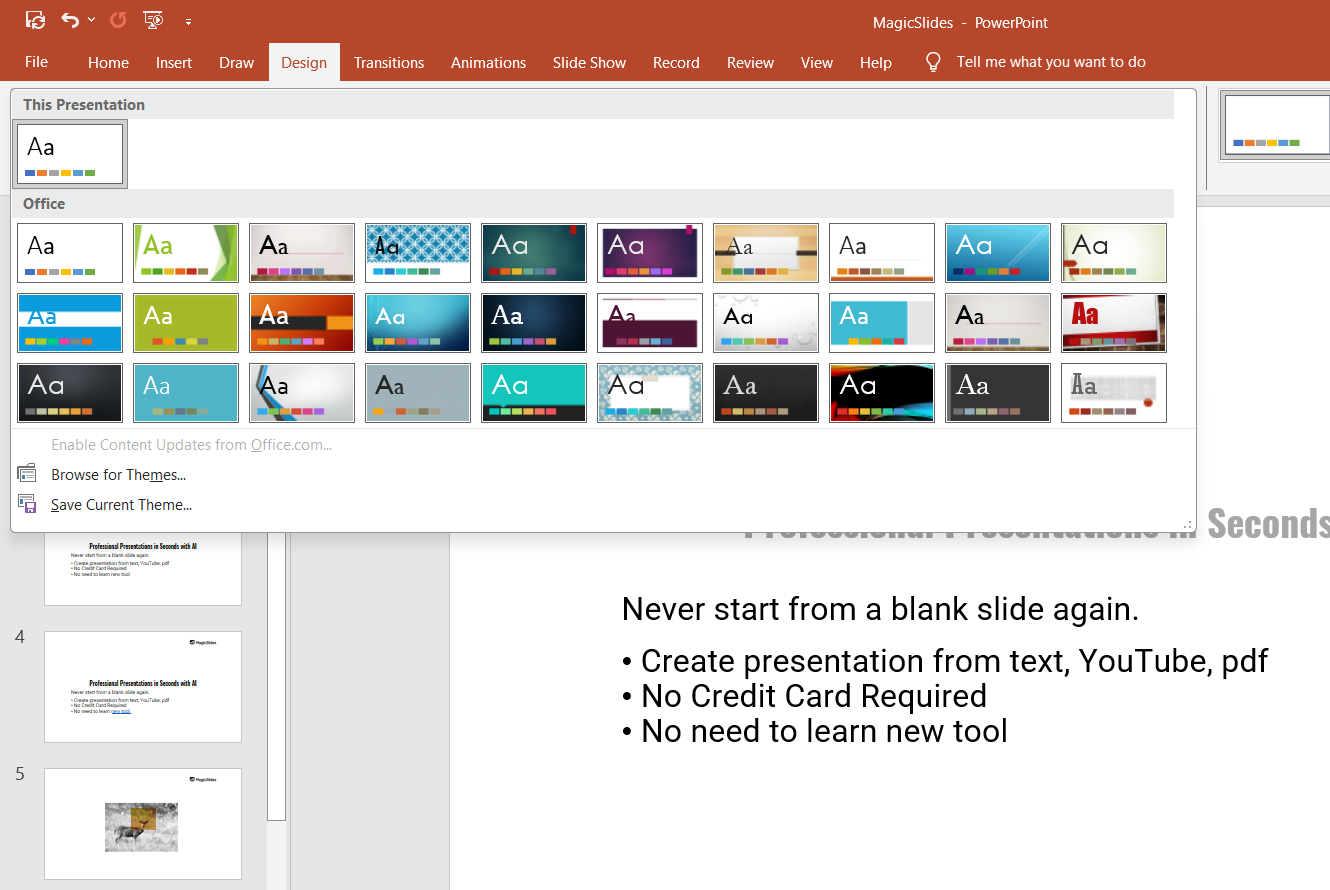
If none of the available templates meet your needs, you can click on the "Browse for Themes" option to upload a custom template from your computer.
Step 4: Apply the New Template to All Slides
After selecting a new template, it will automatically be applied to all the slides in your presentation.
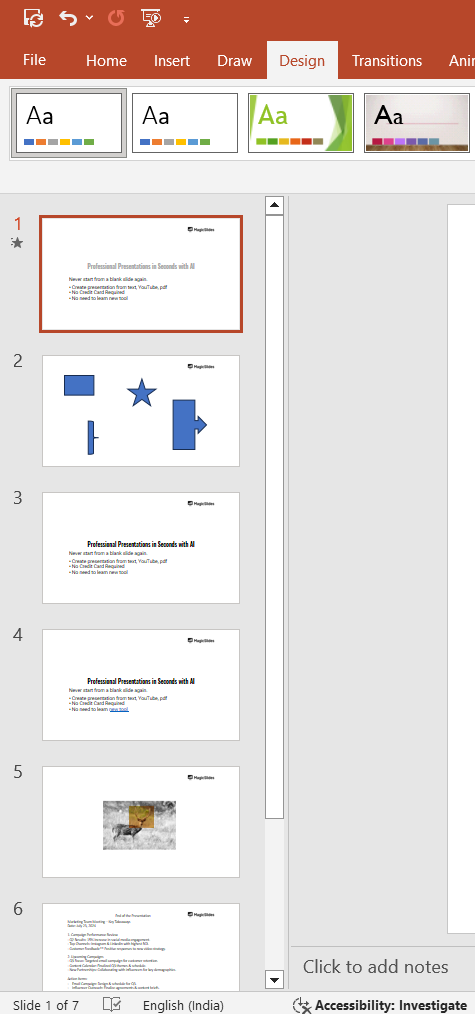
PowerPoint will update the layout, font, and color scheme of the slides according to the new template's design.
If you only want to apply the template to certain slides, select those slides first before choosing the template.
Step 5: Adjust Slide Layouts as Needed
Depending on the new template, some of your slides might need adjustments.
Review each slide to ensure the layout and design elements look good with the new template.
If necessary, you can change individual slide layouts by right-clicking on the slide thumbnail, selecting "Layout," and choosing a different layout from the options provided.
Step 6: Save Your Presentation
Once you're satisfied with the new template and any adjustments you've made, save your presentation by clicking "File" > "Save" or pressing "Ctrl + S" on your keyboard.
If you're experimenting with different templates, you may want to save the new version as a separate file to keep the original intact.
Conclusion
Changing the template in PowerPoint is a quick and effective way to refresh your presentation’s appearance without having to manually redesign each slide.
Whether you're aiming for a more modern look or adhering to a specific brand style, these simple steps will help you switch templates seamlessly.
Experiment with different designs to find the one that best suits your message and audience.
FAQs can take you forward!
How do I set a specific time for each slide in PowerPoint?
In the "Transitions" tab, use the "Advance Slide" option to set the desired timing.
Can I apply the same timing to all slides?
Yes, after setting the time for one slide, click "Apply to All" in the "Transitions" tab.
How do I preview the timed slides before presenting?
Go to the "Slide Show" tab and select "Rehearse Timings" to preview the timing sequence.


