How to change the font style and size in Google Docs?


Learn step-by-step instructions for adjusting font style and size in Google Docs to customize your documents effortlessly.
Google Docs offers a plethora of formatting options to enhance the appearance of your documents. Among these options, changing font style and size can significantly impact the readability and aesthetics of your text. In this guide, we'll walk you through the simple steps to alter font style and size in Google Docs.
How to change the font style and size in Google Docs?
Before you can start changing font styles and sizes, ensure you have access to Google Docs. If you don't have an account, you can easily sign up for one. Once you're logged in, follow these steps:
Step 1: Open Google Docs
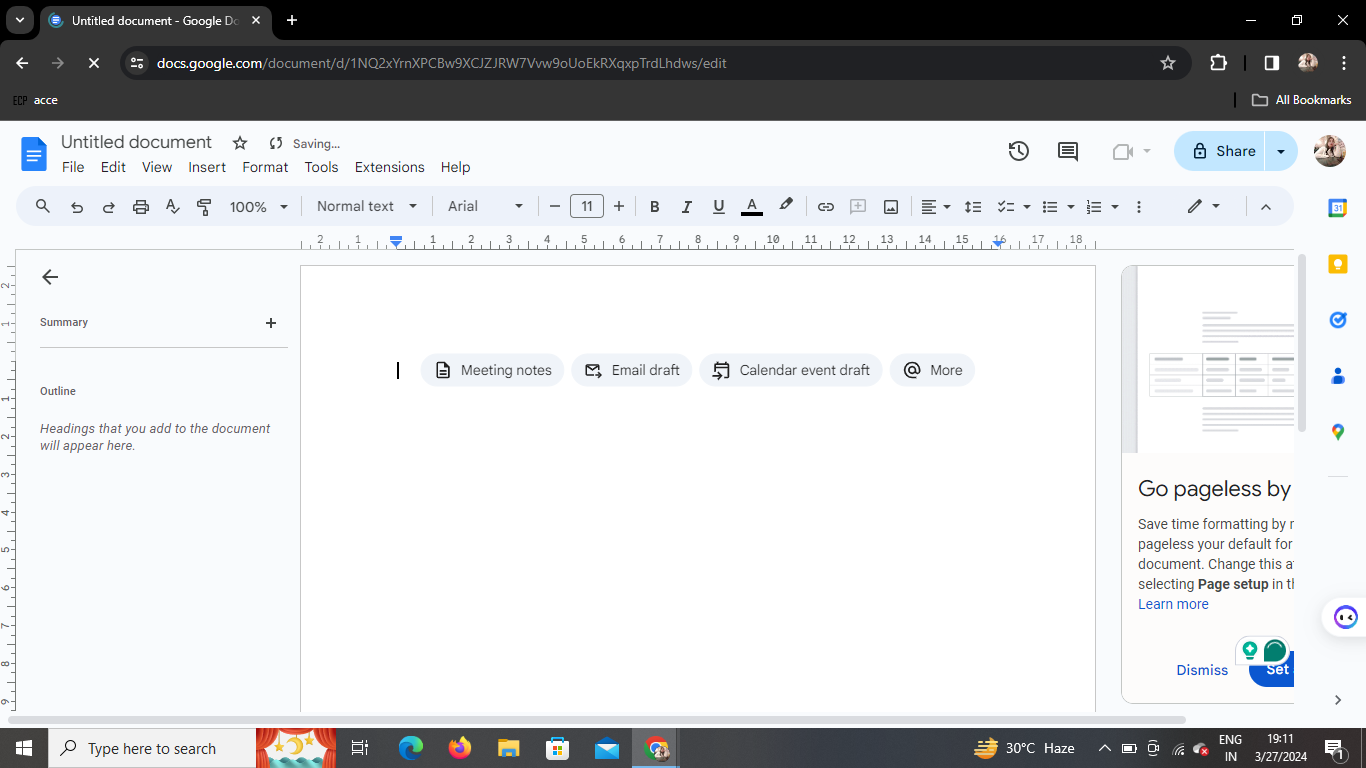
Begin by opening Google Docs in your web browser. If you're not already signed in, enter your credentials to access your documents.
Step 2: Type in Your Content
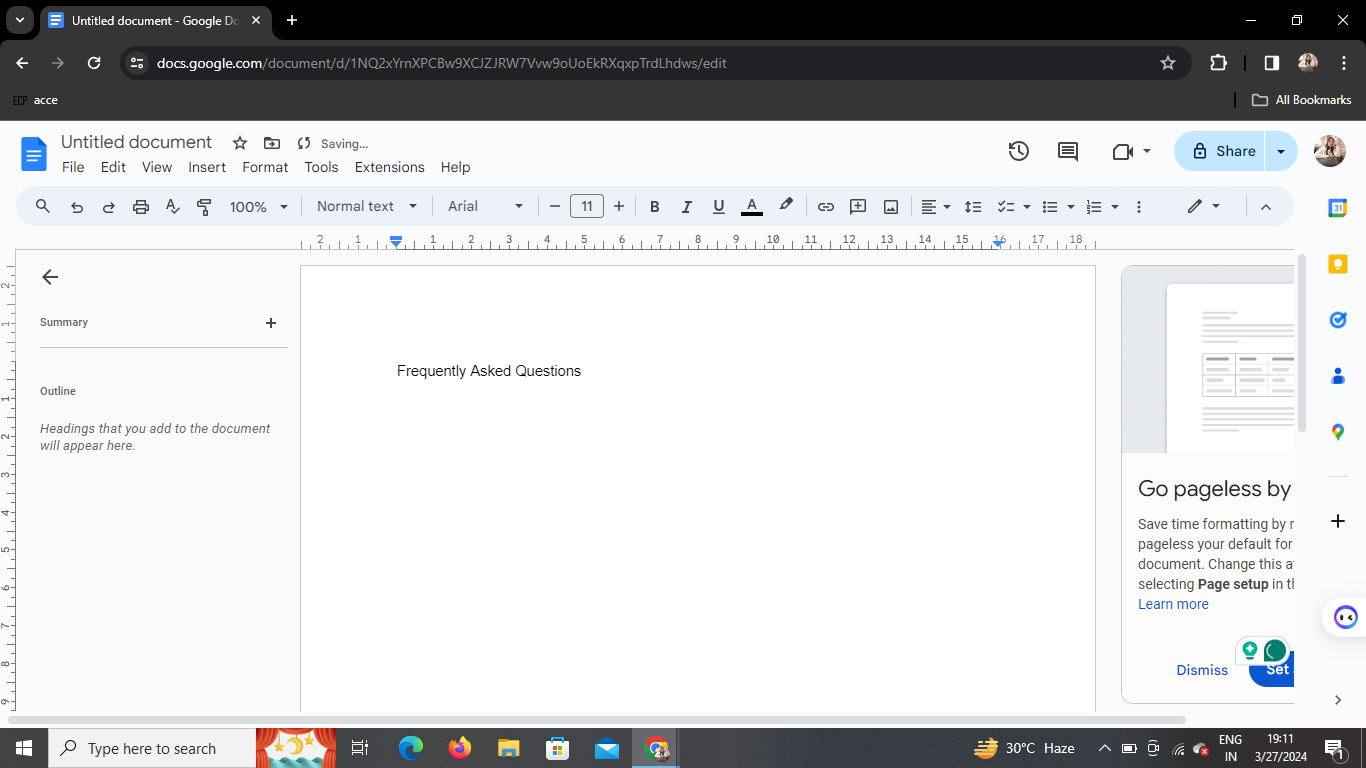
Create a new document or open an existing one where you want to change the font style and size. Type in the content you wish to edit. Ensure that your text is selected appropriately for the changes you want to make.
Step 3: Select Text to Change Font Style/Size
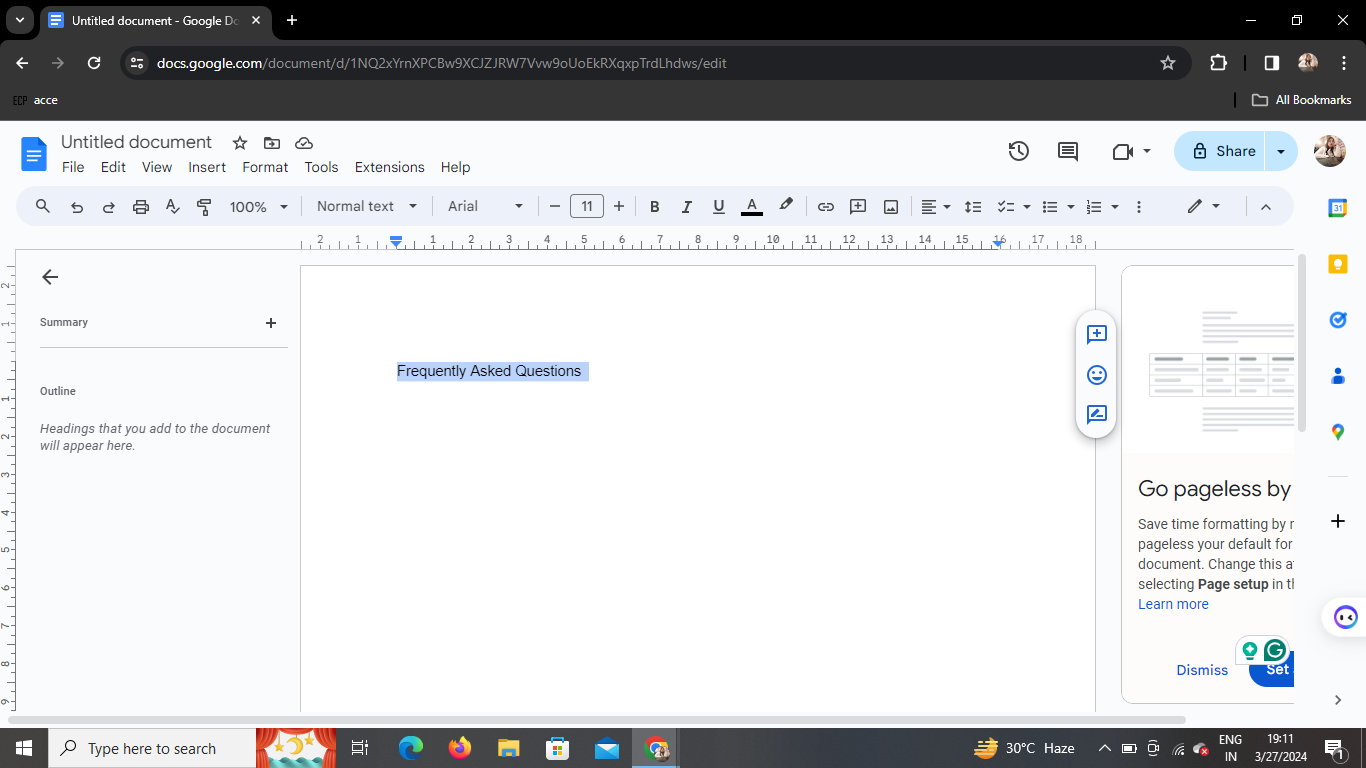
Click and drag to select the particular text you wish to modify. Alternatively, you can double-click on a word to select it, or use keyboard shortcuts for selection.
Step 4: Change Font Style
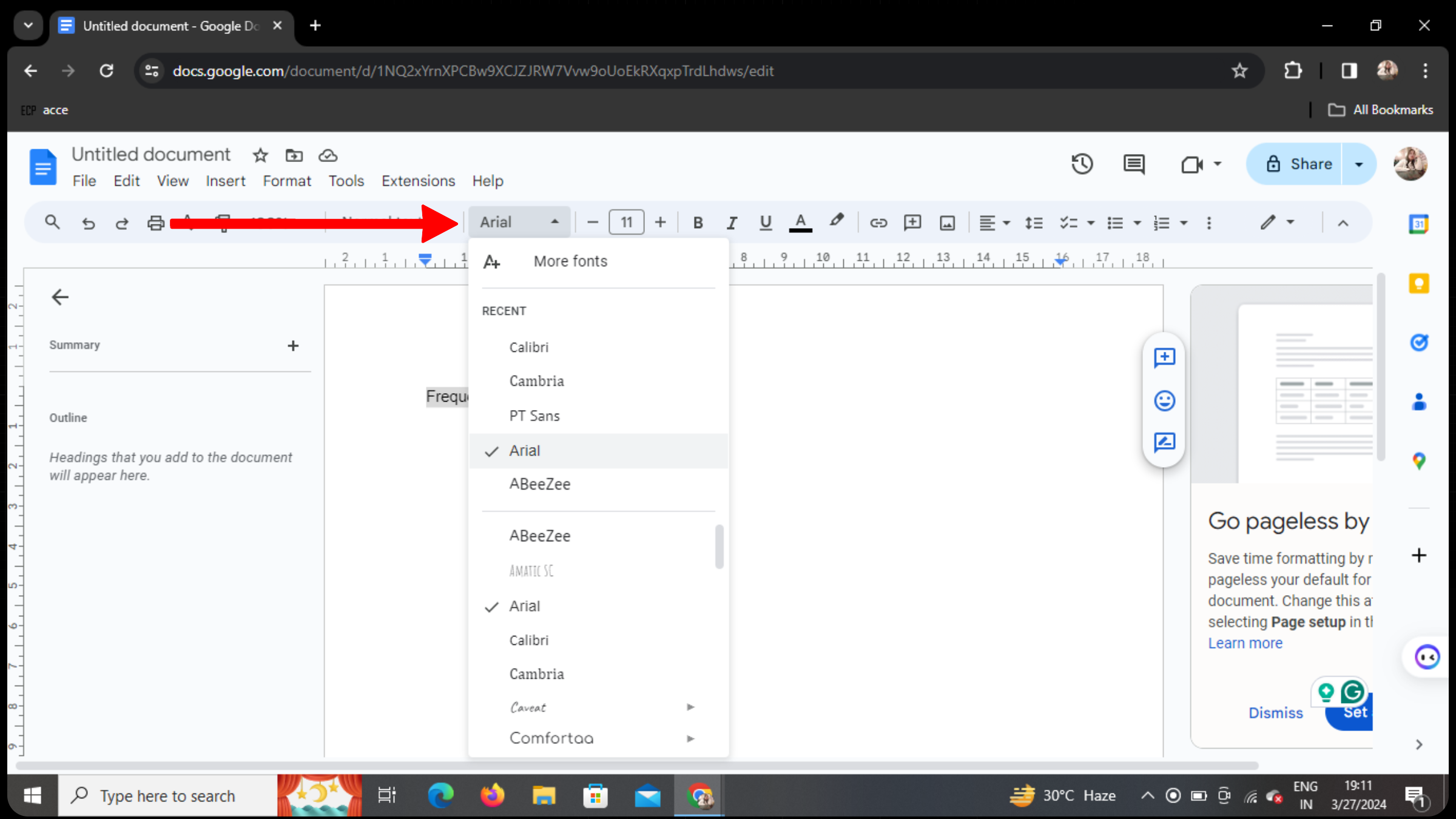
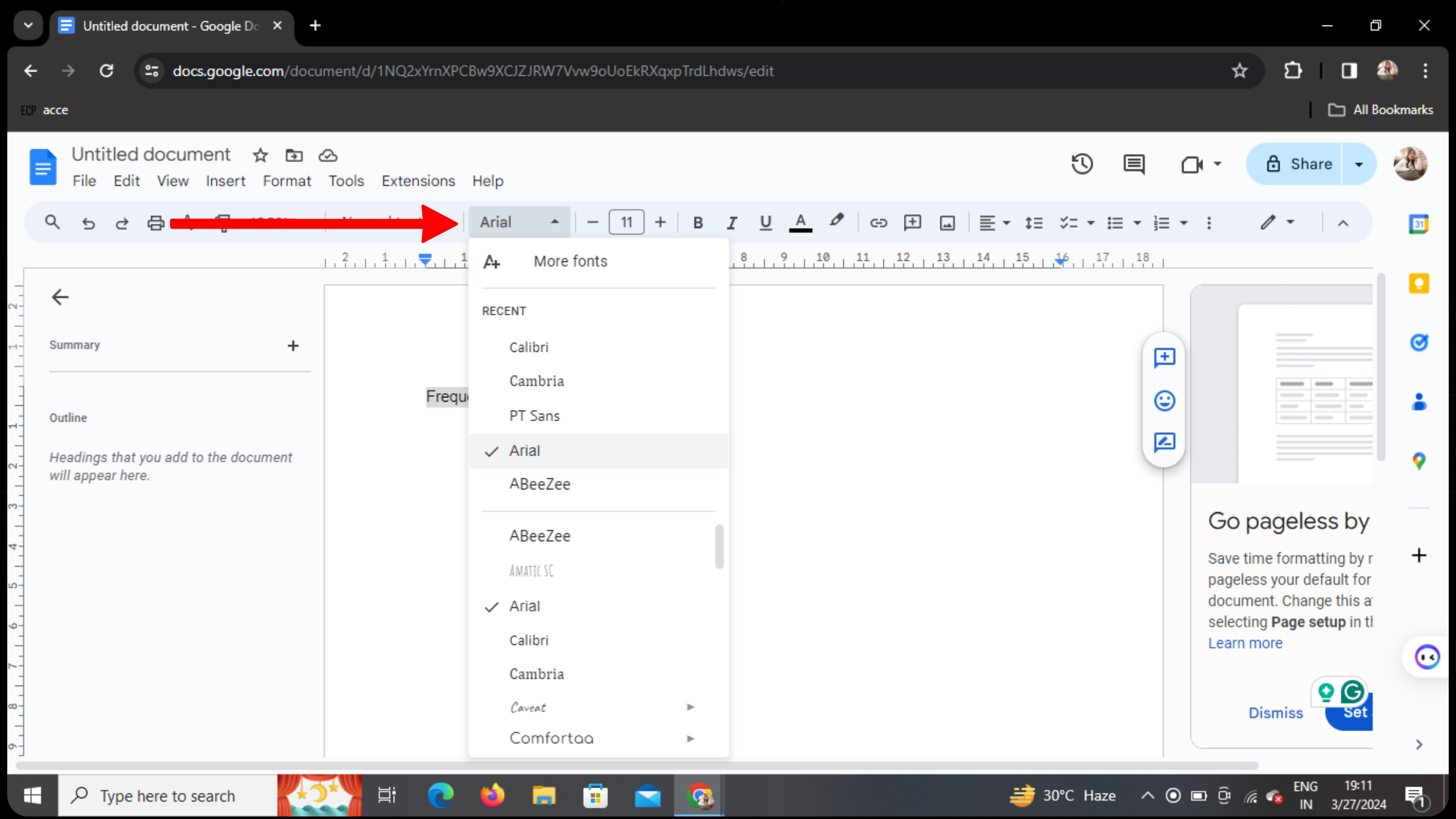
To change the font style, locate the font dropdown menu. It is typically positioned between the size selector and the option for normal text. Click on it to reveal a list of available font styles.
Step 5: Choose Font Style
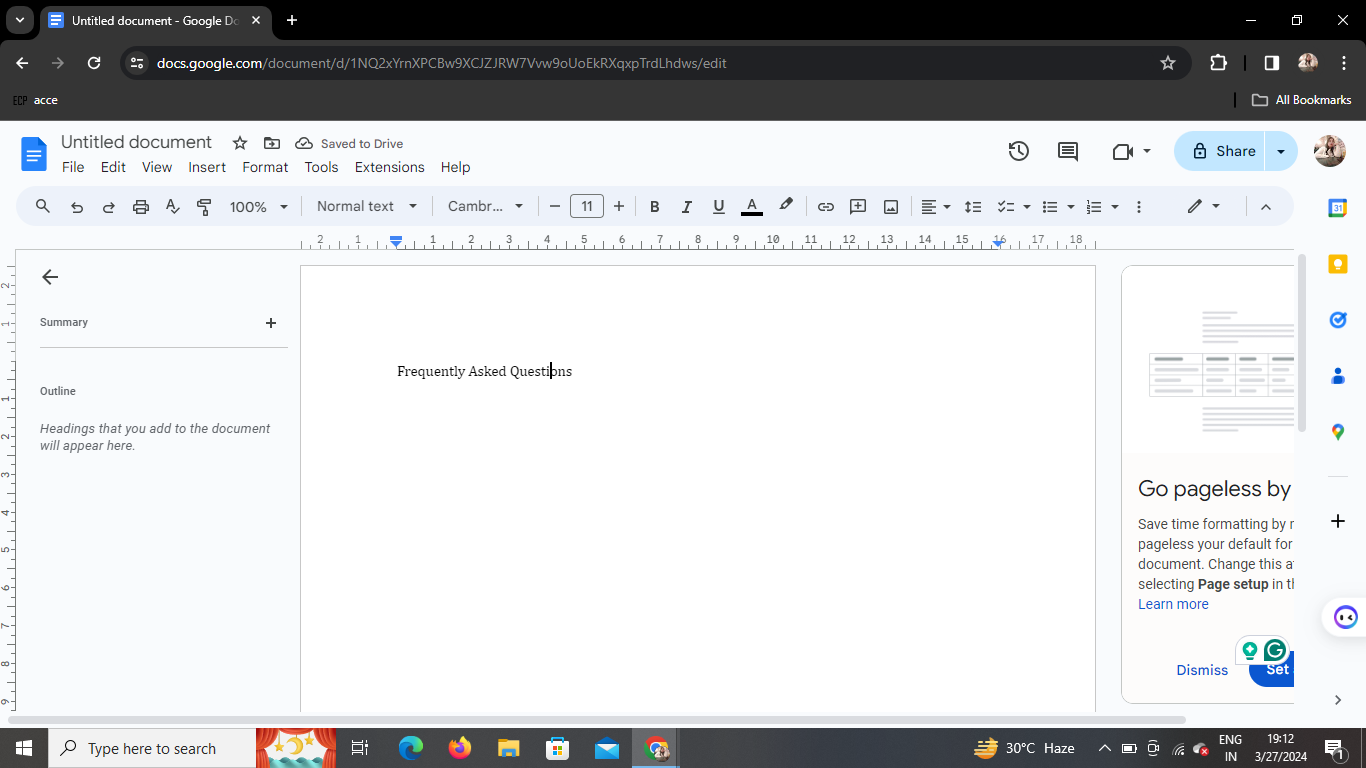
A dropdown menu will appear, displaying various font styles. Scroll through the options and click on the one you prefer. The selected text will instantly update to reflect the chosen font style.
Step 6: Adjust Font Size
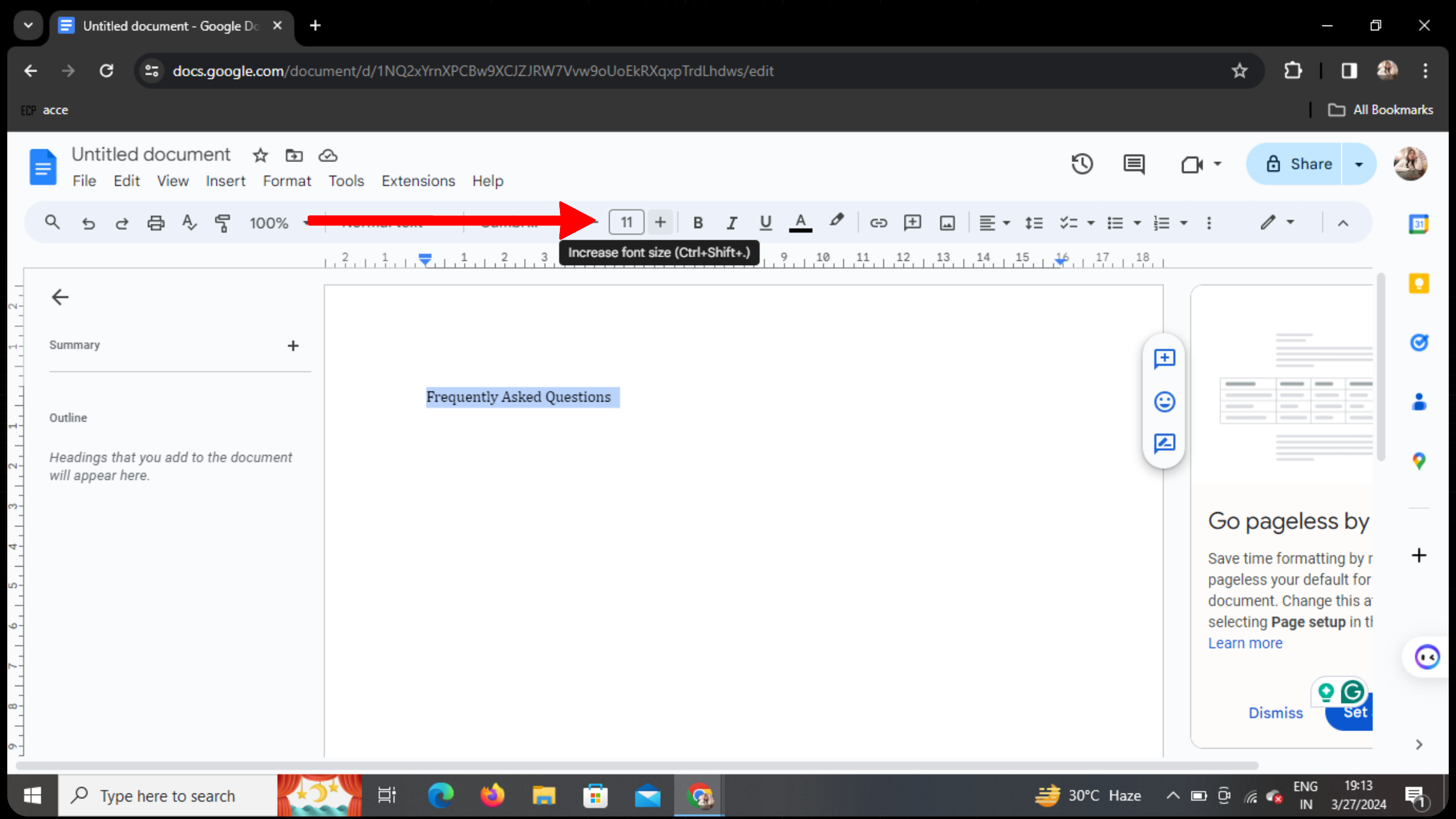
If you also want to change the font size, locate the font size dropdown menu. It is usually located next to the font style dropdown. Click on it to reveal a list of available font sizes.
Step 7: Select Font Size
Similar to changing the font style, choose the desired font size from the dropdown menu. The selected text will adjust accordingly to reflect the new font size.
Conclusion
Changing font style and size in Google Docs is a simple yet effective way to enhance the appearance of your documents. With just a few clicks, you can customize your text to suit your preferences and improve readability. Experiment with different font styles and sizes to find the perfect combination for your document.
Frequently Asked Questions
How can I revert to the default font style and size?
To revert to the default font style and size in Google Docs, select the text you want to change, and then click on the font style and size dropdown menus. Choose the option labeled "Normal text" for font style and "Normal" for font size.
Can I customize the font styles and sizes in Google Docs?
Google Docs offers a variety of pre-set font styles and sizes to choose from. While you can't create custom font styles or sizes within the platform, you can upload documents with custom fonts installed on your device.
Do changes in font style and size affect the document's formatting?
Yes, changing the font style and size can affect the overall formatting of your document. Be mindful of how these changes may impact spacing, layout, and readability, especially if you're collaborating with others on the document.
Are the font styles and sizes consistent across different devices?
Google Docs ensures consistency in font styles and sizes across various devices and platforms. However, slight variations may occur due to differences in rendering and display settings.
Can I change the font style and size in Google Docs mobile app?
Yes, you can change the font style and size in the Google Docs mobile app. The process is similar to the web version, allowing you to customize your text on the go. Simply select the text, tap on the font style or size options, and make your desired changes.


