How to compress photos in PowerPoint


Enhance your PowerPoint performance with our step-by-step guide on compressing photos for seamless presentations.
Creating visually stunning presentations is a key aspect of effective communication, but large photo files can hinder your PowerPoint's performance and slow down the presentation experience. To ensure smooth transitions and a seamless audience experience, it's crucial to compress photos within your PowerPoint presentation. In this step-by-step guide, we'll walk you through the process of compressing photos in PowerPoint, helping you strike the perfect balance between visual appeal and efficient file management.
How to compress photos in PowerPoint
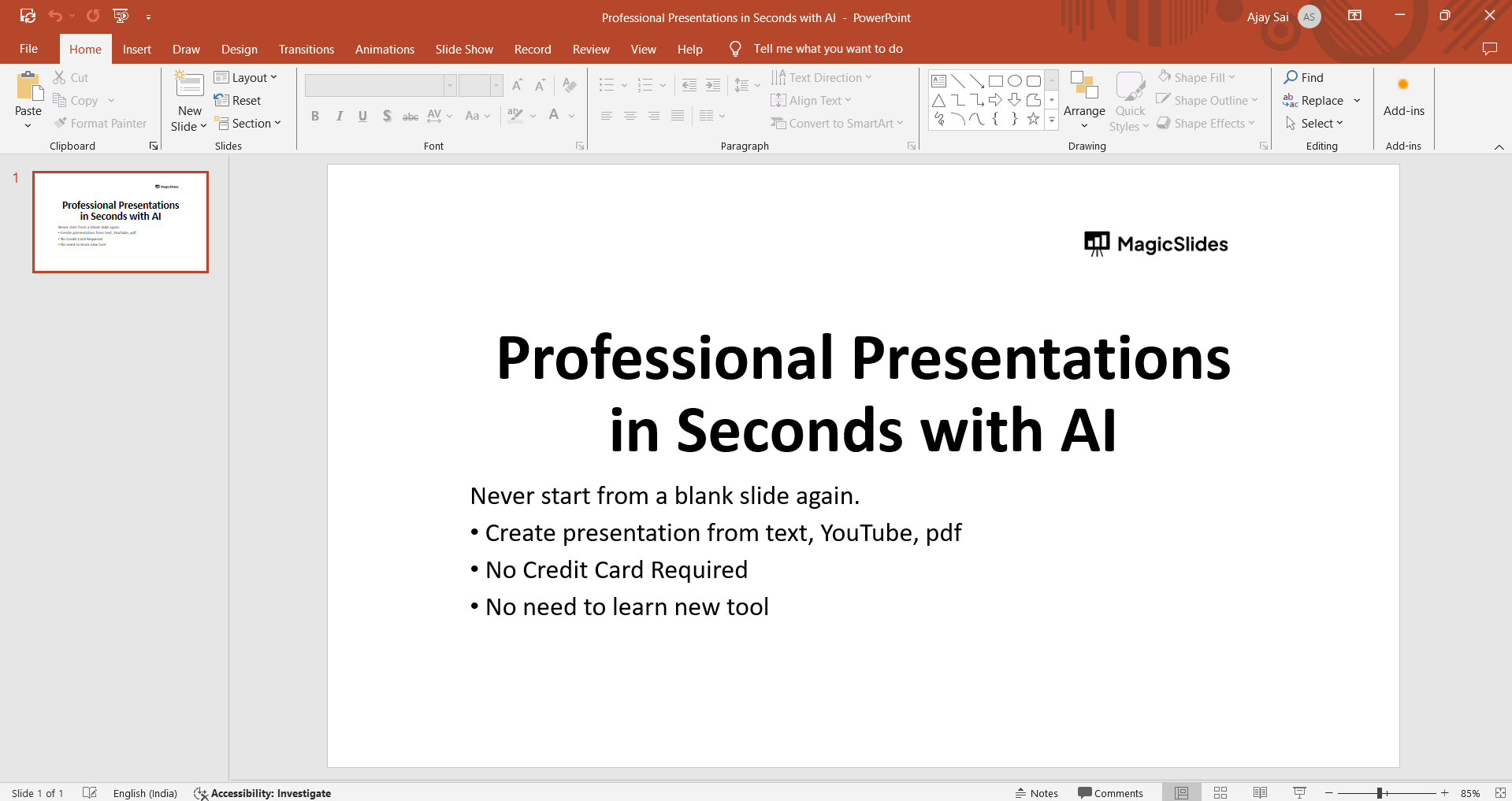
Step 1: Open Your PowerPoint Presentation
Begin by opening the PowerPoint presentation containing the photos you wish to compress. Locate the slide with the images and ensure you're ready to enhance the overall performance of your presentation.
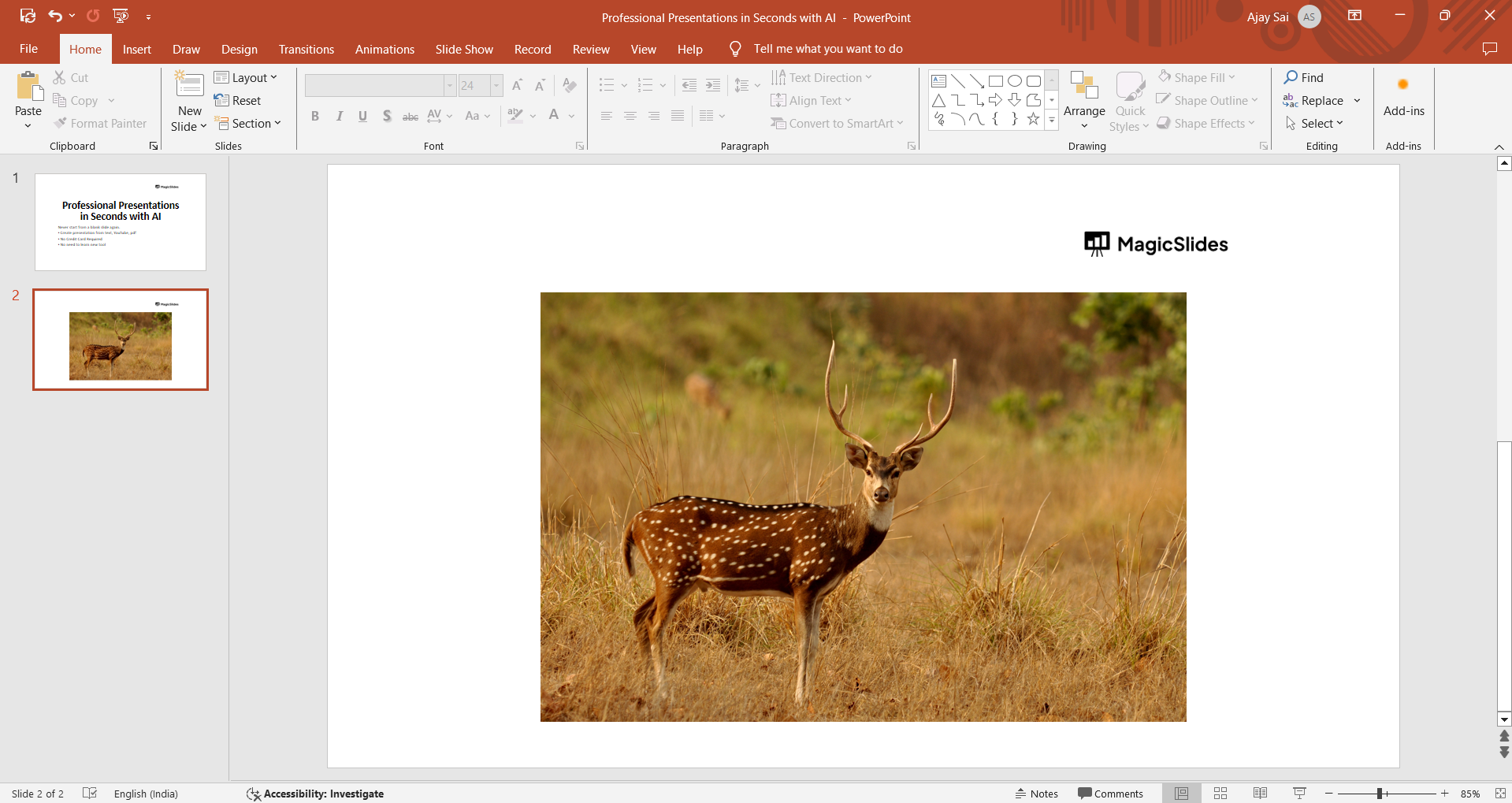
Step 2: Select the Image(s) to Compress
Click on the slide containing the photos you want to compress. Hold down the "Shift" key while clicking on each image to select multiple photos if necessary. Alternatively, you can press and hold "Ctrl" while clicking on individual images.
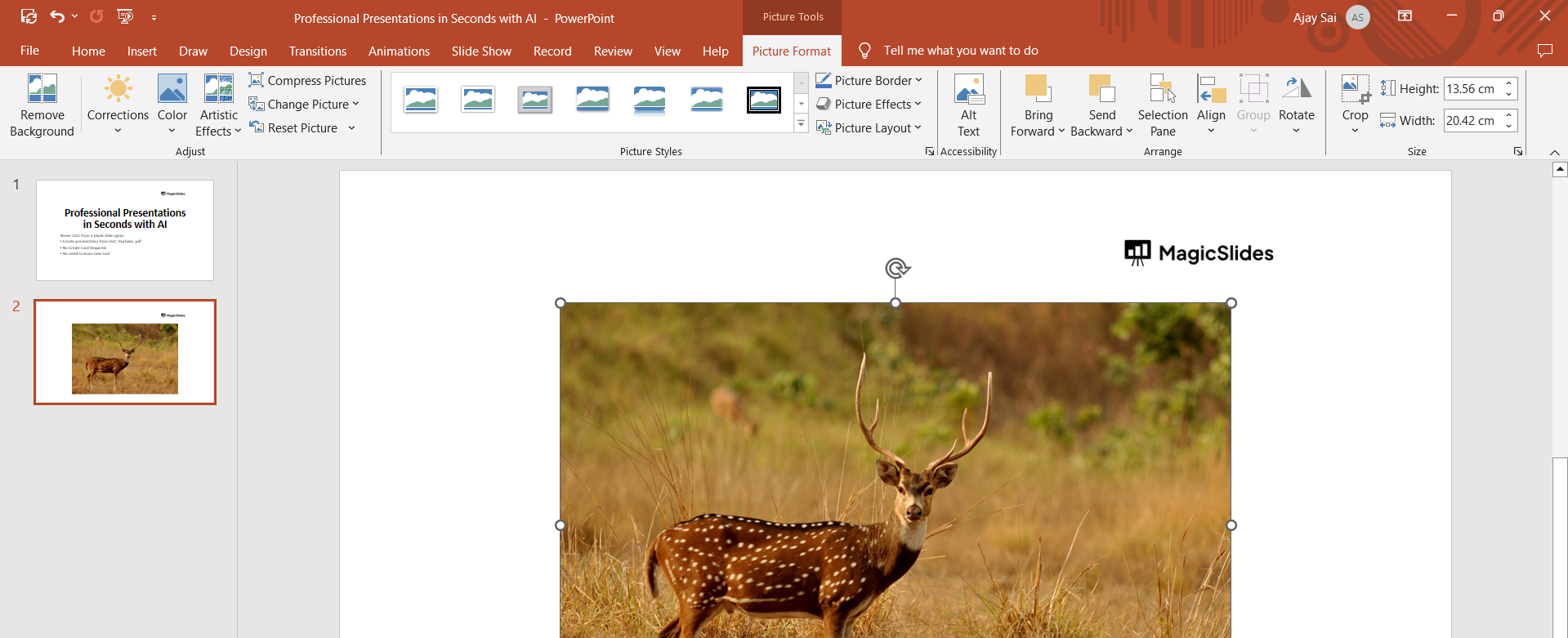
Step 3: Navigate to the "Format" Tab
Once your images are selected, navigate to the "Format" tab on the PowerPoint ribbon. This tab houses various image editing and formatting options to enhance the visual aspects of your slides.
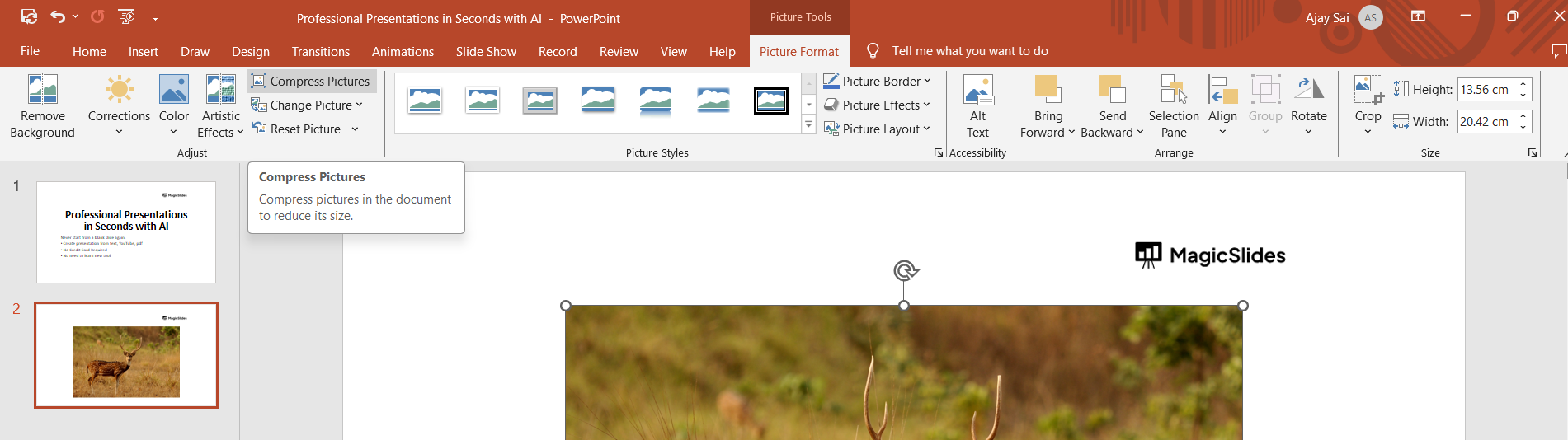
Step 4: Click on "Compress Pictures"
Within the "Format" tab, look for the "Compress Pictures" option. Click on it to open the compression settings dialog box.
Step 5: Choose Compression Options
In the compression settings dialog box, you'll be presented with options for compression. Select your preferred target output quality, such as "Print" or "Web/E-mail," depending on your presentation's intended use.
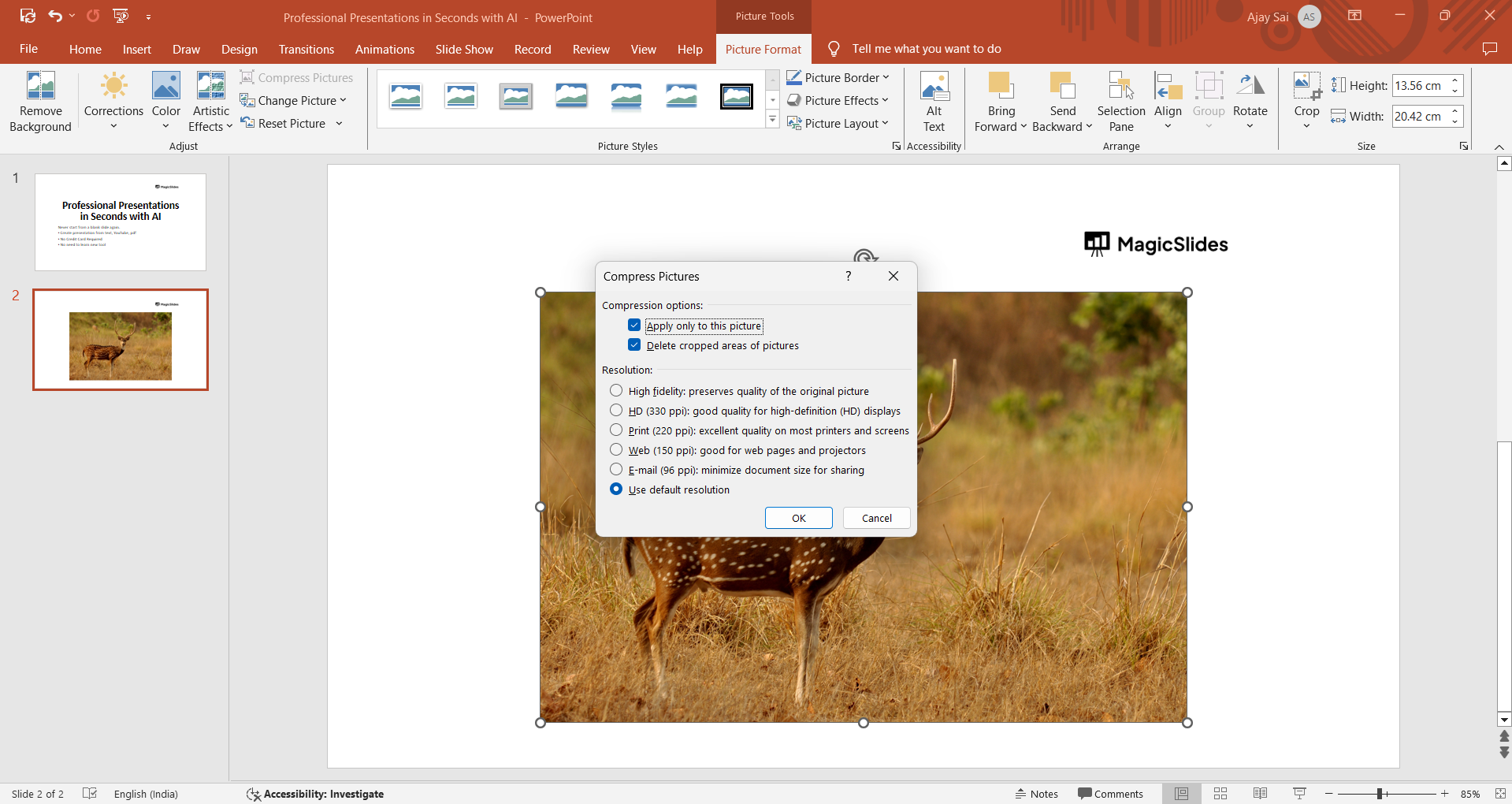
Step 6: Opt for Deleting Cropped Areas
To maximize compression efficiency, consider checking the "Delete cropped areas of pictures" option. This removes any unnecessary data from cropped portions of images, further reducing the file size.
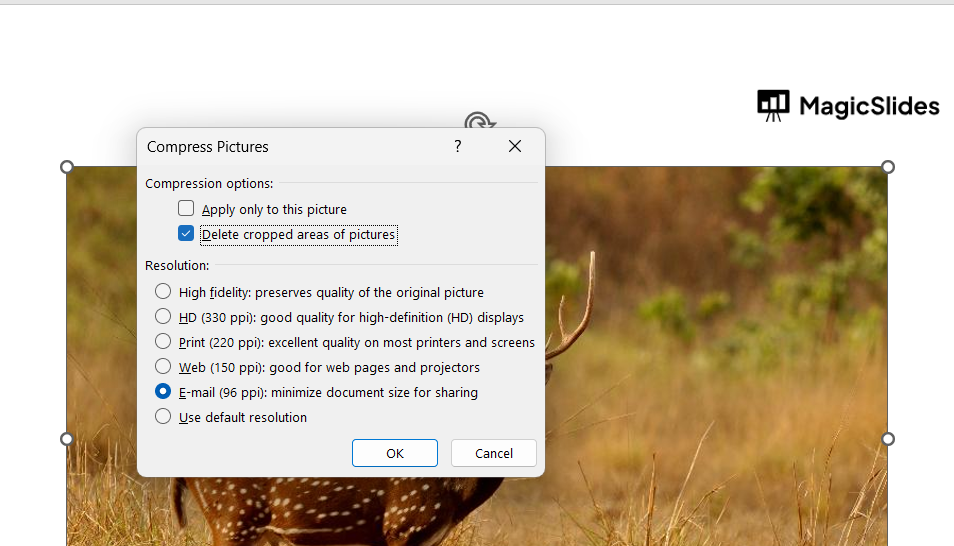
Step 7: Click "OK" to Apply Compression
Once you've chosen your compression settings, click the "OK" button to apply the changes. PowerPoint will automatically compress the selected images based on your specifications.

Conclusion:
Efficiently compressing photos in PowerPoint is a vital step toward achieving a smooth and professional presentation. By following these simple steps, you can strike a balance between visual quality and file size, ensuring your audience remains engaged without sacrificing performance. Incorporate these compression techniques into your presentation workflow to optimize your PowerPoint files for seamless delivery, leaving a lasting impression on your audience.
Frequently Asked Questions:
Why should I compress photos in PowerPoint?
Compressing photos enhances presentation performance by reducing file size without compromising visual quality.
Does compression affect image quality?
Compression may slightly reduce image quality, but PowerPoint offers options to balance size and visual appeal.
Can I choose the level of compression?
Yes, PowerPoint provides compression options, allowing you to select the desired output quality based on your presentation needs.
Will compressing photos impact the original files?
No, compression only affects images within the PowerPoint file, preserving the integrity of your original photo files.


