How to Convert Online Training Manuals into PowerPoint Slides


Transform online training manuals into dynamic PowerPoint slides effortlessly with our step-by-step guide. Enhance presentations and engage learners effectively.
In the ever-evolving world of online education, transforming lengthy training manuals into concise and engaging presentations has become a necessity. Fortunately, with the assistance of MagicSlides, the process is now simpler than ever. Follow this comprehensive guide to effortlessly convert your online training manuals into dynamic PowerPoint slides.
How to Convert Online Training Manuals into PowerPoint Slides
To begin this transformative process, we'll start from the very basics.
Step 1: Open Google Slides and Create a Blank Presentation
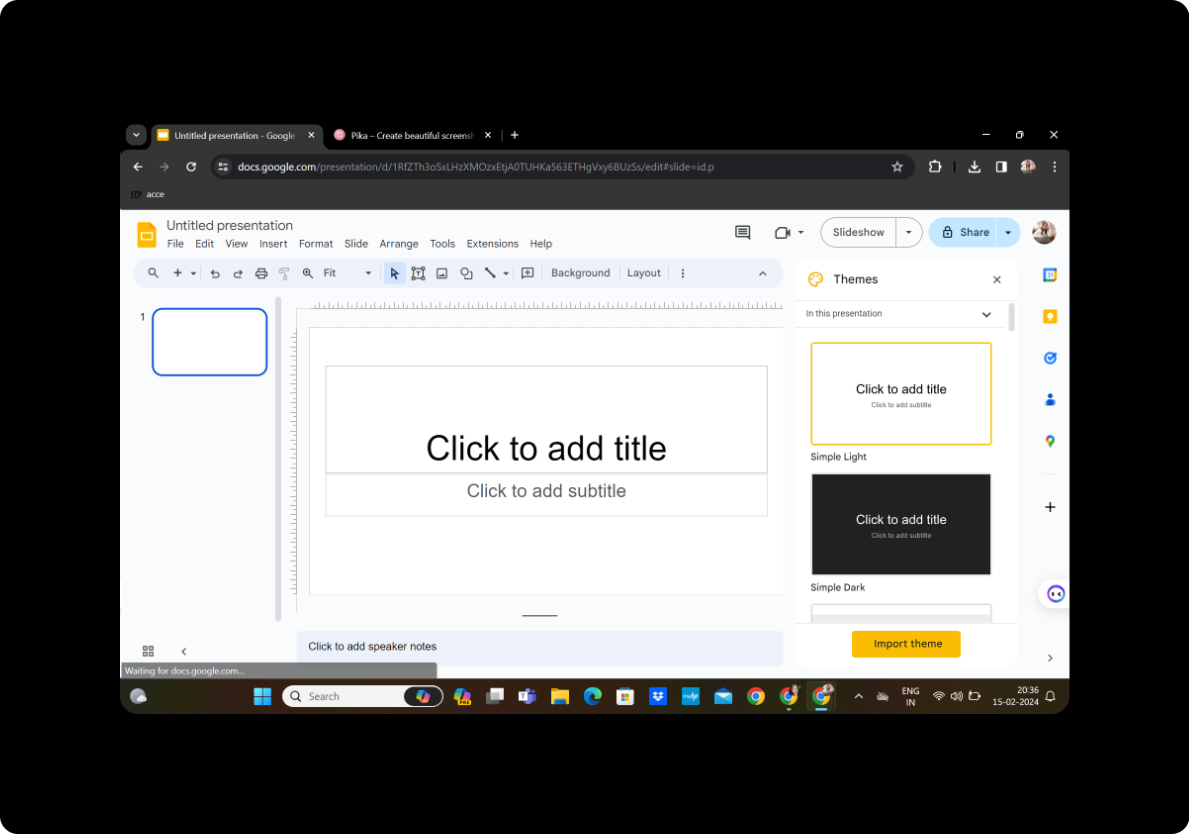
Navigate to Google Slides and sign in. Create a new presentation by clicking on "Blank" from the template options.
Step 2: Click on Extensions and MagicSlides GPT
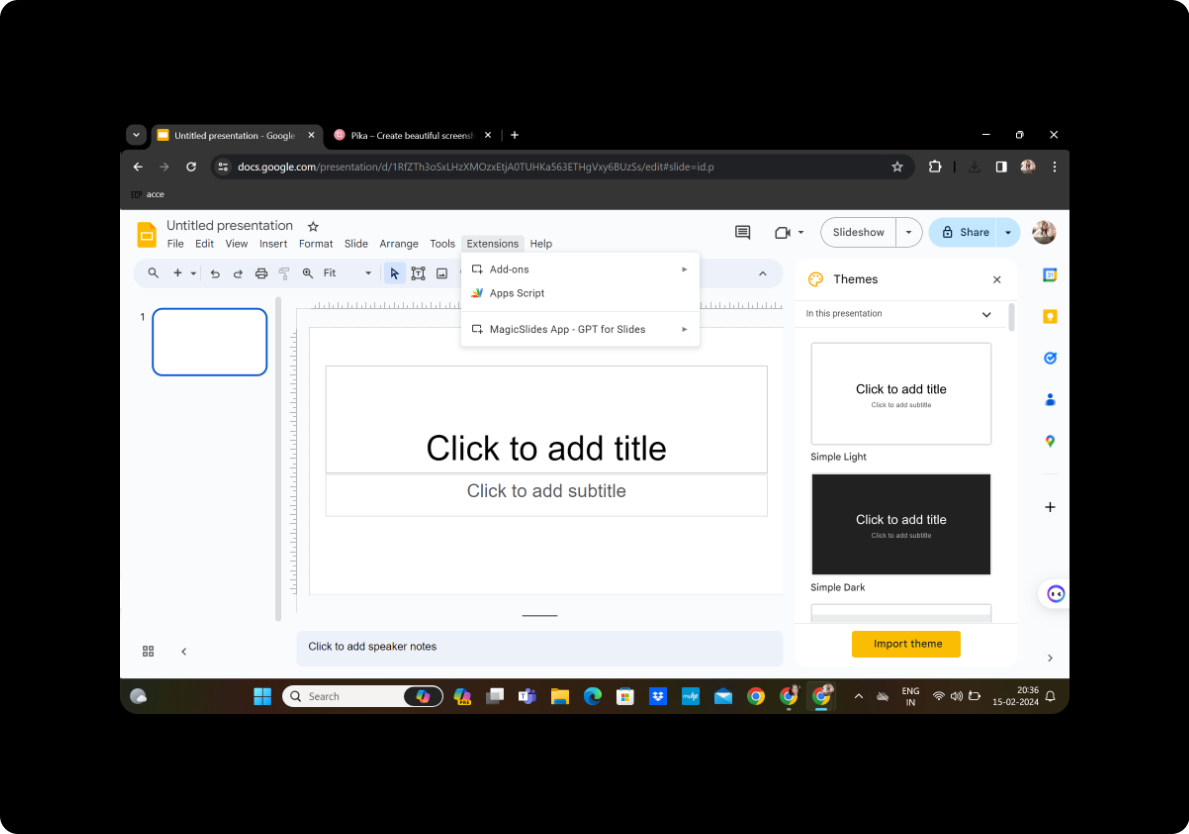
In the toolbar, find the "Extensions" tab and select "MagicSlides GPT" to activate the powerful tool.
Step 3: Click on URL to PPT
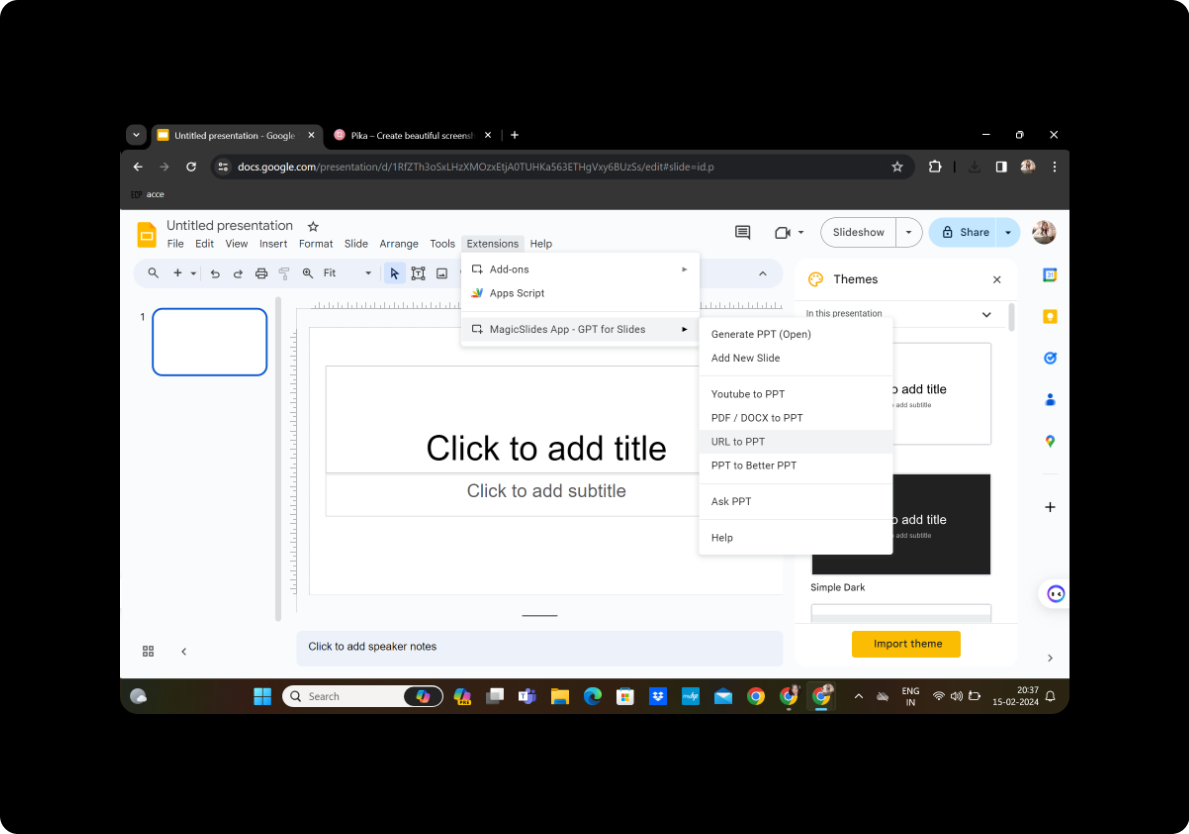
Within the MagicSlides GPT interface, click on "URL to PPT" to access the URL conversion feature.
Step 4: Copy the URL of the Content
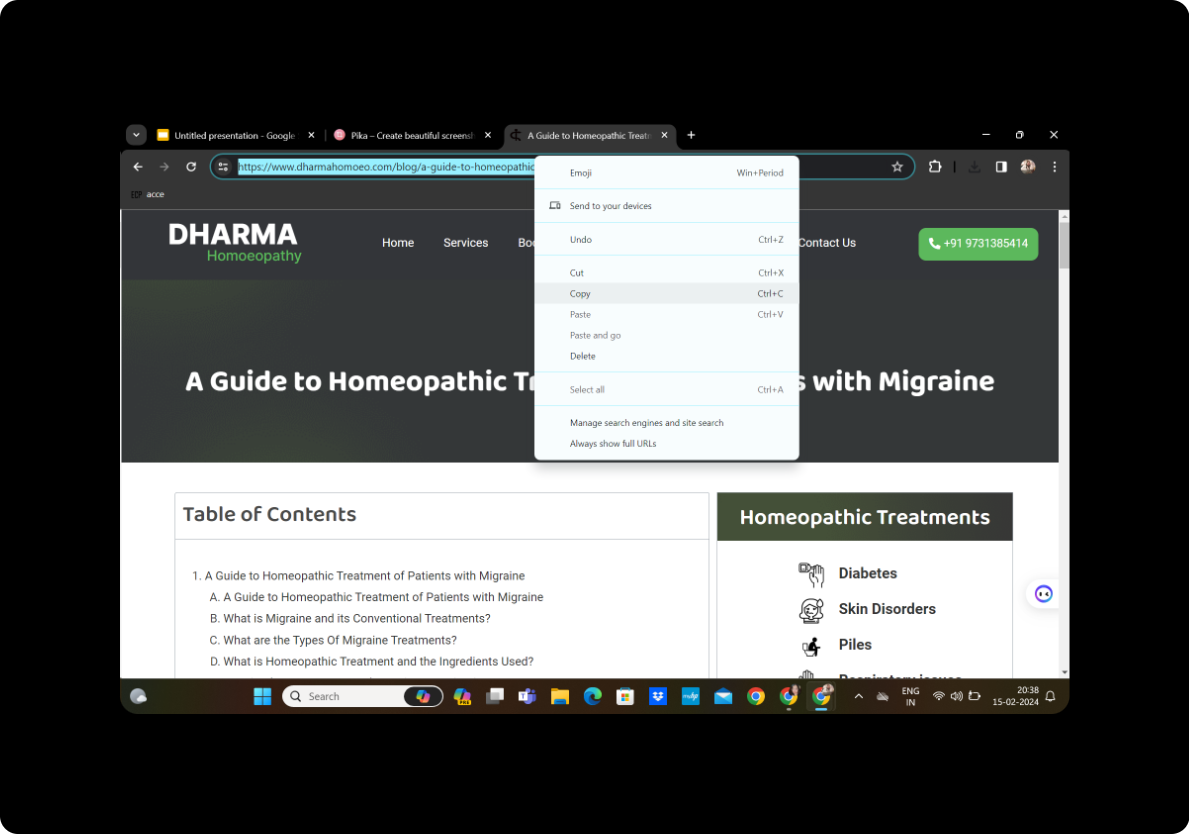
Locate the online training manual you wish to convert. Copy the URL from your browser's address bar.
Step 5: Paste it in the Given Box
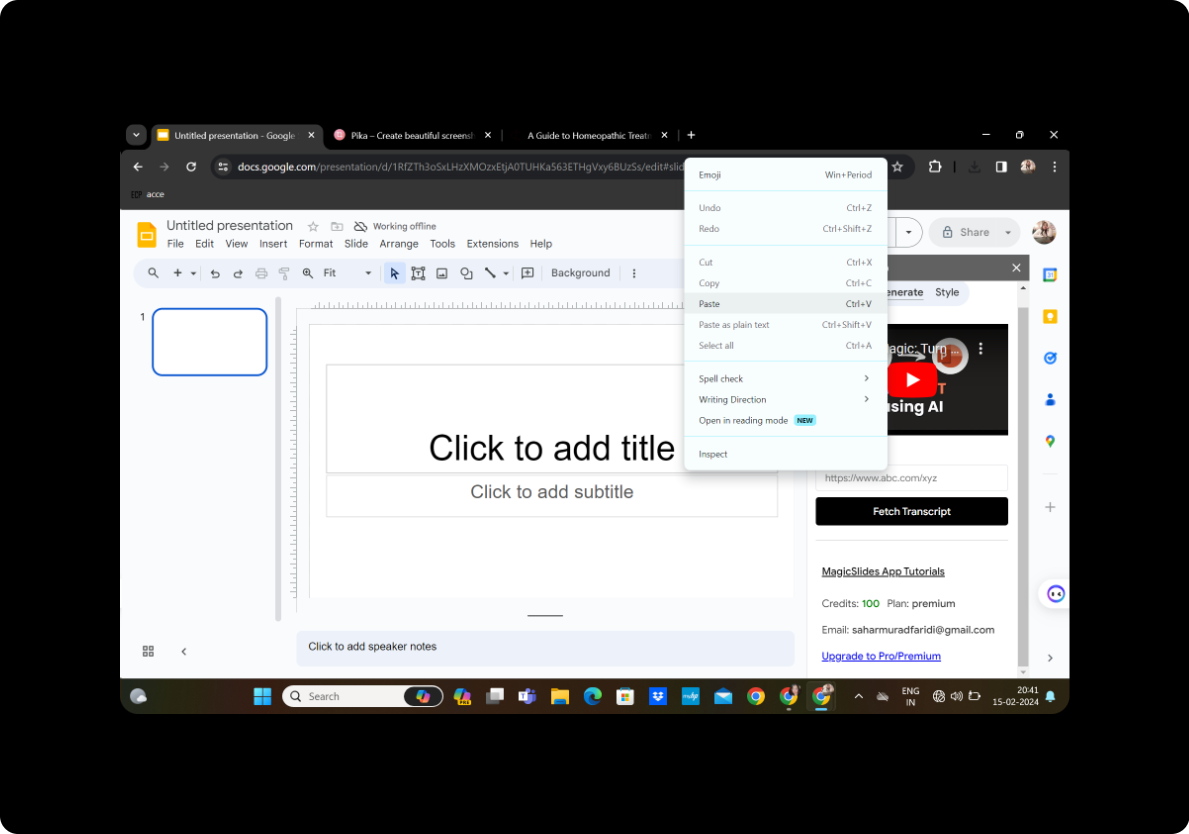
Paste the copied URL into the designated box within MagicSlides GPT.
Step 6: Click on Fetch Transcript
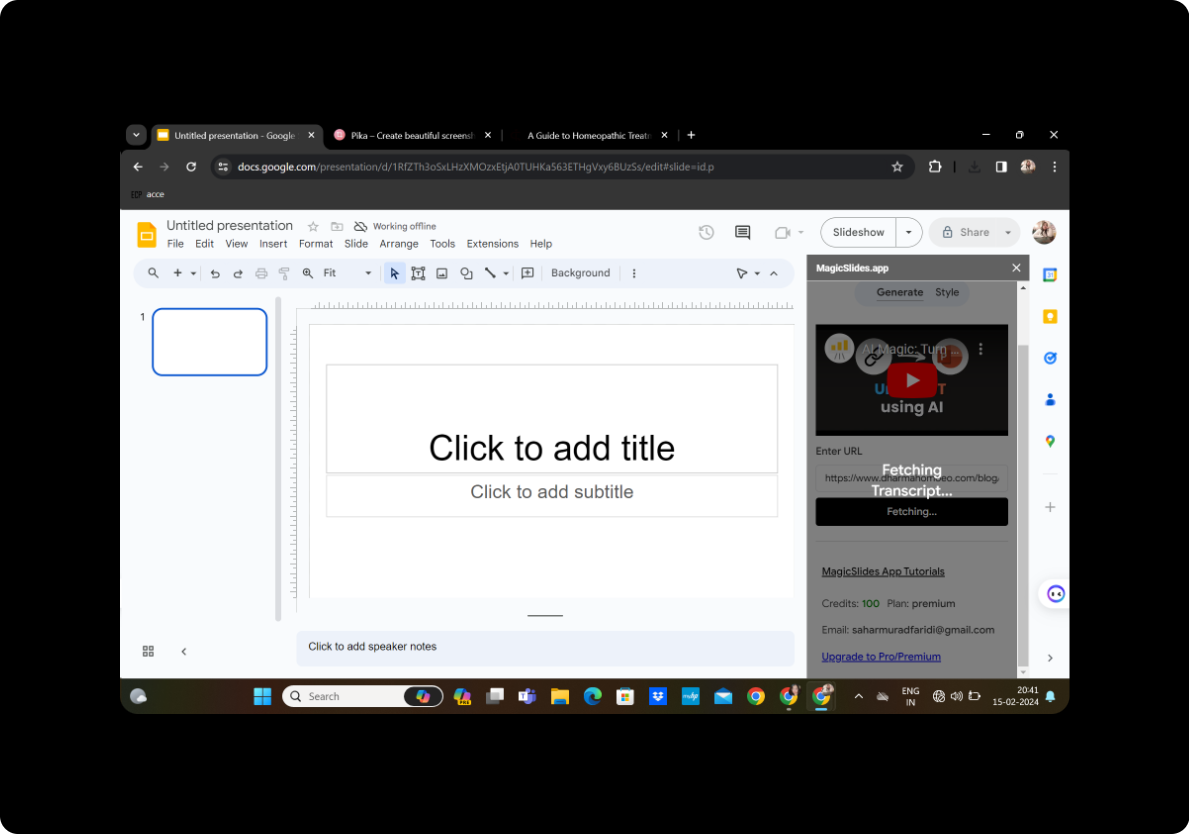
Initiate the process by clicking on "Fetch Transcript." MagicSlides GPT will analyze the content and extract relevant information.
Step 7: Select the Number of Slides
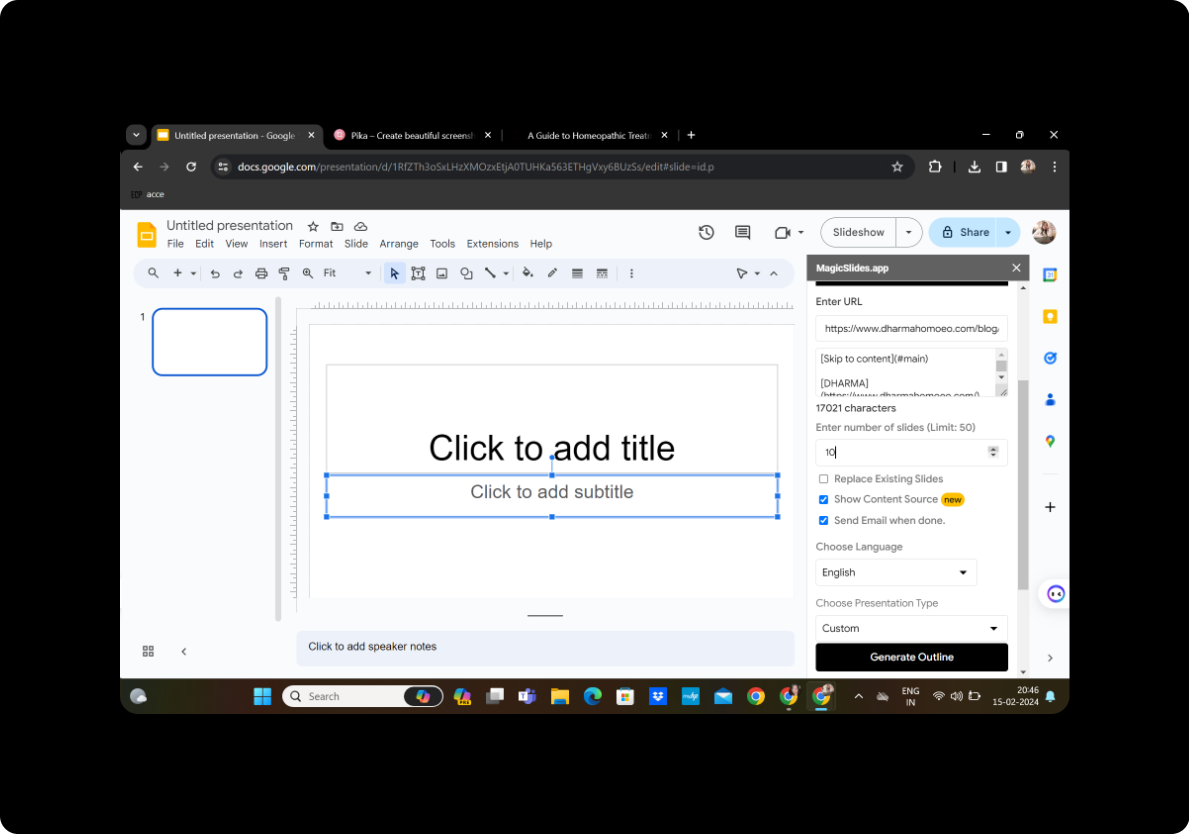
Customize your presentation by selecting the desired number of slides based on the content's complexity and your preferences.
Step 7: Generate Outline
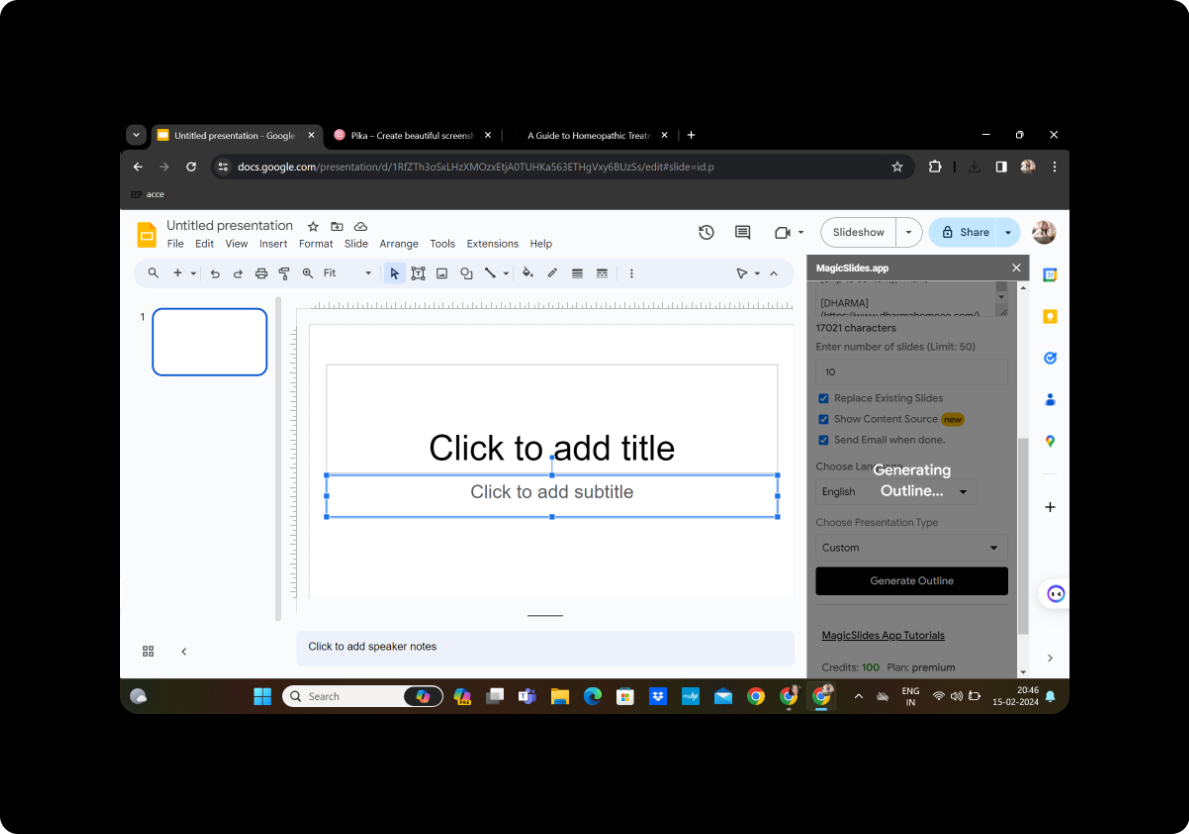
Customize your presentation further by generating an outline based on the extracted content.
Step 8: Once Satisfied with the Outline, Click on Generate Presentation
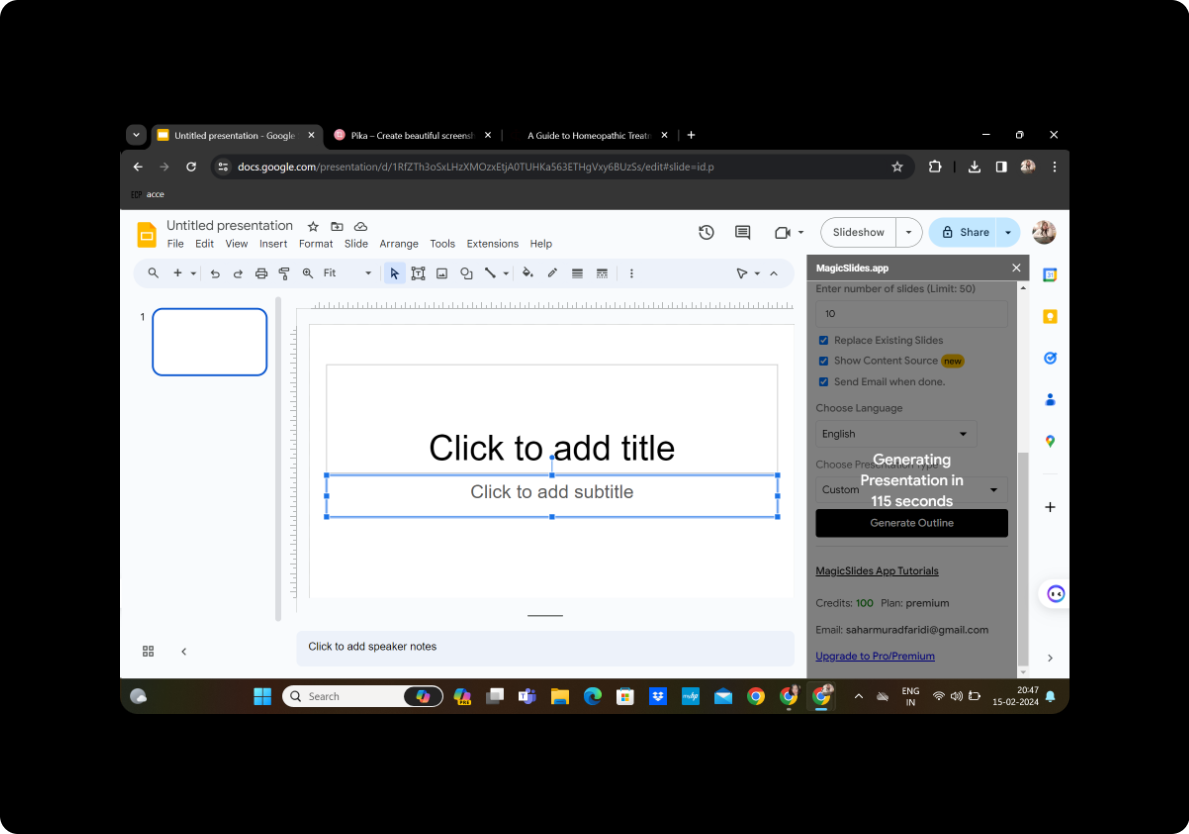
Review the generated outline and, when satisfied, proceed by clicking on "Generate Presentation" MagicSlides GPT will transform the training manual into PowerPoint slides based on the outlined structure.
Your Presentation is Ready
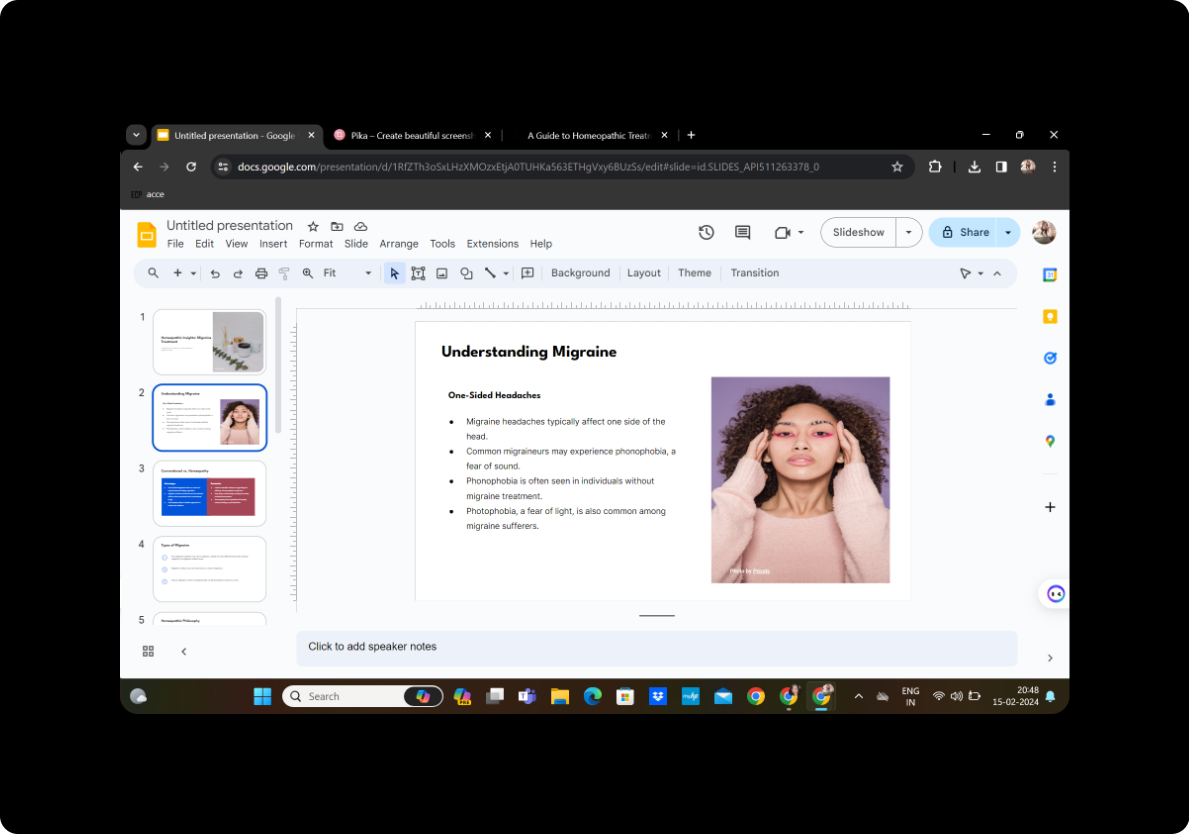
Congratulations! Your meticulously crafted presentation is now ready to captivate your audience. Save your work and share it effortlessly.
Conclusion
In conclusion, the seamless integration of Google Slides and MagicSlides GPT has revolutionized the conversion of online training manuals into dynamic PowerPoint presentations. This user-friendly process allows educators and trainers to enhance engagement and deliver information effectively. Embrace this innovative approach to transform your training materials into visually appealing presentations effortlessly. Elevate your online teaching experience and leave a lasting impact on your audience.
Frequently Asked Questions
How long does the conversion process take?
The conversion process is generally quick, with MagicSlides efficiently extracting key content from the provided URL.
Can I customize the generated slides?
Absolutely! MagicSlides offers editing features, allowing you to tailor the slides to your specific requirements.
Is MagicSlides GPT compatible with all browsers?
Yes, MagicSlides GPT is designed to be compatible with various browsers, ensuring a smooth user experience.
Can I add additional visual elements to my presentation?
Certainly! Enhance your presentation further by incorporating images, graphics, and additional text as needed.
How can I share my presentation with others?
Simply save your presentation on Google Slides and use the sharing options to distribute it to your intended audience.


