How to convert PDFs to mobile-friendly PowerPoint slides


Upgrade your presentation game: Learn how to convert PDFs into mobile-friendly slides with ease and style!
In a world on the move, having presentations that seamlessly adapt to mobile devices is crucial. Converting PDFs to mobile-friendly PowerPoint slides doesn't have to be a complex task. In this guide, we'll walk you through the process using the user-friendly Google Slides platform and a handy extension called MagicSlides.
How to convert PDFs to mobile-friendly PowerPoint slides
Step 1: Visit Google Slides
Begin by heading to slides.google.com. If you don't have an account, sign in with your Google credentials.
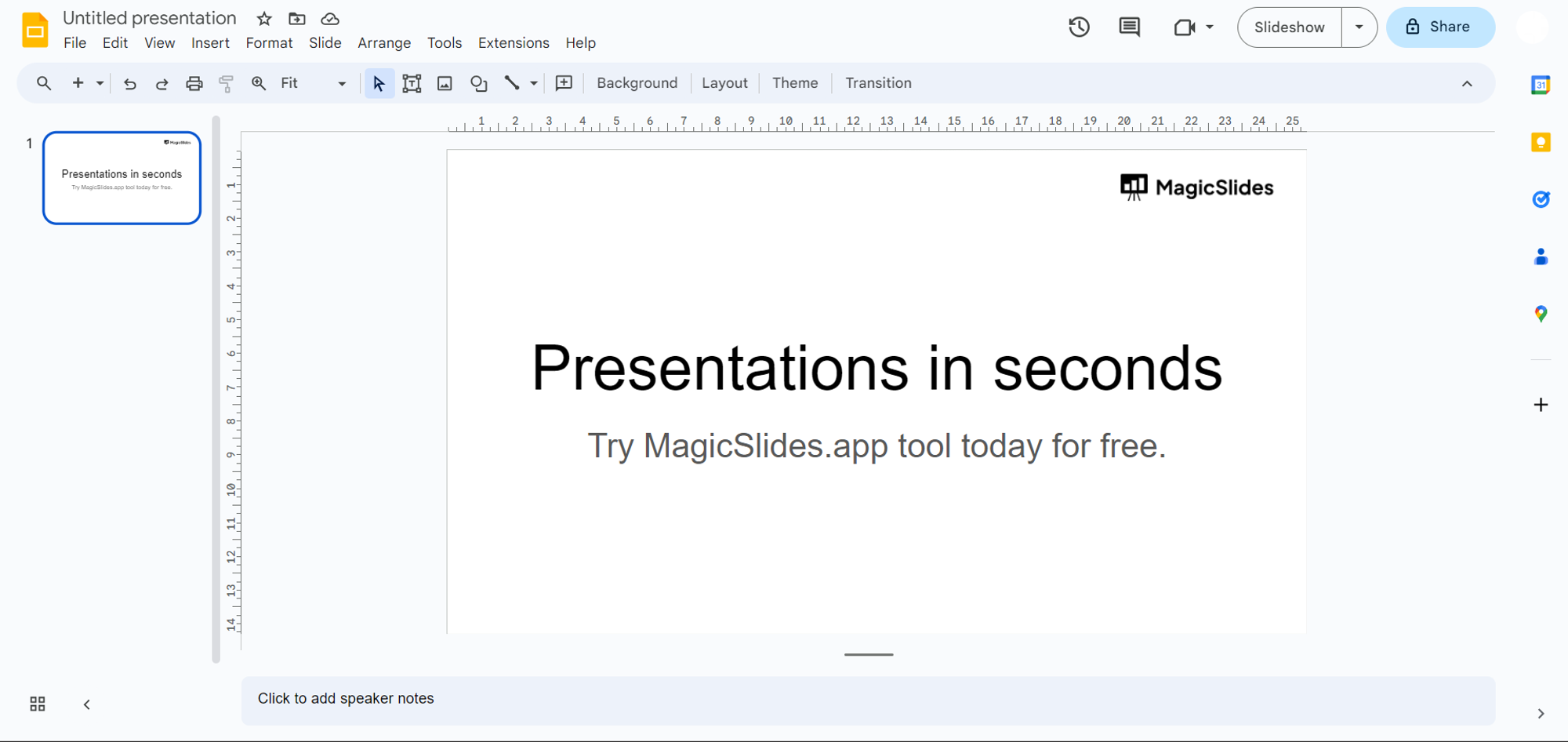
Step 2: Download MagicSlides Extension (if not installed)
a. If MagicSlides is already installed, open it from the extensions tab.
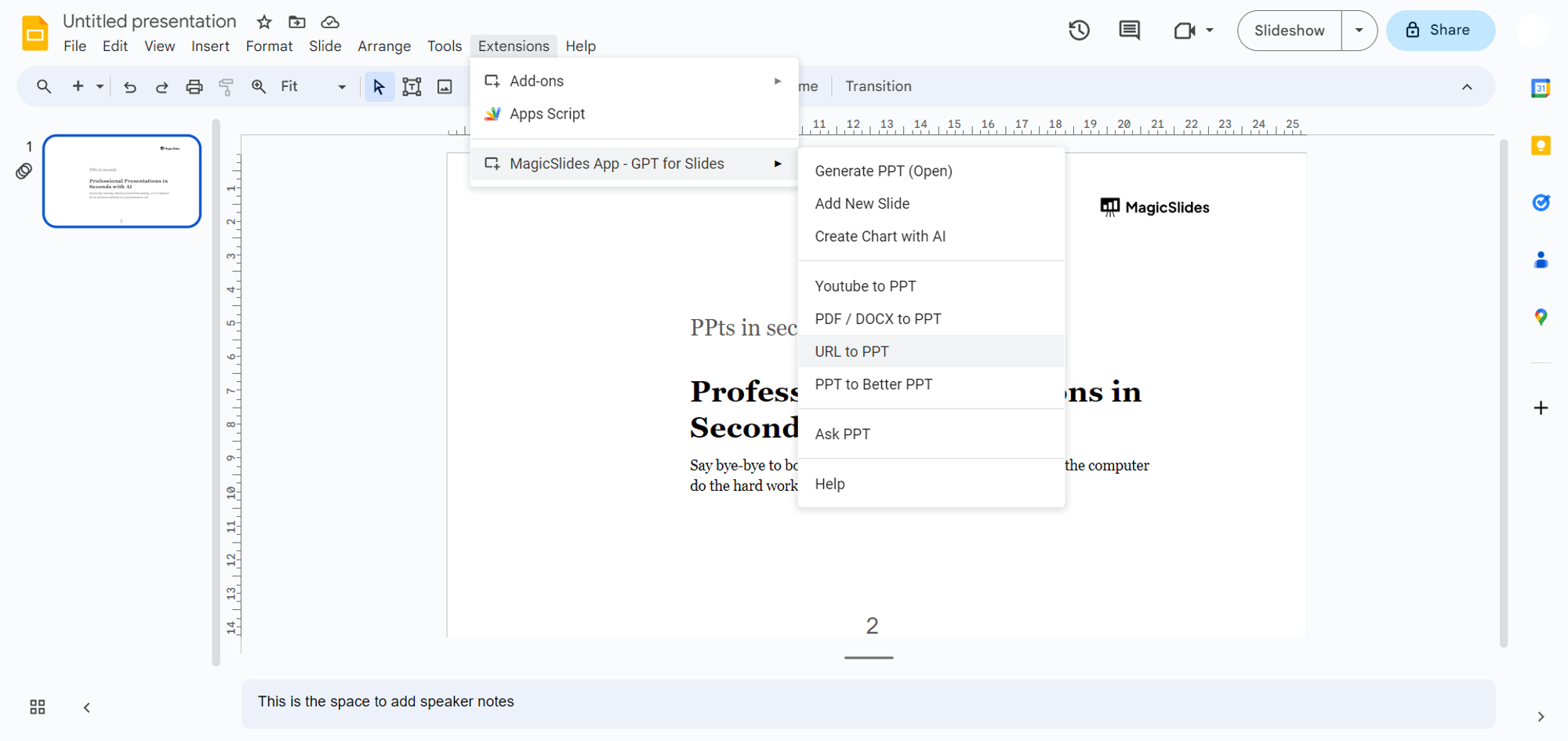
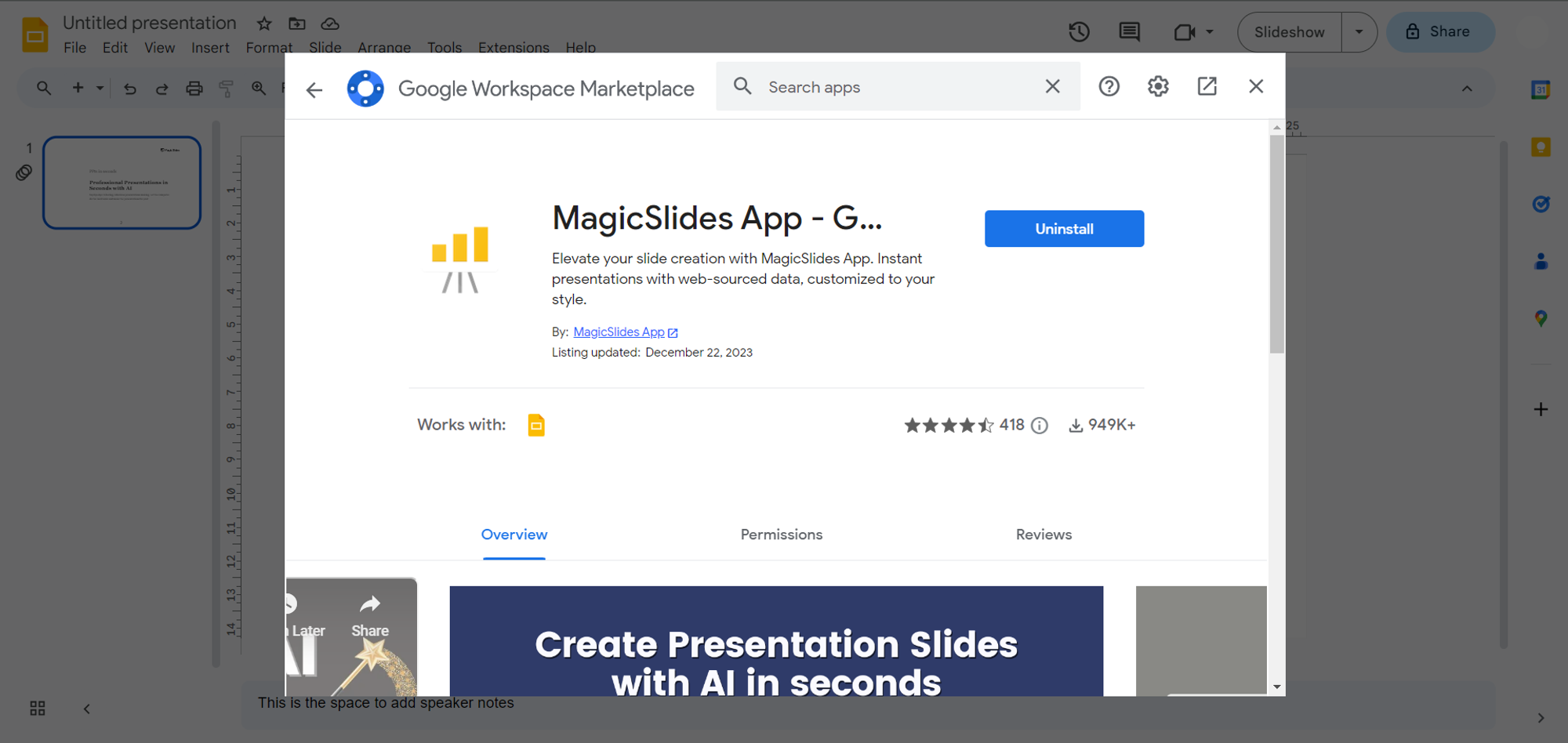
b. If not, go to the extensions marketplace, search for "MagicSlides.app," and download the extension to Google Slides.
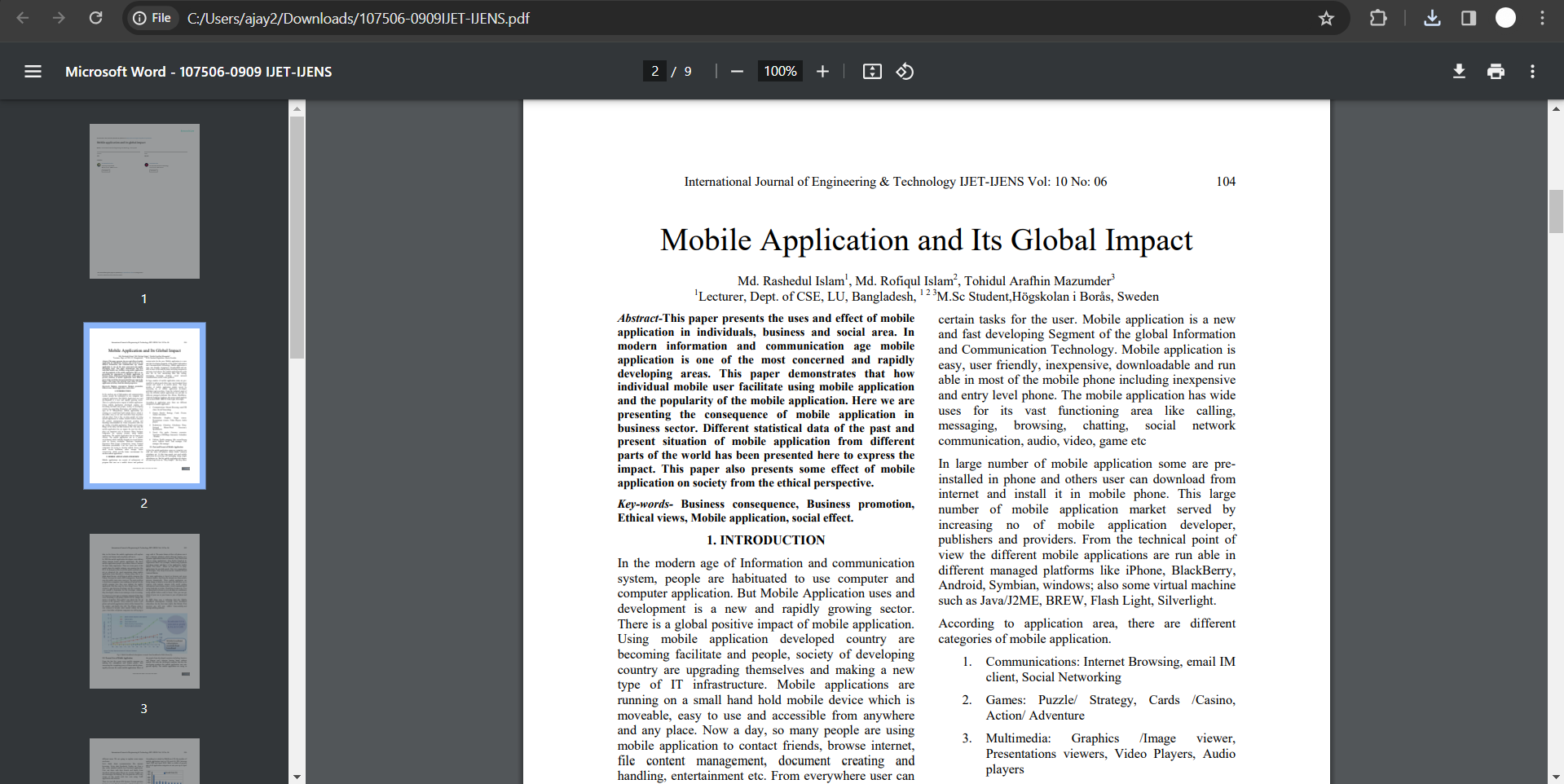
Step 3: Access Your PDF File
Grab the PDF you want to convert into a mobile-friendly presentation. Copy the URL if it's online or download the file to your device.
Step 4: Enter URL or Upload PDF
Back in Google Slides, paste the URL or upload the PDF file using the MagicSlides extension.
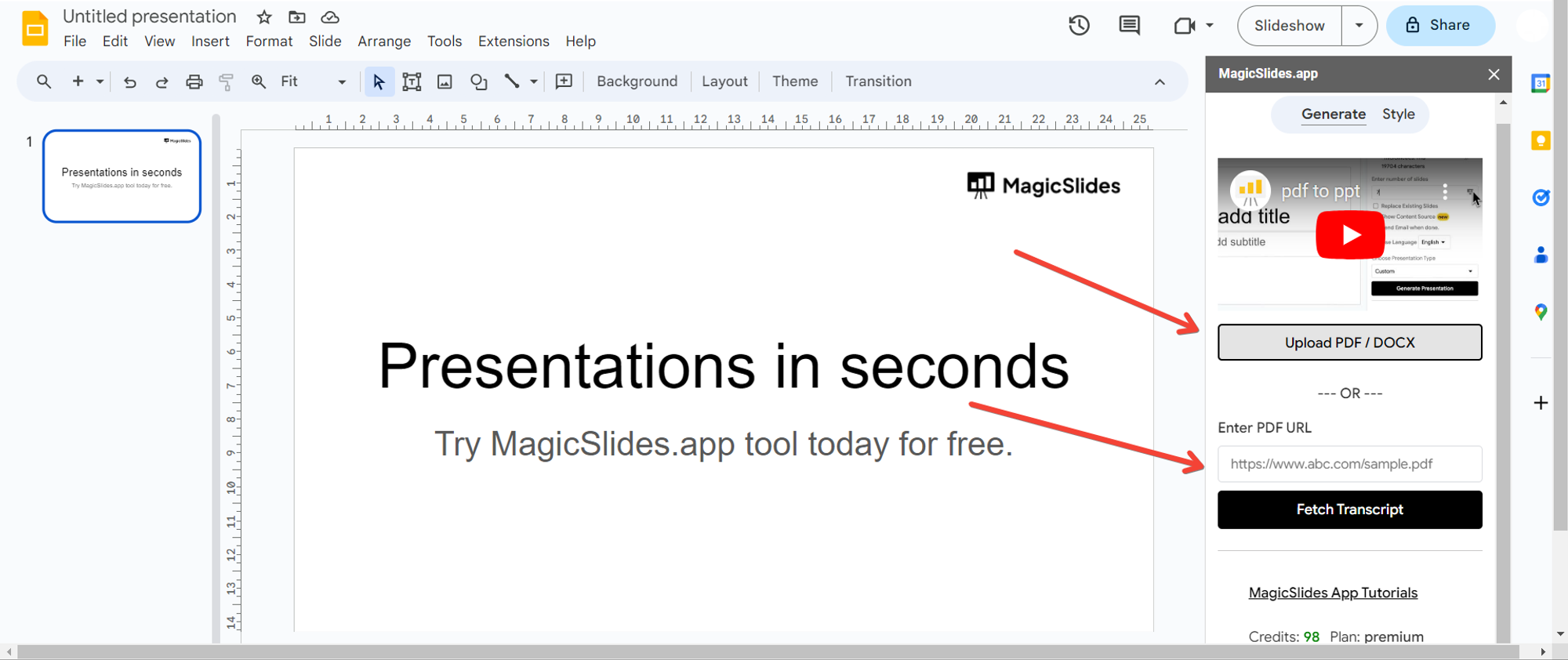
Step 5: Click on "Generate to Presentation"
With the PDF loaded, click the "Generate to Presentation" button. MagicSlides will work its magic to create a mobile-friendly version.
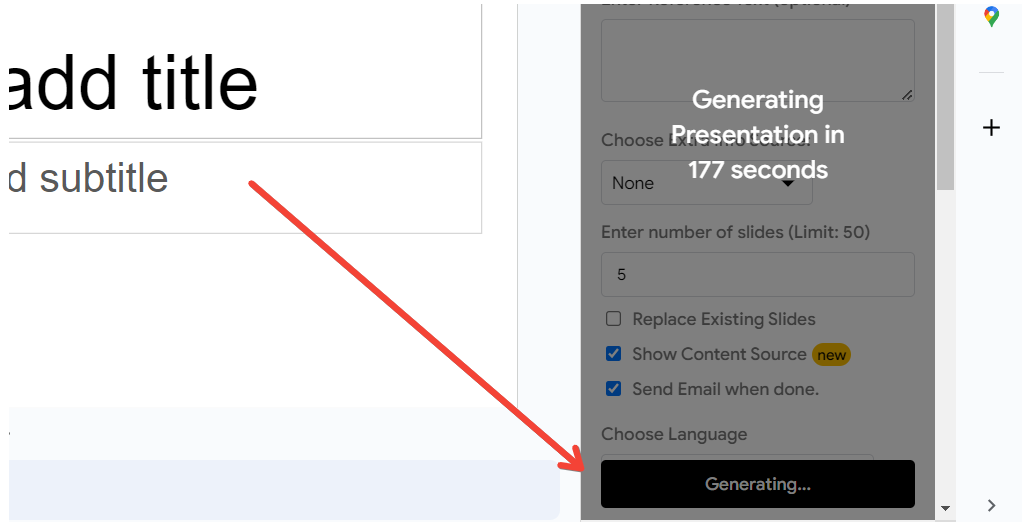
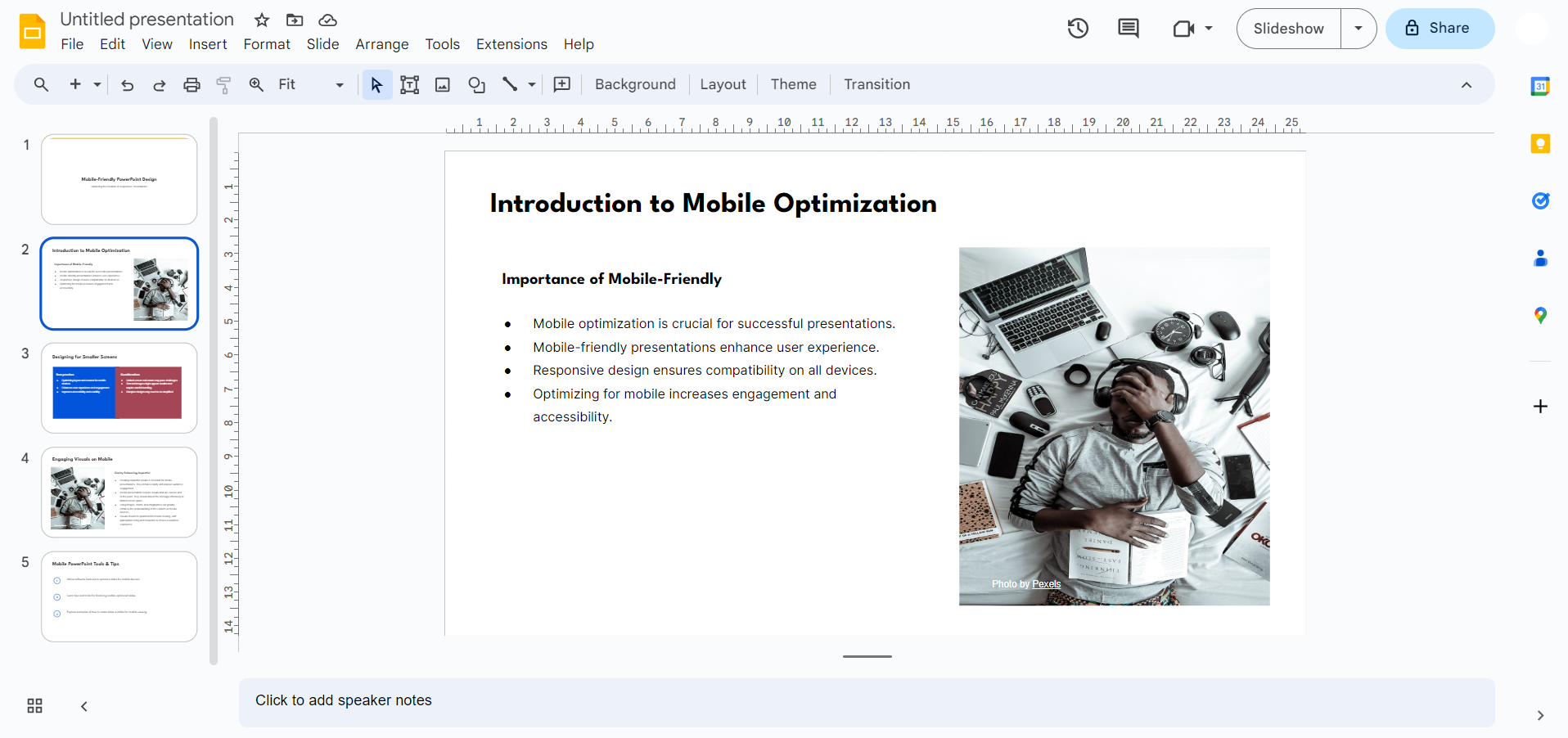
Step 6: That’s it! Your Mobile-Friendly Presentation is Ready
Your PDF is now transformed into a mobile-friendly presentation, ready to impress audiences on the go on their Phone Screens as you can observe the images and text generated follow border and Alignment friendly Guidelines for a Mobile friendly view.
Conclusion:
Embrace the convenience of mobile-friendly presentations by effortlessly converting your PDFs with Google Slides and MagicSlides. In just a few simple steps, you can ensure that your content is accessible and engaging, no matter the device. Say goodbye to compatibility issues and hello to a more versatile and dynamic approach to sharing your ideas. Elevate your presentations and make an impact, wherever your audience may be.
Frequently Asked Questions:
Why use Google Slides for PDF to mobile-friendly presentations?
Google Slides offers seamless conversion and compatibility, enhancing accessibility across various devices.
Can I convert password-protected PDFs using MagicSlides?
No, MagicSlides currently doesn't support password-protected PDFs; ensure your file is unprotected before conversion.
Are there size limitations for PDFs when using MagicSlides?
While MagicSlides is efficient, large PDFs may take longer to convert; consider optimizing file size.
Can I edit the converted mobile-friendly presentation further in Google Slides?
Absolutely! After conversion, you can edit and enhance your presentation within Google Slides for customization.


