How to Convert PDF Reports to Insightful Presentations


Unlock the art of converting PDF reports into Insightful Presentations with Google Slides and MagicSlides!
In today's fast-paced world, data and reports are abundant, but transforming them into insightful presentations can be a game-changer. Whether you're a student, professional, or simply someone who loves to share information visually, converting a PDF report into a captivating presentation is a valuable skill. In this blog post, we'll walk you through the process using the user-friendly Google Slides platform and a handy extension called MagicSlides.
How to Convert PDF Reports to Insightful Presentations
Step 1: Open Google Slides
Head to slides.google.com and sign in with your Google account. If you don't have one, it's quick and easy to create.
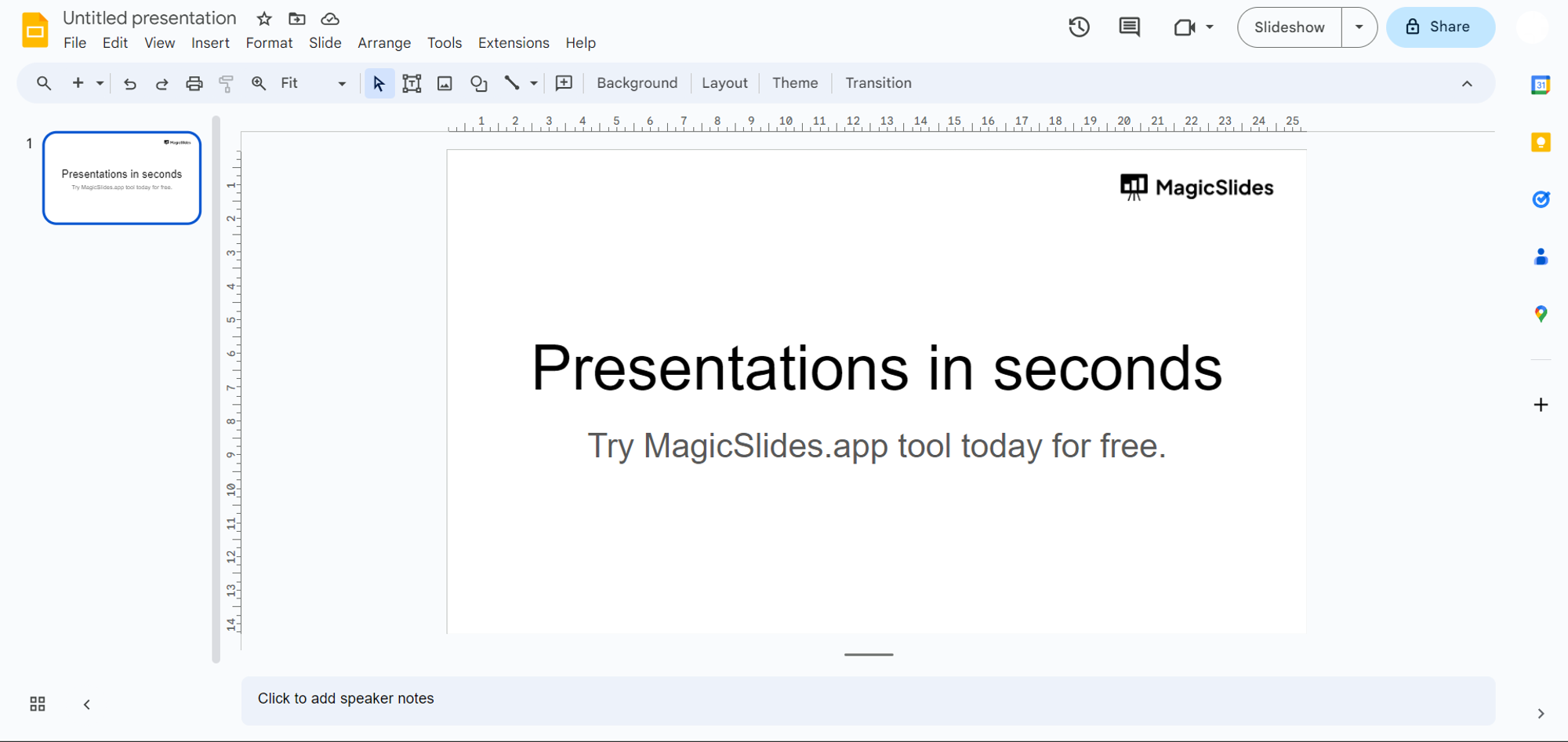
Step 2: Sign In to Google Slides
Once on Google Slides, sign in with your Google account. This ensures that your work is saved seamlessly.
Step 3a: Open MagicSlides Extension (If Already Downloaded)
If you've previously downloaded the MagicSlides extension, simply open it in the extensions tab of your browser.
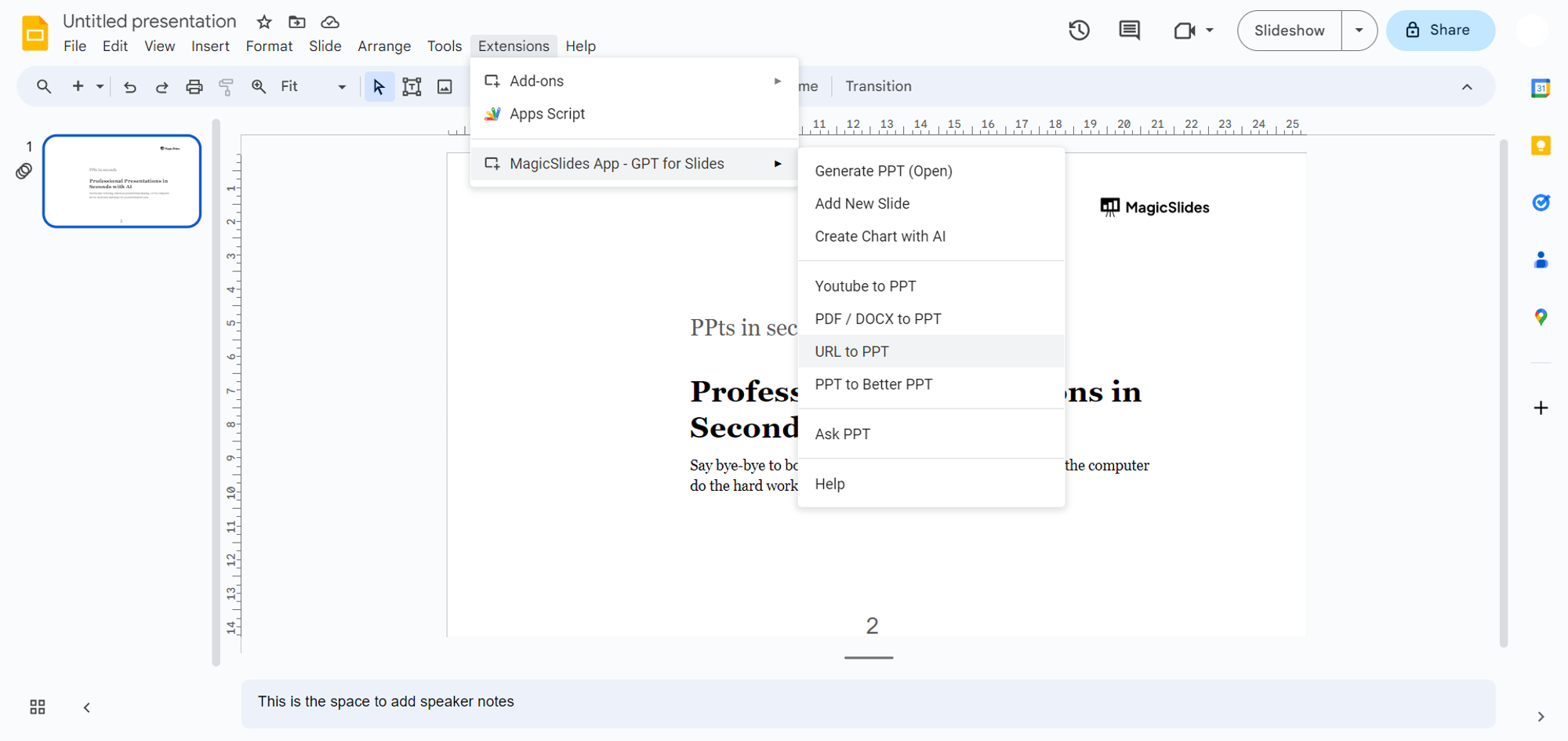
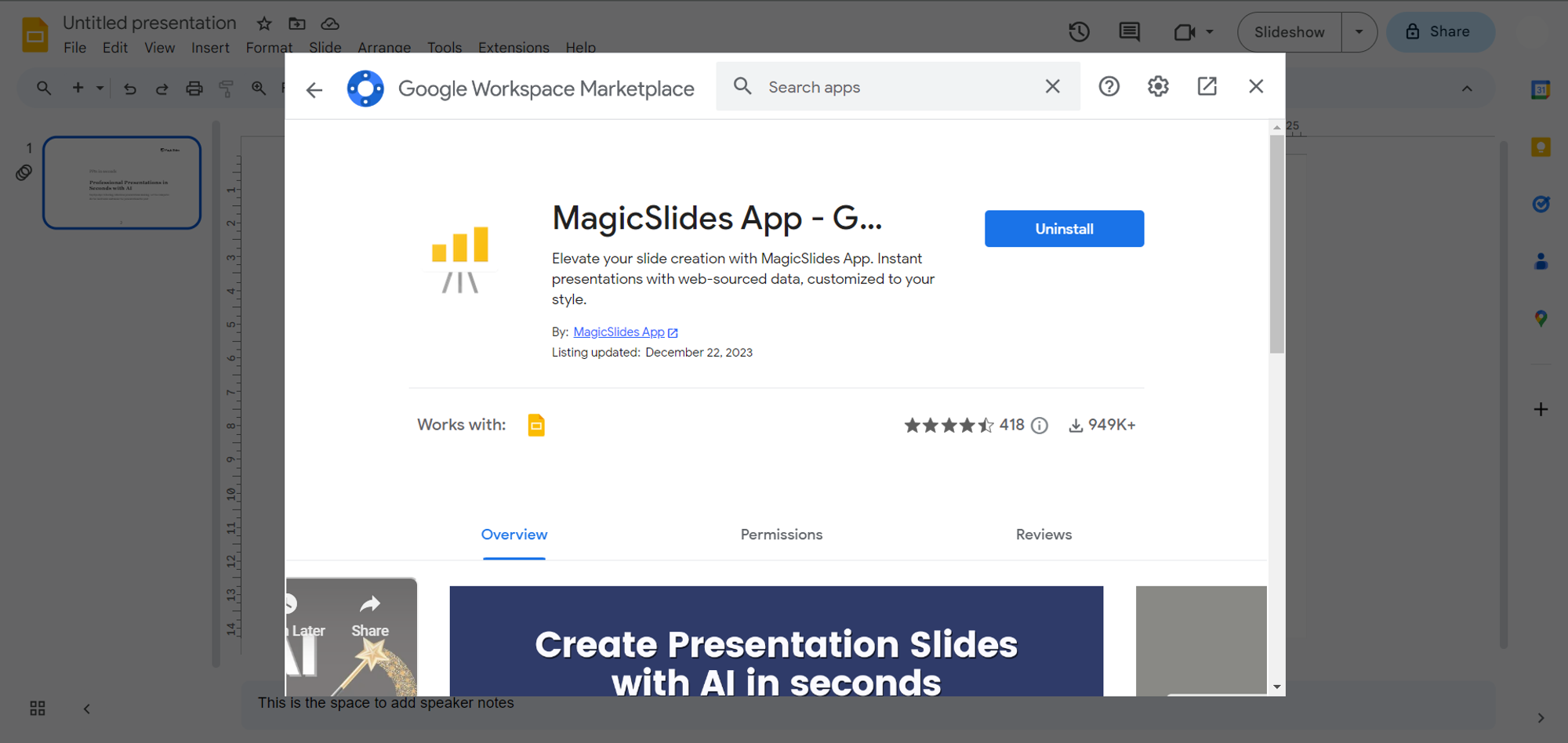
Step 3b: Download MagicSlides Extension (If Not Downloaded)
If you haven't downloaded MagicSlides, go to the extensions marketplace and search for "magicslides.app." Download the extension, and it will seamlessly integrate with your Google Slides.
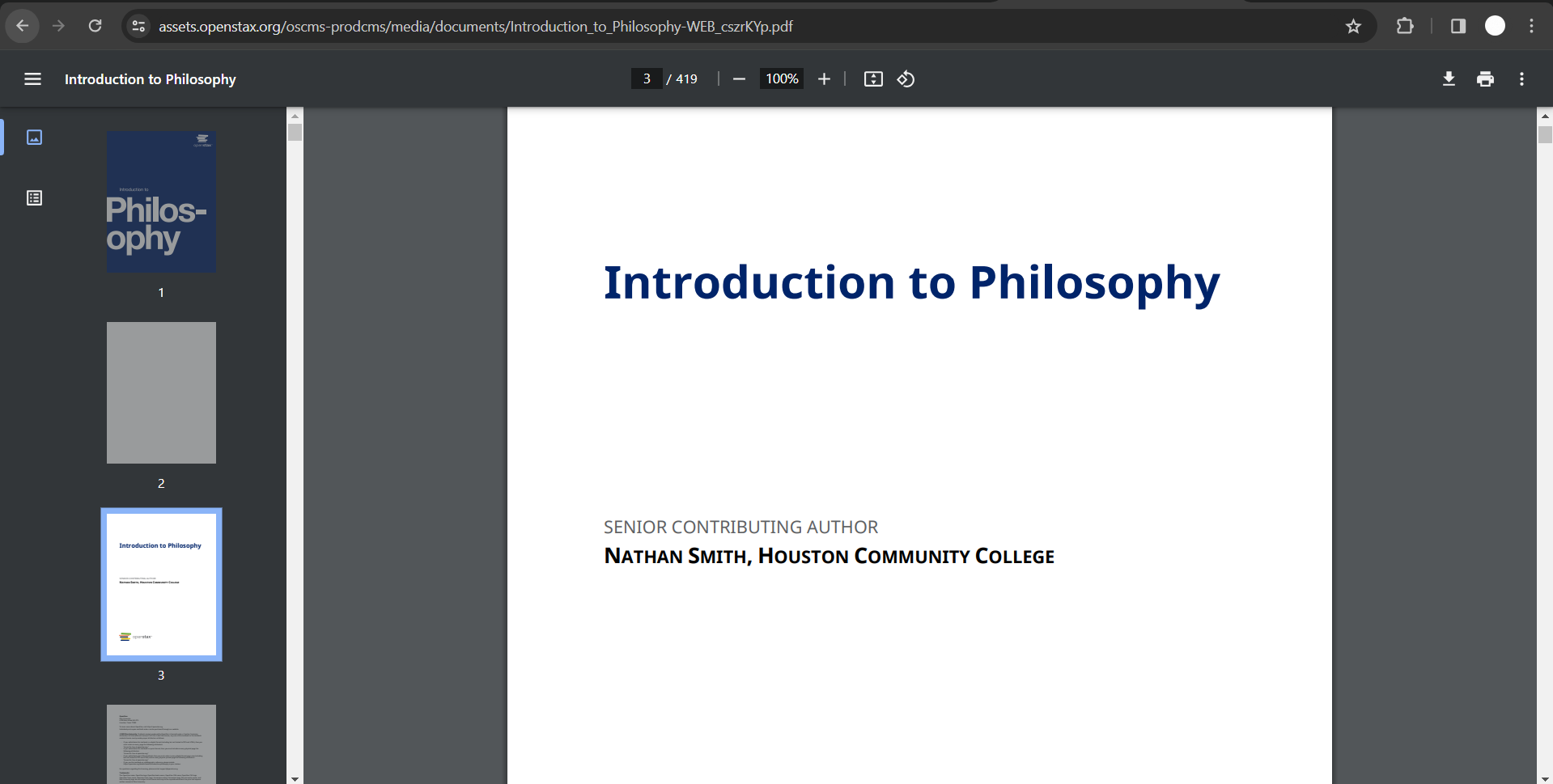
Step 4: Access the PDF Report
Now, go to your PDF report. You can either copy the URL or download the PDF file, depending on your preference.
Step 5: Enter URL or Upload PDF
Back on Google Slides, enter the URL or upload the PDF file that you want to convert into a presentation.
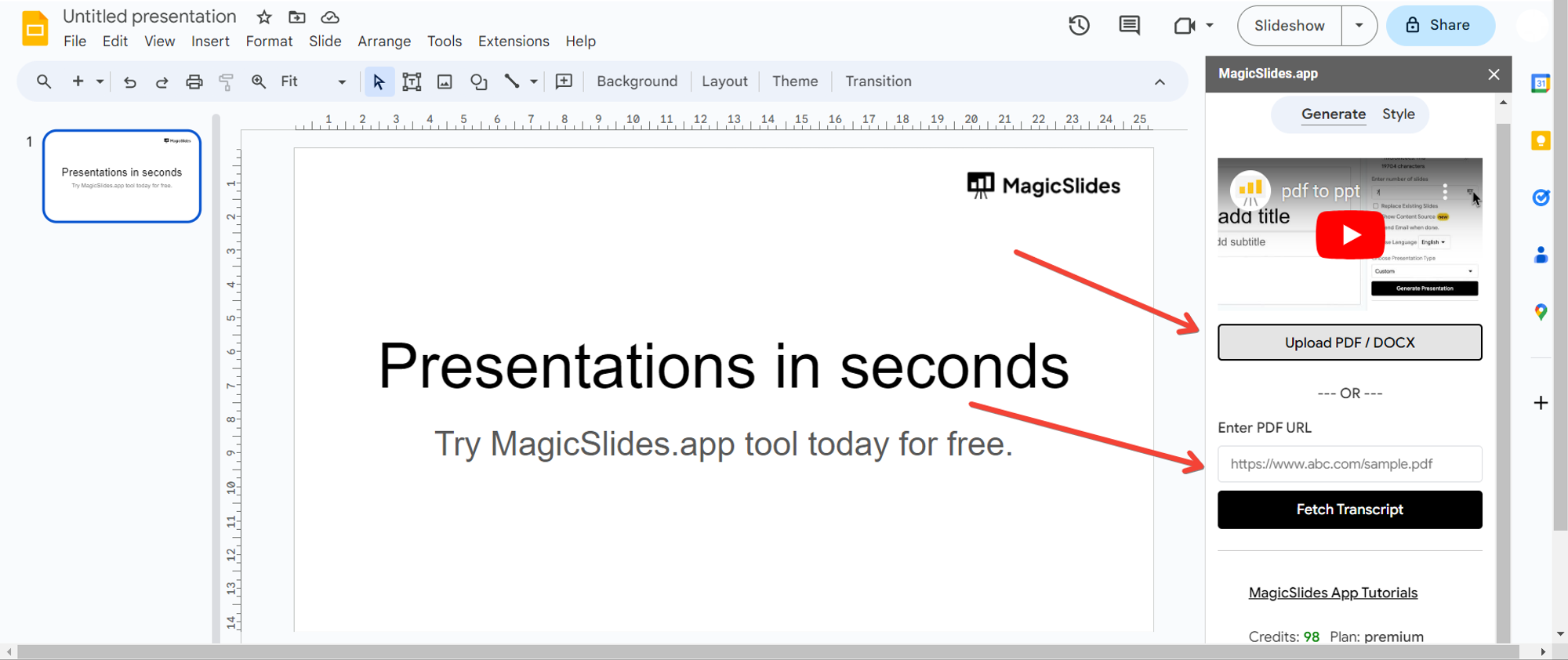
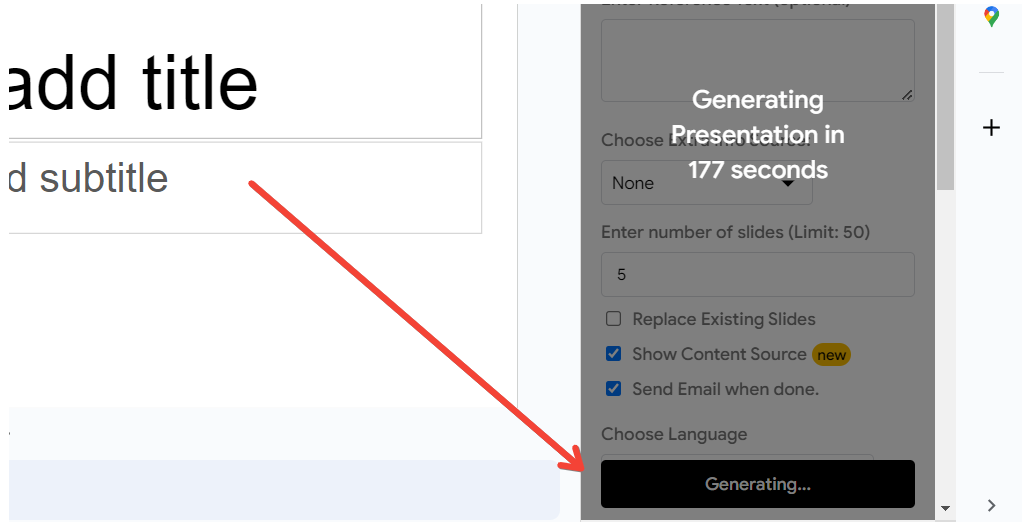
Step 6: Generate Presentation
Click on the "Generate to Presentation" button. MagicSlides will work its magic, transforming your PDF report into a visually appealing and insightful presentation.
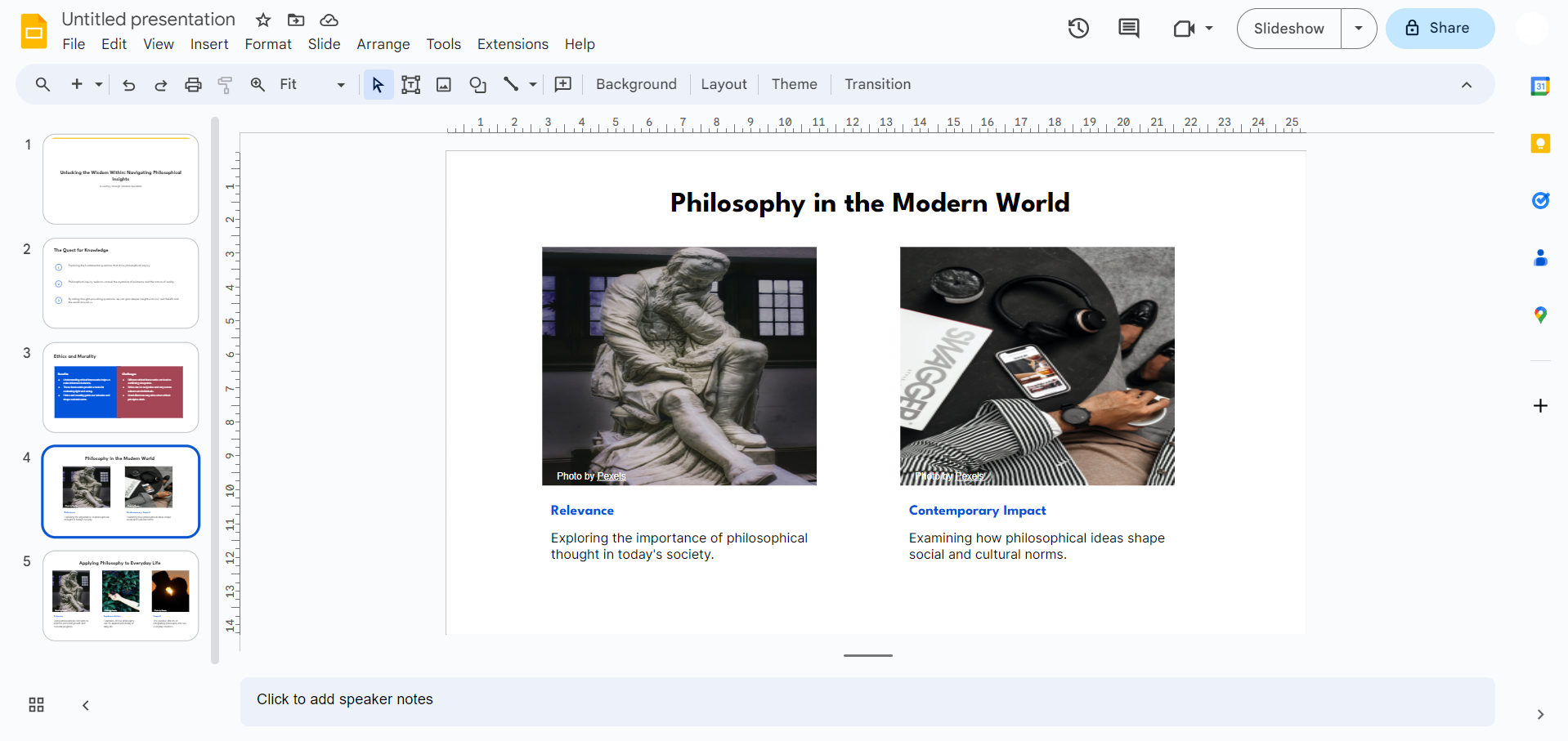
Step 7: Your Presentation is Ready!
And that's it! Your required PDF file is now converted into an engaging presentation. Feel free to customize and enhance it further using Google Slides' features.
Conclusion:
Converting PDF reports into presentations doesn't have to be a daunting task. With the user-friendly interface of Google Slides and the added convenience of MagicSlides, the process becomes seamless and efficient. Whether you're a student looking to spice up a class presentation or a professional aiming to communicate complex data effectively, this step-by-step guide empowers you to turn information into engaging visuals effortlessly. Try it out and elevate your presentation game today!
Frequently Asked Questions:
What makes Google Slides an ideal platform for converting PDF reports?
Google Slides offers user-friendly features, collaboration options, and seamless integration, simplifying the conversion process.
How does MagicSlides enhance the presentation transformation experience?
MagicSlides is a browser extension that seamlessly integrates with Google Slides, making PDF-to-presentation conversion quick and efficient.
Can I customize the converted presentation to suit my style and preferences?
Absolutely! Google Slides provides a range of customization options, allowing you to personalize the presentation according to your needs.
Is there any cost associated with using Google Slides and MagicSlides for this process?
No, both Google Slides and MagicSlides are free to use, making this PDF-to-presentation transformation accessible to everyone.


