Addon google slides iconPPT with AISlide TemplatesPPT TemplatesPricingBlog
    PPT with AISlide TemplatesPPT TemplatesPricingBlog
    1. Home
    2. Blog
    3. How to convert URL to a PPT online


    How to convert URL to a PPT online

    magicslides app

    Published By

    magicslides app
    Mohit Kumar Jha

    Approved By

    Mohit Kumar Jha

    Published On

    July 23th, 2024

    Reading Time

    2 min read

    "Unlock the magic of converting URLs to dynamic PPTs with ease using MagicSlides.app”

    In the digital age, creating captivating presentations often involves pulling content from various online sources. In this blog post, we'll walk you through a straightforward process using MagicSlides.app, an advanced online tool designed to effortlessly convert a URL to a dynamic PowerPoint (PPT) presentation.

    How to convert URL to a PPT online

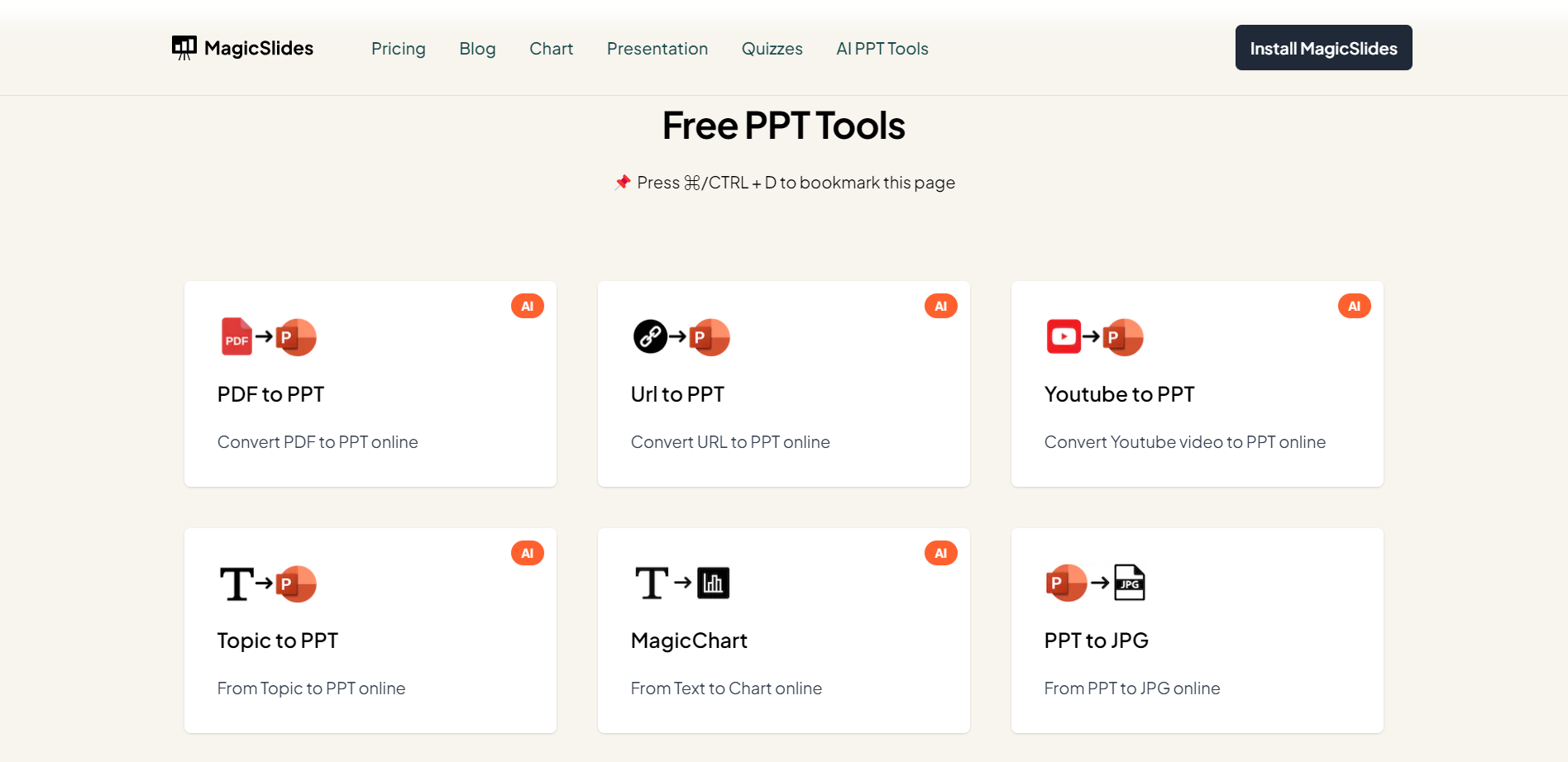
    Step 1: Visit MagicSlides.app

    Start by navigating to https://www.magicslides.app/tools. Choose URLs to PPT button, setting the stage for a hassle-free conversion process.
    notion image

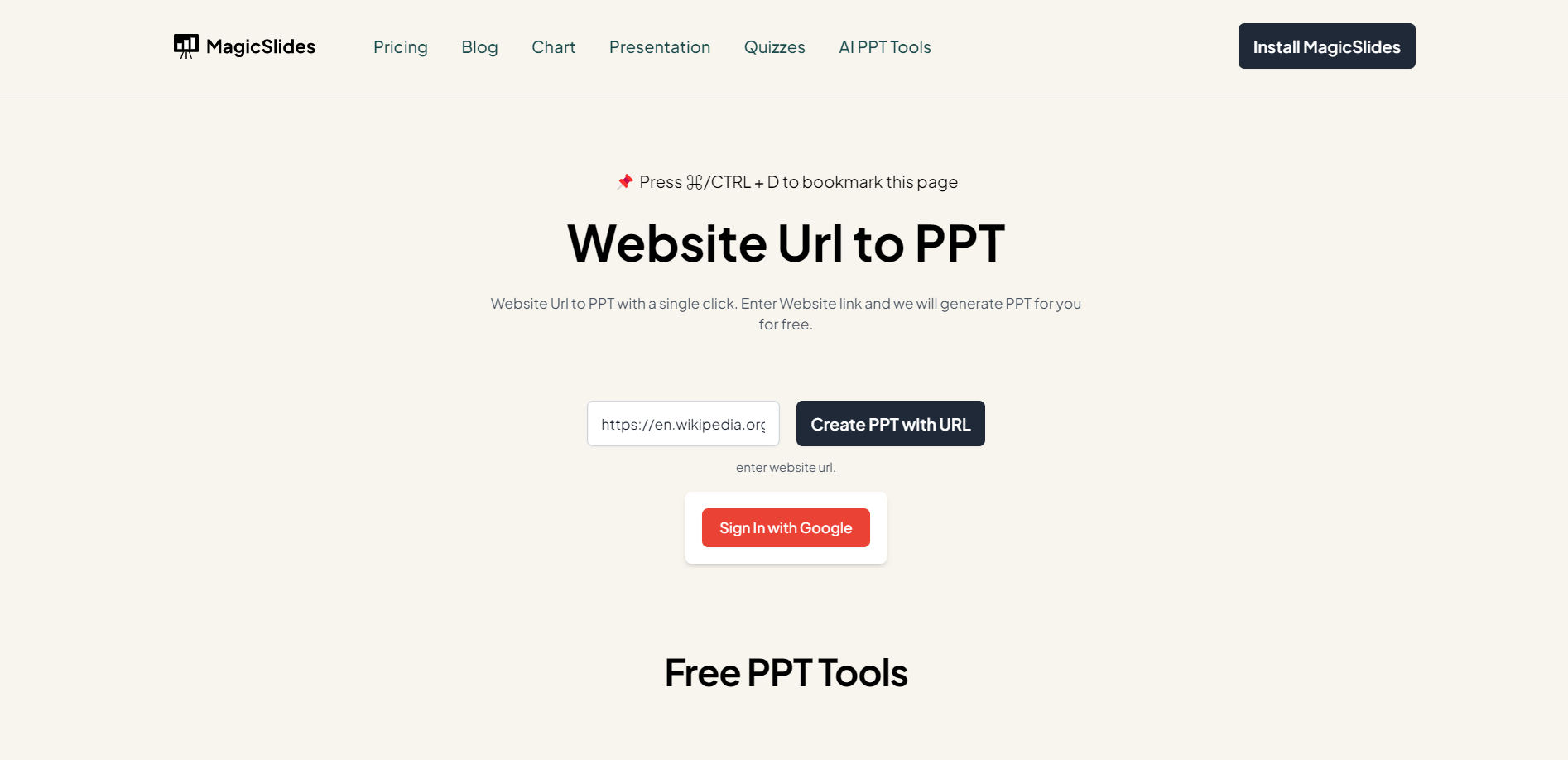
    Step 2: Input the Wikipedia Link

    Once on the platform, input the URL of the webpage you want to convert into a presentation. In this example, let's consider using a Wikipedia link. Click on the "Create PPT with URL" prompt to proceed.
    notion image

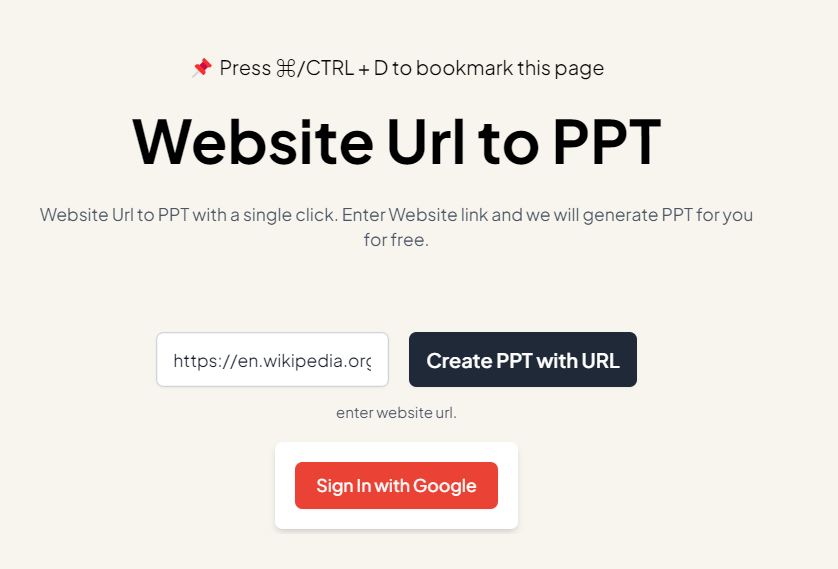
    Step 3: Login (if necessary)

    If you're not already logged in, use the option to connect with your Google account. Logging in not only enhances user experience but also allows you to seamlessly resume the conversion process from where you left off.
    notion image

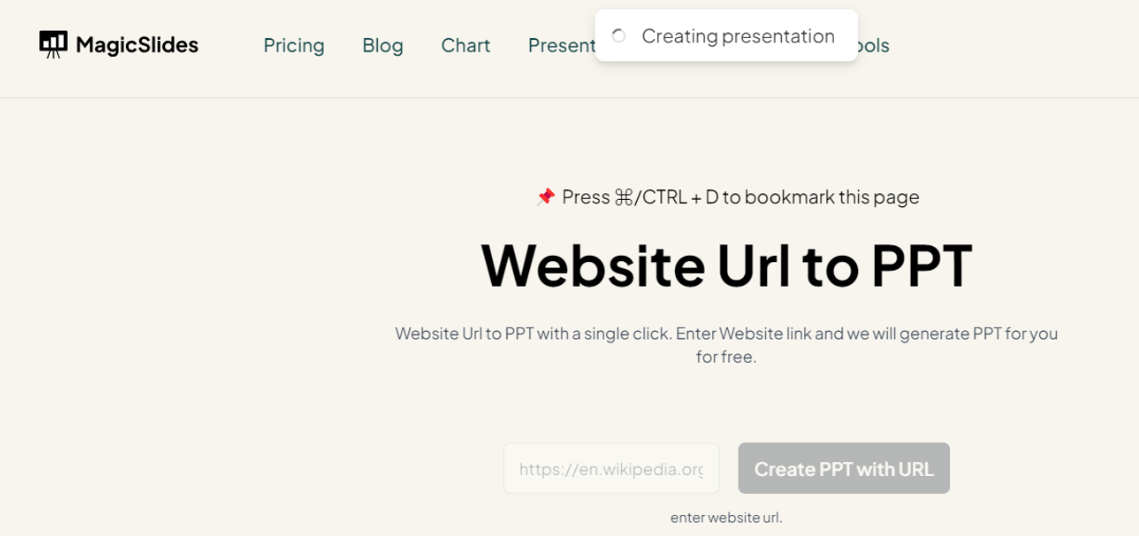
    Step 4: Initiate PPT Creation

    With the URL entered and your account authenticated, click the designated button to initiate the conversion process. The AI-powered engine at MagicSlides.app will now begin transforming the web content into a visually appealing PowerPoint presentation.
    notion image

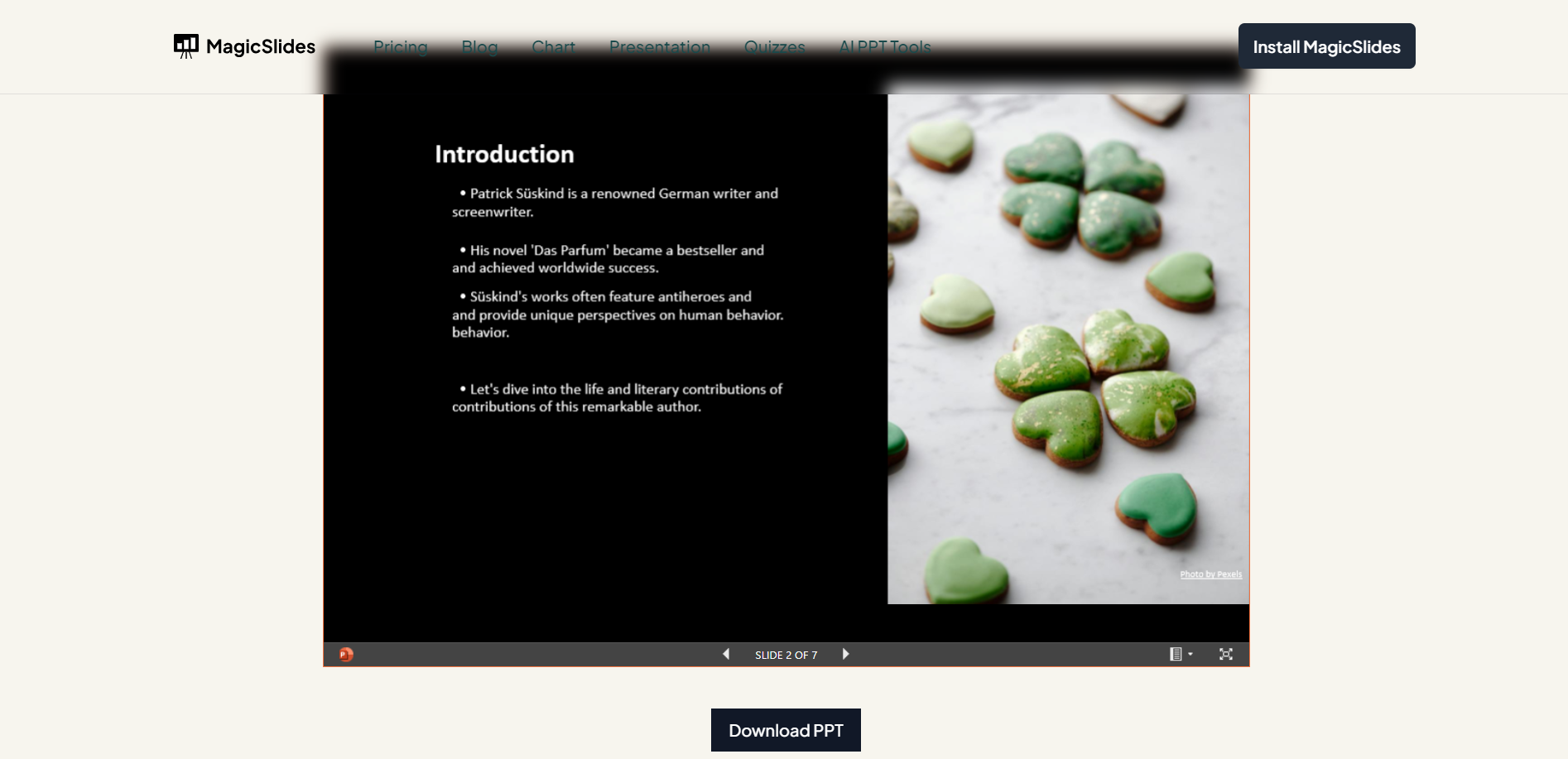
    Step 5: Preview and Download

    Upon completion, your converted presentation is ready for preview. Take a moment to review the slides and ensure everything looks as expected. Satisfied? Click on the download button, conveniently located on the platform, to save your presentation directly to your device.
    notion image

    Conclusion:

    MagicSlides.app empowers you to convert web content into engaging presentations with ease. By following these five simple steps, you can transform a URL into a polished PowerPoint presentation, streamlining your content creation process and ensuring your audience stays captivated. Embrace the convenience of online tools and elevate your presentations to new heights!

    Frequently Asked Questions:

    Q1: Can I convert any URL into a PowerPoint presentation using MagicSlides.app?
    A1: MagicSlides.app supports a wide range of URLs, making it versatile for various web content conversions, including Wikipedia articles, blogs, and more.

    Q2: Is there a limit to the length or complexity of the content that can be converted?
    A2: While MagicSlides.app is designed to handle diverse content, extremely lengthy or complex web pages may impact processing time. Patience is key for optimal results.

    Q3: Do I need to be logged in to convert a URL to a PPT, and why is logging in beneficial?
    A3: Logging in with your Google account is recommended. It allows for a seamless experience, enabling you to resume conversions and access additional features for an enhanced user experience.

    Share on socials

    About the author

    Sanskar Tiwari profile photo
    Sanskar Tiwari— Founder at MagicSlides

    Sanskar is Founder at IAG Tech, For the past 3 years sanskar have build more than 24+ products, taught 100k students how to code.

    More from Sanskar

    More from the blog

      250+ Good Morning Messages for Her (Romantic, Deep, Cute & Sweet)

      30 January 2026

      200+ Heart Touching Birthday Wishes for Sister (Short, Funny and More)

      29 January 2026

      50+ History Presentation Topics For 2026

      28 January 2026

      How to Add Music to Your Canva Presentation: A Step-by-Step Guide

      27 January 2026

      15 Quick Tips To Use ChatGpt At Work

      22 January 2026

      11 Best AI Tools for Business in 2025

      22 January 2026

      How to Create an Infographic That Clearly Communicates Your Message

      20 January 2026

      How to Create a Sales Presentation Template in Google Sheets

      20 January 2026

      How to Make a Pie Chart on Google Slides in Simple Steps

      19 January 2026

    Table of Contents

    Create Presentations in Seconds

    Transform your ideas into professional presentations with AI. No design skills needed.

    Try MagicSlides Free

    Create Stunning Presentations with AI in Seconds ✨

    Transform any topic, text, YouTube video, PDF or URL into beautiful presentations instantly with MagicSlides AI.

    Try MagicSlides AI Presentation Maker
    MagicSlides AI Presentation

    Footer

    Solutions

    • MagicSlides App
    • Google Slides Add-on
    • MagicSlides in Chrome
    • MagicSlides in Figma
    • MagicSlides in ChatGPT
    • MagicSlides in Telegram
    • MagicSlides in Zapier
    • MagicSlides in Figma Slides

    Tools

    • AI PPT Tools
    • QR Code Generator
    • Design Tools
    • PPT Templates
    • Slide Templates
    • PDF Tools

    Examples

    • AI Presentations
    • PPT by MagicSlides
    • Quizzes
    • Charts
    • Coloring Pages

    Resources

    • Changelog
    • Documentation
    • API Docs

    Top Blogs

    • How to Create Presentation Using ChatGPT
    • 100+ Best Seminar Topics for Students in 2025

    Company

    • Help
    • MCP
    • Blog
    • Pricing
    • Affiliate Program
    • Manage Subscription
    • Privacy Policy
    • Contact Us
    • Terms & Conditions
    • Refund & Cancellation Policy

    We also built

    • SheetAI - GPT For Sheets
    • MagicForm - GPT For Google Forms
    • SecondBrain.fyi
    • BlogBee - Free Blogging Platform

    © 2026 IndianAppGuy Tech Pvt Ltd. All rights reserved.