How to convert URLs to hyperlinks in Powerpoint


Elevate your presentations with clickable URLs learn to convert them into hyperlinks for seamless engagement.
Embark on a journey to enhance your PowerPoint prowess as we explore the simple yet impactful art of converting URLs to hyperlinks. Whether you're a seasoned presenter or just starting, this guide promises to elevate your slides and streamline audience engagement.
How to convert URLs to hyperlinks in Powerpoint
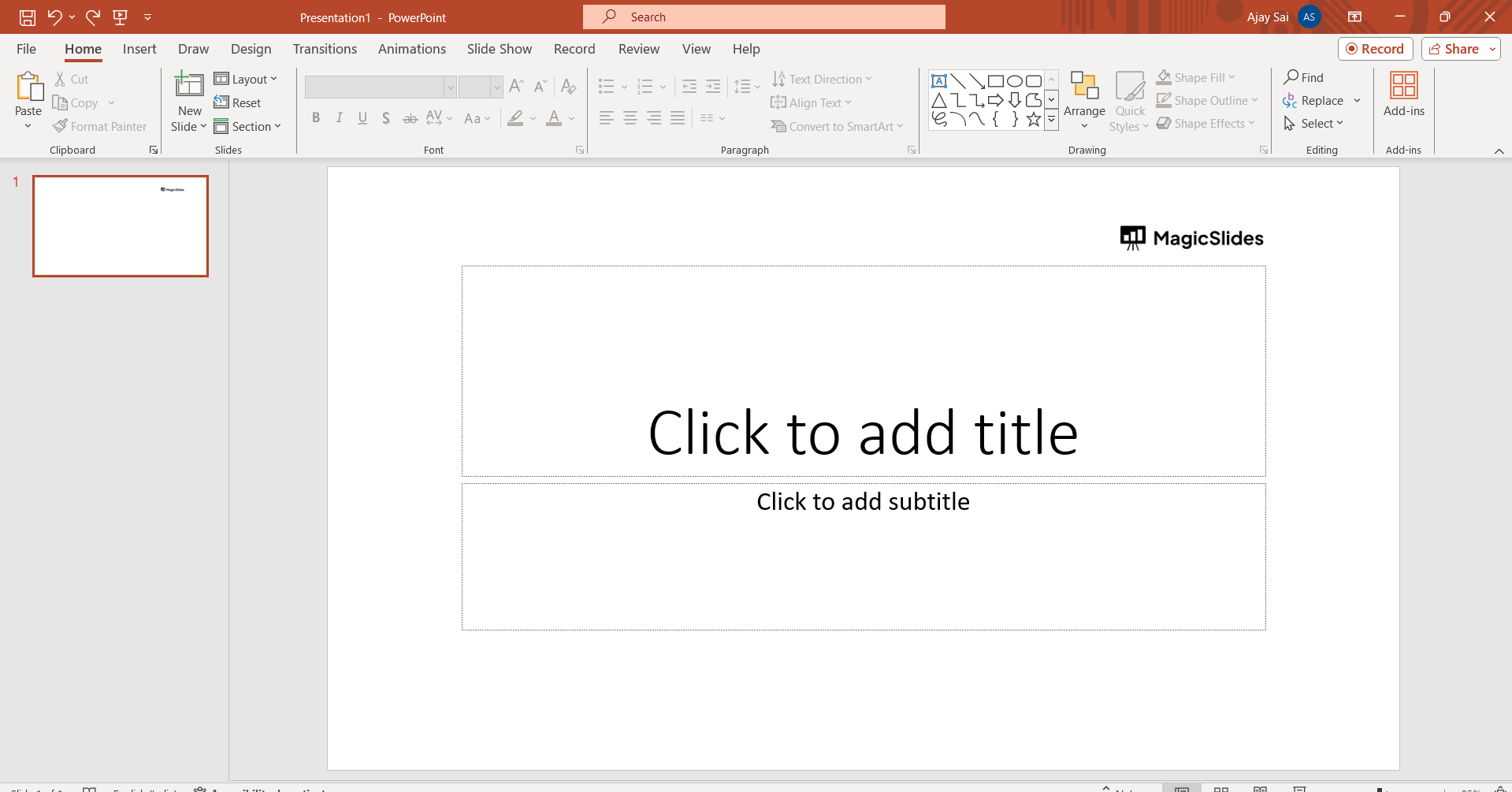
Open Your Presentation:
Launch PowerPoint and open the presentation where you want to add hyperlinks to URLs.
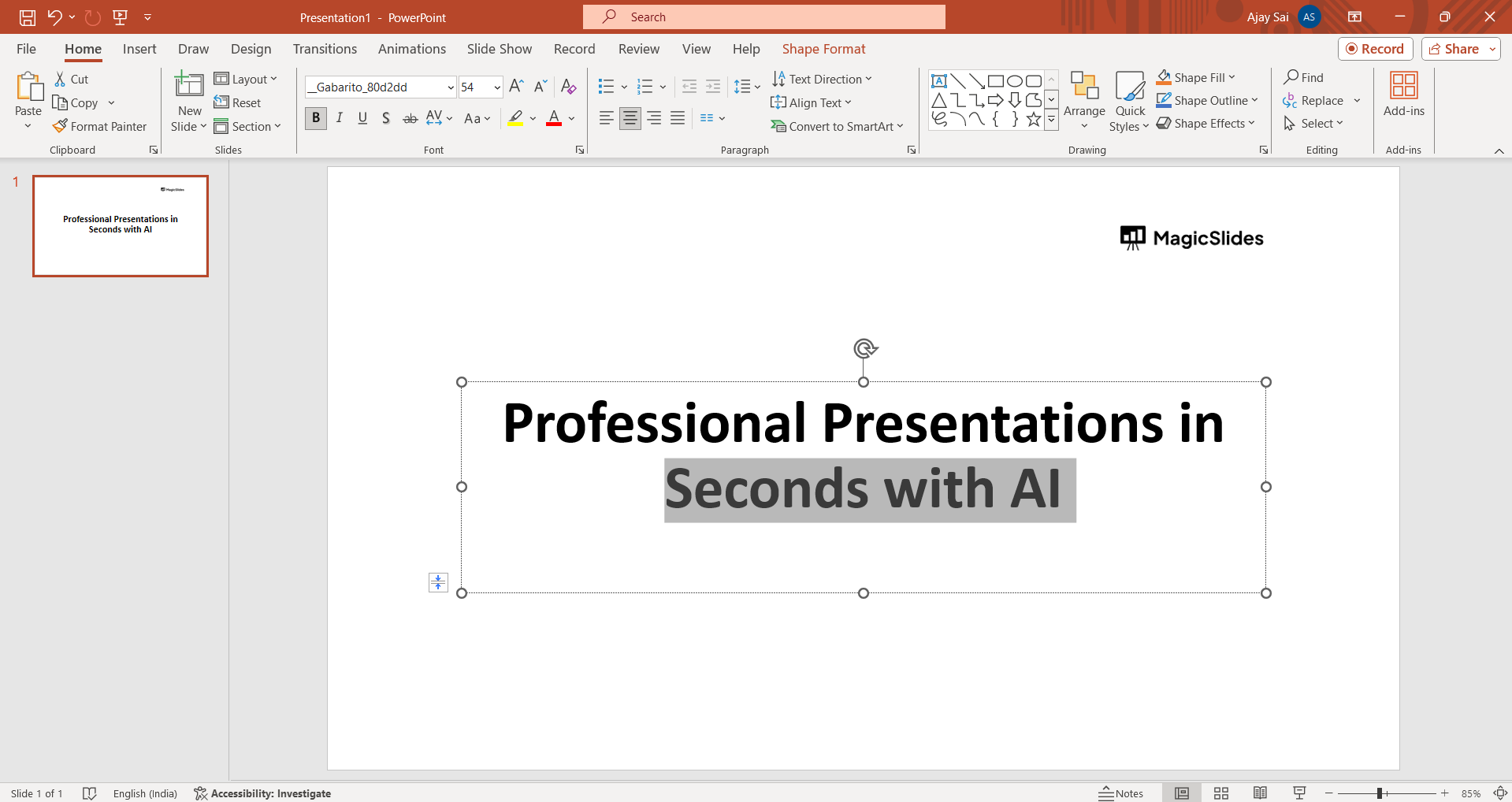
Select the Text:
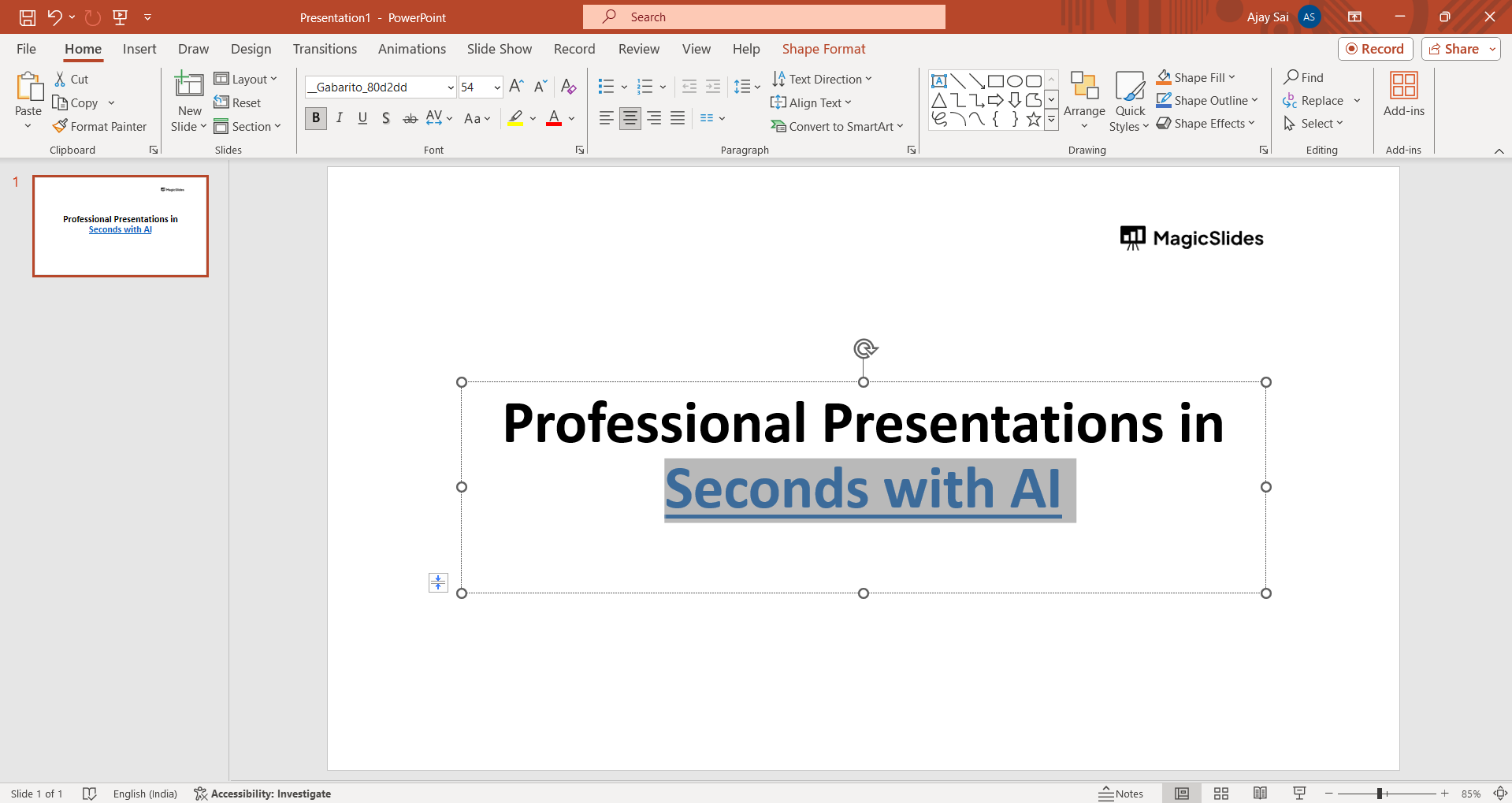
Identify the text containing the URL that you want to convert into a hyperlink.
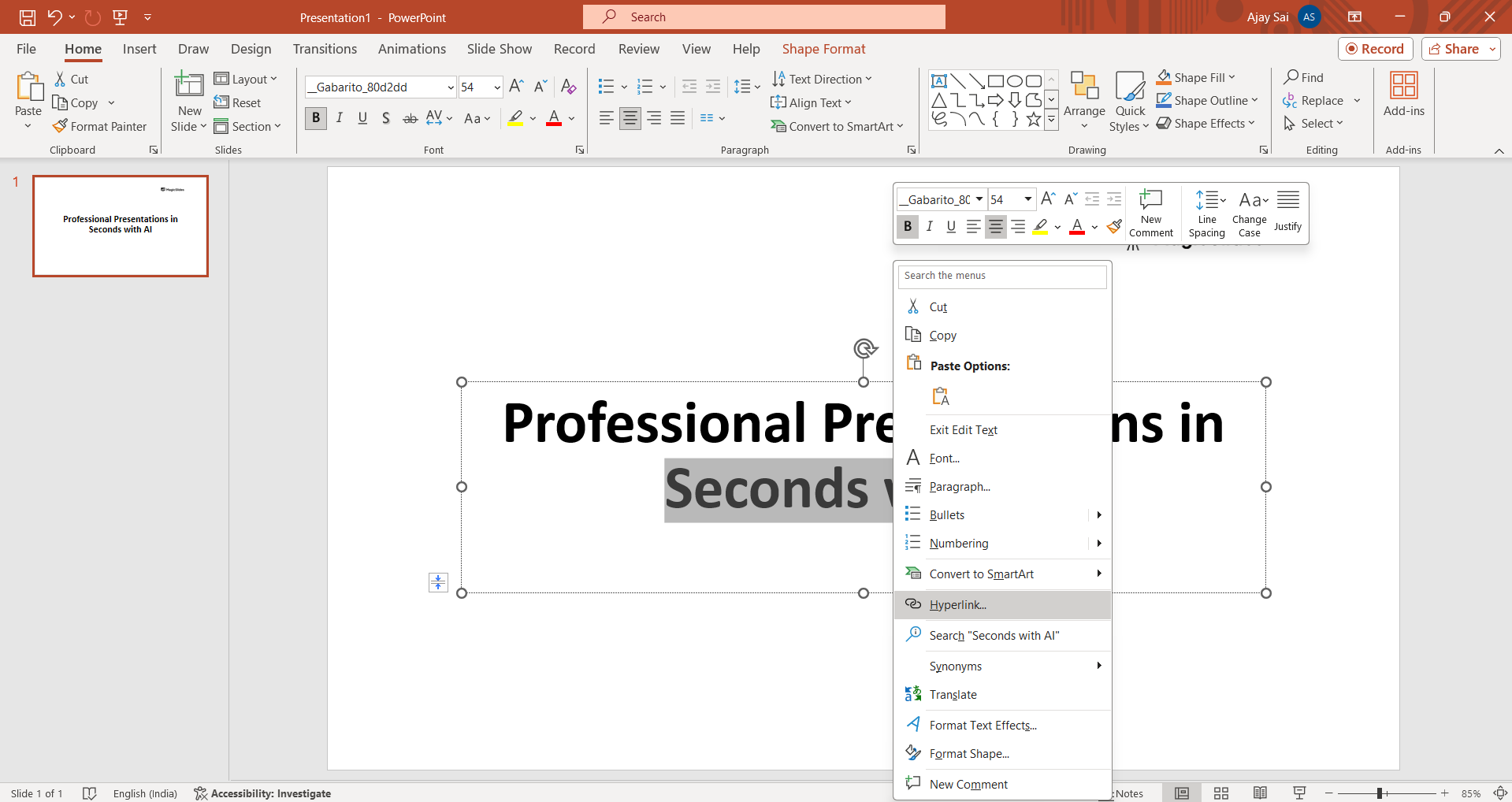
Insert Hyperlink:
Right-click on the selected text, and from the context menu, choose "Link" or "Hyperlink" (the exact wording may vary depending on your PowerPoint version).
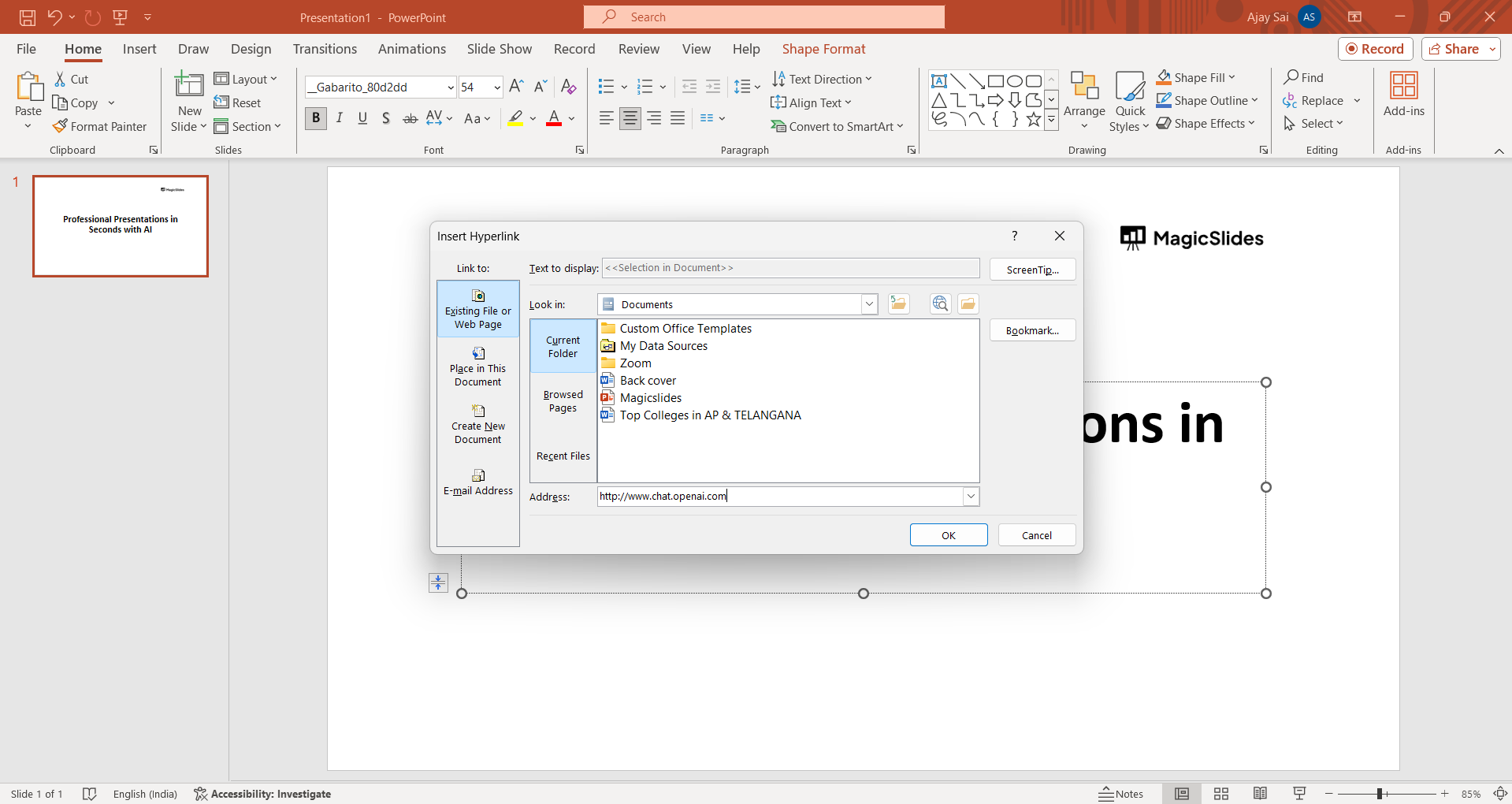
Enter the URL:
In the dialog box that appears, enter the URL in the designated field. Make sure to include the complete address, including "http://" or "https://."
Click OK:
After entering the URL, click the "OK" or "Insert" button to create the hyperlink.
Test the Hyperlink:
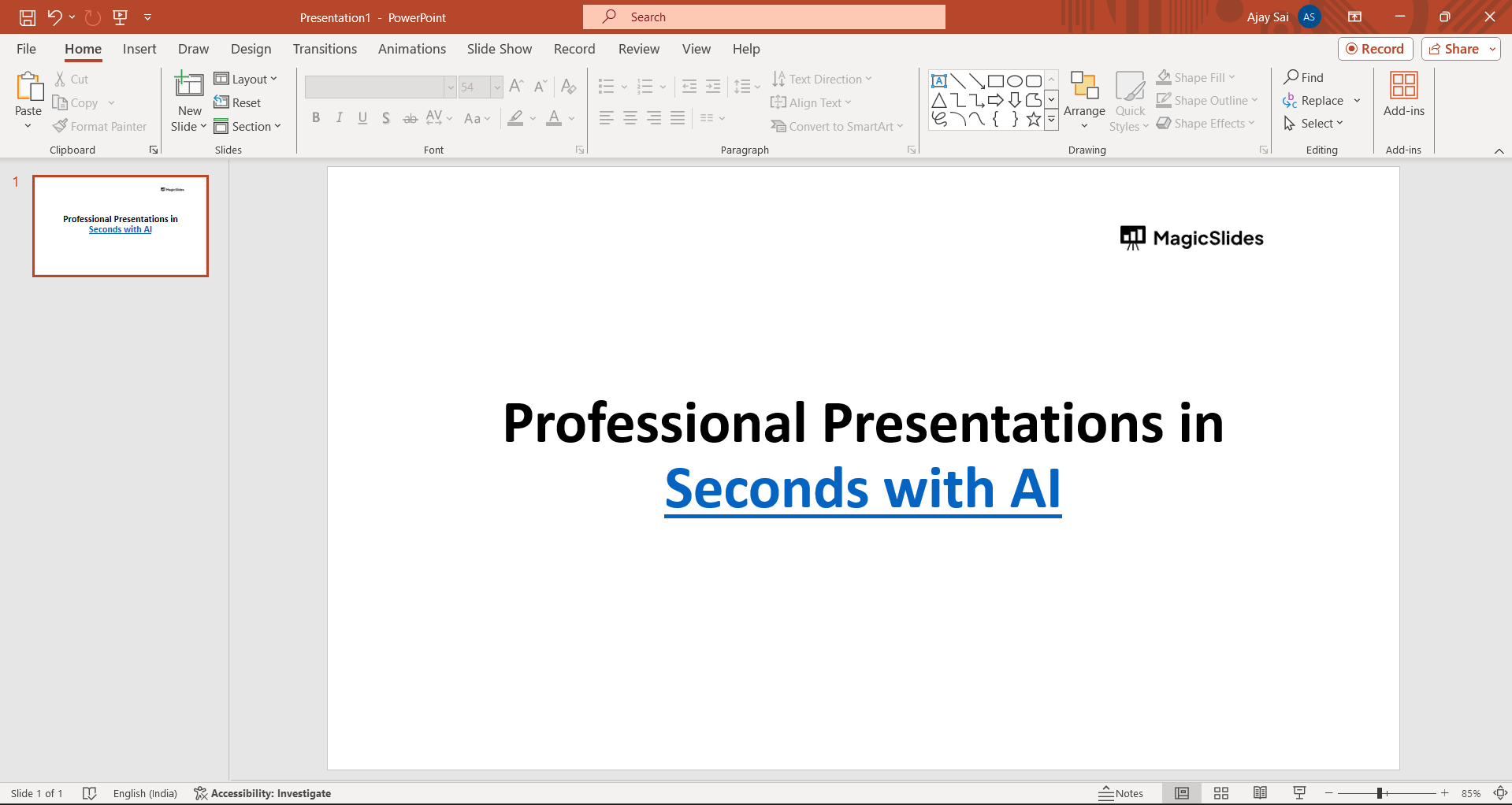
To ensure it works, enter the slideshow mode (F5) and click on the hyperlink. It should open the web page associated with the URL.
Additional Tips 💡:
- Edit Hyperlinks:
- To edit or remove a hyperlink, right-click on the linked text, choose "Edit Hyperlink" or "Remove Hyperlink," and make the necessary changes.
- Shortcut:
- You can also use the shortcut
Ctrl + K(Windows) orCommand + K(Mac) to open the Insert Hyperlink dialog.
- You can also use the shortcut
- Formatting:
- You can customize the formatting of hyperlinks by modifying the font color, underlining, or using other formatting options.
Conclusion 💁♂️:
By following these steps, you can easily convert URLs into clickable hyperlinks in your PowerPoint presentation, providing a convenient way for your audience to access additional information. Equip yourself with this skill, and watch your presentations come alive with accessibility and interactivity. Save additional time by dictating instead of writing in PowerPoint slides, see how Microsoft Dictate helps you do that.
Frequently Asked Questions 🤔:
Why should I bother converting URLs to hyperlinks in my PowerPoint presentations?
Ans: Converting URLs enhances accessibility, providing a seamless way for your audience to explore additional content.
Can I customize the appearance of hyperlinks in PowerPoint?
Ans: Absolutely! Tailor the font color, underline, or other formatting options to match your presentation style.
Is converting URLs to hyperlinks a time-consuming process in PowerPoint?
Ans: Not at all. With a few simple steps, you can effortlessly add hyperlinks, enhancing your presentation's impact.


