How to create a random bars transition in PowerPoint


Revolutionize presentations with a simulated ‘Random Bars’ transition, injecting vibrancy and unpredictability into your slides.
Elevate your PowerPoint presentations with a touch of randomness through a simulated "Random Bars" transition. While PowerPoint doesn't offer this effect outright, our creative workaround involves manipulating shapes, colors, and transitions. Discover the art of crafting visually dynamic and engaging presentations that leave a lasting impact.
How to create a random bars transition in PowerPoint
Open your PowerPoint application:
Launch the PowerPoint application and open the presentation you want to enhance with a Random bars transition.
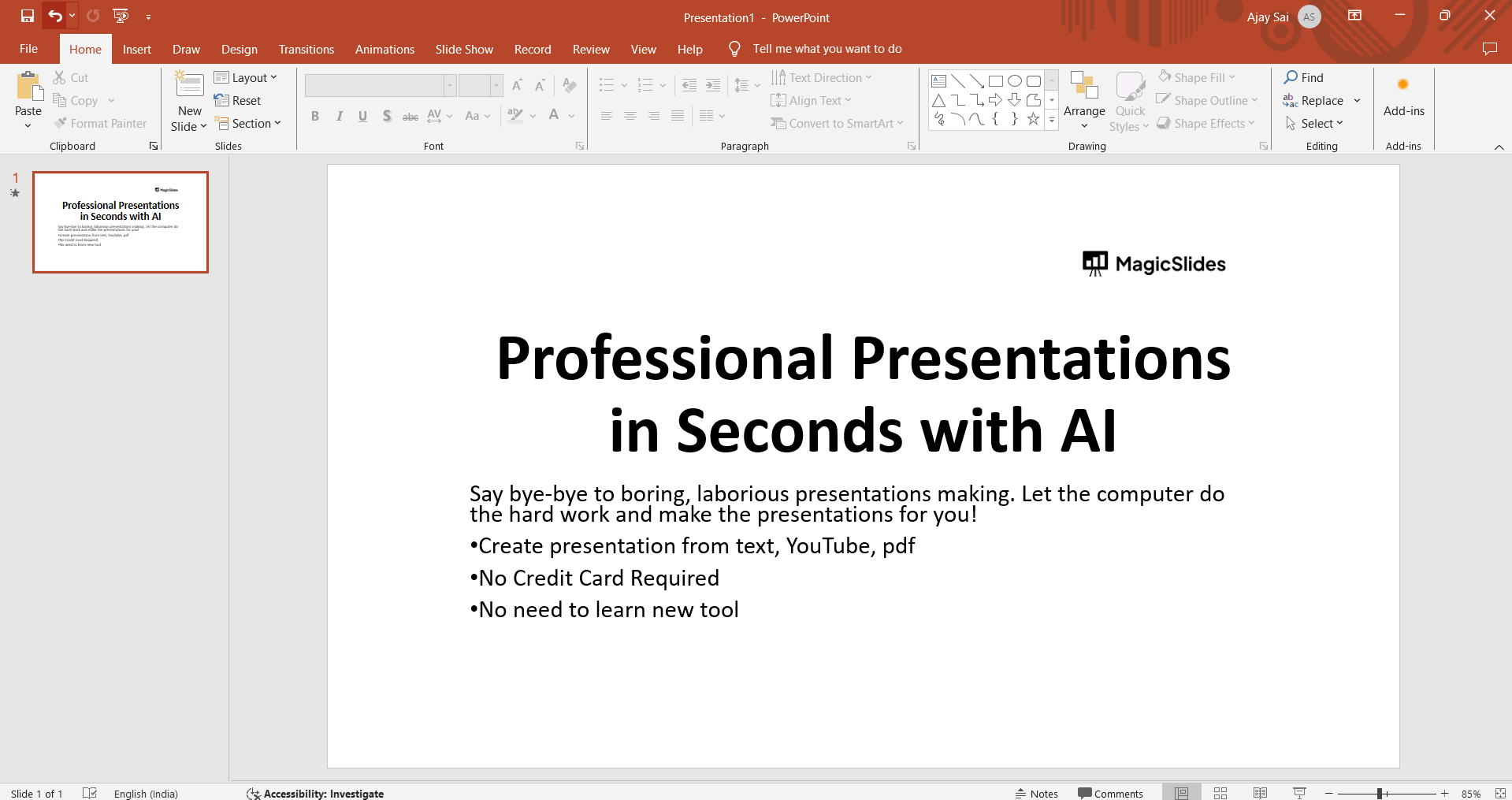
Select a Slide:
Navigate to the slide where you want to apply the Random bars transition. Click on the slide in the left-hand navigation pane.
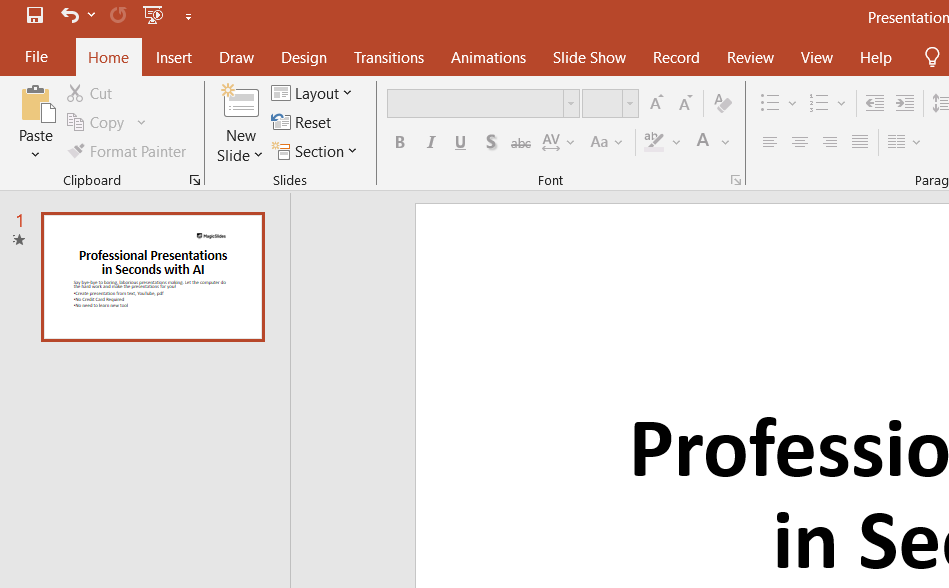
Go to Transitions Tab:
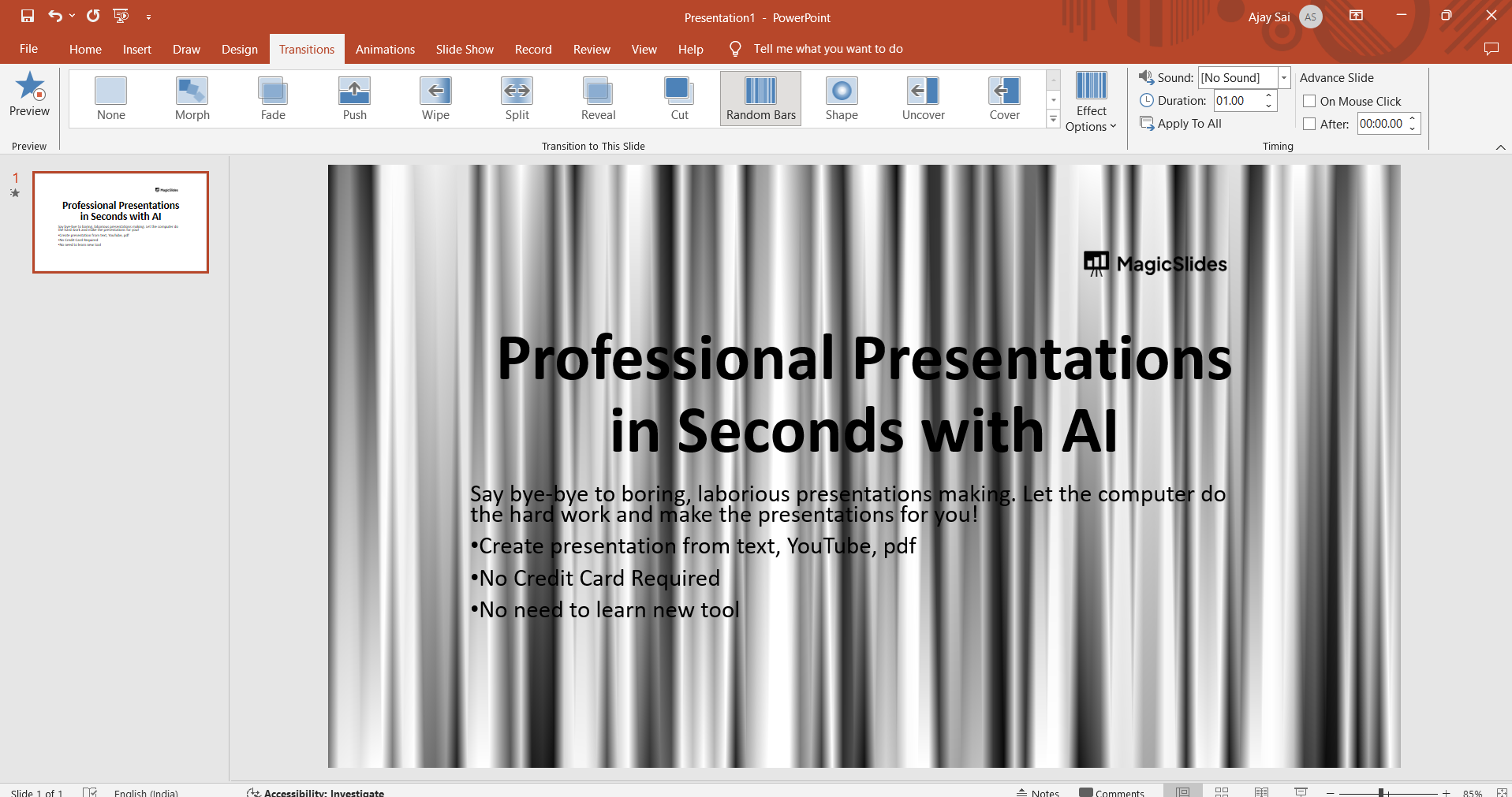
Click on the "Transitions" tab in the PowerPoint ribbon at the top of the screen.
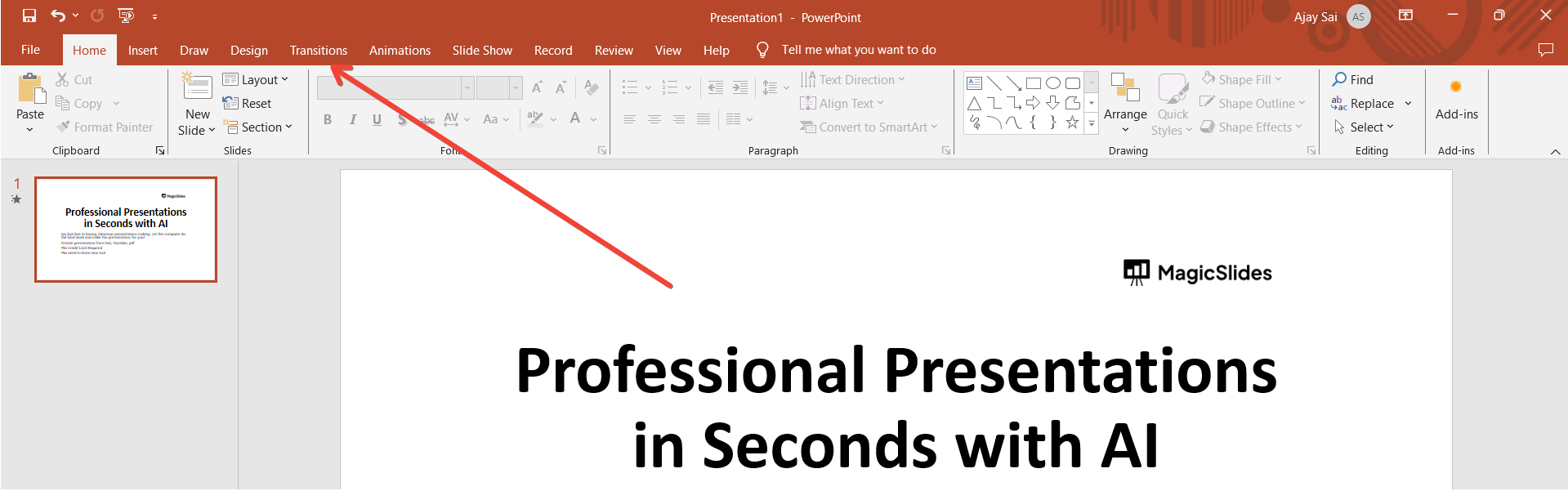
Choose Random bars Transition:
In the Transitions tab, locate the "Random bars" transition option. Click on it to apply the effect to the selected slide.
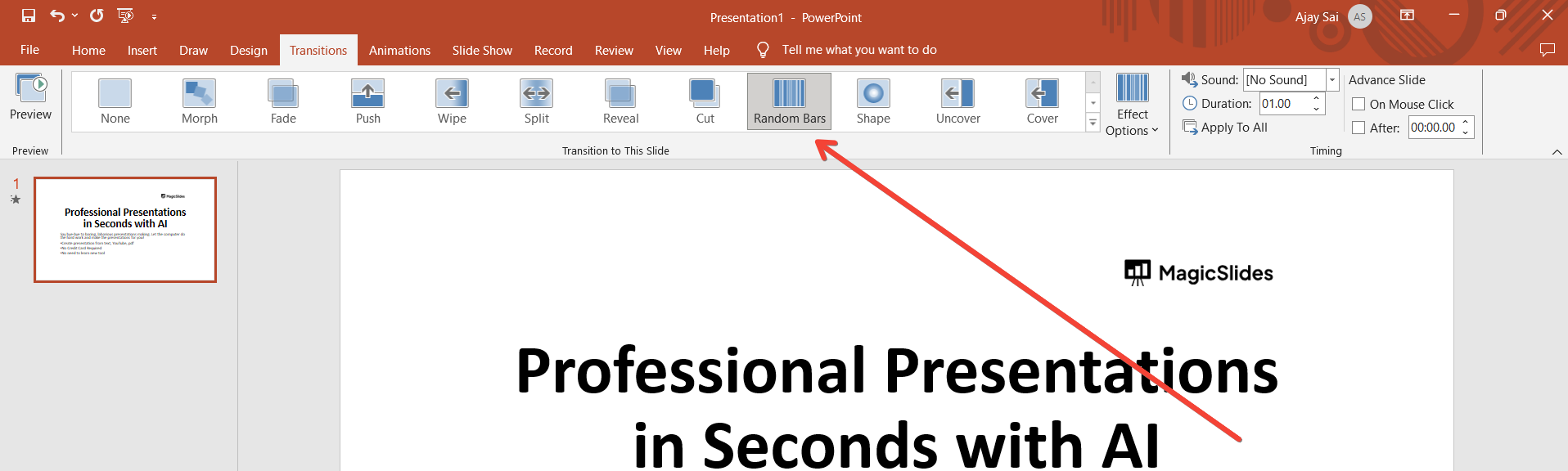
Adjust Transition Options (Optional):
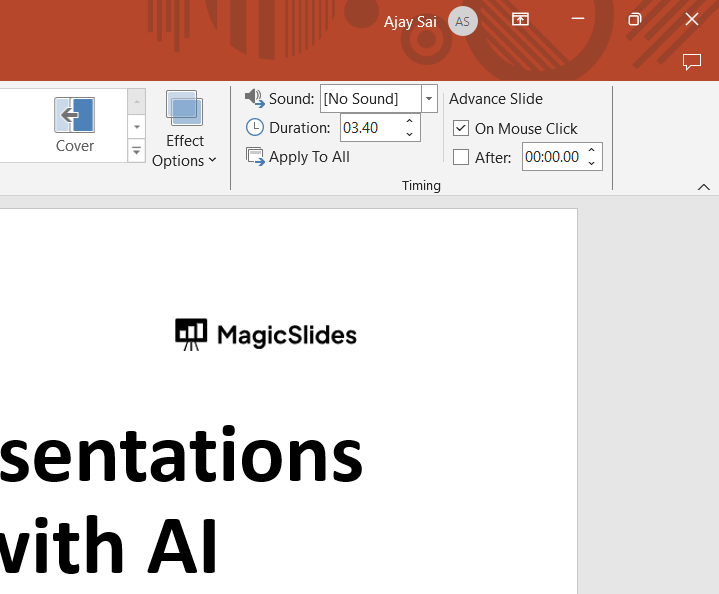
Customize the Random bars transition by adjusting optional settings like direction, duration, or sound. Explore the "Effect Options" in the Transitions tab for more control.
Preview the Transition:
Before finalizing, use the "Preview" button to see how the Random bars transition looks on your slide. Make any necessary adjustments.
Apply to Other Slides (Optional):
To maintain consistency, apply the Random barsl transition to other slides. Use the "Apply to All" button in the Transitions tab to ensure a uniform transition experience.
Save Your Presentation:
After perfecting your Random bars transitions, don't forget to save your presentation to preserve the effects. Attending webinars from meetings or YT videos is part and parcel of corporate career but can also be boring, what if there is a way to extract extract highlights from webinar presentation, have a look at this article: click here
Conclusion:
Transform your PowerPoint presentations into captivating visual journeys by implementing the simulated "Random Bars" transition. This creative approach, achieved through strategic manipulation of shapes and transitions, adds an element of unpredictability, making your slides memorable and engaging for your audience. Embrace the unconventional and let your presentations stand out with this imaginative twist.
Frequently Asked Questions:
Can I use the simulated "Random Bars" transition in all versions of PowerPoint?
Yes, this workaround is applicable to various PowerPoint versions, offering a dynamic visual enhancement.
Is there a limit to the number of variations I can create with this technique?
No strict limit; you can duplicate and modify slides to create numerous variations for impact.
Can I apply the "Random Bars" illusion to specific slides in my presentation?
Absolutely, selectively apply the illusion by duplicating and modifying only the desired slides for effect.


