Addon google slides iconPPT with AISlide TemplatesPPT TemplatesPricingBlog
PPT with AISlide TemplatesPPT TemplatesPricingBlog
  1. Home
  2. Blog
  3. How to create charts with just a prompt


How to create charts with just a prompt

magicslides app

Published By

magicslides app
Mohit Kumar Jha

Approved By

Mohit Kumar Jha

Published On

July 23th, 2024

Reading Time

2 min read

Elevate data interpretation, effortlessly convert text into impactful charts with MagicSlides.app's intuitive chart converter tool!

Unlock the power of visual data representation with MagicSlides.app. In this article, we'll guide you through a user-friendly process using the AI PPT Tool, specifically designed for transforming textual information into insightful charts.

How to create charts with just a prompt

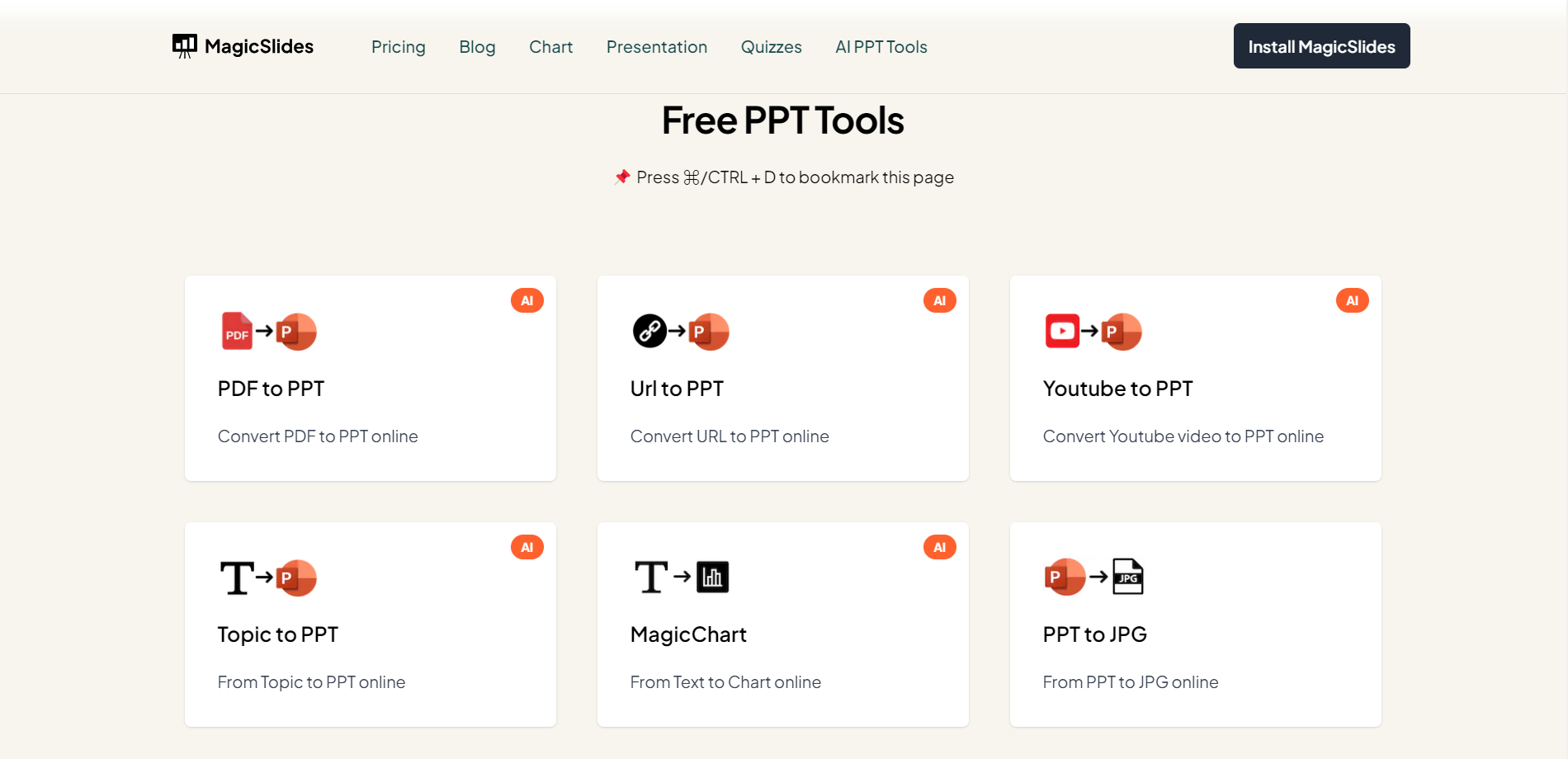
Step 1: Navigate to MagicSlides.app

Commence by visiting https://www.magicslides.app/tools. Select the AI PPT Tool text into charts, which lays the groundwork for effortless chart creation.
notion image

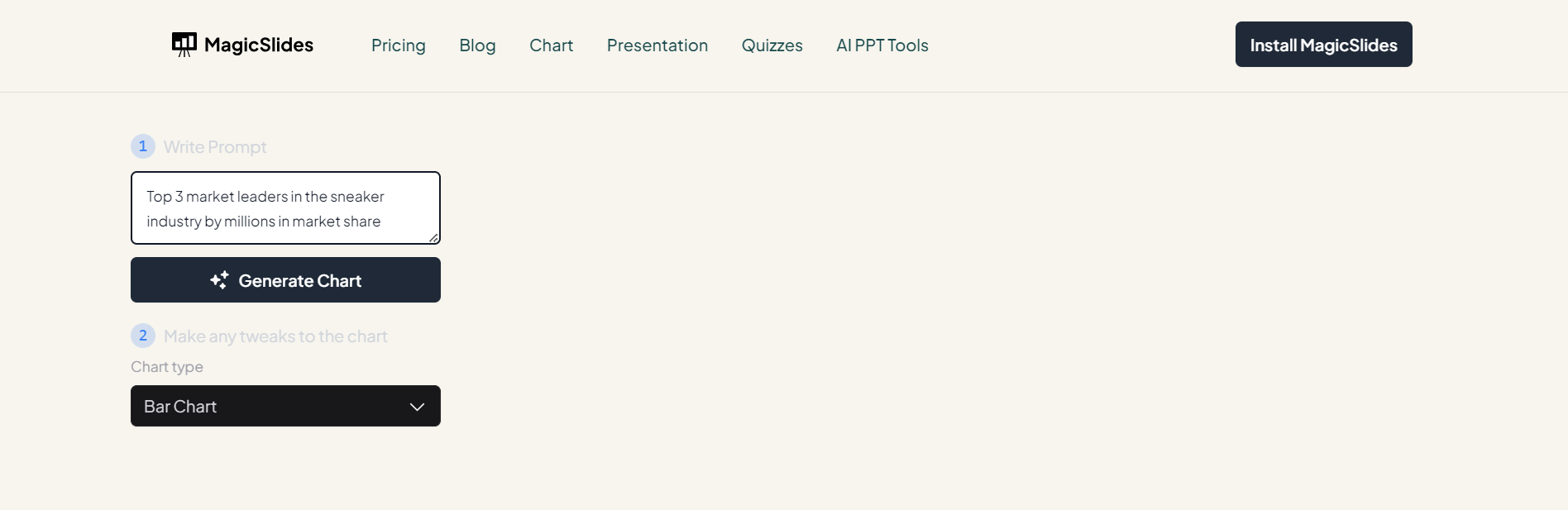
Step 2: Input Your Text and Prompt

Once on the platform, enter your textual data into the first blank field. Add a prompt to guide the tool in understanding your data. This step ensures accuracy in chart generation.
notion image

Step 3: Choose Your Chart Type

In the second input field, select your preferred chart type. Whether it's a bar chart, pie chart, or any other, MagicSlides.app offers versatility to cater to your specific data visualization needs.

Step 4: Click "Generate Chart"

Initiate the chart creation process by clicking the "Generate Chart" button. MagicSlides.app's intelligent algorithms will analyze your input and transform it into a visually engaging chart.

notion image

Step 5: Your Chart is Ready for Analysis

Upon completion, your chart is ready for analysis. Dive into the insights presented by the visually appealing representation of your textual data, making complex information more accessible and understandable. Once you are satisfied with response click on download chart for further data analysis.

notion image

Conclusion:

MagicSlides.app streamlines the process of creating charts from text, offering a powerful tool for data visualization. By following these five straightforward steps, you can transform raw information into insightful visualizations. Embrace the efficiency of online tools and elevate your data analysis game effortlessly!

Frequently Asked Questions

Q: Can I create charts from any type of text using MagicSlides.app?
A: Yes, MagicSlides.app is designed to convert various types of textual data into insightful charts.

Q: Is there a limit to the complexity or length of the text for accurate chart generation?
A: While MagicSlides.app is versatile, extremely lengthy or complex text may impact processing time. Optimal results are achieved with concise and well-structured data.

Q: Do I need to specify the chart type, or can MagicSlides.app suggest one automatically?
A: You have the flexibility to choose your desired chart type from options like bar charts or pie charts, ensuring customization based on your data representation needs.

Share on socials

About the author

Sanskar Tiwari profile photo
Sanskar Tiwari— Founder at MagicSlides

Sanskar is Founder at IAG Tech, For the past 3 years sanskar have build more than 24+ products, taught 100k students how to code.

More from Sanskar

More from the blog

    Scribd PPT Downloader Free: Step-by-Step Guide (Updated 2026)

    2 March 2026

    100+ Technology Topics for Presentations (Updated List)

    2 March 2026

    50+ Biology Presentation Topics: Inspiring Ideas for All Audiences

    2 March 2026

    How to Get More New Google Slides Themes

    27 February 2026

    How to insert bitmoji into Google Slides

    26 February 2026

    How to convert PPT to JPG online

    26 February 2026

    How To Make Presentations Interactive: Top 10 tips

    26 February 2026

    How to convert PPT to MP4 online

    26 February 2026

    How to group objects in PowerPoint

    26 February 2026

Table of Contents

Create Presentations in Seconds

Transform your ideas into professional presentations with AI. No design skills needed.

Try MagicSlides Free

Create Stunning Presentations with AI in Seconds ✨

Transform any topic, text, YouTube video, PDF or URL into beautiful presentations instantly with MagicSlides AI.

Try MagicSlides AI Presentation Maker
MagicSlides AI Presentation

Footer

Solutions

  • MagicSlides App
  • Google Slides Add-on
  • MagicSlides in Chrome
  • MagicSlides in Figma
  • MagicSlides in ChatGPT
  • MagicSlides in Telegram
  • MagicSlides in Zapier
  • MagicSlides in Figma Slides

Tools

  • AI PPT Tools
  • QR Code Generator
  • Design Tools
  • PPT Templates
  • Slide Templates
  • PDF Tools

Examples

  • AI Presentations
  • PPT by MagicSlides
  • Quizzes
  • Charts
  • Coloring Pages

Resources

  • Changelog
  • Documentation
  • API Docs

Top Blogs

  • How to Create Presentation Using ChatGPT
  • 100+ Best Seminar Topics for Students in 2025

Company

  • Help
  • MCP
  • Blog
  • Pricing
  • Affiliate Program
  • Manage Subscription
  • Privacy Policy
  • Contact Us
  • Terms & Conditions
  • Refund & Cancellation Policy

We also built

  • SheetAI - GPT For Sheets
  • MagicForm - GPT For Google Forms
  • SecondBrain.fyi
  • BlogBee - Free Blogging Platform

© 2026 IndianAppGuy Tech Pvt Ltd. All rights reserved.