How to Make a Metrics Slide with AI in Just 5 Steps


Create professional Metrics Slides effortlessly using AI. Follow these 5 easy steps on MagicSlides.app to generate stunning, data-driven presentations.
Creating presentations can be a time-consuming task, especially when it comes to designing engaging and insightful metrics slides. But with the power of AI, creating a polished and professional metrics slide has never been easier.
Whether you need a quick summary of sales data, performance metrics, or key growth indicators, MagicSlides.app can help you generate visually appealing slides within minutes.
Let’s dive into how you can create a Metrics Slide with AI in five easy steps, and along the way, I’ll share some tips and tricks to make the most out of this process.
Step 1: Visit MagicSlides.app
The first step is simple: open up your browser and visit MagicSlides.app. MagicSlides is an AI-powered tool designed to take the pain out of creating presentation slides. With a user-friendly interface, even beginners can generate slides that look like they were crafted by a professional designer.

Tip: Bookmark MagicSlides.app for easy access whenever you need it. Trust me, once you try it, you'll be back!

Step 2: Navigate to "Slide with AI"
Once you're on the homepage, navigate to the "Slide with AI" option. This section is where all the AI magic happens! MagicSlides has multiple slide templates generated using AI, including business slides, content slides, and, of course, metrics slides.

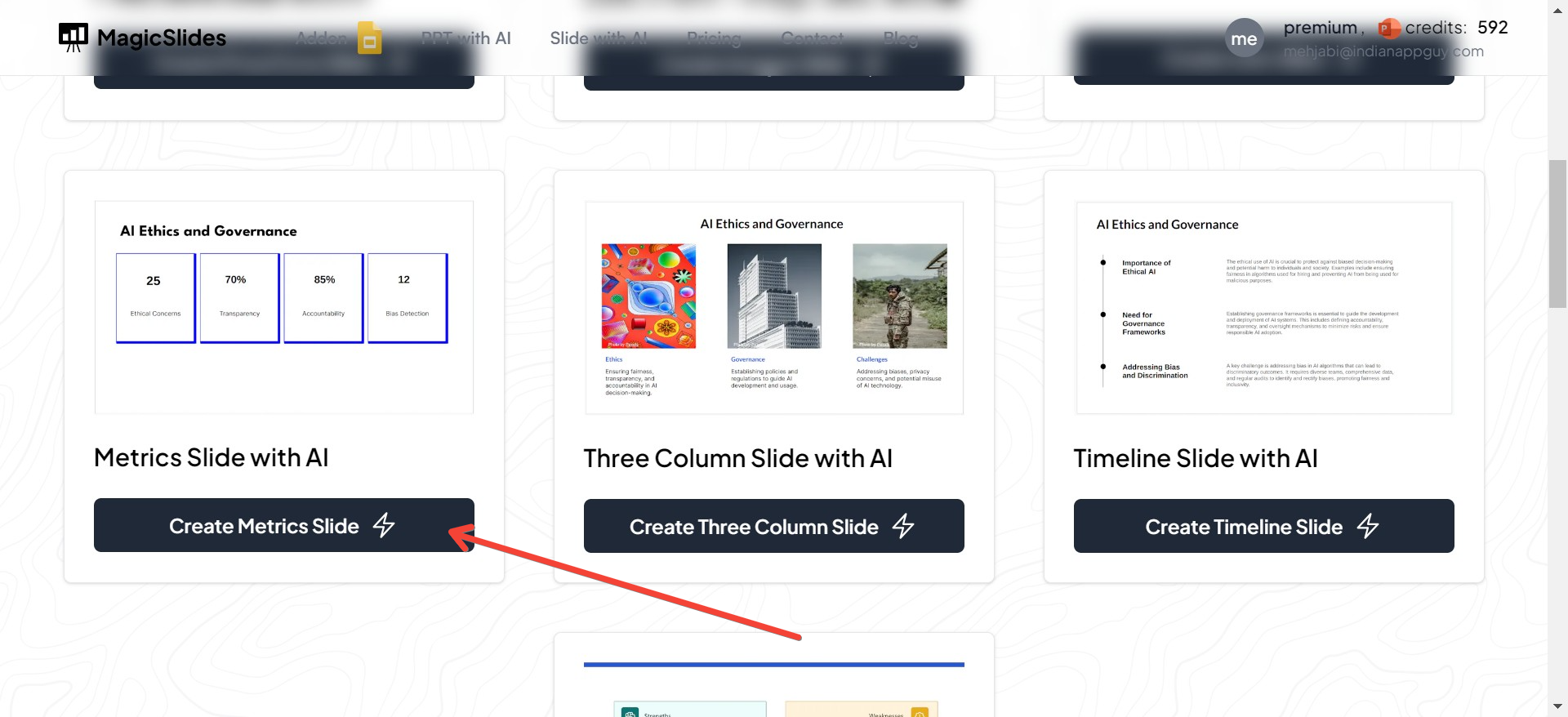
Step 3: Choose "Metrics Slide with AI"
Under the "Slide with AI" section, you'll find an option labeled "Metrics Slide with AI." This is the template specifically designed for presenting data and metrics in an organized and visually appealing way. Once you select it, the AI will guide you through the rest.
Tip: If you have complex data, don’t worry! The AI can handle large sets of information and present it in a clean, understandable manner. Use this opportunity to input a variety of metrics.
Step 4: Enter Your Topic or Metrics
Next, you will be prompted to enter the topic or specific metrics that you want to display. Whether you're presenting quarterly sales numbers, website traffic statistics, or social media engagement rates, MagicSlides can convert your raw data into a beautiful, concise slide.
Be as specific as possible with your data. For example:
- Sales growth for Q1 and Q2
- Revenue vs. Expenditure Analysis
- Social media engagement stats for Twitter, Instagram, and Facebook
Trick: If you want to make your slide more interactive, try combining multiple metrics under one topic. For instance, instead of just adding sales numbers, you can also input metrics like customer acquisition costs, return on investment, and conversion rates. This gives your audience a comprehensive view of the data at hand.
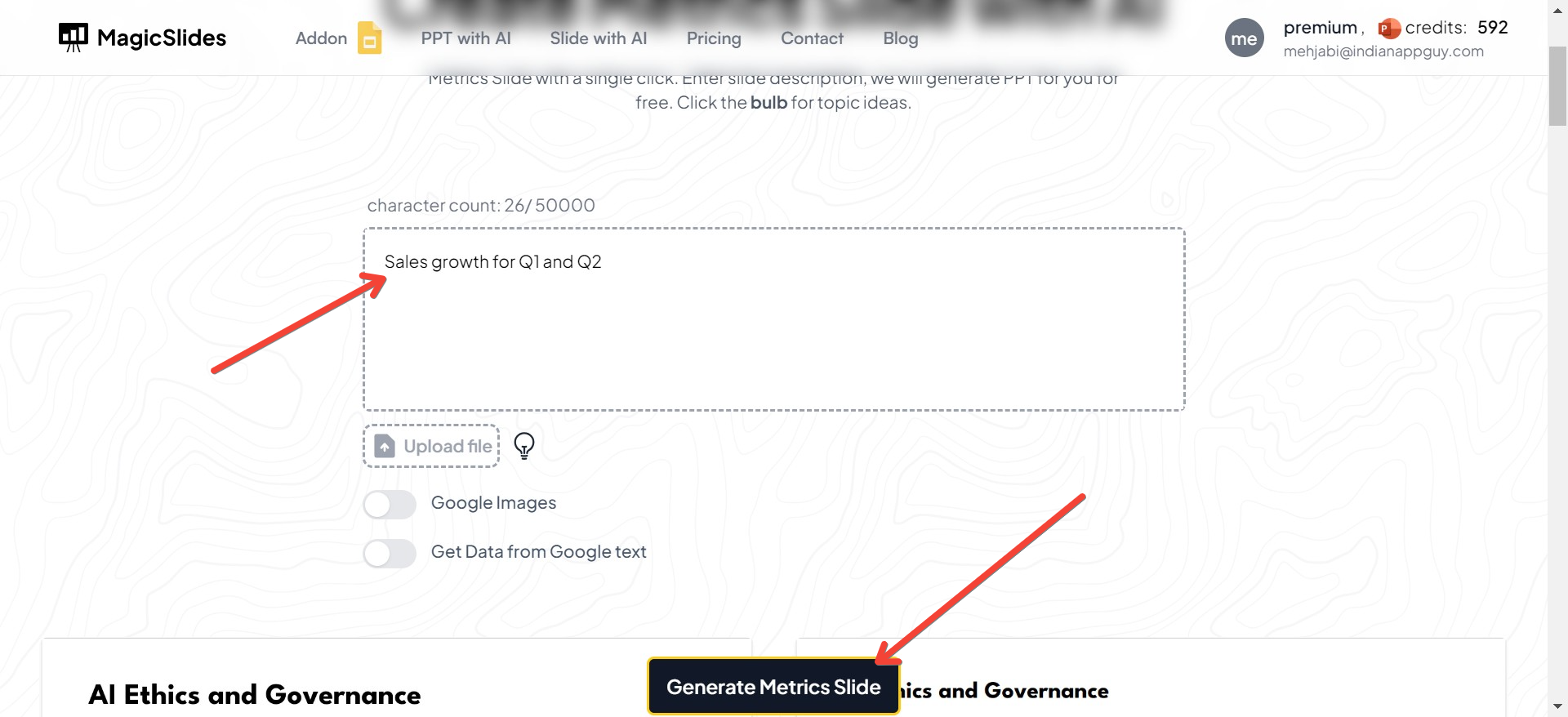
Step 5: Your Metrics Slide with AI Will Be Generated
Once you've entered your data, sit back and let the AI do its thing. In just a few moments, your metrics slide will be automatically generated, complete with graphs, charts, and design elements to make your data stand out.
You can review the slide, make tweaks if necessary, and voilà—your metrics slide is ready to be included in your presentation!
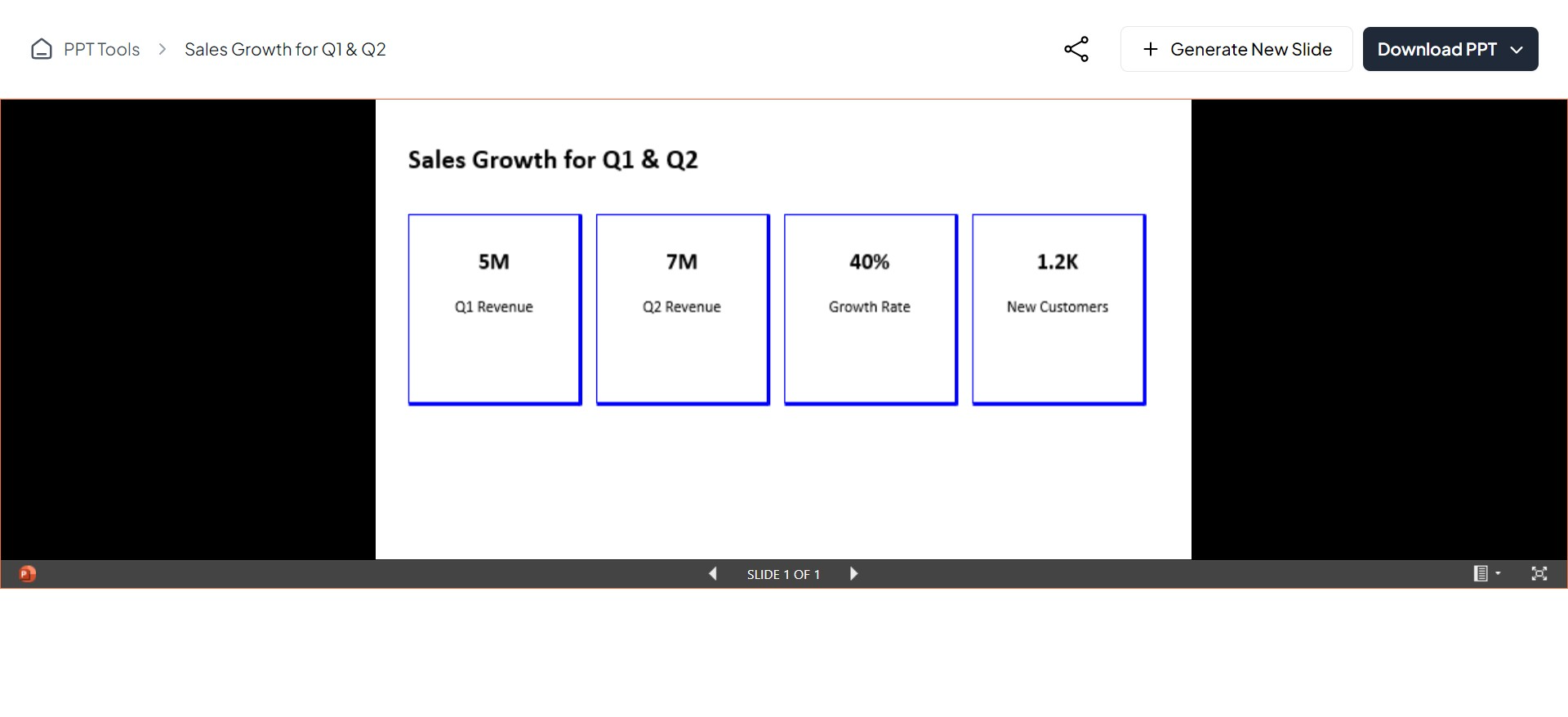
Pro Tip: You can customize the slide further by adding your company logo, adjusting the color scheme to match your brand, or even rearranging the charts for a more personal touch.
Extra Tips and Tricks for a Standout Metrics Slide
While MagicSlides simplifies the entire process, a few additional tricks can take your slide to the next level.
1. Keep It Simple and Clean
Don’t overcrowd your slide with too many numbers or metrics. Choose the most critical data points and ensure they are presented clearly. Less is often more when it comes to slides.
2. Leverage Colors Wisely
Colors can either make or break your slide. Use contrasting colors for your text and background to improve readability. Also, use color to differentiate between different sets of data in charts and graphs. For example, use green to show growth and red for declines.
3. Add Visual Cues
Use icons or symbols to represent key data points. For example, a dollar sign icon for revenue metrics or a graph icon for sales trends. Visual cues help the audience quickly understand the information.
4. Utilize MagicSlides AI Suggestions
Sometimes, MagicSlides AI will provide additional suggestions for enhancing your slide. Keep an eye out for these! Whether it’s suggesting a different chart type or rearranging your content, these small tweaks can improve the flow of your presentation.
5. Double-Check Data Accuracy
AI can assist in generating slides, but it’s still important to review your data before presenting it. Ensure that the numbers and metrics are accurate and up-to-date.
With these five easy steps, you can create a stunning and informative Metrics Slide with AI that will impress your audience. Whether you're in a board meeting, pitching to investors, or sharing a quarterly review, MagicSlides.app can be your secret weapon for creating high-quality presentations in a fraction of the time.
So, go ahead, give it a try, and let the AI do the heavy lifting while you focus on delivering your message!


