How to create webinar slides by converting Word documents to PowerPoint?


Learn the seamless process of transforming Word docs into dynamic webinar slides with our step-by-step guide for engaging presentations.
In the ever-evolving world of virtual communication, webinars have become a powerful tool for sharing knowledge and engaging audiences. Crafting compelling slides is a crucial aspect of a successful webinar. This guide will walk you through the process of converting Word documents into dynamic PowerPoint slides, using the user-friendly MagicSlides extension.
Before diving into the steps, ensure you have a Google account. If not, sign up to access Google Slides, a cloud-based presentation tool.
How to create webinar slides by converting Word documents to PowerPoint?
1. Visit Google Slides
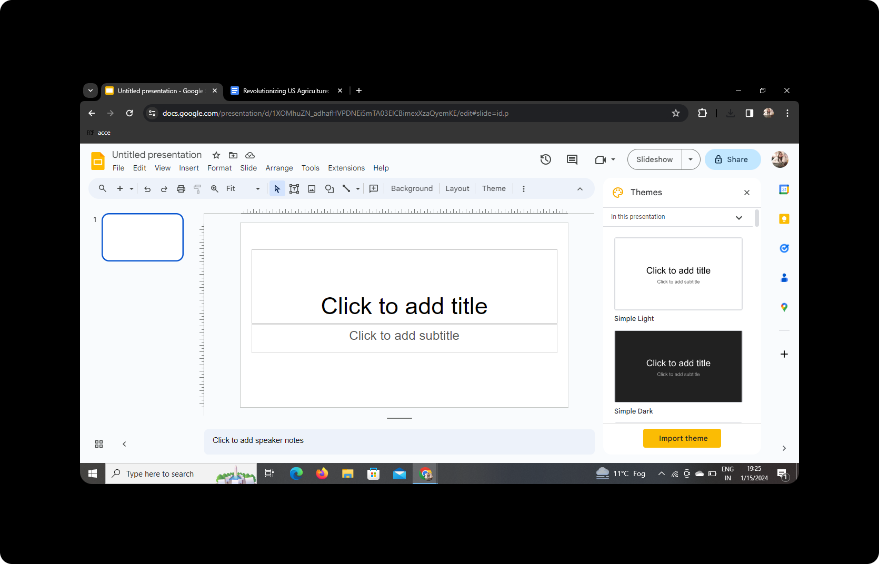
Open your web browser and visit Google Slides. If you're not signed in, log in with your Google account.
2. Sign In with Google to Google Slides
Click on the "Sign In" button if you're not logged in. This step ensures your work is saved in your Google Drive and can be easily accessed.
3. Install MagicSlides GPT Extension
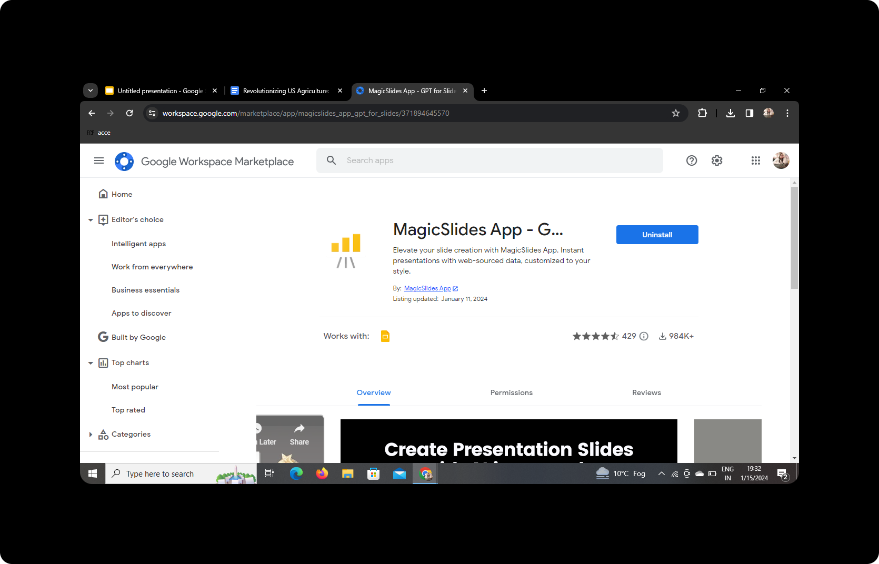
If you've already downloaded the MagicSlides GPT extension, proceed to the next step. If not, navigate to the Chrome Web Store, search for "MagicSlides GPT," and add it to your extensions.
4. Access MagicSlides GPT in Extensions
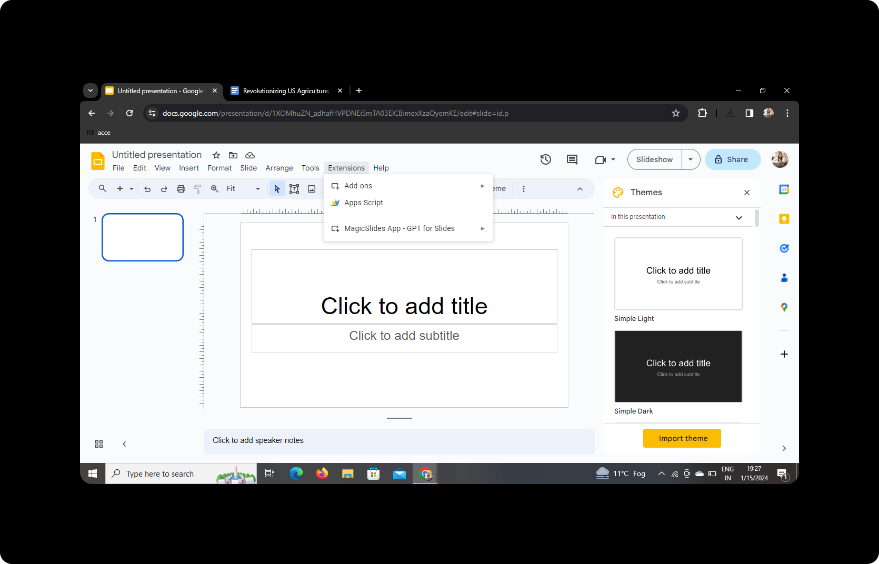
Click on the MagicSlides GPT icon in your extensions bar. If it's your first time using it, follow the prompts to set up the extension.
5. Open PDF/DOCX to PPT in MagicSlides GPT
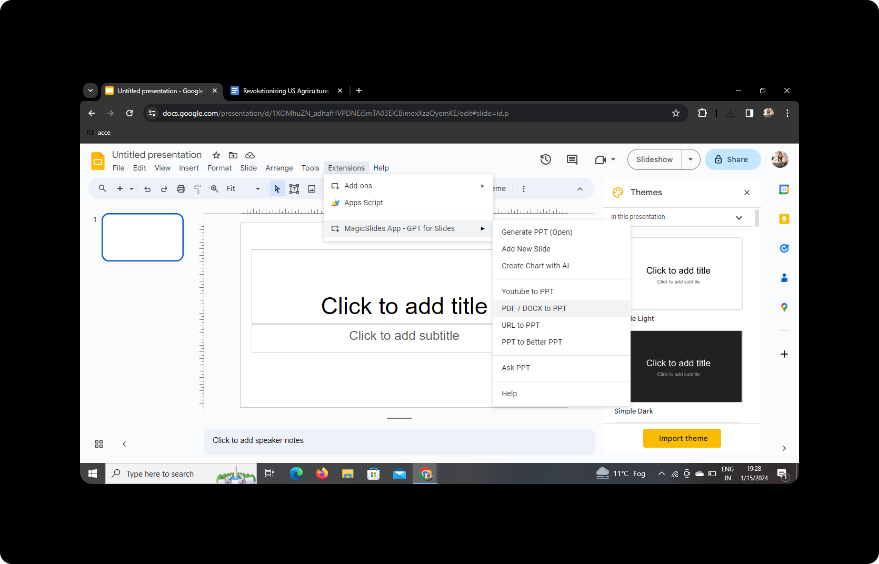
Within the MagicSlides GPT interface, select the "PDF/DOCX to PPT" option. This feature enables the conversion of Word documents into PowerPoint slides.
6. Upload Your Word Content
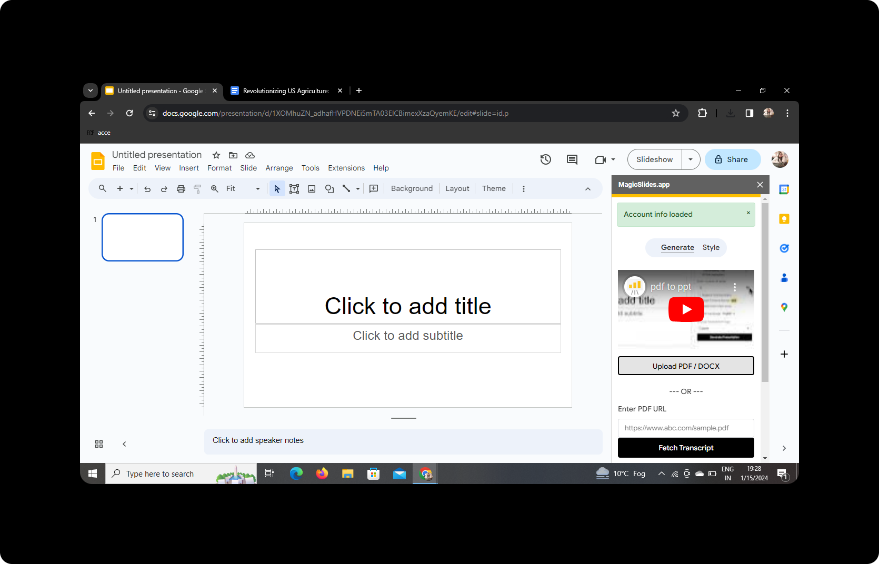
Click on the 'Upload PDF/DOCX' option and select the Word document you want to convert into slides.
7. Select the Number of Slides
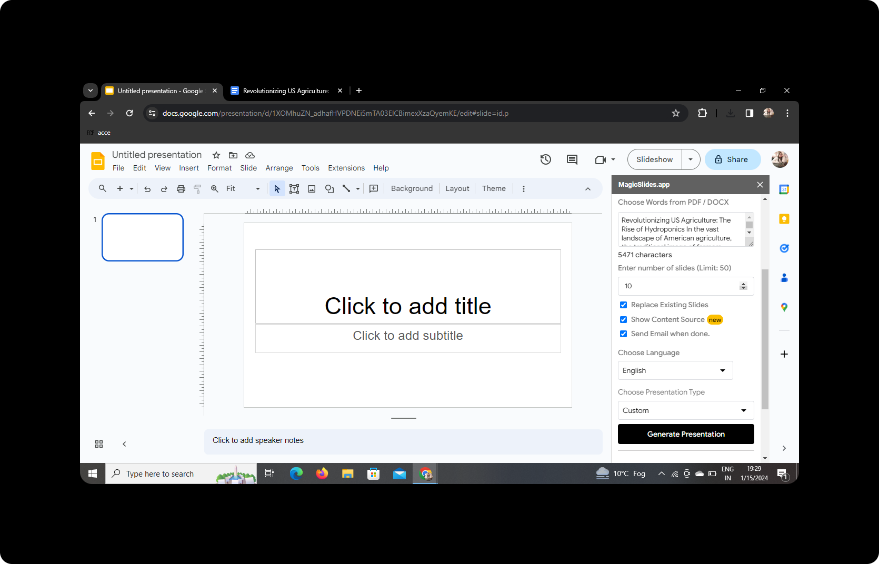
Specify the number of slides you want to generate based on your content. Adjust settings to suit your presentation style.
8. Click on Generate Presentation
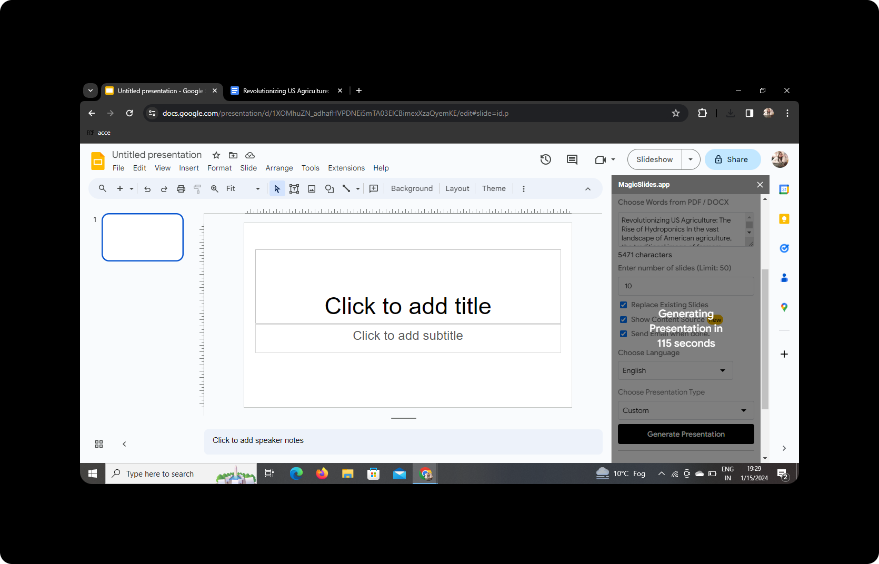
Once settings are configured, click the "Generate Presentation" button. MagicSlides GPT will swiftly convert your Word document into PowerPoint slides.
9. Your Presentation Is Ready
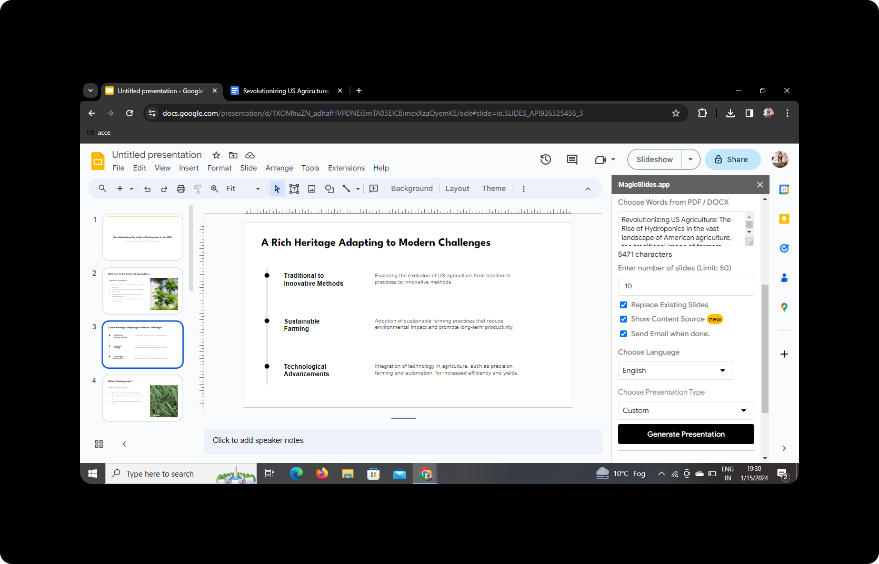
Your webinar slides are now ready for use. Review and make any necessary edits within Google Slides.
Conclusion
Incorporating MagicSlides GPT into your workflow streamlines the process of creating webinar slides, saving you time and effort. This user-friendly extension transforms the conversion process, ensuring your presentations are visually engaging and impactful.
Frequently Asked Questions
1. Can I use MagicSlides GPT with other browsers?
MagicSlides GPT is currently optimized for Google Chrome. Ensure you have the extension installed for seamless integration.
2. Is there a limit to the number of slides MagicSlides can generate?
MagicSlides GPT accommodates various slide numbers, allowing flexibility based on your content and presentation needs.
3. Can I customize the design of the slides after conversion?
Absolutely! After conversion, use Google Slides' features to customize the design, add visuals, and refine your presentation.
4. Is MagicSlides GPT free to use?
Yes, MagicSlides GPT is a free extension available on the Chrome Web Store.
5. Can I share the presentation with others?
Once your presentation is ready, you can easily share it with others by granting access or providing a shareable link through Google Slides.


