How to delete a Slack Channel in just 5 steps


Effortlessly manage your workspace by learning how to delete a Slack channel in simple steps.
In the ever-evolving landscape of modern team collaborations, maintaining an orderly workspace is paramount.
A pivotal aspect of this organizational finesse is comprehending the intricacies of deleting a Slack channel.
This comprehensive guide will meticulously walk you through each step, empowering you to declutter your virtual workspace with finesse and efficiency.
Before we begin, if you are looking to send Google form submissions directly to Slack, check SlackNotify.app. It will include all info submitted and sent directly to the Slack channel of your choice
How to delete Slack Channel in 5 steps
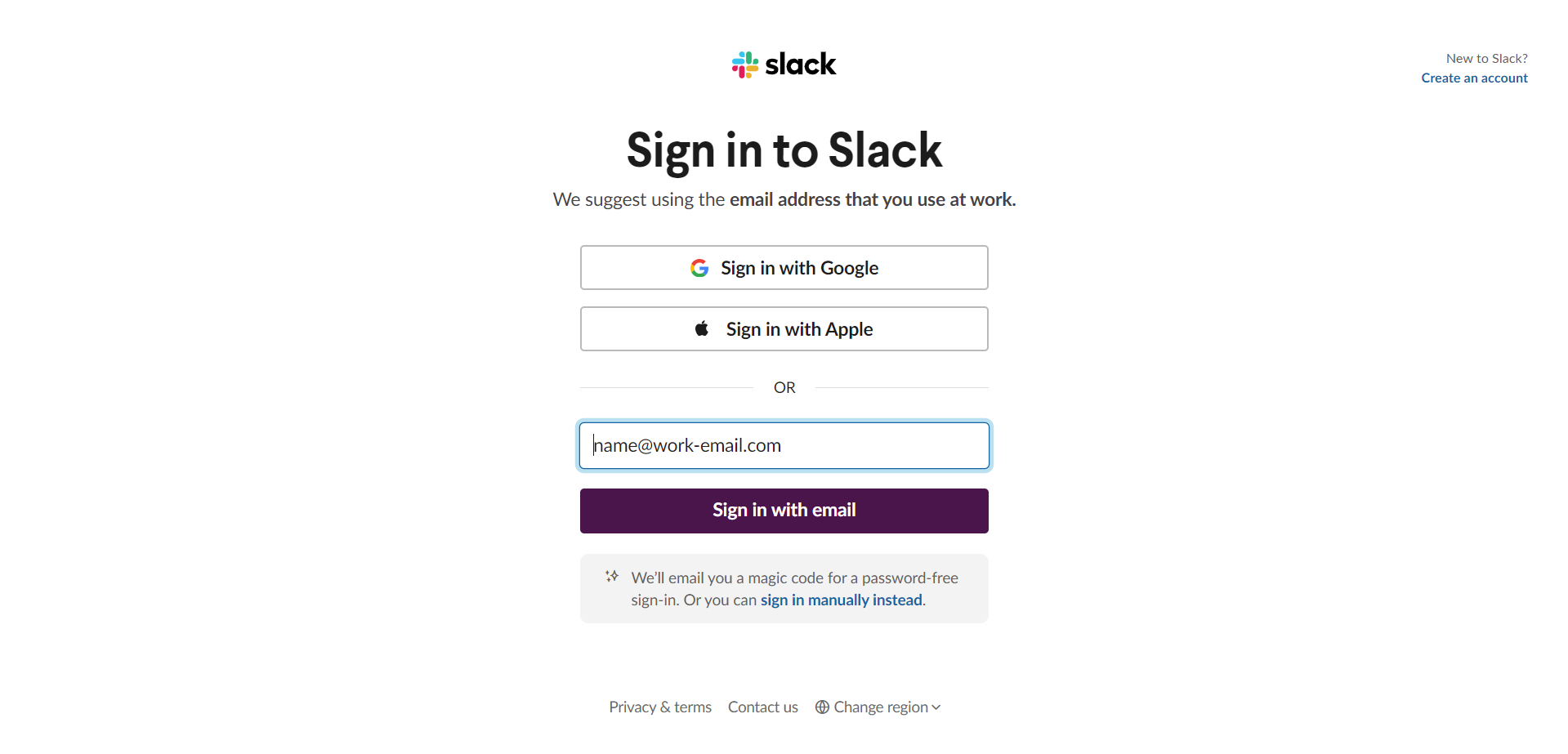
Step 1: Accessing Your Slack to be deleted :
Commence the process by securely logging into your Slack account, ensuring a seamless journey to the targeted channel destined for deletion.
Step 2: Head over to Channel Settings:
Dive into the specifics by clicking on the channel's name, unlocking a plethora of settings.
Seek out the gear icon, often denoted as "Settings" for additional control.
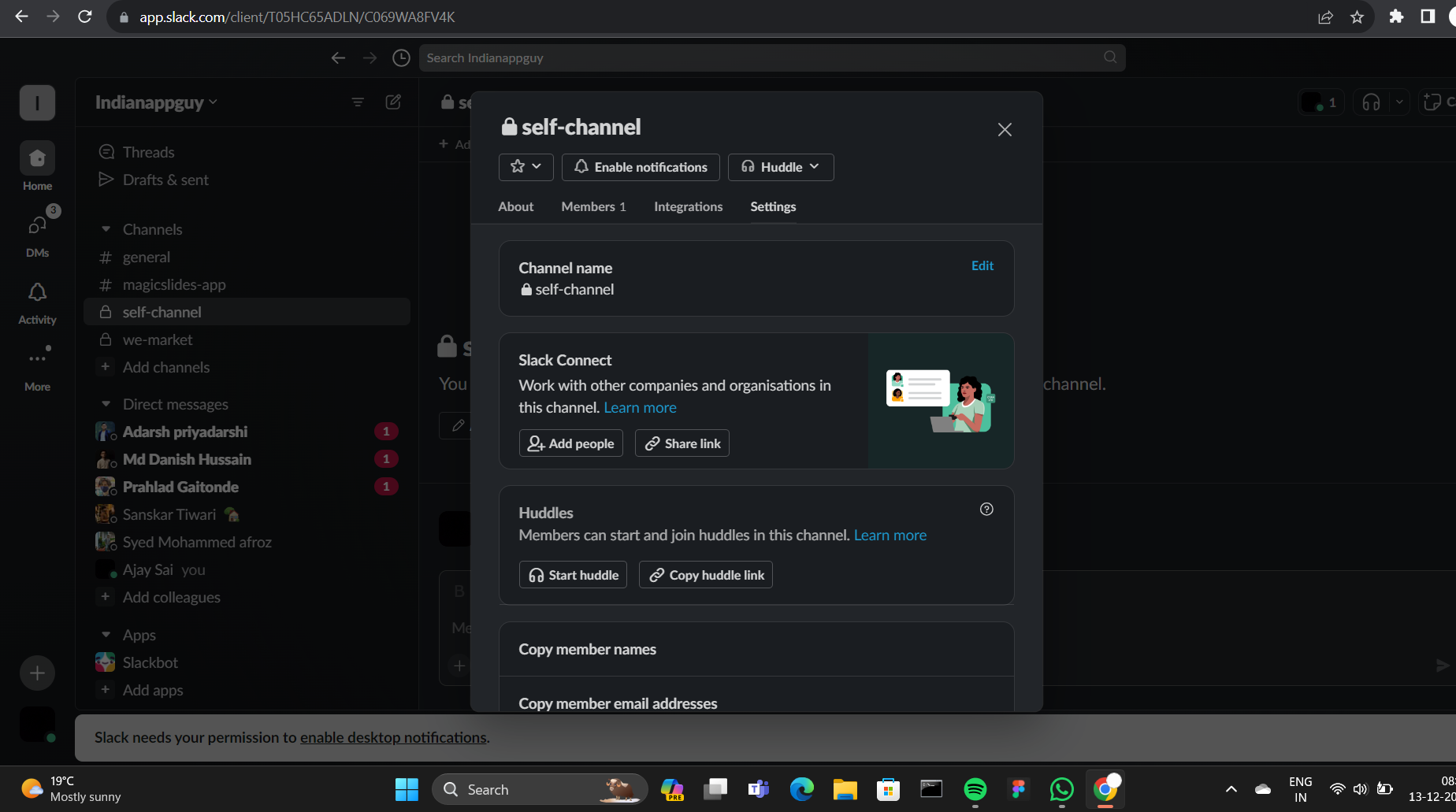
Step 3: Access the Additional Options:
Delve into the nuanced realm of advanced settings.
This segment may also be labeled as additional options, reflecting Slack's commitment to providing a detailed, user-friendly experience.
Step 4: Delete the selected Channel:
Within the advanced settings, pinpoint the option that spells liberation – "Delete Channel."
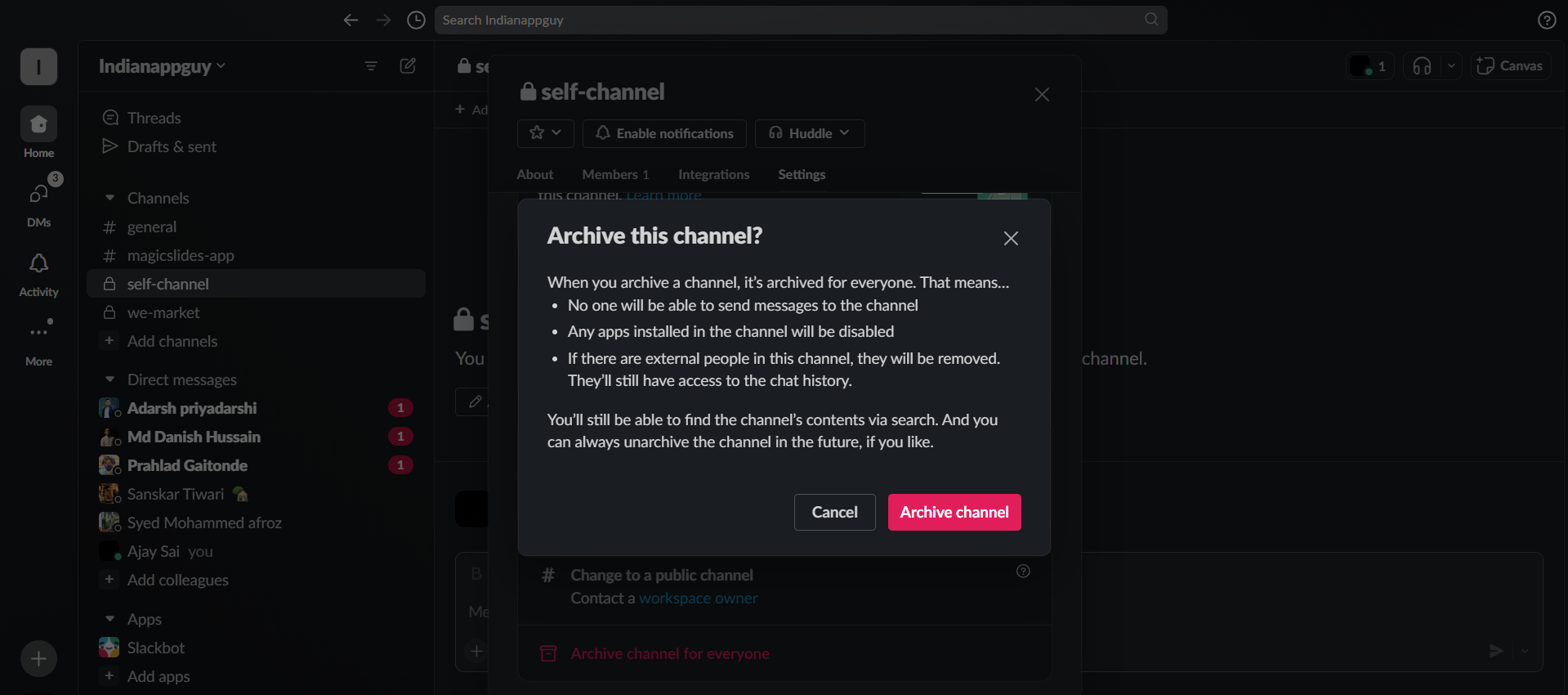
Be prepared for a conscientious confirmation to solidify your choice. If deletion option is not available you can choose to select archive channel for everyone option.
Step 5: Acknowledge the Confirmation:
Acknowledge and validate your decision to bid farewell to the channel.
Slack, mindful of the significance of this step, may prompt you once more, ensuring a deliberate and intentional commitment.
Before deleting a Slack channel, consider setting up Google Form notifications so that any form submissions are automatically routed to active channels, helping your team stay informed about important updates.
Pro Tip 💡:
Before deleting a Slack channel, inform your team about the action to prevent any surprises. Encourage members to archive important conversations and files. Post a notification in the channel, allowing members to save vital information before the deletion occurs. Communication is key for a smooth transition.
Conclusion 💁♂️:
In orchestrating the deletion of a Slack channel, you not only declutter your digital workspace but also contribute to a more focused and efficient collaborative environment.
Regular channel reviews and tidying sessions underscore a commitment to an organized, streamlined, and ultimately productive workspace.
Frequently Asked Questions 🤔:
Can I undo the deletion of a Slack channel if I change my mind?
Unfortunately, once a Slack channel is deleted, it's a permanent action. Slack encourages cautious decision-making.
Will deleting a channel remove all its chat history?
Yes, deleting a channel erases its entire chat history. Consider exporting crucial data before deletion for future reference.
Can I delete a Slack channel if I'm not the workspace admin?
Yes, but you need to be a channel admin. Workspace admins can manage all channels, while channel admins have control over specific channels.
Are there alternatives to deleting a channel for decluttering?
Absolutely. Archiving a channel preserves its history but removes it from the active list, offering an organized alternative to deletion.


