Addon google slides iconPPT with AISlide TemplatesPPT TemplatesPricingBlog
    PPT with AISlide TemplatesPPT TemplatesPricingBlog
    1. Home
    2. Blog
    3. How To Download Google Sheets As XLSX?


    How To Download Google Sheets As XLSX?

    magicslides app

    Published By

    magicslides app

    Approved By

    Admin

    Published On

    January 13th, 2025

    Reading Time

    3 min read

    Discover the easy steps for downloading Google Sheets as XLSX files effortlessly. Streamline your data management with our helpful guide!

    In the realm of productivity tools, Google Sheets stands tall as a versatile and collaborative spreadsheet platform. Whether you're a business professional or a student, harnessing its features can significantly streamline your work. One essential skill every Sheets user should master is downloading their spreadsheets in different formats, such as XLSX. In this guide, we'll take you through the straightforward process of downloading your Google Sheets as XLSX, ensuring you can seamlessly share and work with your data.

    How To Download Google Sheets As XLSX?

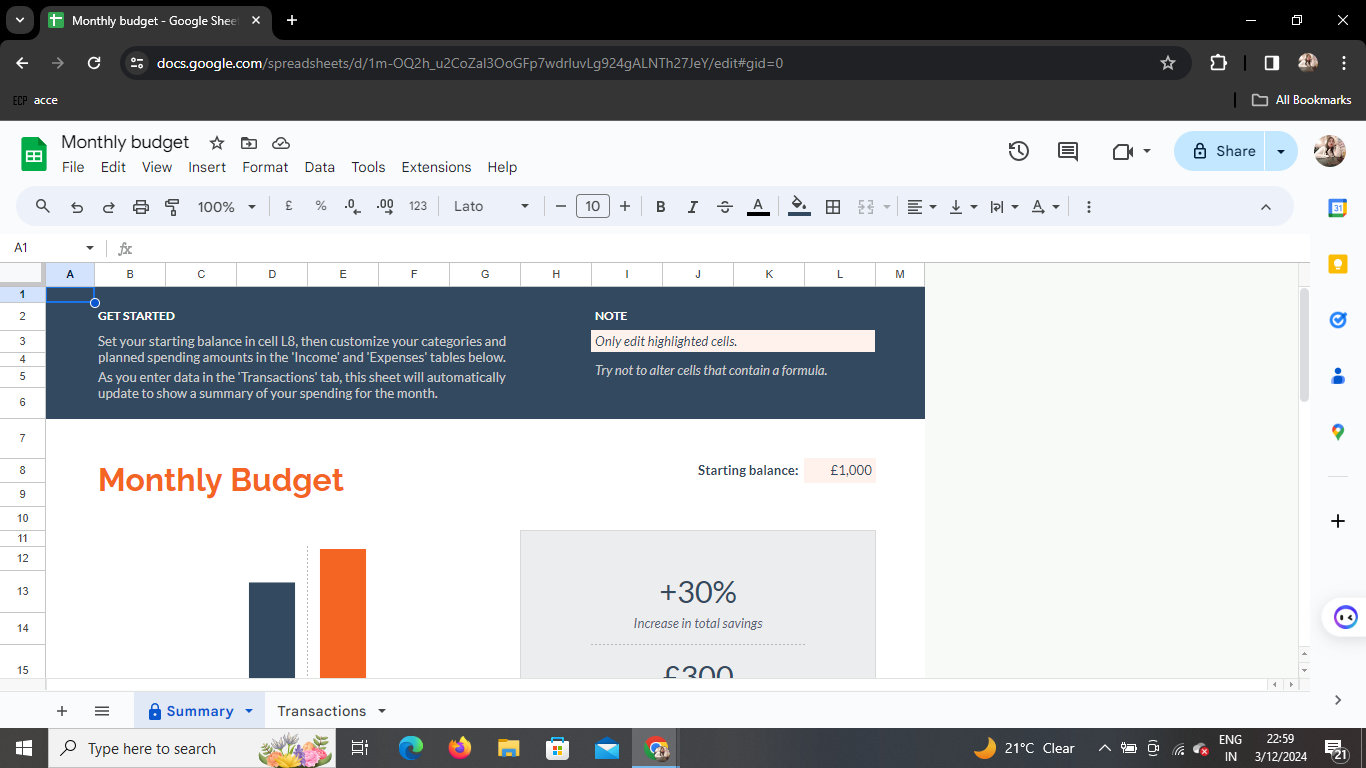
    Step 1: Open Google Sheets
    notion image
    To embark on this journey, you first need to open Google Sheets. If you're not already signed in to your Google account, now is the time to do so. Once signed in, locate and open the Google Sheets application.

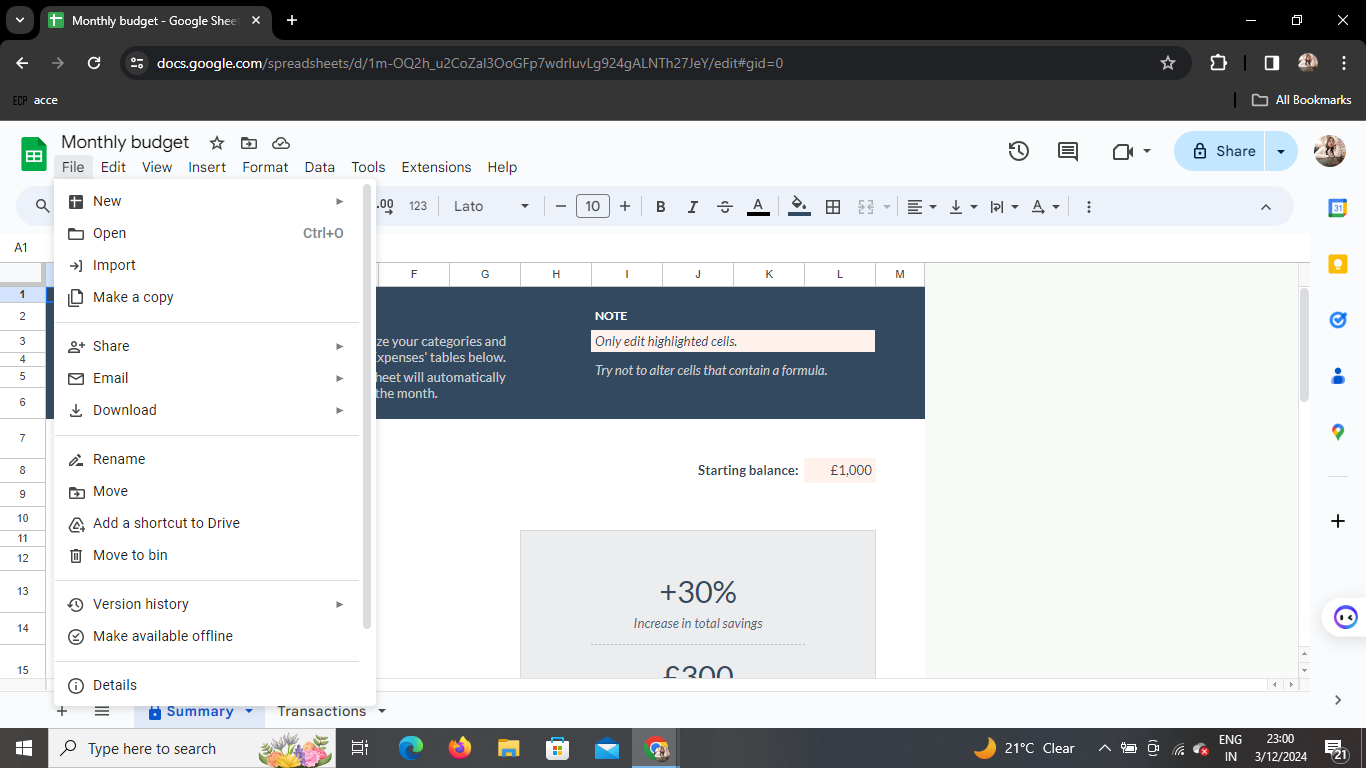
    Step 2: Access the File Menu
    notion image
    In the top left corner of your Google Sheets interface, you'll find the "File" menu. Click on it to reveal a dropdown menu containing various options to manage your spreadsheet.

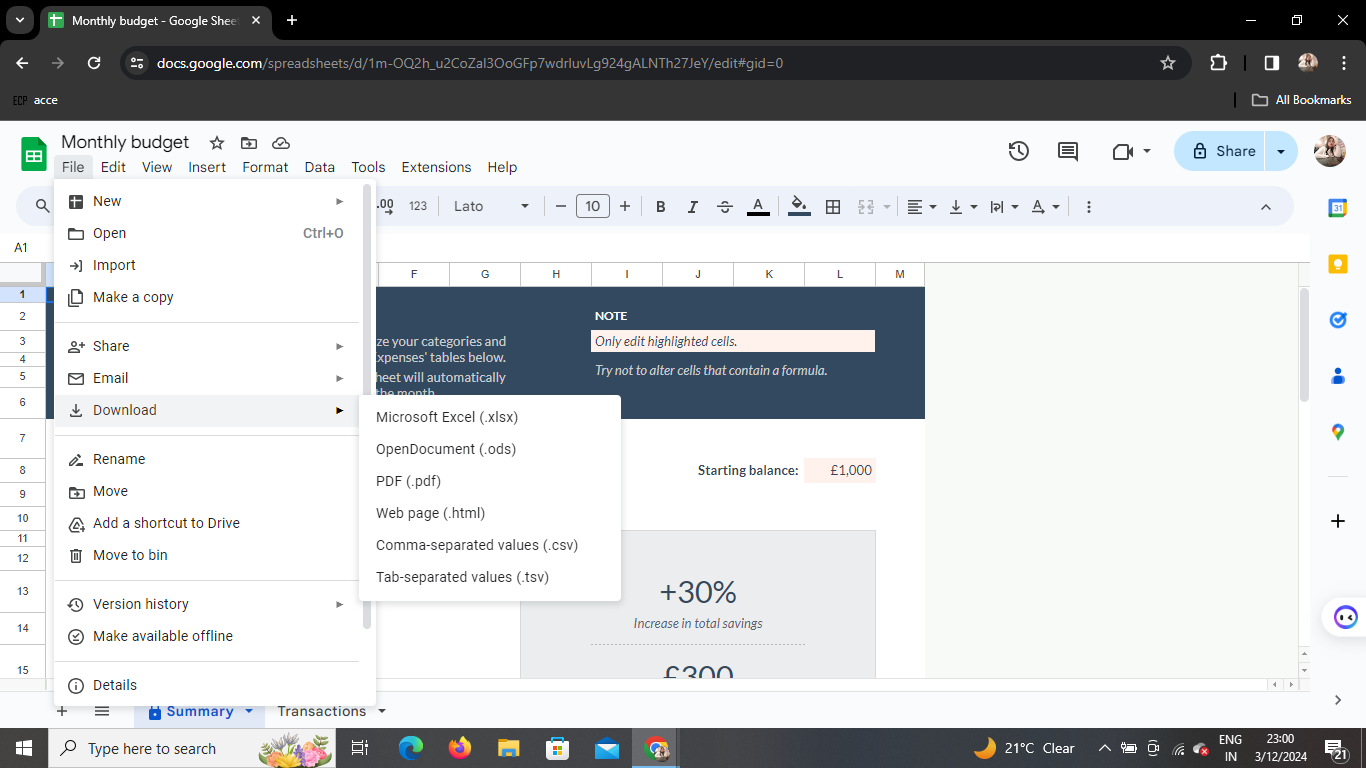
    Step 3: Hover Over Download
    notion image
    Within the "File" menu, hover your cursor over the "Download" option. This action will prompt a sidebox to gracefully unfold, offering you a selection of download formats.

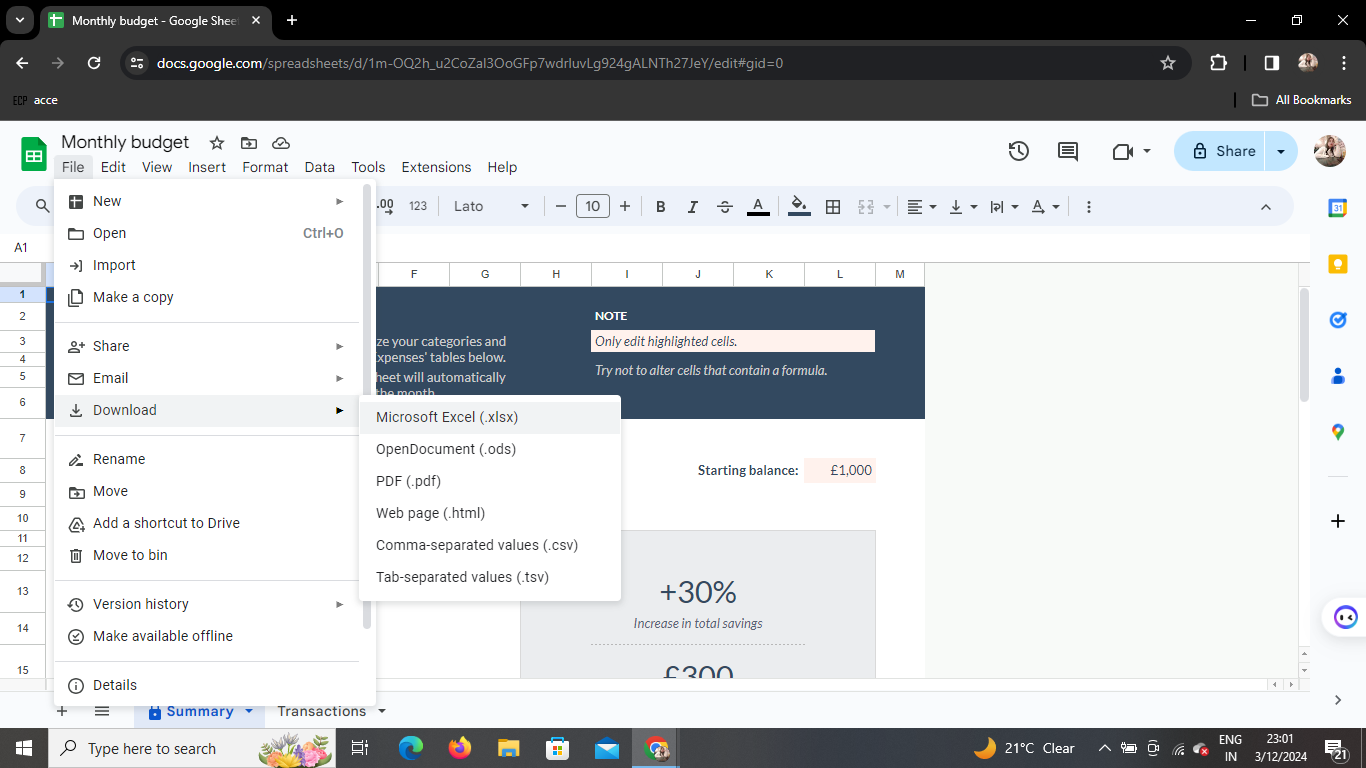
    Step 4: Choose XLSX Format
    notion image
    As the sidebox opens, a range of download options will be presented. Among them, look for the "Microsoft Excel (.xslx)" option. Click on it to initiate the download process.

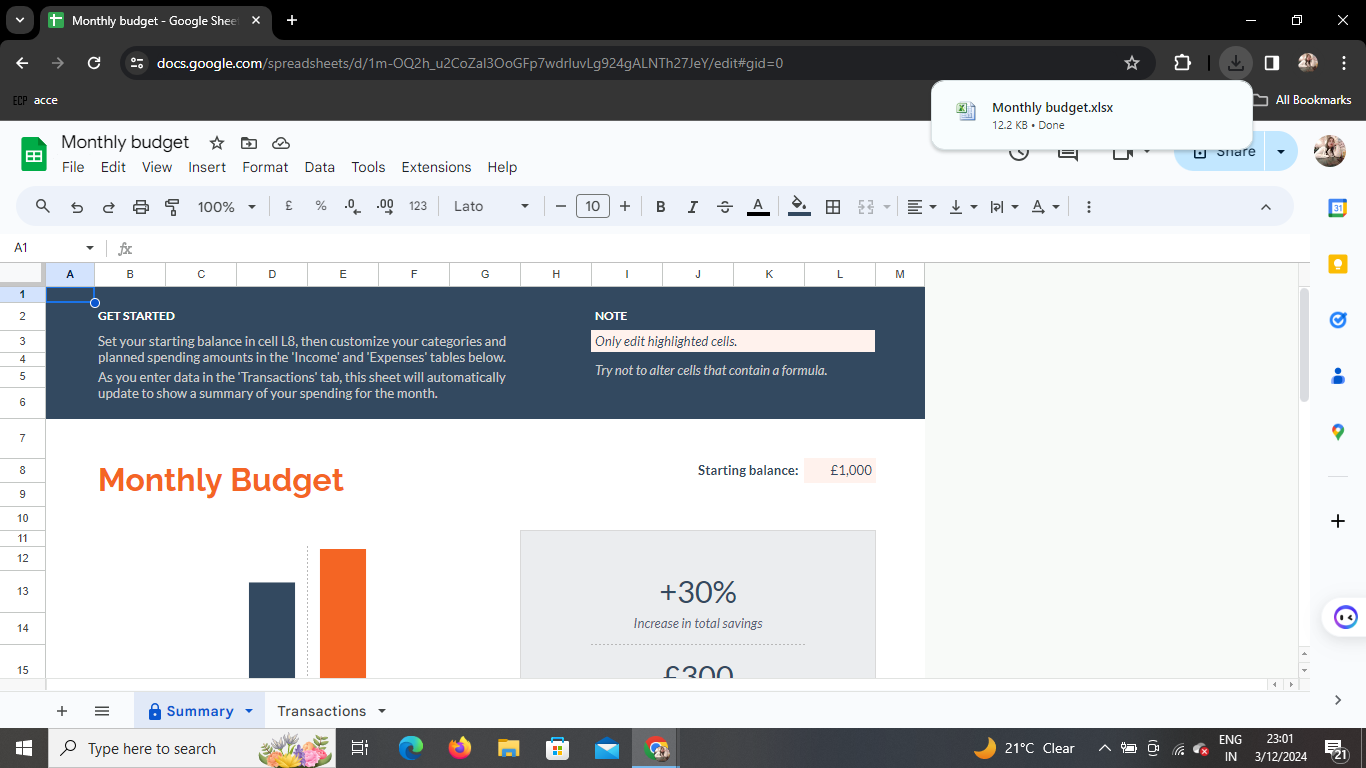
    Step 5: Download Complete
    notion image
    Congratulations! Your Google Sheets spreadsheet is now downloaded in XLSX format. The file will be saved to your device, ready for you to share, analyze, or collaborate on it with others.

    Conclusion

    Downloading Google Sheets as XSL is a straightforward process that enhances the compatibility of your spreadsheet, allowing seamless collaboration across various platforms. By following these simple steps, you can empower yourself with the ability to share your data effortlessly.

    Frequently Asked Questions

    Can I download Google Sheets in multiple formats simultaneously?

    Yes, Google Sheets allows you to download your spreadsheet in various formats simultaneously. Simply follow the same steps and choose multiple formats during the download process.

    Is there a size limit for downloading Google Sheets as XSL?

    There is no specific size limit for downloading Google Sheets as XSL. However, larger files may take longer to download, depending on your internet connection.

    Can I download Google Sheets as XSL on a mobile device?

    Yes, the process is similar on mobile devices. Open the Google Sheets app, access the menu, and choose the "Download" option to select XSL as your preferred format.

    Are there any formatting changes when downloading as XSL?

    Downloading Google Sheets as XSL generally retains the formatting of your original spreadsheet. However, it's advisable to double-check the document to ensure everything appears as intended.

    Can I automate the download process for Google Sheets?

    While Google Sheets doesn't have a built-in automation feature for downloads, you can explore third-party tools or scripts to streamline repetitive tasks and enhance your workflow.

    Share on socials

    About the author

    Ayan Ahmad Fareedi profile photo
    Ayan Ahmad Fareedi— writer at MagicSlides

    Ayan Ahmad is our Senior Writer and brings over two years of experience from working with big companies like Amazon and Okaya. He loves writing stories that grab your attention and speak to a wide audience. When he's not working, you can find him watching movies or planning his next trip. Ayan's work is not just about words; it's about making every article special and interesting.

    More from Ayan

    More from the blog

      250+ Good Morning Messages for Her (Romantic, Deep, Cute & Sweet)

      30 January 2026

      200+ Heart Touching Birthday Wishes for Sister (Short, Funny and More)

      29 January 2026

      50+ History Presentation Topics For 2026

      28 January 2026

      How to Add Music to Your Canva Presentation: A Step-by-Step Guide

      27 January 2026

      15 Quick Tips To Use ChatGpt At Work

      22 January 2026

      11 Best AI Tools for Business in 2025

      22 January 2026

      How to Create an Infographic That Clearly Communicates Your Message

      20 January 2026

      How to Create a Sales Presentation Template in Google Sheets

      20 January 2026

      How to Make a Pie Chart on Google Slides in Simple Steps

      19 January 2026

    Table of Contents

    Create Presentations in Seconds

    Transform your ideas into professional presentations with AI. No design skills needed.

    Try MagicSlides Free

    Create Stunning Presentations with AI in Seconds ✨

    Transform any topic, text, YouTube video, PDF or URL into beautiful presentations instantly with MagicSlides AI.

    Try MagicSlides AI Presentation Maker
    MagicSlides AI Presentation

    Footer

    Solutions

    • MagicSlides App
    • Google Slides Add-on
    • MagicSlides in Chrome
    • MagicSlides in Figma
    • MagicSlides in ChatGPT
    • MagicSlides in Telegram
    • MagicSlides in Zapier
    • MagicSlides in Figma Slides

    Tools

    • AI PPT Tools
    • QR Code Generator
    • Design Tools
    • PPT Templates
    • Slide Templates
    • PDF Tools

    Examples

    • AI Presentations
    • PPT by MagicSlides
    • Quizzes
    • Charts
    • Coloring Pages

    Resources

    • Changelog
    • Documentation
    • API Docs

    Top Blogs

    • How to Create Presentation Using ChatGPT
    • 100+ Best Seminar Topics for Students in 2025

    Company

    • Help
    • MCP
    • Blog
    • Pricing
    • Affiliate Program
    • Manage Subscription
    • Privacy Policy
    • Contact Us
    • Terms & Conditions
    • Refund & Cancellation Policy

    We also built

    • SheetAI - GPT For Sheets
    • MagicForm - GPT For Google Forms
    • SecondBrain.fyi
    • BlogBee - Free Blogging Platform

    © 2026 IndianAppGuy Tech Pvt Ltd. All rights reserved.