How to Download Music for PowerPoint


Adding music to PowerPoint enhances presentations, creating a more engaging and immersive audience experience
Adding music to your PowerPoint presentations can significantly enhance the audience's experience, creating mood and engagement.
To do so, you'll first need to download music files that are compatible with PowerPoint.
In this guide, I’ll take you through the simple steps to find, download, and add music to your PowerPoint presentations.
How to Download Music for PowerPoint: A Step-by-Step Guide
Step 1: Choose a Legal Source for Music
Before downloading music, it’s important to select a legal and safe source.
Websites like Free Music Archive, Jamendo, or YouTube Audio Library offer royalty-free music that you can use in presentations.
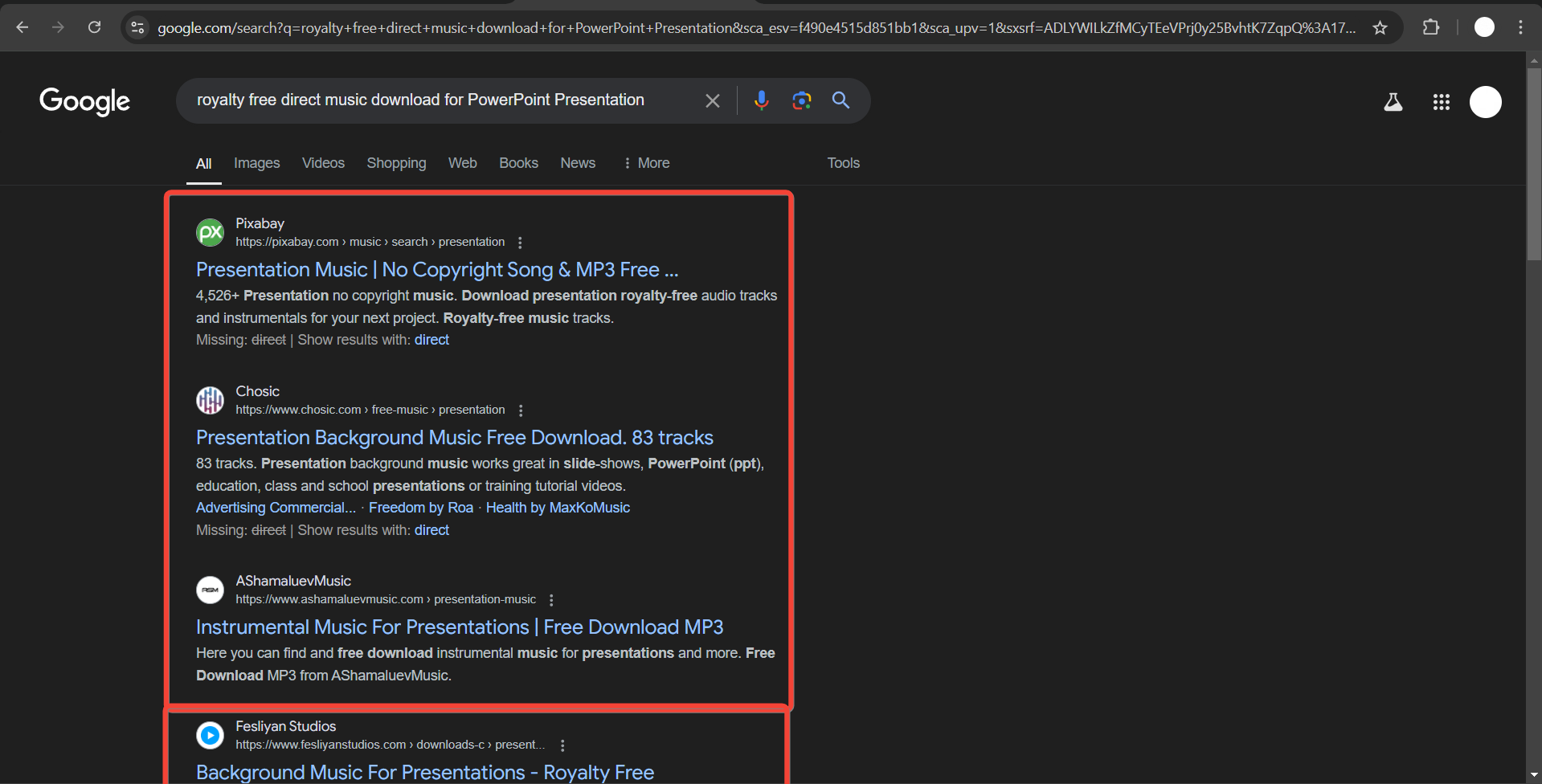
Make sure to check licensing agreements to avoid copyright issues.
Step 2: Search for Your Desired Music
Once you've chosen a reliable platform, search for the specific type of music you want to add to your PowerPoint.
Use filters to sort by genre, mood, or length, depending on your presentation’s needs.
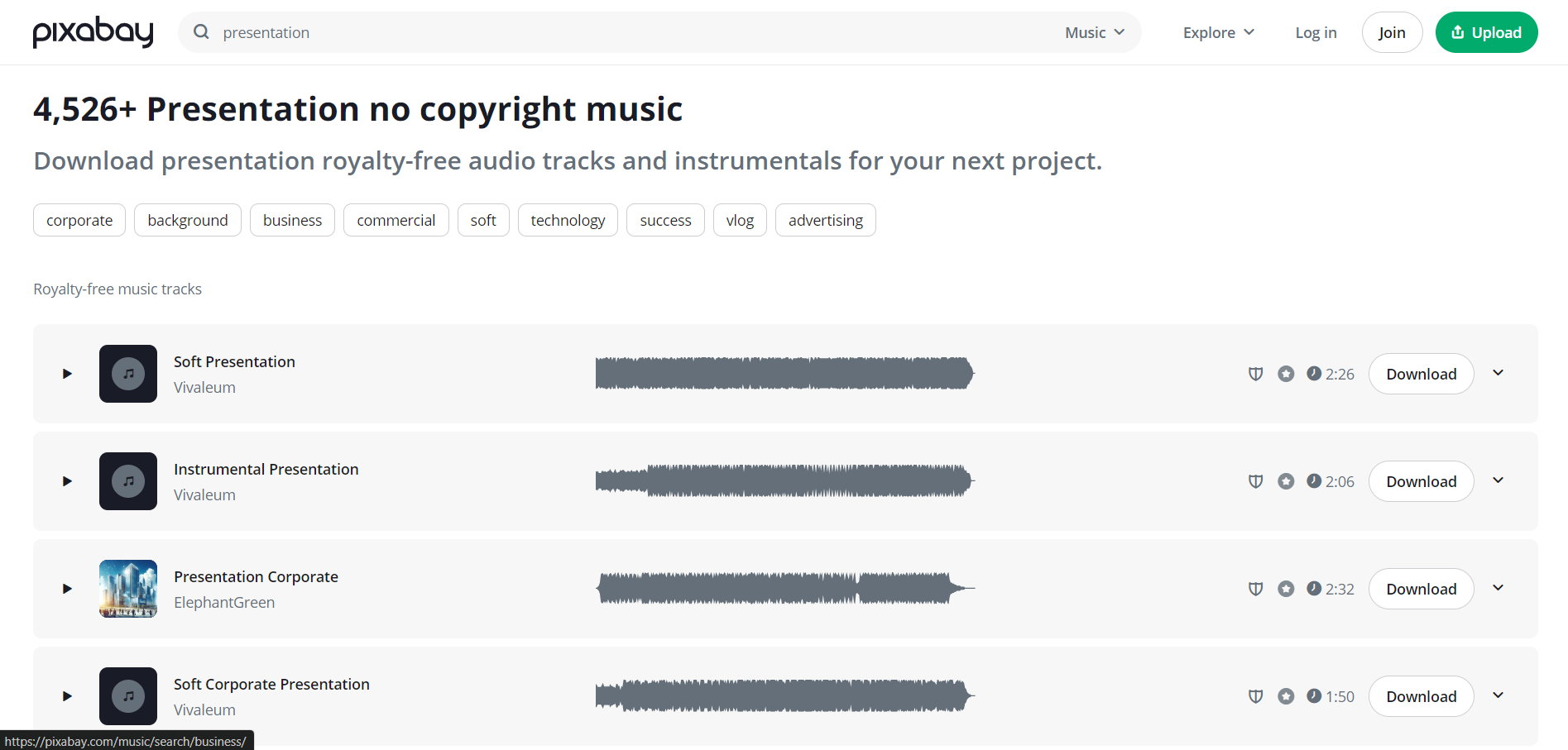
Preview the tracks to ensure they fit the tone and message you want to convey.
Step 3: Download the Music File
After selecting the music, look for the download button, usually labeled "Download," "Free Download," or something similar.
Choose the appropriate file format, ideally MP3 or WAV, as both are compatible with PowerPoint.
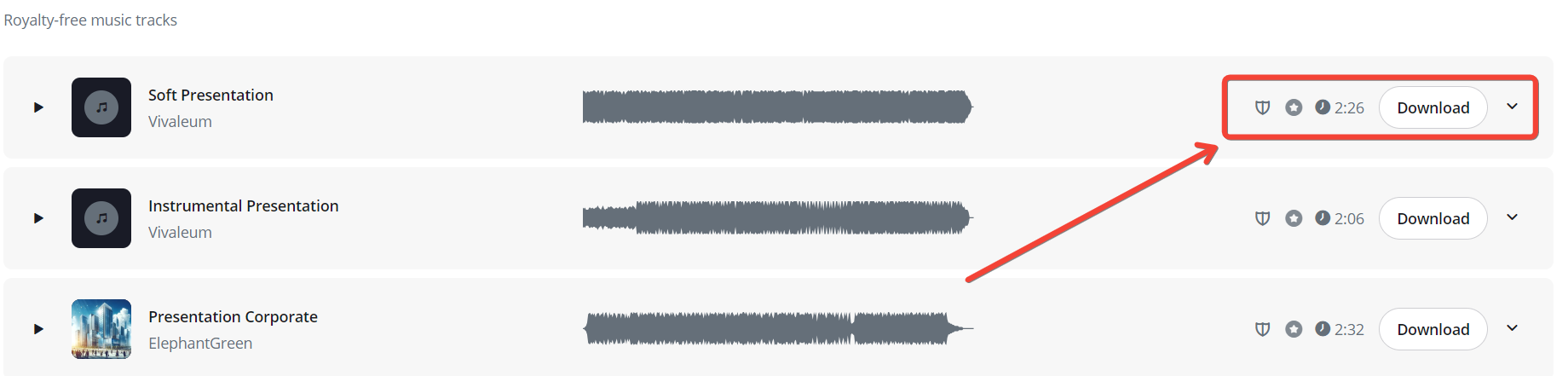
Ensure that the file is saved to a location you can easily access, such as your desktop or a designated folder.
Step 4: Insert the Music into PowerPoint
Open your PowerPoint presentation and navigate to the slide where you want to add the music.
Click on the "Insert" tab in the top menu, then select "Audio" and choose "Audio on My PC."
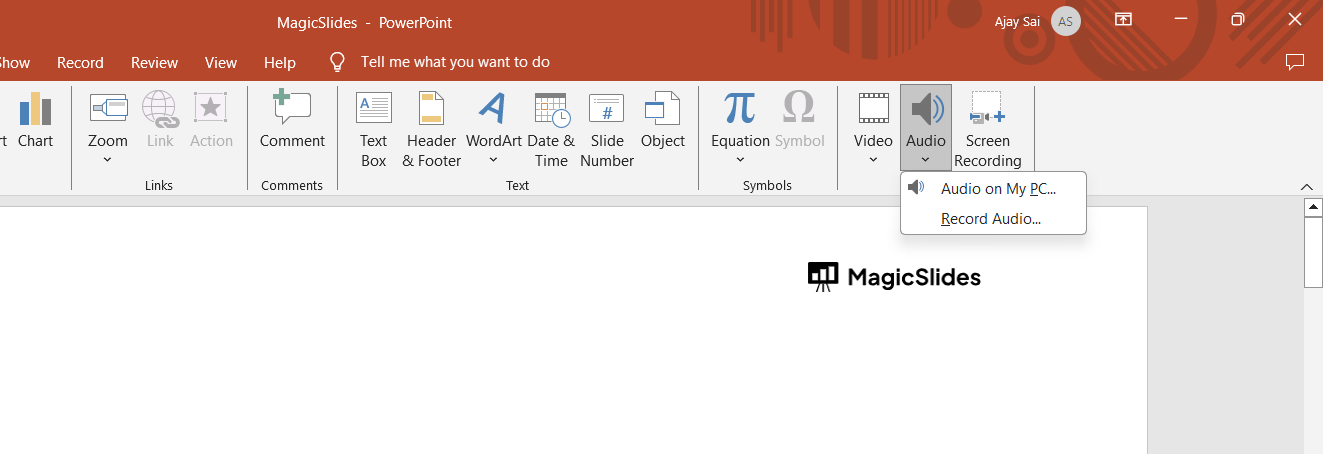
Find the music file you just downloaded, select it, and click "Insert" to add it to your slide.
Step 5: Customize the Playback Settings
Once the music is added to your presentation, a speaker icon will appear on your slide.
You can customize the playback settings by selecting the icon and going to the "Playback" tab. Here, you can choose to play the music automatically, on a click, or across multiple slides.
Conclusion
Downloading music for PowerPoint is a quick and easy way to enrich your presentations, helping you convey emotion or set the right tone for your audience.
By following these simple steps, you’ll be able to find, download, and insert music seamlessly, creating an engaging multimedia experience in your PowerPoint slides.
FAQs are here to guide!
What file formats are compatible with PowerPoint for music?
PowerPoint supports MP3, WAV, and WMA music file formats.
Can I add music to play across multiple slides?
Yes, you can set the music to play continuously across slides using the "Playback" tab.
Where can I download royalty-free music for PowerPoint?
Websites like Free Music Archive, Jamendo, and YouTube Audio Library offer royalty-free music downloads.


