How to download powerpoint as pdf file


Elevate your presentation versatility: Learn the steps to download PowerPoint as a PDF effortlessly and efficiently.
In the realm of versatile document formats, converting your PowerPoint presentation to a PDF file is a valuable skill. Whether for sharing, printing, or ensuring consistent formatting across different devices, this guide will walk you through the simple steps of downloading your PowerPoint masterpiece as a PDF, unlocking a world of convenience and accessibility.
How to Download PowerPoint as a PDF:
Open Your PowerPoint Presentation:
Start by opening the PowerPoint presentation you wish to convert to a PDF.
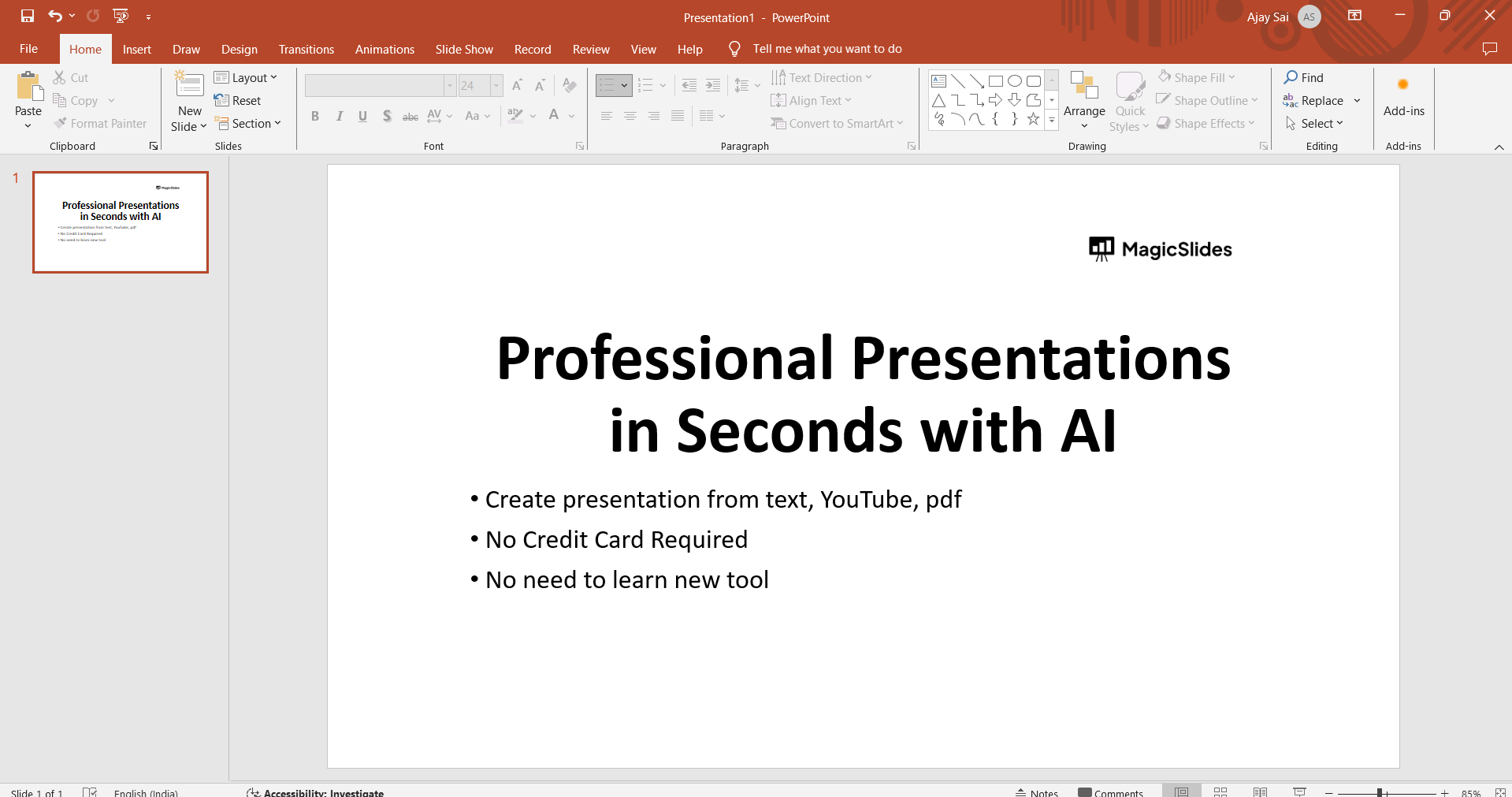
Navigate to the "File" Menu:
In the top-left corner, click on the "File" menu to reveal a dropdown list of options.
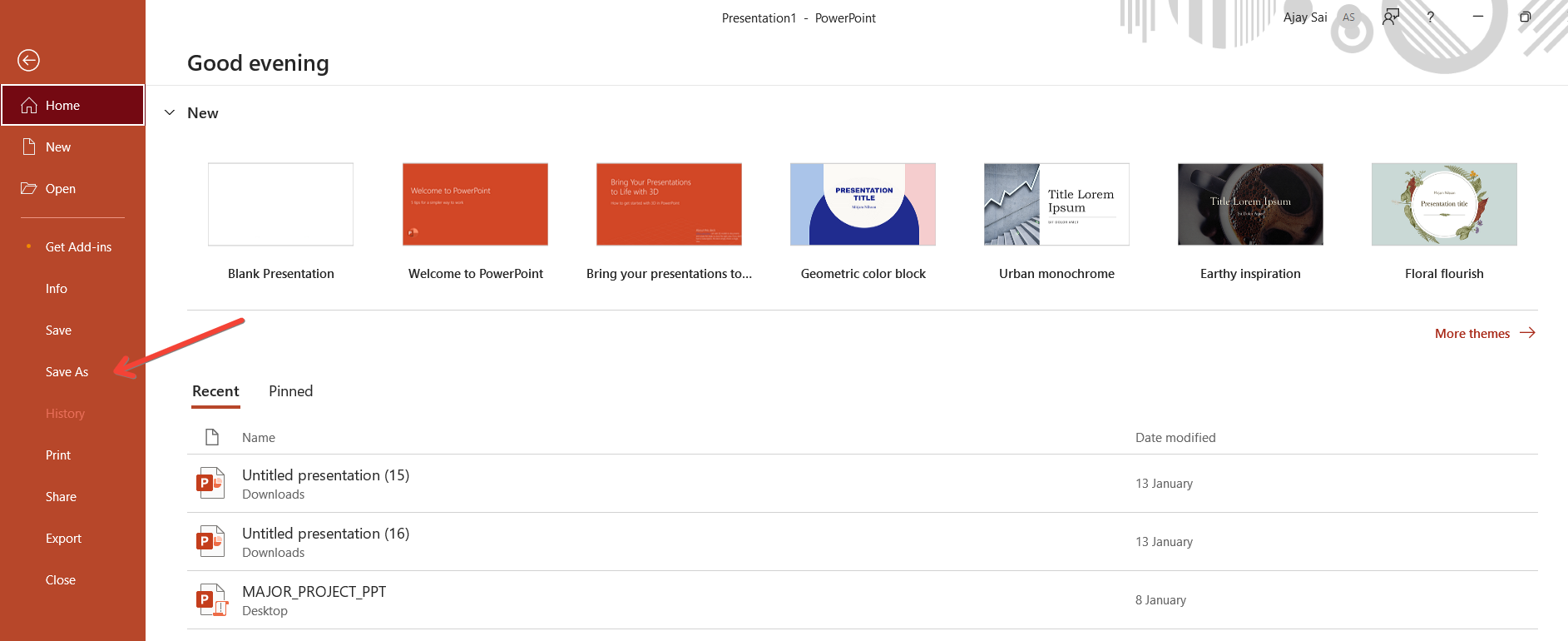
Select "Save As" or "Export":
Depending on your PowerPoint version, choose either "Save As" or "Export" from the dropdown menu.
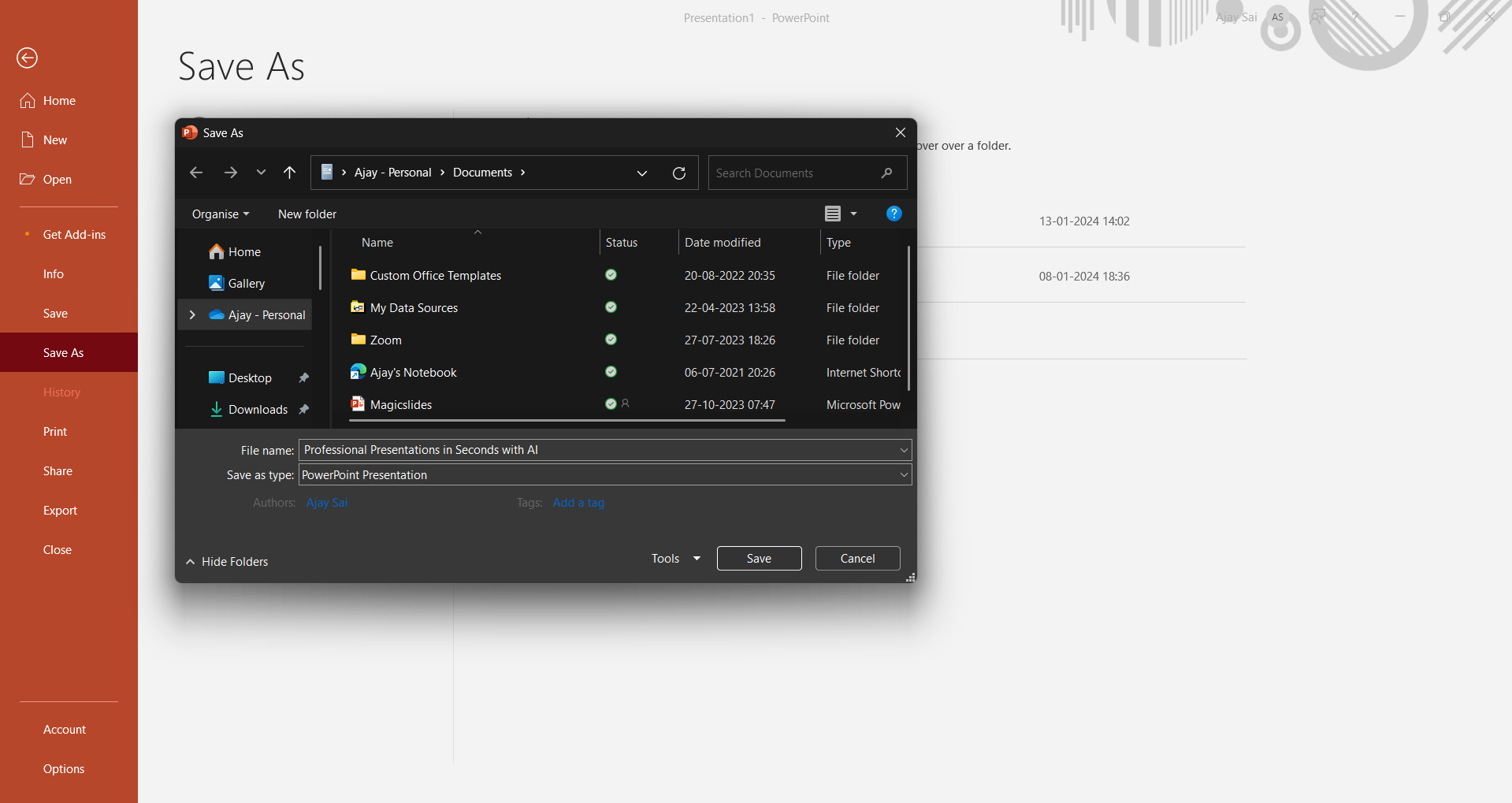
Choose PDF as the Save/Export Format:
Look for the option to choose the format in which you want to save or export the file. Select "PDF."
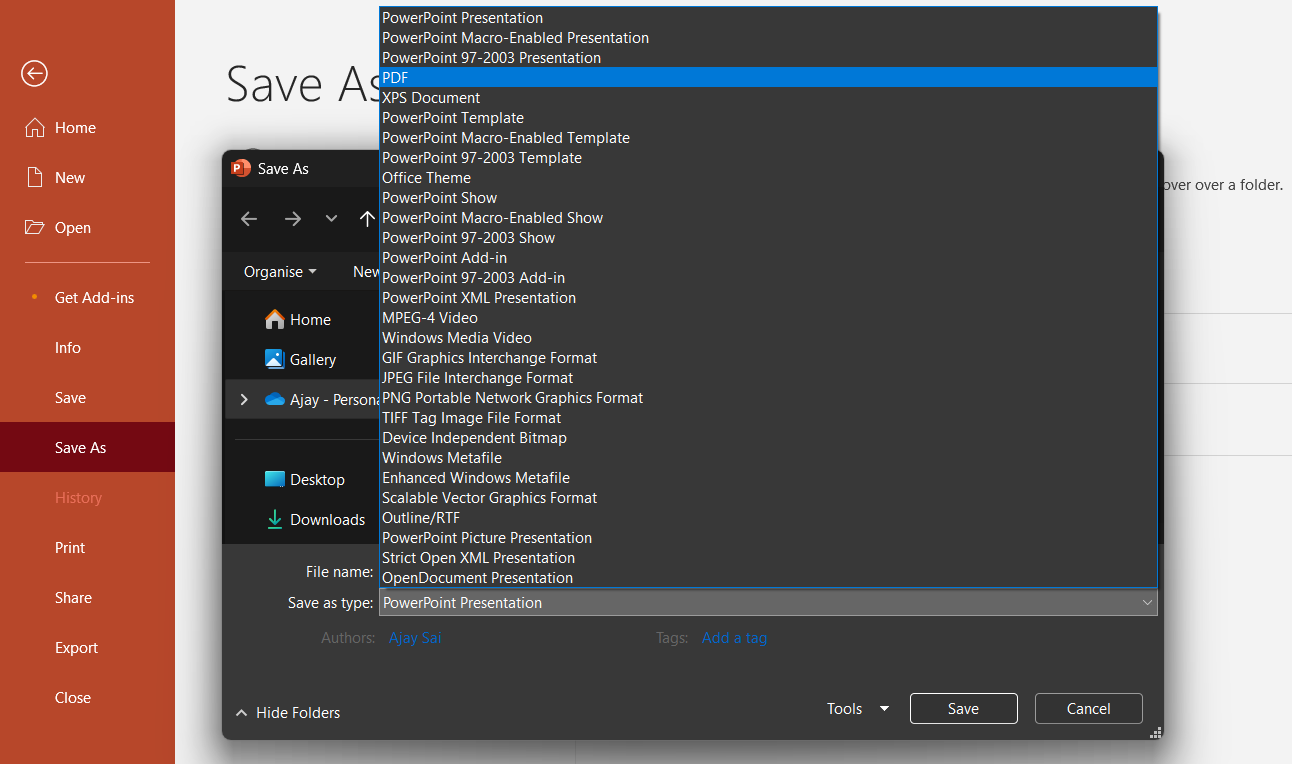
Specify Settings and Options (Optional):
Some versions of PowerPoint provide additional settings for PDF export, allowing you to customize the output. Adjust as needed.
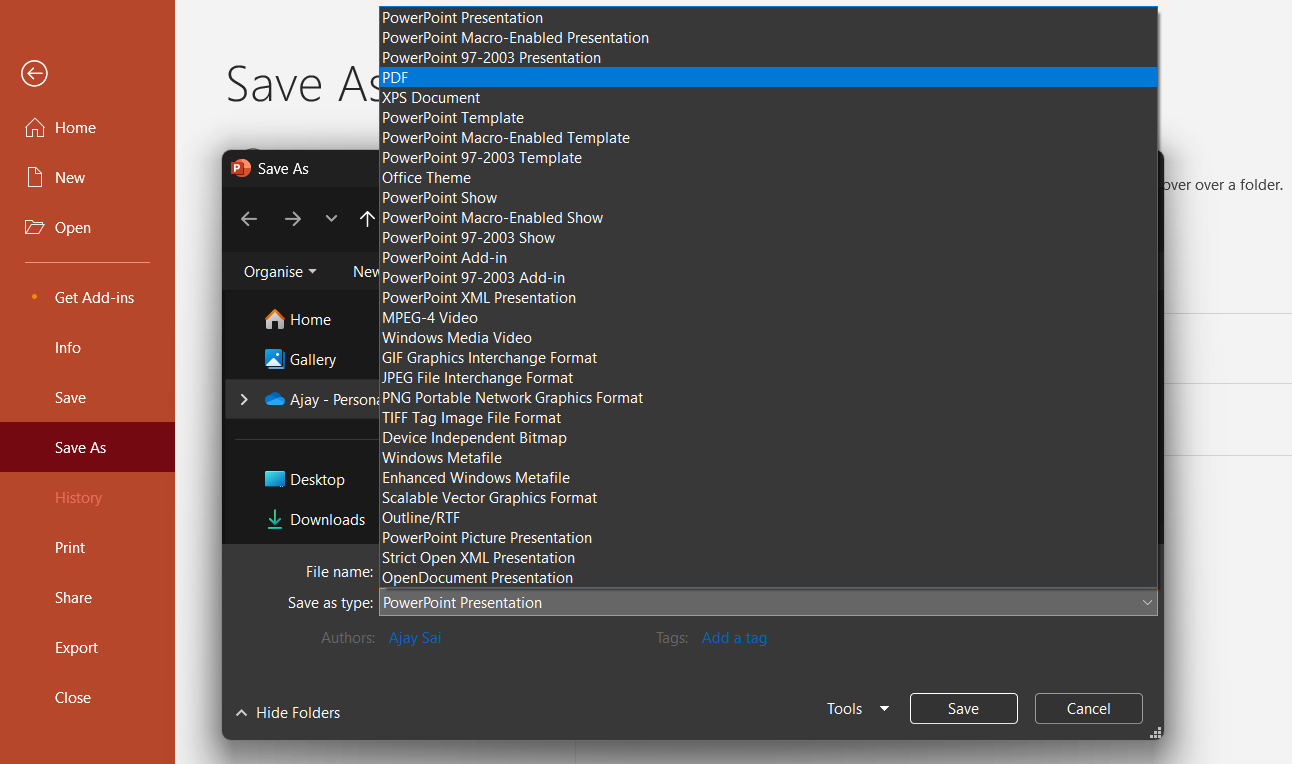
Click "Save" or "Export":
Once settings are in place, click the "Save" or "Export" button to initiate the conversion process.
Conclusion:
Converting your PowerPoint presentation to a PDF not only ensures broad accessibility but also helps maintain the integrity of your design across various platforms. This straightforward process adds a layer of versatility to your presentations, allowing you to share your work seamlessly. As you embark on this journey of transforming your digital creations, follow these steps to effortlessly download your PowerPoint masterpiece as a PDF and open new doors of convenience and compatibility.
Frequently Asked Questions:
Why should I convert my PowerPoint to a PDF?
Converting to PDF ensures consistent formatting, easy sharing, and accessibility across different devices and platforms.
Can I customize settings for PDF export in PowerPoint?
Yes, PowerPoint often provides options to customize PDF settings, allowing you to tailor the output to your needs.
Will hyperlinks and animations be preserved in the PDF conversion?
Hyperlinks are generally preserved, but complex animations may not translate perfectly in the PDF format.
Can I still edit the content after saving as a PDF?
PDFs are typically static, making editing challenging. Retain the PowerPoint file if further edits are anticipated.


