How to Draw Add Borders to a Line in PowerPoint


Easily draw and customize lines in PowerPoint by adding borders, colors, and stylish effects
How to Draw and Add Borders to a Line in PowerPoint
Adding borders to a line in PowerPoint enhances its visibility and makes your presentation more visually appealing.
Whether you want to highlight connections, emphasize divisions, or enhance design elements, customizing line borders can help.
Follow these steps to draw a line and apply borders effectively in PowerPoint.
Steps to Draw and Add Borders to a Line in PowerPoint
Step 1: Open PowerPoint and Insert a Line
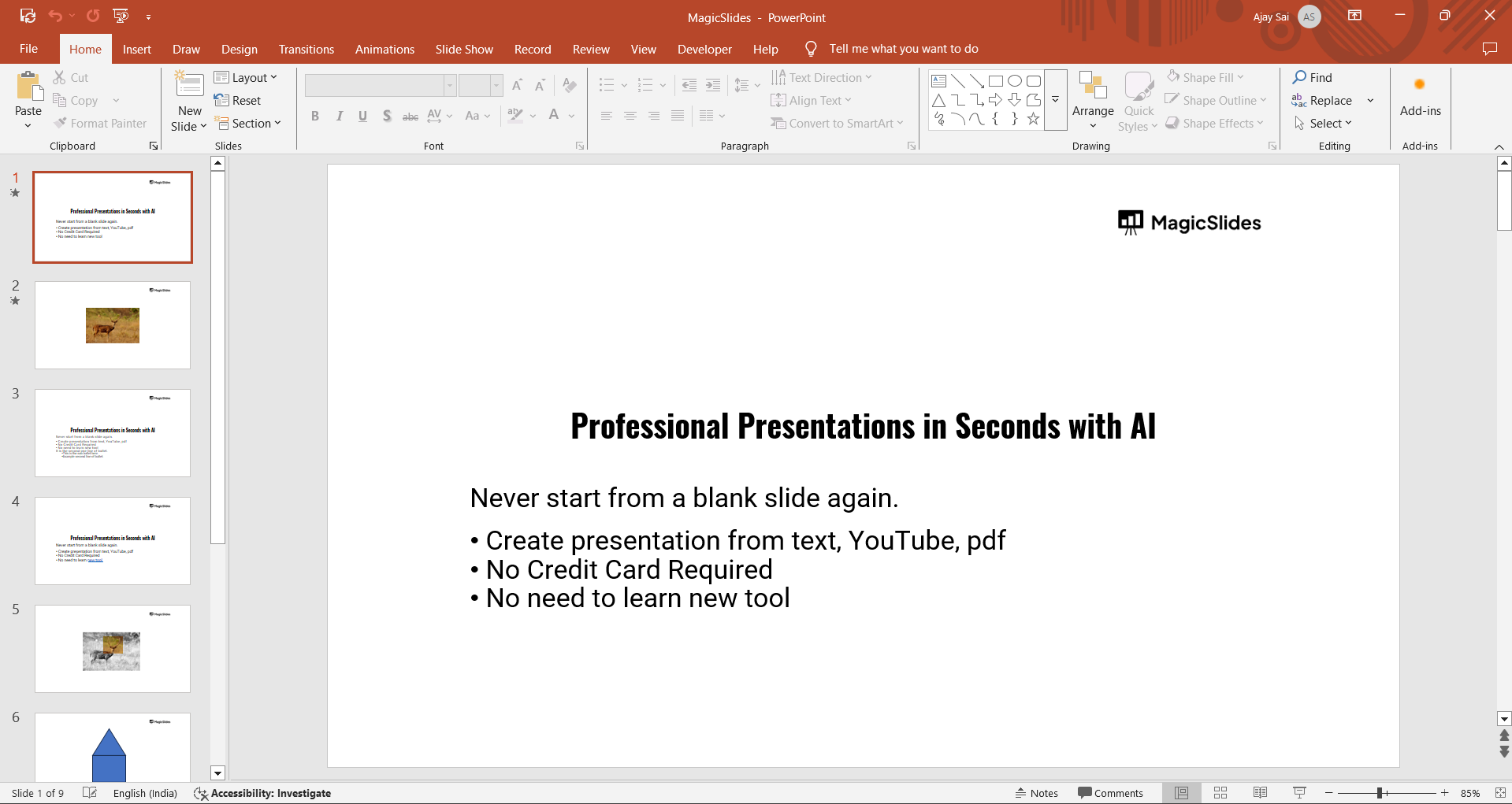
Open Microsoft PowerPoint and go to the slide where you want to add a line. Click on the Insert tab in the top menu.
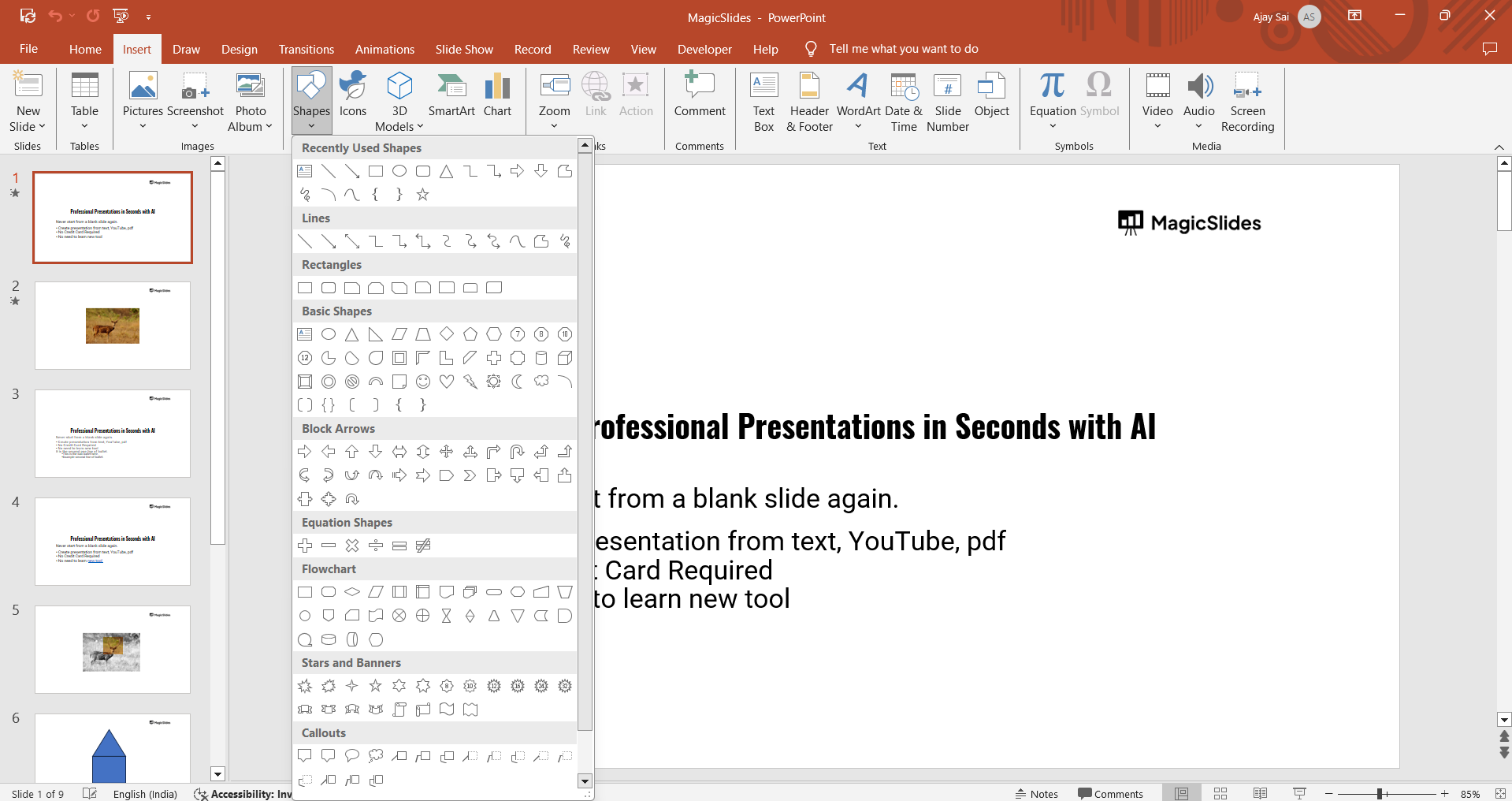
Select Shapes, then choose the Line tool. Click and drag on the slide to draw your desired line.
Step 2: Format the Line Style
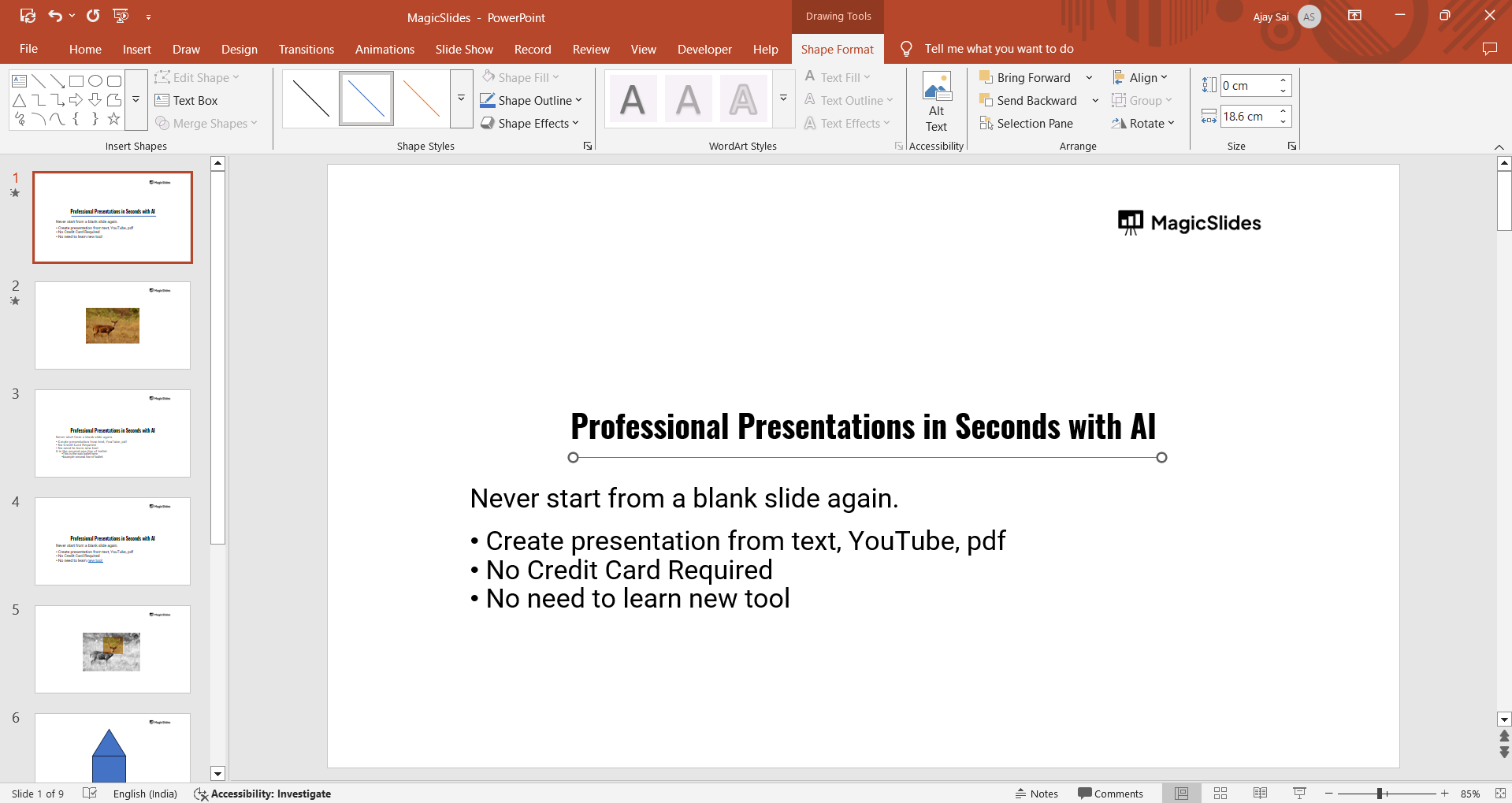
After drawing the line, select it by clicking on it. Go to the Shape Format tab that appears at the top.
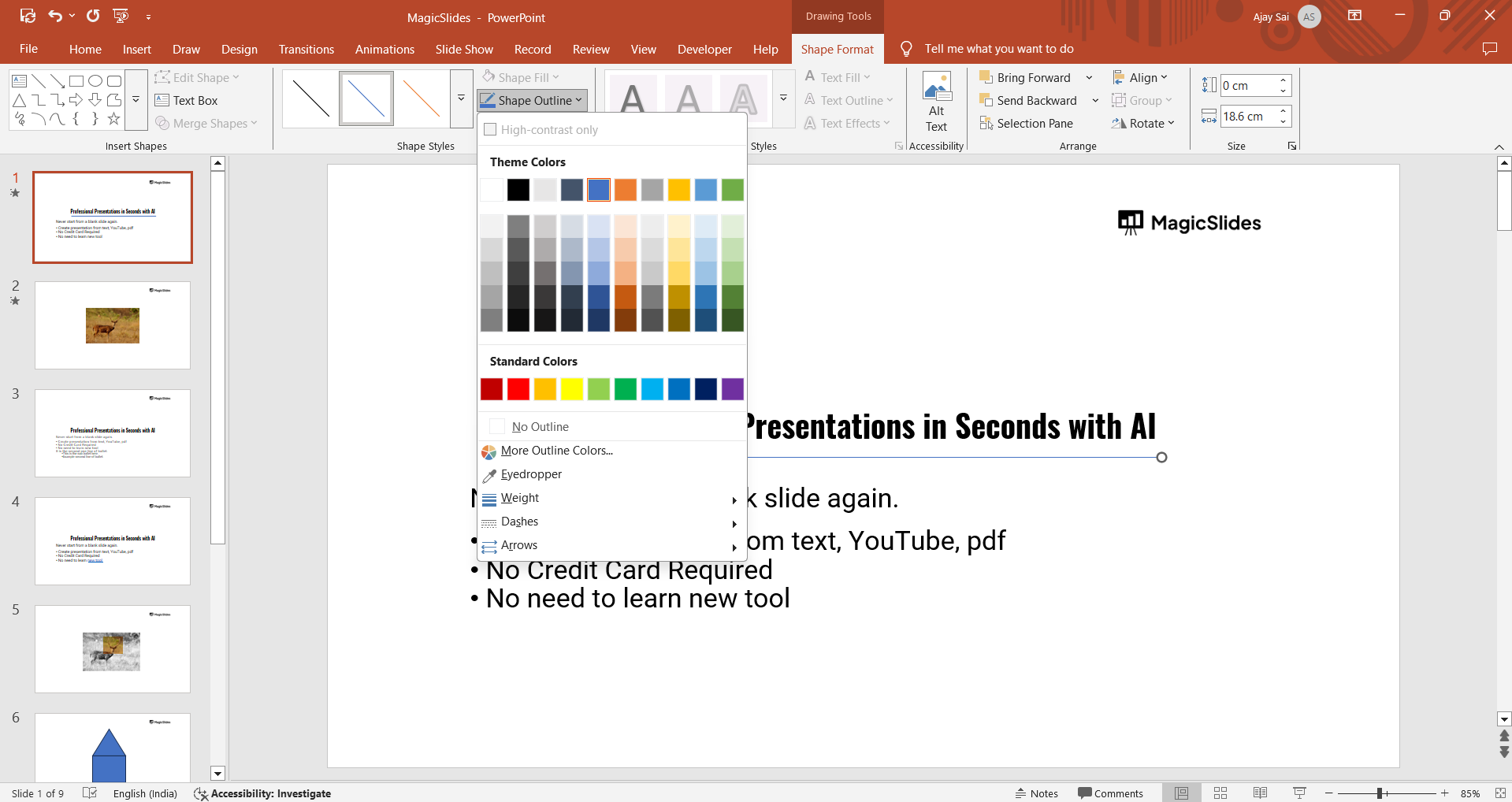
Click on Shape Outline to customize the line’s thickness and style.
Step 3: Add a Border by Adjusting Line Weight
Click Shape Outline > Weight and select a thicker line weight to create a bold border effect.
If needed, choose More Lines for advanced options and enter a custom weight value.
Step 4: Change the Line Color
Click Shape Outline > Theme Colors and choose a color that matches your design.
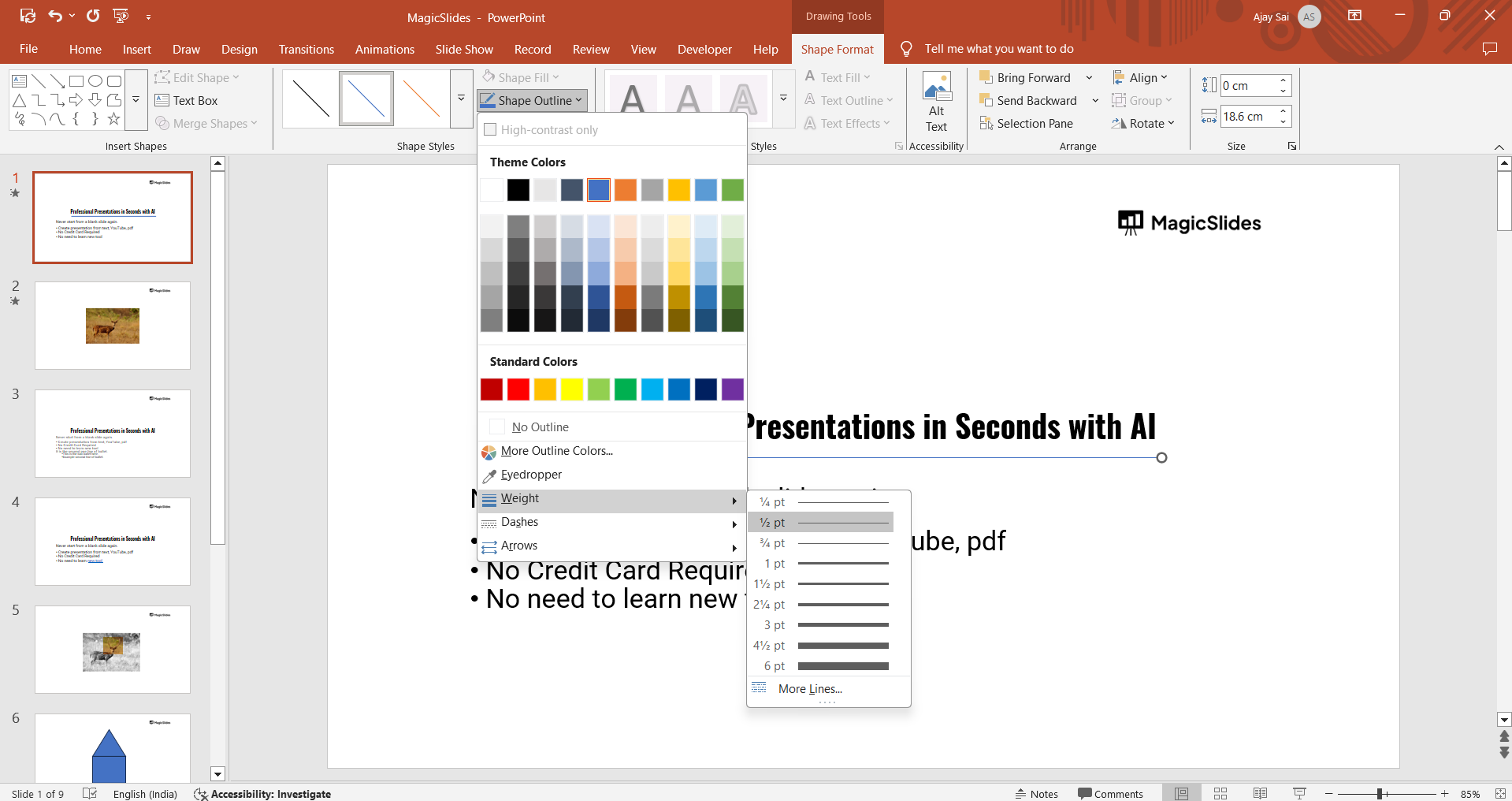
If you want a gradient effect, go to More Outline Colors and select a custom shade.
Step 5: Apply a Dashed or Solid Border
To create a unique border effect, go to Shape Outline > Dashes and choose a dashed or dotted style.
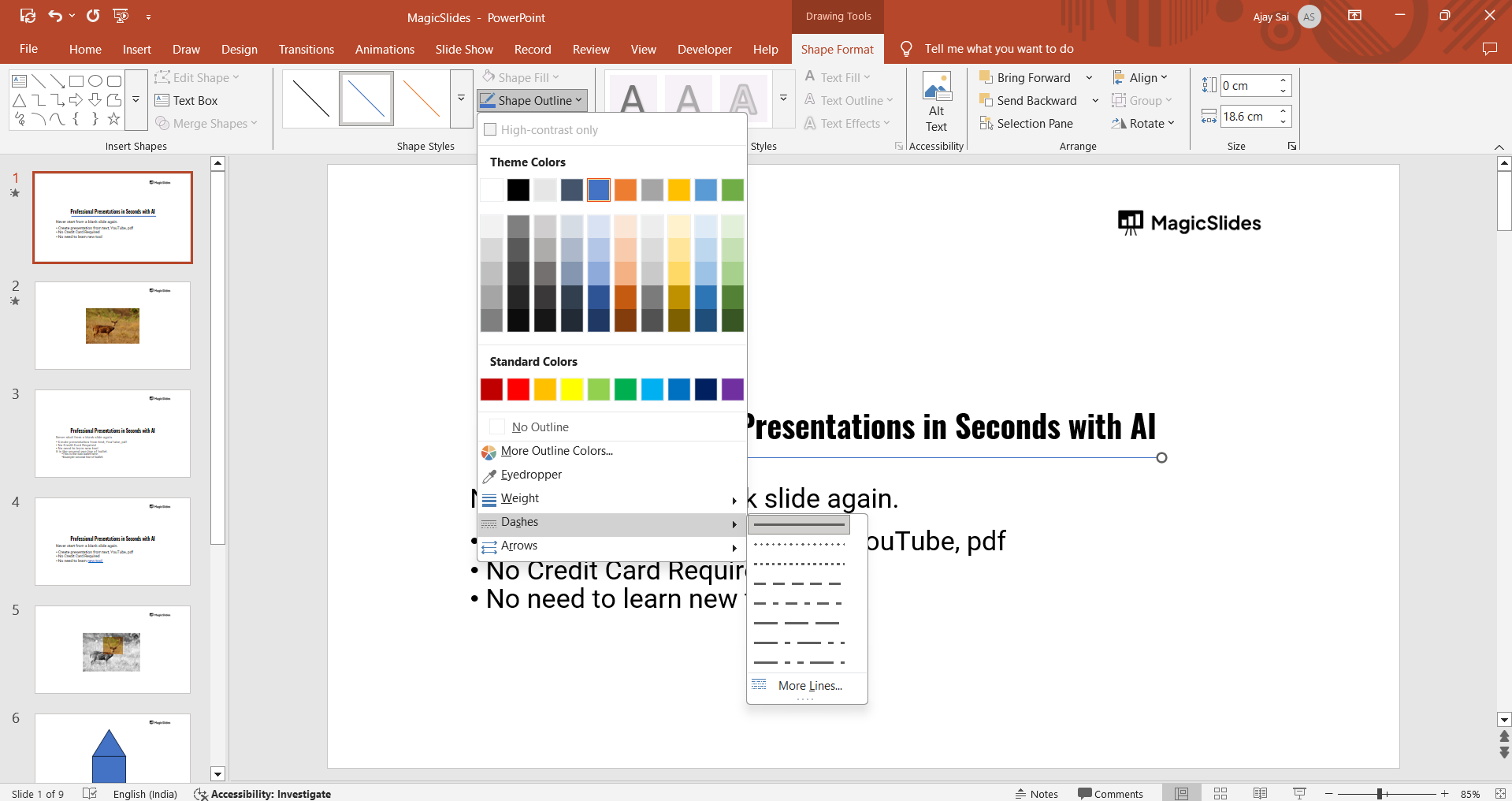
If you prefer a solid border, keep the default straight line.
Step 6: Add Glow or Shadow Effects (Optional)
To enhance the border further, go to Shape Effects > Glow and select a soft or strong glow.
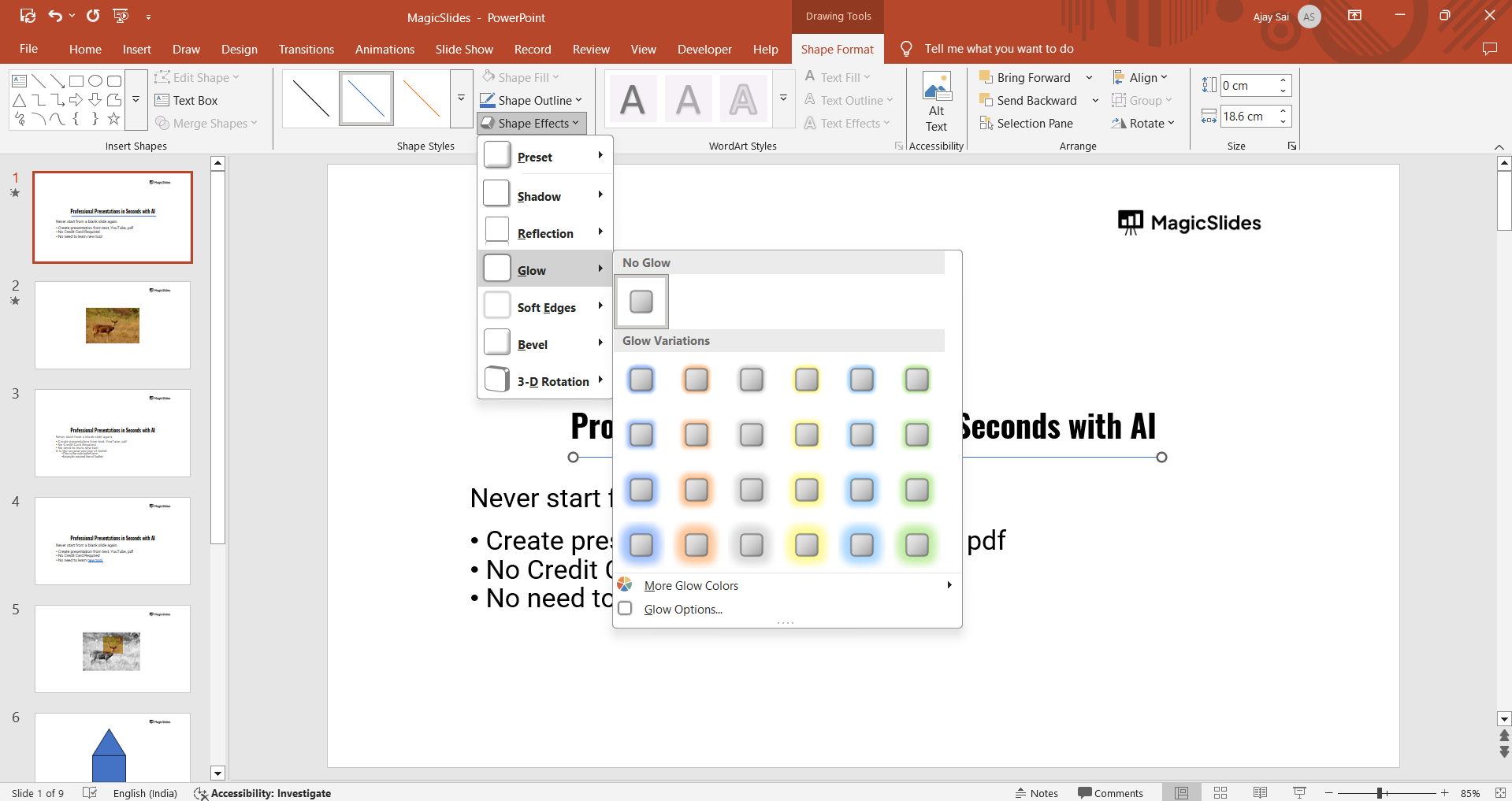
You can also add a Shadow effect under Shape Effects for more depth.
Adding borders to lines in PowerPoint enhances your slide design, but if you want to create stunning presentations effortlessly, try MagicSlides.app. With AI-powered slide generation, you can focus on content while MagicSlides handles the design!"
Conclusion
Drawing and adding borders to a line in PowerPoint is a simple yet effective way to improve your presentation’s design.
Customizing the line’s weight, color, and style helps you emphasize key points and create a professional look.
FAQs on Adding Borders to a Line in PowerPoint
Can I add a double border to a line in PowerPoint?
No, PowerPoint does not support double borders on lines, but you can duplicate a line and place it parallel to create a similar effect.
How do I make my line stand out more in PowerPoint?
Use thicker line weight, bright colors, glow effects, or shadows to enhance visibility.
Can I apply a gradient effect to my line in PowerPoint?
Yes! Select the line, go to Shape Format > Shape Outline > Gradient, and choose a gradient color effect.
Now you know how to customize and enhance lines in PowerPoint to improve your presentation’s impact! 🚀


