how to draw in google slides


creating visually appealing art in google slides is not a magic, in this article let’s see how to draw in google slides
Google Slides is an invaluable tool for creating presentations, but did you know that it also offers powerful drawing features? Whether you want to illustrate a concept, add custom graphics, or just get creative, Google Slides provides the tools you need to draw directly within your presentations.
In this comprehensive guide, we'll walk you through the steps to draw in Google Slides, unlocking a world of artistic possibilities for your slideshows.
Access Your Google Slides Presentation
Open your Google Slides presentation by going to Google Drive and selecting the desired presentation or creating a new one.
Insert a Drawing
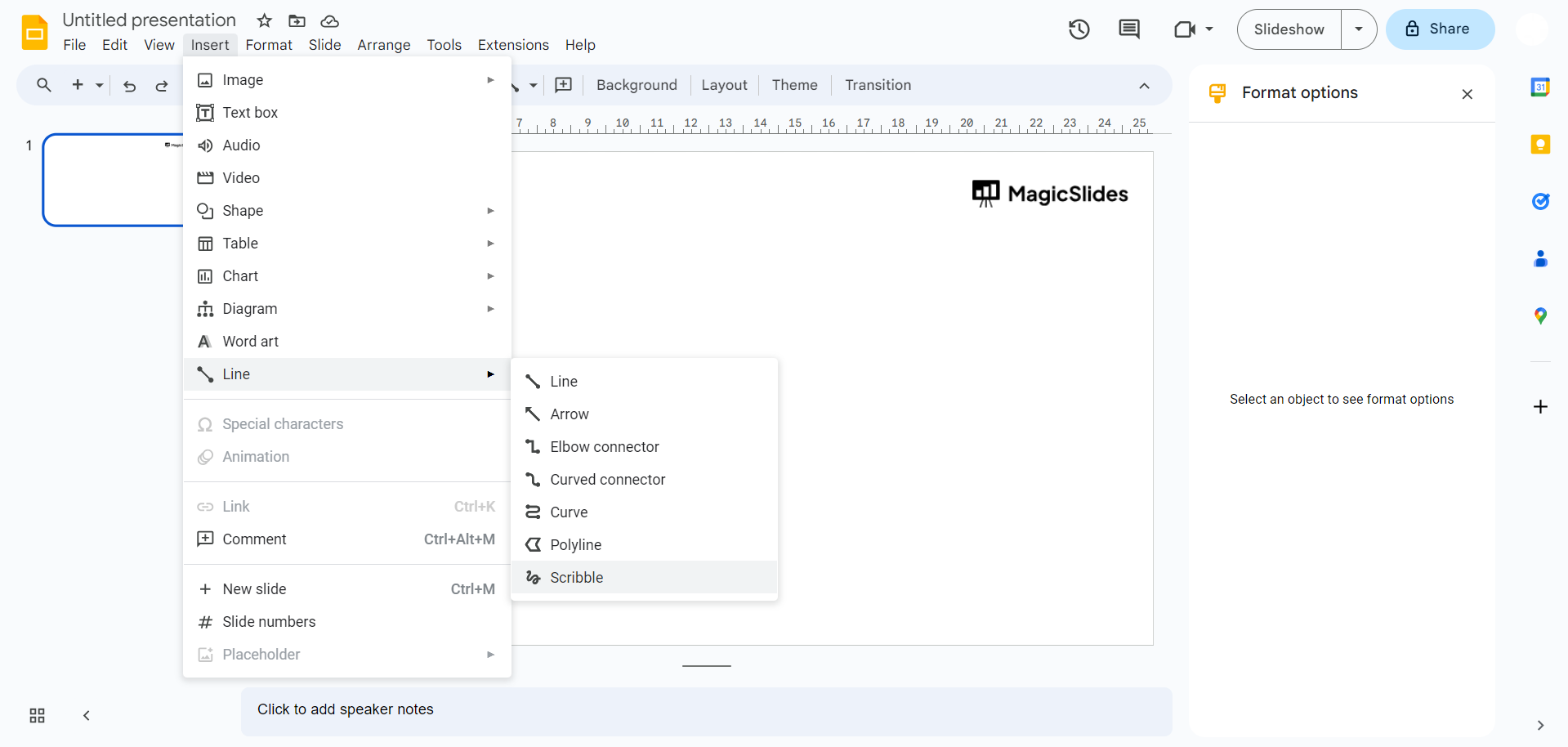
Click on the slide where you want to add your drawing. Next, go to the "Insert" menu at the top of the screen and select "Drawing." A submenu will appear – choose "New." If this is not visible you can choose line and scribble to draw.
Draw Your Creation
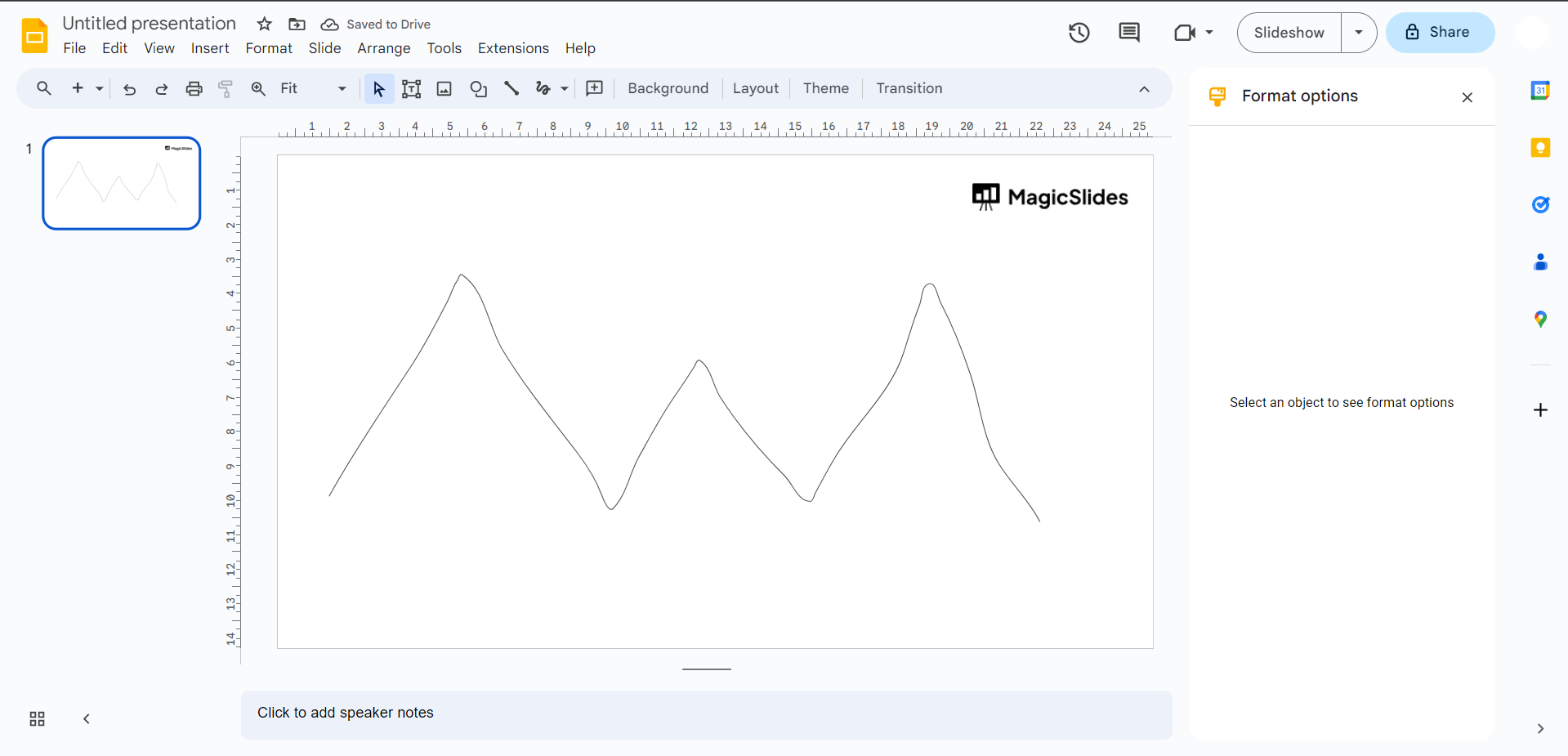
A drawing canvas will open, providing you with a range of drawing tools and options. Use the pencil, line, shape, and text tools to create your drawing. You can also change the line color, fill color, and line thickness to customize your creation.
Save Your Drawing
After you've created your drawing, click the "Save and Close" button in the upper-right corner of the drawing canvas. This will insert your drawing directly into your slide.
Reposition and Resize
You can further adjust the size and position of your drawing on the slide. Simply click and drag to move it or use the corner handles to resize it.
Edit Your Drawing
If you ever want to make changes to your drawing, right-click on it, and select "Edit." This will reopen the drawing canvas with your existing drawing, allowing you to make revisions.
Conclusion:
Drawing in Google Slides is a fantastic way to infuse creativity and visual appeal into your presentations. Whether you're an artist, educator, or business professional, these built-in drawing tools can help you illustrate your ideas and captivate your audience.
By following the steps outlined in this guide, you can confidently unleash your artistic talents and elevate the impact of your Google Slides presentations. So, the next time you need to add a personal touch or a custom illustration to your slides, remember that Google Slides has you covered!


