Addon google slides iconPPT with AISlide TemplatesPPT TemplatesPricingBlog
    PPT with AISlide TemplatesPPT TemplatesPricingBlog
    1. Home
    2. Blog
    3. How to embed a font in powerpoint


    How to embed a font in powerpoint

    magicslides app

    Published By

    magicslides app
    Mohit Kumar Jha

    Approved By

    Mohit Kumar Jha

    Published On

    July 23th, 2024

    Reading Time

    2 min read

    Elevate your PowerPoint game by embedding fonts ensuring consistency and style across presentations. Learn how!

    Fonts play a crucial role in the visual appeal of your PowerPoint presentation. Embedding fonts ensures consistency across devices. In this guide, we'll walk you through the steps to embed fonts and enhance the professionalism of your slides.

    How to embed a font in powerpoint

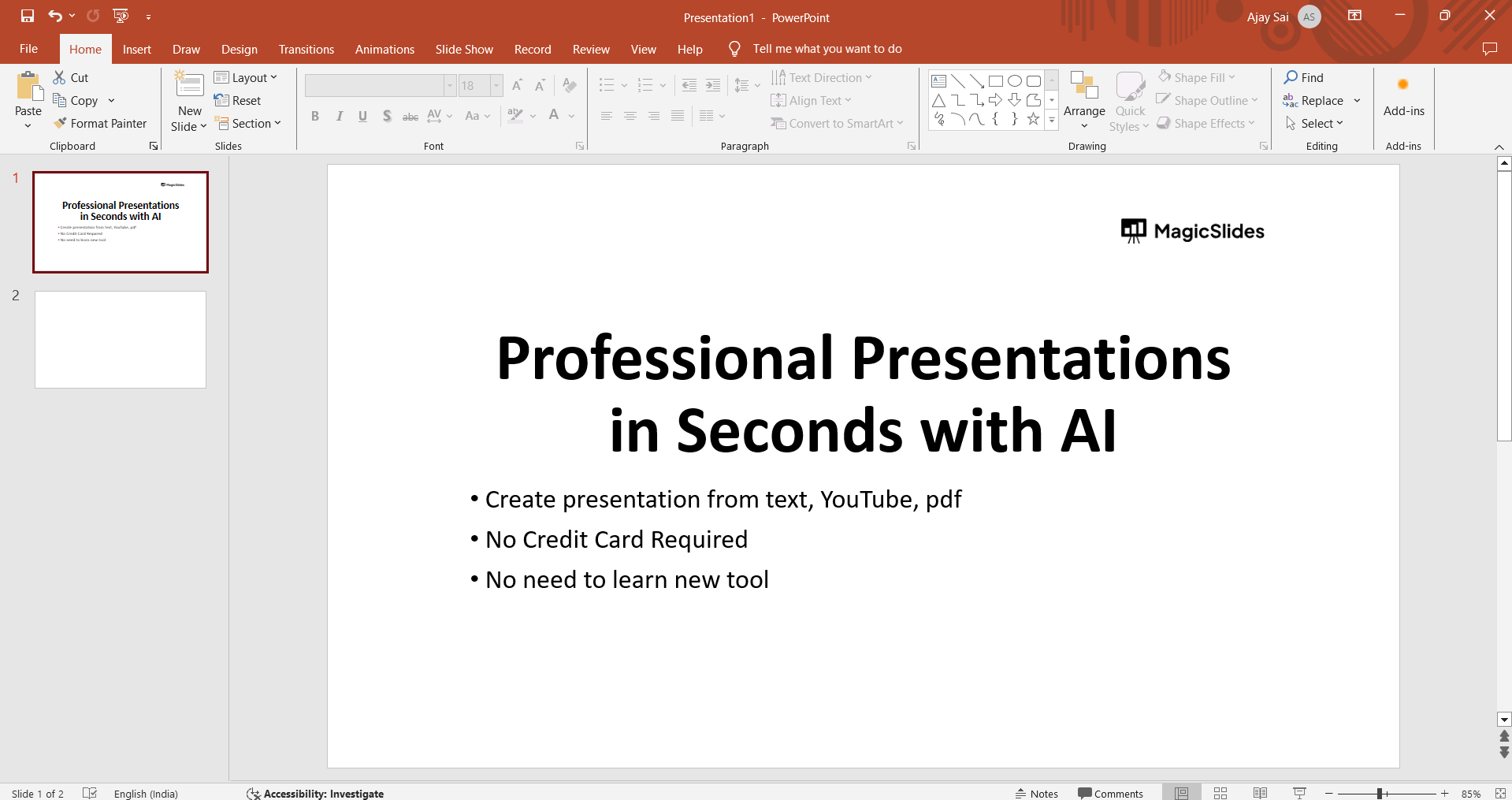
    Step 1: Open Your PowerPoint Presentation

    Launch PowerPoint and open the presentation you're working on. Ensure you have the specific font you want to embed installed on your computer.
    notion image

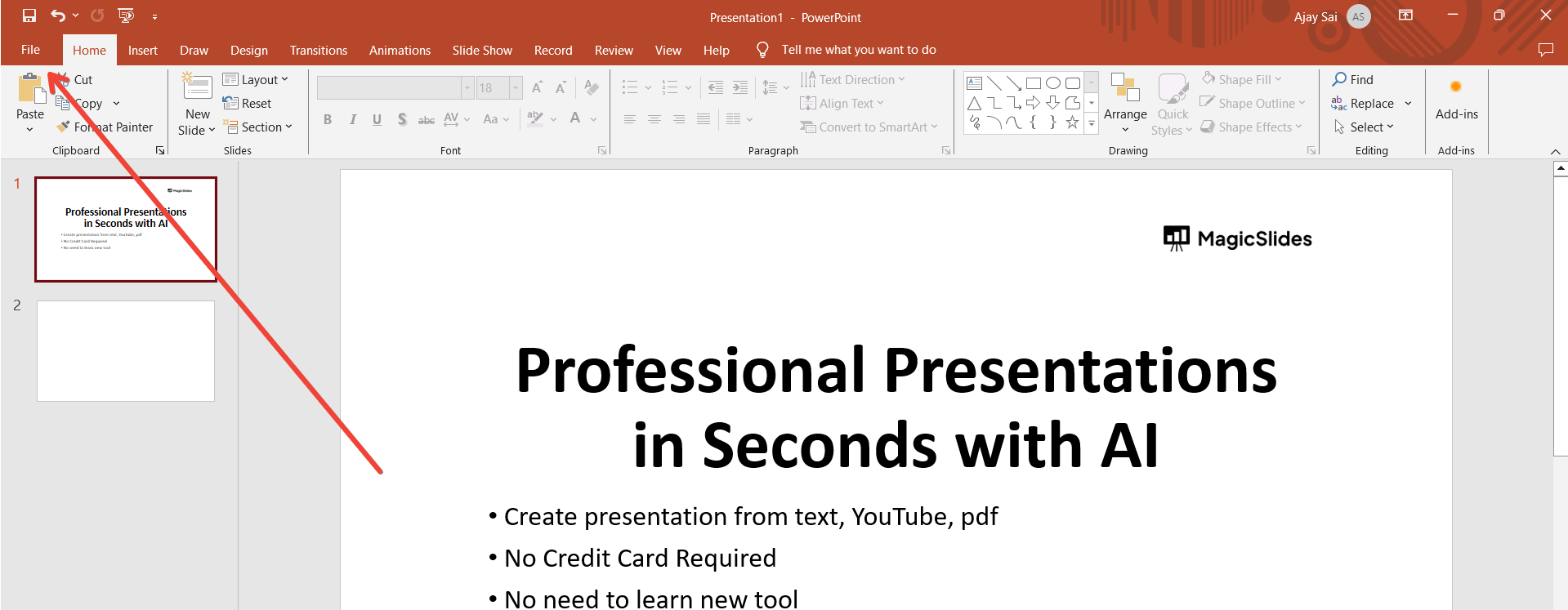
    Step 2: Go to the "File" Menu

    Navigate to the "File" menu at the top left corner of the PowerPoint window. Click on it to reveal a dropdown menu.
    notion image

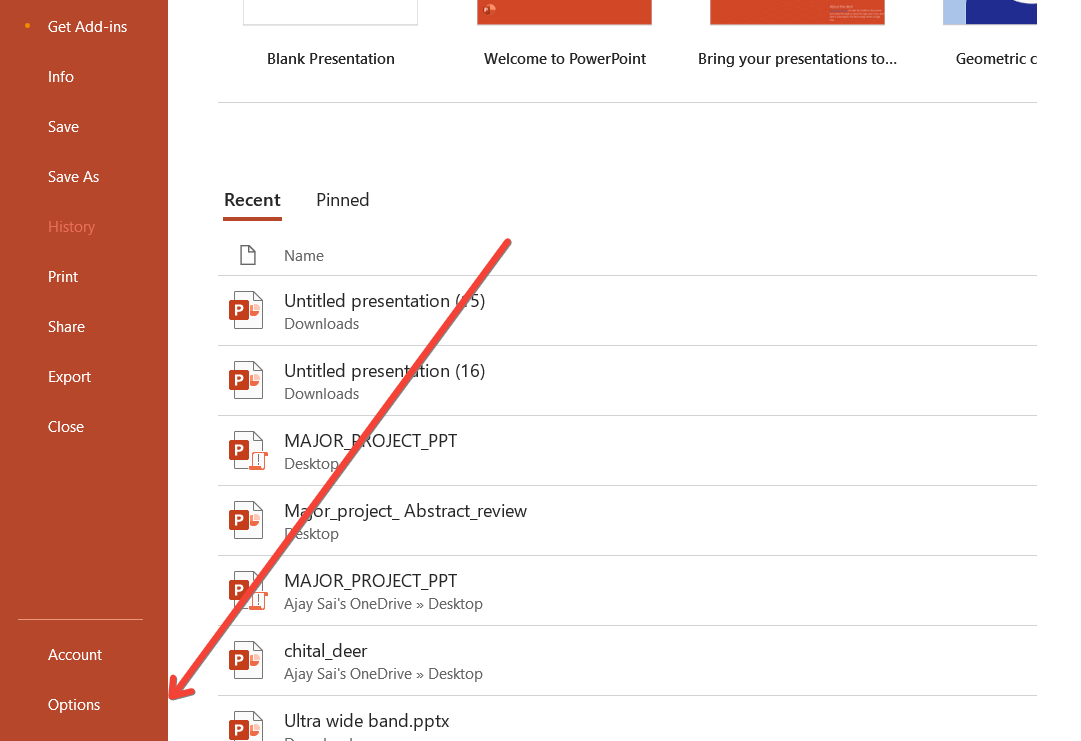
    Step 3: Select "Options"

    Within the "File" menu, find and select "Options" at the bottom. This will open the PowerPoint Options window.
    notion image

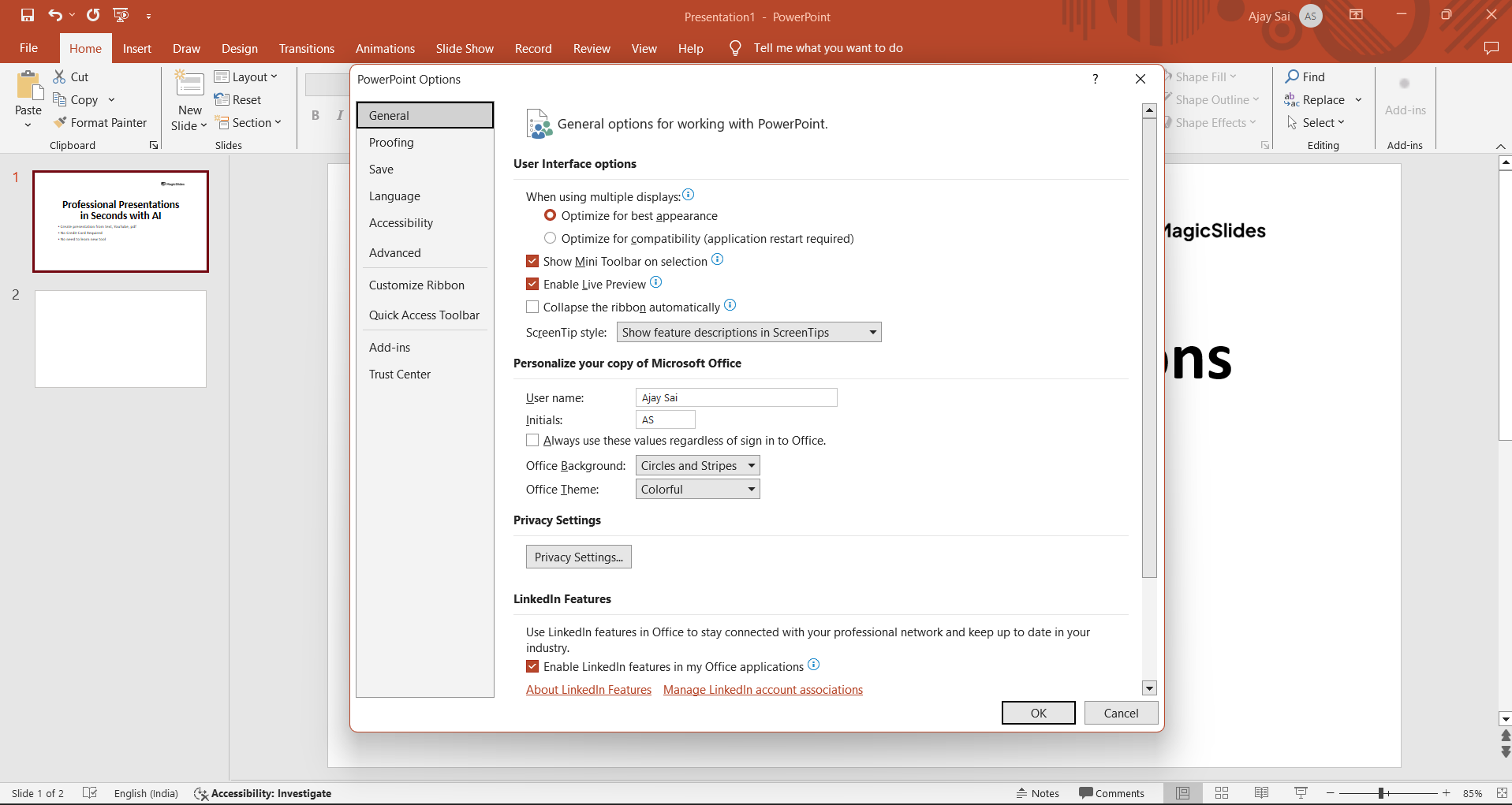
    Step 4: Access the "Save" Options

    In the PowerPoint Options window, choose the "Save" tab on the left-hand side. This section contains settings related to saving and sharing presentations.
    notion image

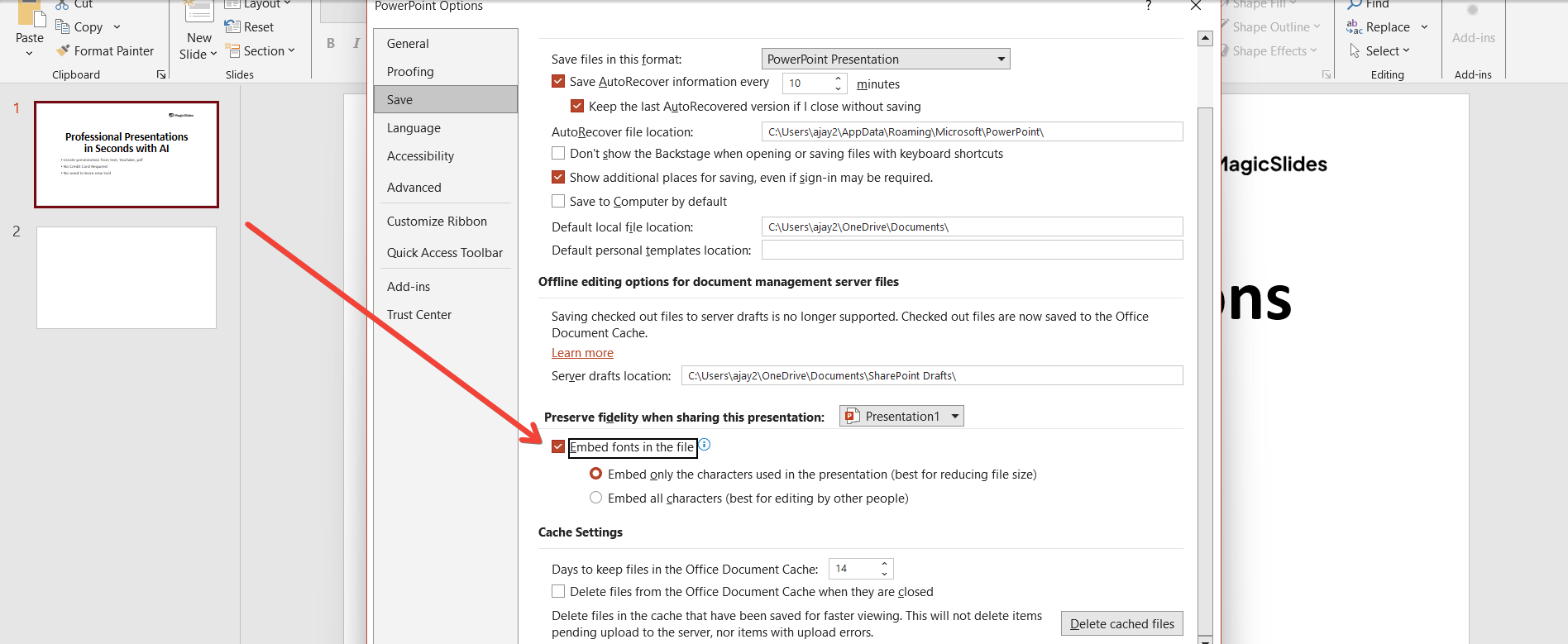
    Step 5: Check the Box for "Embed Fonts"

    Look for the "Preserve fidelity when sharing this presentation" section. Here, check the box next to "Embed fonts in the file." You may also select the option to embed only the characters used in the presentation to reduce file size.
    notion image

    Step 6: Save Your Presentation

    Click "OK" to apply the changes and close the PowerPoint Options window. Now, save your presentation. This will embed the chosen font within the PowerPoint file.

    Conclusion:

    Embedding fonts in PowerPoint ensures that your presentation looks as intended, regardless of where it's viewed. This guide empowers you to maintain consistency and professionalism in your slides. By following these simple steps, you're not just presenting information; you're crafting a visually cohesive and impactful experience for your audience. Enhance your presentations today by embedding fonts and taking control of the visual narrative.

    Frequently Asked Questions:

    Why should I bother embedding fonts in my PowerPoint presentation? Embedding fonts ensures consistent visual appeal, preserving your chosen style, and avoiding font substitution issues on different devices.
    Can I embed any font, or are there restrictions? You can embed most fonts, but some may have licensing restrictions. Check the font's license to ensure compliance.
    Does embedding fonts increase the file size of my PowerPoint presentation? Yes, embedding fonts may slightly increase file size. However, you can choose to embed only the characters used to minimize this effect.
    Will embedded fonts work on any device or platform? Yes, embedding fonts ensures they are available and display correctly on any device or platform, maintaining design integrity.

    Share on socials

    About the author

    Sanskar Tiwari profile photo
    Sanskar Tiwari— Founder at MagicSlides

    Sanskar is Founder at IAG Tech, For the past 3 years sanskar have build more than 24+ products, taught 100k students how to code.

    More from Sanskar

    More from the blog

      250+ Good Morning Messages for Her (Romantic, Deep, Cute & Sweet)

      30 January 2026

      200+ Heart Touching Birthday Wishes for Sister (Short, Funny and More)

      29 January 2026

      50+ History Presentation Topics For 2026

      28 January 2026

      How to Add Music to Your Canva Presentation: A Step-by-Step Guide

      27 January 2026

      15 Quick Tips To Use ChatGpt At Work

      22 January 2026

      11 Best AI Tools for Business in 2025

      22 January 2026

      How to Create an Infographic That Clearly Communicates Your Message

      20 January 2026

      How to Create a Sales Presentation Template in Google Sheets

      20 January 2026

      How to Make a Pie Chart on Google Slides in Simple Steps

      19 January 2026

    Table of Contents

    Create Presentations in Seconds

    Transform your ideas into professional presentations with AI. No design skills needed.

    Try MagicSlides Free

    Create Stunning Presentations with AI in Seconds ✨

    Transform any topic, text, YouTube video, PDF or URL into beautiful presentations instantly with MagicSlides AI.

    Try MagicSlides AI Presentation Maker
    MagicSlides AI Presentation

    Footer

    Solutions

    • MagicSlides App
    • Google Slides Add-on
    • MagicSlides in Chrome
    • MagicSlides in Figma
    • MagicSlides in ChatGPT
    • MagicSlides in Telegram
    • MagicSlides in Zapier
    • MagicSlides in Figma Slides

    Tools

    • AI PPT Tools
    • QR Code Generator
    • Design Tools
    • PPT Templates
    • Slide Templates
    • PDF Tools

    Examples

    • AI Presentations
    • PPT by MagicSlides
    • Quizzes
    • Charts
    • Coloring Pages

    Resources

    • Changelog
    • Documentation
    • API Docs

    Top Blogs

    • How to Create Presentation Using ChatGPT
    • 100+ Best Seminar Topics for Students in 2025

    Company

    • Help
    • MCP
    • Blog
    • Pricing
    • Affiliate Program
    • Manage Subscription
    • Privacy Policy
    • Contact Us
    • Terms & Conditions
    • Refund & Cancellation Policy

    We also built

    • SheetAI - GPT For Sheets
    • MagicForm - GPT For Google Forms
    • SecondBrain.fyi
    • BlogBee - Free Blogging Platform

    © 2026 IndianAppGuy Tech Pvt Ltd. All rights reserved.