How to Embed Streamable Into Google Slides


Easily add Streamable videos to Google Slides using clickable links or images for seamless presentations
How to Embed Streamable Into Google Slides
Want to embed a Streamable video into your Google Slides presentation?
While Google Slides doesn't support direct embedding of Streamable videos, you can still add them using a clickable link or by inserting the video as a web object.
Follow these step-by-step instructions to integrate Streamable videos seamlessly into your slides.
Step 1: Open Google Slides
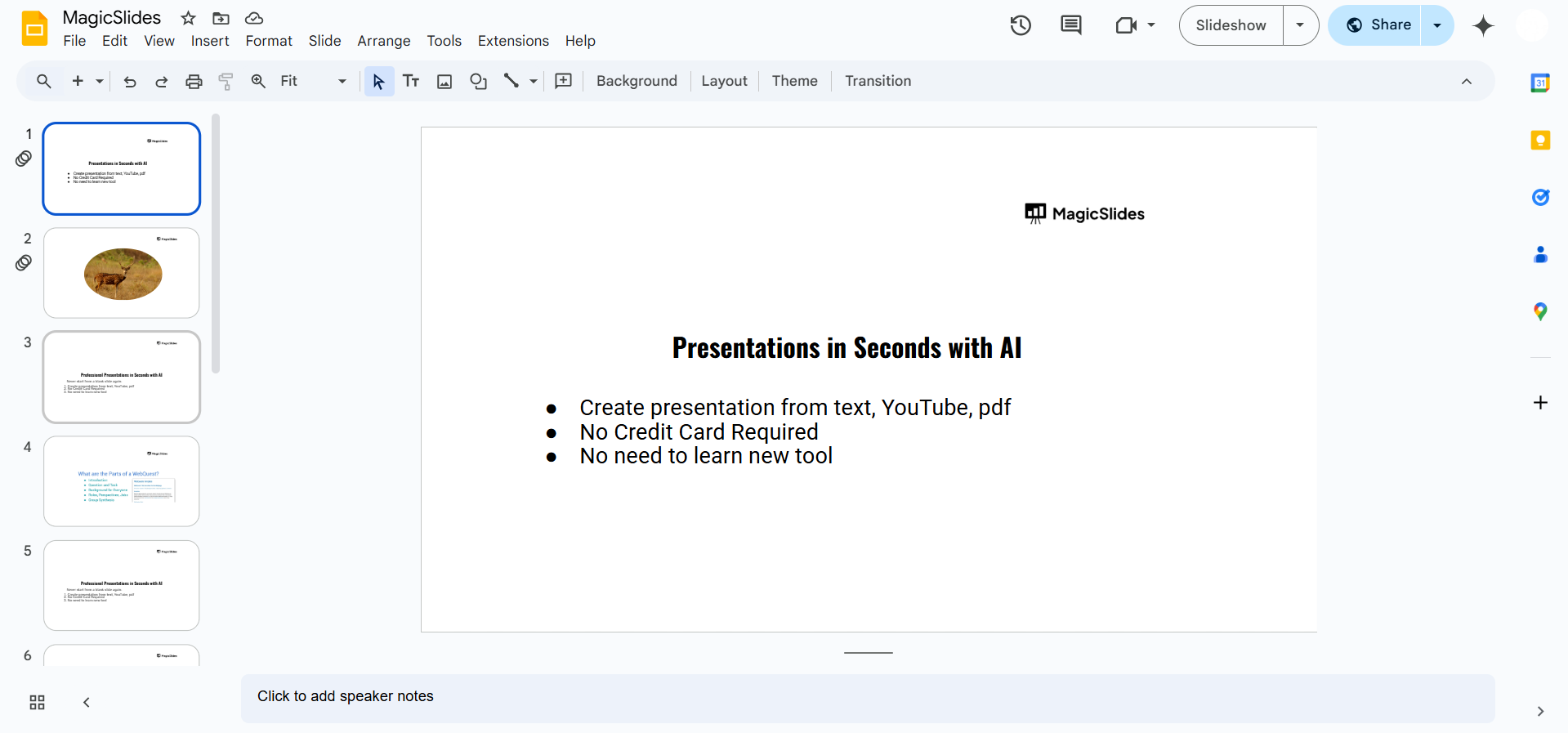
Go to Google Slides. Open an existing presentation or create a new one by clicking on Blank.
Step 2: Copy the Streamable Video Link
Visit Streamable and locate the video you want to embed. Click the Share button and copy the video URL.

Step 3: Insert the Video as a Clickable Link
Select the slide where you want to insert the video. Click on Insert > Text box and draw a text box on the slide.
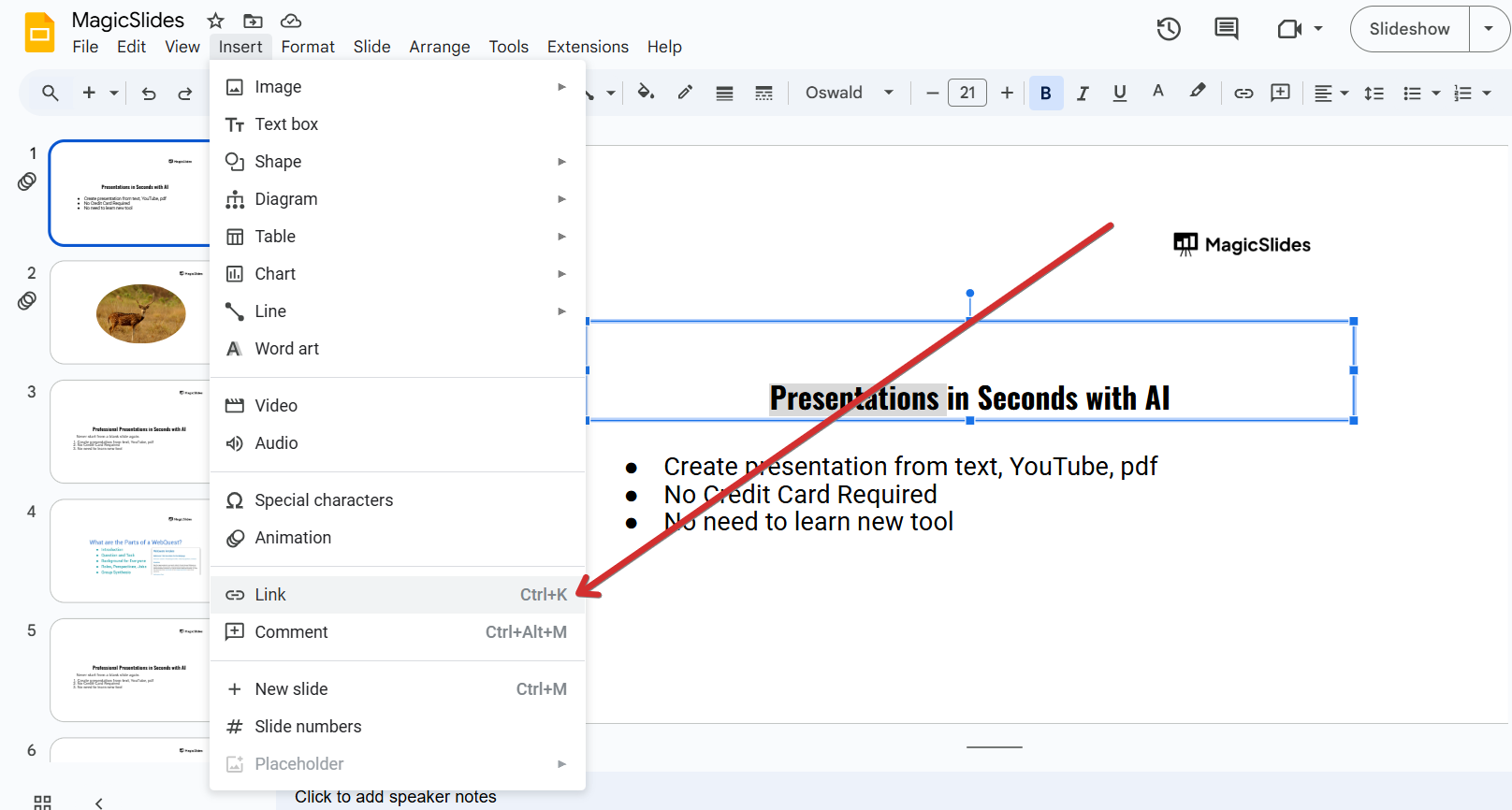
Type a phrase like "Click here to watch the video" inside the text box.
Highlight the text, then click Insert > Link or press Ctrl + K (Cmd + K on Mac). Paste the Streamable video URL and click Apply.
Step 4: Insert the Video as an Image (Optional)
For a more visually appealing option, you can use an image as the clickable link:
Take a screenshot or download a thumbnail of the Streamable video.
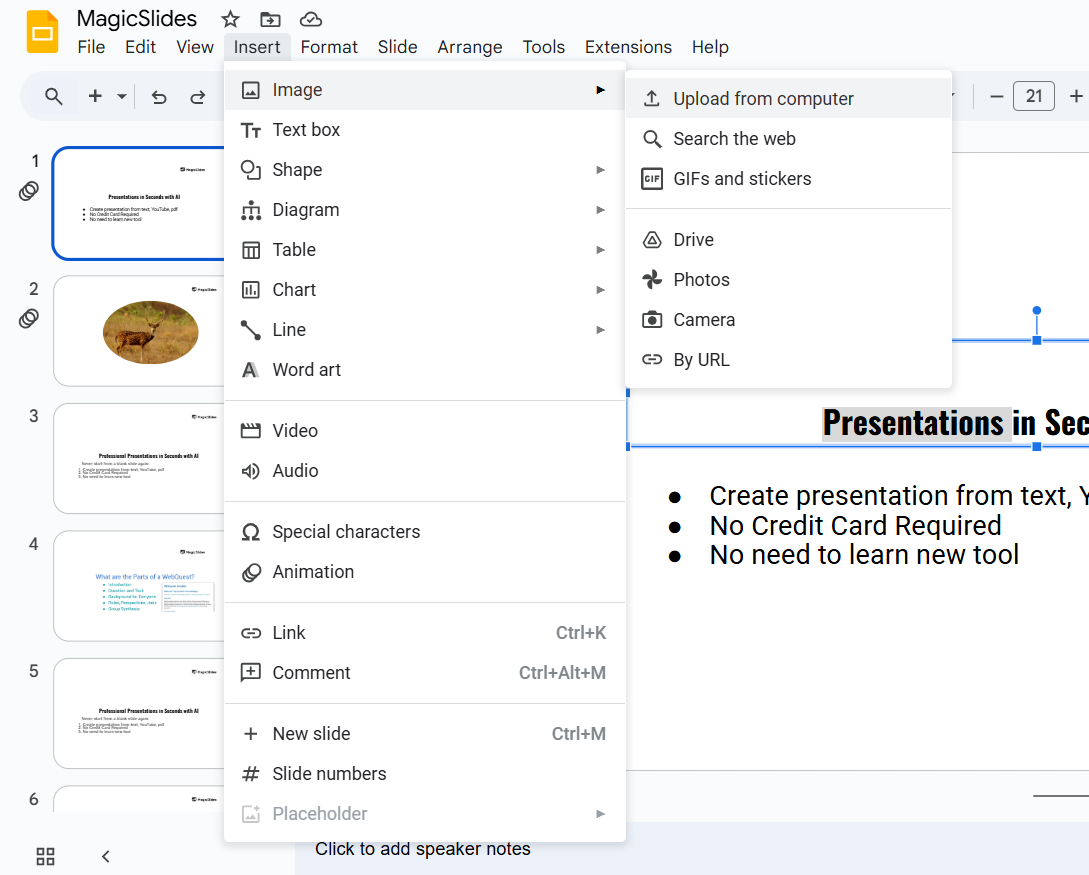
In Google Slides, go to Insert > Image > Upload from computer and select the image.
Resize and position the image on your slide. Click on the image, then go to Insert > Link and paste the Streamable URL. Click Apply.
Step 5: Test the Link
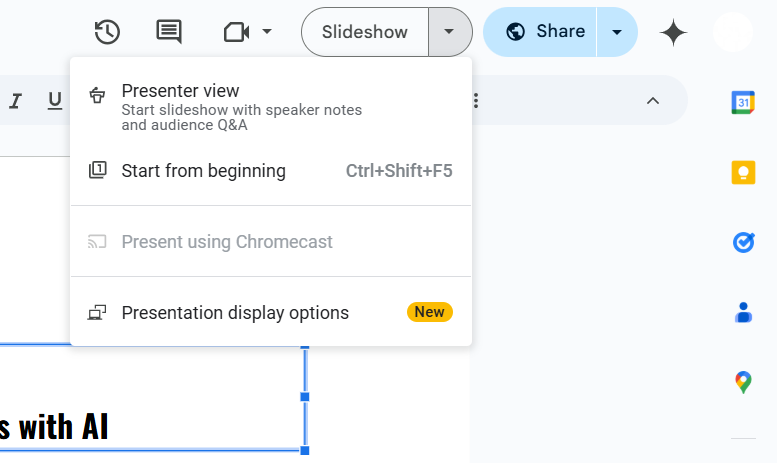
Click Present in the top-right corner of Google Slides.
Click on the link or the image to ensure it redirects to the Streamable video.
Embedding videos from Streamable into Google Slides can enhance your presentations, but why stop there? With MagicSlides.app, you can generate AI-powered slides instantly, integrating videos, images, and more with ease!
Conclusion
Embedding Streamable videos into Google Slides requires using hyperlinks rather than direct video embedding.
By adding a clickable text or image link, you can seamlessly integrate Streamable content into your presentation.
This method ensures smooth playback without file size limitations.
FAQs are here to help!
Can I directly embed a Streamable video into Google Slides?
No, Google Slides does not support direct embedding of Streamable videos, but you can insert a clickable link.
Can I autoplay a Streamable video in Google Slides?
No, since Google Slides only allows video embedding from YouTube and Google Drive, Streamable videos can only be accessed via links.
Will the video play offline?
No, Streamable videos require an internet connection to play. Make sure you're connected while presenting.


