How to Evenly Space Objects in PowerPoint?


Easily enhance your slide layout by learning how to evenly space objects in PowerPoint presentations
How to Evenly Space Objects in PowerPoint?
Aligning objects properly can make a big difference in how professional your presentation looks.
PowerPoint provides a simple way to evenly space shapes, icons, images, and text boxes on your slides.
This guide will walk you through the exact steps to ensure perfect spacing between your objects using PowerPoint's built-in alignment and distribution tools.
Step-by-Step Guide to Evenly Space Objects in PowerPoint
Step 1: Select All the Objects
- Click on the first object you want to include.
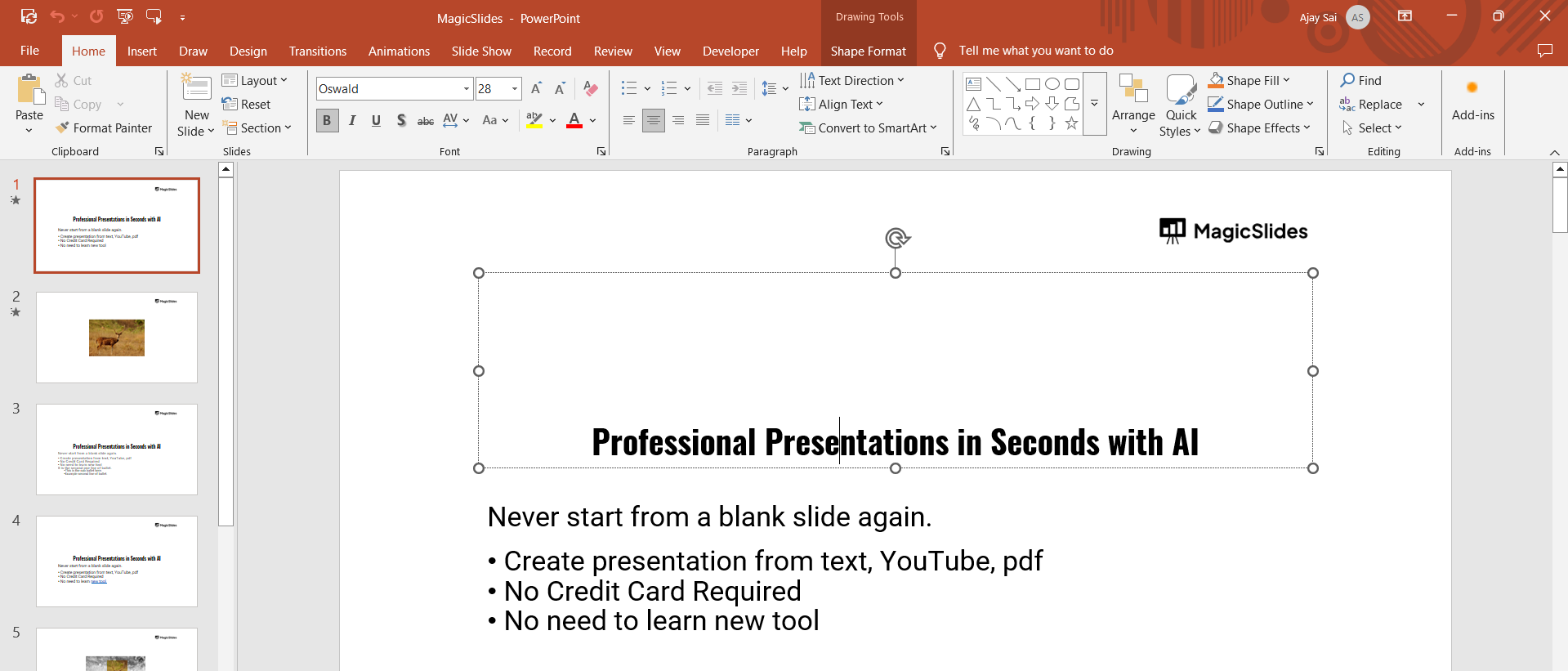
- Hold down the
Shiftkey and click each additional object you want to evenly space. - Alternatively, drag your mouse to select multiple objects at once.
Step 2: Go to the "Shape Format" or "Picture Format" Tab
- Once the objects are selected, a new tab called “Shape Format” (or “Picture Format” for images) appears in the ribbon.
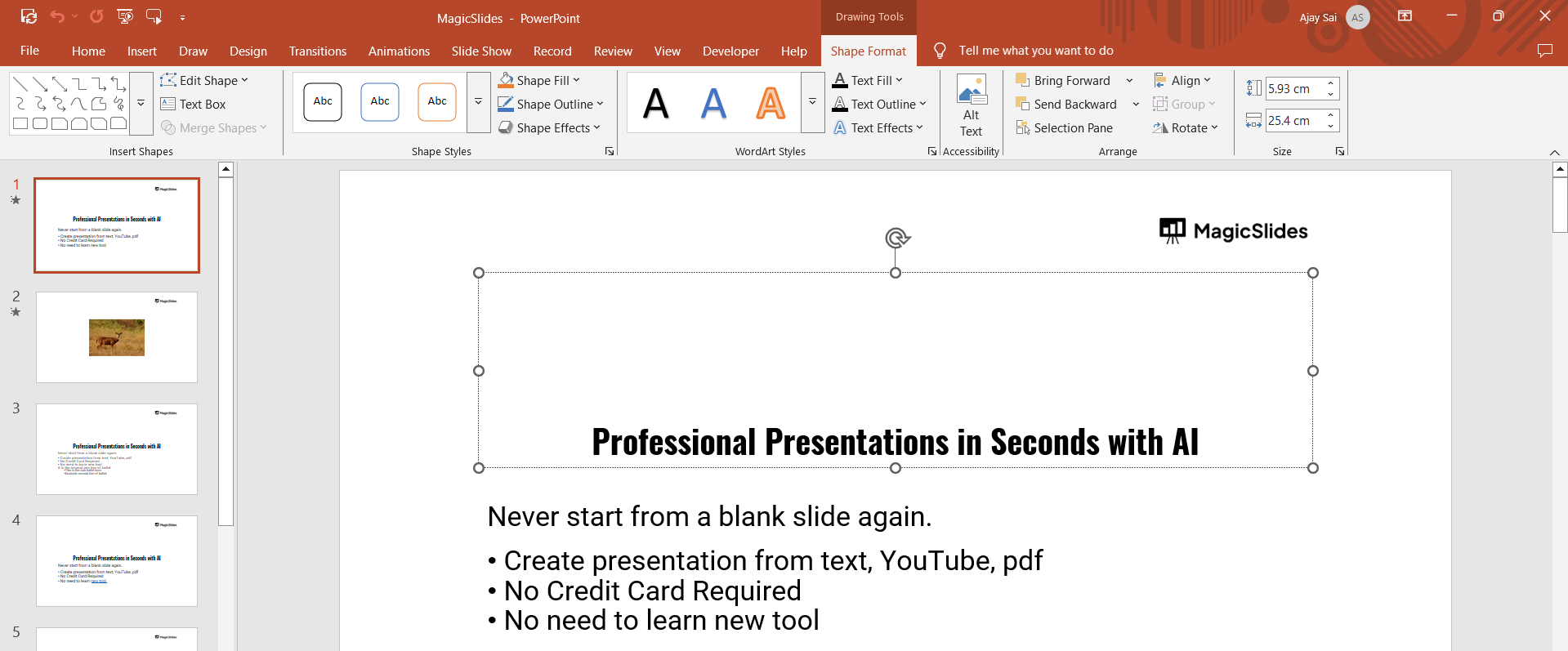
- Click on this tab to access alignment and spacing options.
Step 3: Click on “Align”
- In the Format tab, locate the “Align” button. This is typically found in the “Arrange” group on the ribbon.
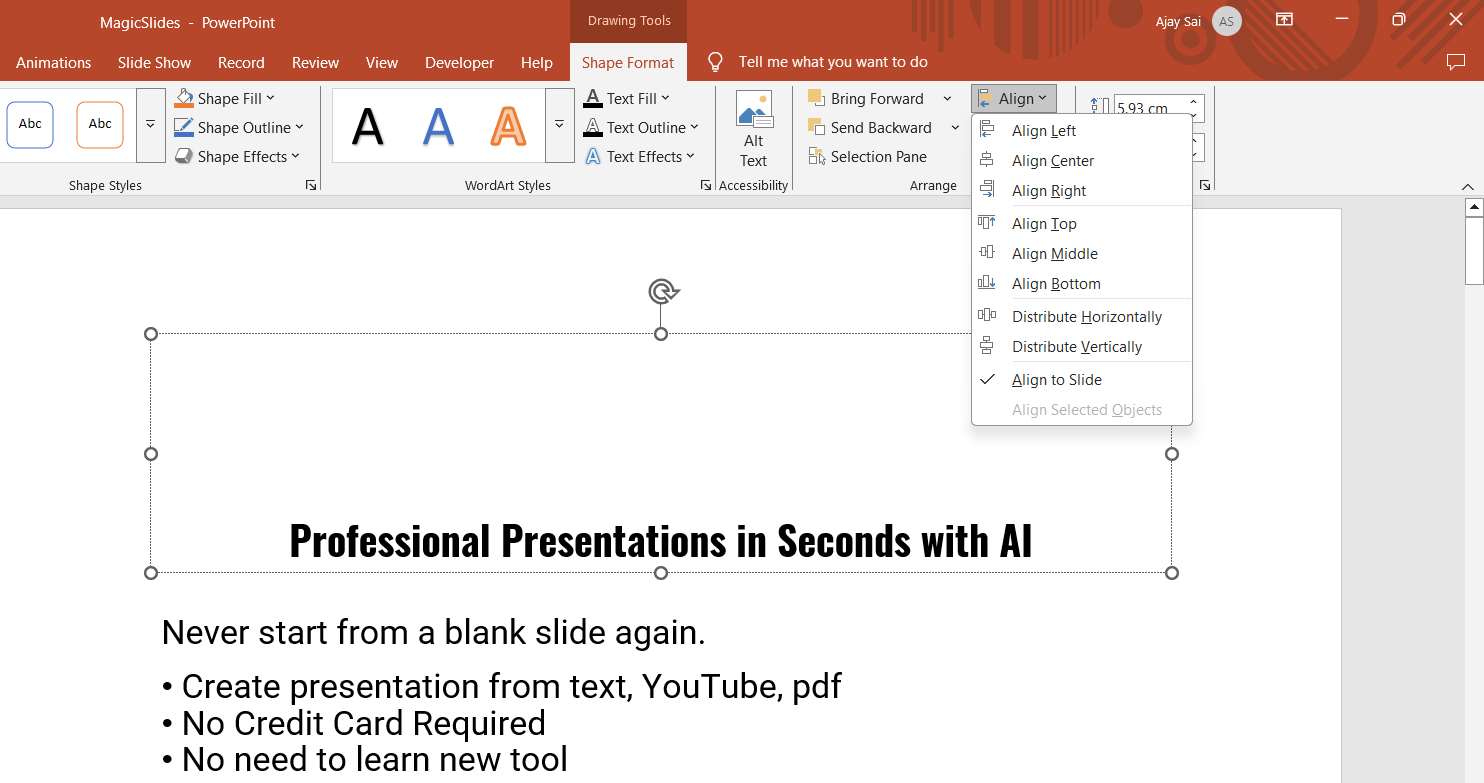
- Click on the dropdown arrow next to Align to open a list of alignment and distribution options.
Step 4: Choose How You Want to Distribute
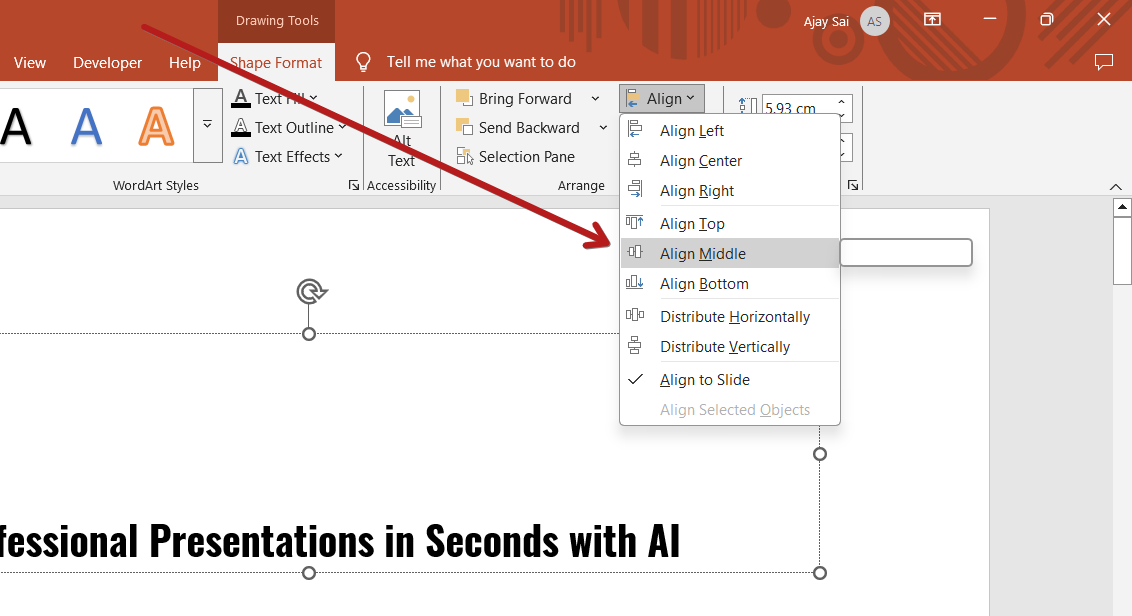
- To evenly space objects horizontally, choose Distribute Horizontally.
- To evenly space objects vertically, choose Distribute Vertically.
- PowerPoint will automatically adjust the spacing between the selected objects.
Step 5: Make Sure Objects Are Aligned (Optional)
- Before distributing, you can also use alignment options like Align Top, Align Middle, or Align Bottom to keep everything tidy.
- Aligning before distributing ensures that your objects are on the same visual plane.
Evenly spacing objects makes your slides more visually appealing. Want to skip the manual work? Try MagicSlides.app AI-powered presentations with perfectly aligned content, created in seconds!
Conclusion
Even spacing between objects enhances readability and visual appeal in any PowerPoint slide.
Whether you're working with shapes, text boxes, or images, the “Align” and “Distribute” tools help you quickly achieve professional results without eyeballing or manually moving things around.
Practice using these tools, and soon it will become second nature!
FAQs are here to guide!
Can I evenly space objects manually in PowerPoint?
While you can try spacing manually, using the Distribute function ensures accuracy and saves time.
Why is the “Distribute” option greyed out?
The “Distribute” option becomes available only when three or more objects are selected. Select enough objects to activate it.
Will objects snap into place automatically?
Yes, if Snap to Grid or Snap to Shape is enabled (found under View > Guides or Grid Settings), PowerPoint helps objects align and distribute smoothly.


