How to fade a picture in PowerPoint


Enhance visual transitions by learning how to fade images seamlessly in PowerPoint presentations.
Adding visual effects like fading to pictures in PowerPoint can significantly enhance the overall look and feel of your presentations.
Fading a picture can help create smooth transitions or emphasize specific elements within your slides.
In this step-by-step guide, we'll explore how to easily fade a picture in PowerPoint, allowing you to create engaging and professional presentations.
How to fade a picture in PowerPoint
Step 1: Insert Your Picture
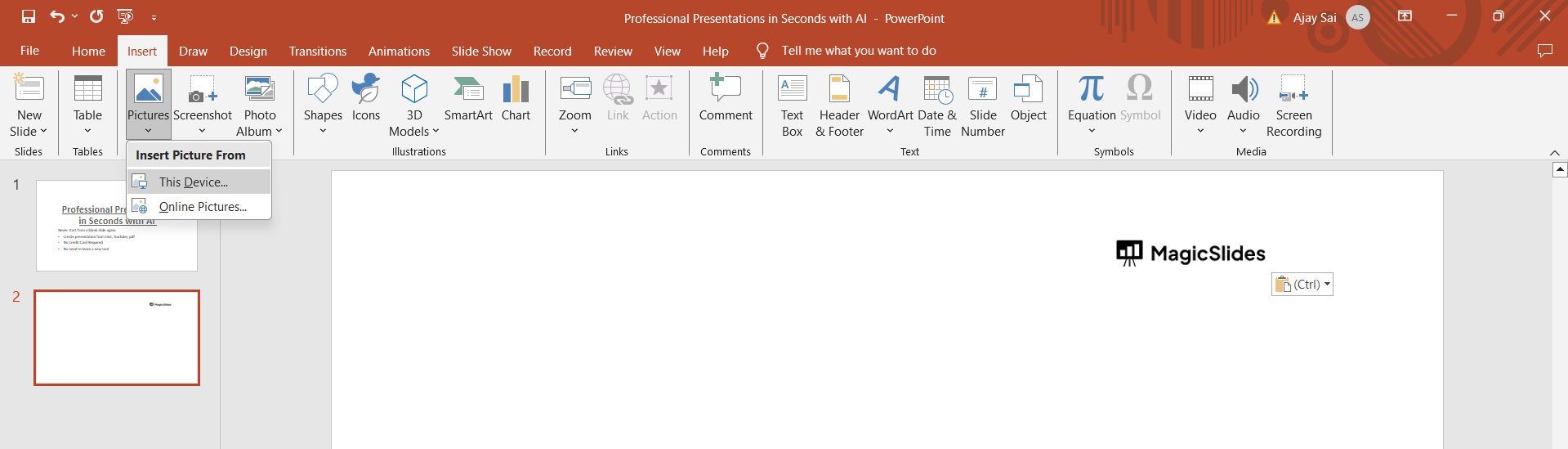
Begin by opening your PowerPoint presentation and navigating to the slide where you want to add the faded picture. Click on the "Insert" tab in the PowerPoint ribbon and choose "Pictures" to insert the image you want to work with.
Step 2: Select the Picture
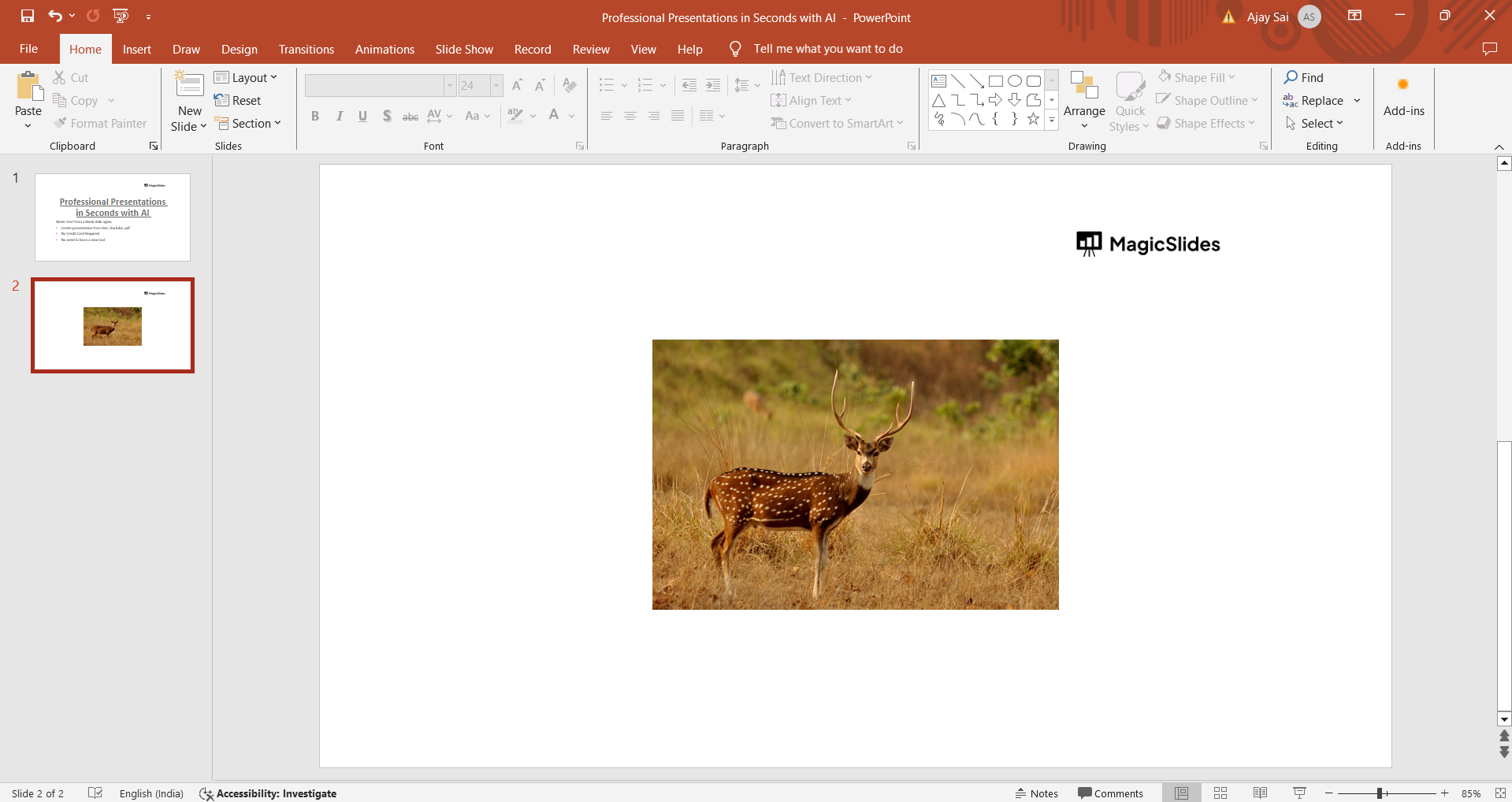
Click on the inserted picture to select it. You should see handles around the image indicating that it's selected.
Step 3: Access the Picture Format Options
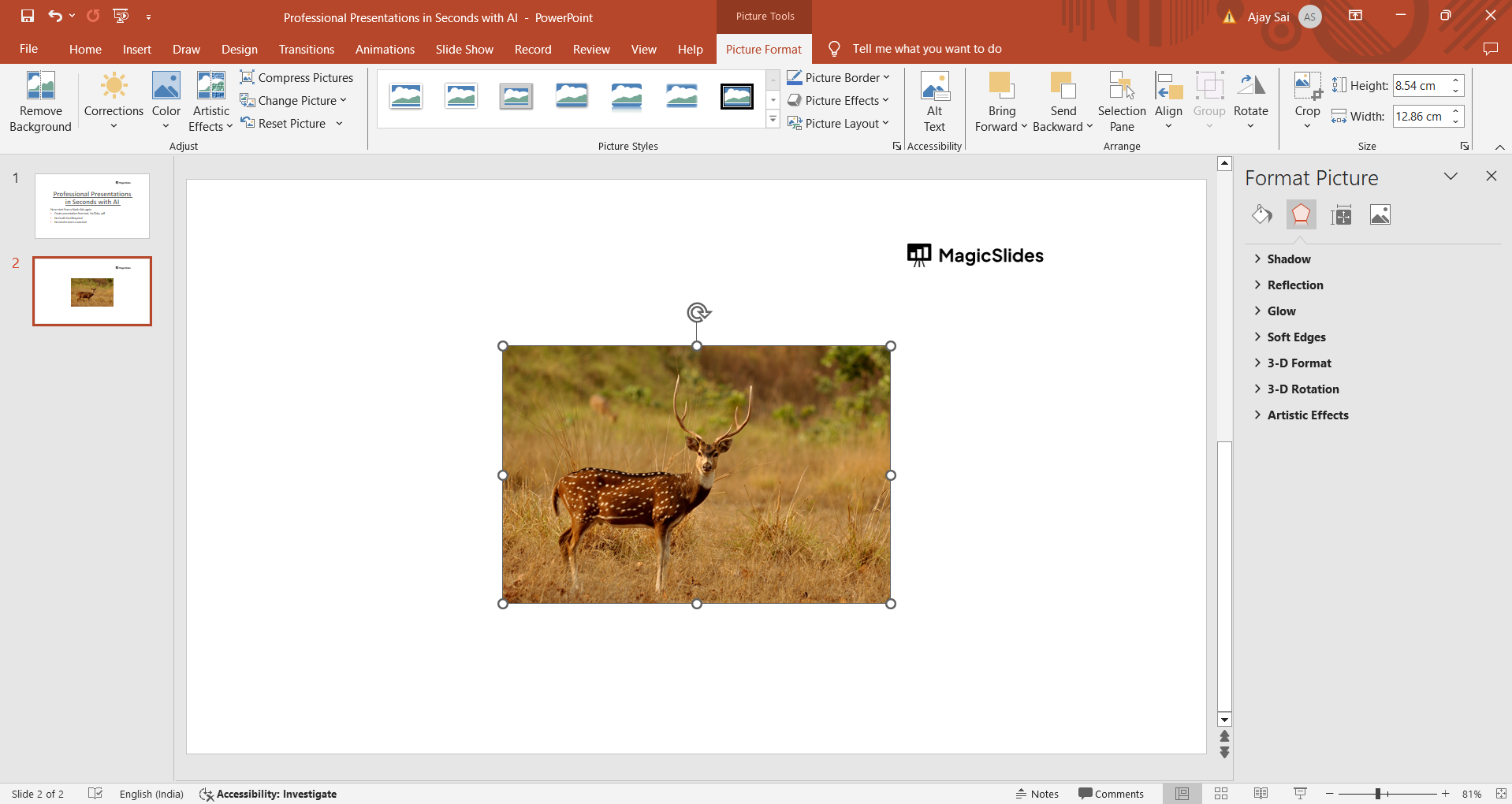
With the picture selected, a new tab labeled "Picture Format" should appear in the PowerPoint ribbon. Click on this tab to access additional formatting options for the picture.
Step 4: Apply the Fade Effect
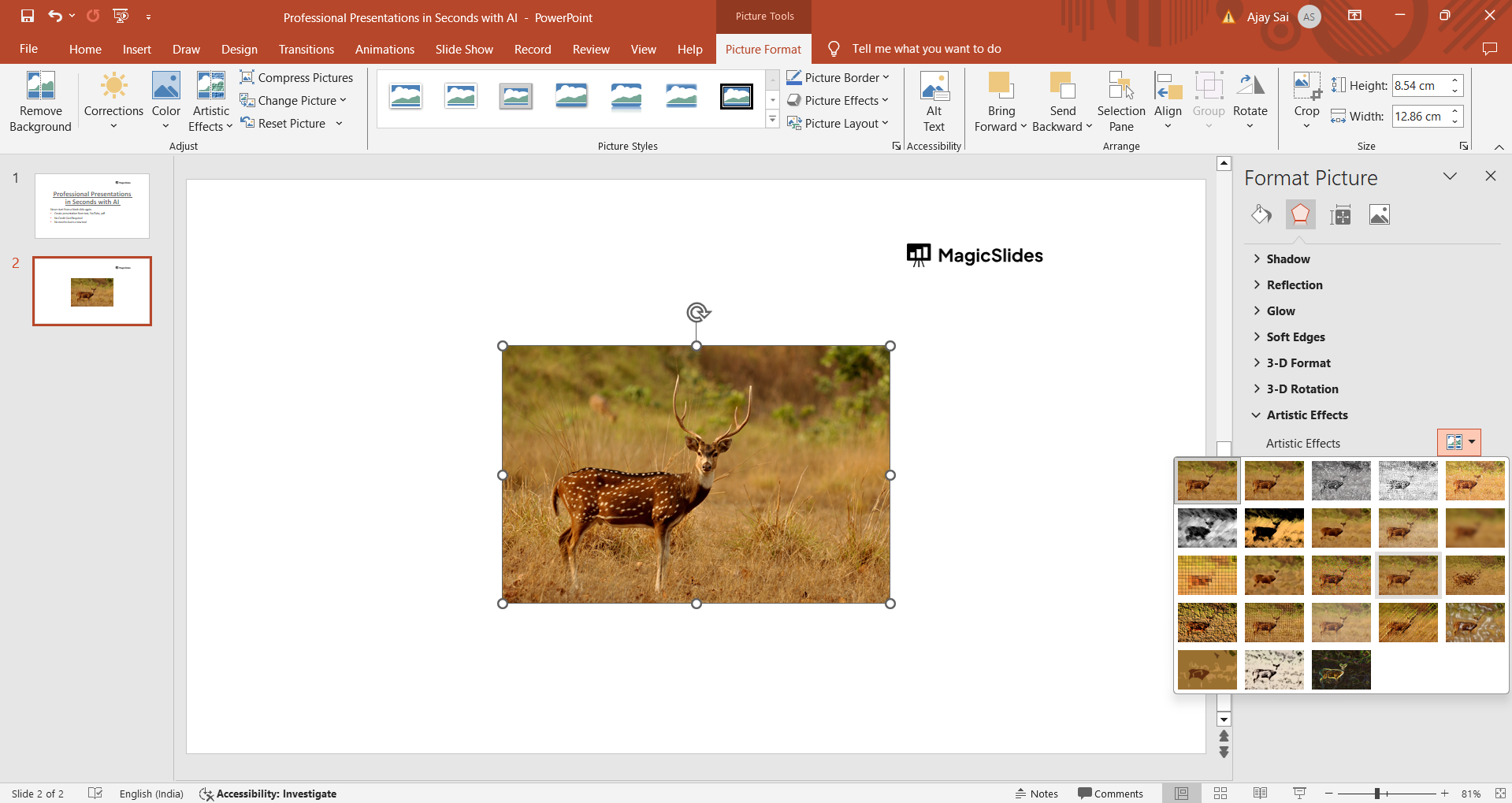
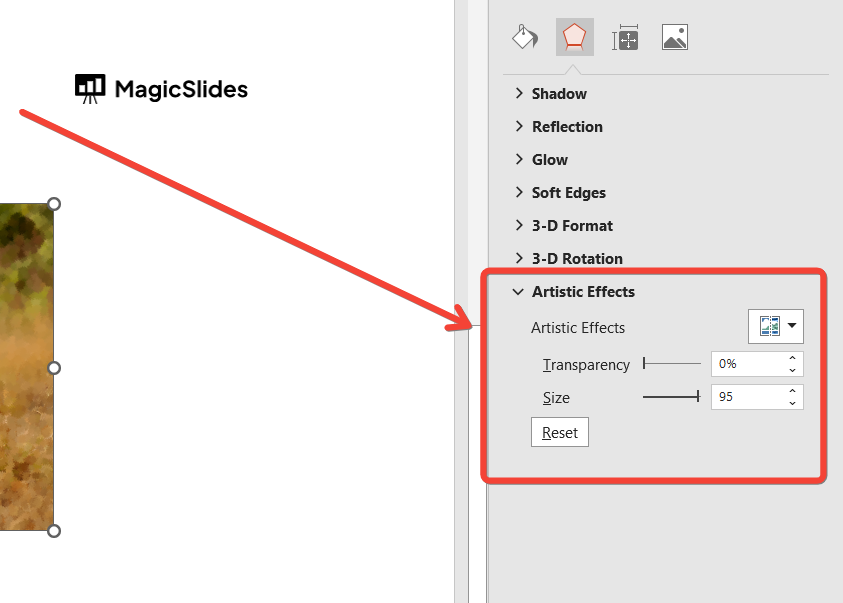
Within the Picture Format tab, locate the "Artistic Effects" or "Picture Effects" group. Look for an option that resembles "Fade" or "Fade In." Click on this option to apply the fade effect to your picture. You may need to hover over different effects to find the specific fade effect you prefer.
Step 5: Adjust the Fade Intensity (Optional)
Some versions of PowerPoint allow you to adjust the intensity or strength of the fade effect. If this option is available, you can fine-tune the fade to your liking by adjusting the slider or entering a specific value.
Step 6: Preview and Confirm
After applying the fade effect, take a moment to preview your slide to ensure the picture fades in as desired. You can do this by entering the slideshow mode or using the "Slide Show" button in PowerPoint.
Conclusion:
Fading a picture in PowerPoint adds a professional touch to your presentations, helping you create visually appealing slides that capture your audience's attention.
By following these simple steps, you can effortlessly apply fade effects to your images, whether you're highlighting key points, creating transitions, or adding aesthetic enhancements to your slides.
Incorporate these techniques into your PowerPoint workflow to elevate the impact of your visual content and deliver engaging presentations every time.
→ Fading pictures adds finesse, but MagicSlides.app makes slide creation effortless. Generate stunning slides with perfectly integrated visuals in seconds. Try MagicSlides.app today!
Frequently Asked Questions:
Can I adjust the fade duration in PowerPoint?
Yes, you can adjust the duration of the fade effect by using animation settings in PowerPoint.
Does fading a picture affect its quality?
No, fading a picture in PowerPoint does not affect its quality or resolution.
Can I apply different types of fade effects to a picture?
Yes, PowerPoint offers various artistic and picture effects, allowing you to choose different fade styles.
Can I undo the fade effect after applying it to a picture?
Yes, you can easily undo the fade effect by selecting the picture and choosing the "No Effect" option.


