How to GIF a PPT


Convert your PowerPoint presentations into eye-catching animated GIFs easily to share on social media or email
How to GIF a PPT
Turning a PowerPoint presentation (PPT) into a GIF is a fantastic way to share your content in a more dynamic and accessible format.
Whether you're posting on social media, sending it via email, or showcasing a looping visual at an event, converting your slides into a GIF makes your message both portable and engaging.
Let’s walk through how you can easily create a GIF from a PowerPoint presentation.
Step-by-Step Guide to Convert PPT to GIF
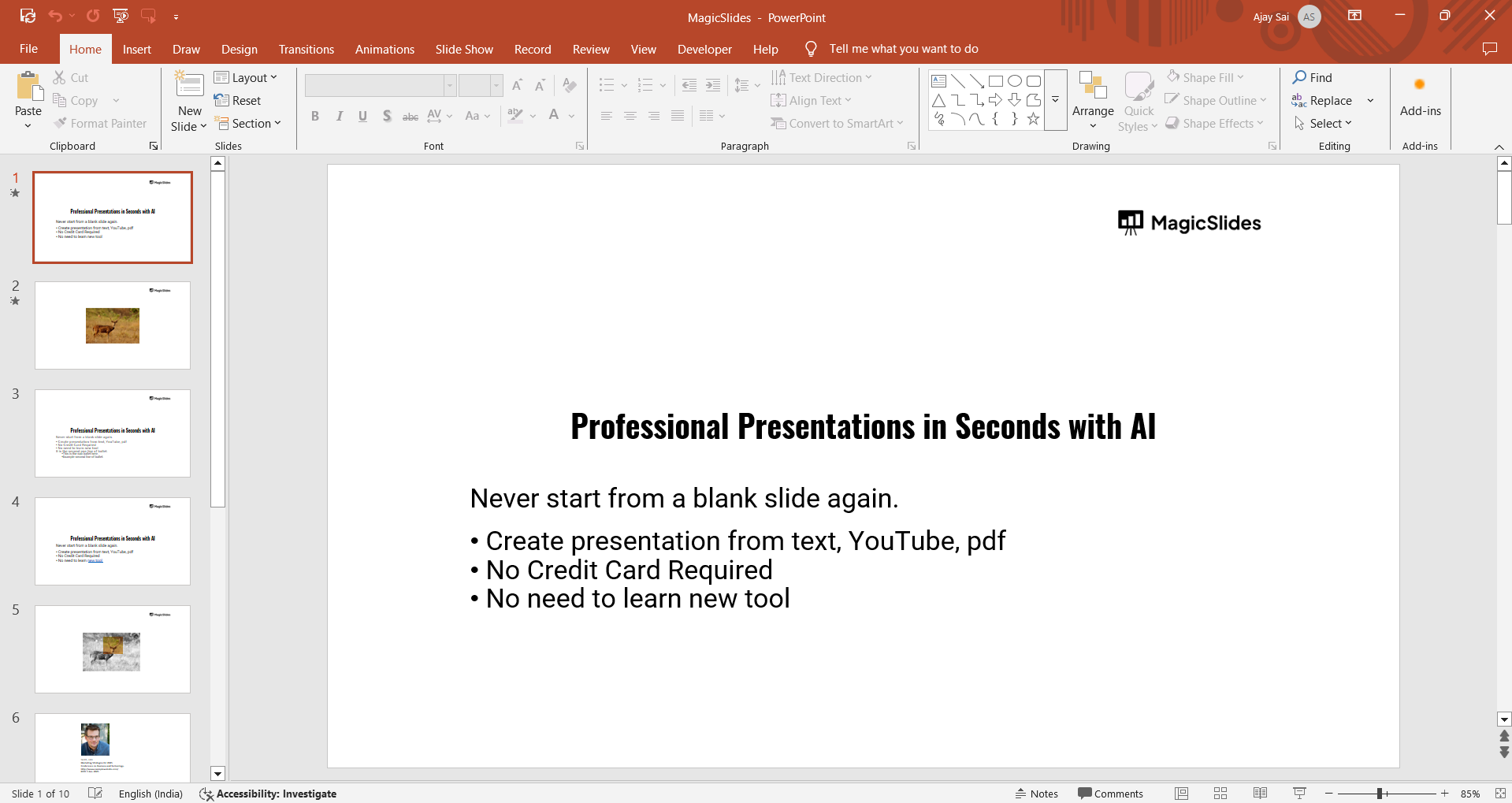
Step 1: Open Your PowerPoint Presentation
Launch PowerPoint and open the presentation you want to convert into a GIF. Make sure it’s fully edited and ready to go, as the GIF will reflect exactly what’s on your slides.
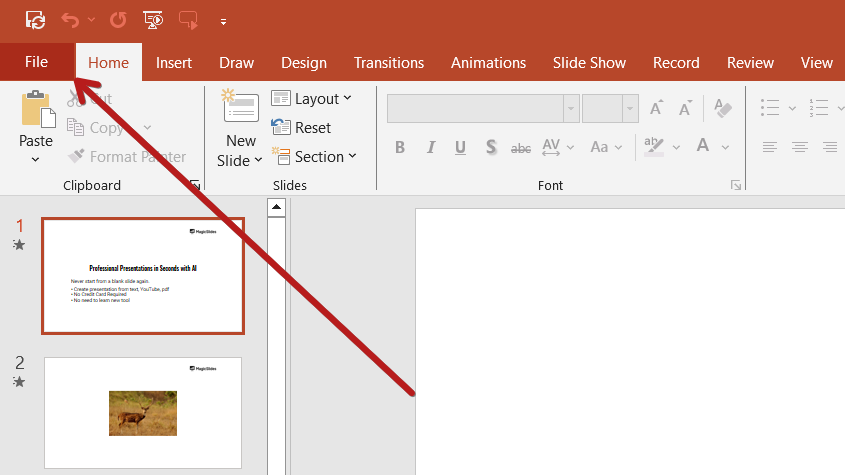
Step 2: Click on ‘File’ in the Top Menu
In the top left corner of your PowerPoint window, click on the ‘File’ tab to open the dropdown menu.
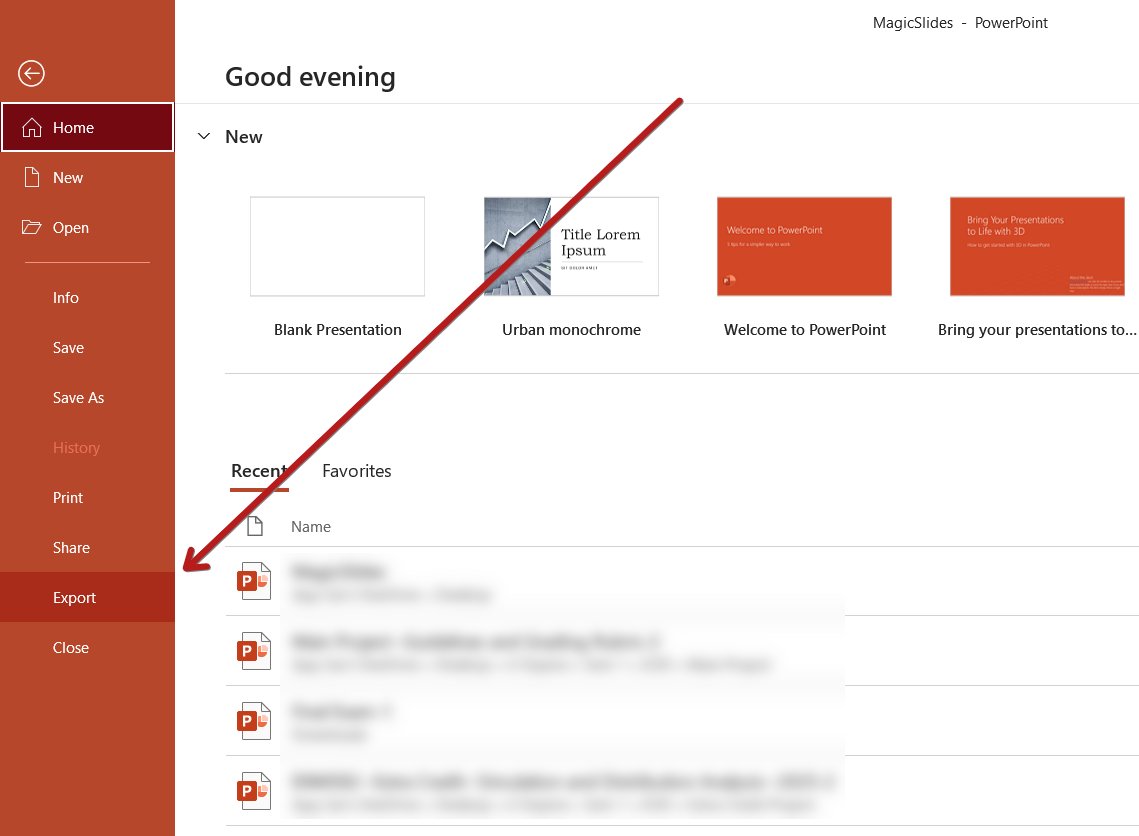
Step 3: Select ‘Export’
From the File menu, click on ‘Export’. This is where you’ll find different options for saving your presentation in various formats.
Step 4: Choose ‘Create an Animated GIF’
Under the Export menu, select ‘Create an Animated GIF’. This is a built-in feature in newer versions of PowerPoint (Microsoft 365 and PowerPoint 2019+).
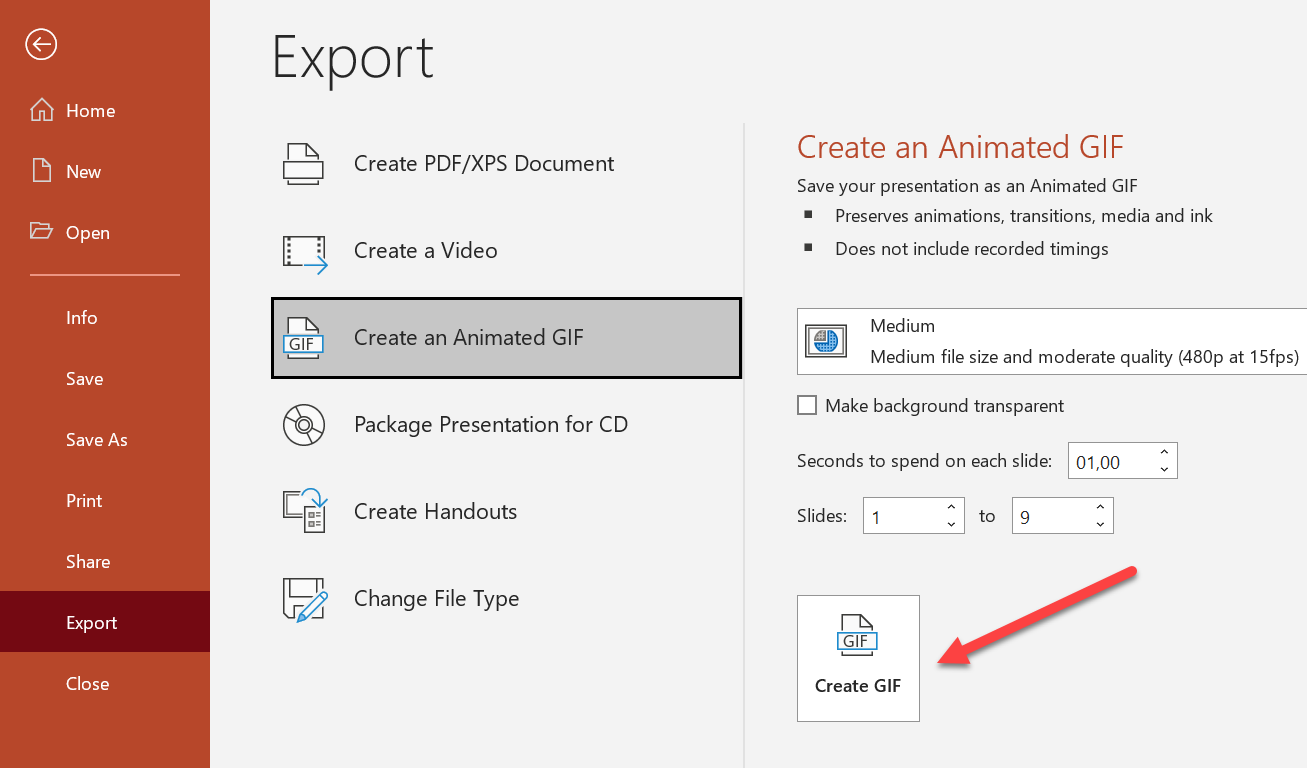
Step 5: Set Your Preferences
Now choose:
- Quality: Choose between Extra Large, Large, Medium, or Small.
- Seconds spent on each slide: Adjust the timing (default is 1 second per slide).
Step 6: Click ‘Create GIF’
Once you’ve set your options, click on the ‘Create GIF’ button. A window will pop up asking you to choose a file location.
Step 7: Save and Export
Choose the folder where you want to save the GIF, give it a name, and click ‘Save’. PowerPoint will now create your animated GIF and save it to the chosen location.
Conclusion
Creating a GIF from a PowerPoint presentation is an effective way to enhance your content’s reach and visual appeal.
It’s a simple, built-in feature that doesn’t require any external software or tools. So, next time you want to impress your audience or share a quick visual, try turning your slides into a GIF!
FAQs can come handy!
Can I add animations in the GIF created from PowerPoint?
Yes, animations and transitions will be preserved in the GIF if supported by PowerPoint’s export feature.
What’s the ideal slide duration for a smooth GIF?
Typically, 2–3 seconds per slide gives your audience enough time to view the content.
Can I convert a specific slide to a GIF instead of the whole presentation?
No, PowerPoint exports the entire presentation as a GIF. To use only one slide, save it as a new presentation and then export.


