How to give permission on Google forms


Empower collaboration on Google Forms by mastering the art of giving permissions with our guide.
Collaboration is at the heart of Google's suite of tools, and Google Forms is no exception.
Granting permissions on Google Forms ensures that collaborators can contribute to, edit, or view your forms.
In this step-by-step guide, we'll explore the straightforward process of giving permissions on Google Forms, allowing you to streamline collaboration and enhance the efficiency of your data collection.
How to give permission on Google forms
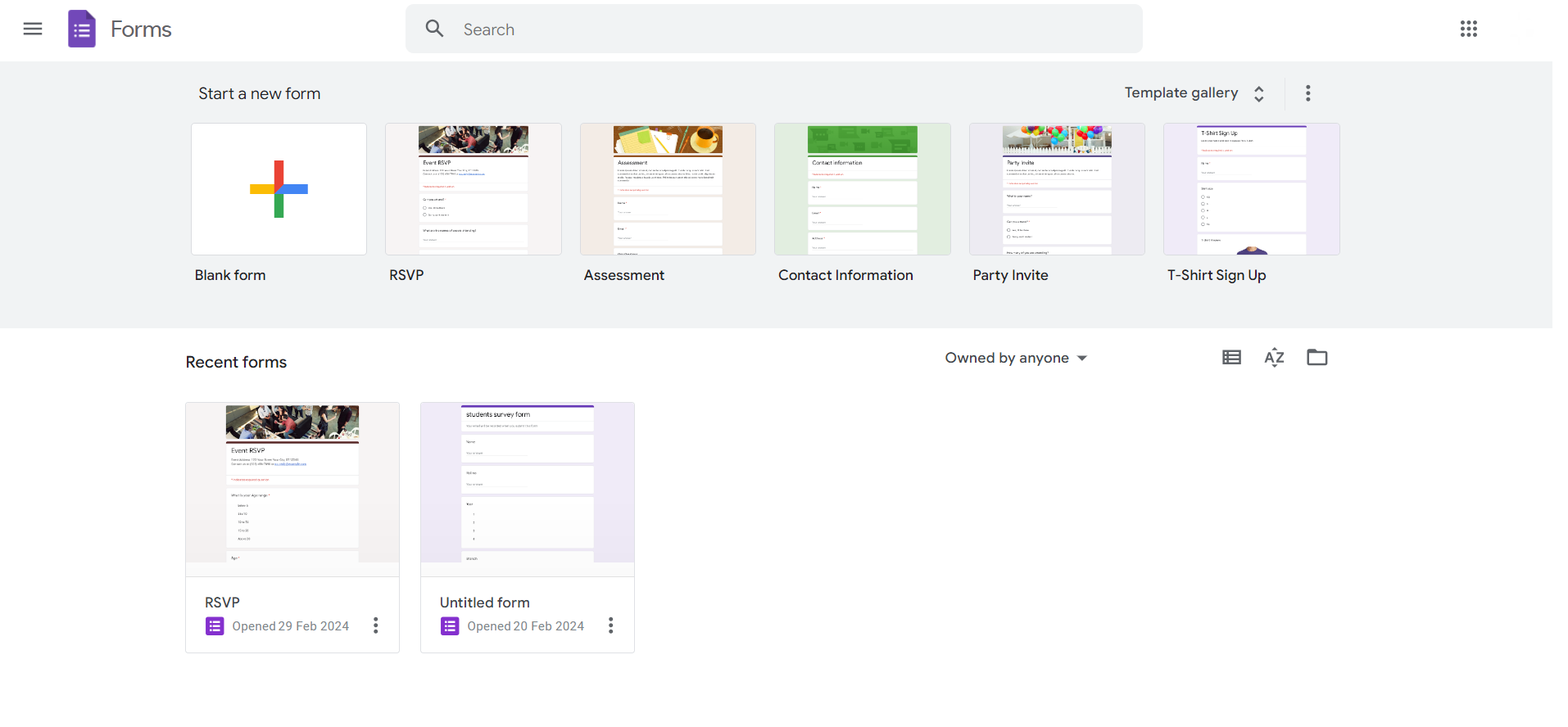
Step 1: Open Your Google Form
Start by opening the Google Form you wish to share. If it's a new form, create one and customize the questions according to your needs.
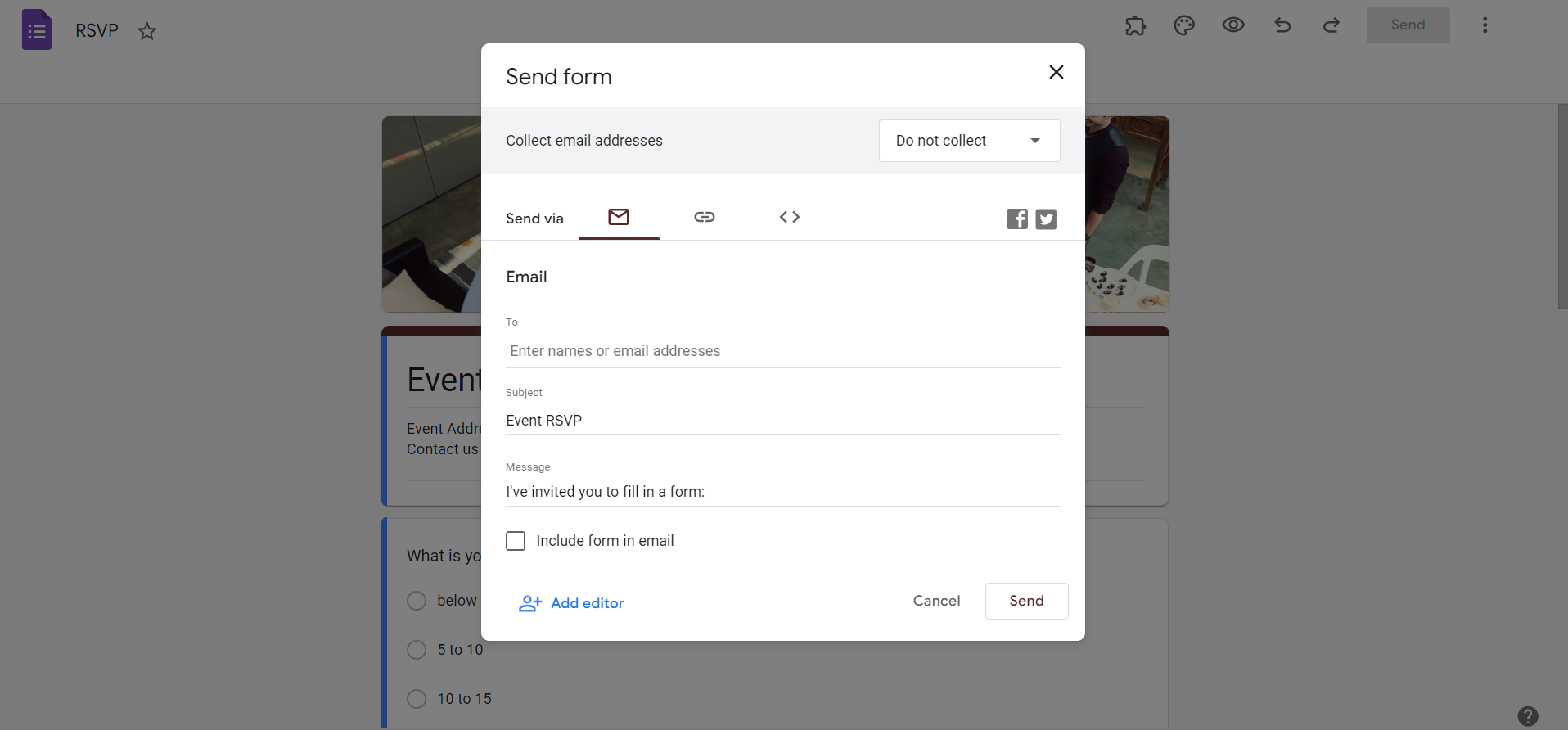
Step 2: Click on the "Send" Button
Navigate to the top-right corner of the screen and click on the "Send" button.
This button is where you initiate the process of giving permissions.
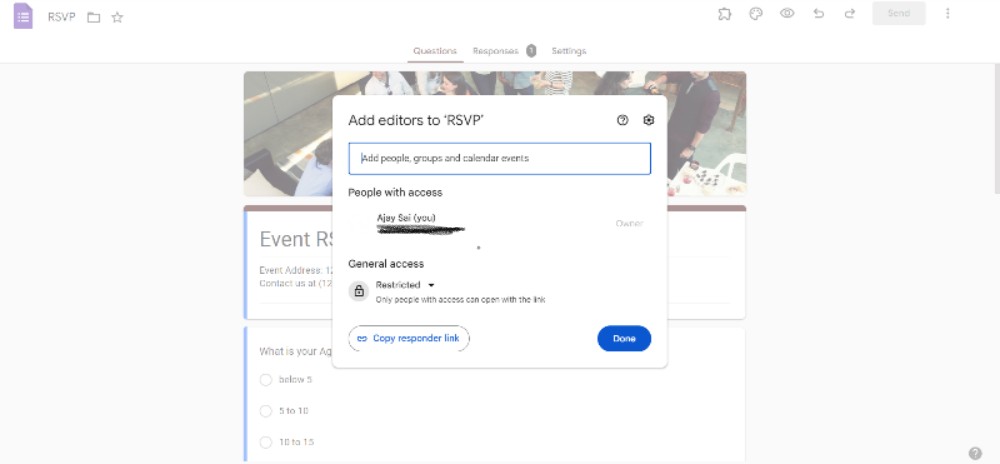
Step 3: Choose the "Collaborators" Icon
In the sharing options window, click on the "Collaborators" icon.
This will open a dialog box with a list of people who can access the form.
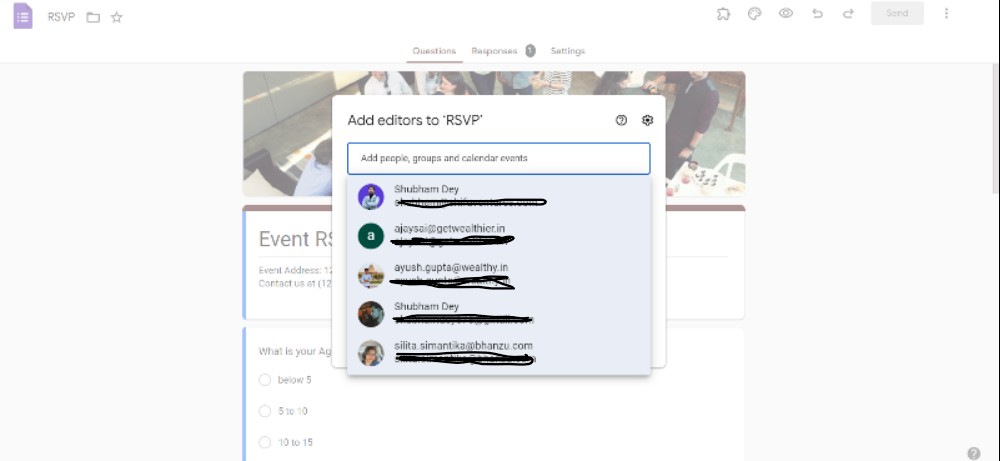
Step 4: Add Collaborators' Email Addresses
Enter the email addresses of the collaborators you want to give permission to. Choose their level of access: "Can edit" or "Can view."
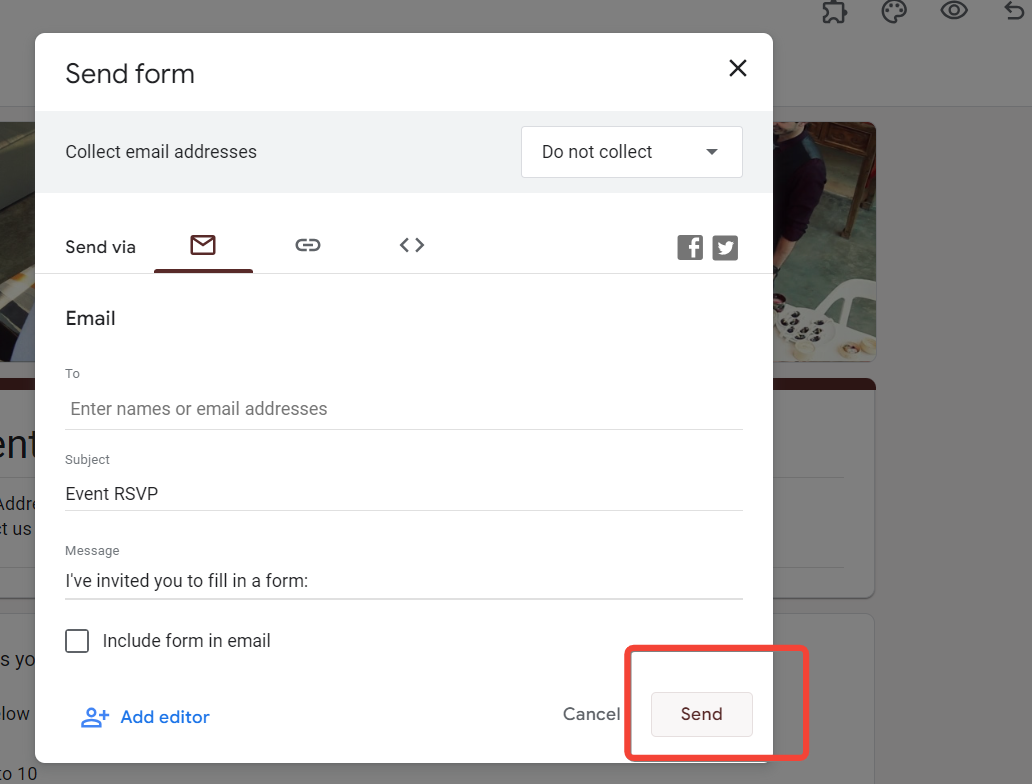
Step 5: Click "Send"
After adding collaborators and setting permissions, click on the "Send" button to share the form with the selected individuals.
They will receive an email notification with a link to the form.
Step 6: Adjust Advanced Settings (Optional)
For more nuanced control, you can adjust advanced settings by clicking on the gear icon in the sharing options window. This allows you to manage access more precisely.
Conclusion:
By following these straightforward steps, you'll maximize the collaborative potential of Google Forms, making it a dynamic tool for team projects, surveys, and data collection.
Share your forms with confidence, knowing that you have control over who can access and contribute to your valuable content.
Collaboration on Google Forms becomes seamless when you understand the process of giving permissions.
This guide empowers you to control who can contribute to your forms, ensuring a smooth workflow and organized data collection.
Frequently Asked Questions:
Can collaborators with "Can edit" permission also share the Google Form with others?
Yes, collaborators with "Can edit" permission can share the form with additional collaborators if needed.
How do I revoke or change permissions for someone on my Google Form?
Click on the "Send" button, then the "Collaborators" icon, and adjust permissions or remove collaborators as needed.
Can collaborators without a Google account access and contribute to a shared form?
Collaborators need a Google account to edit the form; however, the "Can view" option allows access without an account.


