How To Hyperlink In Google Slides


Navigate the world of interactive presentations with our guide on seamlessly adding hyperlinks in Google Slides.
In the dynamic realm of presentations, incorporating hyperlinks into your Google Slides can greatly enhance interactivity and engagement. Whether you're linking to external resources, other slides within the presentation, or websites, this guide will walk you through the straightforward process of adding hyperlinks in Google Slides. Elevate your presentation game by empowering your audience to navigate your content effortlessly.
Steps to Add Hyperlinks in Google Slides:
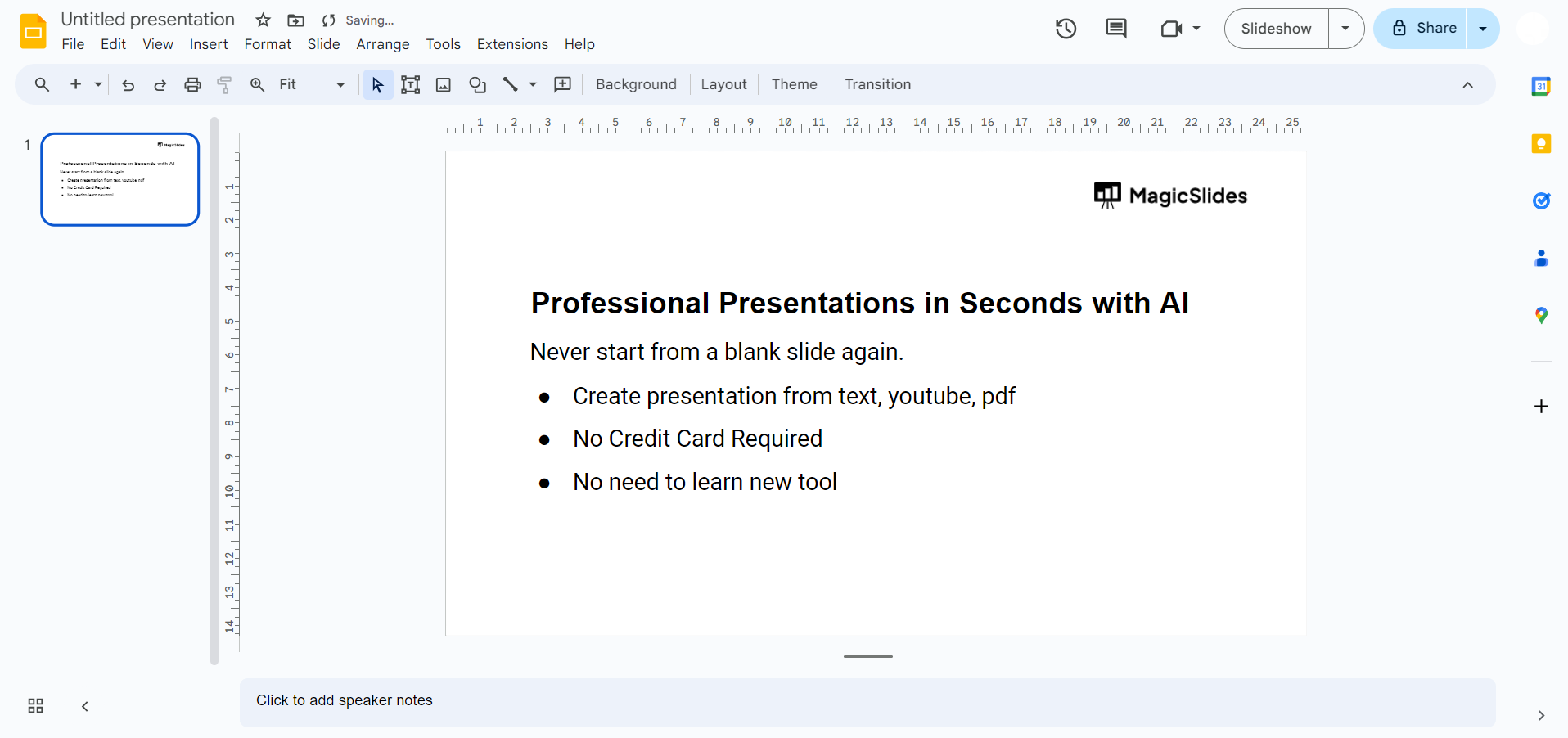
Open Your Presentation:
Launch Google Slides and open the presentation where you want to insert hyperlinks.
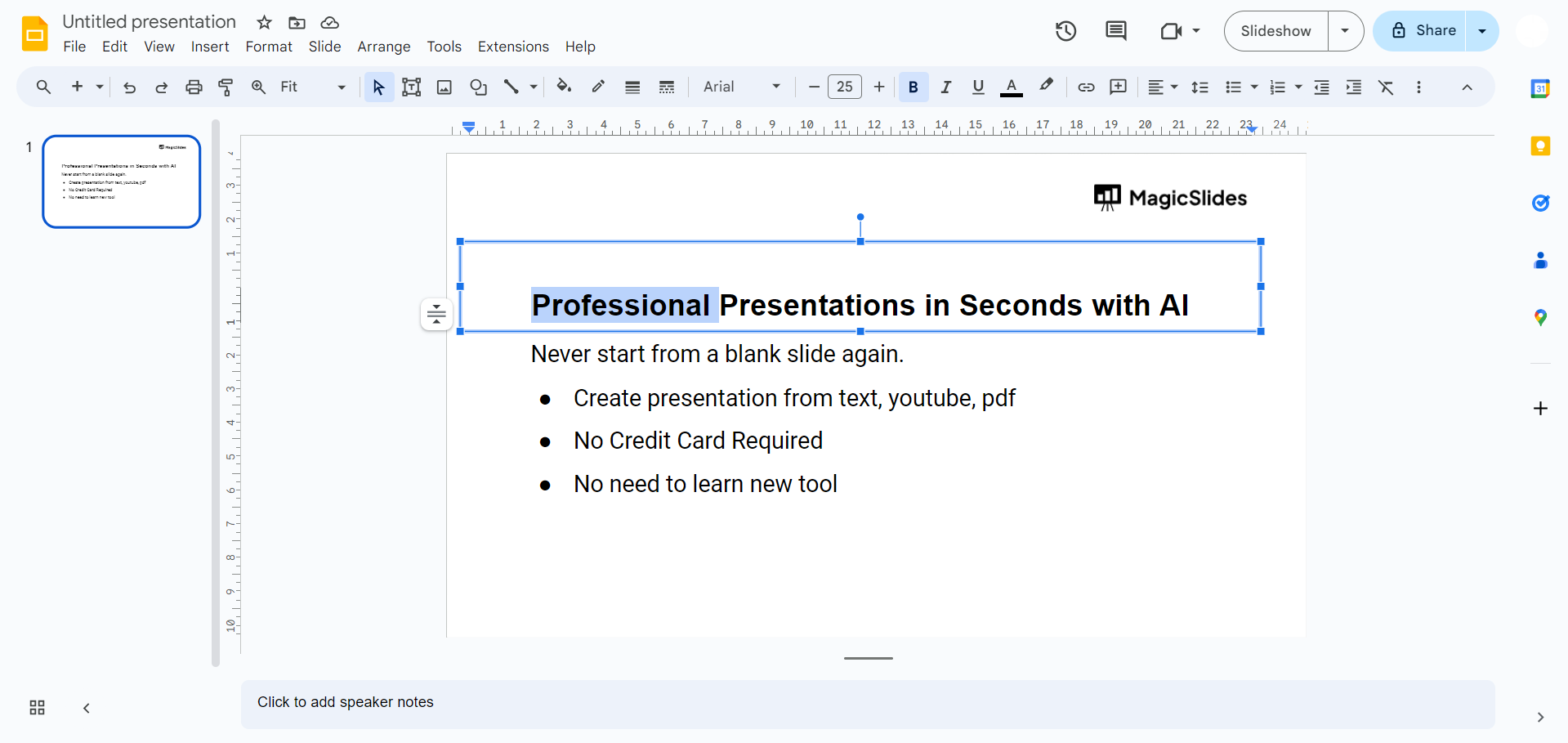
Select Text or Object:
Highlight the text or click on the object (such as an image or shape) that you want to turn into a hyperlink.
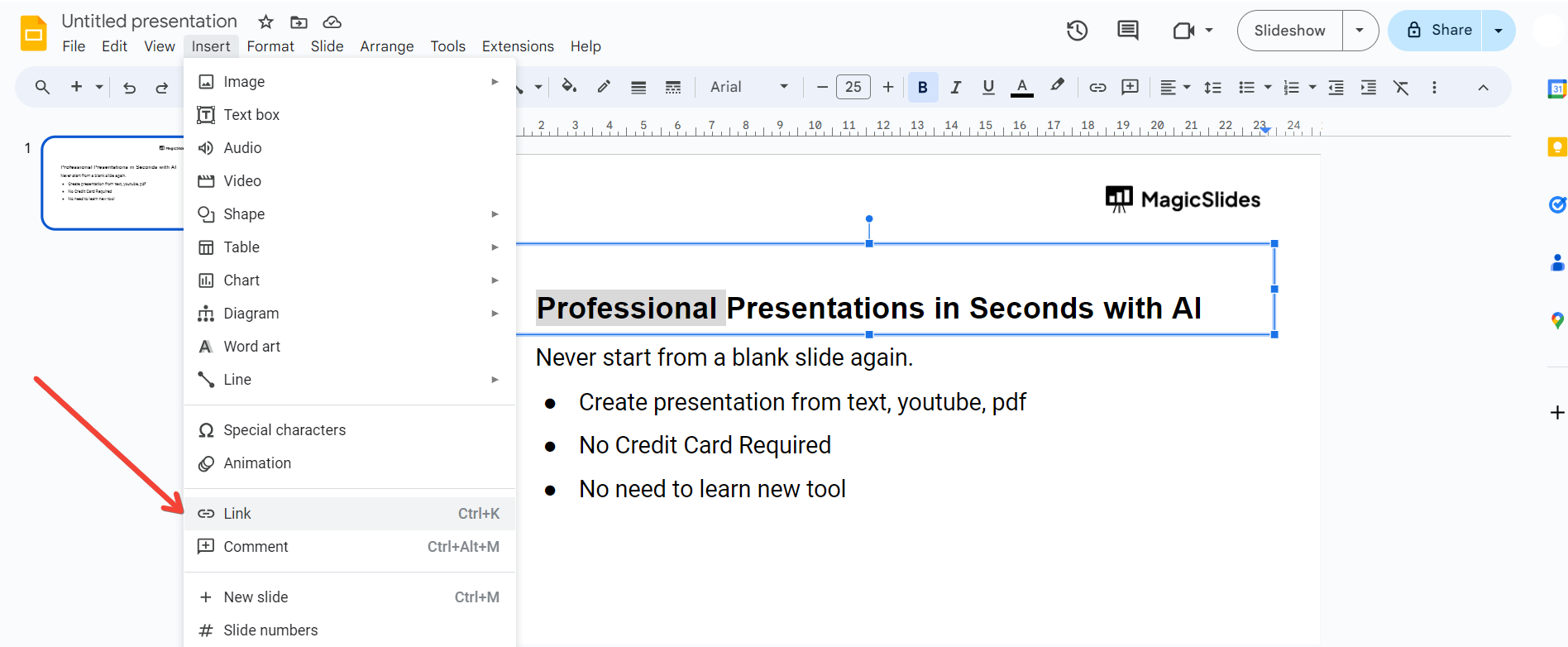
Access the Insert Link Option:
In the toolbar, click on the "Insert" tab and select "Link" from the drop-down menu.
Choose Link Type:
In the "Insert Link" dialog box, you can choose the type of link: Slides in this presentation: Link to another slide within the same presentation.
URL: Link to an external website or a specific web page.
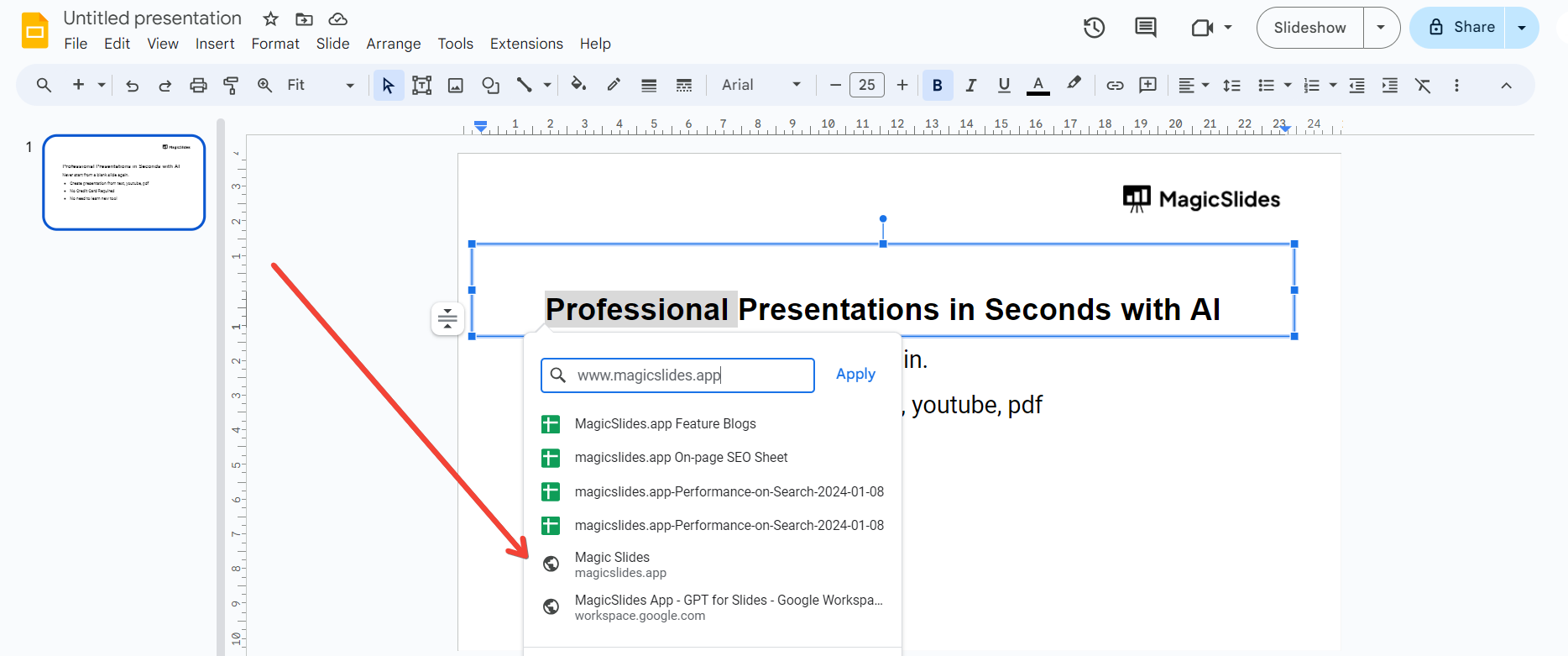
Insert Link:
Enter the link address in the provided field and click "Apply" or "Insert," depending on the version you're using.
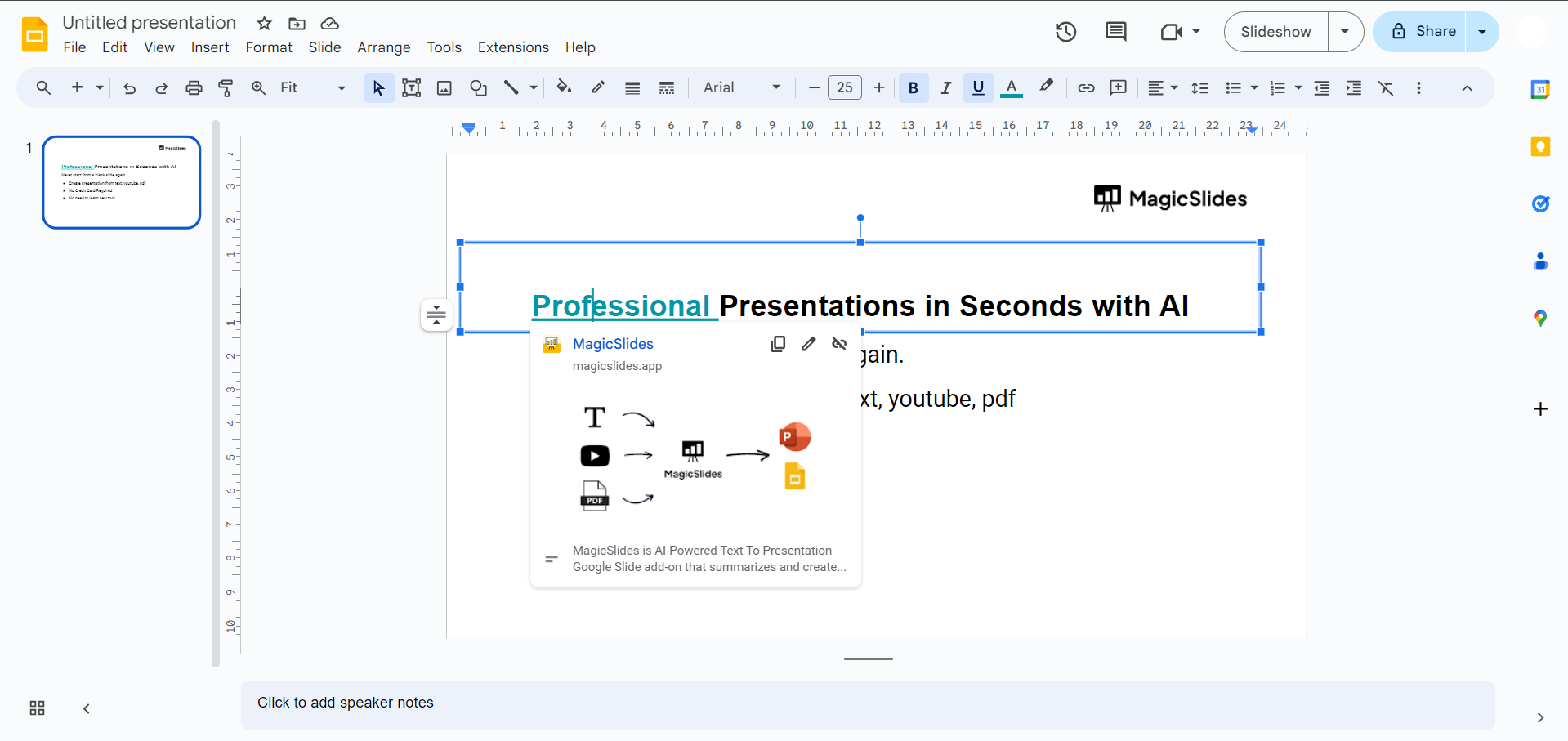
Test the Hyperlink:
In presentation mode, click on the linked text or object to ensure the hyperlink functions as expected.
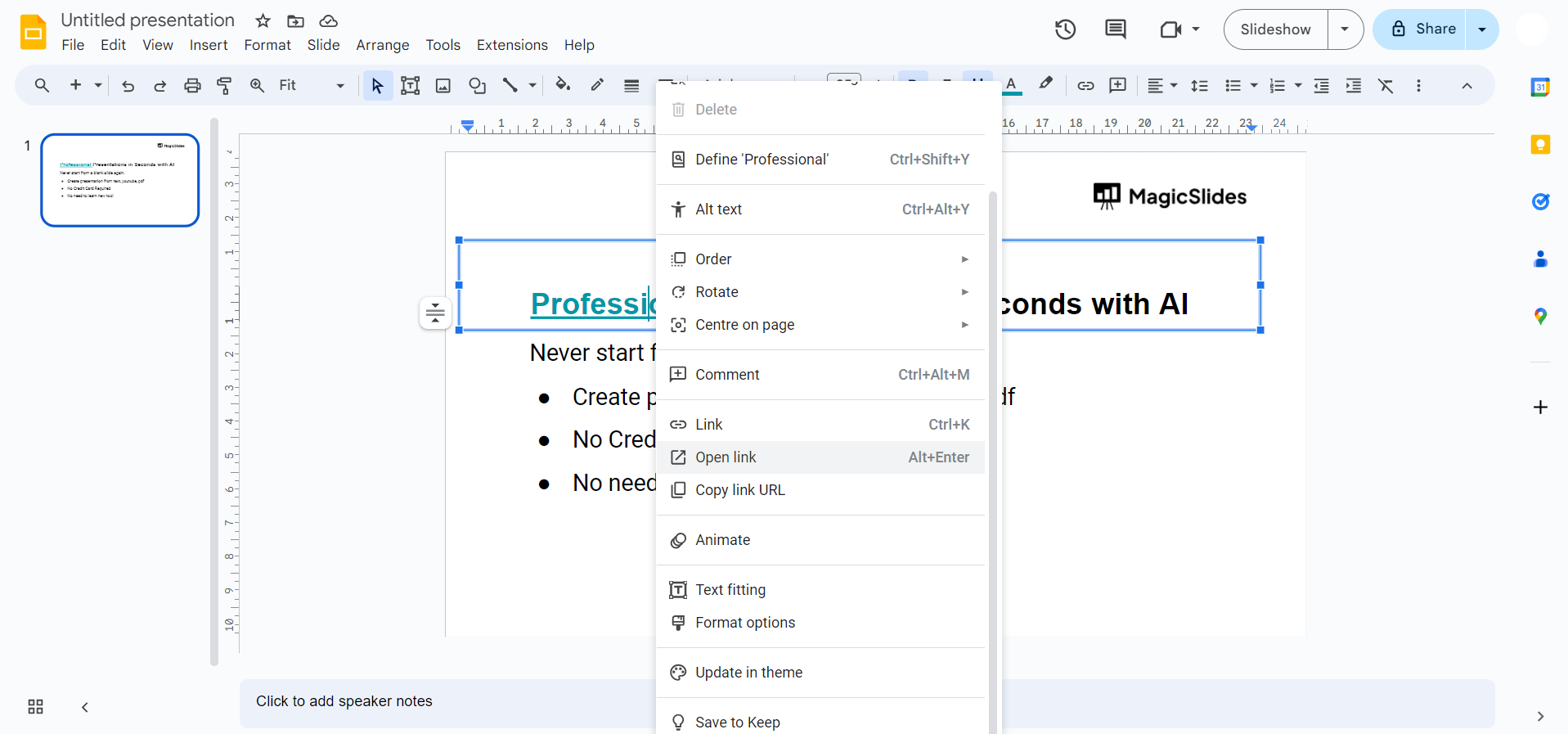
Edit or Remove Hyperlink (Optional):
To edit or remove a hyperlink, right-click on the linked text or object and choose the appropriate option.
Conclusion:
Integrating hyperlinks into your Google Slides presentation adds a layer of interactivity, making your content more engaging and user-friendly. With these easy-to-follow steps, you can seamlessly connect your slides to external resources or other parts of your presentation. Enhance your storytelling, guide your audience through relevant content, and create a more immersive presentation experience. Elevate your Google Slides proficiency by mastering the art of hyperlinking.
Frequently Asked Questions:
Can I hyperlink to a specific slide within the same presentation in Google Slides?
Absolutely, Google Slides allows you to create internal links, directing viewers to specific slides.
Is it possible to link to external websites or online resources within a slide?
Yes, you can easily insert hyperlinks to external URLs, offering additional information or references.
Can I customize the appearance of hyperlinked text or objects for a polished presentation?
Certainly, Google Slides provides options to customize the color and style of hyperlinked text or objects.
What happens if I share my presentation with hyperlinks? Will they still work for viewers?
Yes, hyperlinks will work for viewers if the presentation is shared online or as a published link.


