How to Increase Animation Time in Canva


Easily adjust animation time in Canva to create engaging and dynamic designs for your projects
Animations can add a dynamic touch to your designs, making them more engaging and visually appealing.
In Canva, you can easily customize animation timings to better suit your needs, whether it’s for a presentation, social media post, or video project.
This step-by-step guide will show you how to adjust animation duration in Canva for the perfect visual flow.
How to Increase Animation Time in Canva | Steps to Increase Animation Time in Canva
Step 1: Log in to Canva and Open Your Design
Go to Canva and sign in to your account.
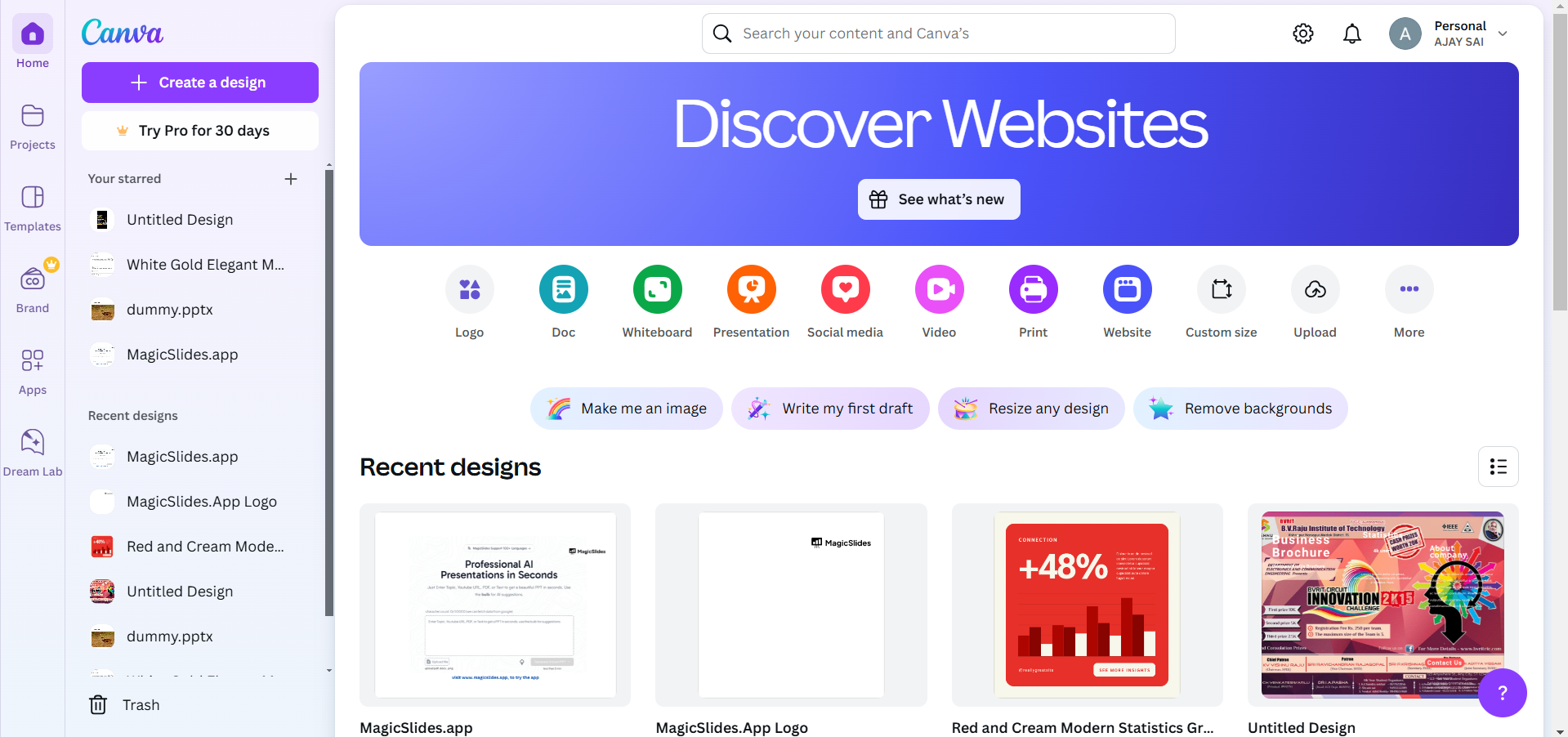
Open an existing design or create a new one where you want to adjust animation timing.
Step 2: Add Animation to Your Element or Page
Click on the element (text, image, or shape) you want to animate.
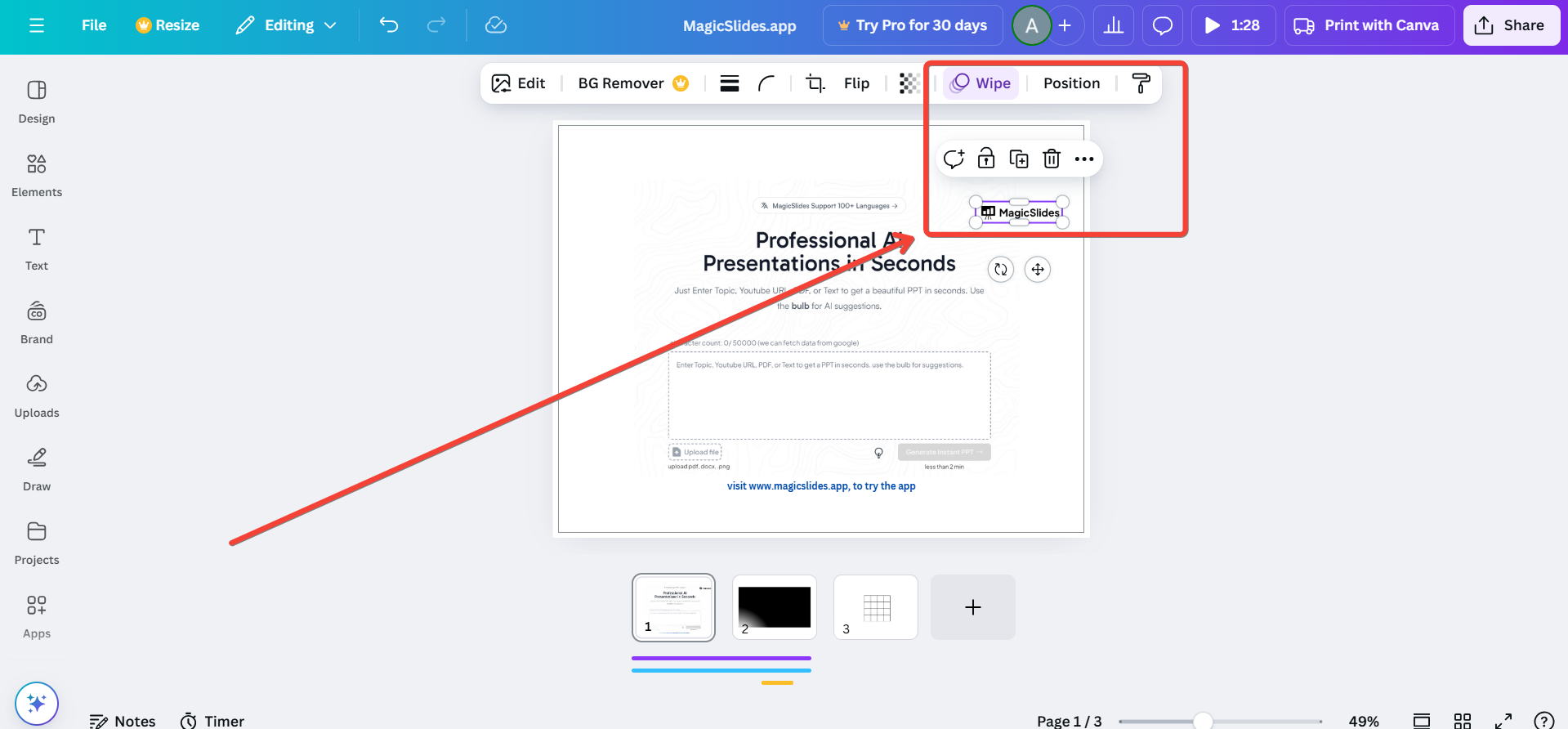
Select "Animate" from the toolbar at the top of the editor.
Choose an animation style from the available options.
Step 3: Access the Timing Settings
After applying an animation, click on the “Timing” or “Duration” icon that appears in the animation toolbar.
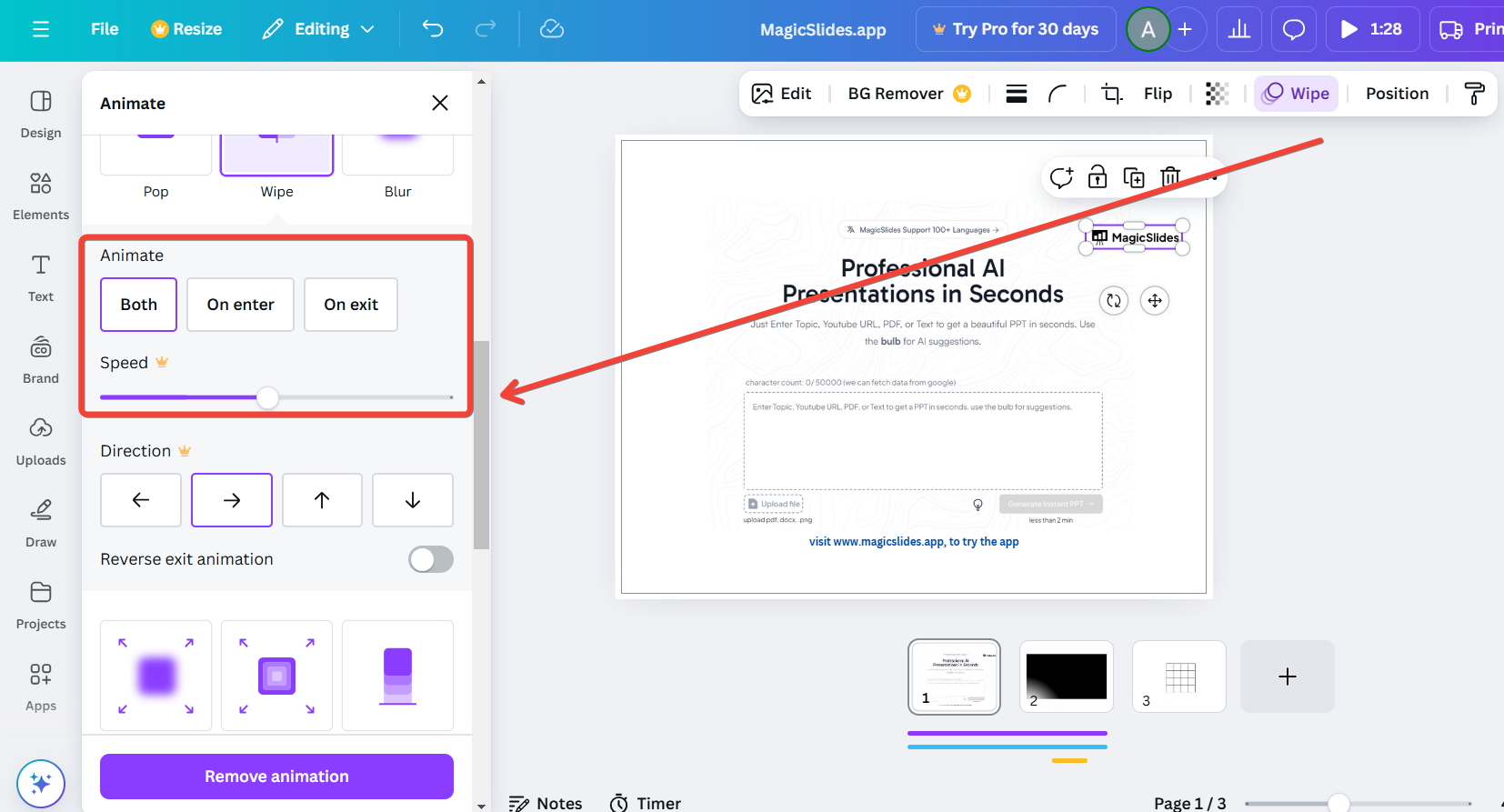
If you're working on a video project, you can also access the timeline view by clicking “Edit Timing.”
Step 4: Save Your Design
Once satisfied with the animation timing, click “Share” and choose “Download.”
Select an appropriate file format such as MP4 for videos or GIF for short animations.
Conclusion
Increasing animation time in Canva is a simple yet impactful way to enhance the storytelling and pacing of your designs.
By following these steps, you can customize the timing to better suit your project, ensuring a polished and engaging outcome.
Start experimenting with Canva’s animation features today to bring your designs to life!
FAQs on Increasing Animation Time in Canva
Can I apply different animation timings to individual elements in Canva?
Yes, you can set unique animation timings for each element in your design for a customized effect.
What is the maximum animation time I can set in Canva?
The maximum duration varies based on the animation type and Canva’s current features, typically up to 30 seconds.
Can I adjust animation timing for the entire presentation or video?
Yes, you can use the timeline feature in video projects to control the duration of animations across multiple pages or elements.


