How to indent bullet points in PowerPoint


Elevate your PowerPoint slides with hierarchical structure by learning how to indent bullet points.
Bullet points are a powerful tool in PowerPoint presentations, helping to organize information and make it easier for your audience to digest. However, sometimes you may want to create a hierarchical structure within your bullet points by indenting certain points. In this step-by-step guide, we'll walk you through the process of indenting bullet points in PowerPoint, allowing you to enhance the clarity and visual appeal of your slides effortlessly.
How to indent bullet points in PowerPoint
Open PowerPoint:
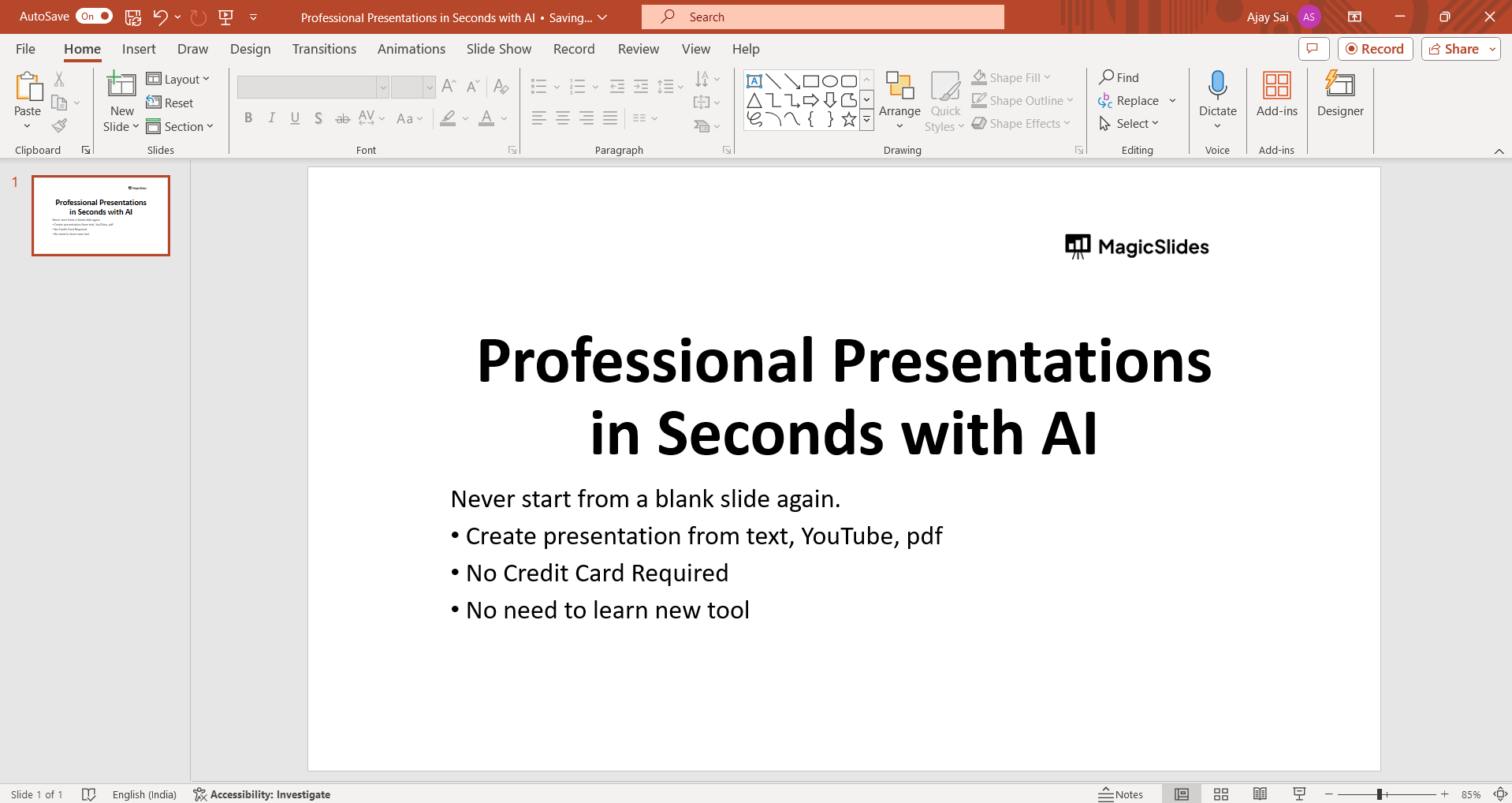
Launch the Microsoft PowerPoint application on your computer and open the presentation you want to work on.
Access Text Box:
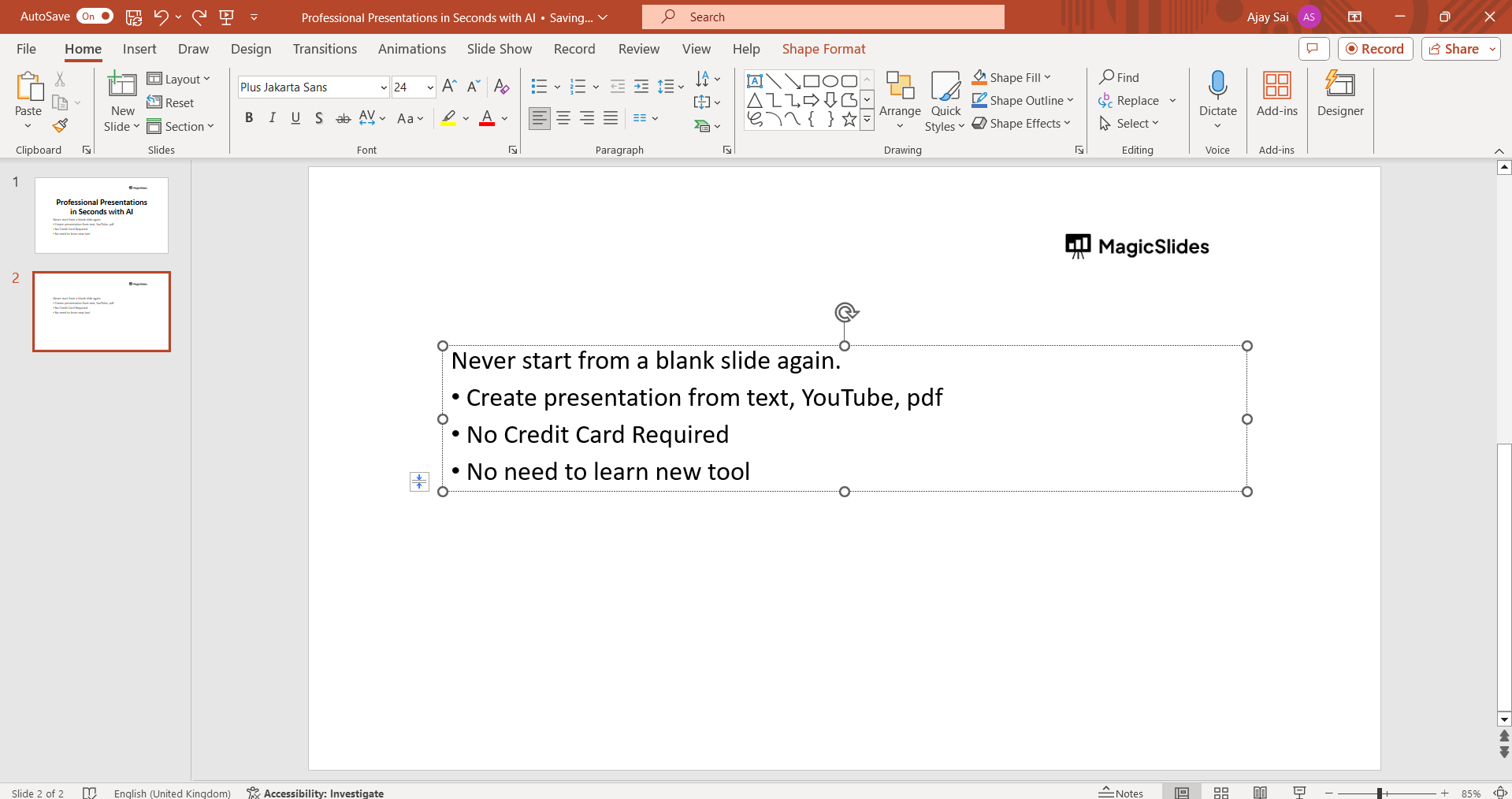
Navigate to the slide containing the bullet points you wish to indent. Click on the text box containing the bullet points to select it.
Select Bullet Point:
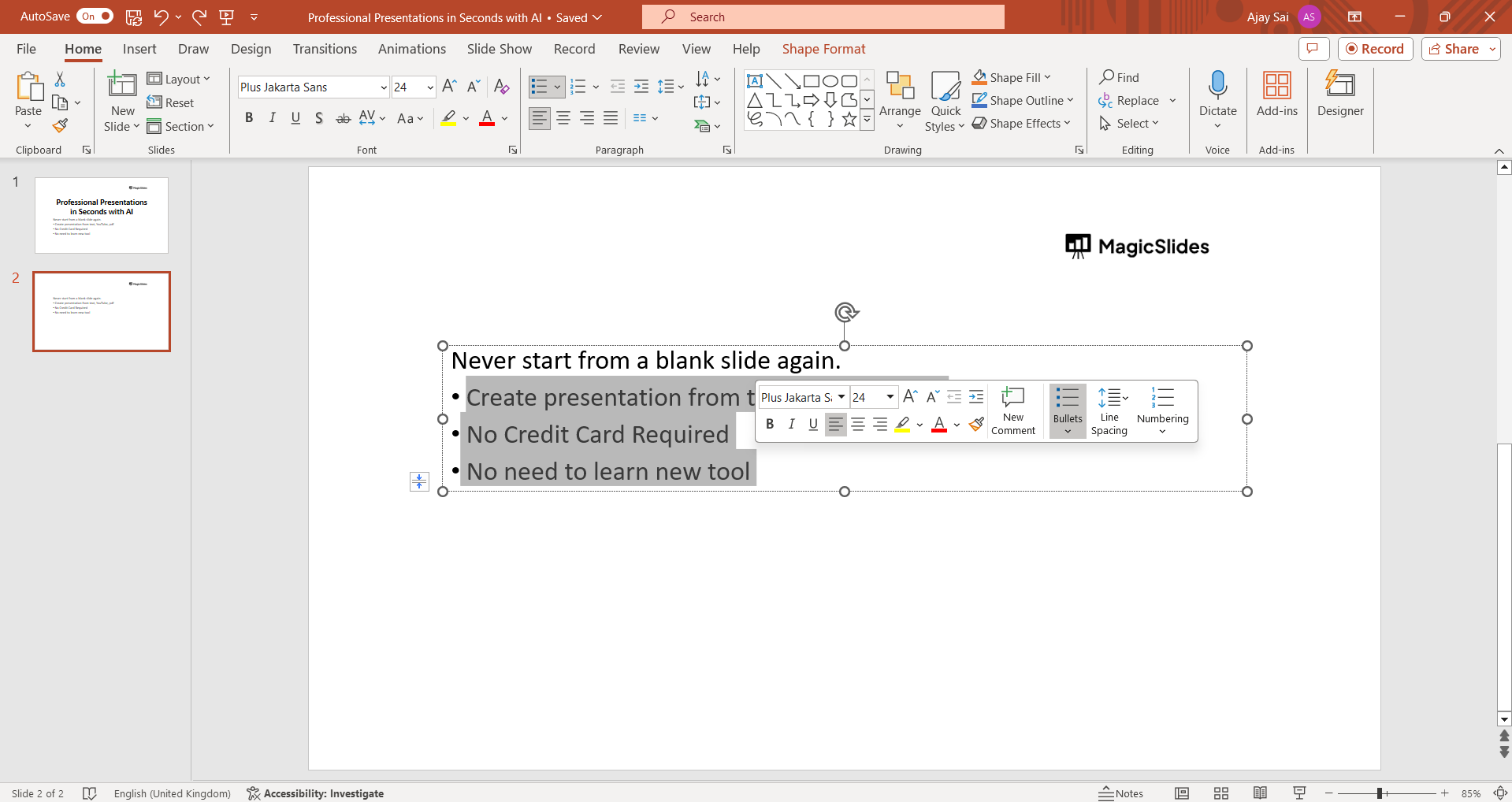
Click on the bullet point you want to indent. This action will select the entire bullet point.
Indent using Keyboard Shortcut:
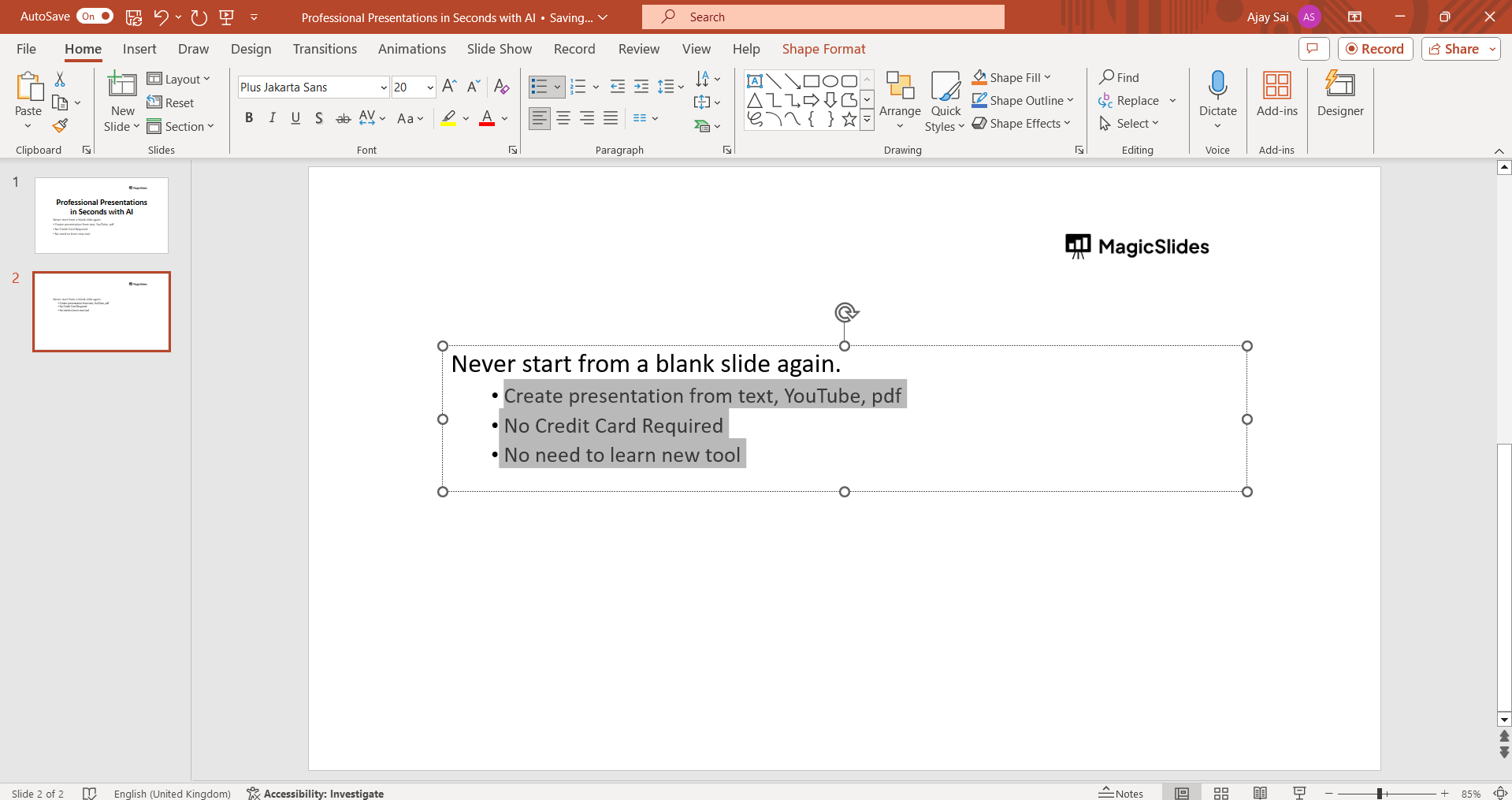
To indent the selected bullet point, press the "Tab" key on your keyboard. Each press of the "Tab" key will indent the bullet point further.
Adjust Indentation Level:
Continue pressing the "Tab" key until the bullet point reaches the desired level of indentation.
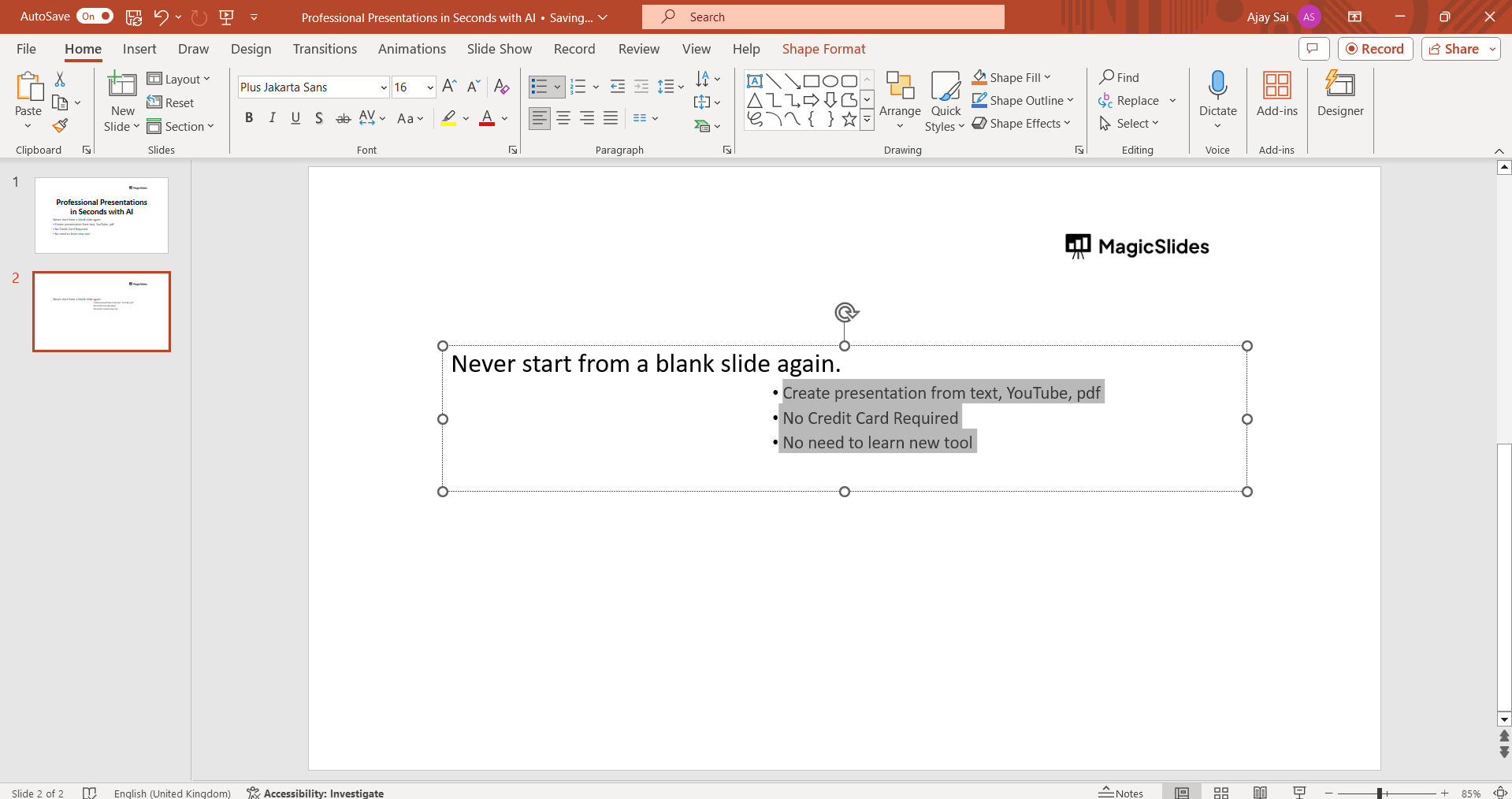
Outdent Bullet Point:
If you need to decrease the indentation level of a bullet point, press "Shift + Tab" on your keyboard. This action will outdent the selected bullet point.
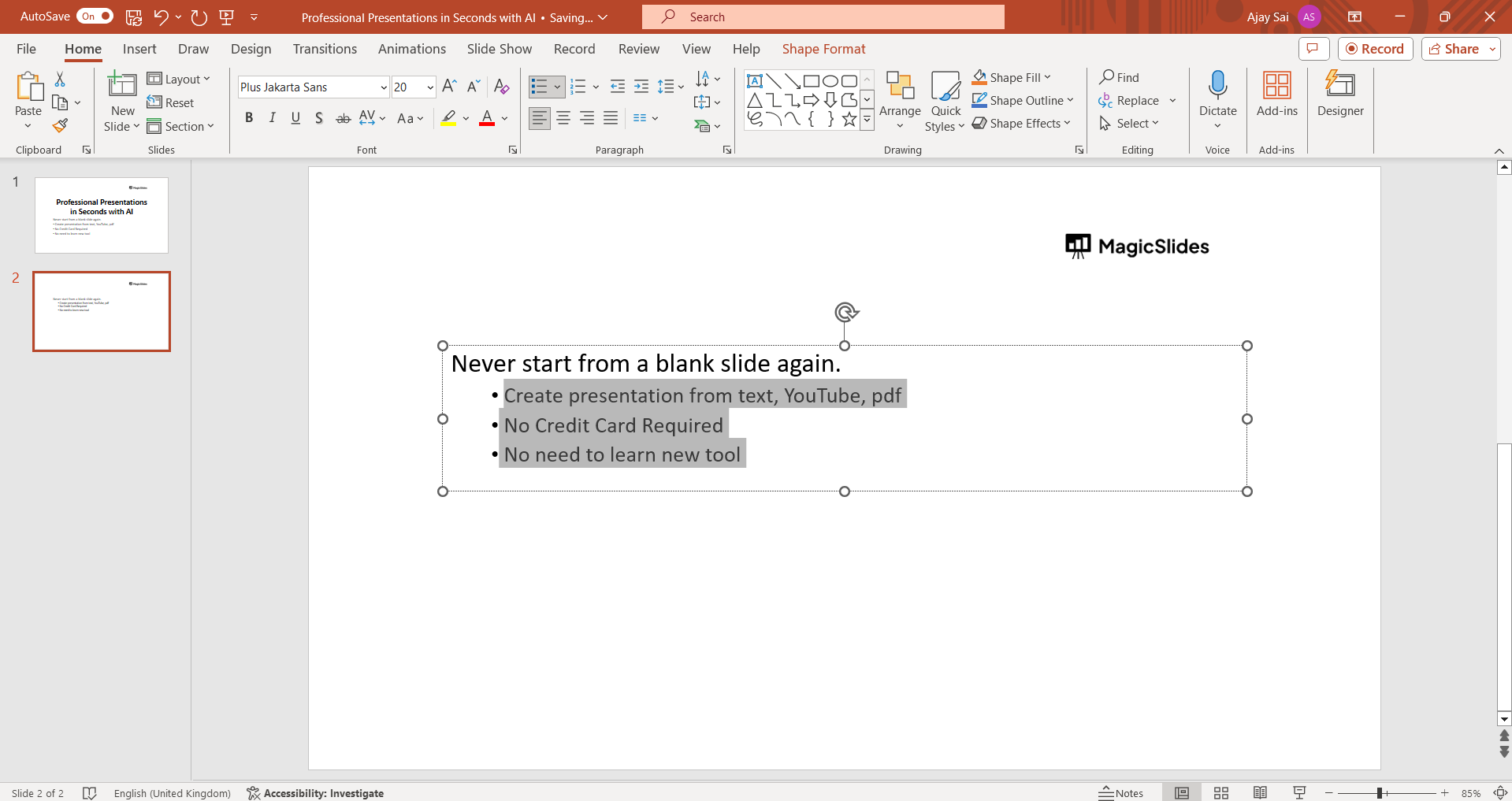
Repeat as Needed:
Repeat the process for any other bullet points you wish to indent or outdent on the slide.
Conclusion:
Indenting bullet points in PowerPoint can help you create a clear and visually appealing hierarchy of information in your slides. By following these simple steps, you can easily adjust the indentation levels of your bullet points to suit your presentation needs. Whether you're organizing complex data or emphasizing key points, mastering this technique will enhance the overall clarity and professionalism of your PowerPoint presentations. Incorporate these tips into your workflow to create engaging and impactful slides that captivate your audience.
Frequently Asked Questions:
Why should I indent bullet points in PowerPoint presentations?
Indenting bullet points helps create visual hierarchy, emphasizing key points and improving readability.
Can I customize the indentation level of bullet points?
Yes, you can adjust the indentation level by pressing the "Tab" key to indent or "Shift + Tab" to outdent.
Will indenting bullet points affect the overall layout of my slides?
Indenting bullet points only affects the text alignment, leaving the overall layout unchanged.
Is there a limit to how many levels of indentation I can apply?
PowerPoint allows for multiple levels of indentation, offering flexibility in organizing content hierarchically.


