How to Insert a Website Link in PowerPoint


Easily insert a website link in PowerPoint to enhance engagement and direct viewers to external resources
How to Insert a Website Link in PowerPoint
Adding a website link (hyperlink) to your PowerPoint presentation allows you to provide additional resources, direct viewers to external content, or enhance engagement.
Whether you want to link text, images, or shapes, PowerPoint makes it simple.
Follow this step-by-step guide to learn how to insert a clickable website link in PowerPoint.
Step-by-Step Guide to Inserting a Website Link in PowerPoint
Step 1: Open Your PowerPoint Presentation
Launch Microsoft PowerPoint and open an existing presentation or create a new one.
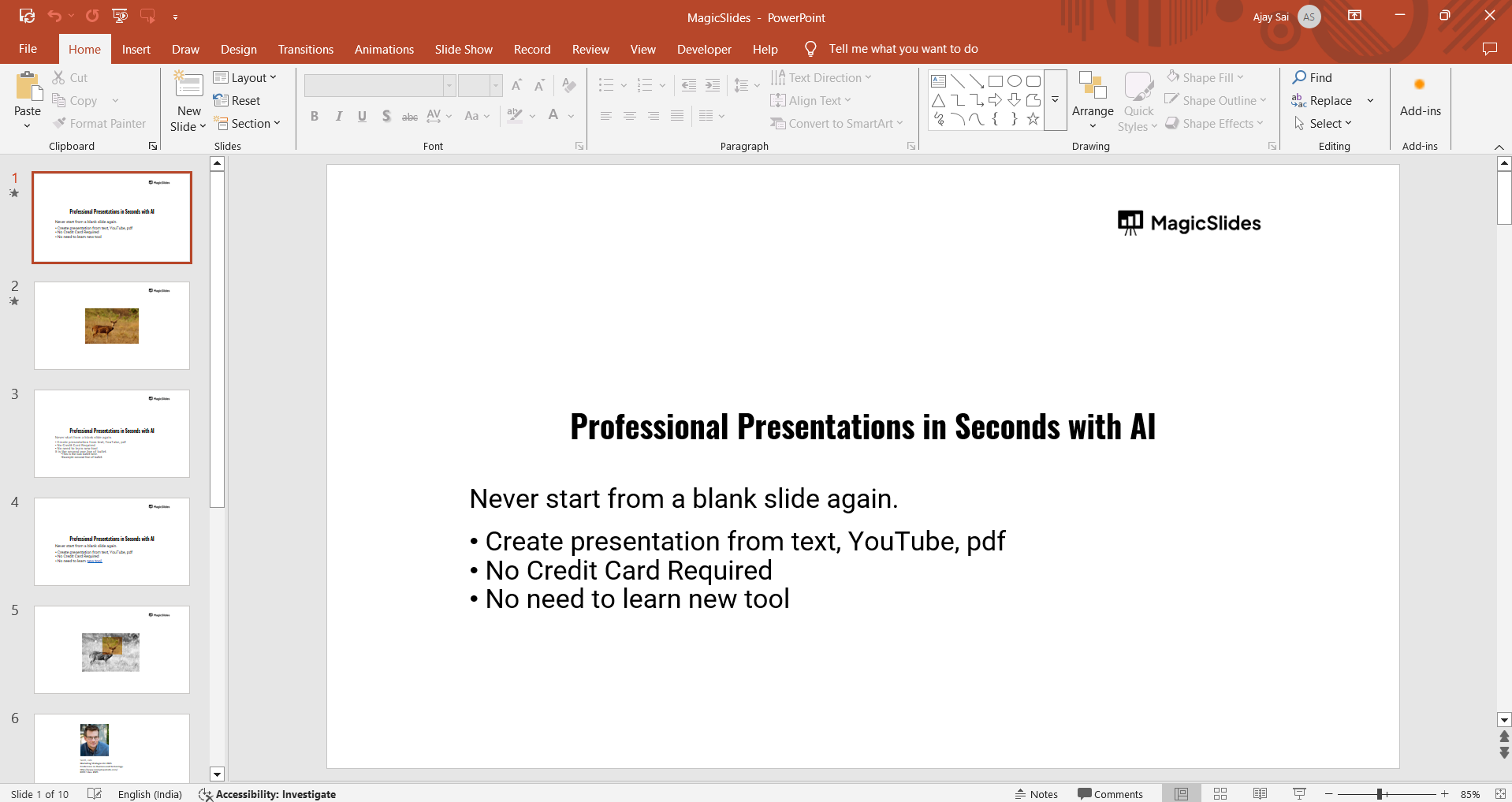
Navigate to the slide where you want to insert the hyperlink.
Step 2: Select the Text, Image, or Shape for the Link
Click on the text, image, or shape that you want to make clickable.
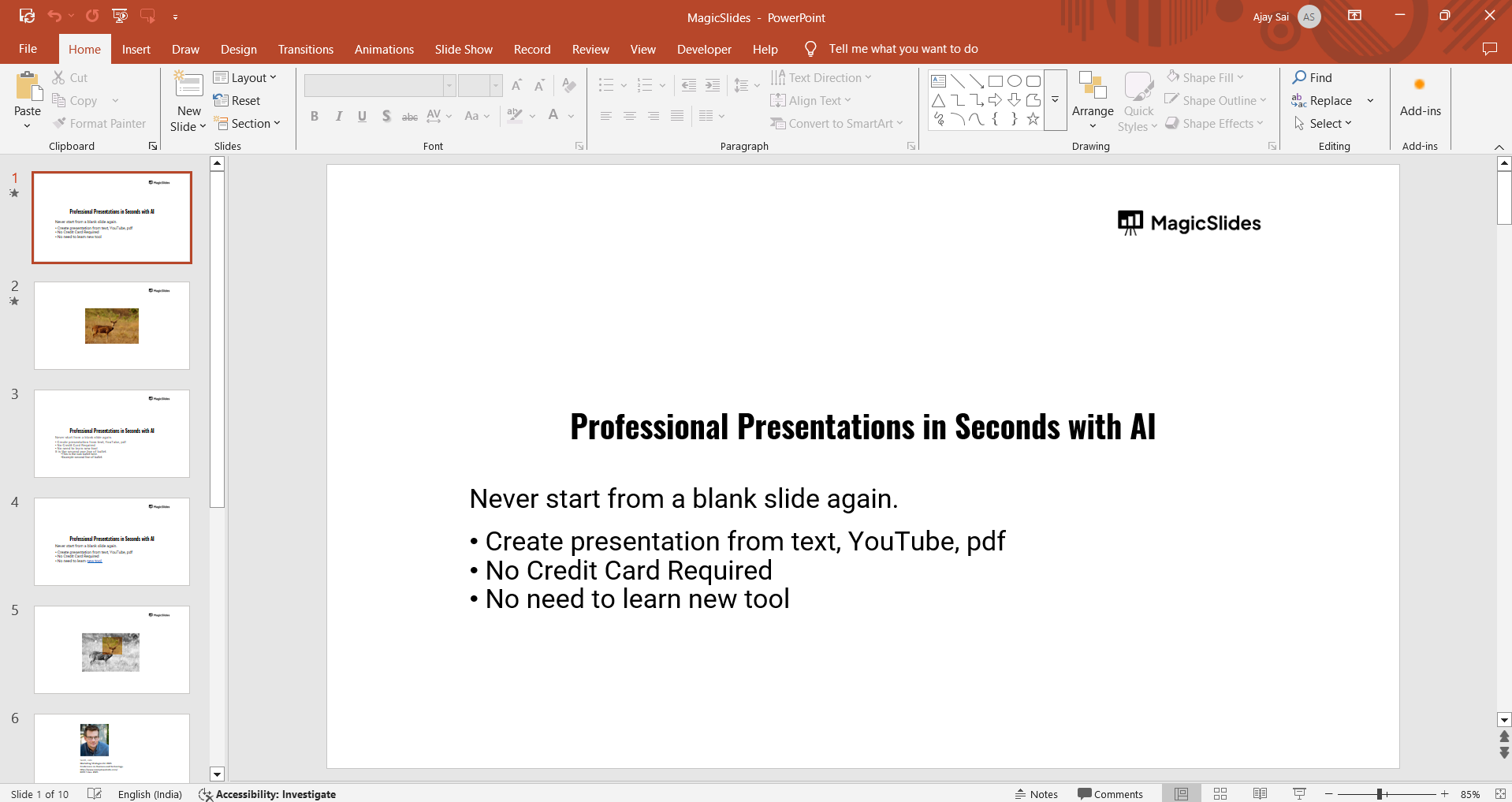
If using text, highlight the specific words you want to turn into a hyperlink.
Step 3: Open the Hyperlink Dialog Box
Go to the Insert tab in the PowerPoint toolbar. Click on Link (or press Ctrl + K on Windows / Cmd + K on Mac).
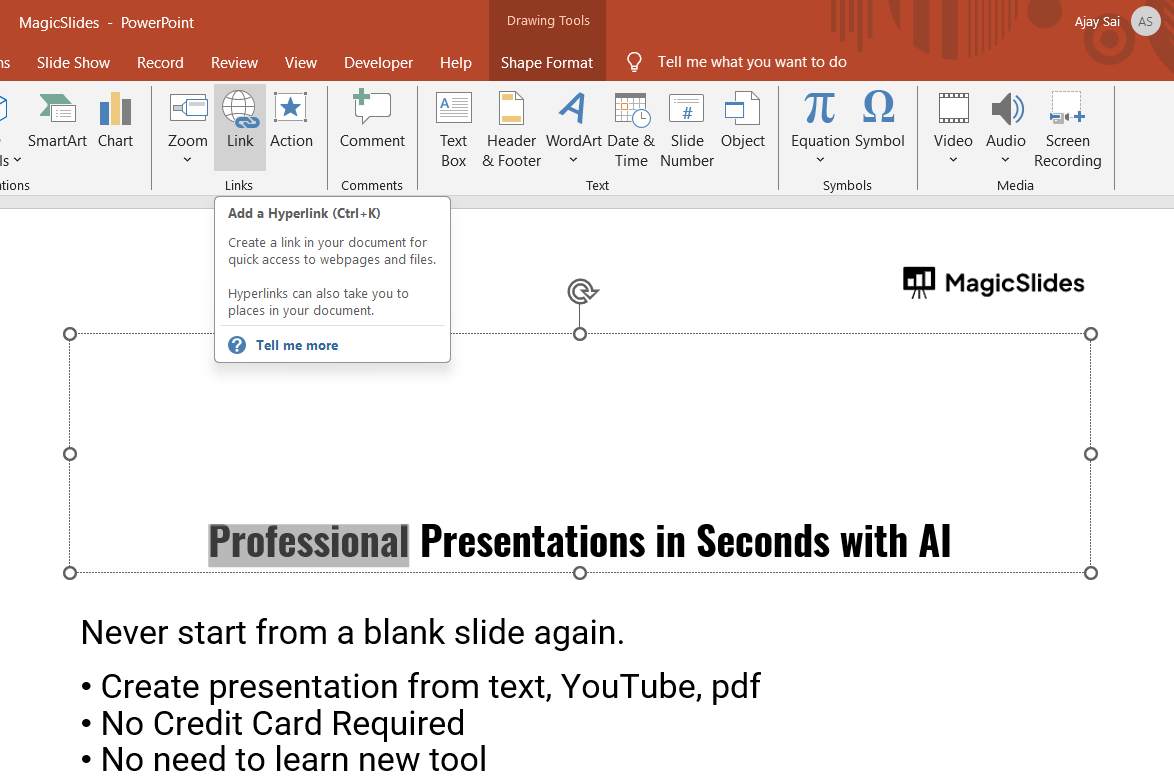
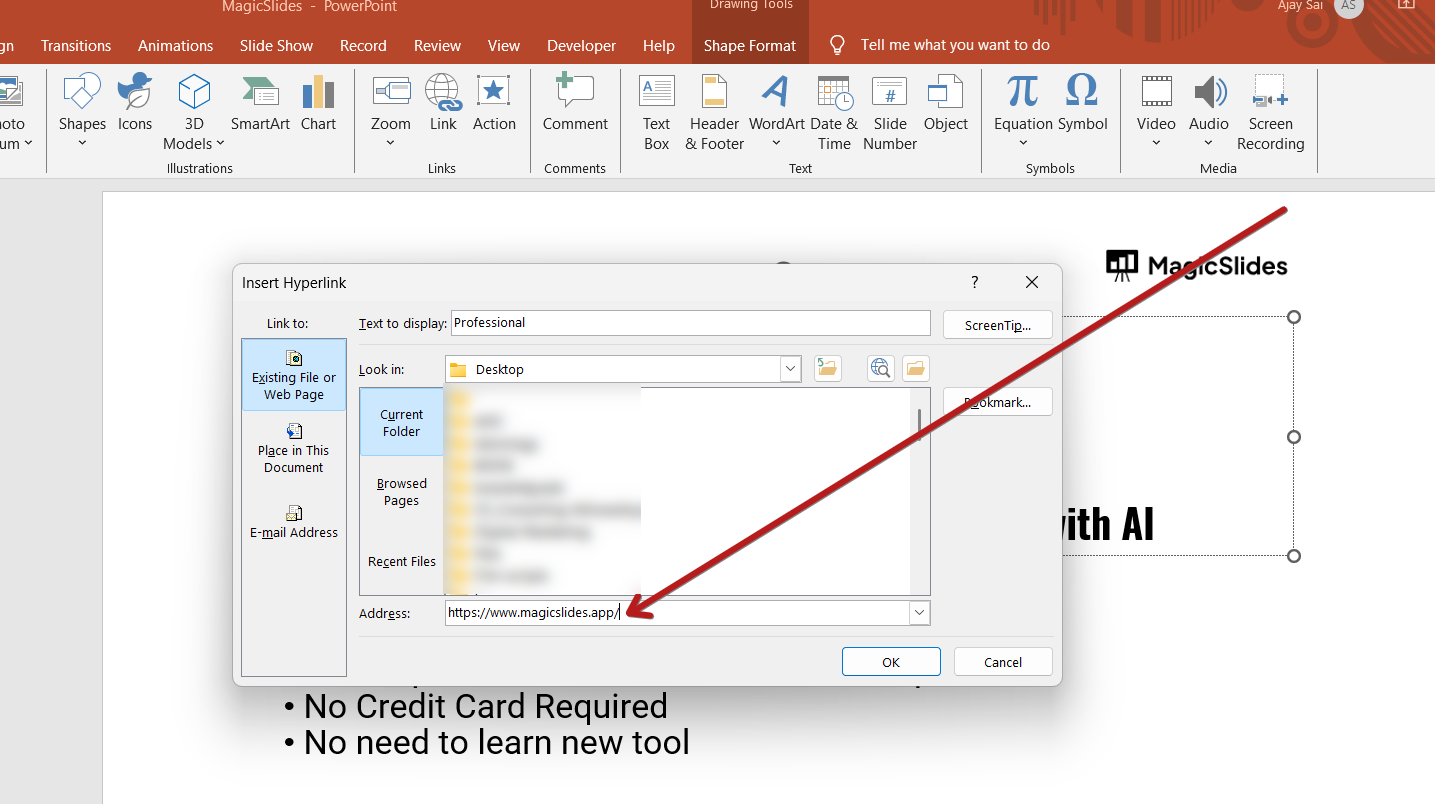
A dialog box titled Insert Hyperlink will appear.
Step 4: Enter the Website URL
In the Insert Hyperlink dialog box, locate the Address field at the bottom.

Type or paste the website URL you want to link to (e.g., https://www.example.com).
Step 5: Confirm and Apply the Link
Click OK to apply the hyperlink. Your selected text, image, or shape is now linked to the website.
Step 6: Test the Hyperlink
Switch to Slide Show mode by pressing F5 or clicking Slide Show > From Current Slide.
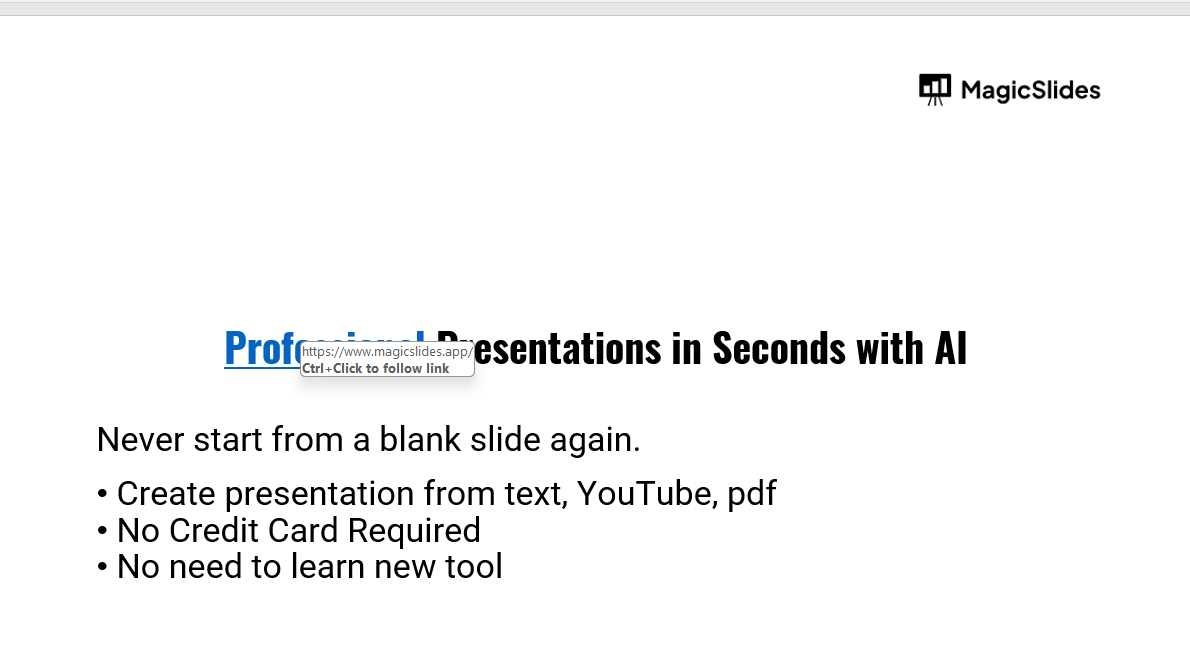
Click on the linked text, image, or shape to ensure it opens the correct website in a browser.
(Optional) Step 7: Edit or Remove a Hyperlink
To edit a hyperlink:
- Right-click on the linked text, image, or shape.
- Select Edit Hyperlink, update the URL, and click OK.
To remove a hyperlink:
- Right-click on the hyperlink.
- Choose Remove Hyperlink to unlink it.
Adding website links in PowerPoint enhances interactivity. Want an even quicker way to create engaging slides? MagicSlides.app lets you generate AI-powered presentations instantly from any topic or content!
Conclusion
Inserting a website link in PowerPoint is a simple yet powerful way to enhance presentations by connecting viewers to external resources.
By following these steps, you can create interactive slides that improve engagement and accessibility.
FAQs can come handy!
Can I add multiple links to one slide?
Yes, you can add multiple hyperlinks to different text, images, or shapes on the same slide.
Why is my hyperlink not working in PowerPoint?
Ensure that the URL is correct and that you are testing the link in Slide Show mode, not in the normal editing view.
Can I link to a specific section of a website?
Yes, if the website supports anchor links, you can add them at the end of the URL (e.g., https://example.com#section).


