How to insert a word document into powerpoint


Seamless integration: Elevate your PowerPoint with ease by inserting Word documents—Insert > Object > Create from file.
Improve your PowerPoint presentations by effortlessly incorporating Word documents. Follow this step-by-step guide for a seamless integration using one effective method.
How to insert a word document into powerpoint
- Choose the Desired Slide:
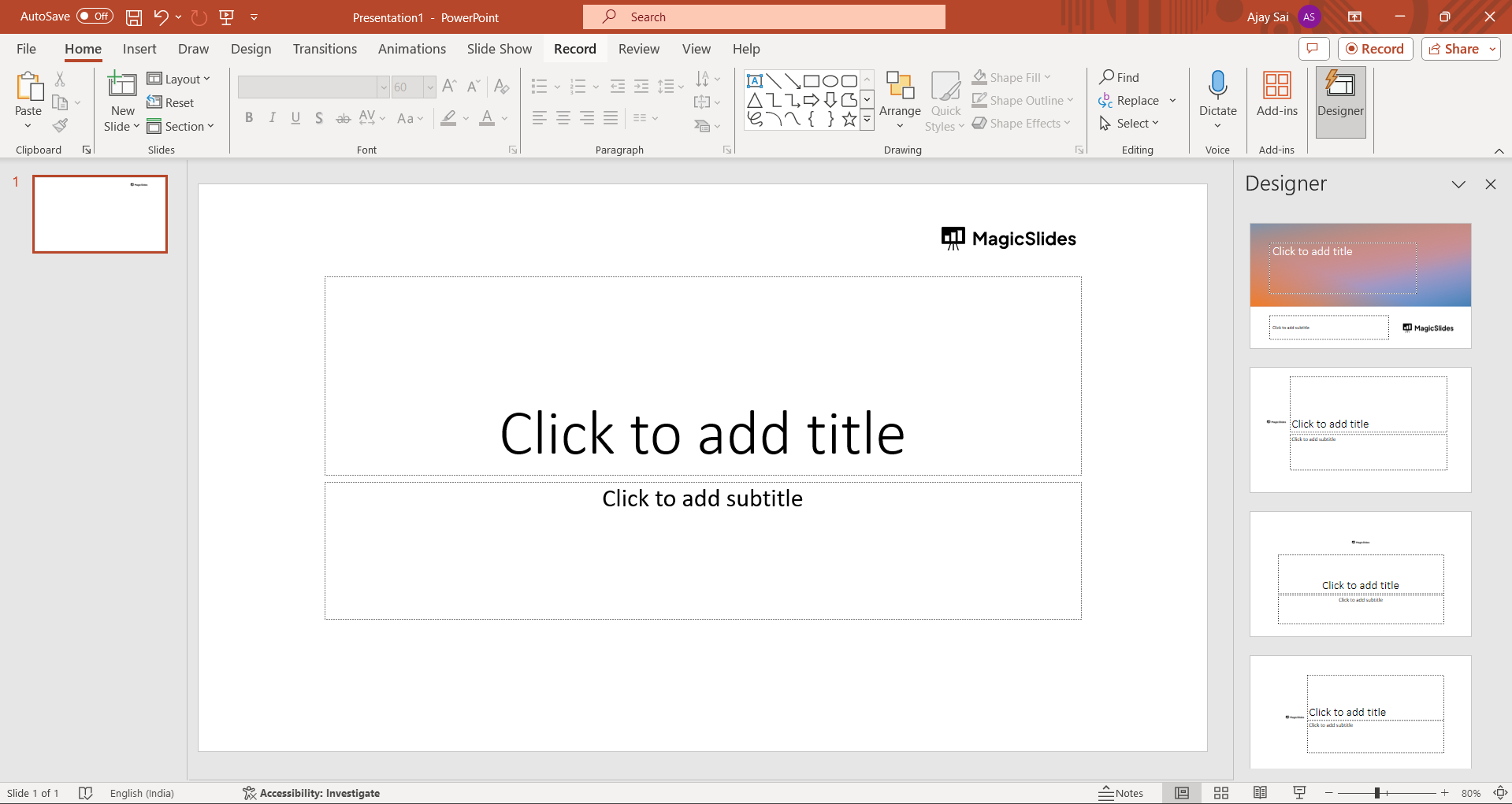
- Open your PowerPoint presentation.
- Navigate to the slide where you want to embed the Word document.
- Access the Insert Menu:
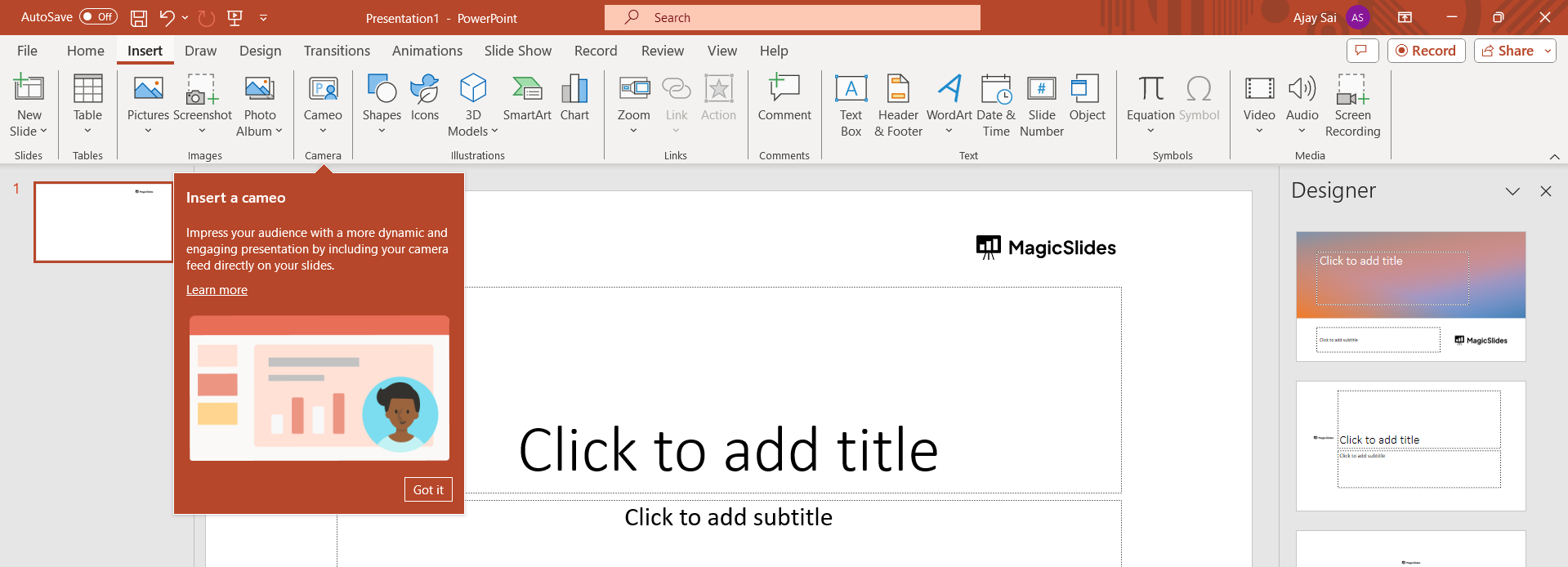
- Click on the “Insert” tab in the PowerPoint menu.
- Select Object:
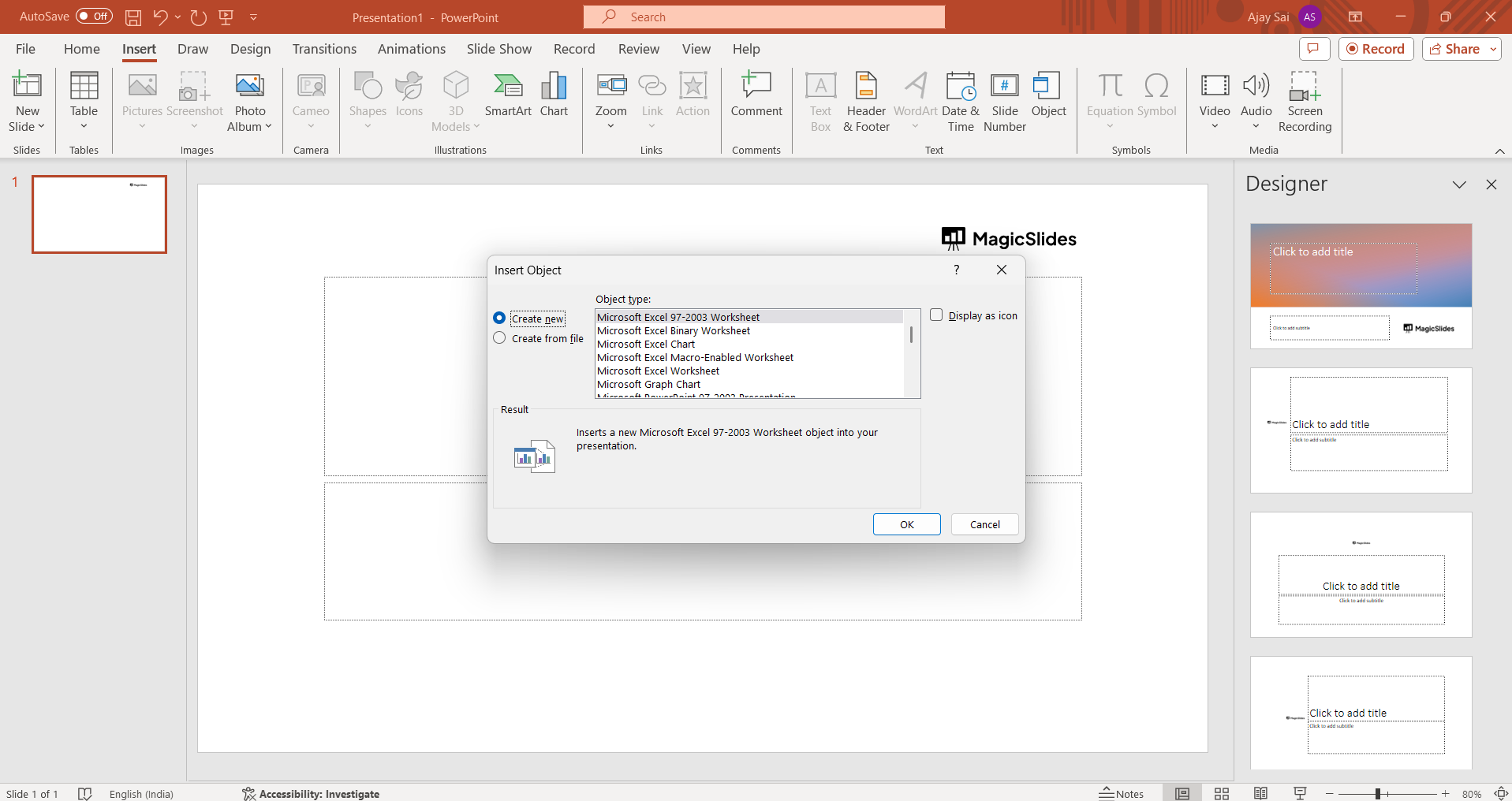
- Click on “Object” in the dropdown menu. This opens the “Insert Object” dialog box.
- Create from File:
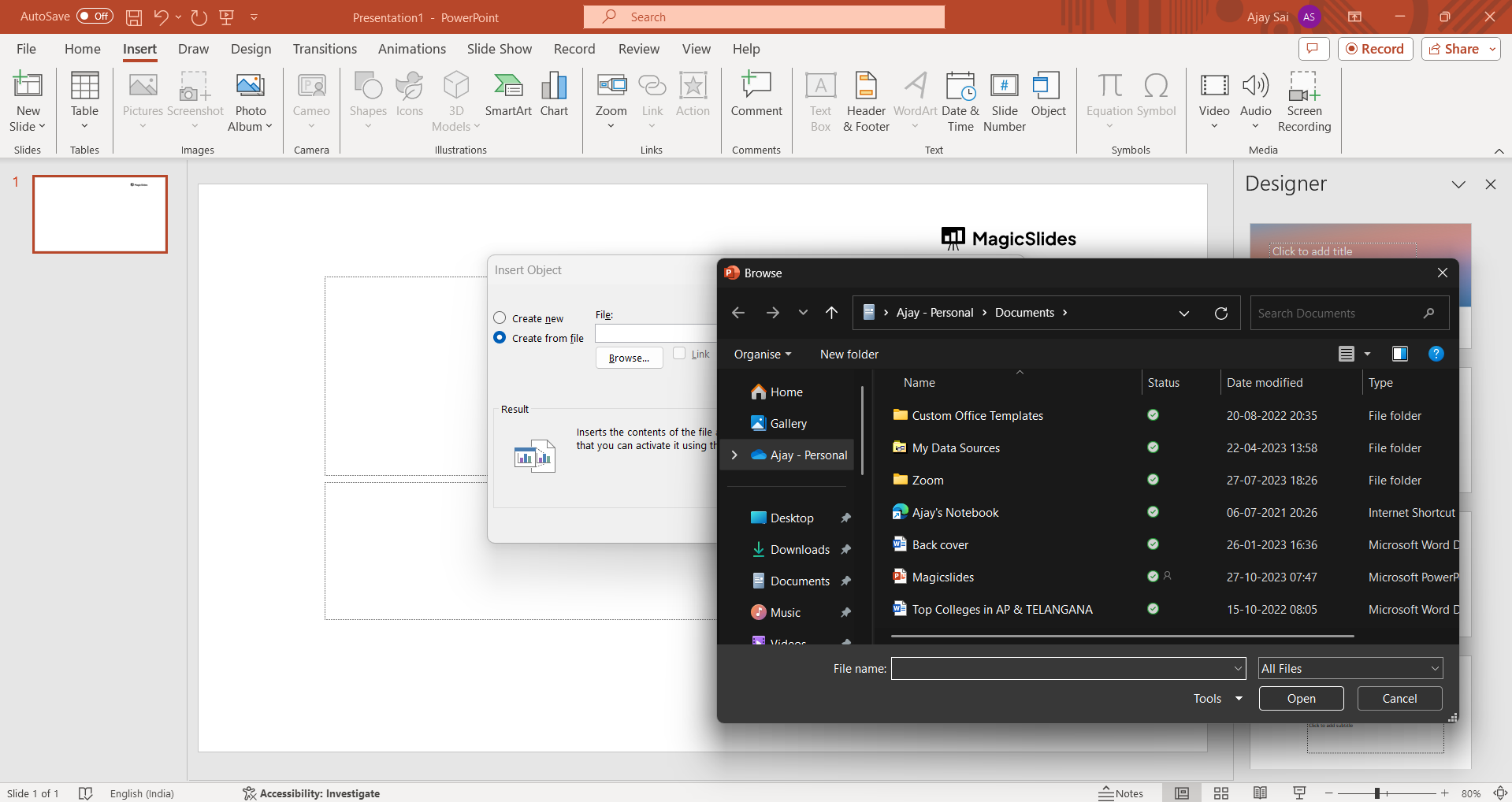
- If your Word document is already created and named, select “Create from file” within the dialog box.
- Browse and Insert:
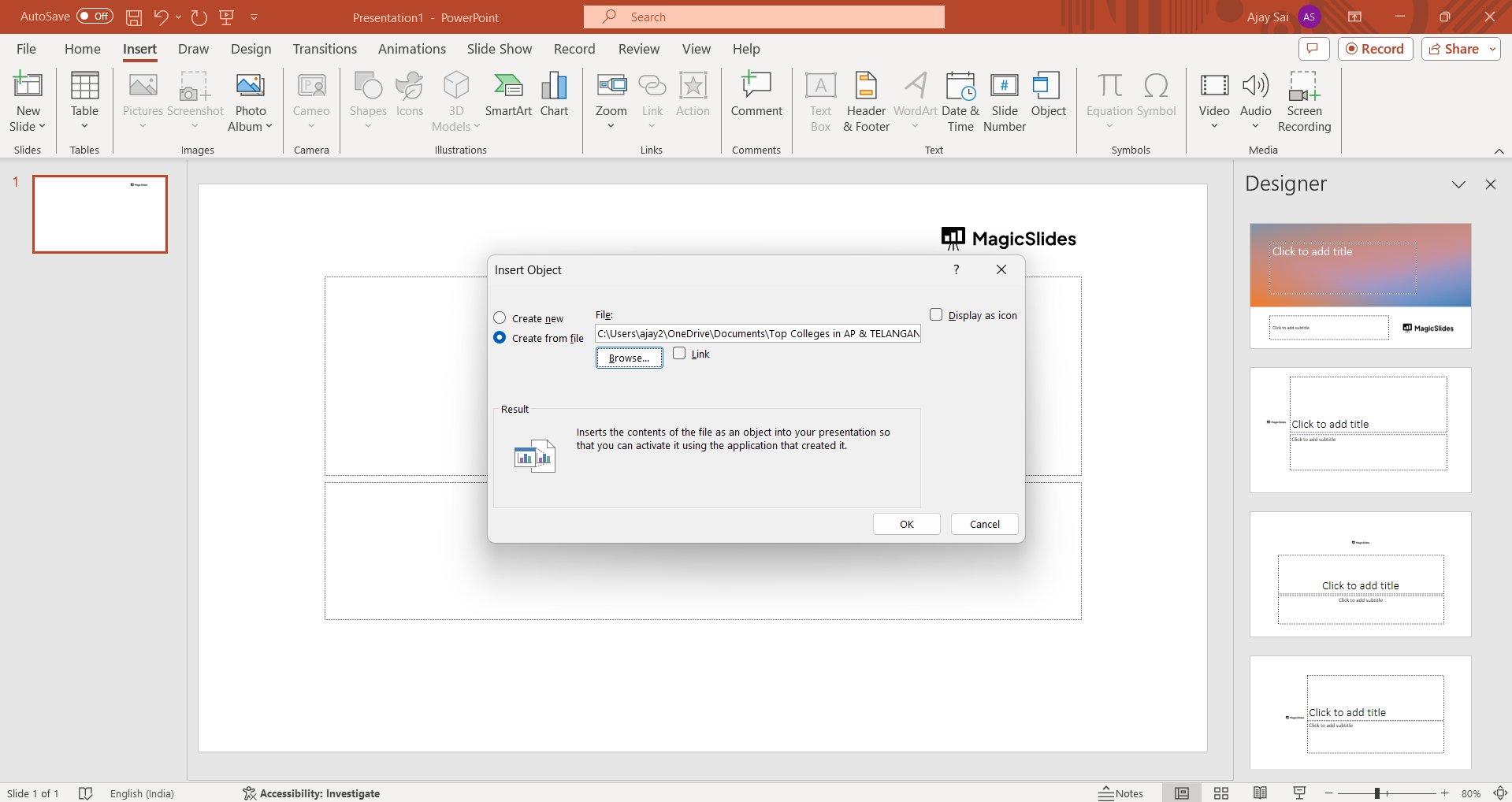
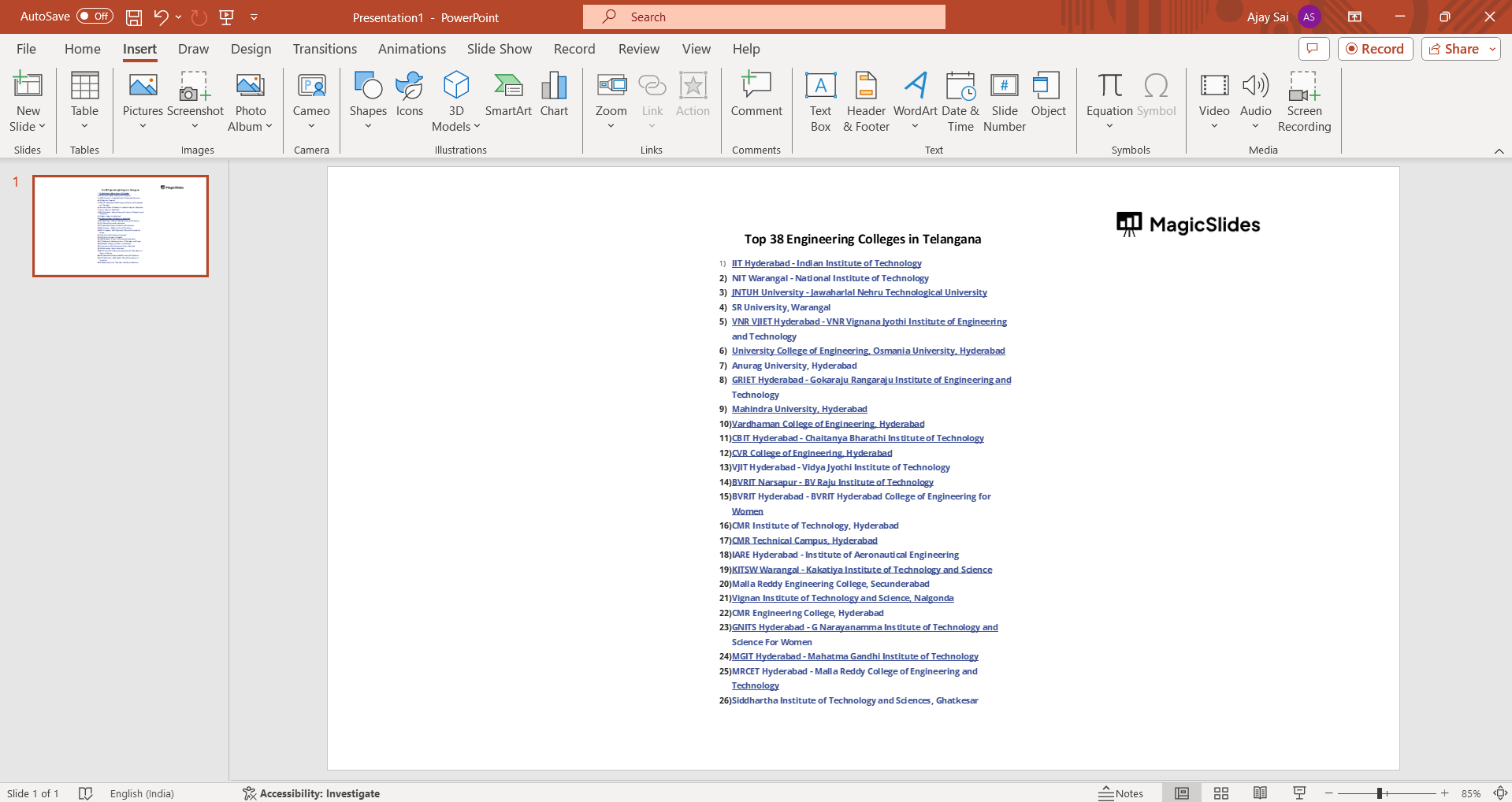
- Click “Browse” to locate and select your Word document.
- Ensure “Link” and “Display as icon” options are unchecked for seamless integration.
- Click “OK” to insert the Word document as an object on the selected slide.
Conclusion:
By employing this method, you can effortlessly embed your Word documents into PowerPoint, creating a more cohesive and engaging presentation experience for your audience. Experiment with this technique to find the perfect balance between textual and visual elements in your slides.
Frequently Asked Questions:
Q: Why would I need to insert a Word document into PowerPoint?
Ans: Integrating a Word document into PowerPoint can be beneficial for seamlessly combining textual content and detailed information, making your presentation more comprehensive and engaging.
Q: Can I edit the Word document within PowerPoint after inserting it?
Ans: No, the Word document becomes an object in PowerPoint. While you can view and scroll through the content, any edits must be made in the original Word document. Updating the Word file will automatically reflect the changes in PowerPoint.
Q: Are there different methods to insert a Word document into PowerPoint?
Ans: Yes, there are multiple methods. One common approach is to insert the document as an object. Another method involves using the document as an outline to structure your PowerPoint slides. The choice depends on your specific needs and how you want to present the information.


