How to Insert Excel in PPT – Quick Steps to Add Excel to PowerPoint


Learn how to insert Excel in PowerPoint using 6 easy methods. Add Excel tables, charts, worksheets, linked data, and more with step-by-step instructions.
If you’re preparing a presentation and need to add data, charts, or tables from Excel, PowerPoint offers several simple ways to bring that content into your slides. You can copy and paste Excel data, embed a worksheet, link Excel data to PowerPoint, insert an entire workbook as an object, or add Excel charts directly to your presentation.
In this guide, I’ll explain how to insert Excel into PowerPoint using six practical methods, along with step-by-step instructions for each approach. I’ll also explain when to use embedded data, linked data, or static images so you can choose the method that best fits your presentation.
Why Insert Excel Data into PowerPoint?
There are several reasons why you may want to bring Excel data into a PowerPoint presentation. Instead of manually retyping numbers and tables, you can use existing Excel data and present it in a more visual and organized format.
Here are some of the main benefits:
- Present data clearly: Add Excel tables and charts to make complex information easier to understand.
- Reduce manual errors: Copy existing Excel data instead of retyping it into PowerPoint.
- Maintain accurate calculations: Use Excel’s formulas and calculations as the source for your presentation data.
- Create professional presentations: Well-formatted tables and charts can make reports and presentations look more organized.
- Save time: Reuse ready-made Excel data instead of recreating tables and charts from scratch.
- Simplify reports and dashboards: Bring relevant Excel data into PowerPoint to create clean, presentation-ready reports and dashboards.
The best method depends on how you plan to use the Excel data. For example, you can embed the data when you want to keep an editable copy inside PowerPoint, link it when the Excel source will continue to change, or paste it as a picture when you only need a static version. Microsoft also notes that embedded Excel content becomes part of the PowerPoint file, while linked content can be updated from its source workbook.
Now, let’s look at the different ways you can insert Excel data into PowerPoint.
How to Insert Excel in PPT?
Importing Excel into PowerPoint is one of the most straightforward and quick tasks with these methods, i.e.
#Method 1. Insert Excel as an Embedded Table
If you want to add Excel to PowerPoint for one time, and afterwards, you want to edit imported data directly within Microsoft PowerPoint, then this technique works best for you. Here are the steps for the same:
- Open the PowerPoint slide.
- Go to Insert > Table > Excel Spreadsheet.
- PowerPoint will open a mini Excel sheet directly inside the slide.
- Paste the data into this sheet or type it manually.
- Click outside the Excel box to return to PowerPoint mode.
This method is useful when you want the Excel data to remain editable inside PowerPoint without maintaining a connection to the original workbook. However, because the Excel content is embedded in the presentation, it can increase the PowerPoint file size, especially when you insert a large amount of Excel data.
Best for: presentations where you need an editable Excel worksheet but do not need the data to update automatically from the original Excel file.
#Method 2. Copy-Paste from Excel
If you want a quick solution but don’t need ongoing updates, then this technique is helpful for you:
- Open the Excel file and copy the required range.
- Open PowerPoint and go to the desired slide.
- Right-click > choose one of these paste options:
- Use Destination Styles
- Keep Source Formatting
- Picture
Personally, I don’t like this solution, as it doesn’t allow further modification of the uploaded data. Still, if you want a quick and free solution, without needing any data adjustment after adding it to the PPT, then you can definitely try this for free.
Also read: Convert Canva Presentations to PowerPoint
#Method 3. How to Insert Excel in PPT as a Linked Object
This is my preferred method when I’m presenting monthly reports where numbers keep changing.
- Copy the Excel range you want.
- In PowerPoint, right-click and choose Paste Special.
- Select Paste Link.
- Choose Microsoft Excel Worksheet Object.
Important Note: Because the PowerPoint slide depends on the original Excel workbook, the source file must remain available at its linked location. If you move, rename, delete, or otherwise make the Excel file inaccessible, the PowerPoint link may no longer work correctly.
For this reason, linked Excel data is most suitable when you regularly update the source workbook and want those changes to be reflected in your presentation.
Best for: monthly reports, financial presentations, dashboards, and other presentations where Excel data changes frequently.
#Method 4. Add Excel to PowerPoint as an Object
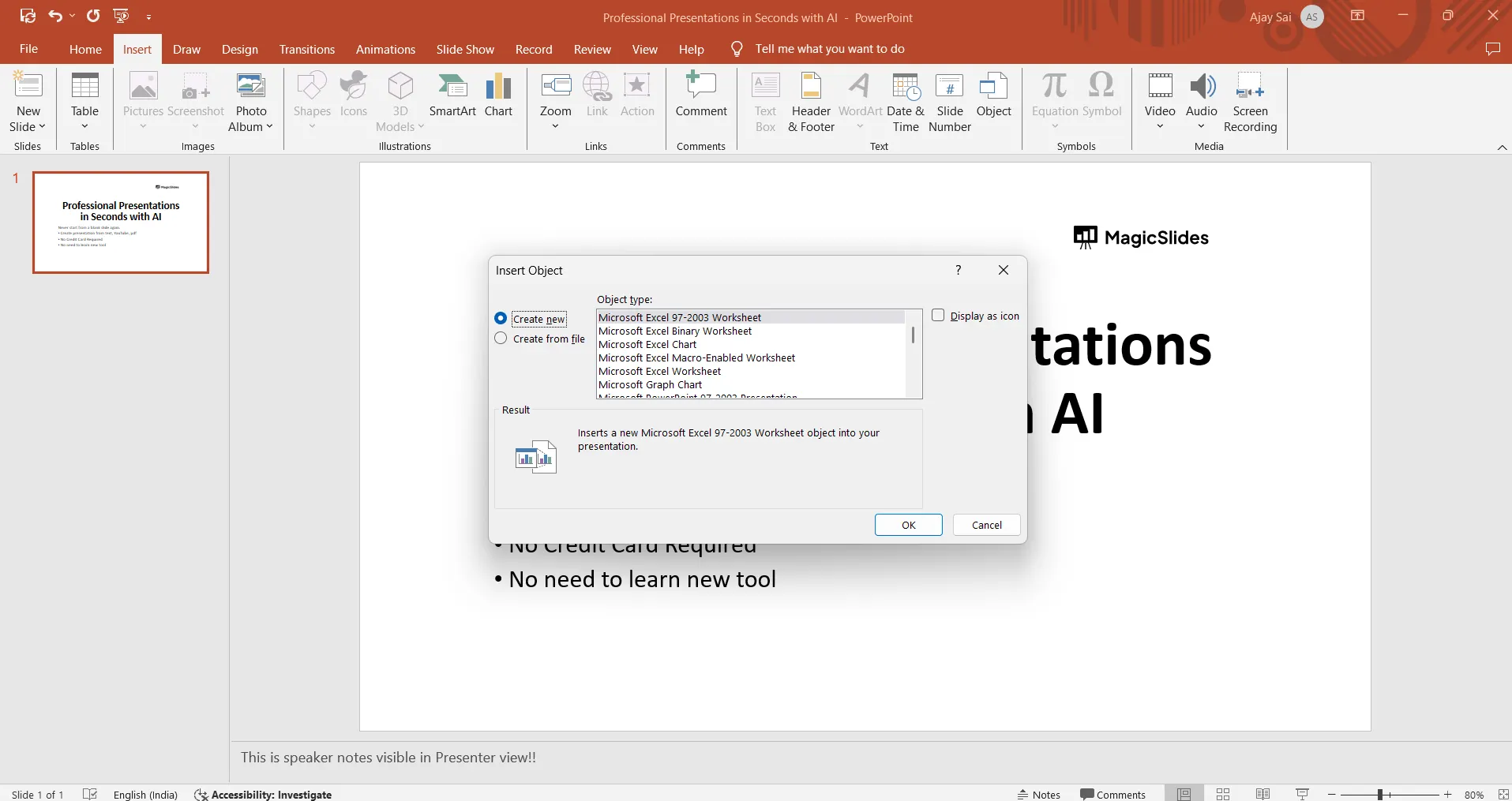
If you want to include an entire Excel workbook in your PowerPoint presentation for reference, you can insert it as an object. This method is useful when you want viewers to be able to open the workbook from the presentation instead of displaying only a selected range of cells.
- Go to Insert > Object.
- Select Create from file.
- Click Browse and choose your Excel file.
- To show the workbook as a clickable icon instead of displaying its contents on the slide, select Display as icon. (optional).
- Click OK to insert the workbook into the presentation.
If you embed the workbook, a copy of the Excel file becomes part of the PowerPoint presentation. You can typically open and edit the embedded workbook by double-clicking the object. If you select Link instead, PowerPoint maintains a connection to the original Excel file, so changes to the source workbook can be reflected in the presentation.
Best for: attaching an entire Excel workbook to a presentation when you want to open the file later for reference or editing.
#Method 5. Insert Excel Chart into PPT
If you have already created a chart in Excel, you can copy it directly into PowerPoint instead of creating the same chart again. This is particularly useful when your chart is based on a large dataset or when the underlying Excel data changes regularly.
- Create a chart in Excel.
- Click on the chart and copy it.
- Go to PowerPoint > Right-click > Paste Options:
- Use Destination Theme & Link Data
- Keep Source Formatting & Link Data
- Picture
Best for: financial reports, dashboards, sales presentations, business reviews, and other presentations that rely on Excel-based charts.
#Method 6. How to Insert Excel in PPT Automatically
If you need to convert multiple Excel sheets or large datasets into presentation-ready slides, manually copying and formatting each sheet can become time-consuming. In such cases, an Excel-to-PowerPoint AI converter can help automate the process.
One option is AI Excel to PPT Converter, which is designed to turn Excel spreadsheets into PowerPoint presentations. According to MagicSlides, the tool supports XLS, XLSX, and CSV files and can generate presentation slides containing tables, charts, and data visualizations. The resulting presentation can then be edited as a PowerPoint file.

This solution is highly recommended if you have large Excel files and want to quickly turn them into clean PowerPoint slides. With just a detailed prompt, your Excel to PowerPoint conversion process will be done in seconds.
So, try this solution now for free, and follow these steps to add Excel to PowerPoint:
- Step 1. Upload the Excel file to the solution.
- Step 2. Choose the type of presentation you want, like business or educational style.
- Step 3. Write a simple prompt like: Convert this Excel data into professional PowerPoint slides. Use simple layouts, and well-structured tables and charts.
- Step 4. The tool automatically creates PowerPoint slides from my Excel data.
After that, wait for seconds, and it automatically builds a complete PPT for you, which you can download and use directly.
Enhance Your PowerPoint After Inserting Excel Data
After finishing inserting Excel data into PowerPoint, most of the time, I want to enhance my slides to make them look more professional and engaging.
Manually modifying multiple slides becomes time-consuming, especially when I need to add images or videos to them. To do this faster, I found an automated solution, i.e. MagicSlides AI Presentation Generator.

It helps me automatically improve the design and overall look of my presentation without manually adjusting every slide. This is fast and free(for a limited time period) to use. Additionally, after uploading the PPTX file in this, you just have to enter a prompt, like:
“Improve the overall design of this PowerPoint. Make the slides professional and modern.”
After that, it handles the rest automatically. You can also try this for free and see its performance and readability. This is especially useful for those who have to create professional presentations regularly or periodically.
How to Insert Excel in PPT Smoothly – Best Practices
Now, we have learned all the solutions to import Excel into PowerPoint, and how to modify further. But still, sometimes users face some issues while performing the uploading procedure. So, to avoid any type of issue, here is the checklist to follow:
- Keep Excel tables small and easy to read on a slide.
- Use the same font style in Excel and PowerPoint.
- Use charts when you want to explain data quickly and clearly.
- Align tables and charts so the slide looks clean.
- Leave space on the slide so it does not look congested.
- Check the file size to make sure the presentation opens smoothly.
- Always run the slideshow once to make sure everything looks correct.
Related guide: How to Add a YouTube Video to PowerPoint
Author’s Verdict
Easily inserting Excel into PowerPoint is just about choosing the right method based on the purpose of the slide. That’s why, in this discussion, I’ve shared how to insert Excel in PPT via six different methods, with step-by-step guidelines.
Not only this, but after uploading the Excel into PPT, if you want to modify it, then you can opt for MagicSlides AI for automatic and desired results in seconds.
Quick FAQs on How to Add Excel to PowerPoint
Q1. How can I insert an editable Excel sheet in PowerPoint?
To open an editable mini Excel sheet right inside PowerPoint, where you can type or paste data:
- Open Excel.
- Select the Insert option.
- Afterwards, hit the Table > Excel Spreadsheet.
Q2. Why does my Excel data formatting change in PowerPoint?
PowerPoint applies its theme automatically. You can fix this by selecting Keep Source Formatting when pasting instead of using the default option.
Q3. Why is my Excel chart blurry in PowerPoint?
This happens due to image compression. You can fix this by using Paste as Picture instead of a standard image format.


