How to Insert Pictures in PowerPoint as Individual Slides


Easily insert multiple pictures as individual slides in PowerPoint using this step-by-step guide
Incorporating pictures into your PowerPoint presentation is a great way to make it visually appealing.
If you need to add multiple pictures and display each one on its own slide, PowerPoint offers easy methods to achieve this.
Follow this step-by-step guide to insert pictures as individual slides seamlessly.
Steps to Insert Pictures in PowerPoint as Individual Slides
Step 1: Open Your PowerPoint Presentation
Launch PowerPoint and open the presentation where you want to add the pictures.
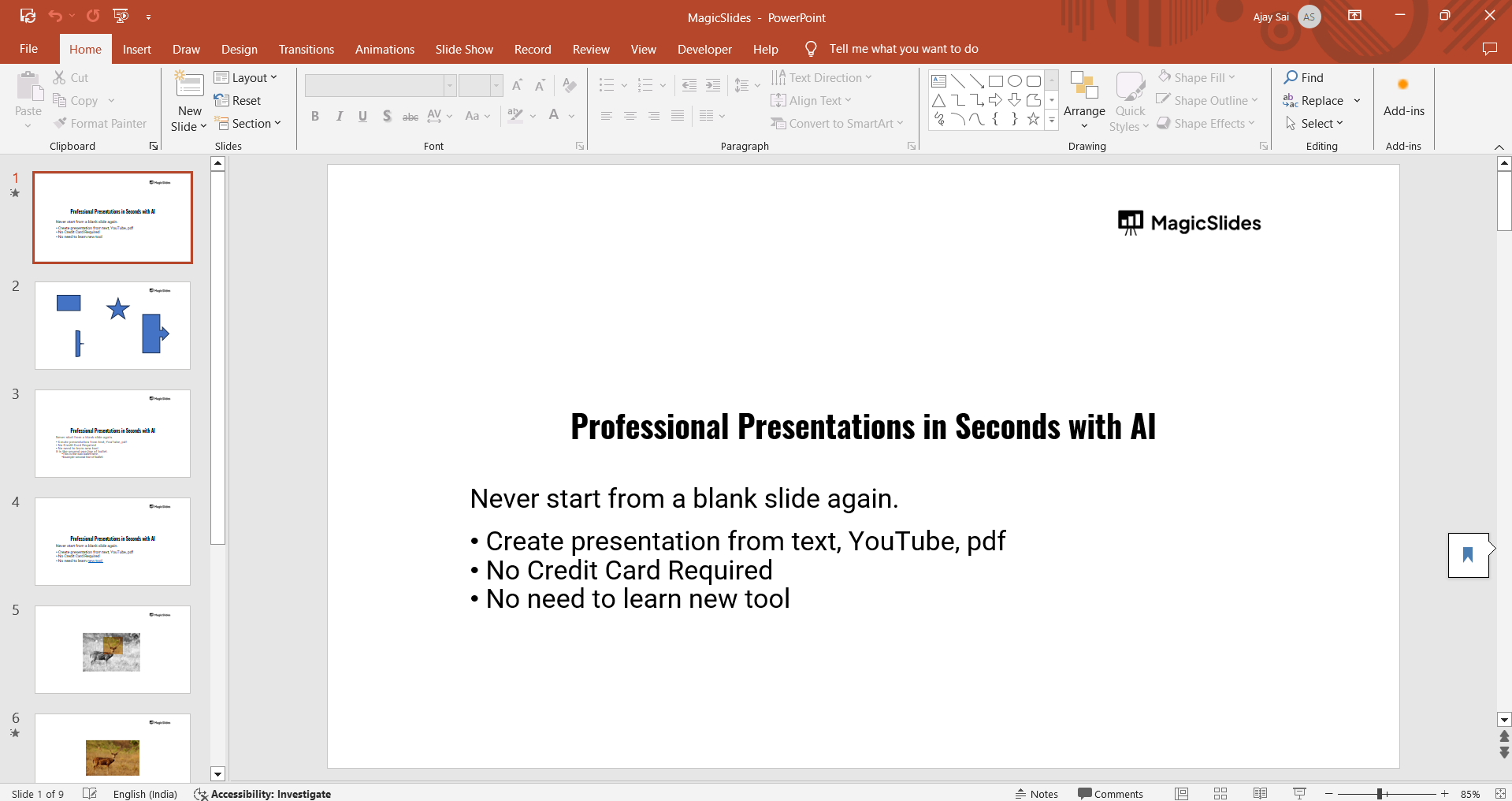
Alternatively, create a new presentation if you are starting from scratch.
Step 2: Access the "Insert" Tab
Navigate to the top menu bar and click on the “Insert” tab.
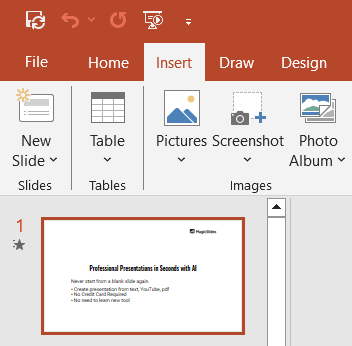
This tab provides various options for adding elements to your slides.
Step 3: Use the "Photo Album" Feature
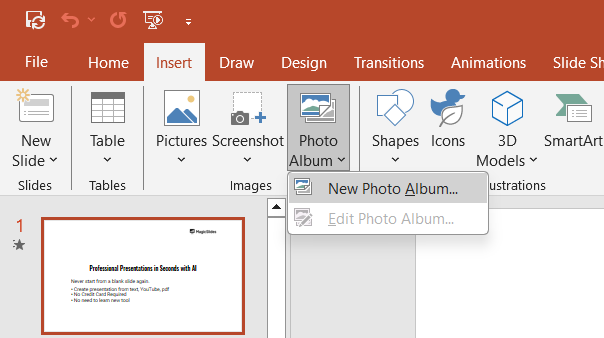
In the Insert tab, locate and click on the “Photo Album” dropdown menu.
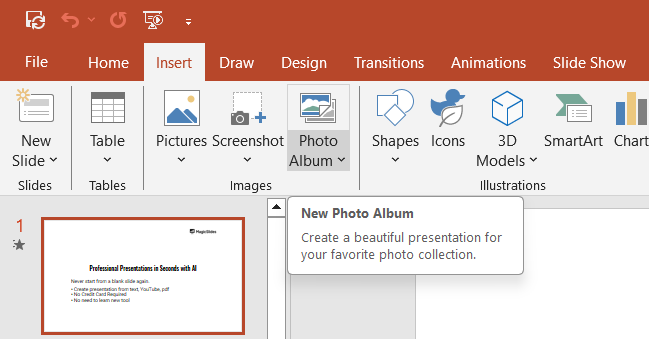
Select “New Photo Album.” A dialog box will appear.
Step 4: Select Pictures to Add
In the Photo Album dialog box, click the “File/Disk” button. Browse your computer to locate the pictures you want to insert. Hold down the Ctrl (Windows) or Cmd (Mac) key to select multiple pictures.
Click “Insert” to load the selected pictures into the Photo Album dialog.
Step 5: Adjust Photo Album Settings
In the Photo Album dialog box, ensure the “Fit to Slide” option is selected under Picture Layout to place one picture per slide.
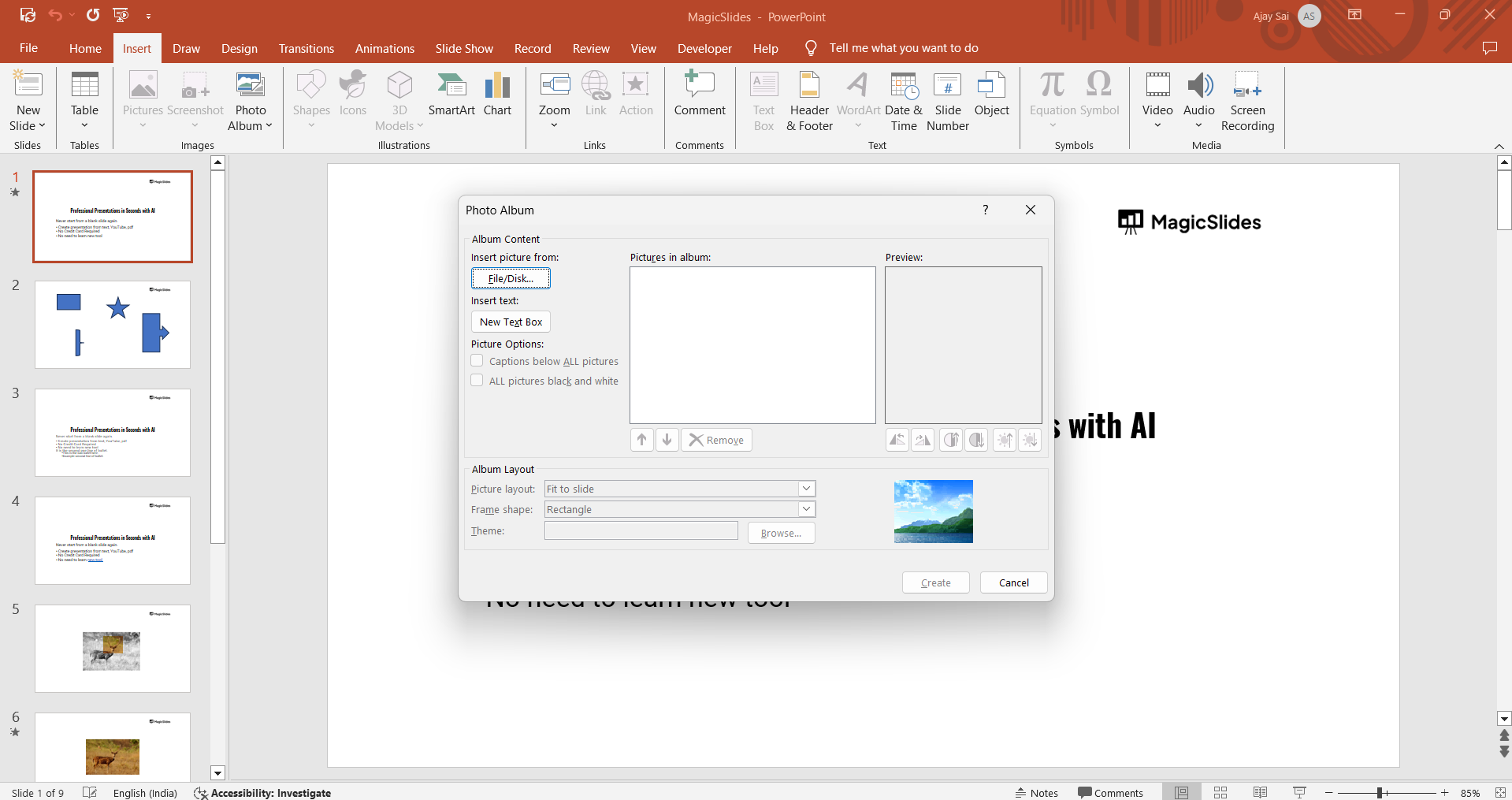
Optionally, rearrange the order of pictures by selecting a file and using the up and down arrows.
Click “Create” to add the pictures as individual slides to your presentation.
Step 6: Review and Customize Slides
Once the pictures are inserted, review each slide for layout, alignment, or any additional text you want to add.
Customize the slide backgrounds or transitions for a more professional look.
Conclusion
Adding pictures as individual slides in PowerPoint is an efficient way to create visually engaging presentations.
By using the Photo Album feature, you can save time and ensure each image is properly formatted.
This simple process makes it easy to incorporate multiple images into your slides with minimal effort.
FAQs on Inserting Pictures in PowerPoint as Individual Slides
Can I insert pictures as slides without using the Photo Album feature?
Yes, you can manually insert a new slide, go to the Insert tab, and select Picture for each image. However, this is more time-consuming for multiple images.
Will the Photo Album feature affect the quality of my pictures?
No, the Photo Album feature preserves the original quality of your pictures when inserting them into slides.
Can I edit the pictures after inserting them as slides?
Yes, PowerPoint allows you to edit the pictures by adjusting their size, applying effects, or adding captions after they have been inserted.
By following this guide, you can quickly create a polished presentation filled with individual picture slides, saving both time and effort.


