How to make an image a shape in Google slides


Enhance your Google Slides with our guide on transforming images into shapes for dynamic presentations.
Adding creative flair to your Google Slides presentation is easy when you know how to turn images into shapes. This feature allows you to enhance visual appeal, making your slides more dynamic and professional. In this comprehensive guide, we'll walk you through each step, ensuring you can effortlessly transform images into shapes for a polished and captivating presentation.
How to make an image a shape in Google slides
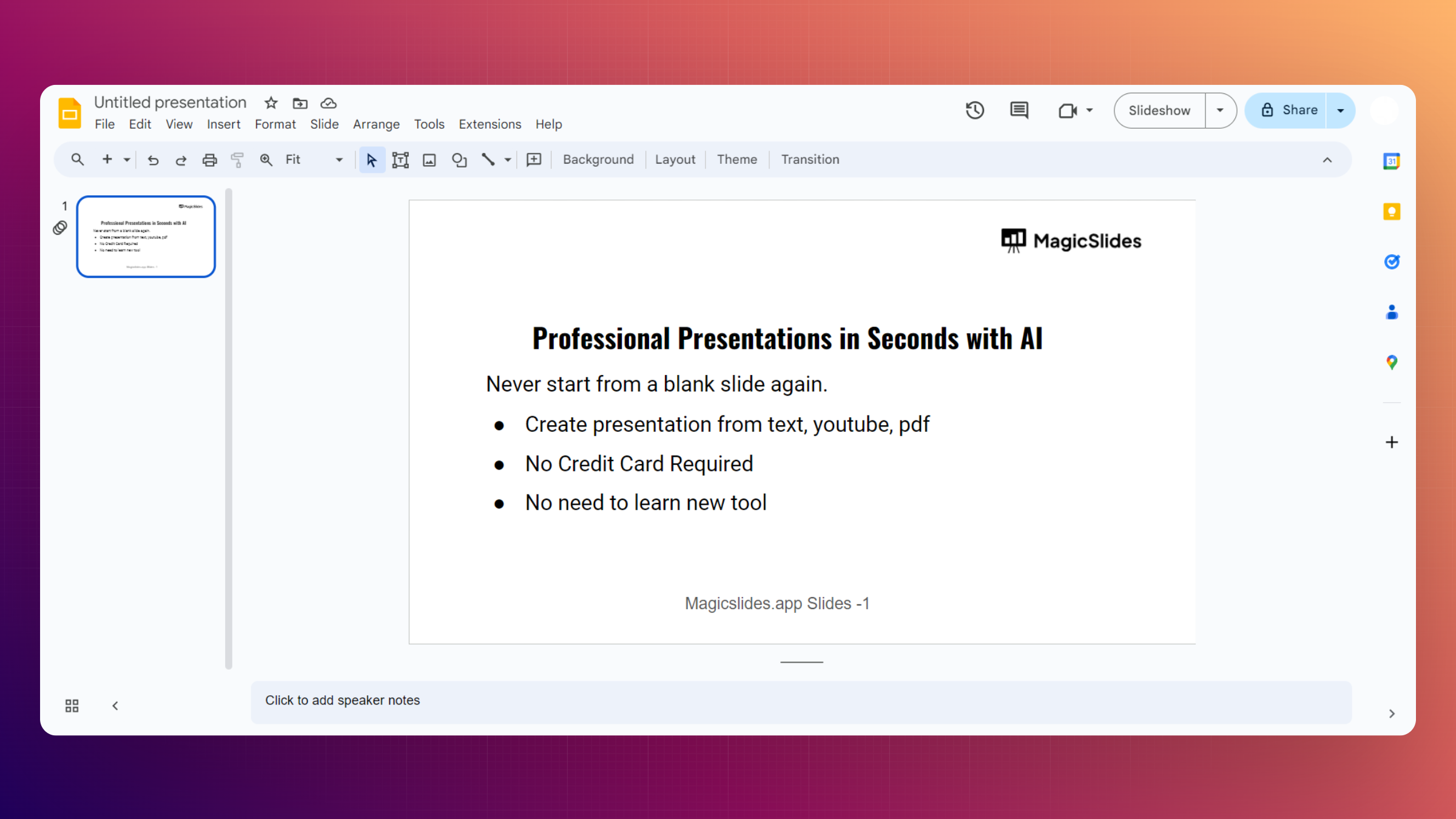
Step 1: Open Your Google Slides Presentation
Start by opening the Google Slides presentation where you want to transform an image into a shape. If you haven't begun a presentation yet, create a new one to follow along.
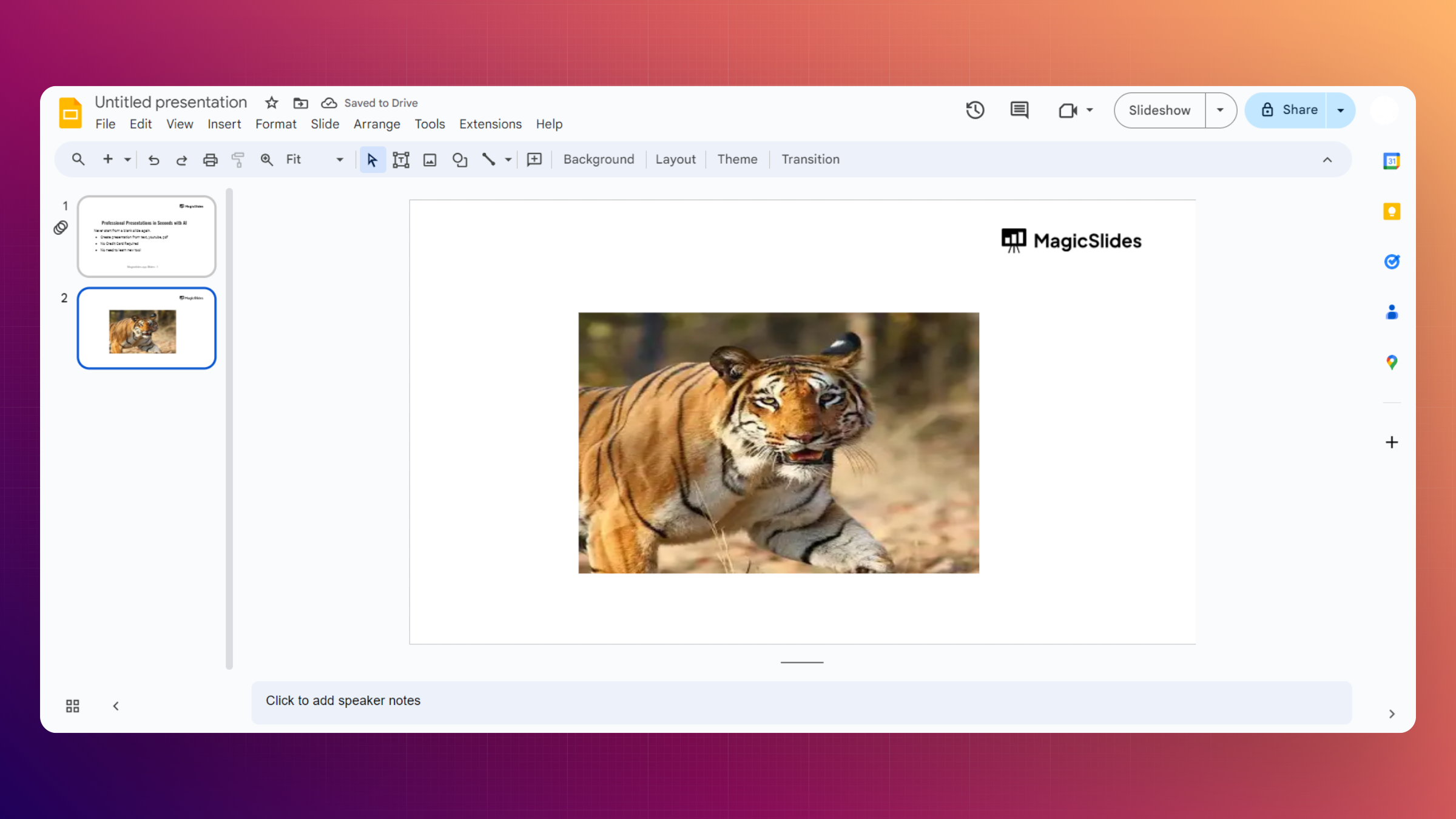
Step 2: Insert an Image
Choose the slide where you want to add the shaped image. Navigate to the "Insert" menu in the top toolbar, select "Image," and pick the source of your image (upload from your computer, Google Drive, or the web).
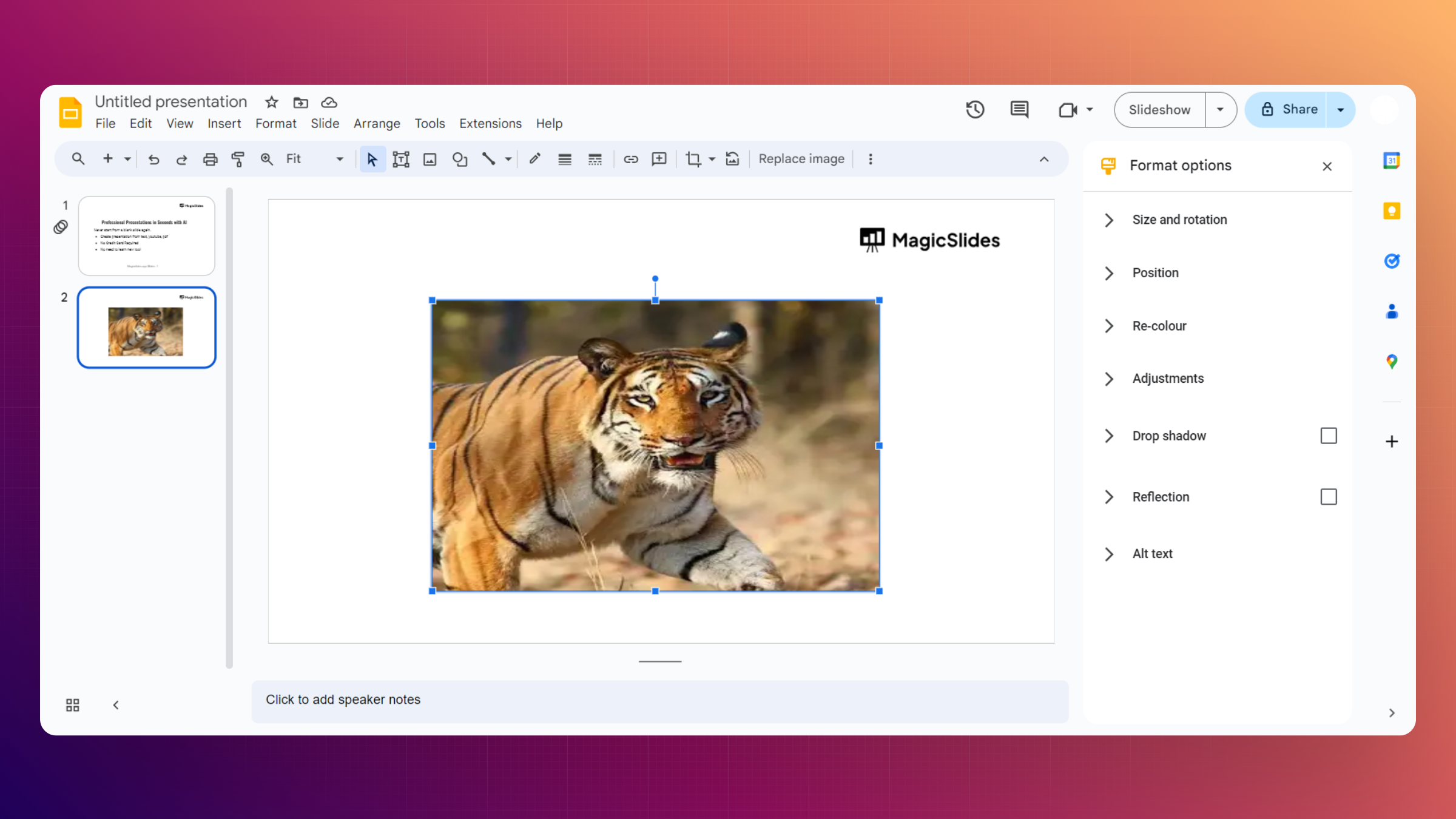
Step 3: Click on the Image
Once the image is inserted, click on it to select it. This will activate the "Format options" sidebar on the right side of the screen.
Step 4: Access the Image Crop Tool
In the "Format options" sidebar, find and click on the "Image crop" tool. A drop-down menu will appear.
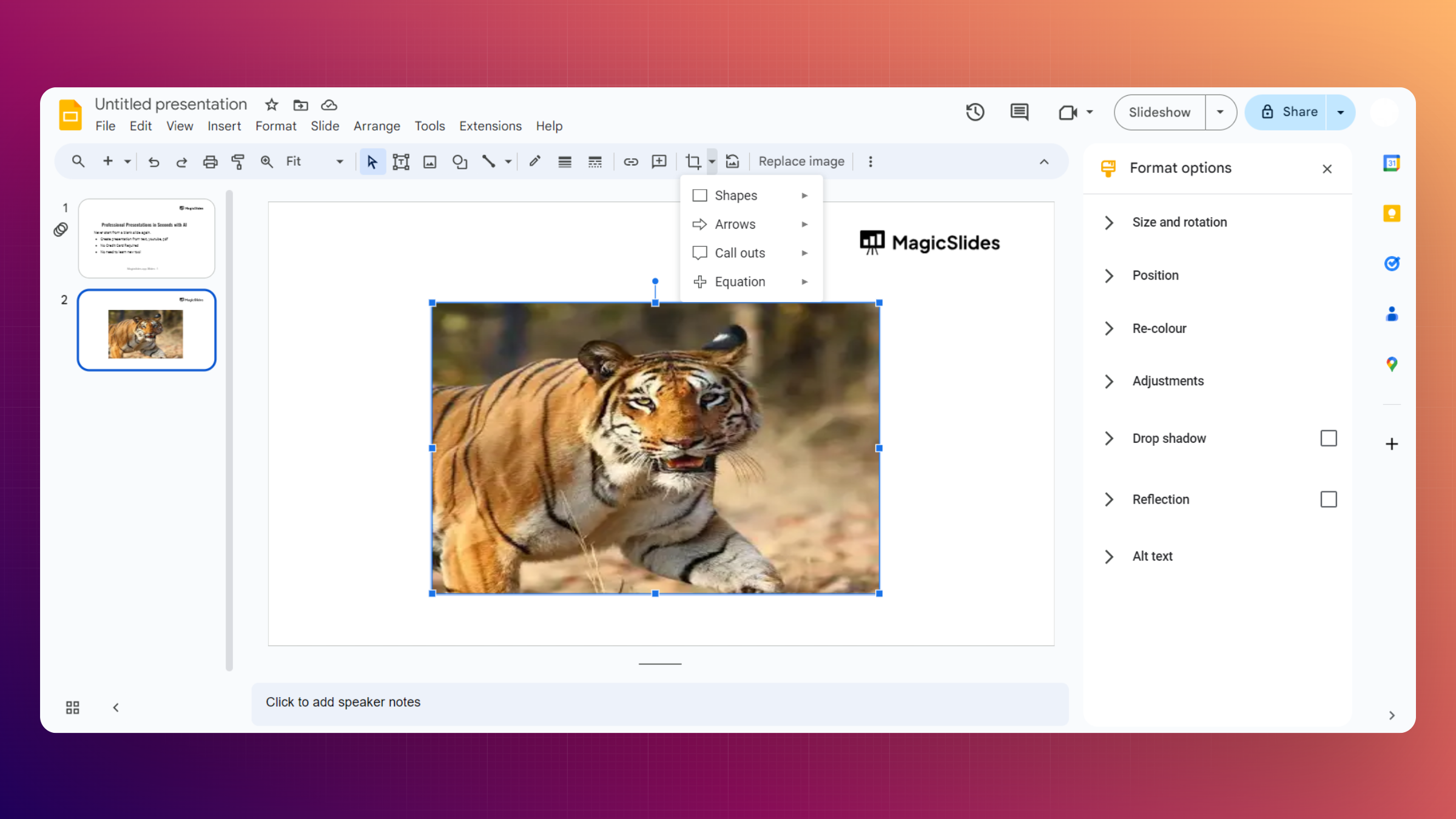
Step 5: Select a Shape
Choose a shape from the drop-down menu to transform your image. Options include rectangles, circles, arrows, and more.
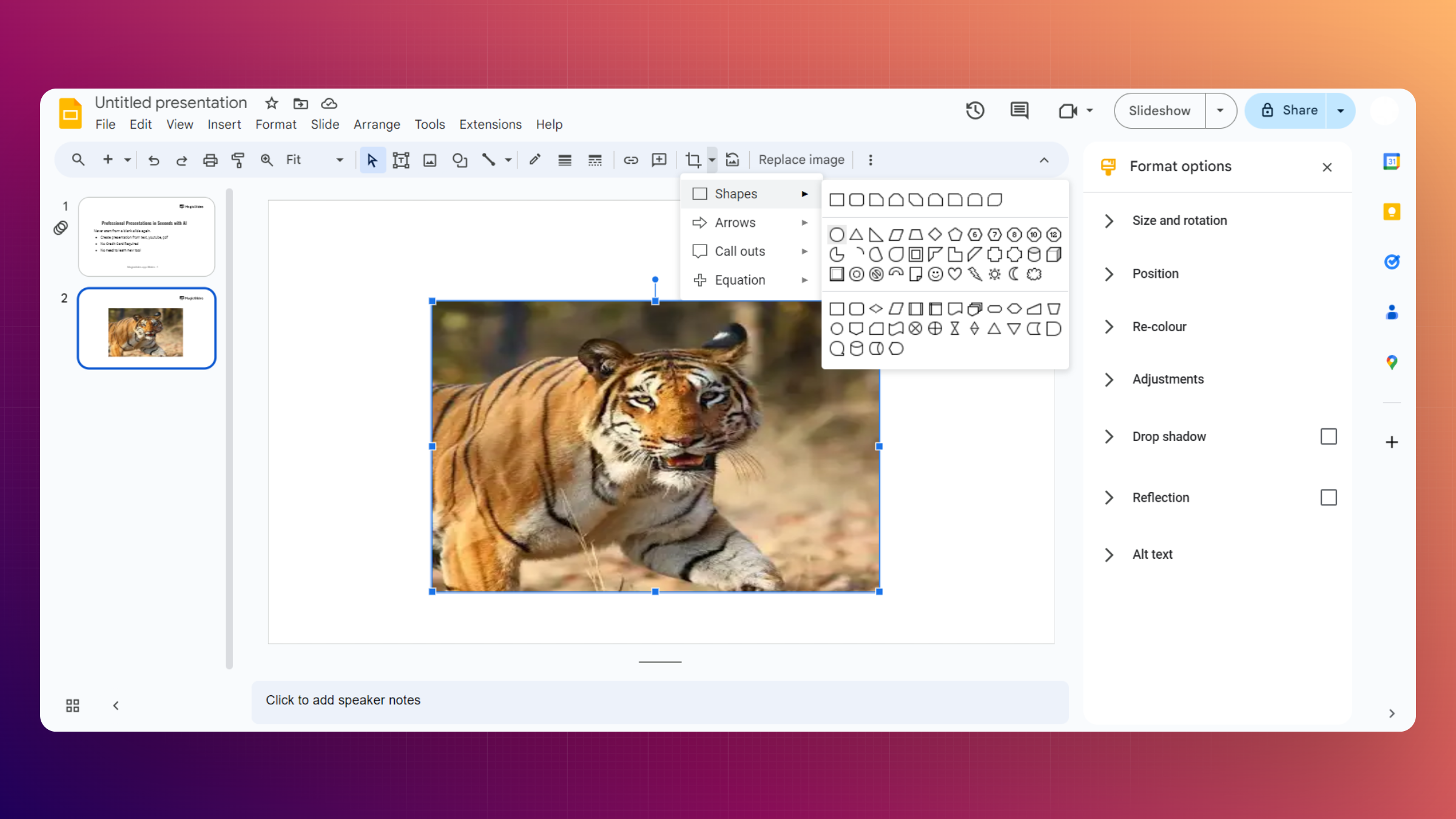
Step 6: Adjust Shape Size and Position
Resize and reposition the shape as needed by clicking and dragging its corners. Ensure it aligns perfectly with your design and layout.
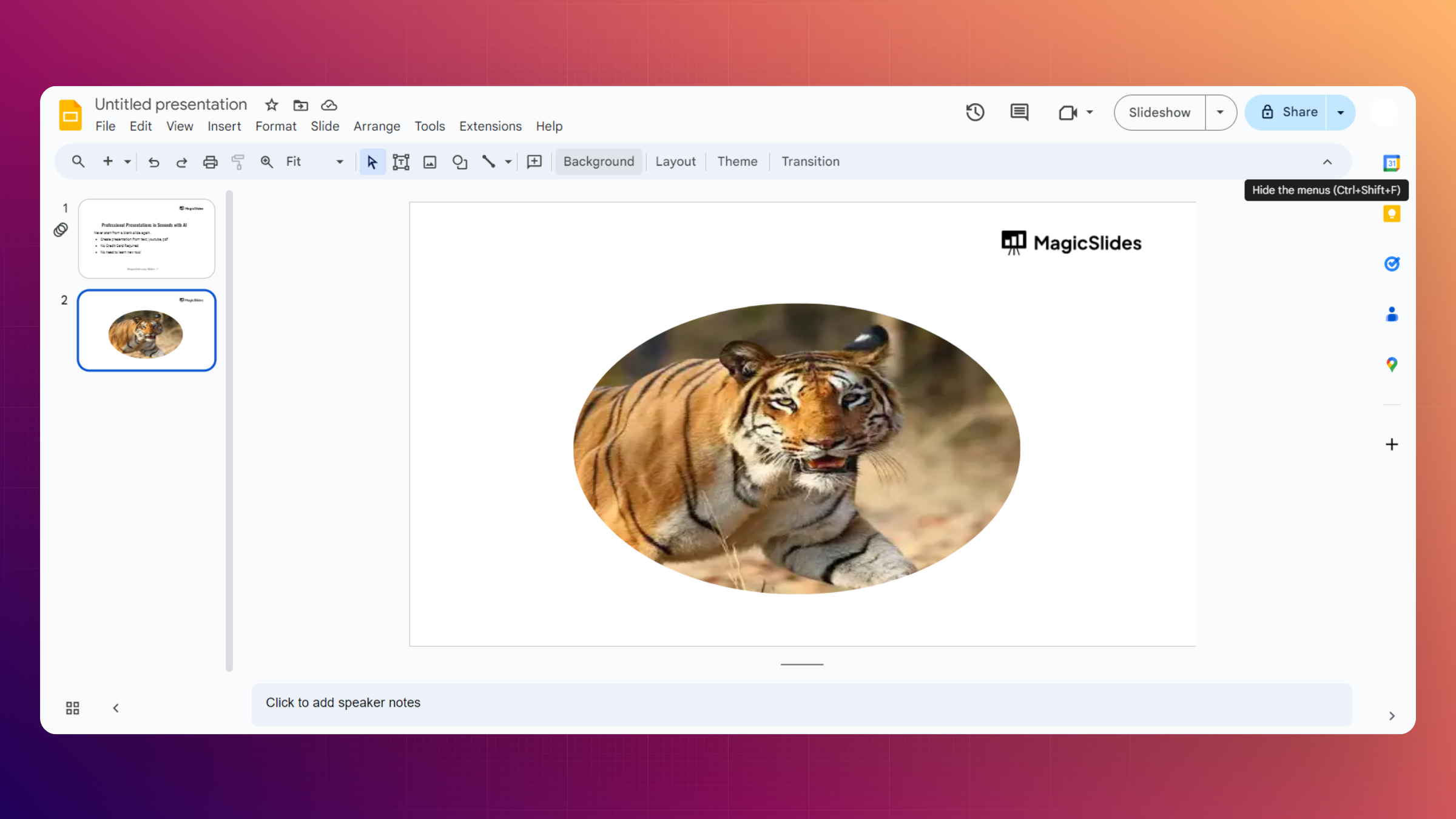
Conclusion:
You've now mastered the art of turning images into shapes in Google Slides. This feature adds a creative dimension to your presentations, allowing you to convey information with style. Experiment with different shapes to suit your content and create visually appealing slides that captivate your audience. Elevate your presentation game and leave a lasting impression with this simple yet effective technique.
Frequently Asked Questions:
Can I revert an image back to its original form after turning it into a shape?
Yes, simply click on the shaped image, access the "Image crop" tool, and choose "Reset."
Are there limitations to the types of shapes I can apply to an image?
Google Slides offers a variety of shapes, including standard shapes, arrows, and callouts for versatility.
Does the image lose quality when transformed into a shape?
No, the image quality remains intact as the transformation involves cropping without altering the image resolution.
Can I adjust the transparency of the shaped image?
Yes, after turning an image into a shape, use the transparency slider in the "Format options" sidebar.


