How to Make Something Greyed Out in Google Slides


Learn how to grey out text, images, or shapes in Google Slides for a faded effect
How to Make Something Greyed Out in Google Slides
Greying out elements in Google Slides is a great way to indicate inactive content, emphasize key points, or create a fading effect for visual storytelling.
Whether you want to grey out text, images, or shapes, Google Slides offers simple tools to achieve this effect.
In this guide, we’ll walk you through step-by-step instructions to make elements appear greyed out.
Step-by-Step Guide to Grey Out Elements in Google Slides
Step 1: Open Your Google Slides Presentation
Go to Google Slides. Open an existing presentation or create a new one.
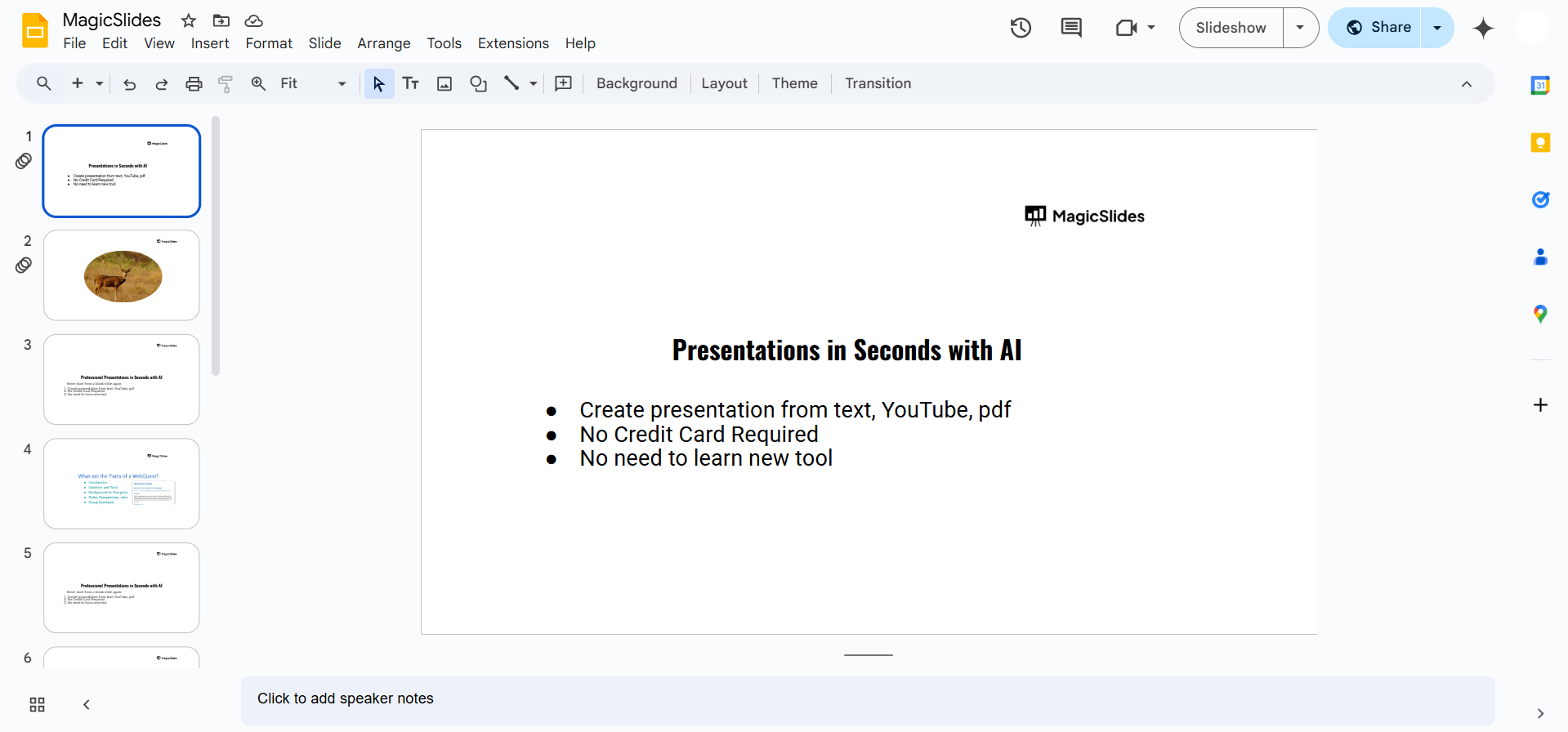
Select the slide that contains the element you want to grey out.
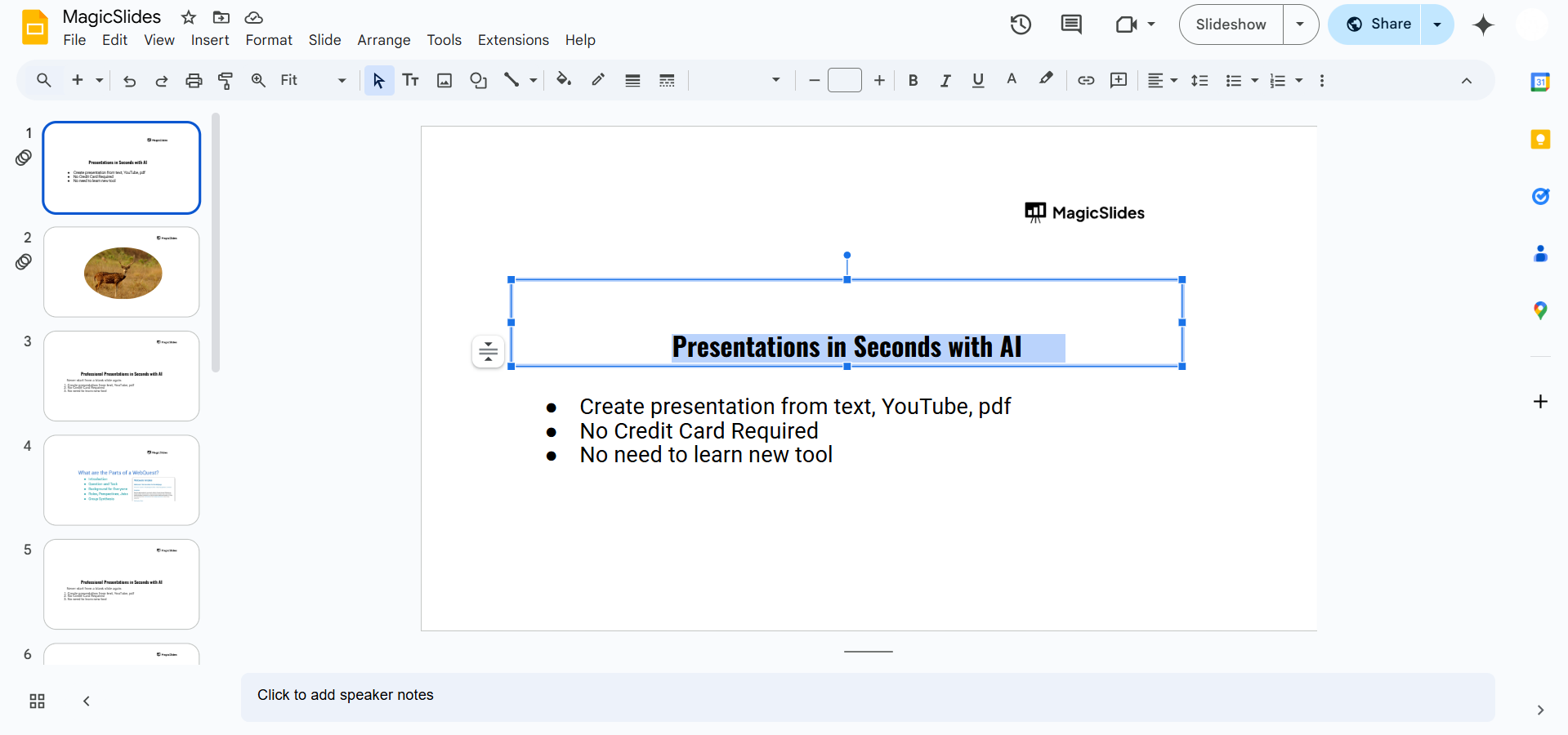
Step 2: Select the Element to Grey Out
You can grey out different elements, such as:
- Text (headings, subheadings, bullet points)
- Shapes (circles, rectangles, etc.)
- Images (logos, illustrations, photos)
Click on the element you want to grey out to highlight it.
Step 3: Change the Text or Shape Color to Grey
If you are greying out text or shapes, follow these steps:
Select the Text Box or Shape you want to grey out.
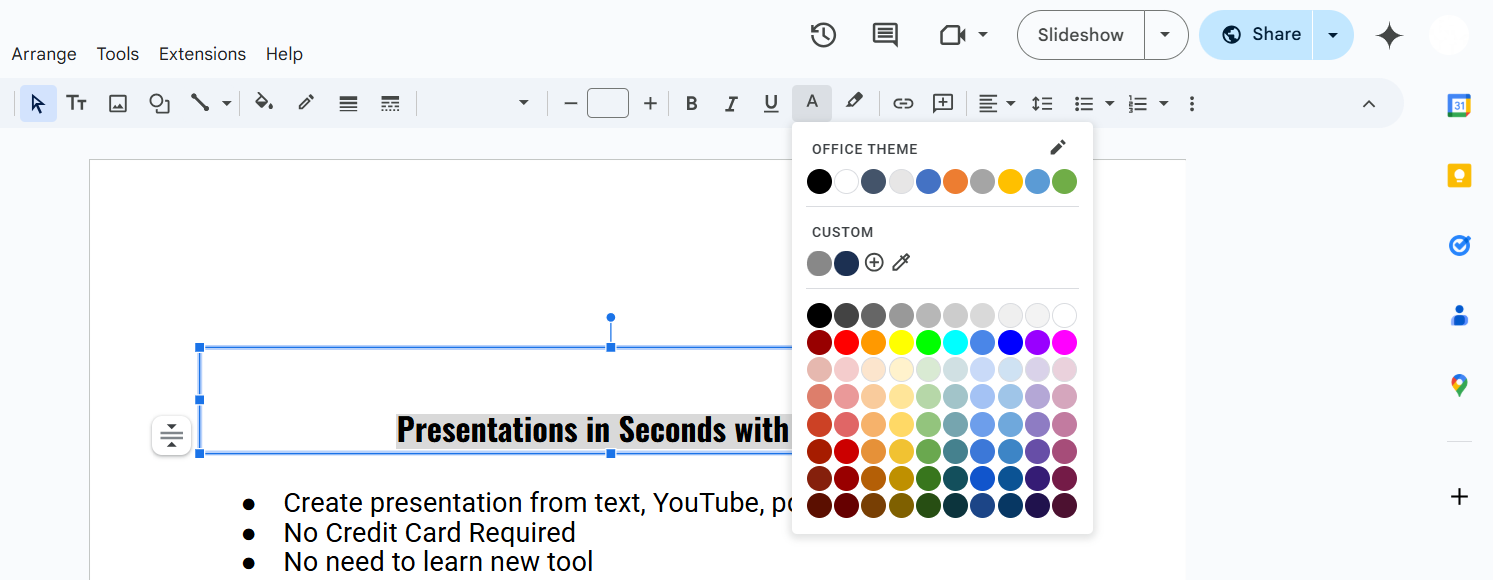
Click on the Text color (A icon) or Fill color (paint bucket icon) in the toolbar.
Choose a grey shade from the color palette.
If needed, adjust the transparency by clicking Custom and reducing the opacity.
Step 4: Adjust Image Transparency for Greyed-Out Effect
For images, you can adjust transparency to create a greyed-out effect:
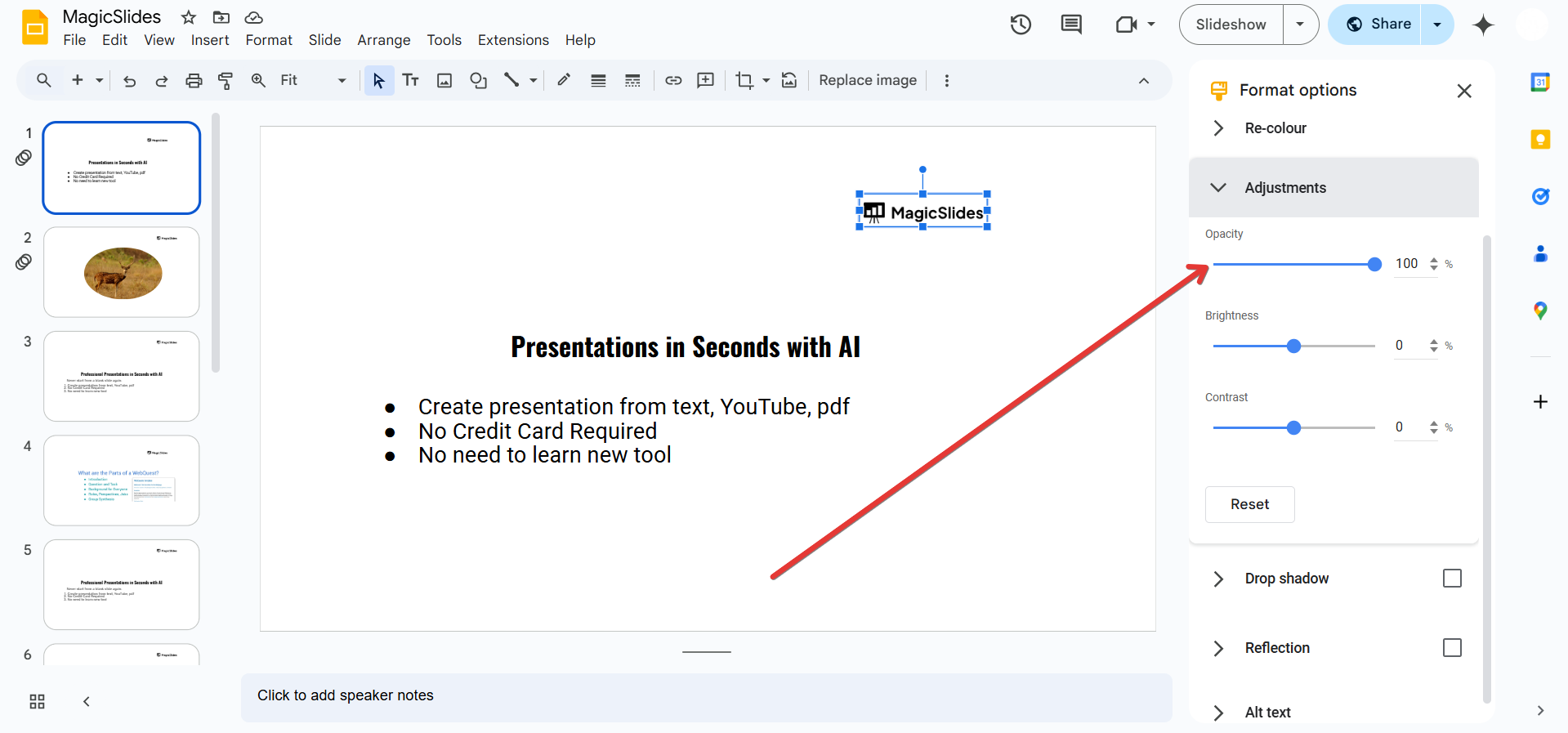
Select the image you want to grey out. Click on Format options in the toolbar.
Under Adjustments, move the Transparency slider to the right. Reduce Brightness slightly for a more faded look.
Step 5: Add a Grey Overlay for a Fading Effect
If you want a stronger greyed-out effect, add a transparent grey shape over the element:
Click Insert > Shape > Rectangle and draw it over the element. Click on the Fill color (paint bucket icon) and choose grey.
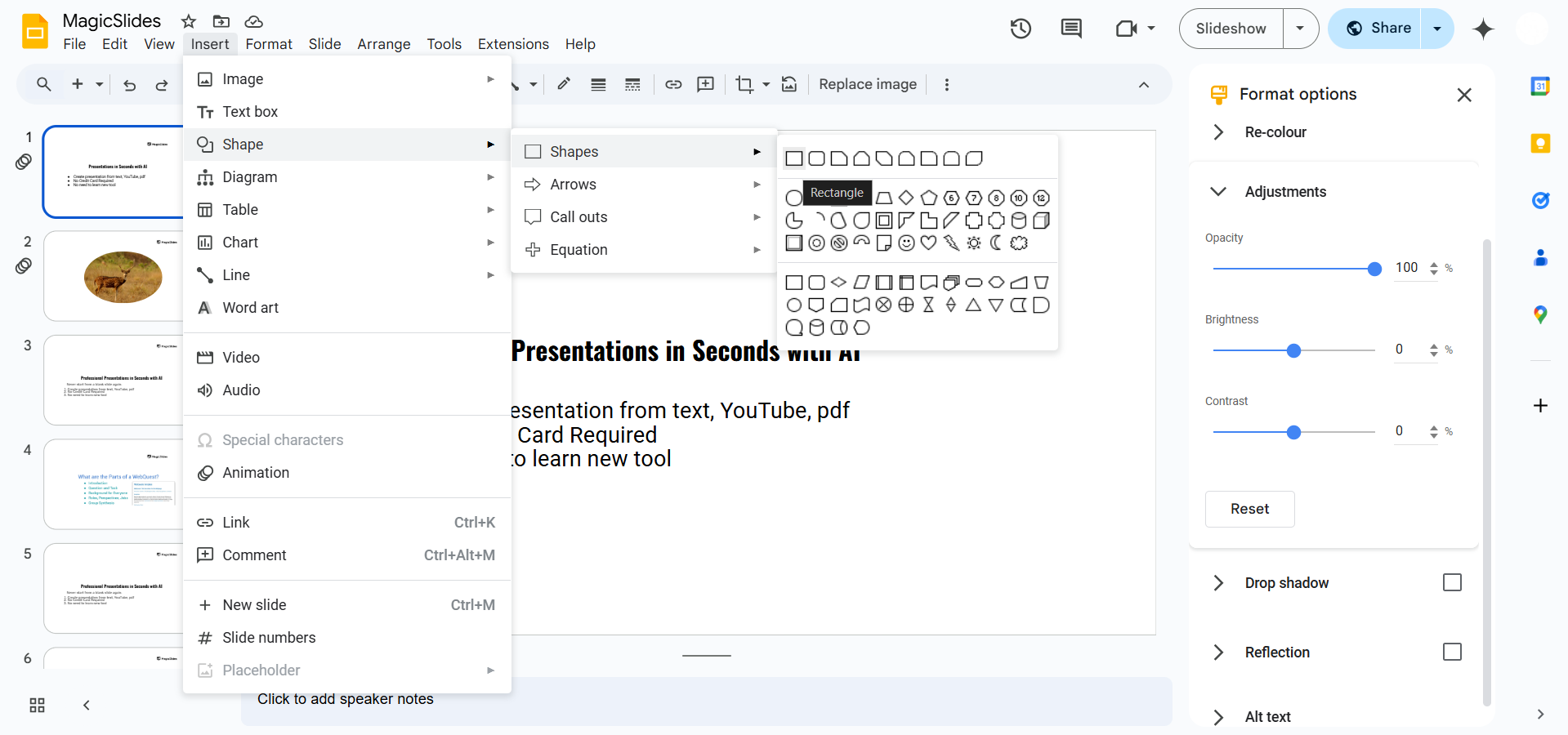
Adjust the Transparency in the Format options panel to make it semi-transparent.
Greying out elements in Google Slides can help highlight key points. But why stop there? With MagicSlides.app, you can create professional, AI-generated slides with custom formatting in seconds!
Conclusion
Greying out elements in Google Slides helps you control focus, highlight active content, or create visual effects.
Whether you use color adjustments, transparency settings, or overlays, you can easily achieve the desired look for your presentations.
FAQs About Greying Out Elements in Google Slides
Can I grey out only part of an image in Google Slides?
No, Google Slides doesn’t have built-in image masking tools, but you can use overlays or external editing tools like Canva.
How do I remove the greyed-out effect?
Select the element, go to Format options, and reset transparency, color, or overlay settings.
Can I animate a greyed-out element to become active?
Yes! Use Fade In animation to transition a greyed-out object into full color.
Now, you can easily grey out elements in Google Slides for better visual impact! 🎨🚀


