how to make text transparent in google slides


Transform your Google Slides with a subtle touch! Learn the art of creating ‘transparent’ text effortlessly.
Are you looking to add a touch of sophistication to your Google Slides presentation by making text appear transparent? While Google Slides might not have a direct feature for transparent text, there's a clever workaround that can help you achieve a similar effect. In this blog post, we'll guide you through the steps to create the illusion of transparent text using shapes and clever formatting. Let's dive in and enhance the visual appeal of your slides!
how to make text transparent in google slides
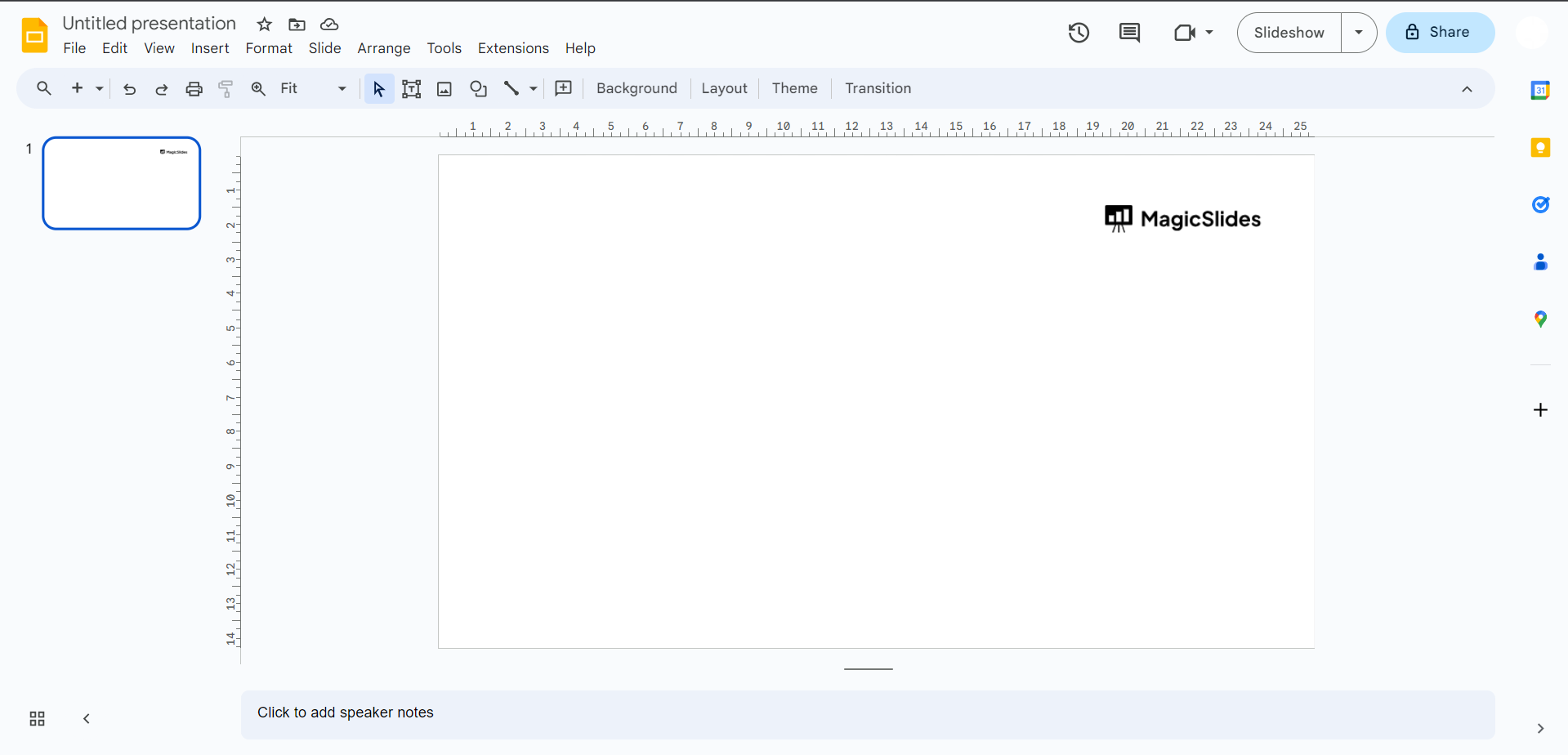
Open Your Google Slides Presentation:
Go to Google Drive (drive.google.com) and open your presentation in Google Slides.
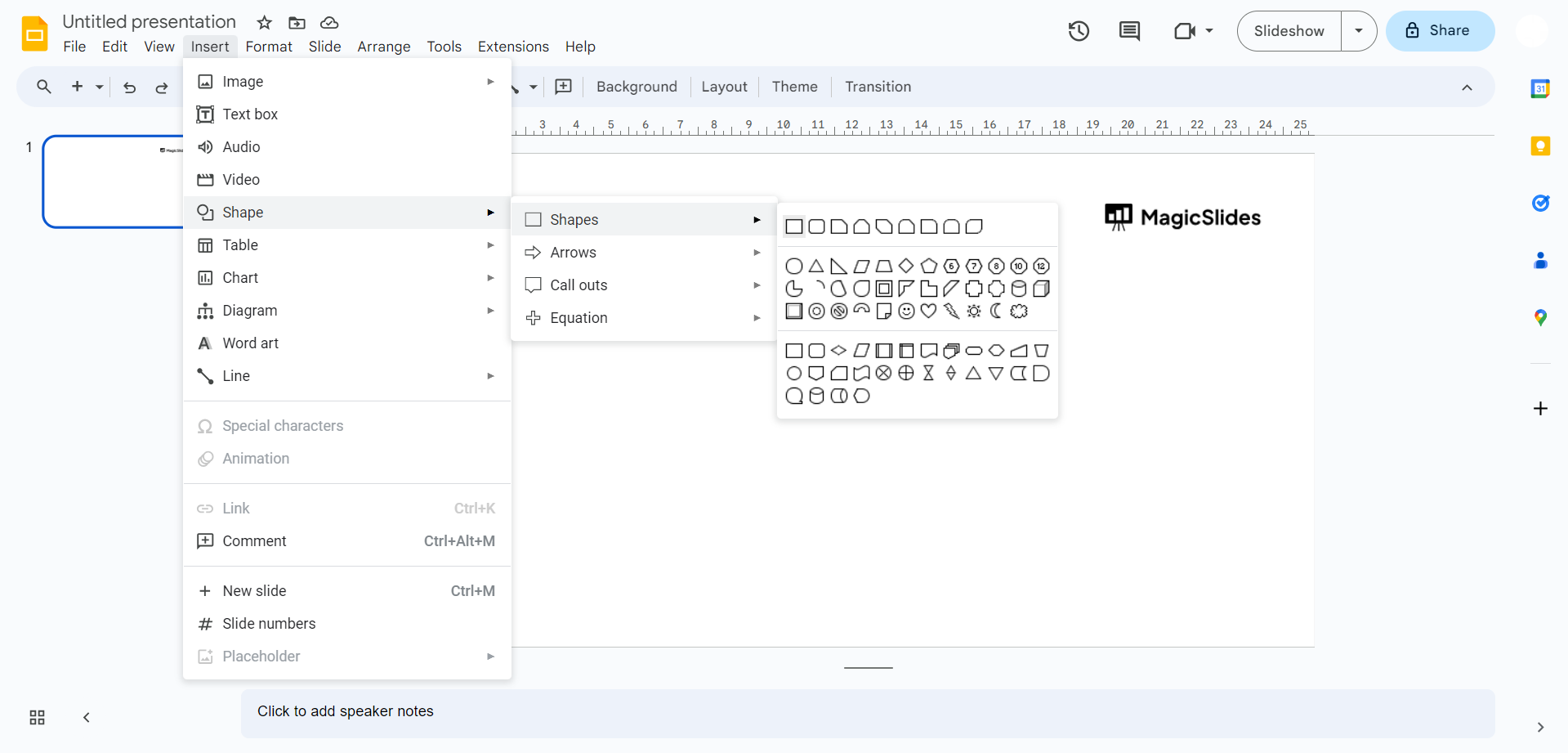
Insert a Shape:
- Click on the "Insert" menu at the top.
- Choose "Shape" and select the shape you want to use as a background. You might choose a rectangle or square.
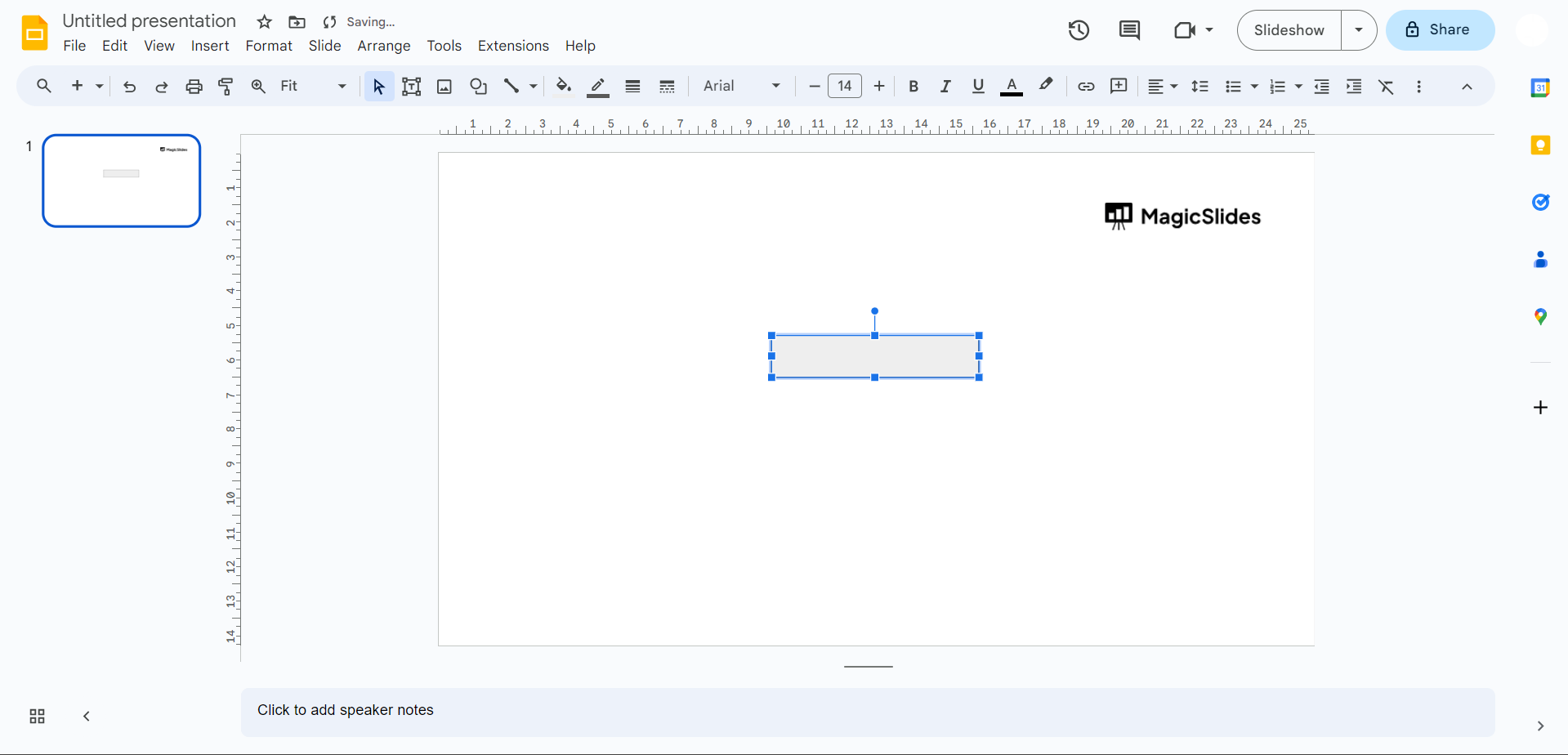
Resize and Position the Shape:
- Drag the corners or sides of the shape to resize it.
- Move the shape to the desired position on the slide.
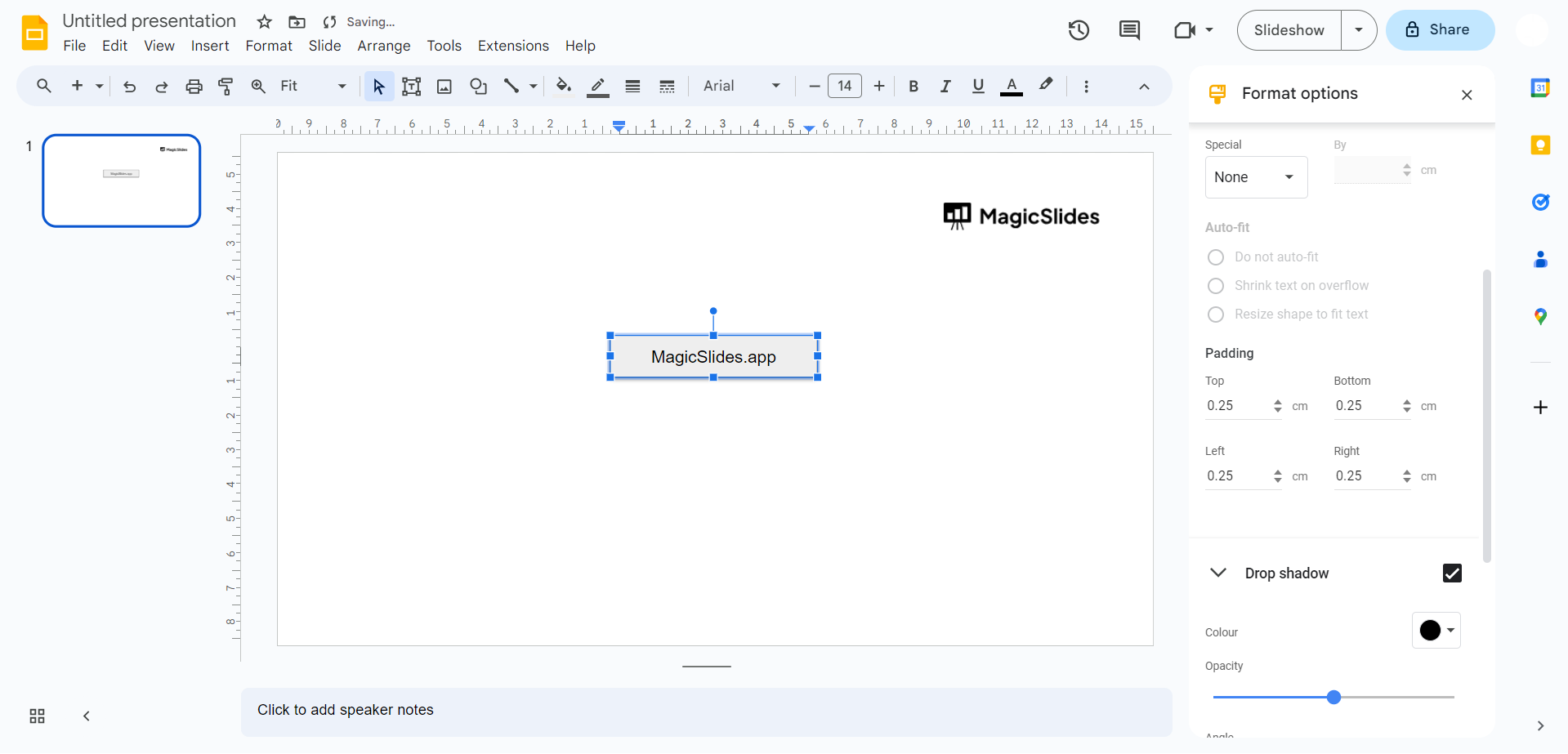
Format the Shape:
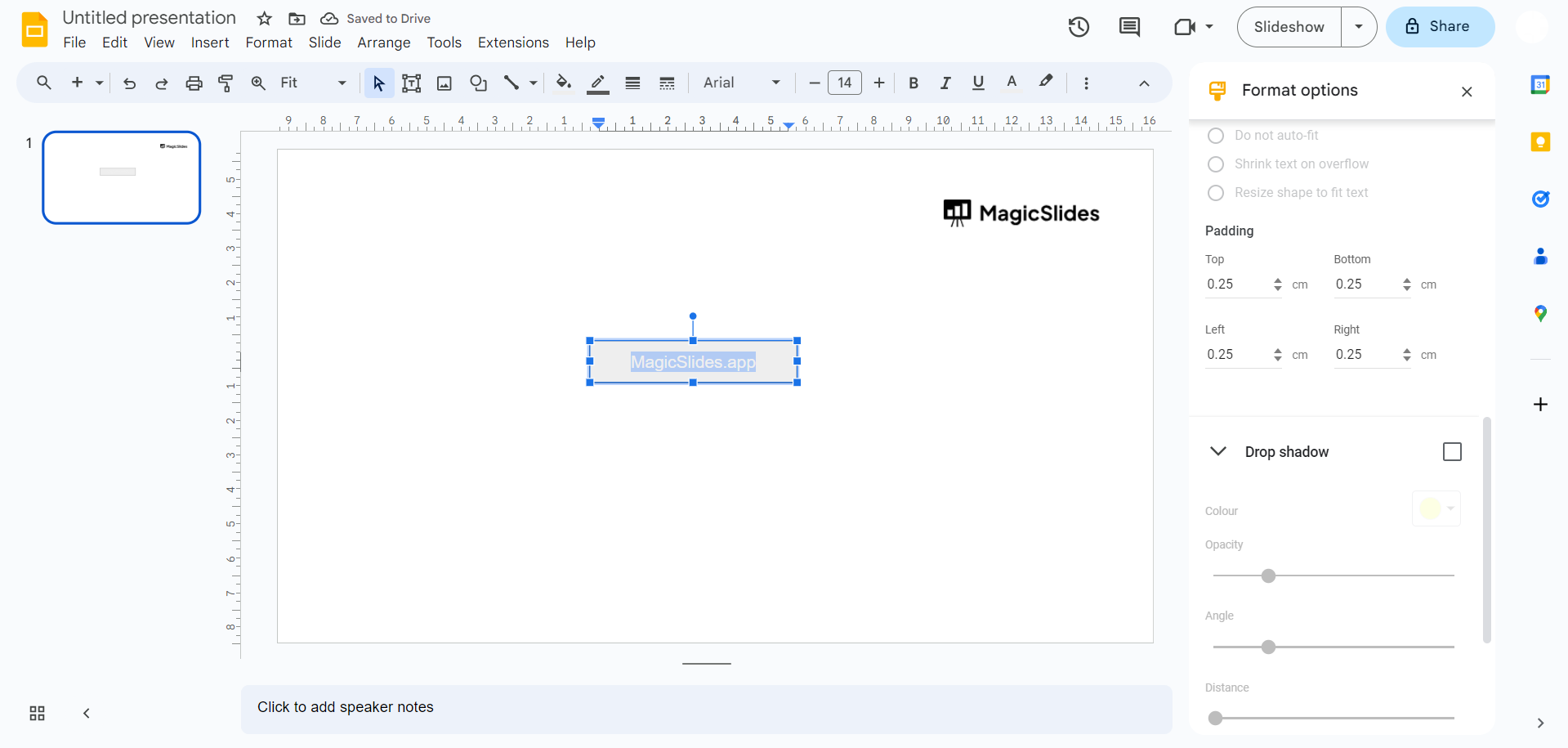
- Right-click on the shape and select "Format options."
- In the Format options pane, you can adjust the fill color of the shape. Choose a color that you want as the background for your text.
Insert Text:
- Click on the "Text box" icon in the toolbar or go to the "Insert" menu and select "Text box."
- Click on the slide where you want to add the transparent text and type your text inside the text box.
Format the Text:
- Highlight the text, and in the toolbar, you can change the font, size, and color of the text.
- Make sure the text color matches the background color of the shape.
Adjust Layer Order:
- If the text appears behind the shape, right-click on the text box, go to "Order," and choose "Bring to front" or "Bring forward" to adjust the layer order. Depending upon your requirement you can choose to adjust the opacity and transparency levlels for the shape and the box inserted.
Conclusion:
While Google Slides may not have a direct feature for transparent text, this workaround empowers you to create visually stunning presentations with the illusion of transparency. By leveraging shapes and thoughtful formatting, you can enhance the overall aesthetic of your slides.
Frequently Asked Questions:
Q: Can I truly make text transparent in Google Slides?
Google Slides doesn't have a direct feature for transparent text. However, you can follow the workaround outlined in this guide to simulate the effect.
Q: What's the benefit of using this workaround?
A: While not true transparency, this method allows you to create a visually appealing presentation by placing text on top of a colored shape, providing the illusion of transparency and enhancing the overall design.


