How to number slides in Google Slides


Numbering slides in Google Slides improves organization, navigation, and professionalism, making your presentations easier to follow
Numbering slides in Google Slides is a great way to make your presentation more organized and professional.
Slide numbers help viewers keep track of content and make it easier to reference specific slides during discussions or meetings.
Here's a step-by-step guide to help you add slide numbers in Google Slides.
How to Number Slides in Google Slides: A Step-by-Step Guide
Step 1: Open Your Google Slides Presentation
Log into your Google account and open the presentation where you want to add slide numbers.

Make sure your slides are finalized before numbering them, as changes to the order may affect the numbering.
Step 2: Access the Slide Numbers Option
In the top menu, click on the "Insert" tab, and from the dropdown, select "Slide numbers."

This will open a dialog box with options to customize the numbering.
Step 3: Enable Slide Numbers
In the dialog box, check the option labeled "On" to enable slide numbers on all slides.
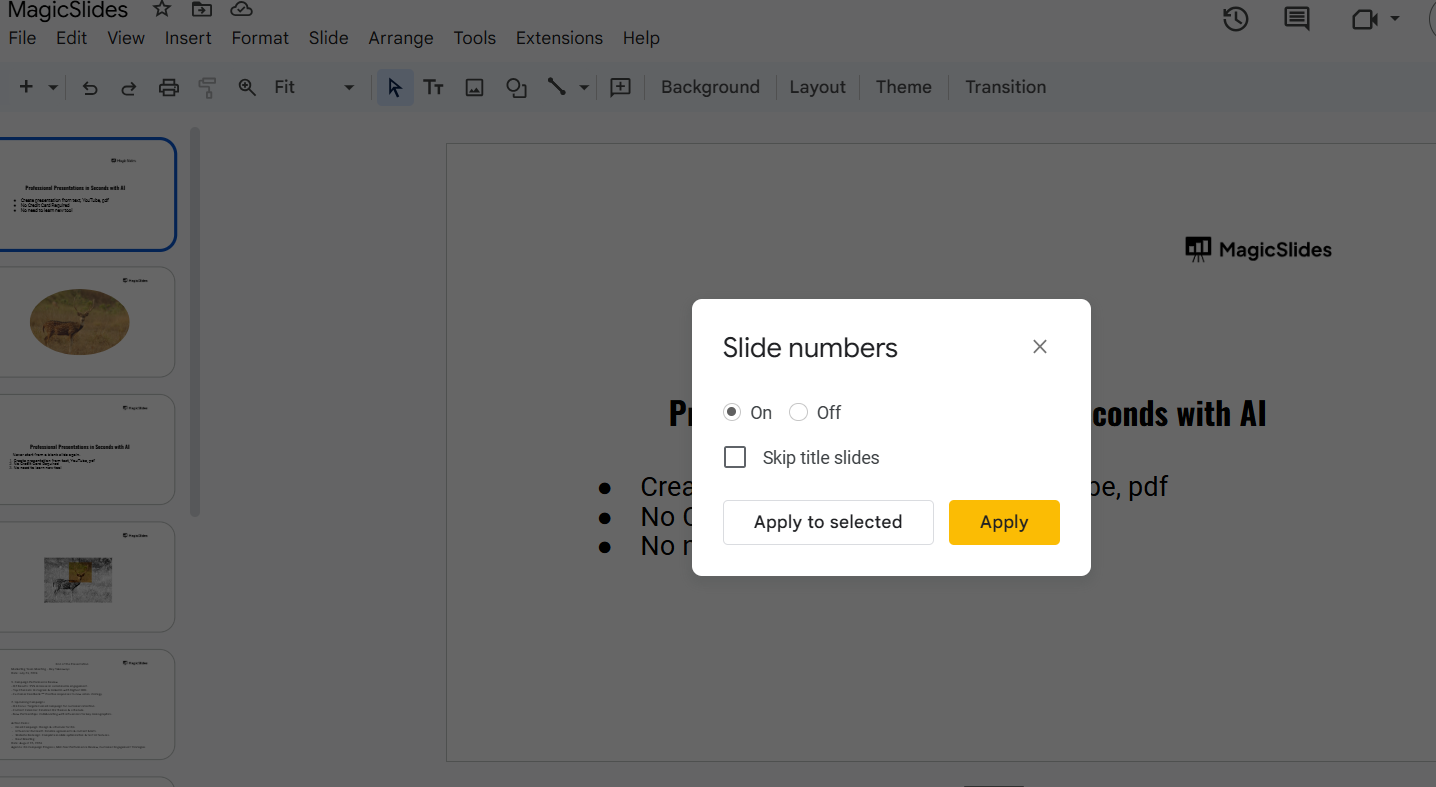
If you want to exclude the title slide, check the box labeled "Skip title slide." This is useful if the first slide serves as an introduction or cover page.
Step 4: Apply the Slide Numbers
Once you've configured the settings, click the “Apply” button.

Slide numbers will automatically appear in the bottom-right corner of all selected slides.
Step 5: Customize Slide Number Placement (Optional)
If you want to change the position of the slide numbers, you can edit the master slide.
Go to "Slide" > "Edit theme," then adjust the position or style of the number placeholder to fit your design preferences.
Conclusion
Adding slide numbers in Google Slides is a simple yet effective way to enhance your presentation’s structure.
Whether for clarity, navigation, or professionalism, this feature ensures your slides are easy to follow and reference.
Follow these steps to include slide numbers and take your presentations to the next level.
FAQs can take you forward!
Can I number only specific slides in Google Slides?
No, Google Slides numbers all slides by default, but you can skip the title slide or hide numbers on specific slides by editing the master slide.
Can I change the font or style of the slide numbers?
Yes, you can customize the font, size, color, and placement of slide numbers by editing the master slide.
Will slide numbers automatically update if I rearrange slides?
Yes, slide numbers automatically adjust to reflect any changes in the order of slides.


