How to Print Out Notes in PowerPoint


Easily print your PowerPoint slides with speaker notes for better presentation preparation and smooth delivery
How to Print Out Notes in PowerPoint
PowerPoint allows you to add speaker notes beneath each slide to help guide your presentation.
If you need a hard copy of these notes for reference, you can print them along with your slides.
This step-by-step guide will show you how to print out notes in PowerPoint easily.
Step-by-Step Guide to Printing Notes in PowerPoint
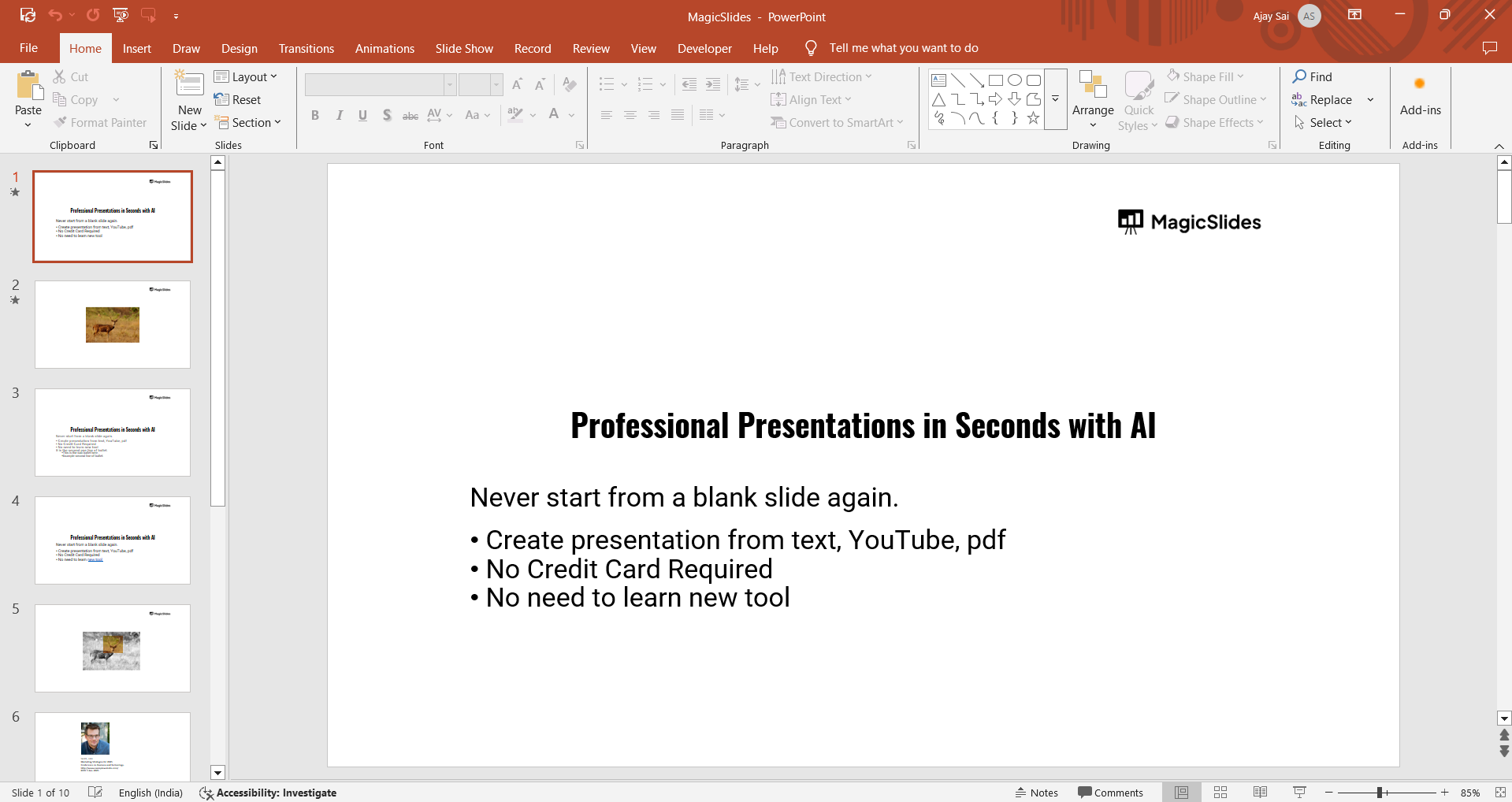
Step 1: Open Your PowerPoint Presentation
Launch Microsoft PowerPoint on your computer. Open the presentation that contains the notes you want to print.
Step 2: Go to the Print Menu
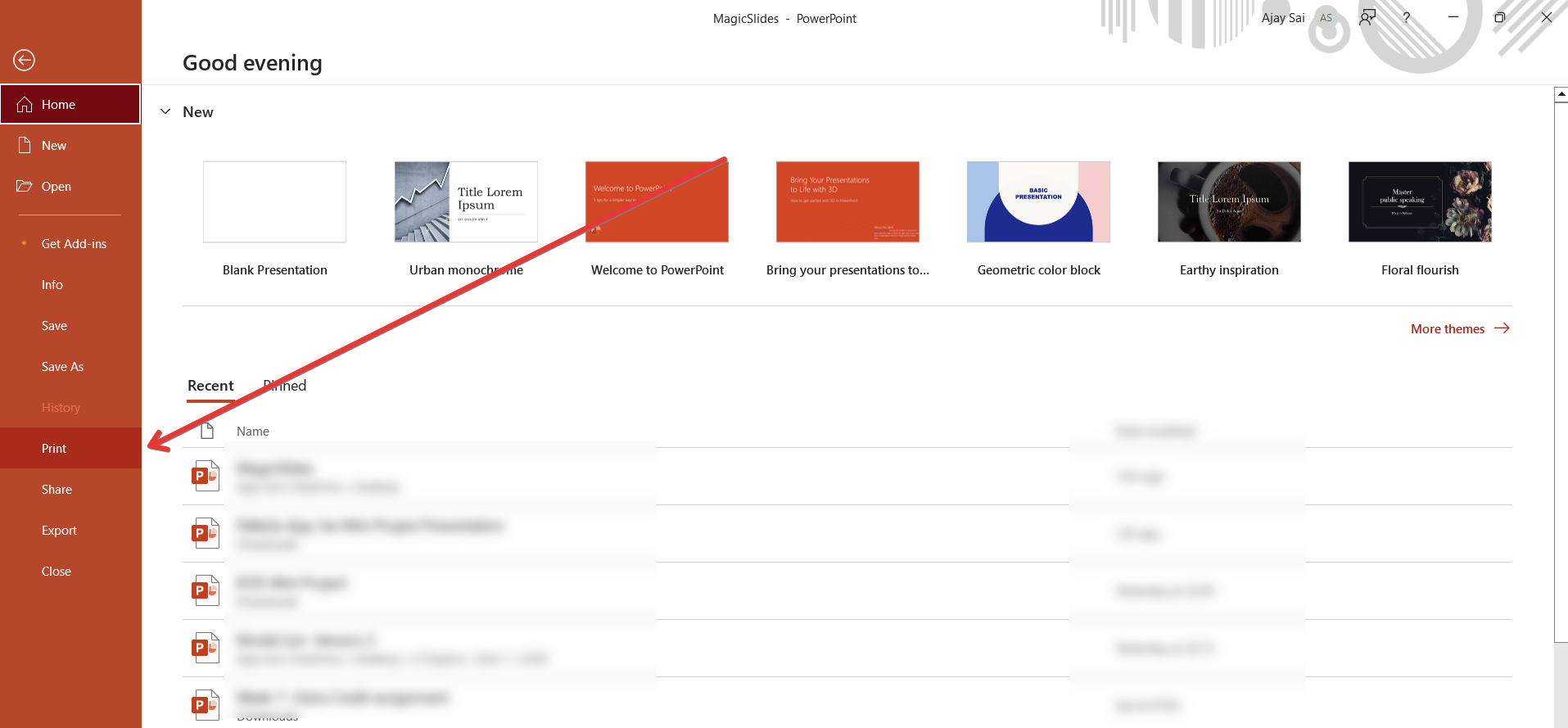
Click on File in the top-left corner. Select Print from the dropdown menu.
Step 3: Select "Notes Pages" Layout
In the Settings section, click on the dropdown under Full Page Slides.
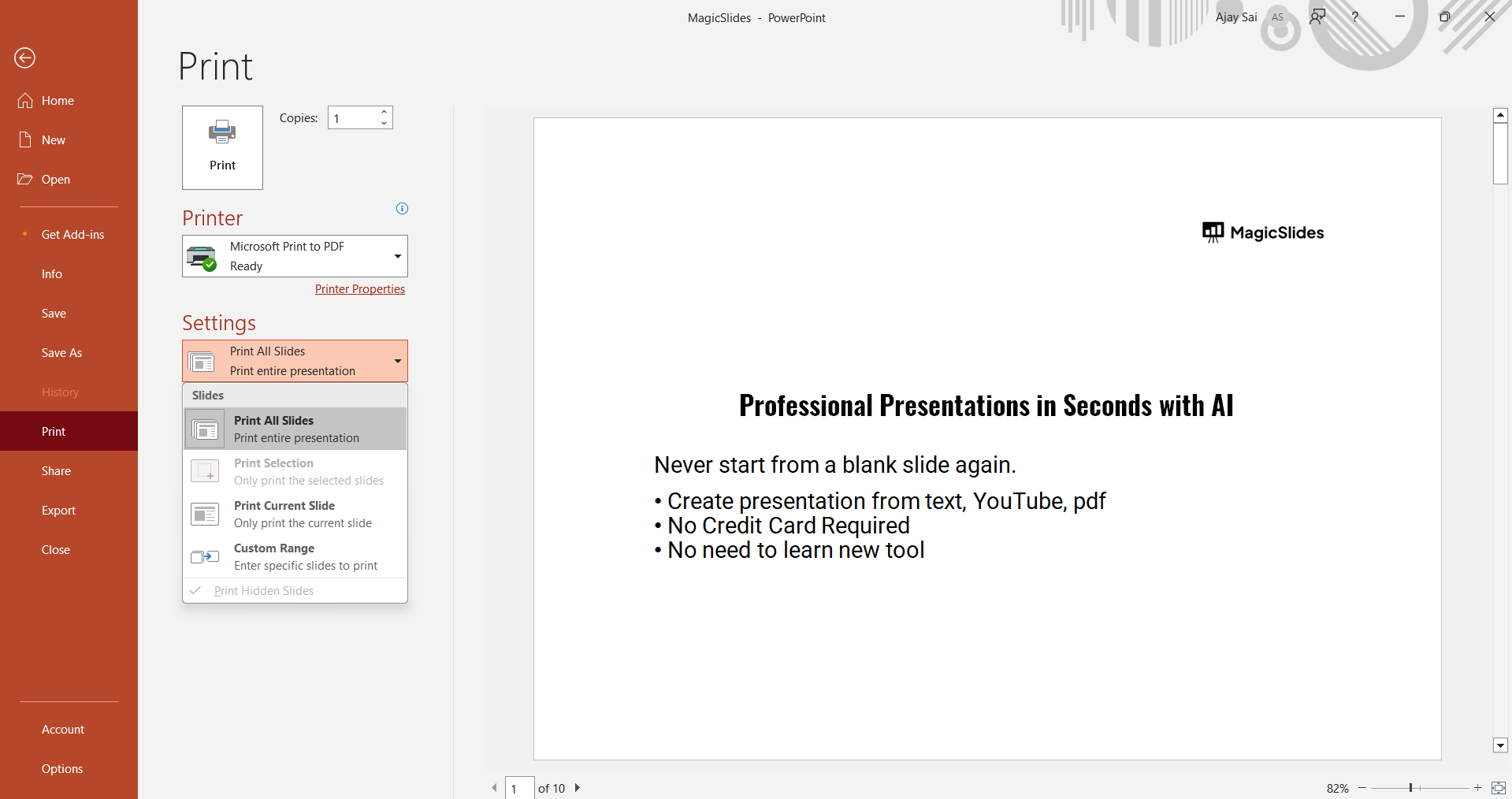
Choose Notes Pages this option will print one slide per page with its corresponding speaker notes below it.

Step 4: Adjust Print Settings
Select your preferred printer or choose Print to PDF to save it as a digital copy.
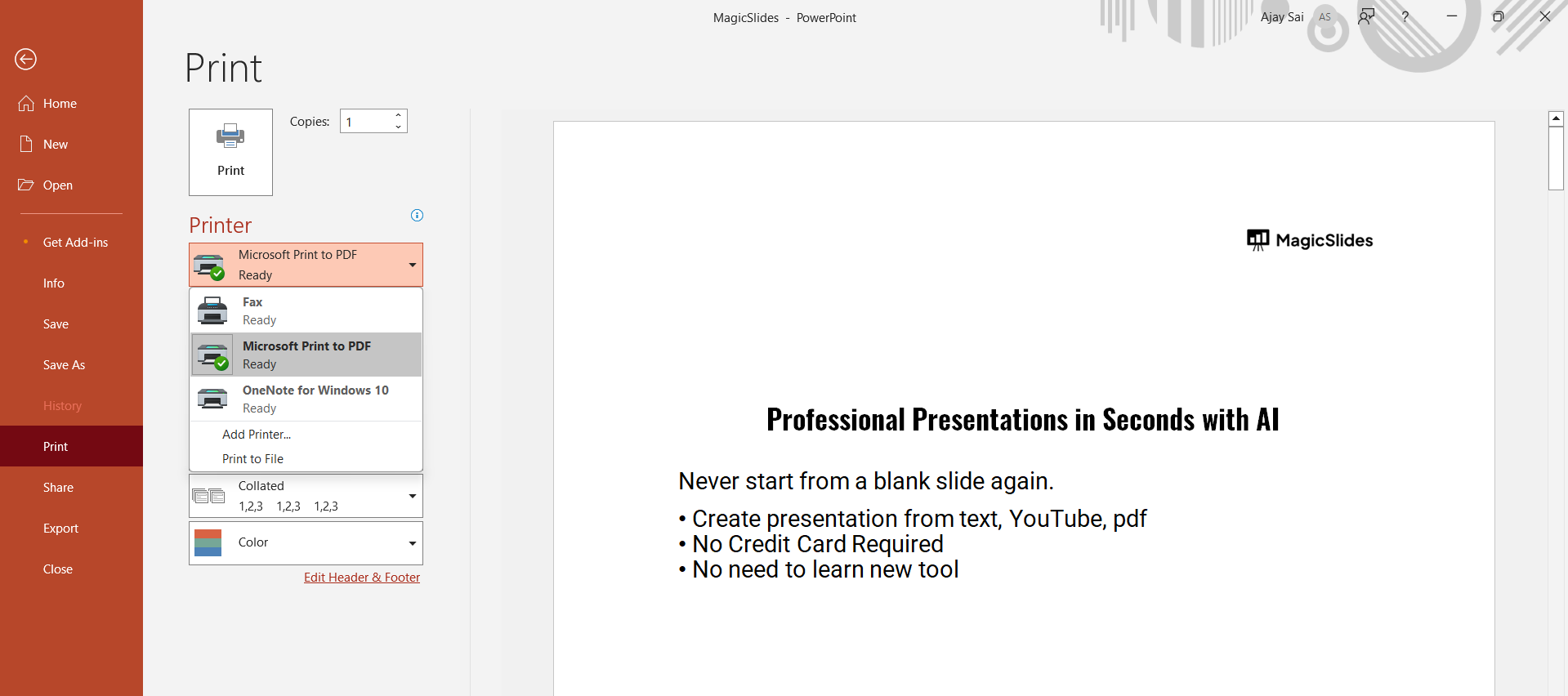
Adjust the number of copies if needed. Click on More Settings to adjust page size, orientation, or margins.
Step 5: Print Your Notes
Click the Print button to start printing your notes. If you selected Print to PDF, save the file to your desired location.
Printing out notes helps with presentation delivery, but if you need a faster way to create high-quality slides, check out MagicSlides.app. It transforms topics, PDFs, and even YouTube videos into polished presentations effortlessly!
Conclusion
Printing notes in PowerPoint is a great way to prepare for presentations and have a reference guide while speaking.
By following these steps, you can print slides along with their notes quickly and efficiently.
FAQs About Printing Notes in PowerPoint
Can I print multiple slides with notes on one page?
No, the "Notes Pages" option prints one slide per page with notes. However, you can manually arrange them in a document before printing.
How do I print notes without the slides?
There is no built-in option to print only notes. However, you can copy the notes into a Word document and print them separately.
Why are my notes not printing in full?
If your notes are too long, PowerPoint might truncate them. Try reducing the font size or adjusting the page layout to fit more text.
Now you’re ready to print your PowerPoint notes efficiently for your next presentation! 🎤📄


