how to print power point with notes


In this blog post let’s see how to print power point with notes while using Microsoft Powerpoint
Creating a PowerPoint presentation often involves adding valuable speaker notes to guide your presentation or provide additional information to your audience.
If you're wondering how to print your PowerPoint slides along with these essential speaker notes, you're in the right place. In this comprehensive guide, we'll take you through the process, ensuring you can confidently print your slides and notes for a successful presentation.
Step 1: Open Your PowerPoint Presentation
Begin by opening the PowerPoint presentation you want to print along with your speaker notes. If you're working on a new presentation, make sure to add your notes as you go.
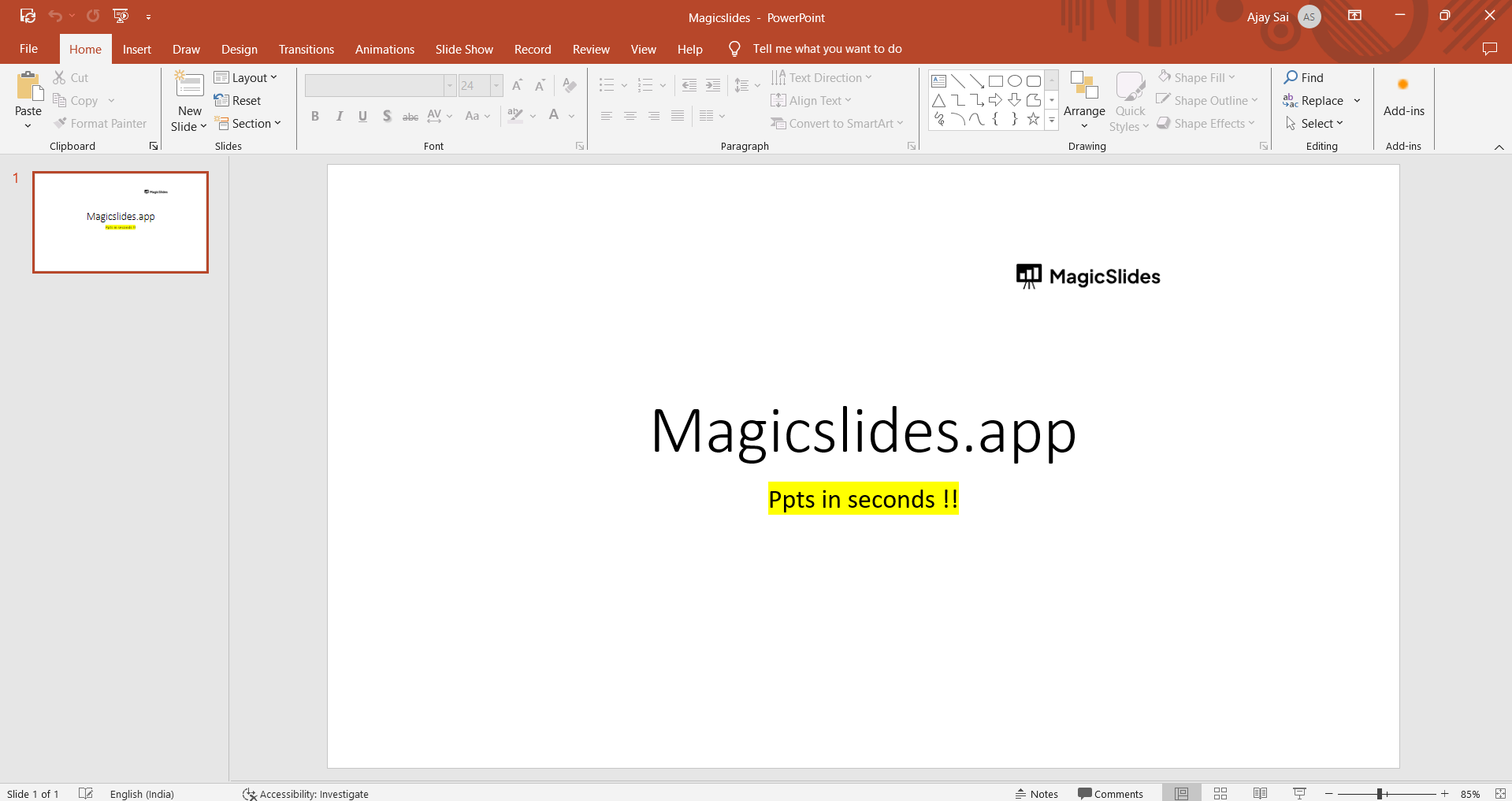
Step 2: Access the "File" Menu
In the top-left corner of the PowerPoint window, you'll find the "File" tab. Click on it to access a dropdown menu.
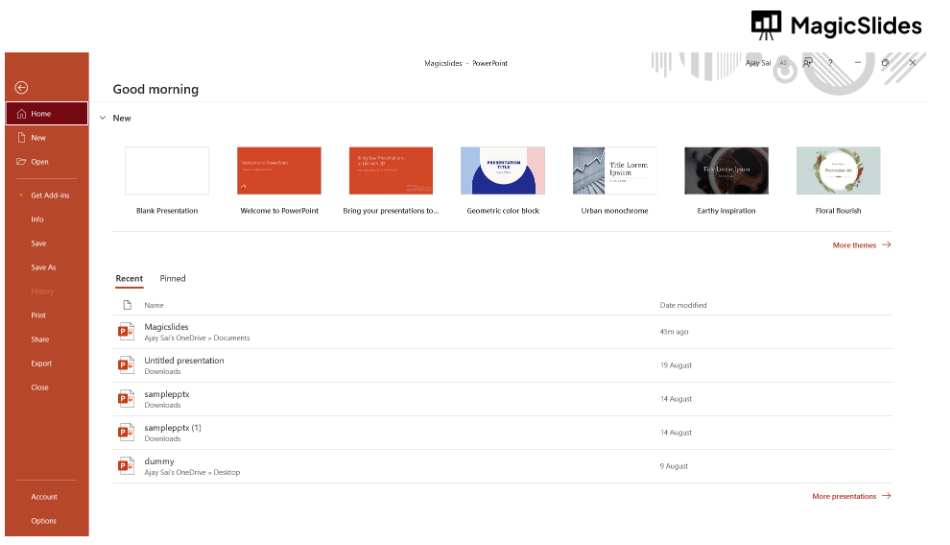
Step 3: Select "Print"
From the "File" dropdown menu, find and click on the "Print" option. This will take you to the Print settings.
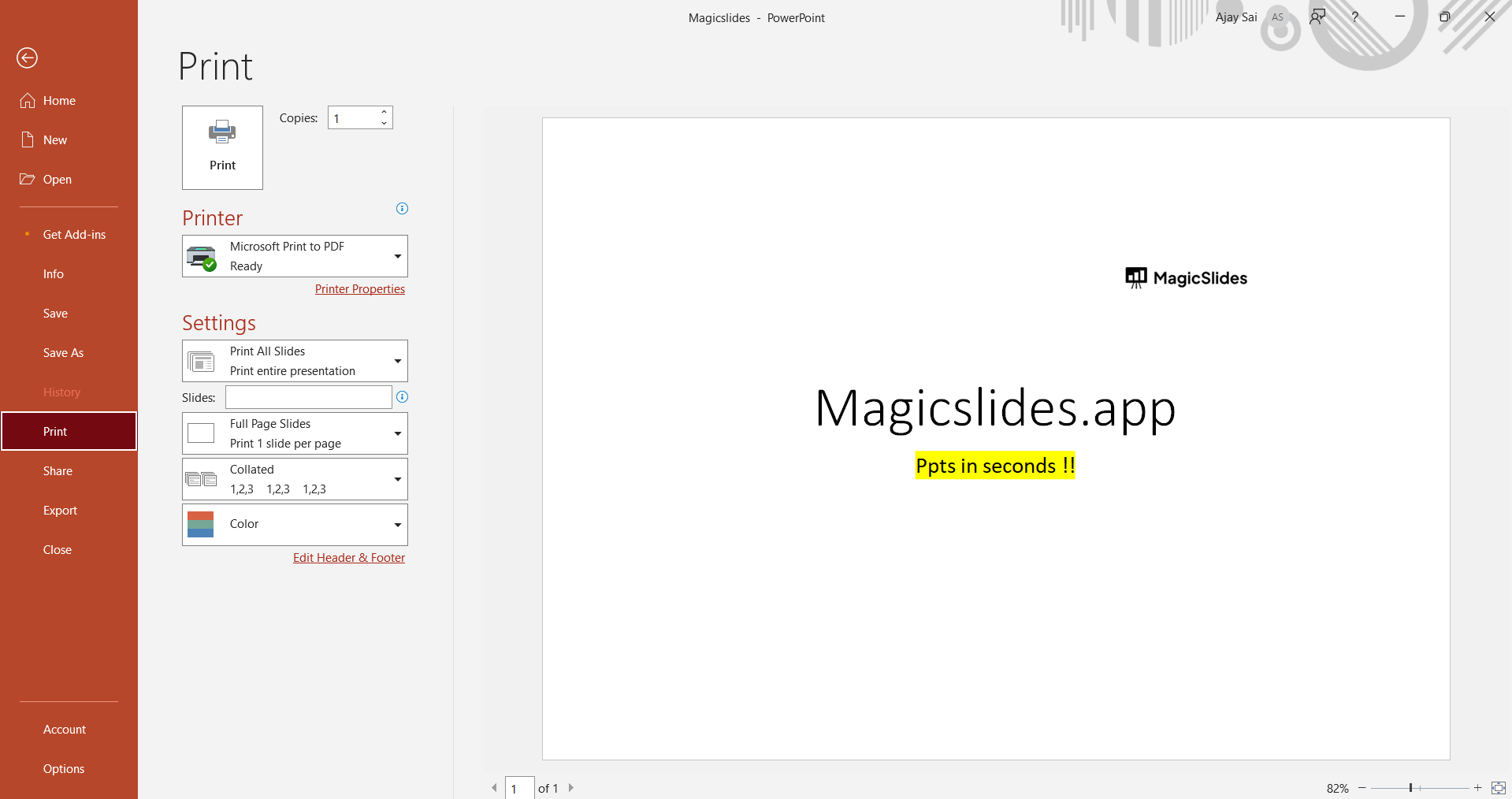
Step 4: Choose Your Printer
In the Print settings, select the printer you want to use for printing your slides and notes. Ensure that your printer is properly connected and ready to print.
Step 5: Select "Full Page Slides" under "Settings"
Under the "Settings" section, you'll see a dropdown menu that defaults to "Full Page Slides." Click on it to open the dropdown.
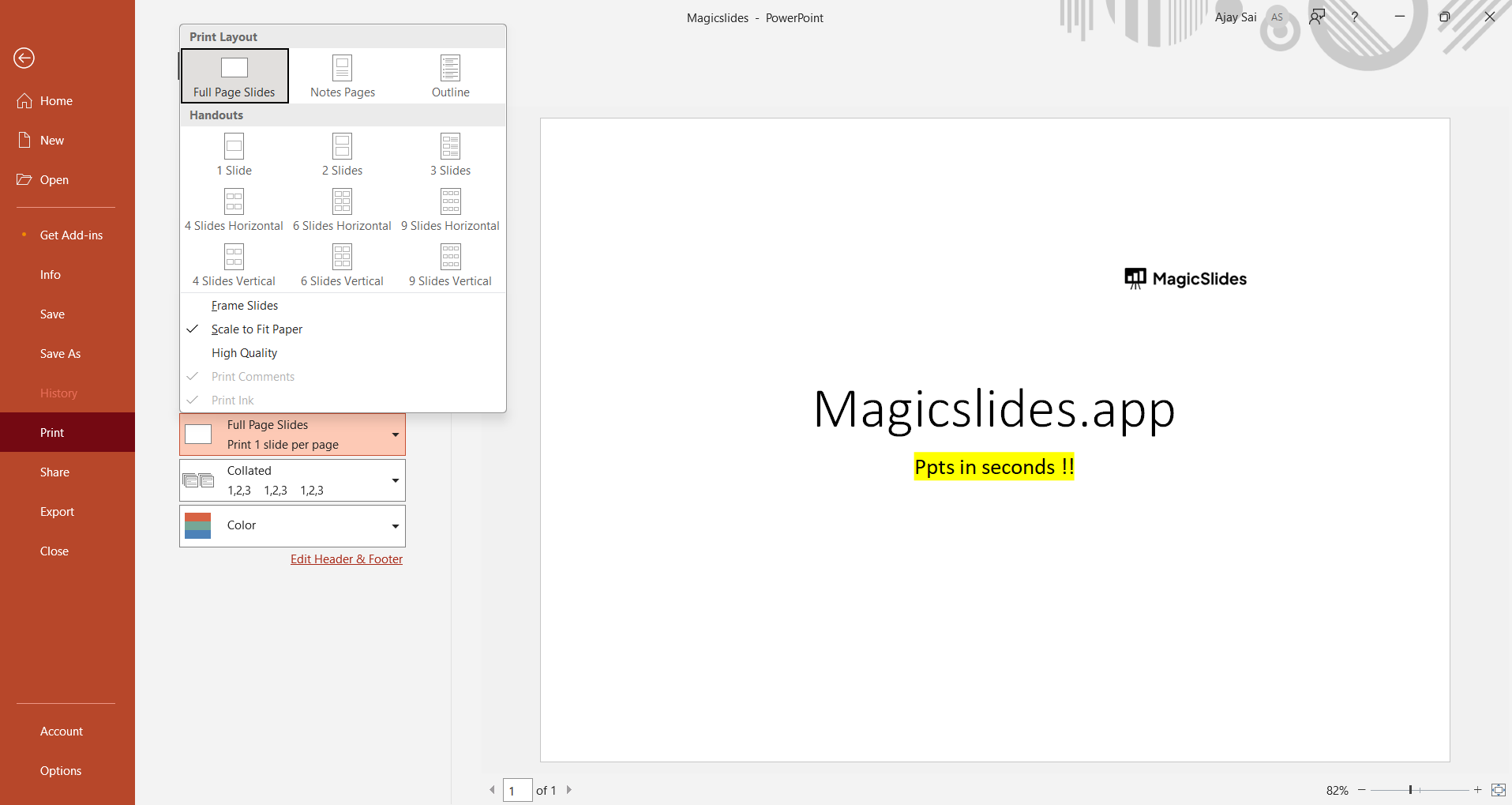
Step 6: Choose "Notes Pages"
In the dropdown, select "Notes Pages." This option tells PowerPoint to print your slides along with the speaker notes.
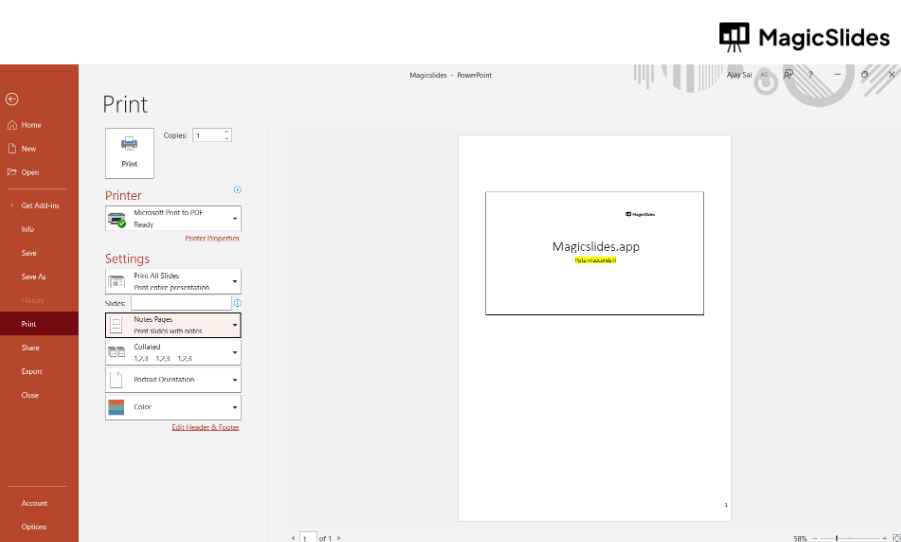
Step 8: Click "Print"
Once you've configured your print settings to include speaker notes, click the "Print" button. Your presentation slides, along with the speaker notes, will be sent to your printer.
Conclusion:
By following these straightforward steps, you can ensure that your speaker notes are not only visible on your screen but also available on the printed pages.
Whether you're a seasoned presenter or new to PowerPoint, this knowledge empowers you to make your presentations more effective, informative, and engaging. The next time you need to print PowerPoint slides with notes, you'll be well-prepared to do so confidently.


