Addon google slides iconPPT with AISlide TemplatesPPT TemplatesPricingBlog
    PPT with AISlide TemplatesPPT TemplatesPricingBlog
    1. Home
    2. Blog
    3. How To Protect Google Sheets?


    How To Protect Google Sheets?

    magicslides app

    Published By

    magicslides app

    Approved By

    Admin

    Published On

    January 13th, 2025

    Reading Time

    3 min read

    Learn essential tips and tricks on how to safeguard your Google Sheets data effectively. Secure your spreadsheets with confidence today!

    In today's digitally-driven world, securing your data is paramount. Google Sheets, a powerful tool for collaboration and data management, offers robust protection features to ensure the confidentiality and integrity of your information. In this guide, we'll walk you through the steps to protect your Google Sheets and provide additional insights for a comprehensive understanding.

    How To Protect Google Sheets?

    Before delving into the protection mechanisms, ensure you're logged into your Google account. Open Google Sheets by navigating to sheets.google.com or accessing it through your Google Drive.

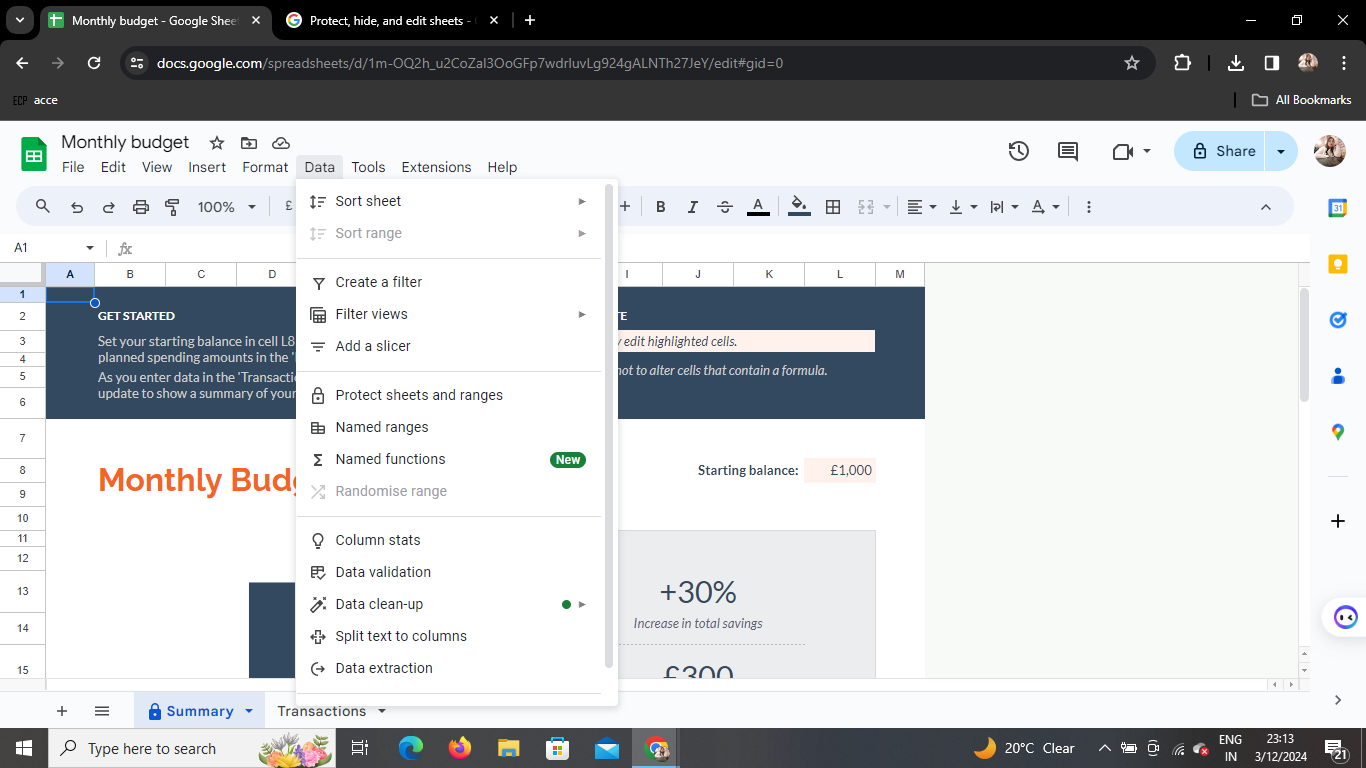
    Step 1: Access the "Data" Tab
    notion image
    Once your Google Sheets is open, locate the "Data" tab in the menu bar. Click on it to reveal a dropdown menu with various data-related options.

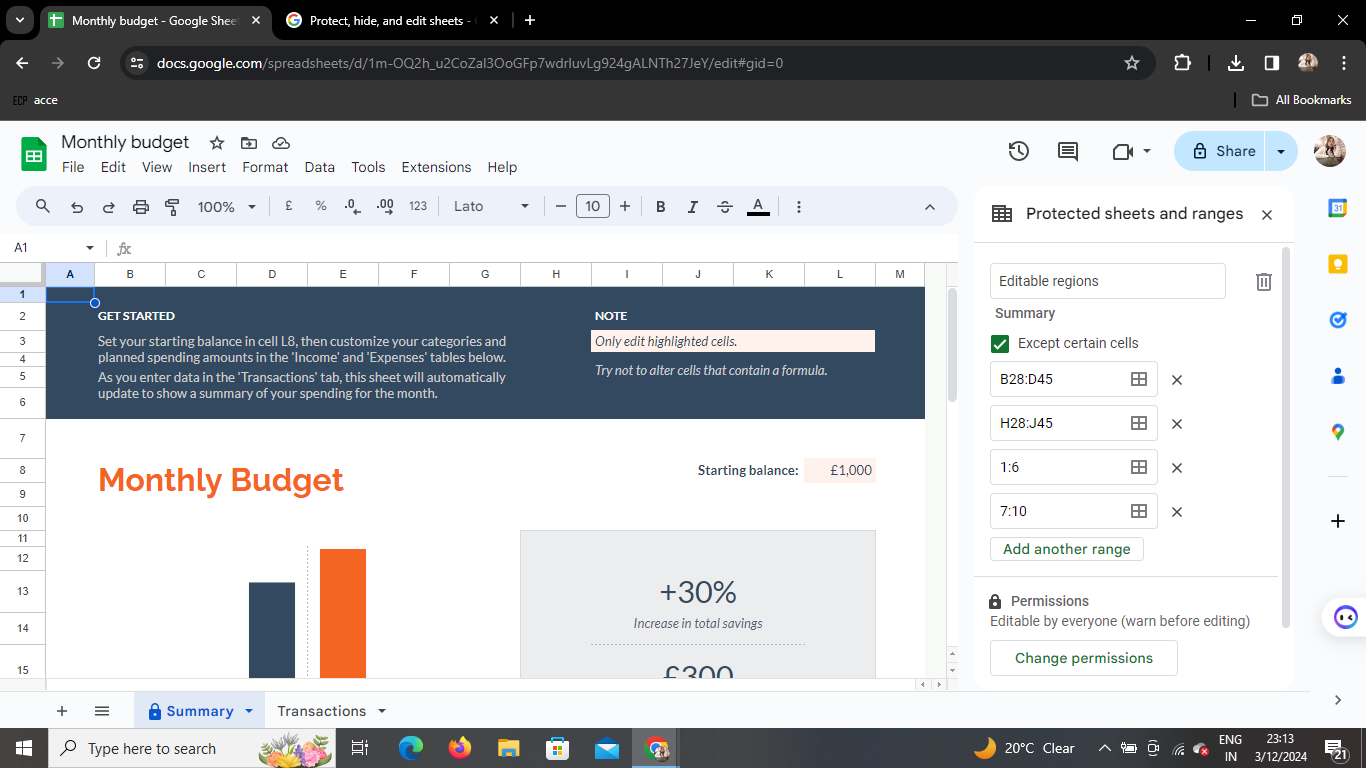
    Step 2: Select "Protect Sheets and Ranges"
    notion image
    Within the "Data" menu, find and click on the "Protect Sheets and Ranges" option. This action initiates the protection settings for your spreadsheet.

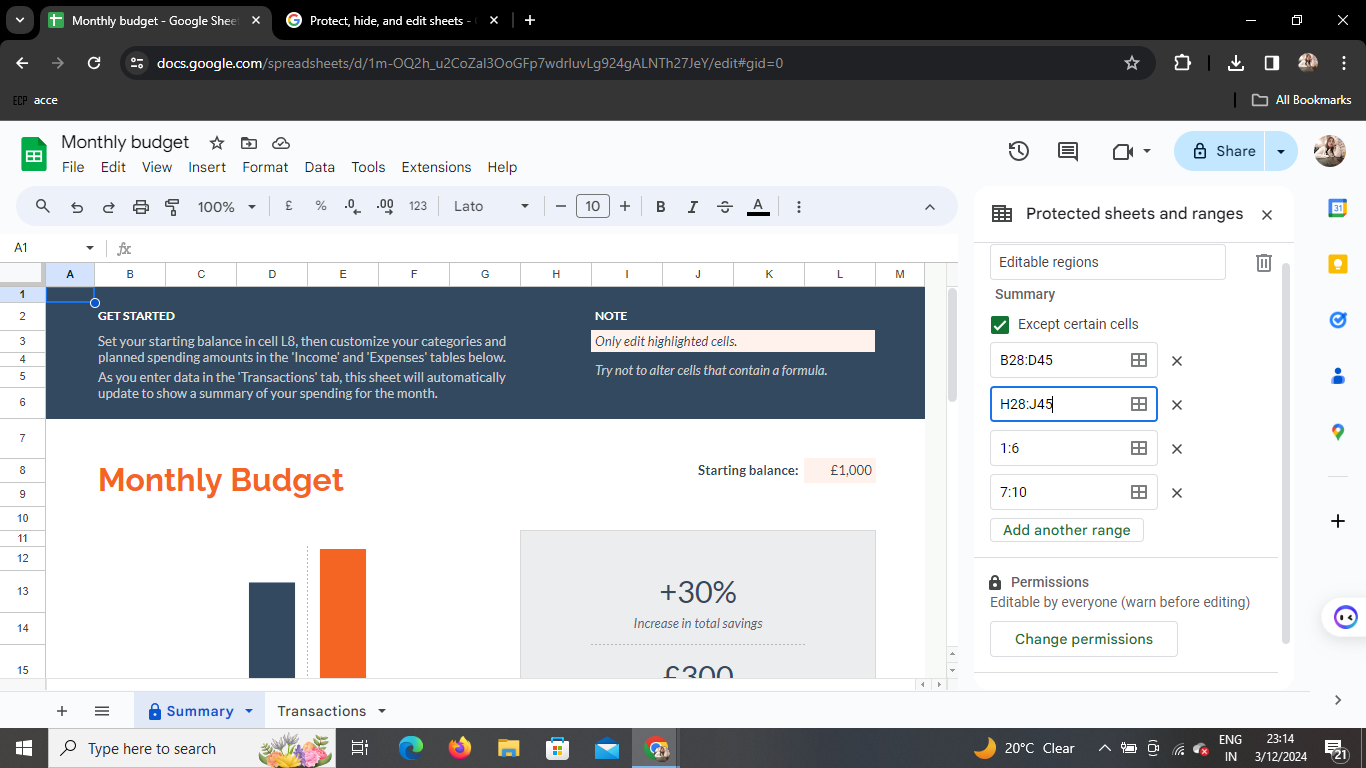
    Step 3: Customize Protection
    notion image
    A menu box will appear, presenting you with customization options. Decide whether you want to leave specific cells editable or protect the entire sheet. This flexibility allows you to tailor the protection according to your specific needs.

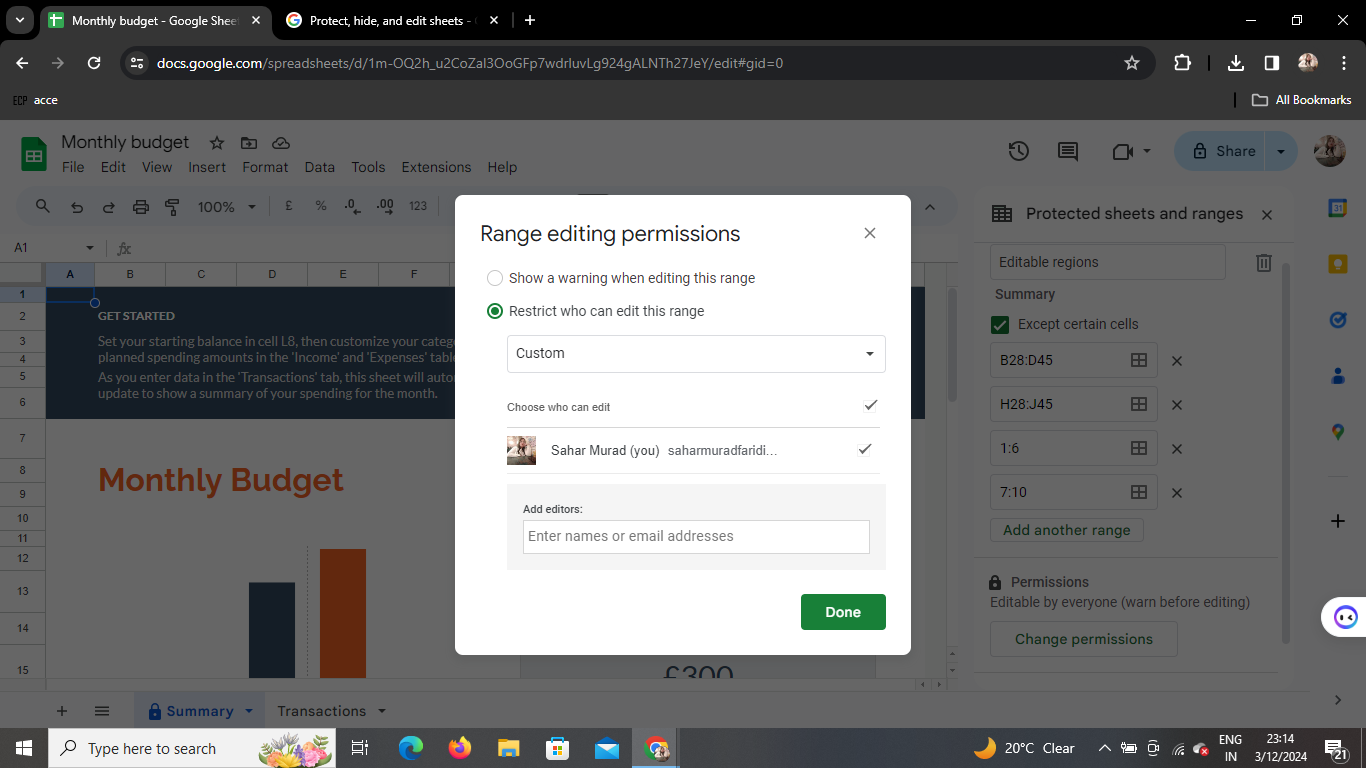
    Step 4: Change Permissions
    notion image
    To specify who can access and edit the protected sheet, click on "Change Permissions." This action prompts a dialogue box where you can add the email addresses of individuals you want to grant access to. Ensure you only include trusted collaborators.

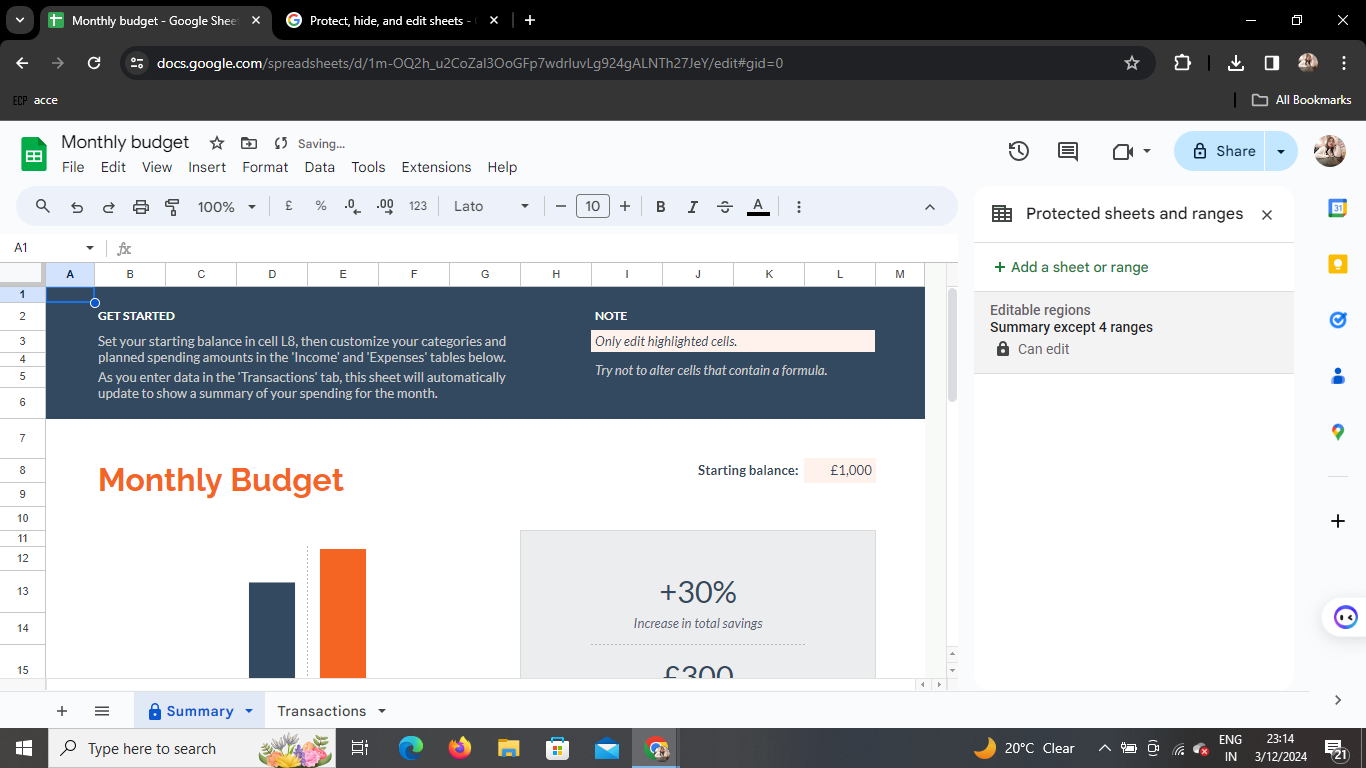
    Step 5: Save and Complete
    notion image
    Once you've adjusted the protection settings and defined permissions, click on "Done." Your changes will be automatically saved, fortifying your Google Sheets against unauthorized access.

    Conclusion

    Congratulations! You've successfully fortified your Google Sheets, bolstering its security and control. By following these steps, you've taken a proactive approach to safeguarding your valuable data.

    Frequently Asked Questions

    How can I remove protection from a sheet?

    To remove protection from a sheet, navigate back to the "Data" tab, select "Protect Sheets and Ranges," and click on "Remove Protection" after choosing the sheet you want to modify.

    Can I protect multiple sheets in one go?

    Yes, you can protect multiple sheets simultaneously. Follow the same steps, selecting multiple sheets before accessing the "Protect Sheets and Ranges" option.

    What happens if I forget to add email addresses in the permission settings?

    If you forget to specify email addresses, the sheet will remain protected, but only you (the owner) will have access. To share access, go back to "Change Permissions" and add the relevant email addresses.

    Can I protect individual cells within a sheet?

    Absolutely! During the customization step, choose the option to leave specific cells editable. This way, you can protect most of the sheet while allowing editing access to designated cells.

    Is there a way to track changes made to a protected sheet?

    While protecting a sheet, you can enable "Notification Rules" to receive alerts whenever changes are made, ensuring transparency in collaborative efforts.

    Share on socials

    About the author

    Ayan Ahmad Fareedi profile photo
    Ayan Ahmad Fareedi— writer at MagicSlides

    Ayan Ahmad is our Senior Writer and brings over two years of experience from working with big companies like Amazon and Okaya. He loves writing stories that grab your attention and speak to a wide audience. When he's not working, you can find him watching movies or planning his next trip. Ayan's work is not just about words; it's about making every article special and interesting.

    More from Ayan

    More from the blog

      250+ Good Morning Messages for Her (Romantic, Deep, Cute & Sweet)

      30 January 2026

      200+ Heart Touching Birthday Wishes for Sister (Short, Funny and More)

      29 January 2026

      50+ History Presentation Topics For 2026

      28 January 2026

      How to Add Music to Your Canva Presentation: A Step-by-Step Guide

      27 January 2026

      15 Quick Tips To Use ChatGpt At Work

      22 January 2026

      11 Best AI Tools for Business in 2025

      22 January 2026

      How to Create an Infographic That Clearly Communicates Your Message

      20 January 2026

      How to Create a Sales Presentation Template in Google Sheets

      20 January 2026

      How to Make a Pie Chart on Google Slides in Simple Steps

      19 January 2026

    Table of Contents

    Create Presentations in Seconds

    Transform your ideas into professional presentations with AI. No design skills needed.

    Try MagicSlides Free

    Create Stunning Presentations with AI in Seconds ✨

    Transform any topic, text, YouTube video, PDF or URL into beautiful presentations instantly with MagicSlides AI.

    Try MagicSlides AI Presentation Maker
    MagicSlides AI Presentation

    Footer

    Solutions

    • MagicSlides App
    • Google Slides Add-on
    • MagicSlides in Chrome
    • MagicSlides in Figma
    • MagicSlides in ChatGPT
    • MagicSlides in Telegram
    • MagicSlides in Zapier
    • MagicSlides in Figma Slides

    Tools

    • AI PPT Tools
    • QR Code Generator
    • Design Tools
    • PPT Templates
    • Slide Templates
    • PDF Tools

    Examples

    • AI Presentations
    • PPT by MagicSlides
    • Quizzes
    • Charts
    • Coloring Pages

    Resources

    • Changelog
    • Documentation
    • API Docs

    Top Blogs

    • How to Create Presentation Using ChatGPT
    • 100+ Best Seminar Topics for Students in 2025

    Company

    • Help
    • MCP
    • Blog
    • Pricing
    • Affiliate Program
    • Manage Subscription
    • Privacy Policy
    • Contact Us
    • Terms & Conditions
    • Refund & Cancellation Policy

    We also built

    • SheetAI - GPT For Sheets
    • MagicForm - GPT For Google Forms
    • SecondBrain.fyi
    • BlogBee - Free Blogging Platform

    © 2026 IndianAppGuy Tech Pvt Ltd. All rights reserved.