How to put an Image below another in PowerPoint


Easily arrange images in PowerPoint by layering them using the Send Backward and Bring Forward options
How to Put an Image Below Another in PowerPoint
Arranging images in PowerPoint is essential for creating visually appealing slides.
If you need to position one image below another, PowerPoint’s layering and ordering features make it easy.
Follow this step-by-step guide to move an image behind another seamlessly.
Step-by-Step Guide
Step 1: Open PowerPoint and Insert Images
Open PowerPoint and go to the slide where you want to arrange images.
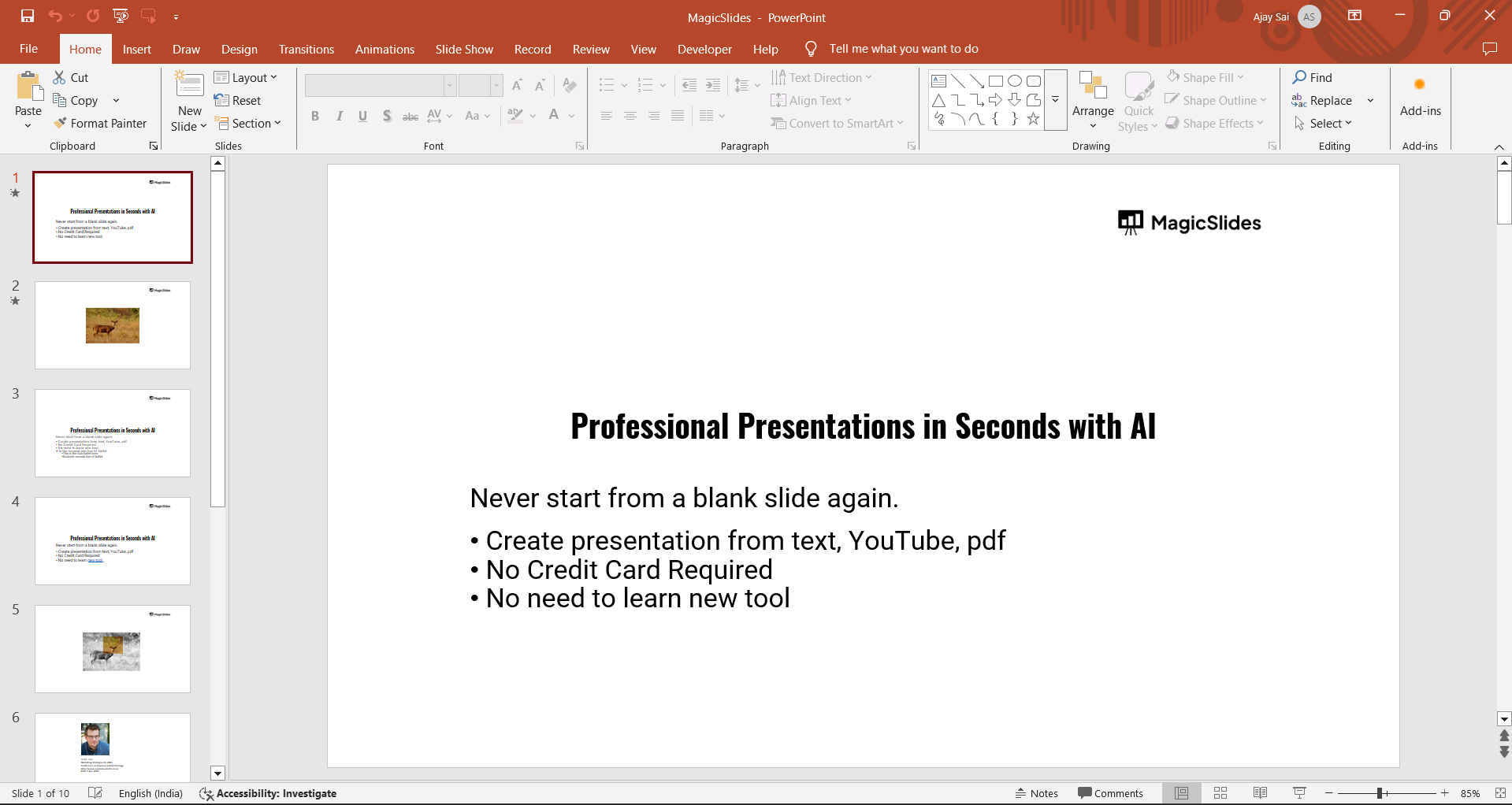
Click on Insert > Pictures, and choose the images you want to add.
Position them on the slide as needed.
Step 2: Select the Image You Want to Move
Click on the image that you want to place behind another. If you want to move multiple images, hold Ctrl (Cmd on Mac) and select them.
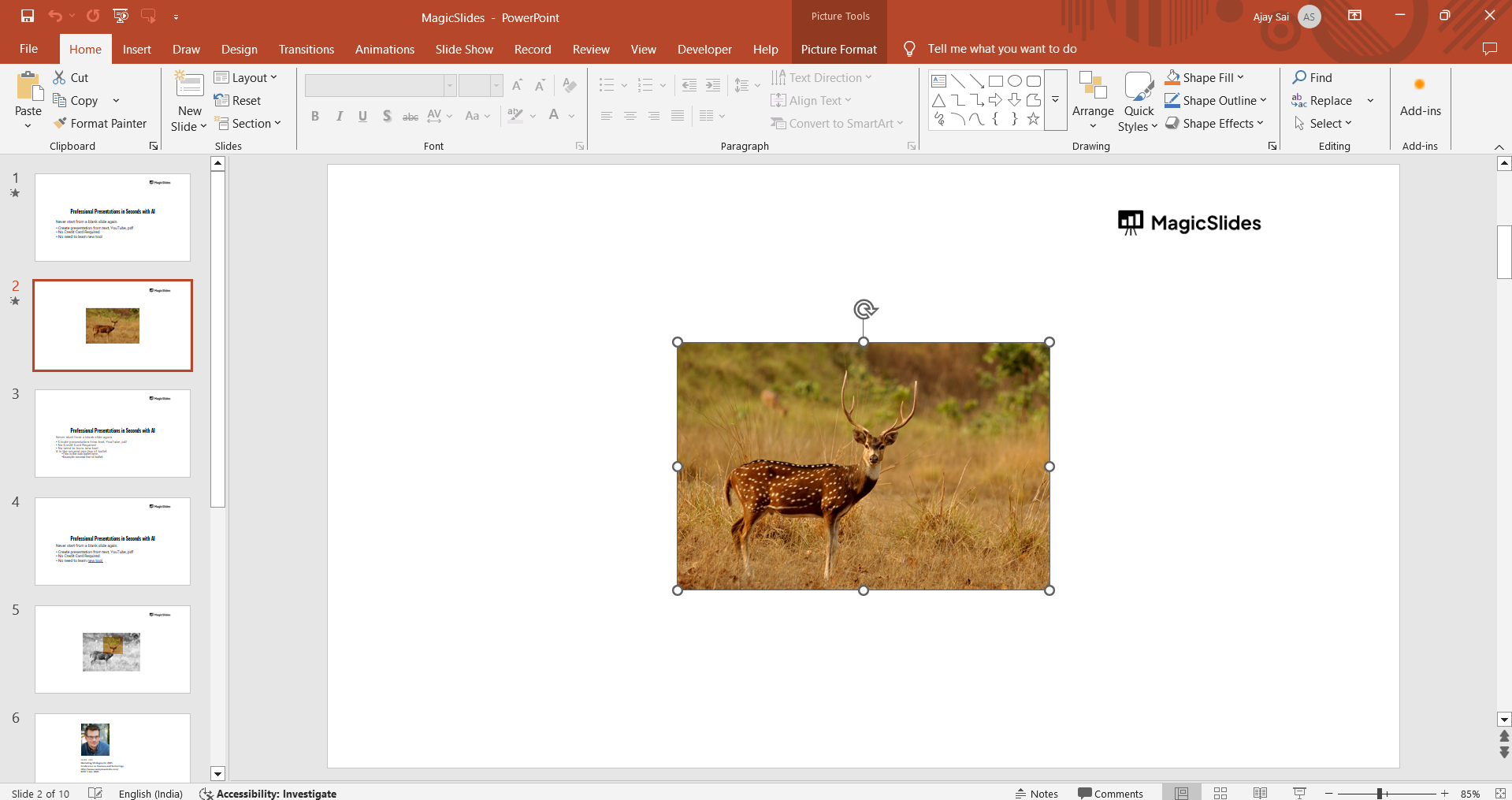
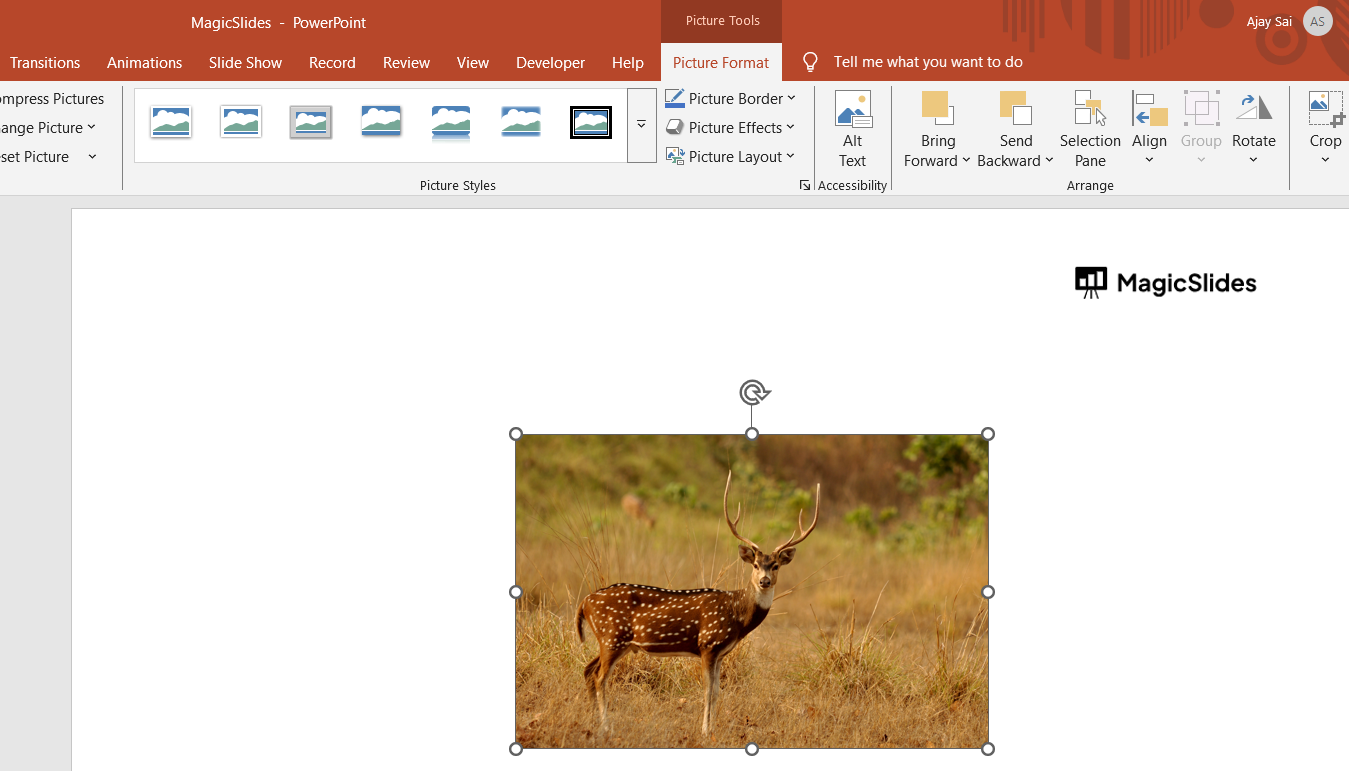
Step 3: Open the Arrange Menu
With the image selected, go to the Picture Format tab in the toolbar. Look for the Arrange group, which contains layering options.
Step 4: Send the Image Backwards
Click on Send Backward to move the selected image one layer behind another.
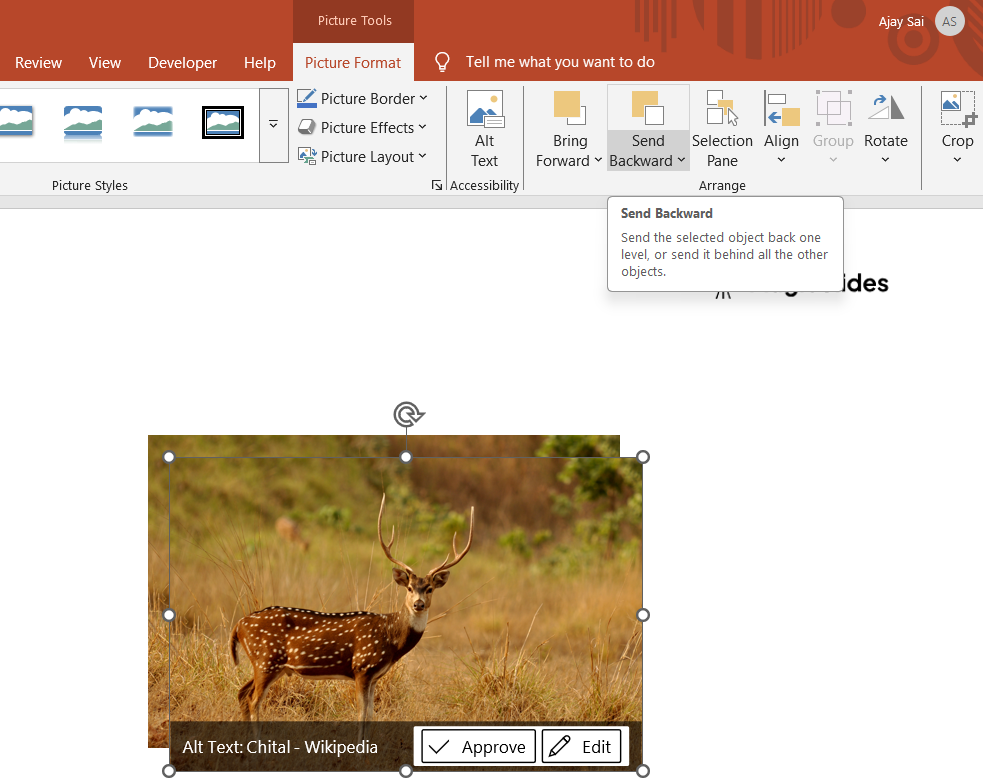
If the image still isn’t behind the desired object, click Send to Back to move it behind all elements.
Step 5: Adjust and Fine-Tune the Position
Drag and position the images correctly after layering them.
If needed, use Bring Forward or Send Backward to rearrange layers until you achieve the desired layout.
Layering images in PowerPoint helps improve slide design, but for a quicker way to create visually appealing slides, check out MagicSlides.app AI-generated presentations with perfectly structured layouts!
Conclusion
PowerPoint makes it simple to layer images and create professional-looking slides.
By using the Arrange menu, you can move images forward or backward to position them correctly.
Mastering this feature will improve your presentations by enhancing the visual hierarchy.
Frequently Asked Questions (FAQs)
Can I layer multiple images in PowerPoint?
Yes! You can arrange multiple images using the Bring Forward and Send Backward options.
What if my image disappears after sending it back?
Check if it moved behind other objects. Use Bring Forward to adjust its position.
Can I group images after arranging them?
Yes! Select multiple images, right-click, and choose Group to lock their positions together.


