How to Quickly Summarize Articles into Visual Slides


Learn the art of summarizing articles effortlessly with our guide, transforming content into engaging visual slides for impactful presentations.
In today's fast-paced digital age, the ability to distill lengthy articles into concise, visually engaging slides is a valuable skill. One tool that simplifies this process is MagicSlides GPT, an extension seamlessly integrated with Google Slides. Follow this step-by-step guide to transform your articles into compelling visual presentations.
How to Quickly Summarize Articles into Visual Slides
Before delving into the steps, ensure you have a Google account for access to Google Slides and MagicSlides GPT. If you don't have MagicSlides GPT installed, you can easily download it as a Google Chrome extension to enhance your Google Slides experience.
Step 1: Visit Google Slides
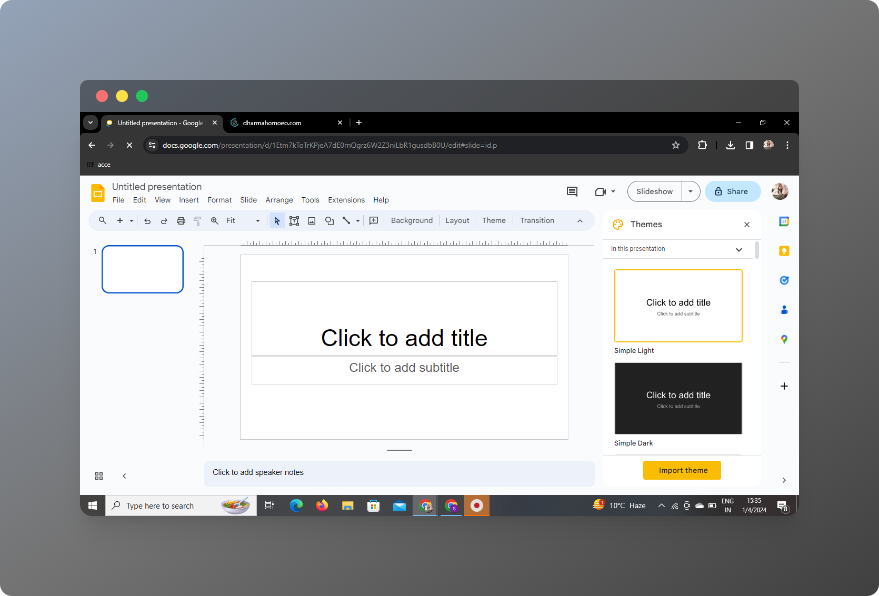
Navigate to Google Slides through your web browser and sign in to your Google account. If you don't have one, you'll need to create an account to access the functionalities of Google Slides and its integrated extensions.
Step 2: Sign in with Google to Google Slides
Upon entering Google Slides, sign in with your Google account credentials to enable the use of associated extensions seamlessly.
Step 3: In Extensions, Click on MagicSlides GPT if Downloaded
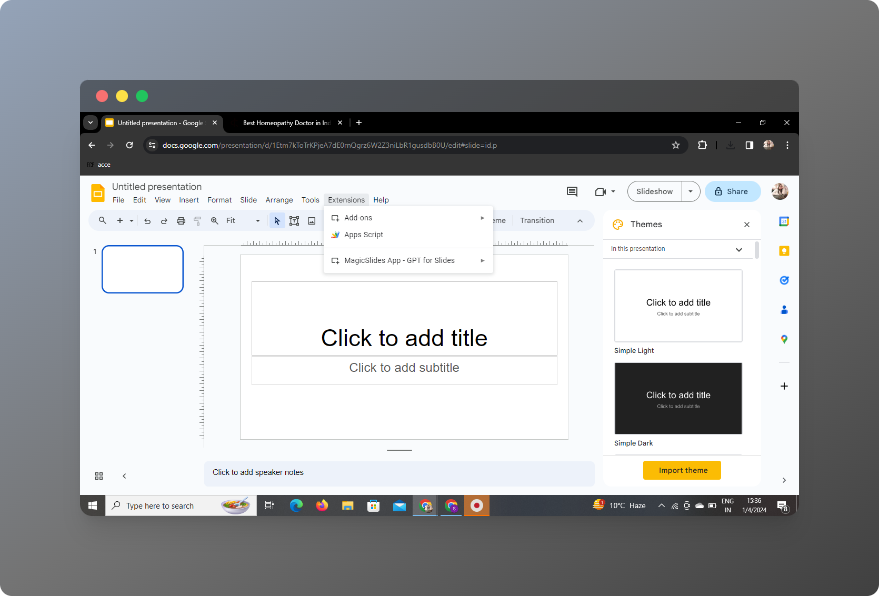
If you've already installed MagicSlides GPT, locate the extension icon in your browser toolbar. Click on it to activate the tool within Google Slides.
Step 4: If Not Downloaded, Download as an Extension, Then Open
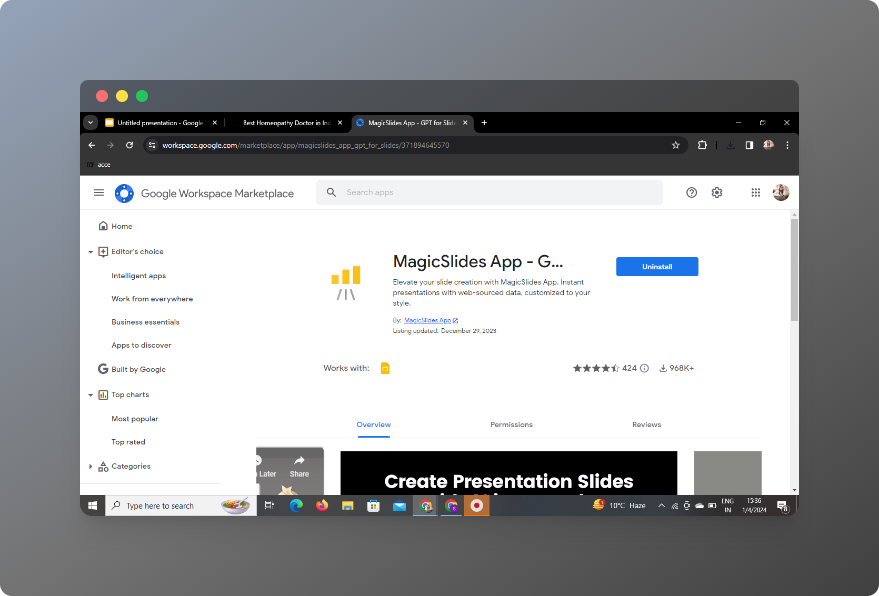
If you haven't downloaded MagicSlides GPT, visit the Chrome Web Store, search for the extension, and click "Add to Chrome." Once installed, open the extension to integrate it with Google Slides.
Step 5: Click on 'Generate PPT' in MagicSlides GPT
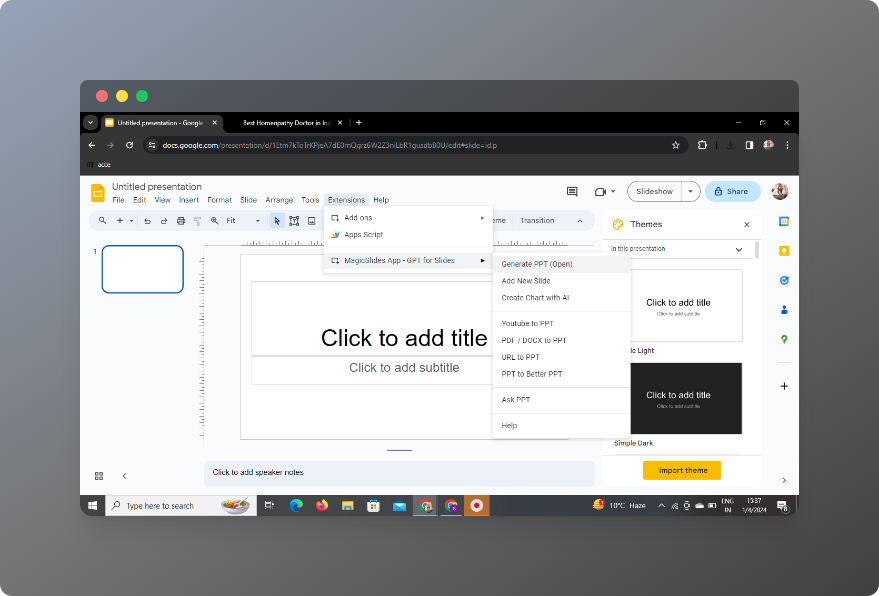
Activate MagicSlides GPT within Google Slides and click on the "Generate PPT" option to initiate the article summarization process.
Step 6: Click on 'Summarize' Option
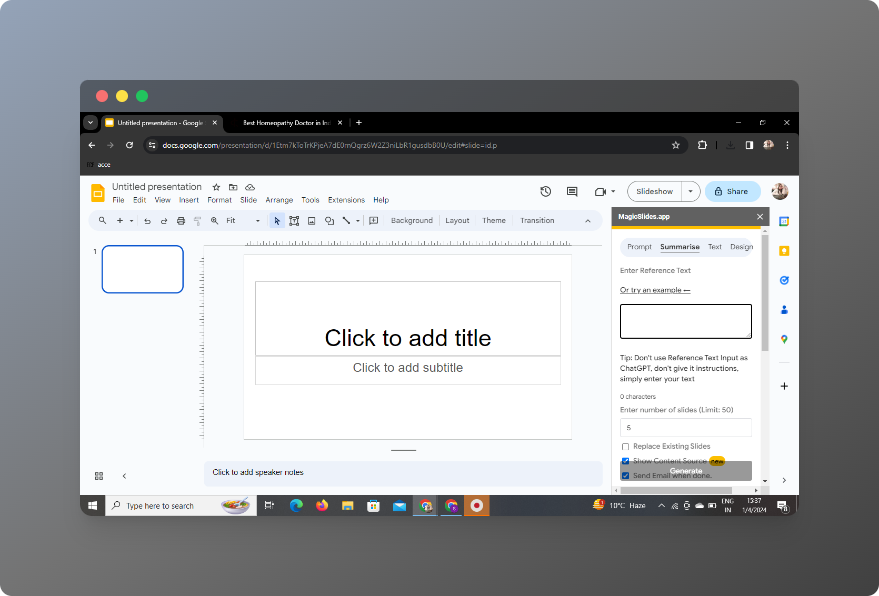
Within MagicSlides GPT, choose the "Summarize" option to prepare your article for transformation into visual slides.
Step 7: Paste Your Article
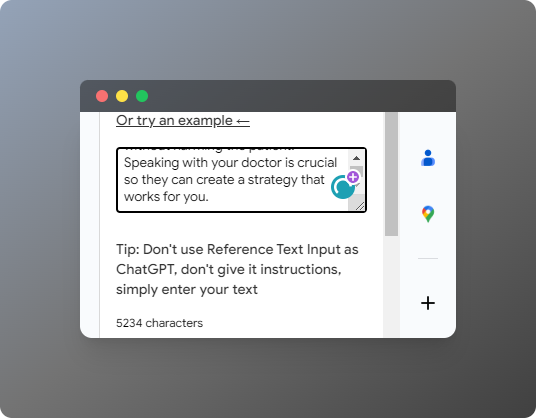
Copy the text of your article and paste it into the designated area within MagicSlides GPT. The tool will analyze the content to create a condensed version suitable for presentation.
Step 8: Select the Number of Slides
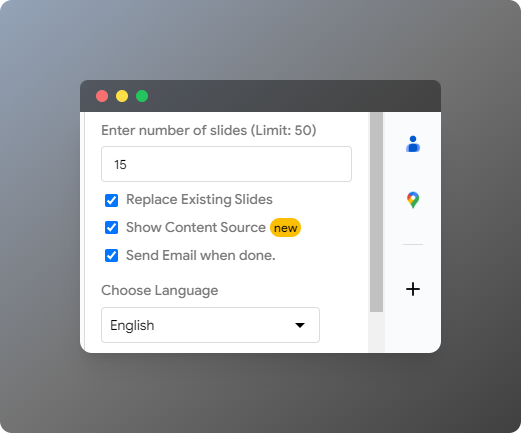
Customize the summarization process by selecting the desired number of slides for your presentation. Tailor the output to match your preferences and presentation style.
Step 9: Click on 'Generate Presentation'
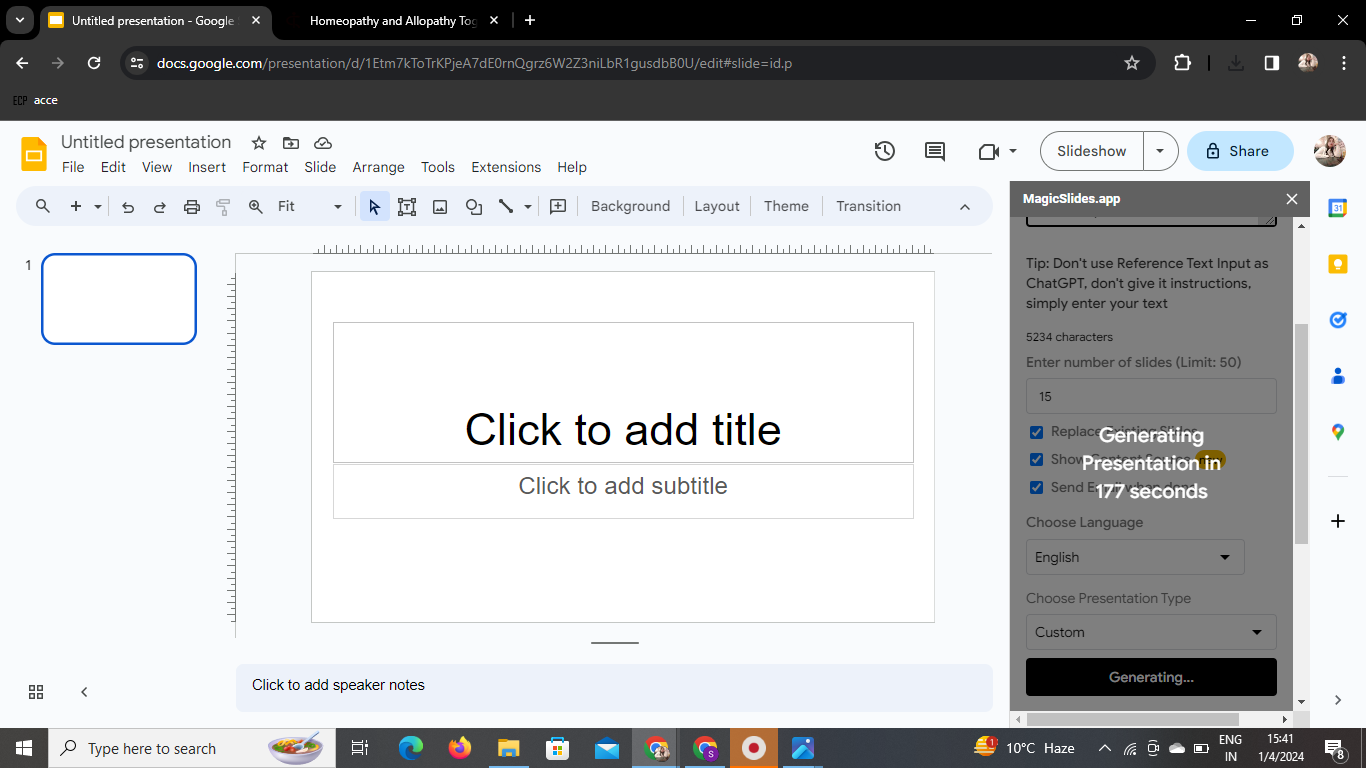
Click the "Generate Presentation" button within MagicSlides GPT to let the tool create visual slides summarizing your article.
Your Presentation is Ready!
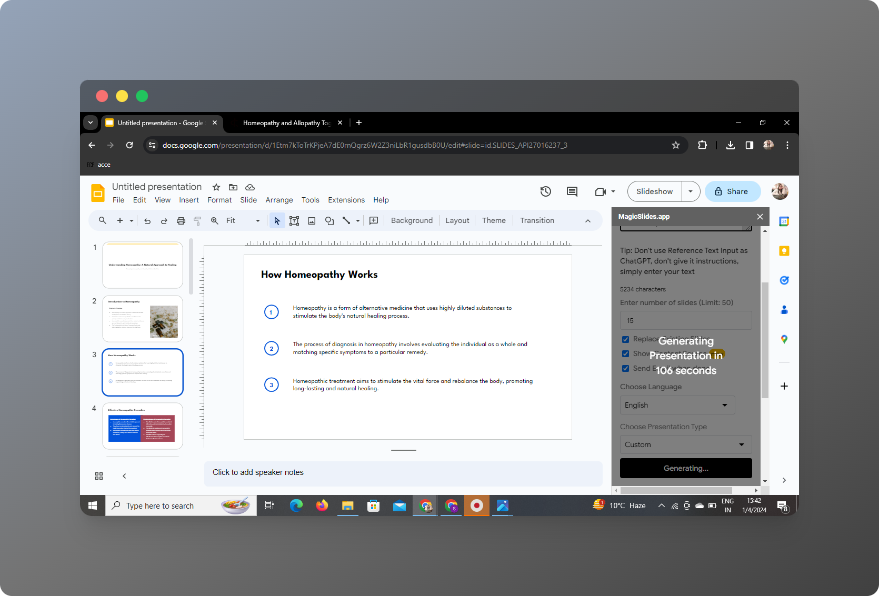
Congratulations! Your presentation is now ready for use. Download the generated PowerPoint slides or seamlessly integrate them into your Google Slides for immediate sharing or presentation.
Conclusion
Summarizing articles into visual slides has never been easier. With the integration of Google Slides and the powerful MagicSlides GPT extension, you can effortlessly transform lengthy content into engaging presentations, saving time and enhancing your ability to convey information effectively.
Frequently Asked Questions (FAQs)
Is MagicSlides GPT free to use?
Yes, MagicSlides GPT is a free extension available on the Chrome Web Store.
Can I use MagicSlides GPT with other browsers?
Currently, MagicSlides GPT is optimized for Google Chrome.
How accurate is the summarization process?
The accuracy of summarization depends on the complexity of the content, but MagicSlides GPT strives to provide concise and coherent summaries.
Can I edit the generated slides?
Absolutely! After generating slides, you can further customize and edit them within Google Slides.
Are there limitations on the length of the article for summarization?
While MagicSlides GPT can handle substantial amounts of text, it's advisable to break down longer articles for more accurate results.


