Addon google slides iconPPT with AISlide TemplatesPPT TemplatesPricingBlog
    PPT with AISlide TemplatesPPT TemplatesPricingBlog
    1. Home
    2. Blog
    3. How to remove Canva Watermark


    How to remove Canva Watermark

    Ajay Sai

    Published By

    Ajay Sai

    Approved By

    Admin

    Published On

    June 4th, 2025

    Reading Time

    3 min read

    Learn how to remove Canva watermarks legally and create professional designs with this step-by-step guide

    Canva's watermark appears on designs when premium elements, such as images or graphics, are used without a paid subscription or license.
    While the watermark ensures copyright compliance, it can be removed legally through proper methods.
    This step-by-step guide will help you remove the Canva watermark effectively, so your designs are ready for professional use.

    How to Remove Canva Watermark | Steps to Remove Canva Watermark

    Step 1: Identify the Premium Elements

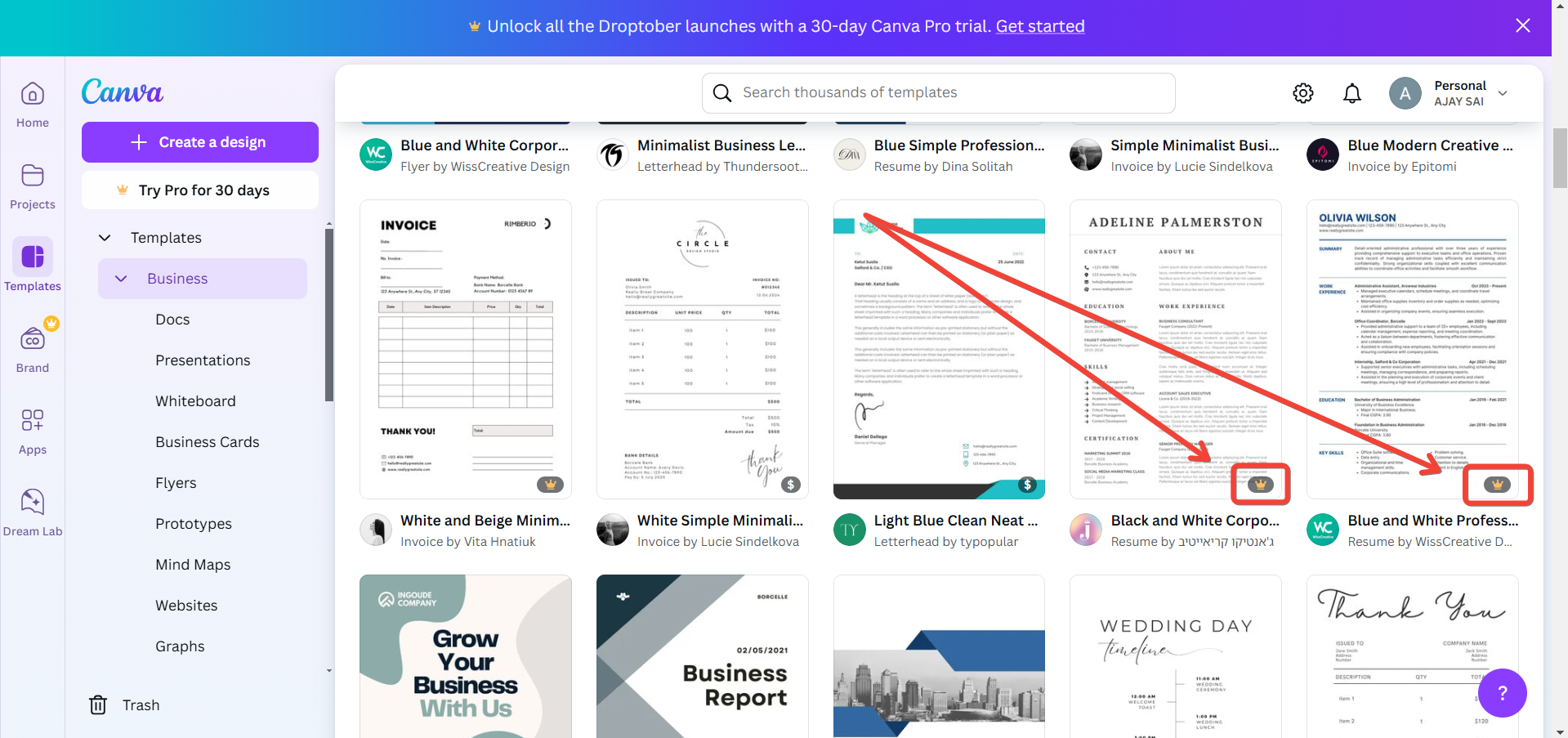
    Open your design in Canva. Look for the elements marked with a watermark, typically premium images, illustrations, or videos.
    notion image
    Select each watermarked element to confirm it requires payment or a subscription.

    Step 2: Purchase the Premium Elements

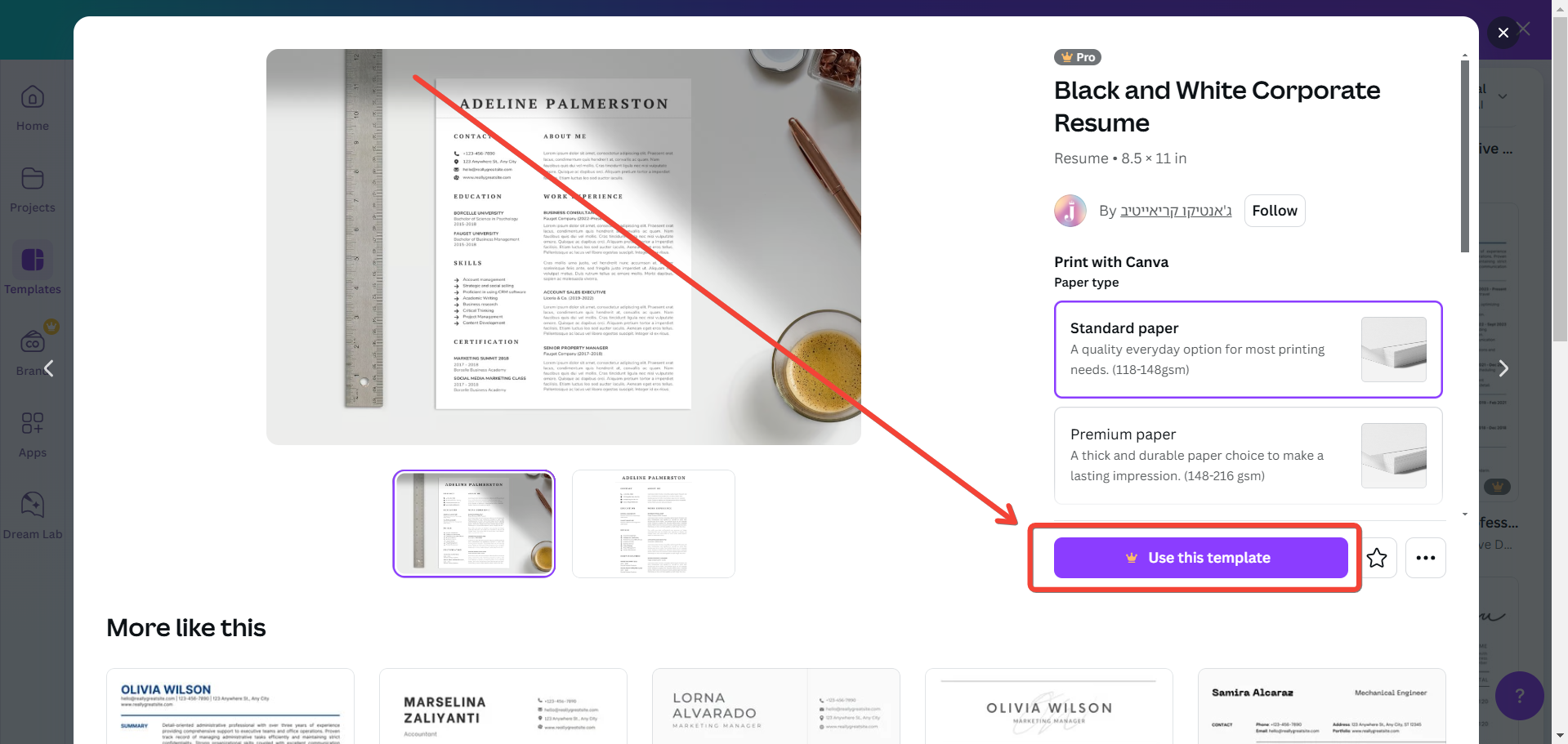
    If you're using Canva Free, click on the watermarked element.
    A prompt will appear asking you to pay for a single-use license or upgrade to Canva Pro.
    notion image
    Make the payment for individual elements or subscribe to Canva Pro to access unlimited premium content.

    Step 3: Replace Watermarked Elements with Free Alternatives (Optional)

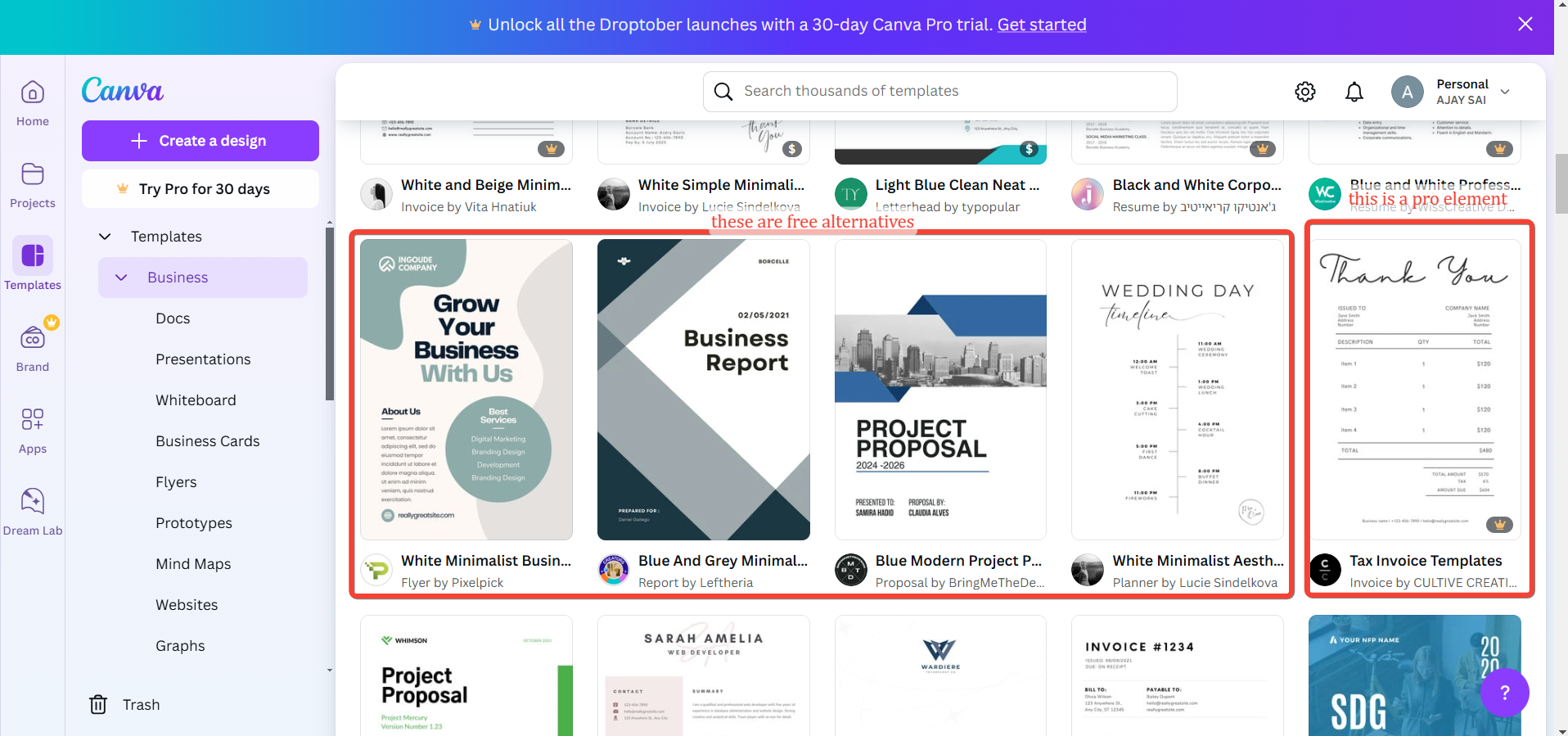
    If you prefer not to pay, search for free elements within Canva’s library.
    notion image
    Use keywords like "free" in the search bar to filter out premium options.
    Replace the watermarked elements with free alternatives that suit your design.

    Step 4: Download Your Design Without Watermarks

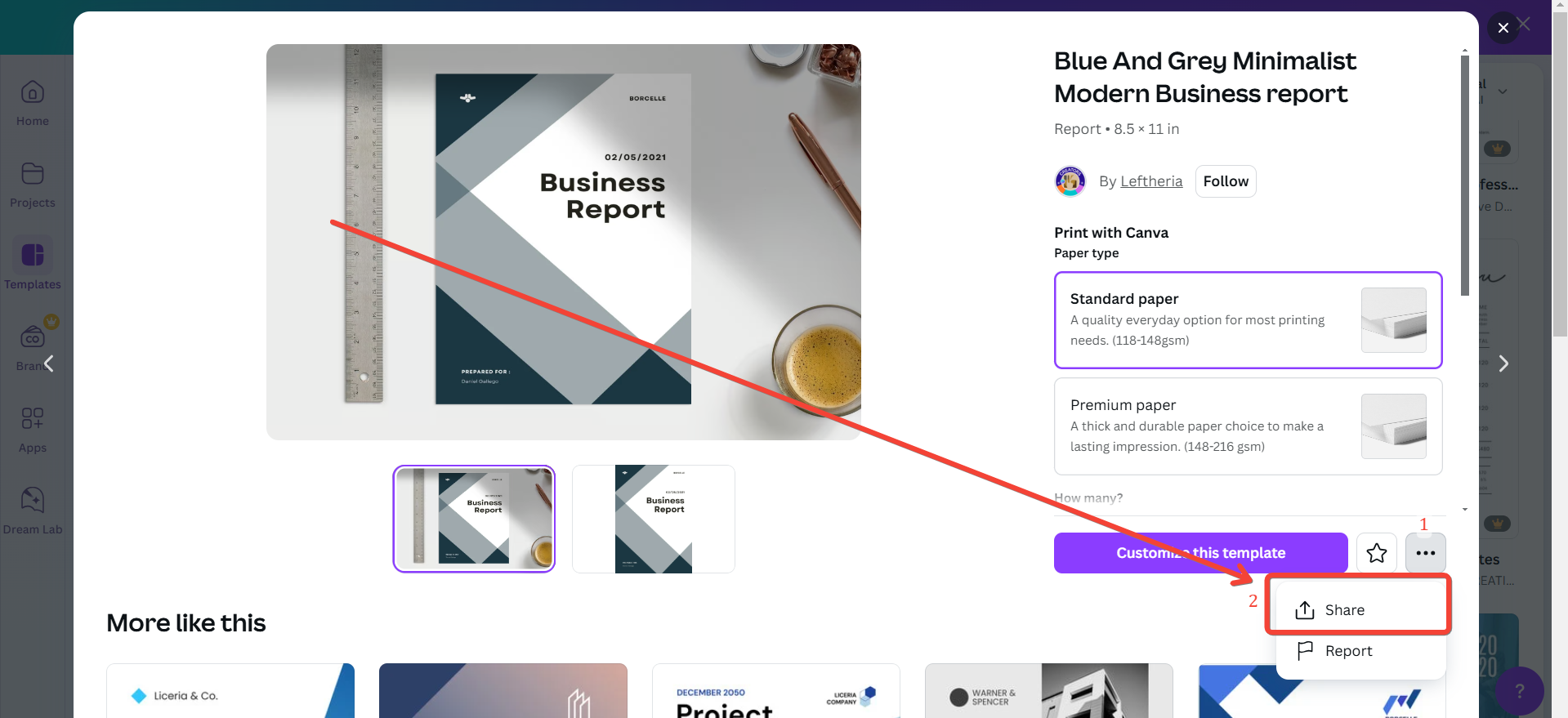
    Once you’ve purchased or replaced the watermarked elements, click on the Share button.
    notion image
    Select Download and choose your preferred file format (PNG, JPG, PDF, etc.).
    Confirm there are no watermarked elements in the design, then proceed to download.

    Step 5: Use Canva Pro for Unlimited Access (Recommended)

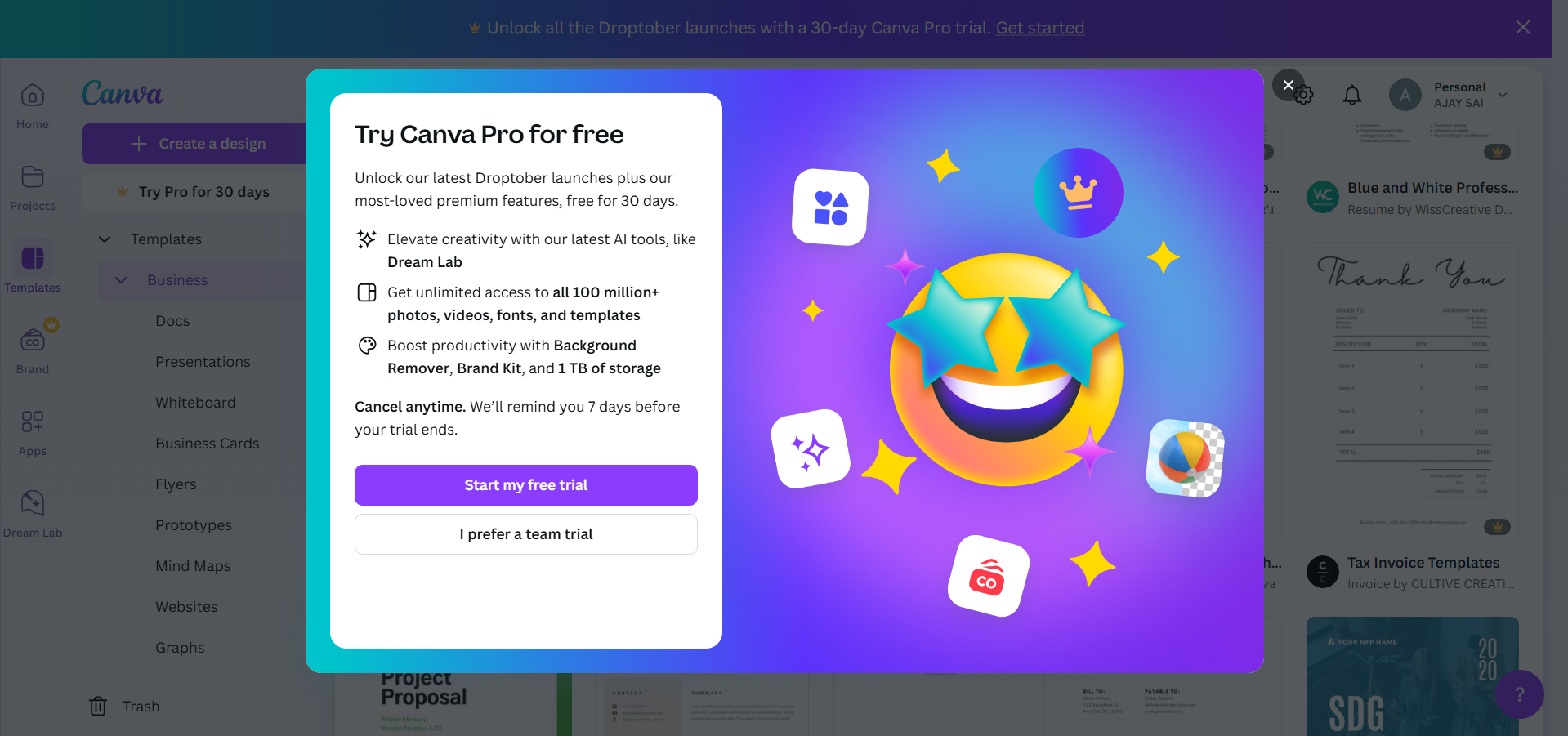
    To avoid watermarks in future designs, consider subscribing to Canva Pro.
    notion image
    Canva Pro provides unlimited access to premium elements, templates, and other exclusive features.
    This subscription is cost-effective for frequent users or those handling professional projects.

    Conclusion

    Removing Canva’s watermark ensures your designs are polished and ready for use without copyright issues.
    By purchasing elements, replacing them with free alternatives, or subscribing to Canva Pro, you can create high-quality designs tailored to your needs.
    Remember to always respect copyright rules and use Canva’s premium resources responsibly.

    FAQs on Removing Canva Watermark

    Can I remove Canva’s watermark without paying?

    Yes, you can replace premium elements with free alternatives available in Canva’s library to avoid paying.

    Is Canva Pro worth it for removing watermarks?

    For frequent users, Canva Pro is a cost-effective solution that provides unlimited access to premium elements and features, eliminating the need for individual purchases.

    What happens if I download a design with watermarks?

    Designs downloaded with watermarks indicate unpaid premium elements. These cannot be used commercially or professionally until the watermark is removed legally.
    Follow these steps to ensure your designs are watermark-free and ready for both personal and professional use!

    Share on socials

    About the author

    Ajay Sai profile photo
    Ajay Sai— writer at MagicSlides.app

    Ajay have been a techincal writer for more than 2+ years. from coding tutorials to using day to day apps he have helped 100k+ visitors with their various queries

    More from Ajay

    More from the blog

      200+ Heart Touching Birthday Wishes for Sister (Short, Funny and More)

      29 January 2026

      250+ Good Morning Messages for Her (Romantic, Deep, Cute & Sweet)

      28 January 2026

      50+ History Presentation Topics For 2026

      28 January 2026

      How to Add Music to Your Canva Presentation: A Step-by-Step Guide

      27 January 2026

      15 Quick Tips To Use ChatGpt At Work

      22 January 2026

      11 Best AI Tools for Business in 2025

      22 January 2026

      How to Create an Infographic That Clearly Communicates Your Message

      20 January 2026

      How to Create a Sales Presentation Template in Google Sheets

      20 January 2026

      How to Make a Pie Chart on Google Slides in Simple Steps

      19 January 2026

    Table of Contents

    Create Presentations in Seconds

    Transform your ideas into professional presentations with AI. No design skills needed.

    Try MagicSlides Free

    Create Stunning Presentations with AI in Seconds ✨

    Transform any topic, text, YouTube video, PDF or URL into beautiful presentations instantly with MagicSlides AI.

    Try MagicSlides AI Presentation Maker
    MagicSlides AI Presentation

    Footer

    Solutions

    • MagicSlides App
    • Google Slides Add-on
    • MagicSlides in Chrome
    • MagicSlides in Figma
    • MagicSlides in ChatGPT
    • MagicSlides in Telegram
    • MagicSlides in Zapier
    • MagicSlides in Figma Slides

    Tools

    • AI PPT Tools
    • QR Code Generator
    • Design Tools
    • PPT Templates
    • Slide Templates
    • PDF Tools

    Examples

    • AI Presentations
    • PPT by MagicSlides
    • Quizzes
    • Charts
    • Coloring Pages

    Resources

    • Changelog
    • Documentation
    • API Docs

    Top Blogs

    • How to Create Presentation Using ChatGPT
    • 100+ Best Seminar Topics for Students in 2025

    Company

    • Help
    • MCP
    • Blog
    • Pricing
    • Affiliate Program
    • Manage Subscription
    • Privacy Policy
    • Contact Us
    • Terms & Conditions
    • Refund & Cancellation Policy

    We also built

    • SheetAI - GPT For Sheets
    • MagicForm - GPT For Google Forms
    • SecondBrain.fyi
    • BlogBee - Free Blogging Platform

    © 2026 IndianAppGuy Tech Pvt Ltd. All rights reserved.