How to remove transitions in PowerPoint


Quickly learn how to remove transitions in PowerPoint for a seamless presentation experience
Transitions in PowerPoint add animation effects when moving from one slide to another.
While transitions can enhance the visual appeal of your presentation, sometimes you may want a more streamlined and professional look by removing them.
Whether you've applied transitions unintentionally or simply want to create a cleaner presentation, removing transitions is easy.
In this blog post, we’ll guide you through the process of removing transitions in PowerPoint step by step.
How to remove transitions in PowerPoint
Step 1: Open Your Presentation
Begin by opening your PowerPoint presentation.
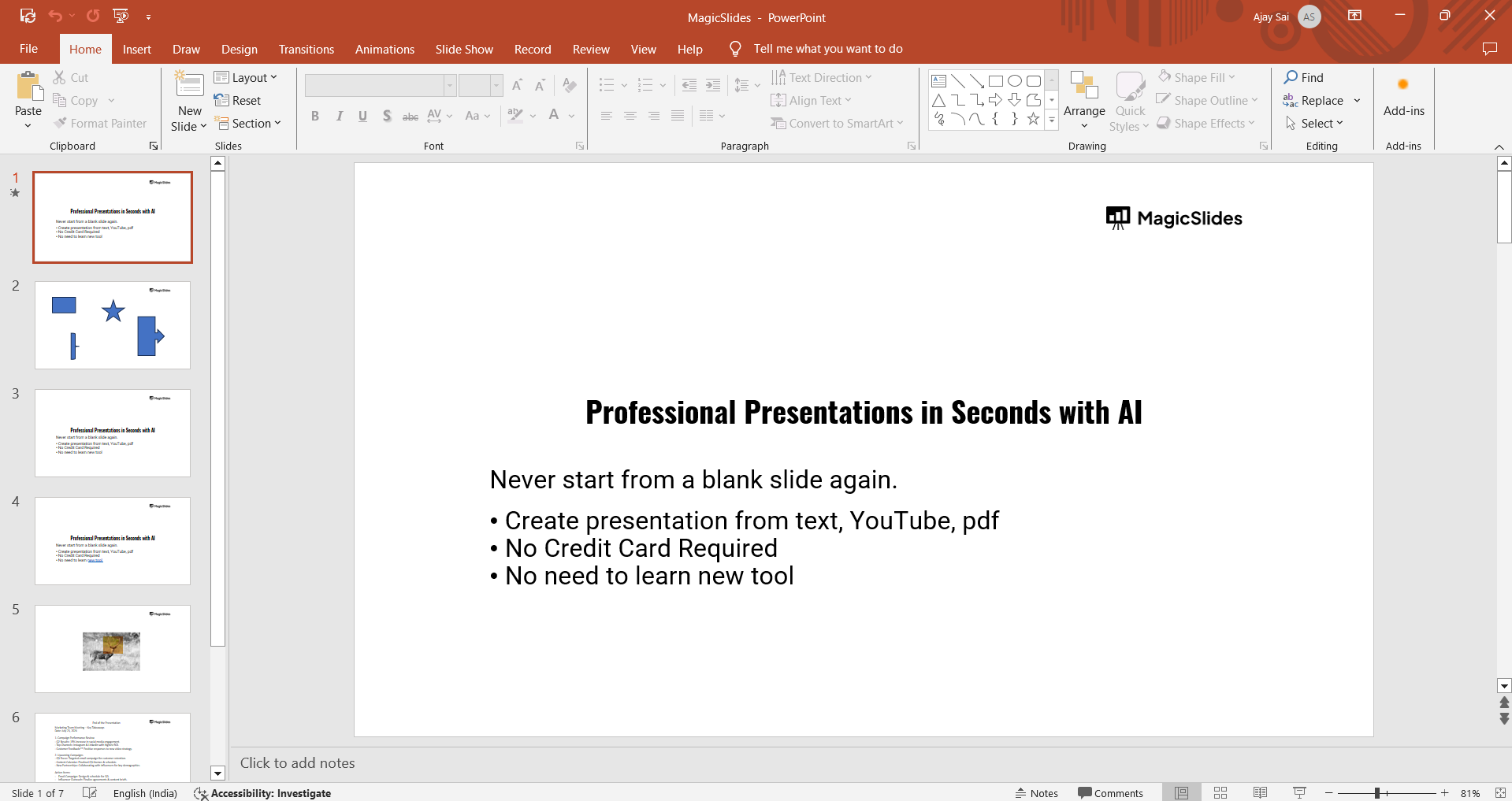
You can do this by either launching PowerPoint and selecting your file from the "Recent" section, or by clicking on "File" > "Open" and browsing for the presentation you want to edit.
Step 2: Go to the Slide with the Transition
Navigate to the slide from which you want to remove the transition.
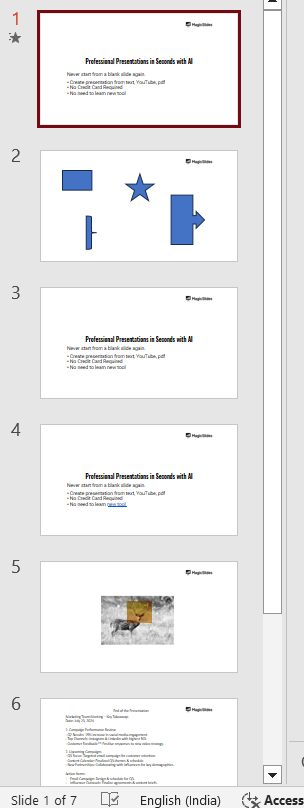
You can do this by clicking on the slide thumbnail in the slide pane on the left side of your screen.
Step 3: Access the Transitions Tab
Once the slide is selected, click on the "Transitions" tab in the PowerPoint ribbon at the top of the screen.
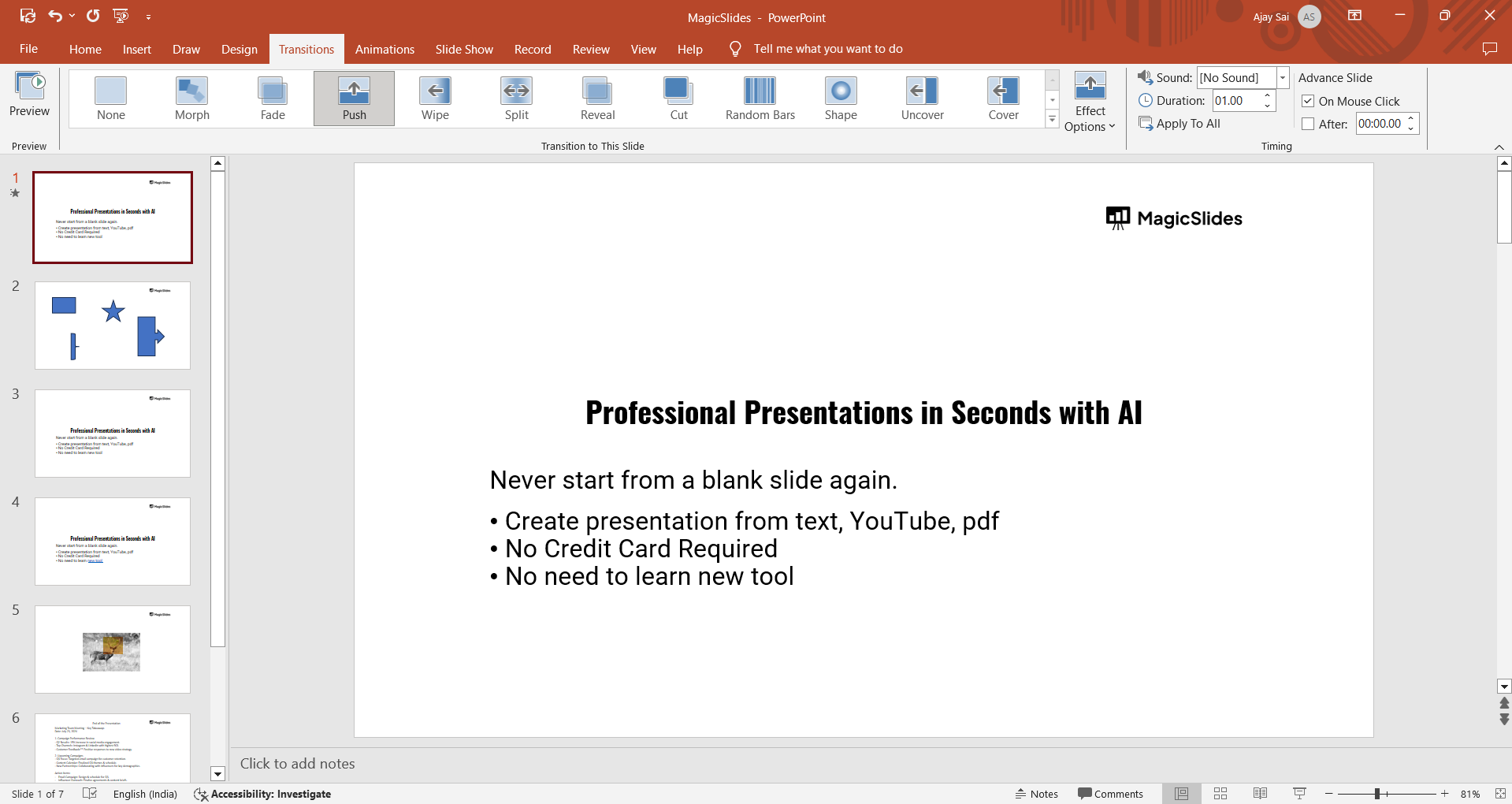
This tab contains all the options for applying, modifying, or removing transitions.
Step 4: Remove the Transition
In the "Transitions" tab, look for the group of transition options.
To remove the transition from the selected slide, click on "None," which is typically the first option in the transition gallery.
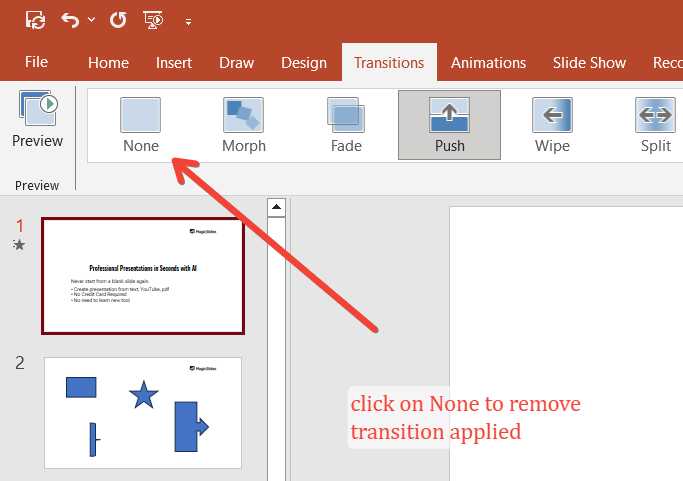
This action will immediately remove any transitions from that slide.
Step 5: Remove Transitions from Multiple Slides
If you want to remove transitions from multiple slides at once, select all the slides by holding down the "Ctrl" key (Windows) or "Command" key (Mac) while clicking on the slide thumbnails.
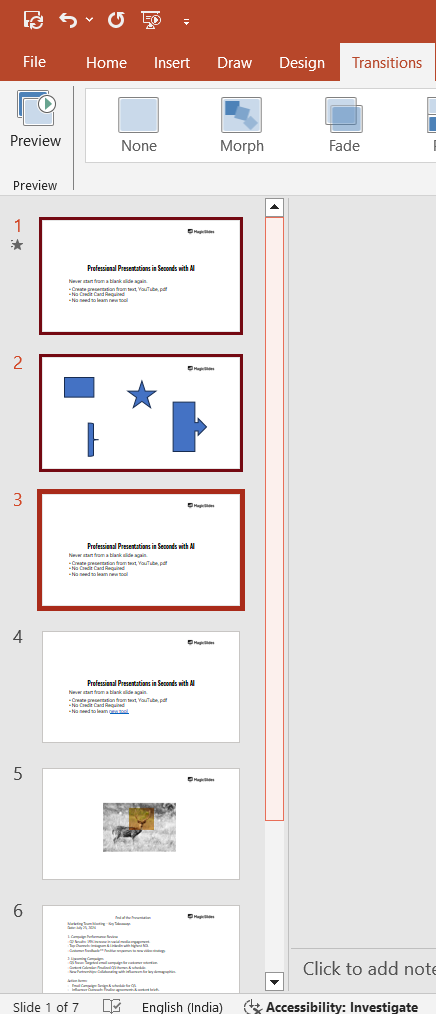
With multiple slides selected, go to the "Transitions" tab and click "None." This will remove transitions from all the selected slides in one go.
Now that you’ve learnt how to remove transition, it is also very important to know removing Animations as well, here we’ve created a simple tutorial to solve that need.
Step 6: Preview Your Slides
After removing transitions, preview your slides to ensure that the changes have been applied correctly.
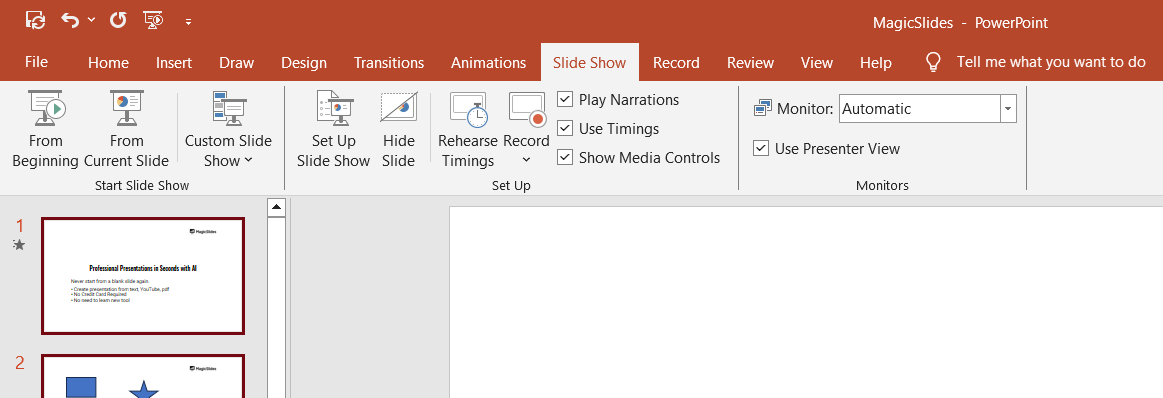
You can do this by clicking on the "Slide Show" tab and selecting "From Current Slide" to view your presentation without transitions.
Conclusion
Removing transitions in PowerPoint is a simple process that allows you to streamline your presentation and create a cleaner, more focused experience for your audience.
Whether you’re adjusting a few slides or your entire deck, these steps will help you easily remove transitions and refine your presentation.
Keep in mind that while transitions can be effective, less is often more when it comes to professional presentations.
Frequently Asked Questions
Can I remove transitions from all slides at once?
Yes, you can select all slides by pressing Ctrl+A (or Cmd+A on Mac) in Slide Sorter view and then choose "None" in the Transitions tab to remove transitions from all slides simultaneously.
Will removing transitions affect slide animations?
No, removing transitions will not affect any animations within your slides.
Transitions control how one slide changes to the next, while animations control how elements within a slide appear or disappear.
How do I remove automatic slide advancement?
In the "Timing" group under the Transitions tab, uncheck the "After" box to prevent slides from advancing automatically.
Ensure that "On Mouse Click" is checked if you prefer manual advancement.


