How to Revive Family Archives: Transforming Ancestral Letters into PowerPoint Narratives


Unlock family history with our guide! Learn to breathe life into ancestral letters, crafting captivating PowerPoint narratives that preserve and celebrate.
Preserving family history is a cherished tradition, often passed down through generations. Ancestral letters, with their rich narratives and personal insights, offer a unique glimpse into the past. But how can we breathe new life into these treasured artifacts? With the help of modern technology and innovative tools like MagicSlides GPT, transforming ancestral letters into captivating PowerPoint narratives has never been easier.
How to Revive Family Archives: Transforming Ancestral Letters into PowerPoint Narratives
To embark on this journey of rediscovery, the first step is to open Google Slides and create a blank presentation. Google Slides provides a user-friendly platform for crafting visually compelling narratives.
Step 1: Sign in with Google Slides
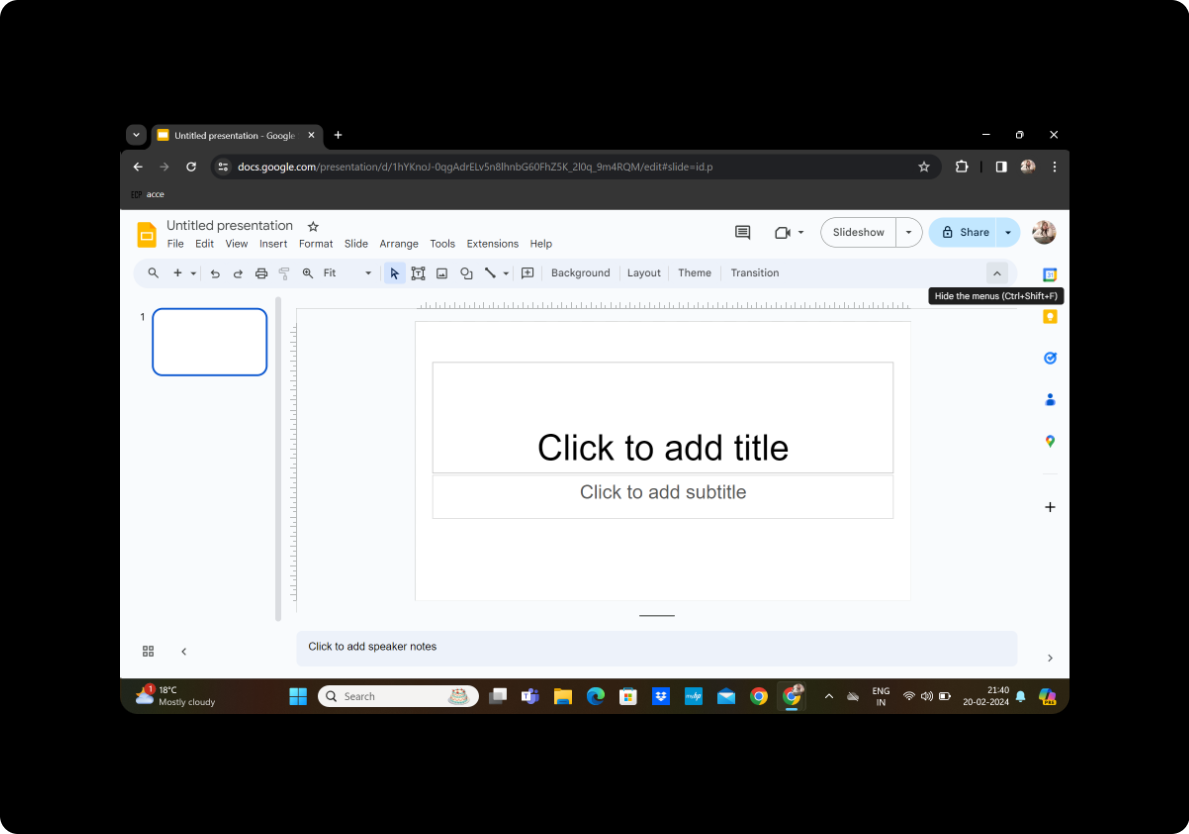
Sign in to your Google account and navigate to Google Slides. If you don't have an account, you can easily create one for free.
Step 2: Click on Extensions and MagicSlides GPT
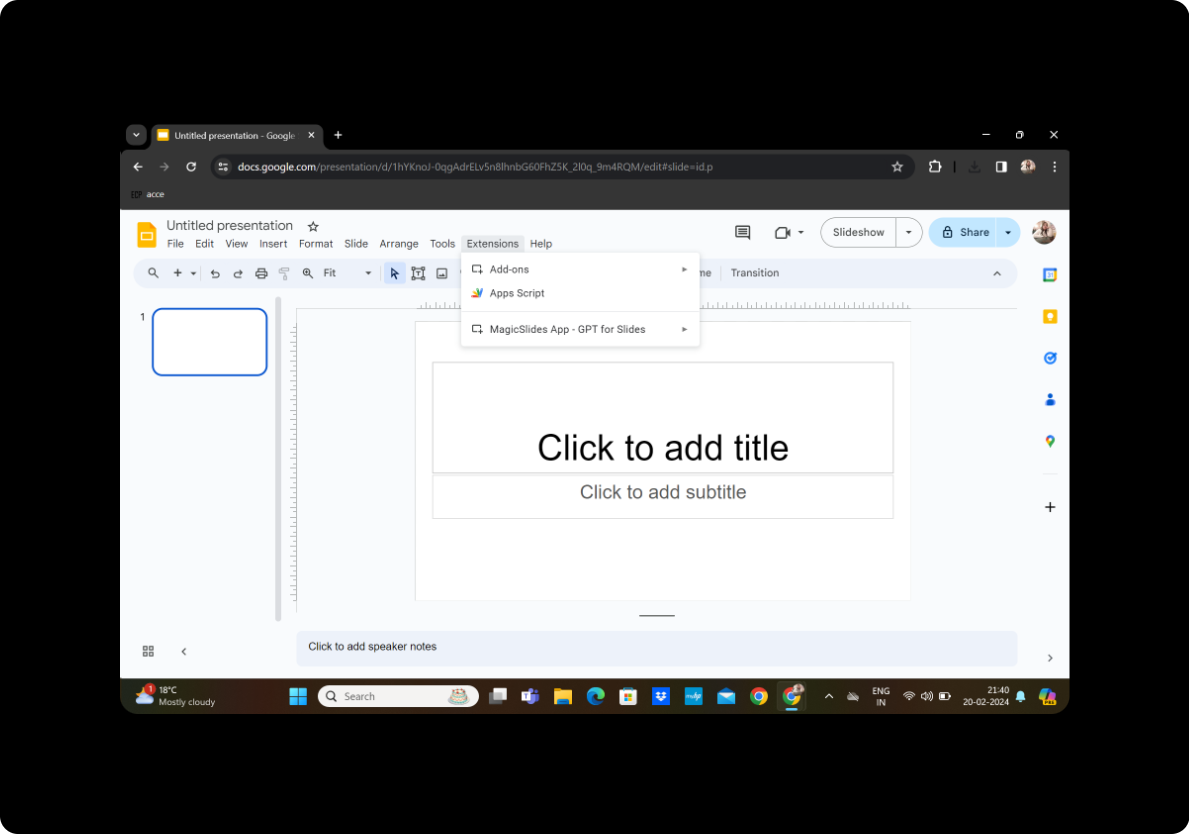
Once in Google Slides, click on the "Extensions" tab in the toolbar. Look for "MagicSlides GPT" and click on it to activate the extension.
Step 3: Click on 'PDF/DOCX to PPT'
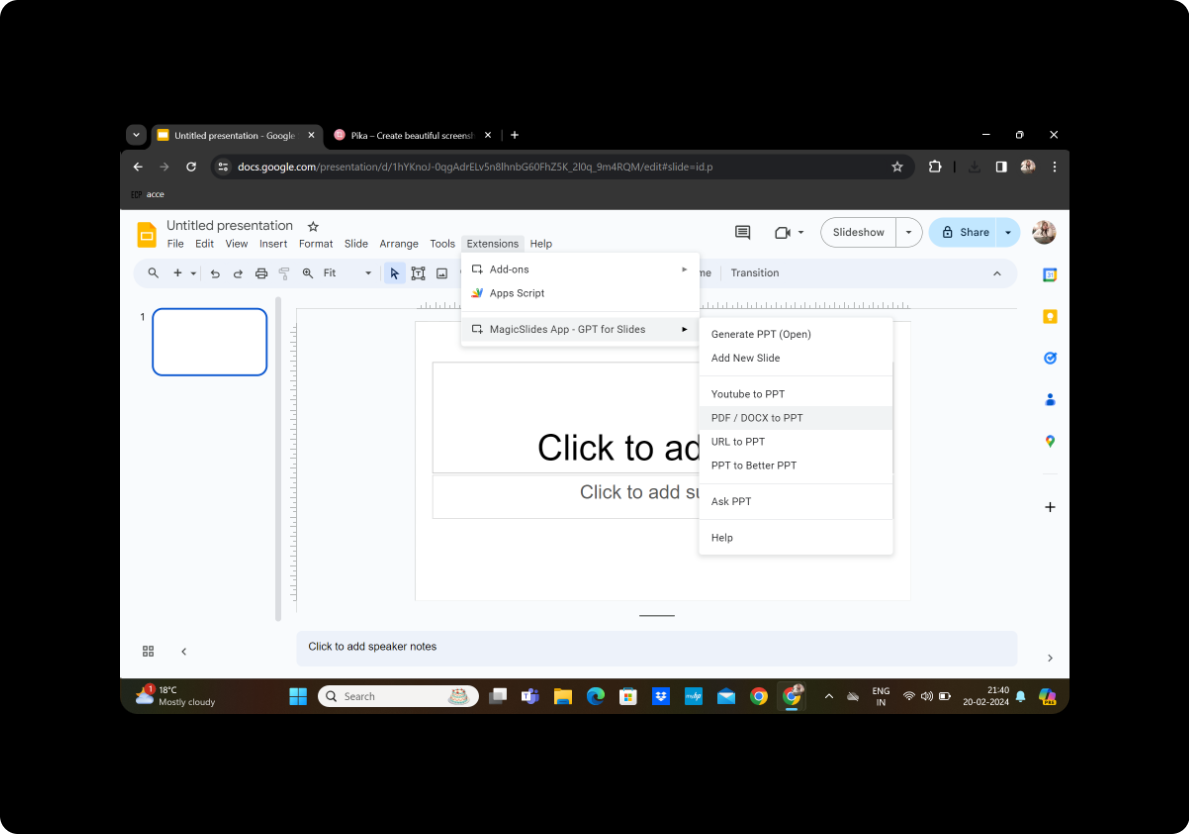
Within MagicSlides GPT, locate the option labeled 'PDF/DOCX to PPT' and click on it. This feature allows you to convert text-based documents, such as ancestral letters saved as PDFs, into PowerPoint presentations.
Step 4: Upload the PDF and Click on Fetch Transcript
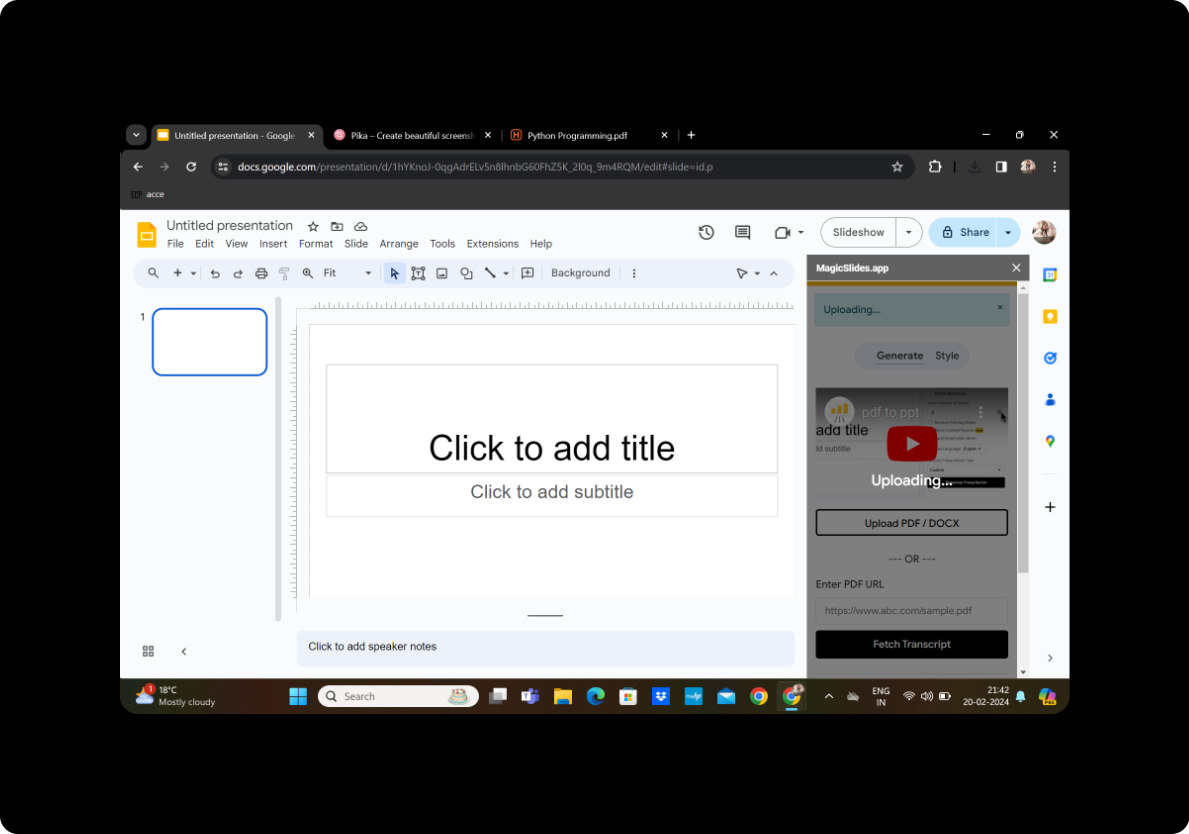
Upload the PDF file containing the ancestral letters you wish to transform. Once uploaded, click on 'Fetch Transcript' to extract the text from the document.
Step 5: Select the Number of Slides
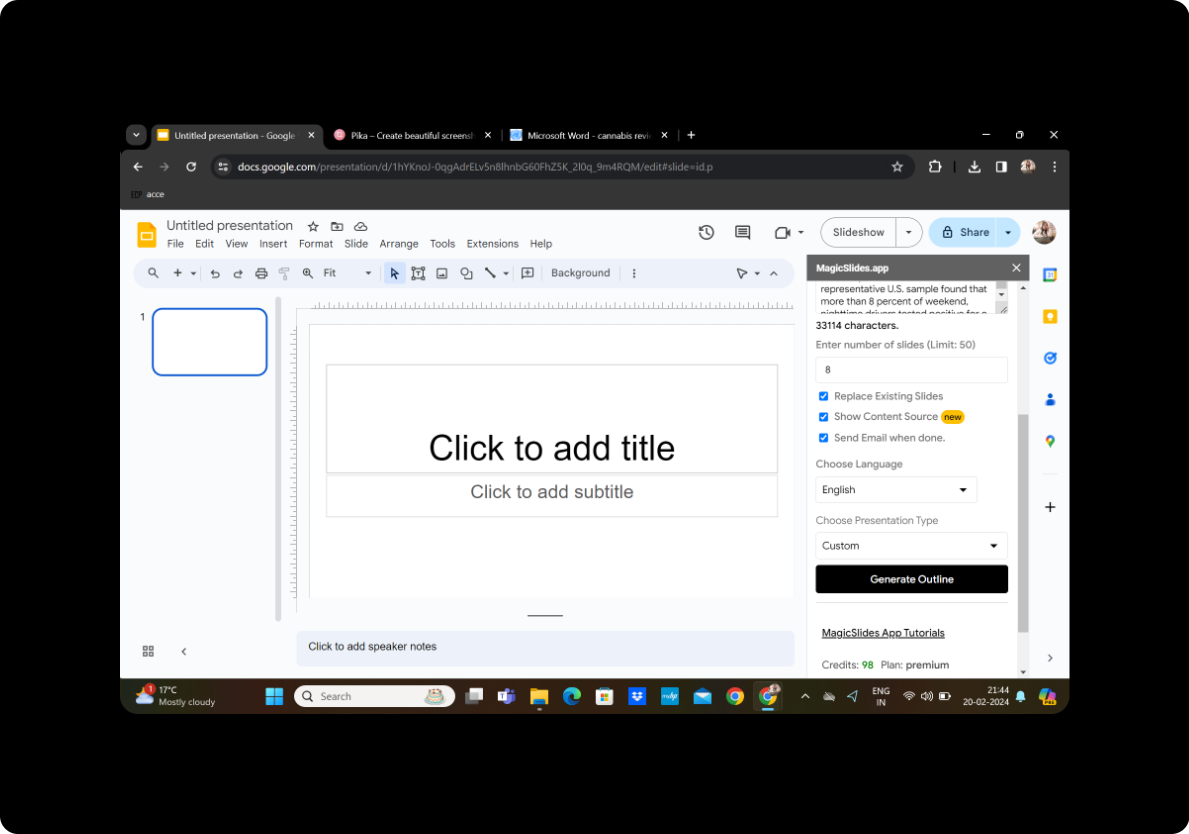
After fetching the transcript, MagicSlides GPT will present you with options to select the number of slides you'd like to generate. Choose the appropriate number based on the length and content of the ancestral letters.
Step 6: Click on Generate Outline
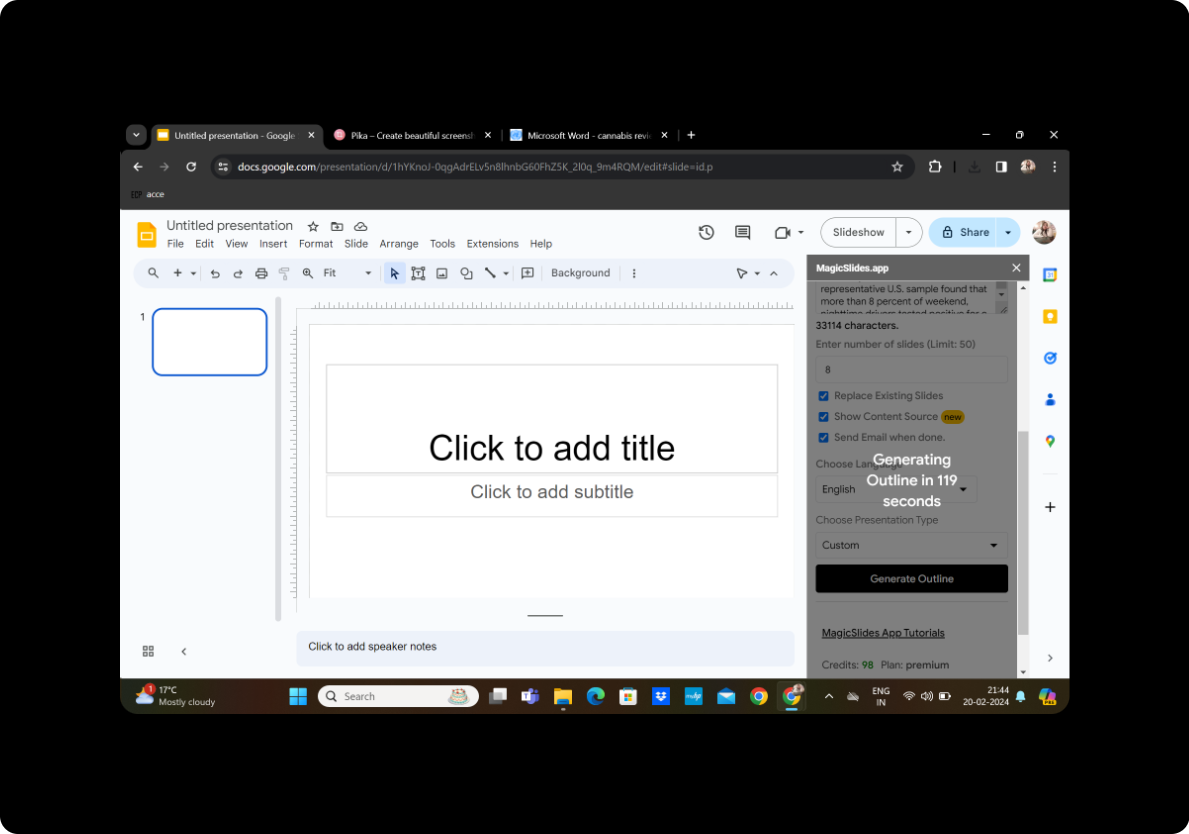
Review the generated outline to ensure accuracy and relevance. MagicSlides GPT leverages advanced natural language processing to create a structured framework for your PowerPoint narrative.
Step 7: Generate Presentation
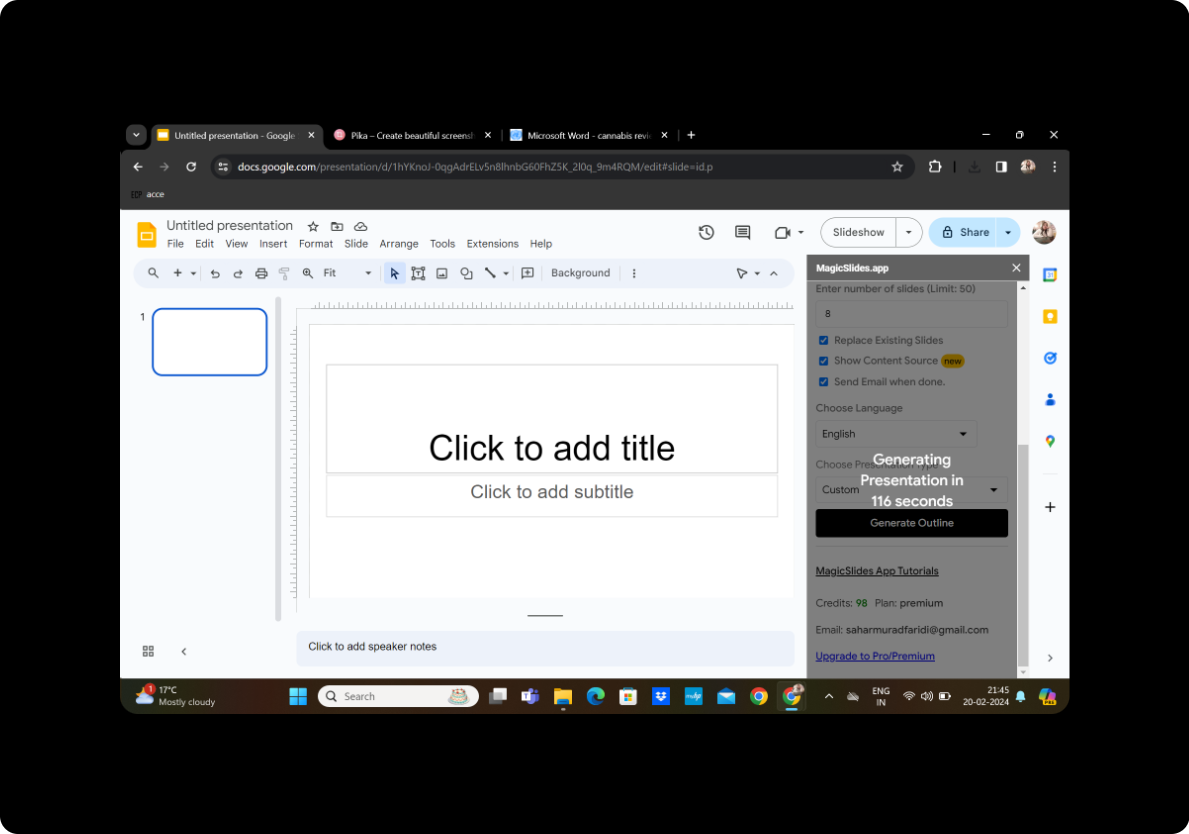
Once satisfied with the given outline, click on 'Generate Presentation' to transform the extracted text into a visually appealing PowerPoint format.
Step 8: Your Presentation is Ready
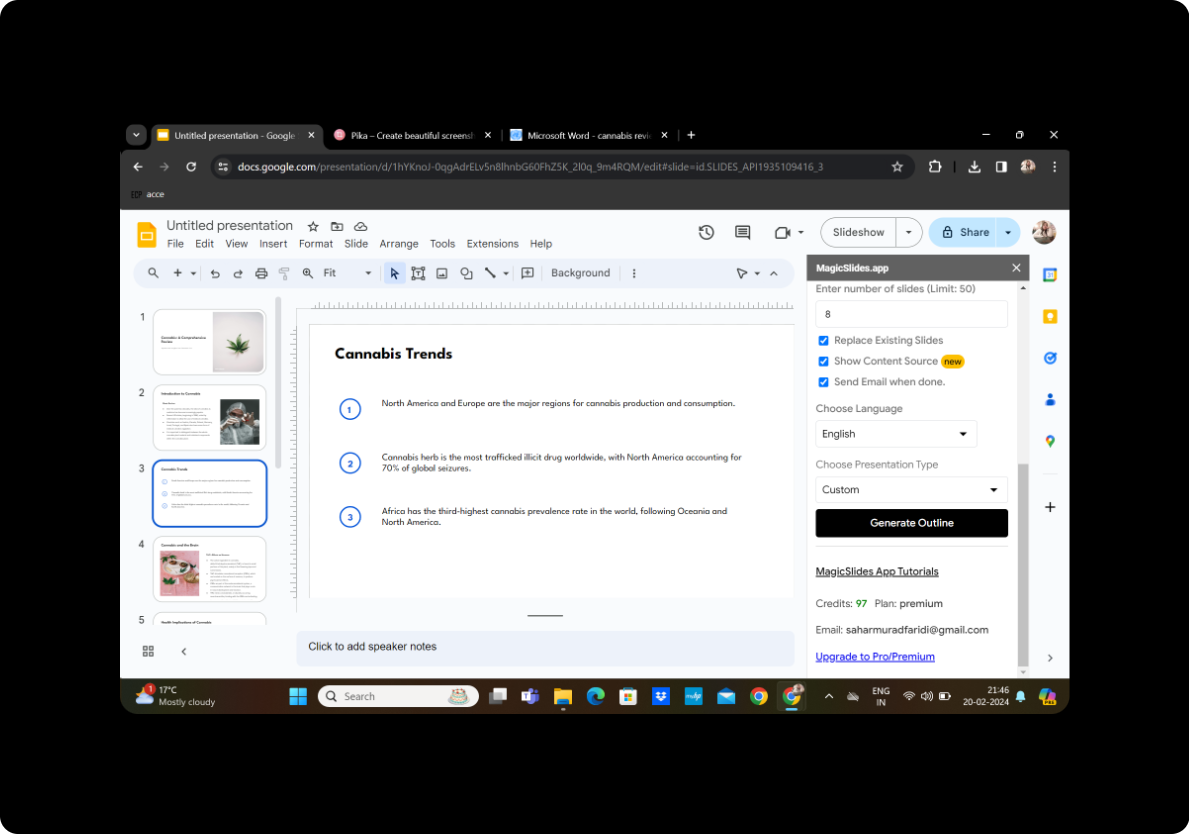
Congratulations! Your PowerPoint presentation, enriched with the narratives of your ancestors, is now ready to be shared and cherished by family members and future generations.
Conclusion
Reviving family archives through the transformation of ancestral letters into PowerPoint narratives allows us to honor our heritage and preserve the stories of those who came before us. With the help of tools like MagicSlides GPT, we can breathe new life into these historical documents and ensure that their legacy endures for years to come.
Frequently Asked Questions
How can I ensure the accuracy of the generated outline? MagicSlides GPT utilizes advanced algorithms to analyze text and create structured outlines. However, it's always a good idea to review the outline and make any necessary adjustments manually.
Can I add images or other visual elements to enhance my presentation? Absolutely! Google Slides offers a variety of features for adding images, graphics, and other visual elements to your presentation. Feel free to personalize your narrative with relevant visuals.
Are there any limitations to the number of slides that can be generated? While MagicSlides GPT can generate a large number of slides, it's important to consider the overall length and coherence of your presentation. Experiment with different settings to find the optimal balance.
Can I collaborate with family members on the presentation? Yes, Google Slides allows for real-time collaboration, making it easy to work together with family members to create and refine your ancestral narrative.
Is MagicSlides GPT free to use? MagicSlides GPT offers both free and premium versions. The free version provides basic functionality, while the premium version offers additional features and customization options.


