How to see answers on Google forms 2024


Unlock the power of your Google Forms by seamlessly navigating and interpreting responses with our guide.
Google Forms is a powerful tool for collecting information and feedback, but understanding how to view the responses is crucial for extracting meaningful insights. In this step-by-step guide, we'll explore the process of accessing and viewing answers on Google Forms in 2024. Whether you're conducting surveys, quizzes, or feedback forms, being able to analyze responses efficiently is essential for making informed decisions.
How to see answers on Google forms 2024
Step 1: Open Google Forms
Start by navigating to Google Forms (forms.google.com) and sign in to your Google account if you're not already logged in.
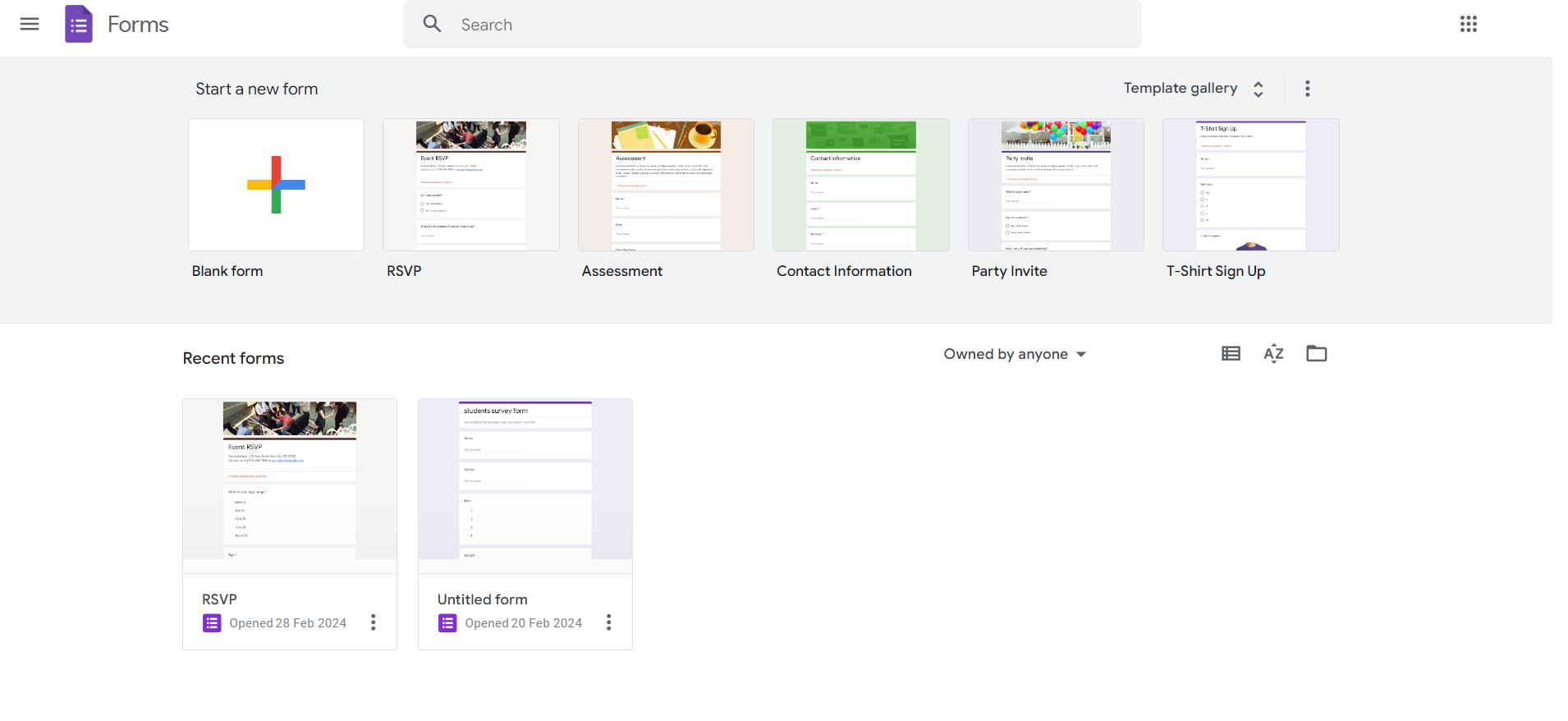
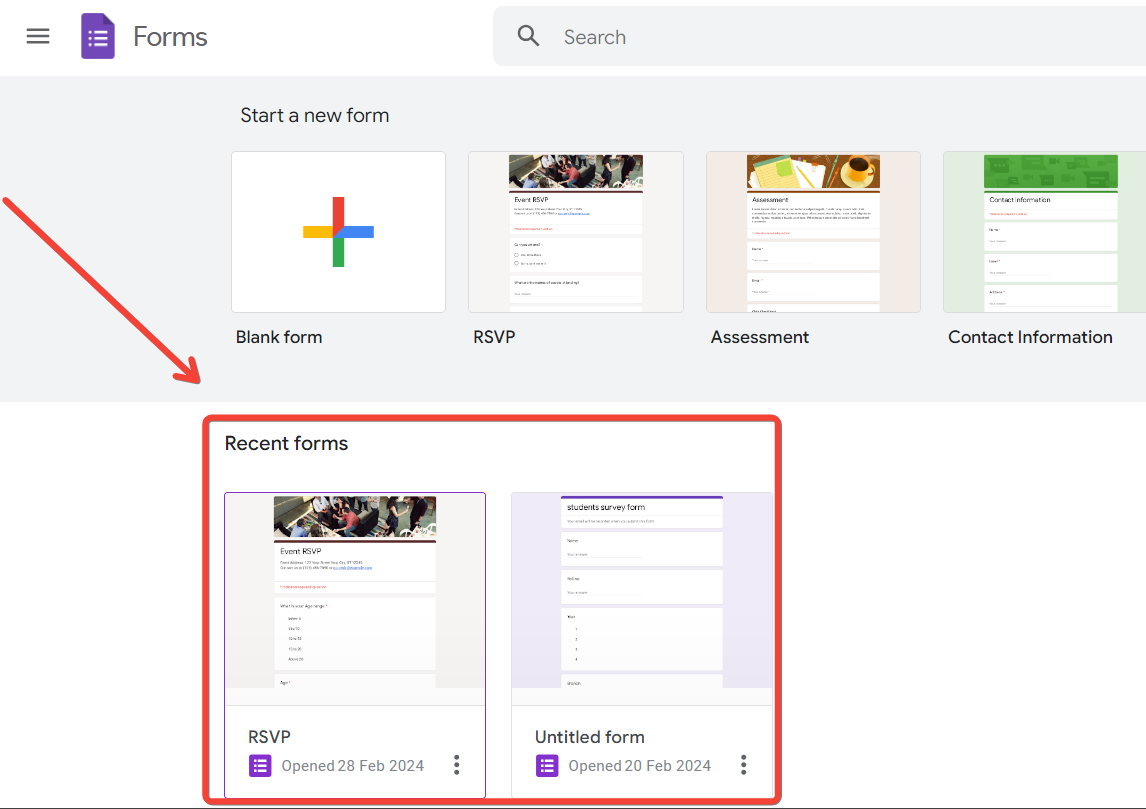
Step 2: Select Your Form
Choose the specific form for which you want to view the responses from your list of forms. If you haven't created one, you can easily set up a new form.
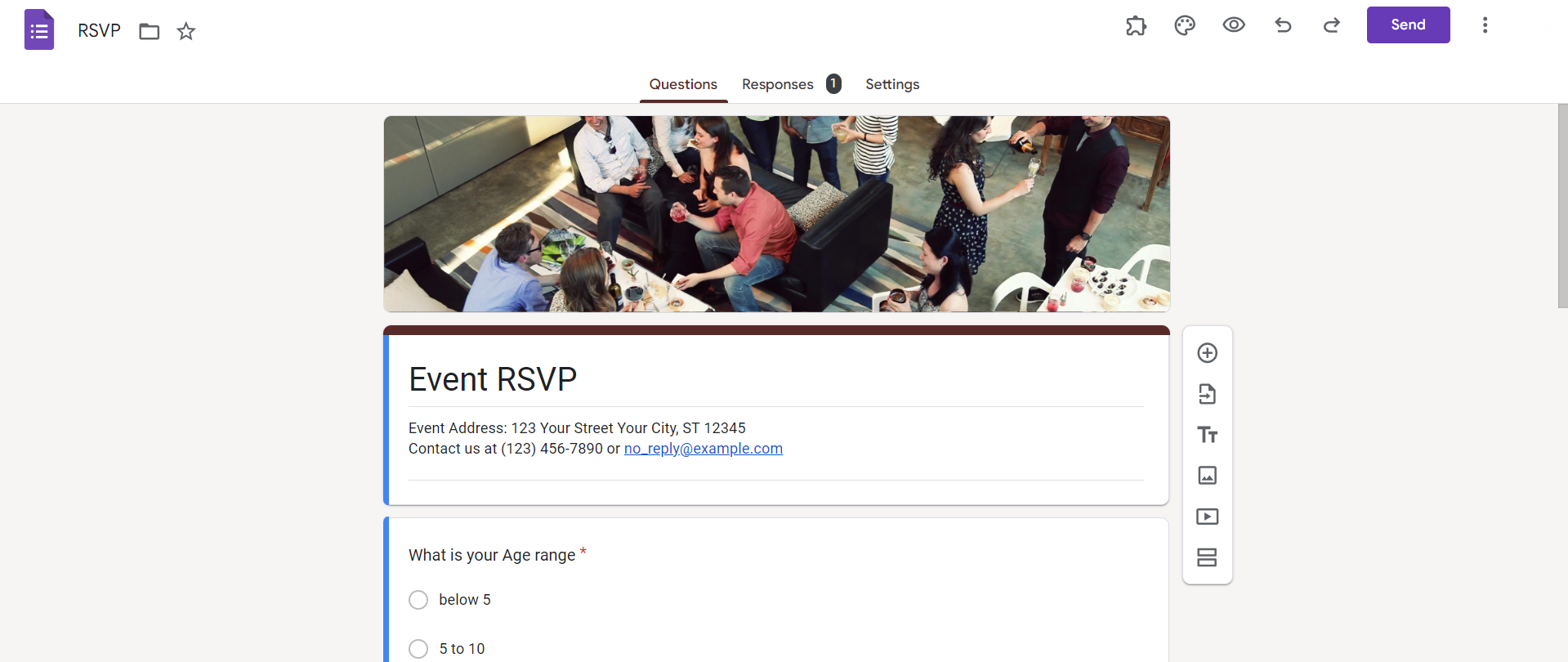
Step 3: Click on the "Responses" Tab
Once you're in the form editor, locate and click on the "Responses" tab at the top of the page. This tab is where you'll find all the response-related options.
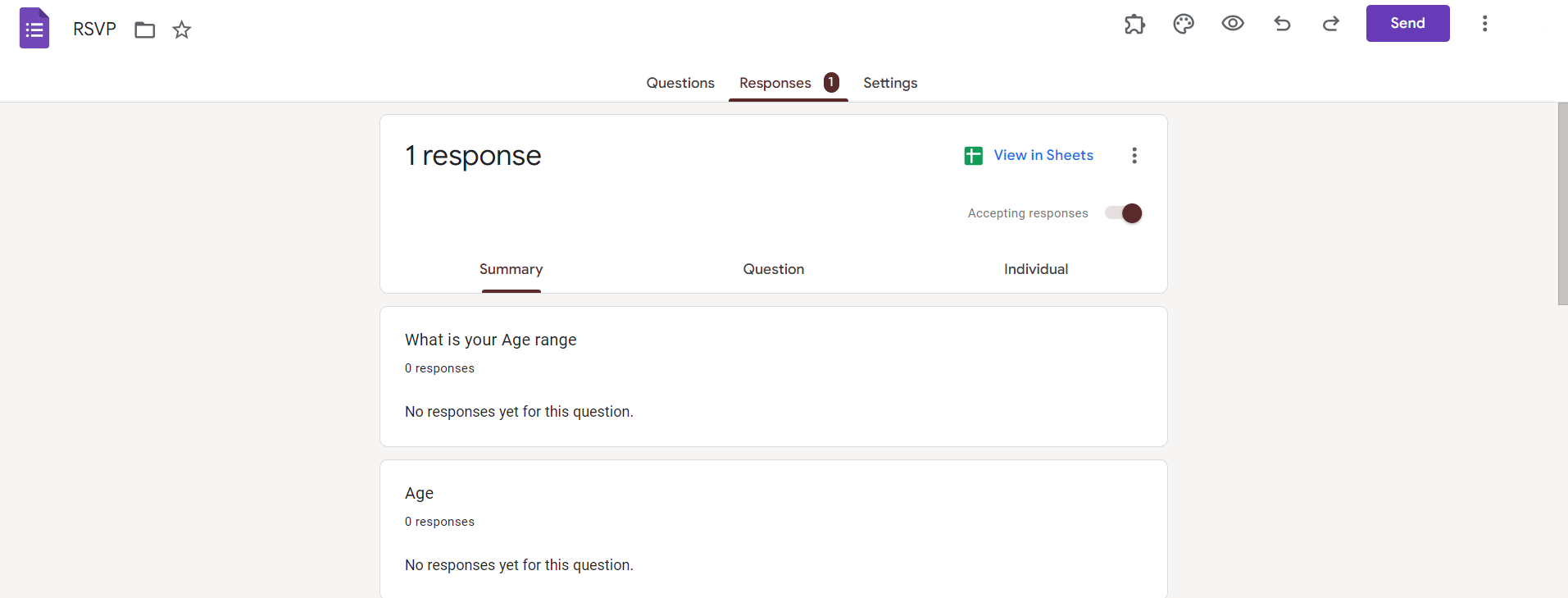
Step 4: Choose "Summary" or "Individual" Responses
In the "Responses" tab, you have the option to view a summary of responses or individual responses. Select either "Summary" for an overview or "Individual" to see each response separately.
Step 5: Explore Summary Charts and Insights
If you chose the "Summary" option, Google Forms will generate charts and insights based on the responses. Explore these visual representations to quickly grasp the overall trends in your data.
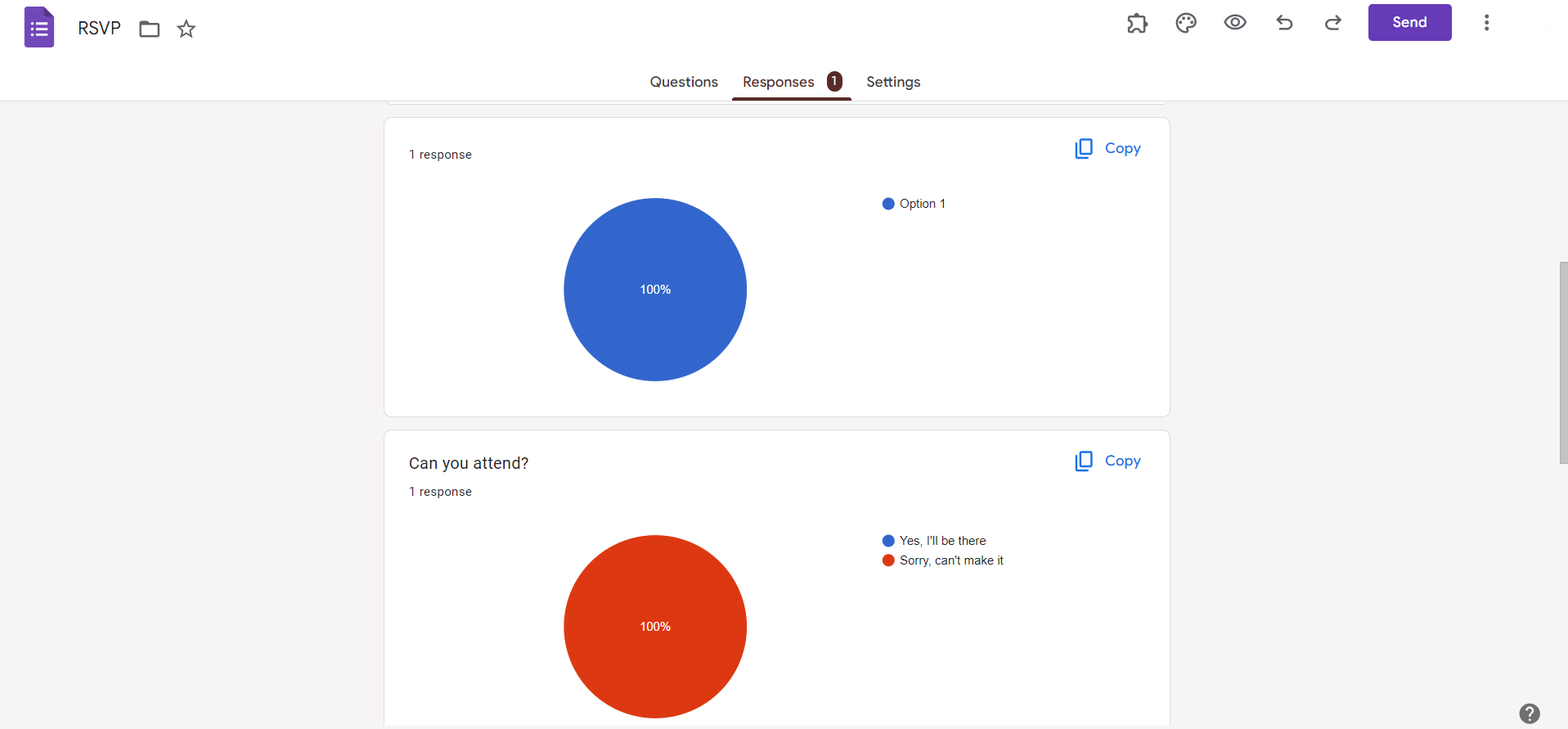
Step 6: Review Individual Responses
If you selected "Individual," you'll see a list of each respondent's answers. Scroll through to review individual responses, making it easy to analyze specific feedback or quiz results.
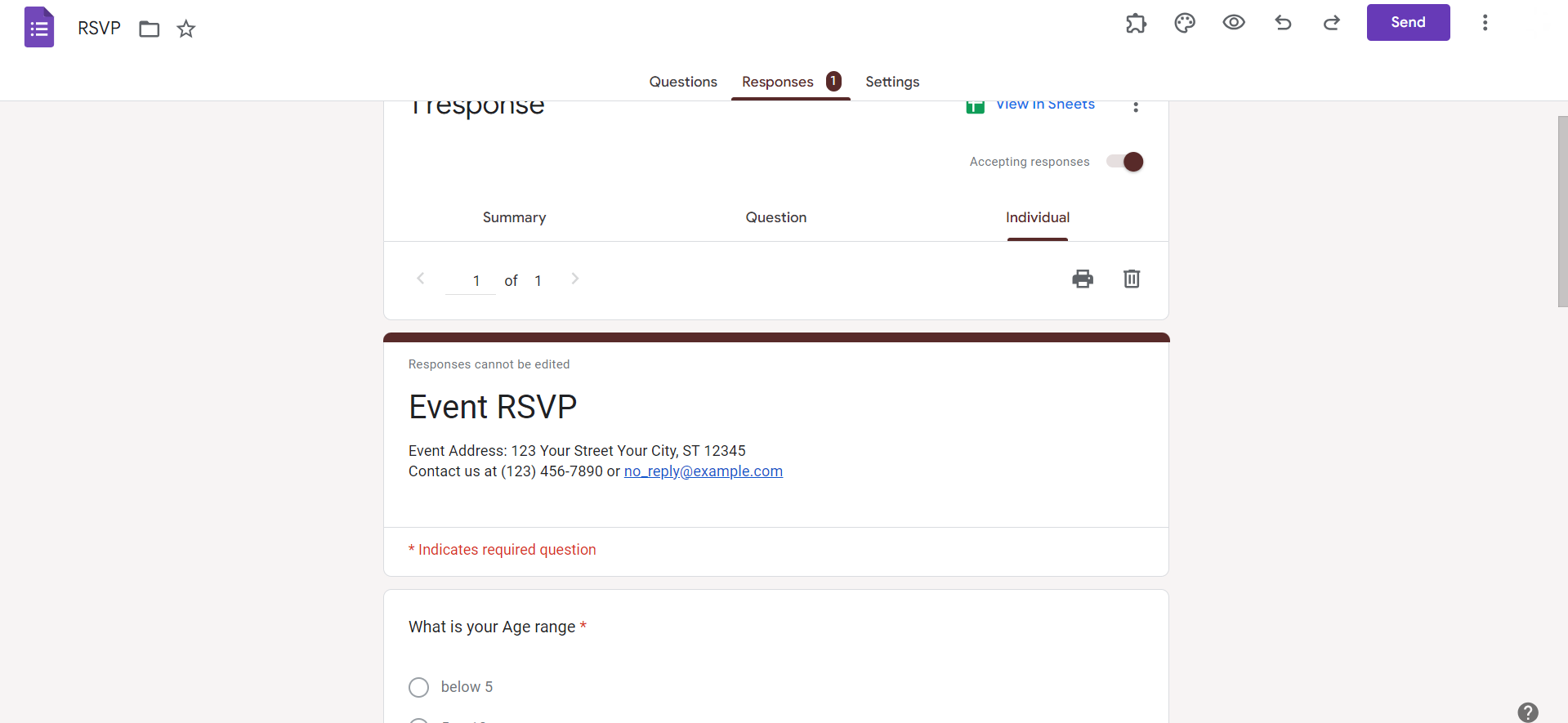
Step 7: Customize Views and Filters
Use the "More" button (three dots) to access additional options. Here, you can customize views, apply filters, and even download responses in various formats for further analysis.
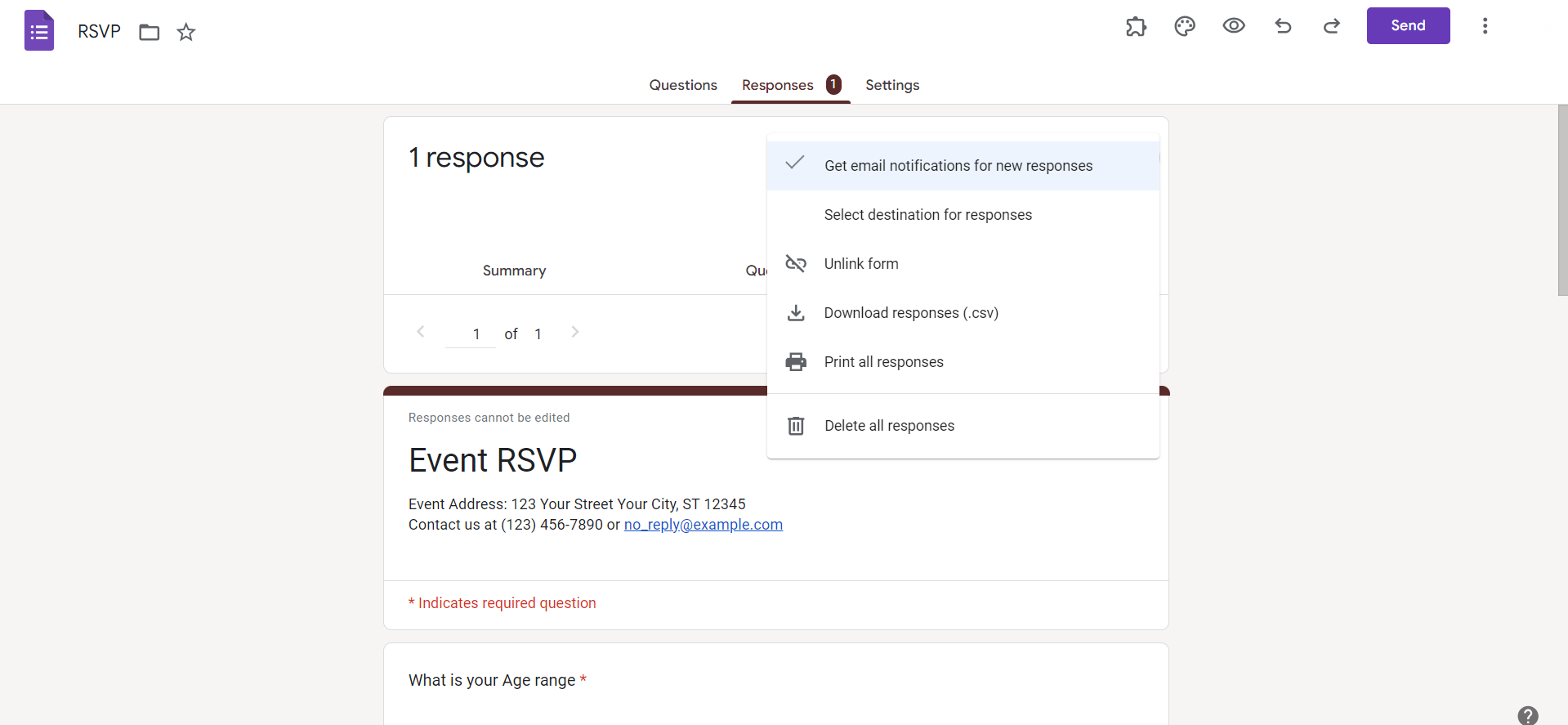
Conclusion:
Effectively accessing and interpreting responses on Google Forms is integral to the success of your data-driven projects. By following these steps, you can effortlessly navigate through the responses of your forms, gaining valuable insights and making informed decisions based on the collected data. Whether you're a teacher evaluating quizzes or a business professional analyzing customer feedback, mastering the art of viewing Google Forms responses empowers you to leverage the full potential of this versatile tool.
Frequently Asked Questions:
Can I view responses in real-time on Google Forms?
Yes, Google Forms provides real-time response tracking, allowing immediate access to collected data.
Is it possible to edit responses after they have been submitted?
By default, respondents can't edit their responses, but form creators can enable this feature.
Can I collaborate with others to analyze Google Forms responses?
Yes, you can share access to the responses tab, allowing collaboration and joint analysis.
What happens if a respondent submits an incomplete or partially filled form?
Google Forms captures and records all submitted responses, whether they are complete or partial.


